> ## Documentation Index
> Fetch the complete documentation index at: https://help.fieldpulse.com/llms.txt
> Use this file to discover all available pages before exploring further.
# Setting Up the XAPPAI Integration
> Connect XAPPAI so its chat and form widgets create customer leads and pending jobs in FieldPulse automatically, using a FieldPulse API key.
> **Who uses this:** Admins can enable it. **Availability:** Requires a XAPPAI account and a FieldPulse API key issued by the FieldPulse Support team.
The [XAPPAI integration](https://xapp.ai/fieldpulse-platform/) connects your XAPPAI chat and form widgets to FieldPulse so the leads they capture become [Customer records](https://www.fieldpulse.com/features/customer-management) — and pending Jobs — automatically. Setup is one-way: XAPPAI sends leads into FieldPulse using a [FieldPulse API](/integrations/developer-api/fieldpulse-api-overview) key you paste into XAPPAI.
## Overview
XAPPAI's chat and form widgets send captured [leads into FieldPulse](https://www.fieldpulse.com/resources/blog/integration-announcement-xappai). What gets created depends on the channel and how much the lead provides:
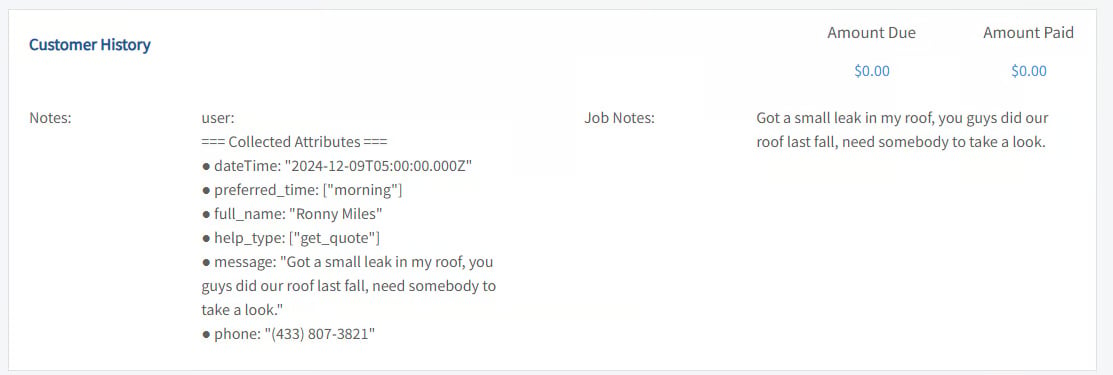
* **Customer lead only.** If the lead provides just contact information and a message — more typical from chat — FieldPulse creates a customer lead, which you will find in the **Customers** section. Extra details appear under **Customer History**.
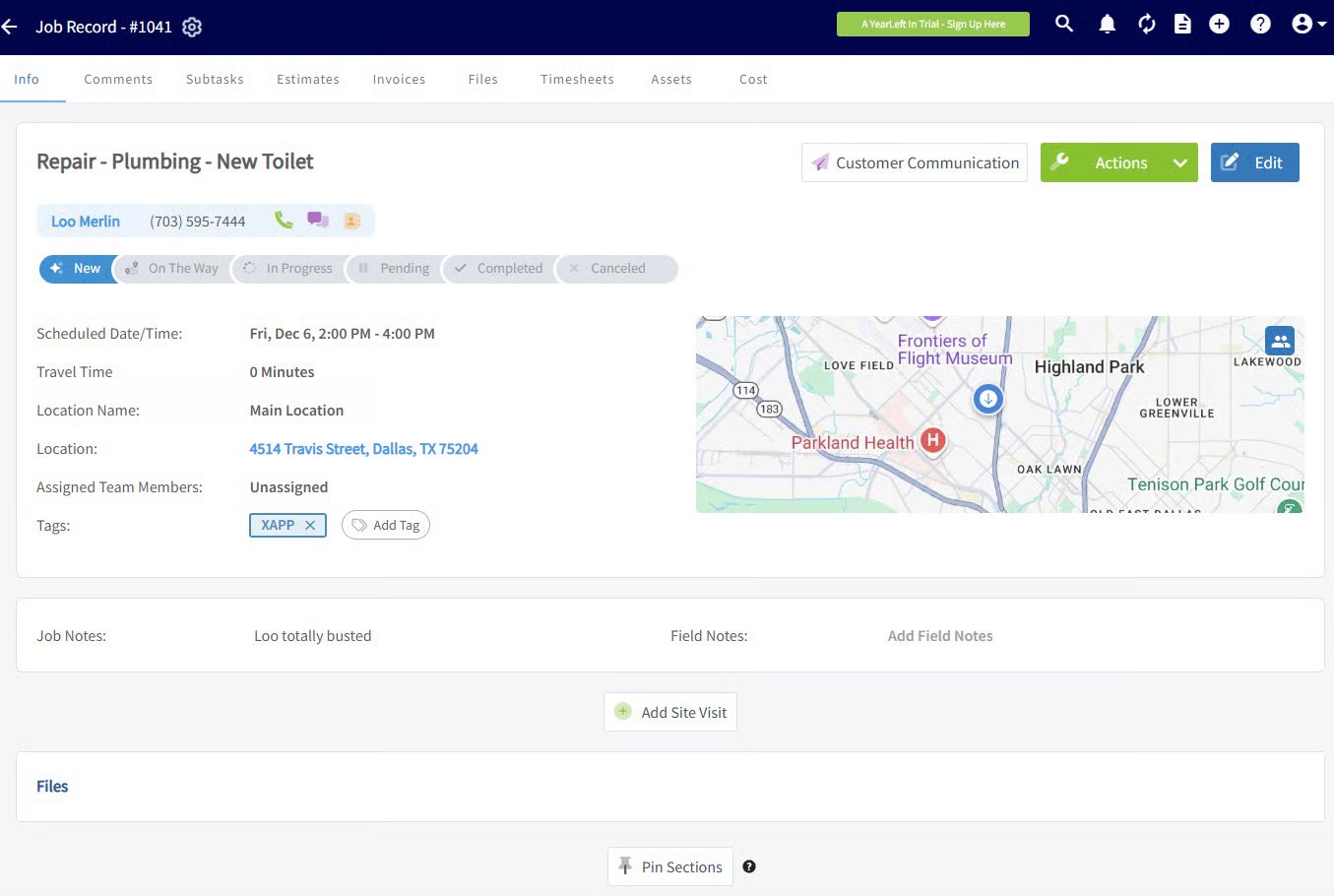
 * **Customer lead and a pending Job.** If the lead specifies a service or visit, FieldPulse also creates a Job for that customer, with the requested work in the Job title and a preferred time to confirm with the customer.
 ## Before you begin
* You need a **XAPPAI account** with chat or form widgets set up.
* You need a **FieldPulse API key**. Request one from the [FieldPulse Support team](https://www.fieldpulse.com/company/contact-us) through the chat or by phone.
## Connect XAPPAI
1. Request your **FieldPulse API key** from FieldPulse (chat or phone).
2. In XAPPAI, go to **Studio** > **Integrations**.
## Before you begin
* You need a **XAPPAI account** with chat or form widgets set up.
* You need a **FieldPulse API key**. Request one from the [FieldPulse Support team](https://www.fieldpulse.com/company/contact-us) through the chat or by phone.
## Connect XAPPAI
1. Request your **FieldPulse API key** from FieldPulse (chat or phone).
2. In XAPPAI, go to **Studio** > **Integrations**.
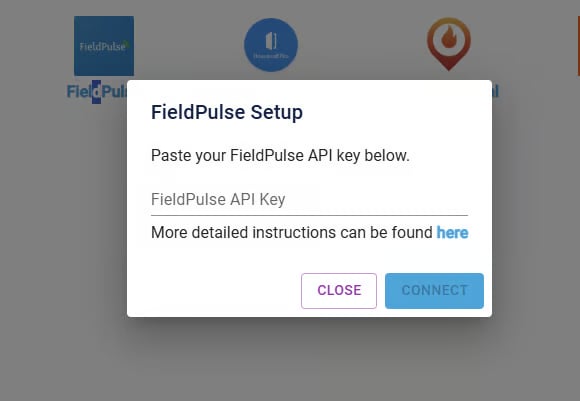
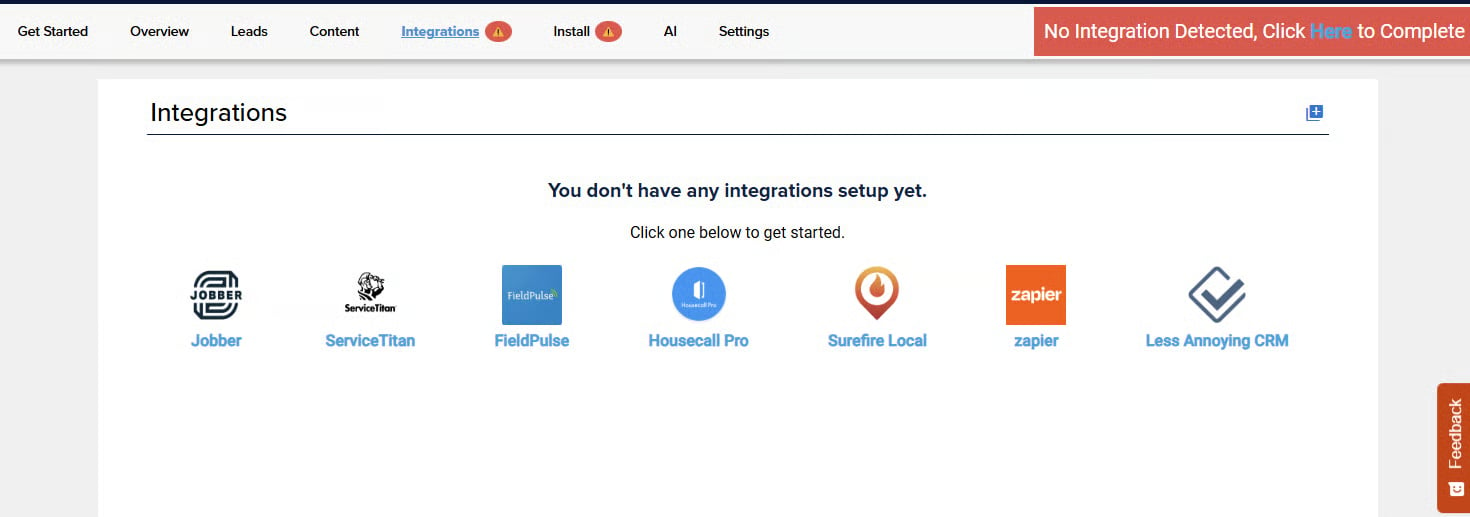 3. Select **FieldPulse**, paste your **API key** into the text field, and select **Connect**.
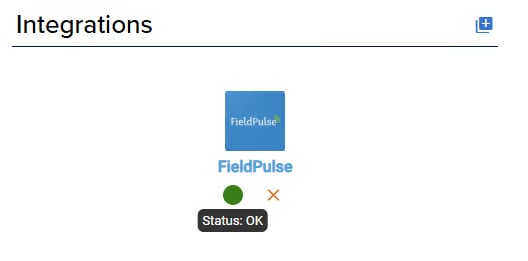
 4. Check the **status light** next to the integration. Green means the API key is working.
 5. Confirm the connection: complete a lead from a XAPPAI form or chat and check that it arrives in FieldPulse.
## Related articles
* [How to Track Lead Sources](/customers/leads-pipeline/sources)
* [How to Merge Duplicate Customers](/customers/managing-customers/merging-duplicates)
Your setup is working when the XAPPAI status light is green and a test lead from a XAPPAI chat or form appears in your FieldPulse Customers section.
## Related topics
- [Marketing & Lead Gen](/integrations/marketing/index.md)
- [Setting Up the CHIIRP Integration](/integrations/marketing/chiirp.md)
- [Setting Up the Signpost Integration](/integrations/marketing/signpost.md)
- [Setting Up The Seal Integration](/integrations/partner-apps/the-seal.md)
5. Confirm the connection: complete a lead from a XAPPAI form or chat and check that it arrives in FieldPulse.
## Related articles
* [How to Track Lead Sources](/customers/leads-pipeline/sources)
* [How to Merge Duplicate Customers](/customers/managing-customers/merging-duplicates)
Your setup is working when the XAPPAI status light is green and a test lead from a XAPPAI chat or form appears in your FieldPulse Customers section.
## Related topics
- [Marketing & Lead Gen](/integrations/marketing/index.md)
- [Setting Up the CHIIRP Integration](/integrations/marketing/chiirp.md)
- [Setting Up the Signpost Integration](/integrations/marketing/signpost.md)
- [Setting Up The Seal Integration](/integrations/partner-apps/the-seal.md)