> ## Documentation Index
> Fetch the complete documentation index at: https://help.fieldpulse.com/llms.txt
> Use this file to discover all available pages before exploring further.
# Setting Up The Seal Integration
> Connect The Seal to FieldPulse to automatically send customers verified tech background checks, photos, and bios when jobs are scheduled.
> **Who uses this:** Admins can enable it. **Availability:** Requires a The Seal account.
Connecting The Seal integration sends your customers a verified profile of the assigned tech — photo, background-check proof, and bio — before the visit, so crews arrive already trusted.
## Overview
The Seal integration automatically sends your customers notifications when a job is [scheduled](https://www.fieldpulse.com/features/scheduling-and-dispatching), dispatched, or completed. The Seal is a reputation-management partner focused on employee background screening and ID verification; unlike review-based tools that work after service, The Seal builds trust before the tech arrives. Each notification includes key details about the assigned employee, such as their photo, proof of background check, and bio.
 ## Before you begin
* You need a **The Seal** account. You can [sign up on The Seal's site](https://theseal.com/) if you don't have one.
* During login you are directed to a **Microsoft Entra** login page — this is intended. The Seal creates a Microsoft tenant account for you so the FieldPulse–Seal connection links correctly.
## Connect The Seal
1. Go to **Company Settings**.
2. Select **Features & Plugins**.
3. Find **The Seal Reputation Management** and enable it.
## Before you begin
* You need a **The Seal** account. You can [sign up on The Seal's site](https://theseal.com/) if you don't have one.
* During login you are directed to a **Microsoft Entra** login page — this is intended. The Seal creates a Microsoft tenant account for you so the FieldPulse–Seal connection links correctly.
## Connect The Seal
1. Go to **Company Settings**.
2. Select **Features & Plugins**.
3. Find **The Seal Reputation Management** and enable it.
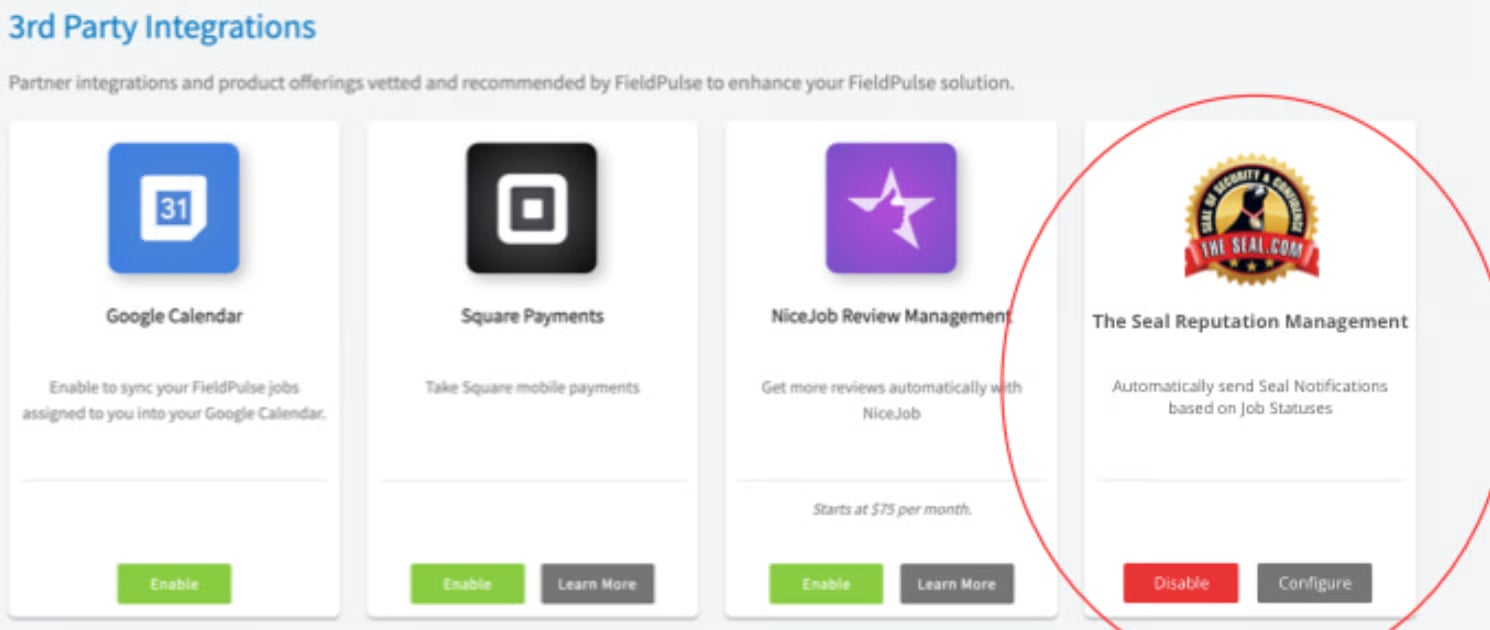 4. Log in to your **The Seal** account. You are directed to a **Microsoft Entra** login page — continue there; this is expected.
5. **Map users.** FieldPulse automatically matches users to The Seal by email address. The Seal team can map any unmatched users manually.
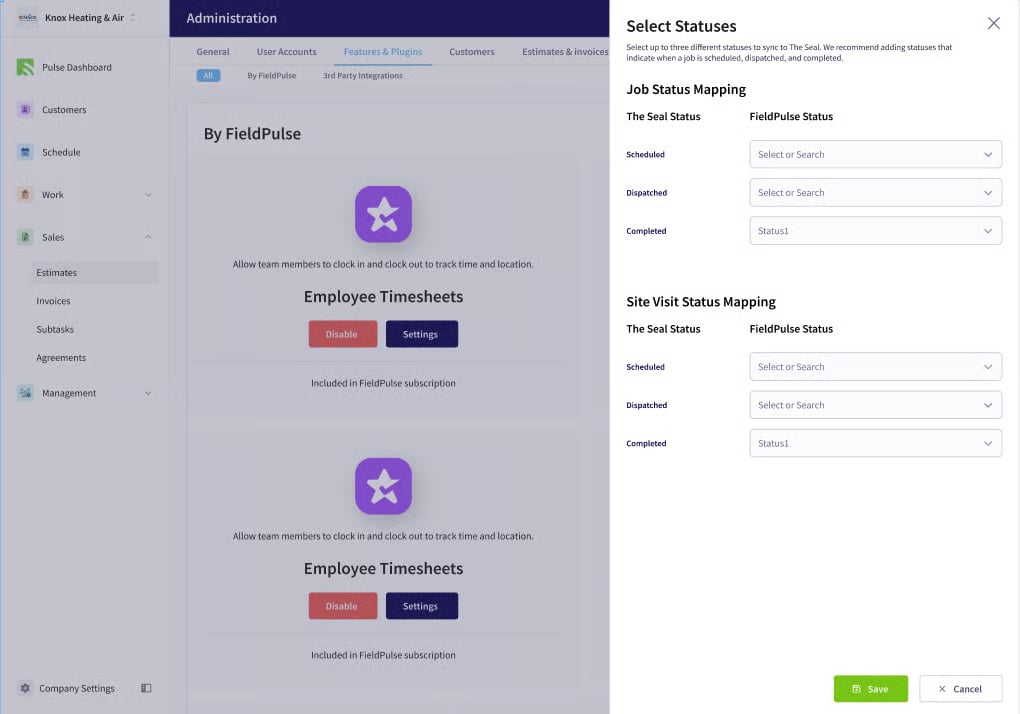
6. **Configure statuses.** Map your [FieldPulse statuses](https://www.fieldpulse.com/features/clearpath) — **Scheduled**, **Dispatched**, and **Completed** — to The Seal's statuses.
4. Log in to your **The Seal** account. You are directed to a **Microsoft Entra** login page — continue there; this is expected.
5. **Map users.** FieldPulse automatically matches users to The Seal by email address. The Seal team can map any unmatched users manually.
6. **Configure statuses.** Map your [FieldPulse statuses](https://www.fieldpulse.com/features/clearpath) — **Scheduled**, **Dispatched**, and **Completed** — to The Seal's statuses.
 For extra setup help, contact The Seal at [info@theseal.com](mailto:info@theseal.com).
## Related articles
* [Availability & Scheduling Overview](/scheduling-dispatch/availability/overview)
Your setup is working when a job moves to Scheduled, Dispatched, or Completed and the customer receives a notification with the assigned tech's photo, background-check proof, and bio.
## Related topics
- [Partner Apps](/integrations/partner-apps/index.md)
- [Setting Up the CHIIRP Integration](/integrations/marketing/chiirp.md)
- [Setting Up the Signpost Integration](/integrations/marketing/signpost.md)
- [Setting Up the Angi Integration](/integrations/marketing/angi.md)
For extra setup help, contact The Seal at [info@theseal.com](mailto:info@theseal.com).
## Related articles
* [Availability & Scheduling Overview](/scheduling-dispatch/availability/overview)
Your setup is working when a job moves to Scheduled, Dispatched, or Completed and the customer receives a notification with the assigned tech's photo, background-check proof, and bio.
## Related topics
- [Partner Apps](/integrations/partner-apps/index.md)
- [Setting Up the CHIIRP Integration](/integrations/marketing/chiirp.md)
- [Setting Up the Signpost Integration](/integrations/marketing/signpost.md)
- [Setting Up the Angi Integration](/integrations/marketing/angi.md)