> ## Documentation Index
> Fetch the complete documentation index at: https://help.fieldpulse.com/llms.txt
> Use this file to discover all available pages before exploring further.
# Setting Up the City Electric Supply Integration
> Connect your City Electric Supply account to FieldPulse to pull live CES pricing into estimates, invoices, and purchase orders in real time.
> **Who uses this:** An Admin requests the integration; anyone who builds estimates, invoices, or purchase orders uses it once it's live. **Availability:** Requires an active City Electric Supply account; enabled by the FieldPulse Support team.
The [City Electric Supply integration](https://www.fieldpulse.com/company/partners/city-electric-supply) pulls your live CES pricing into FieldPulse so material costs on your [estimates](/estimates-invoices/creating/estimate), [invoices](/estimates-invoices/creating/invoice), and [purchase orders](/inventory-materials/purchase-orders/managing) stay accurate in real time. To turn it on, you send your CES account details to the FieldPulse Support team, who links the integration to your account with CES.
## Overview
The City Electric Supply integration connects your CES account to FieldPulse and displays your personalized CES pricing directly inside the app. Once it's live, three things flow between CES and FieldPulse:
* **Catalog** — Search CES line items from inside an estimate, [invoice](https://www.fieldpulse.com/solutions/electrical-invoice-software), or purchase order and add them to the record.
* **Pricing** — Each CES line item carries your account's current pricing, updated in real time, so you quote and order at the right cost.
* **Ordering** — Purchase orders you submit to CES from FieldPulse show up in your City Electric Supply account.
 Embed video - [https://www.loom.com/share/5baafcc7c3cd4dd9a466584289dfe2c4](https://www.loom.com/share/5baafcc7c3cd4dd9a466584289dfe2c4)
## Before you begin
* You need an active City Electric Supply account.
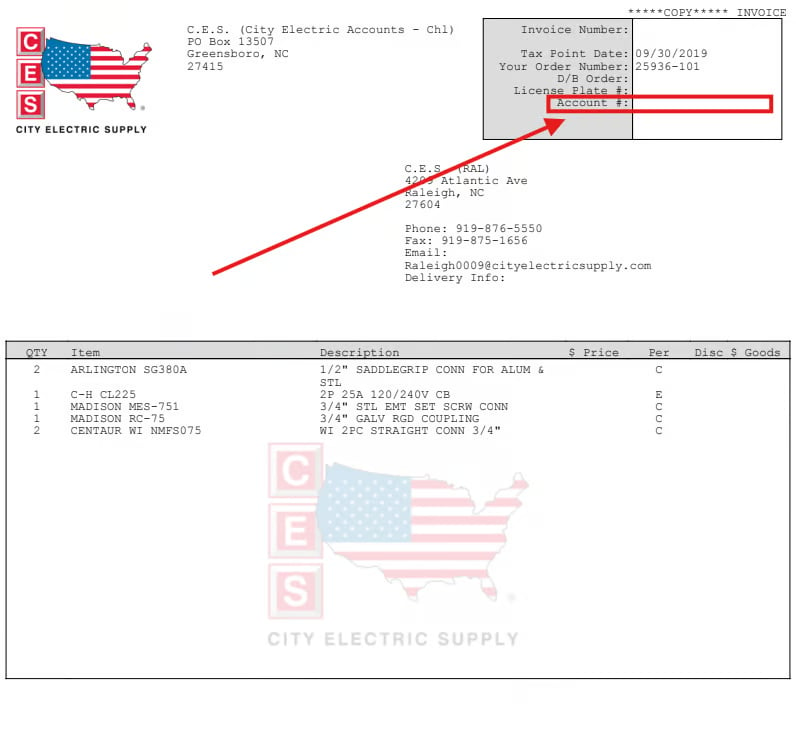
* Have your **CES Customer ID / Account Number** ready — the 11-digit number in the top right corner of your CES invoice.
* Have the **email address** tied to your CES account and your **company name as registered with CES**.
Embed video - [https://www.loom.com/share/5baafcc7c3cd4dd9a466584289dfe2c4](https://www.loom.com/share/5baafcc7c3cd4dd9a466584289dfe2c4)
## Before you begin
* You need an active City Electric Supply account.
* Have your **CES Customer ID / Account Number** ready — the 11-digit number in the top right corner of your CES invoice.
* Have the **email address** tied to your CES account and your **company name as registered with CES**.
 * Setup runs through FieldPulse Support and CES, so it isn't instant — plan for a few days while the accounts are linked.
## Connect City Electric Supply
1. [Contact the FieldPulse Support team](https://www.fieldpulse.com/company/contact-us) at [support@fieldpulse.com](mailto:support@fieldpulse.com) or through the in-app chat, and tell them you want to enable the City Electric Supply integration.
2. Provide your **CES Customer ID / Account Number**, the **email address** on your CES account, and your **company name** as registered with CES.
3. Wait while the FieldPulse team works with its CES partners to link the integration to your account. This can take a few days.
4. Once CES confirms, FieldPulse activates the integration and notifies you that it's live.
There is no toggle to flip on your end — the integration is activated for you once your CES account is verified.
## What syncs
Once the integration is live, CES data is available in the records where you price and order material:
| **Where** | **What you can do** |
| -------------------------------------------------------------------------------------- | ----------------------------------------------------------------------------------------------------------------------------------------------------------------------------------------------------------------------------------------------- |
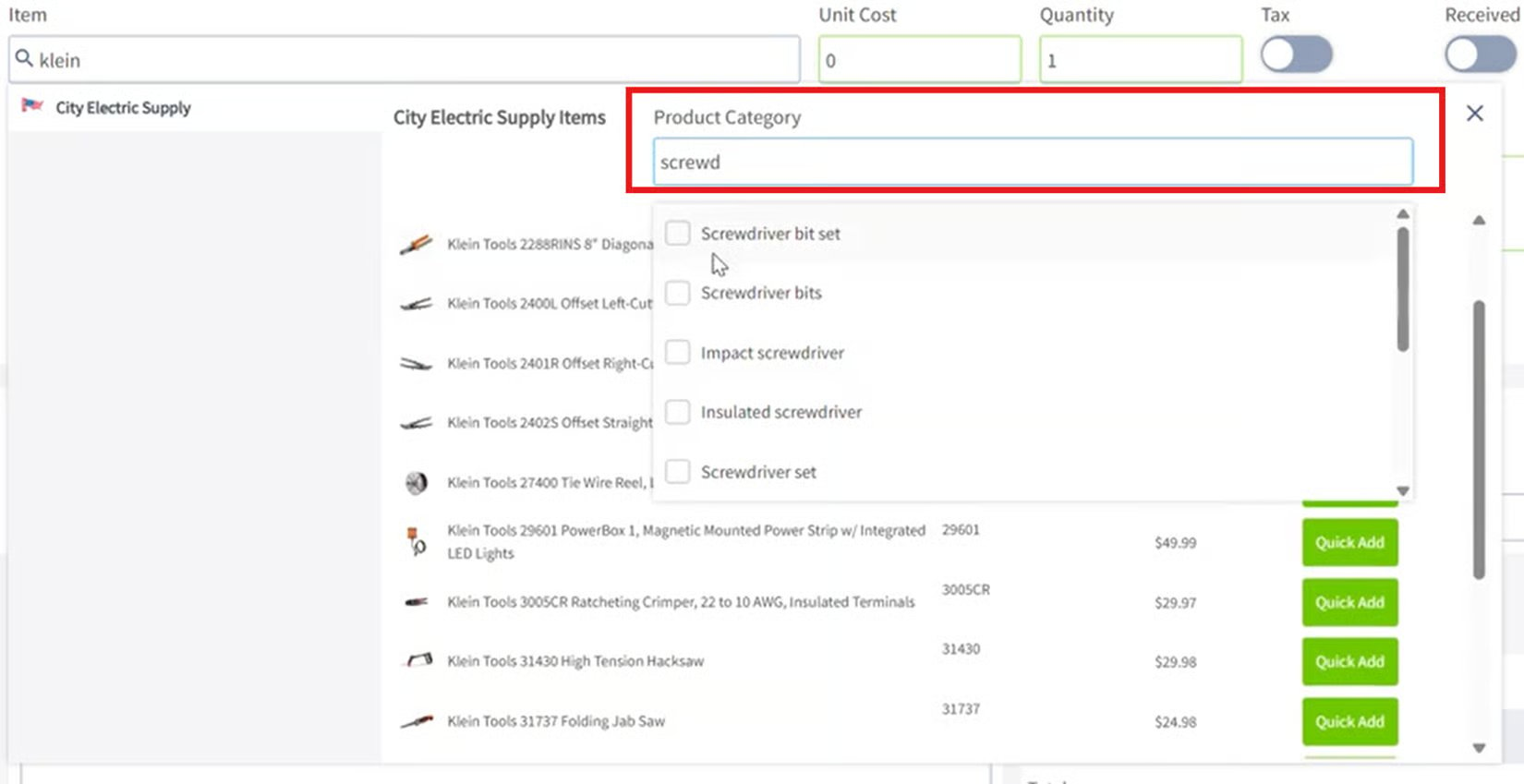
| [**Estimates & invoices**](https://www.fieldpulse.com/features/estimates-and-invoices) | Select **Add Item**, choose **CES** from the left-side menu, and search for a line item. Use **Quick Add** to add it as-is, or open the item to adjust quantity, price, or description first. Narrow results with **Product category** filters. |
| **Purchase orders** | Create a purchase order, select **City Electric Supply** as the supplier, add a supplier order number, then search and add CES parts. Submit the order and it appears in your CES account. |
| **Auto-generated orders** | From an estimate or invoice, open the **Order** subtab (or **Actions > Related > Purchase Order**) to review a draft PO that FieldPulse organizes by supplier, then save to place it. |
* Setup runs through FieldPulse Support and CES, so it isn't instant — plan for a few days while the accounts are linked.
## Connect City Electric Supply
1. [Contact the FieldPulse Support team](https://www.fieldpulse.com/company/contact-us) at [support@fieldpulse.com](mailto:support@fieldpulse.com) or through the in-app chat, and tell them you want to enable the City Electric Supply integration.
2. Provide your **CES Customer ID / Account Number**, the **email address** on your CES account, and your **company name** as registered with CES.
3. Wait while the FieldPulse team works with its CES partners to link the integration to your account. This can take a few days.
4. Once CES confirms, FieldPulse activates the integration and notifies you that it's live.
There is no toggle to flip on your end — the integration is activated for you once your CES account is verified.
## What syncs
Once the integration is live, CES data is available in the records where you price and order material:
| **Where** | **What you can do** |
| -------------------------------------------------------------------------------------- | ----------------------------------------------------------------------------------------------------------------------------------------------------------------------------------------------------------------------------------------------- |
| [**Estimates & invoices**](https://www.fieldpulse.com/features/estimates-and-invoices) | Select **Add Item**, choose **CES** from the left-side menu, and search for a line item. Use **Quick Add** to add it as-is, or open the item to adjust quantity, price, or description first. Narrow results with **Product category** filters. |
| **Purchase orders** | Create a purchase order, select **City Electric Supply** as the supplier, add a supplier order number, then search and add CES parts. Submit the order and it appears in your CES account. |
| **Auto-generated orders** | From an estimate or invoice, open the **Order** subtab (or **Actions > Related > Purchase Order**) to review a draft PO that FieldPulse organizes by supplier, then save to place it. |
 Two things to keep in mind on CES purchase orders, since supplier orders are fulfilled through your local branch: the pickup address is set to your local CES branch and cannot be changed in FieldPulse — call the branch to arrange delivery instead — and the supplier order number you enter is shared with CES so you can reference it for any order adjustments.
To keep item costs hidden from Service Agents, turn off the **View Unit Costs on Estimates/Invoices** permission for that role.
## Related articles
* [How to Manage Purchase Orders](/inventory-materials/purchase-orders/managing)
* [Setting Up Item List & Inventory](/inventory-materials/item-list/adding-items)
* [How to Create an Estimate](/estimates-invoices/creating/estimate)
* [How to Create an Invoice](/estimates-invoices/creating/invoice)
To disable the integration later, [contact FieldPulse Support](https://www.fieldpulse.com/company/contact-us) — your historic records that include CES line items are kept.
Your setup is working when you open a new estimate, select **Add Item > CES**, and your account's live City Electric Supply pricing appears in the search results.
## Related topics
- [Suppliers & Distributors](/integrations/suppliers/index.md)
- [How to Manage Purchase Orders](/inventory-materials/purchase-orders/managing.md)
- [Setting Up Your Pricebook](/add-ons/sales-suite/pricebook.md)
- [FieldPulse360: Purchase Orders & Supplier Chat](/training-resources/fieldpulse360/fieldpulse360-archives/fieldpulse360-purchase-orders-supplier-chat.md)
Two things to keep in mind on CES purchase orders, since supplier orders are fulfilled through your local branch: the pickup address is set to your local CES branch and cannot be changed in FieldPulse — call the branch to arrange delivery instead — and the supplier order number you enter is shared with CES so you can reference it for any order adjustments.
To keep item costs hidden from Service Agents, turn off the **View Unit Costs on Estimates/Invoices** permission for that role.
## Related articles
* [How to Manage Purchase Orders](/inventory-materials/purchase-orders/managing)
* [Setting Up Item List & Inventory](/inventory-materials/item-list/adding-items)
* [How to Create an Estimate](/estimates-invoices/creating/estimate)
* [How to Create an Invoice](/estimates-invoices/creating/invoice)
To disable the integration later, [contact FieldPulse Support](https://www.fieldpulse.com/company/contact-us) — your historic records that include CES line items are kept.
Your setup is working when you open a new estimate, select **Add Item > CES**, and your account's live City Electric Supply pricing appears in the search results.
## Related topics
- [Suppliers & Distributors](/integrations/suppliers/index.md)
- [How to Manage Purchase Orders](/inventory-materials/purchase-orders/managing.md)
- [Setting Up Your Pricebook](/add-ons/sales-suite/pricebook.md)
- [FieldPulse360: Purchase Orders & Supplier Chat](/training-resources/fieldpulse360/fieldpulse360-archives/fieldpulse360-purchase-orders-supplier-chat.md)