> ## Documentation Index
> Fetch the complete documentation index at: https://help.fieldpulse.com/llms.txt
> Use this file to discover all available pages before exploring further.
# Reece maX (ANZ) Overview
> Connect FieldPulse to Reece maX (ANZ) to add Reece items to estimates and purchase orders, then sync supplier invoices back for accurate job costing.
> **Who uses this:** Admins enable and authenticate the integration; roles with Estimates, Invoices, and Purchase Orders permissions use it day to day. **Availability:** Australia and New Zealand (ANZ) — requires a Reece maX account.
The Reece maX integration connects your FieldPulse account to your Reece maX account so you can add Reece items to [estimates](/estimates-invoices/creating/estimate), [invoices](/estimates-invoices/creating/invoice), and purchase orders, send orders to your Reece branch, and pull Reece supplier invoices back into FieldPulse for [accurate job costing](https://www.fieldpulse.com/features/job-costing). This is the Australia and New Zealand (ANZ) Reece integration; the United States version is a separate product — see [Reece (US) Overview](/integrations/suppliers/reece-us/overview).
## Overview
The Reece maX integration links FieldPulse to Reece maX in two directions. Going out, you add Reece items to your records and send purchase orders to your chosen Reece branch. Coming back, [Reece](https://www.fieldpulse.com/company/partners/reece-plumbing) sends your supplier invoices to FieldPulse every 24 hours and links them to the right job when you reference a FieldPulse job number on the order.
## Video walkthrough
Watch the Reece maX walkthrough videos for a full run-through: [part one](https://www.loom.com/share/68261601843e4f29b0b6ed5ef8d70b99) and [part two](https://www.loom.com/share/9a4b7182bff74d30941ee7f85fd88f77). The written steps below stand on their own.
## How it works
The workflow breakdown the Reece maX integration solves is the disconnect between what you buy at Reece and what your job costing shows. Parts get picked up at the branch or ordered through maX, and unless someone matches every supplier invoice back to the right job by hand, job costs drift. The Reece maX integration keeps catalog, pricing, ordering, and supplier invoices connected:
* **Catalog and pricing** — Add Reece items two ways: the **Reece Item Search (API)** for searching by name or SKU inside FieldPulse, and the **Reece maX Catalogue (PunchOut)** for browsing the full Reece maX site and sending a cart back to FieldPulse. See [How to Pull a Reece Branch Quote into FieldPulse](/integrations/suppliers/reece-max/branch-quotes) for pulling pre-built Reece quotes, and [CMP Pricing Details](/integrations/suppliers/reece-max/cmp-pricing) for applying Reece's Competitive Market Price automatically.
* **Purchase orders** — Create a Reece purchase order in FieldPulse and send it to your branch, or convert a FieldPulse quote or estimate into a Reece purchase order. See [How to Create a Reece Purchase Order](/integrations/suppliers/reece-max/purchase-orders).
* **Supplier invoices and credit notes** — Reece sends supplier invoices to FieldPulse every 24 hours and links them to a job when you reference the FieldPulse job number. Returns come back as credit notes that adjust job and project costs. See [How to Track Reece Credit Notes by Job](/integrations/suppliers/reece-max/credit-notes).
### Two ways to add Reece items
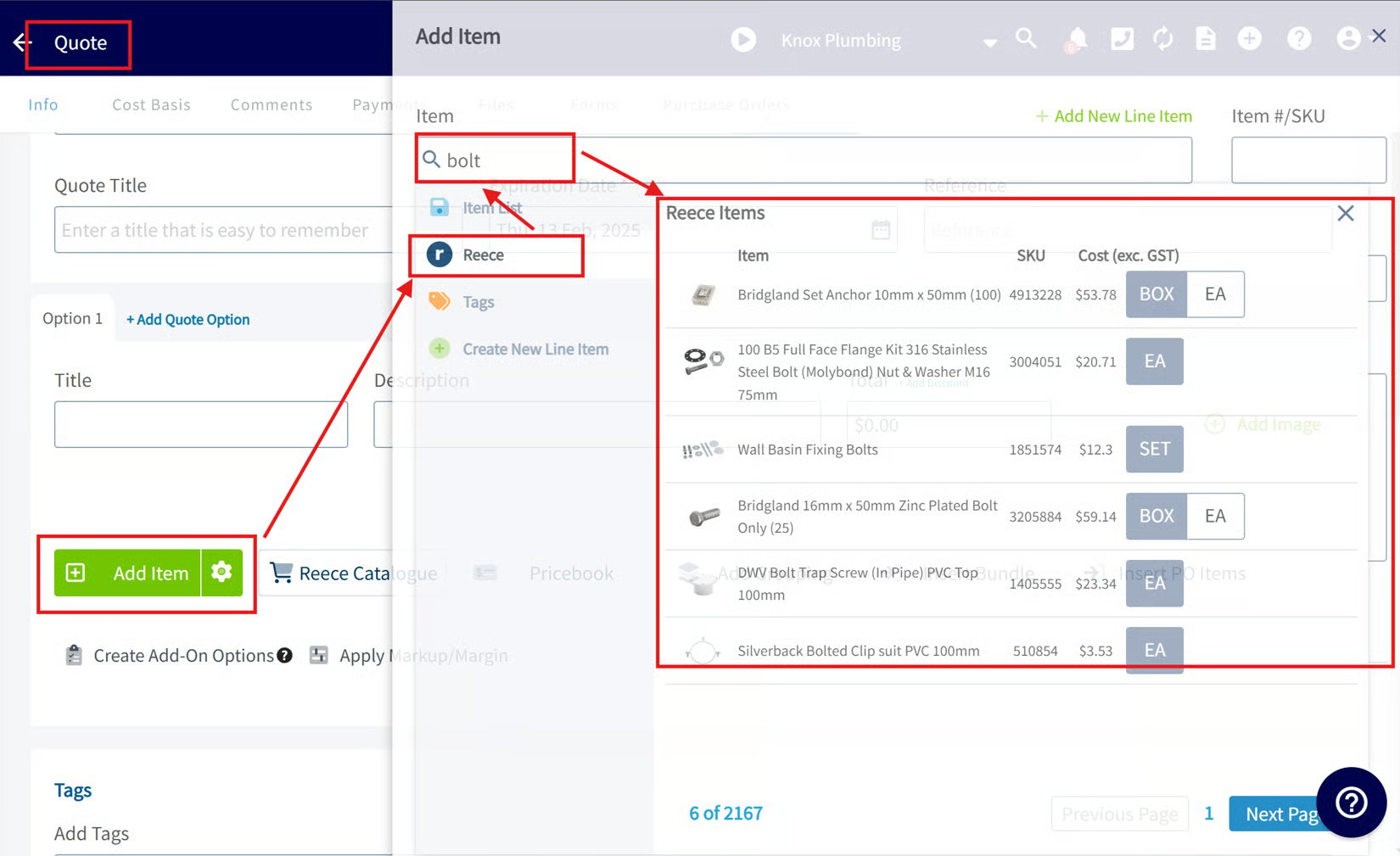
* **Reece Item Search (API)** — Open an [estimate](https://www.fieldpulse.com/features/estimates-and-invoices), invoice, or purchase order, select **Add Item**, choose the **Reece** subtab, and enter the item name or SKU. FieldPulse adds the matching Reece product to the record.
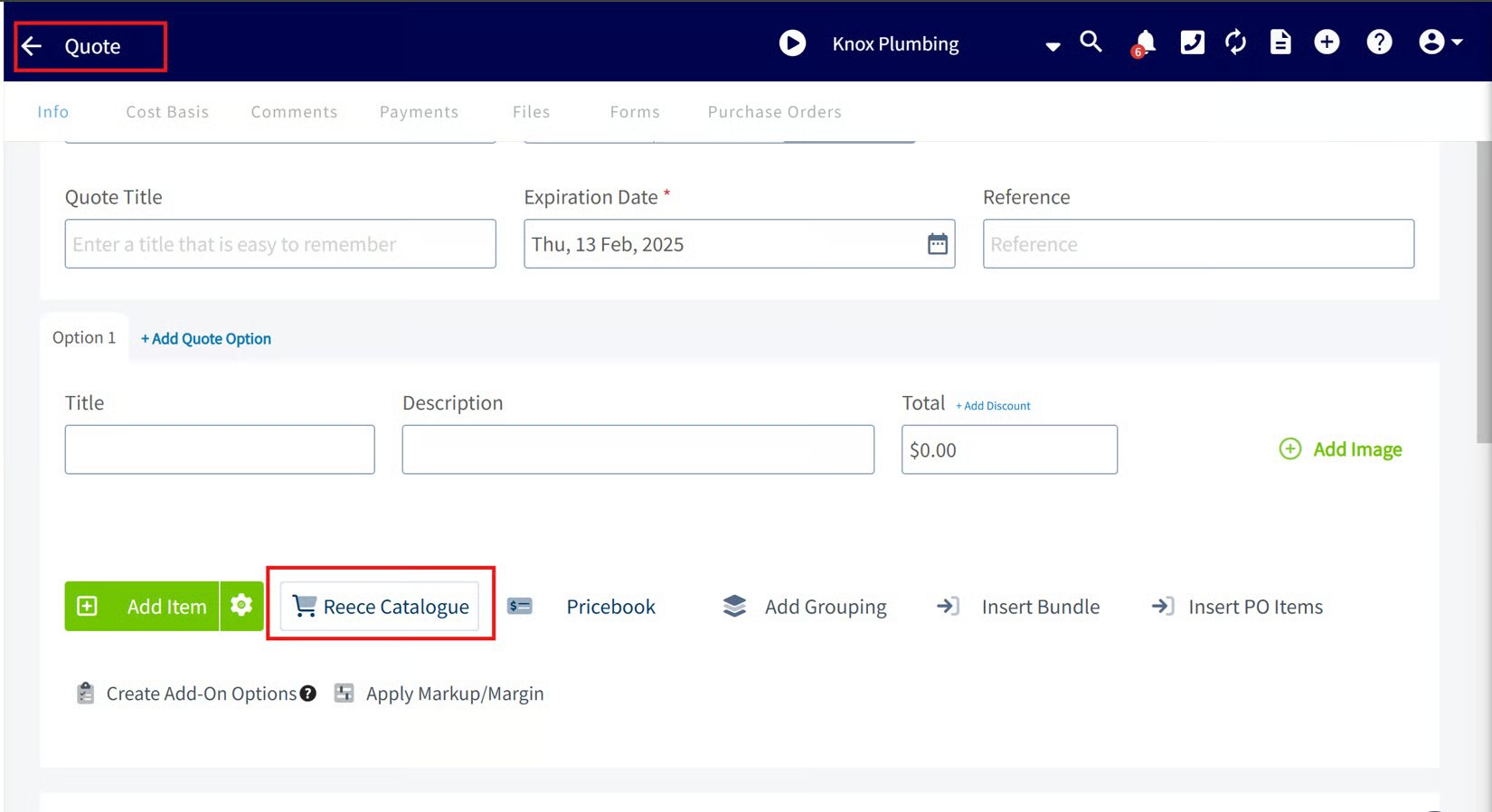
 * **Reece maX Catalogue (PunchOut)** — Select the **Reece Catalogue** button on a record to open Reece maX in a new tab (log in if prompted). Browse the catalog, add items or branch quotes to your cart, then go to your cart and select **Process Order**. The items are copied into your FieldPulse document with accurate Reece pricing — they are not purchased on Reece maX.
 ### Link Reece supplier invoices to your jobs
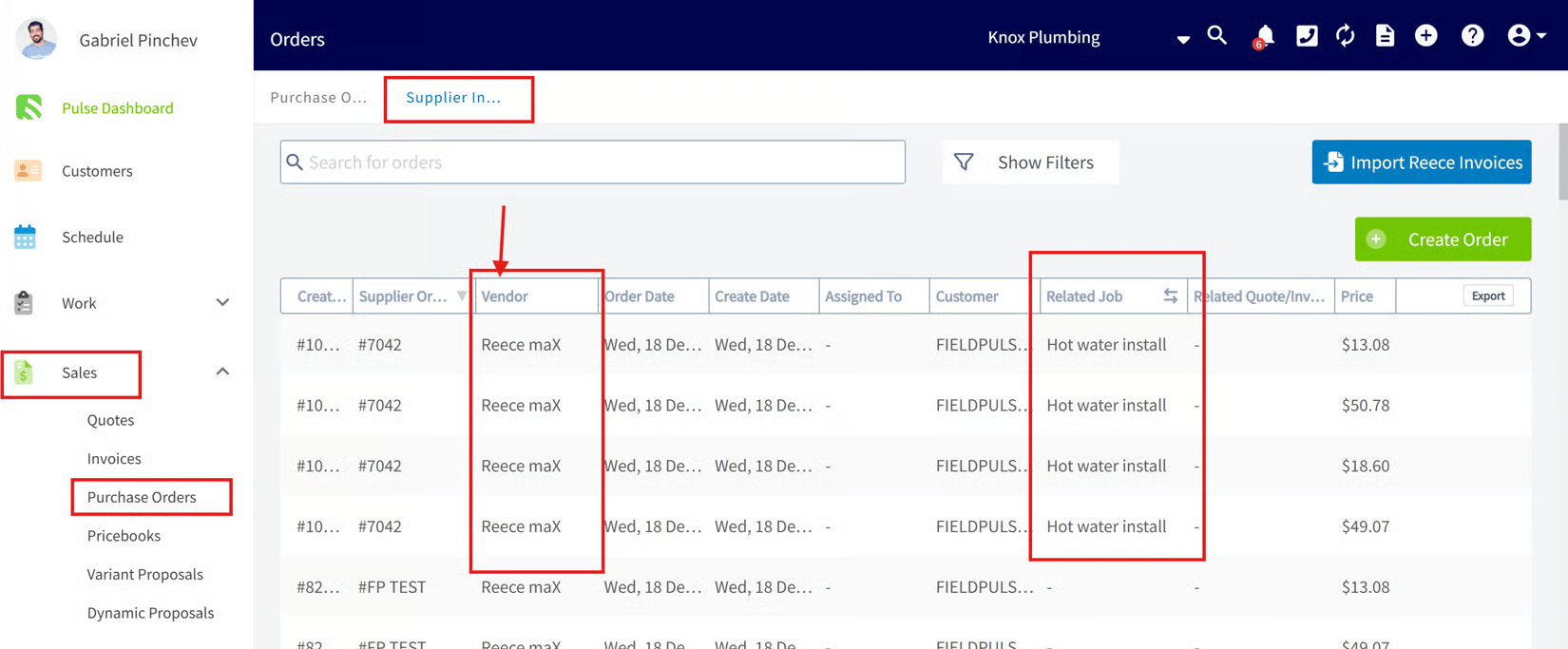
To keep job costing accurate, reference your **FieldPulse job number** when you place a Reece order — in-store, over the phone, or in the maX app. Reece sends supplier invoices to FieldPulse every 24 hours, and you can view them under **Sales > Purchase Orders > Supplier Invoice**. If you provided the job number, the invoice links directly to that job record.
Only the first purchase order auto-links to a FieldPulse job. For any additional purchase orders, link them manually under **Sales > Purchase Order > Supplier List**.
### Link Reece supplier invoices to your jobs
To keep job costing accurate, reference your **FieldPulse job number** when you place a Reece order — in-store, over the phone, or in the maX app. Reece sends supplier invoices to FieldPulse every 24 hours, and you can view them under **Sales > Purchase Orders > Supplier Invoice**. If you provided the job number, the invoice links directly to that job record.
Only the first purchase order auto-links to a FieldPulse job. For any additional purchase orders, link them manually under **Sales > Purchase Order > Supplier List**.
 Because Reece's model lets you treat [Reece](https://www.fieldpulse.com/company/partners/reece-hvac) as your own warehouse — taking what you need each day and returning unused items for a refund — FieldPulse suggests you do **not** save Reece items as inventory items in FieldPulse.
## Before you begin
Enable and authenticate the Reece maX integration before your team can add Reece items or send Reece purchase orders.
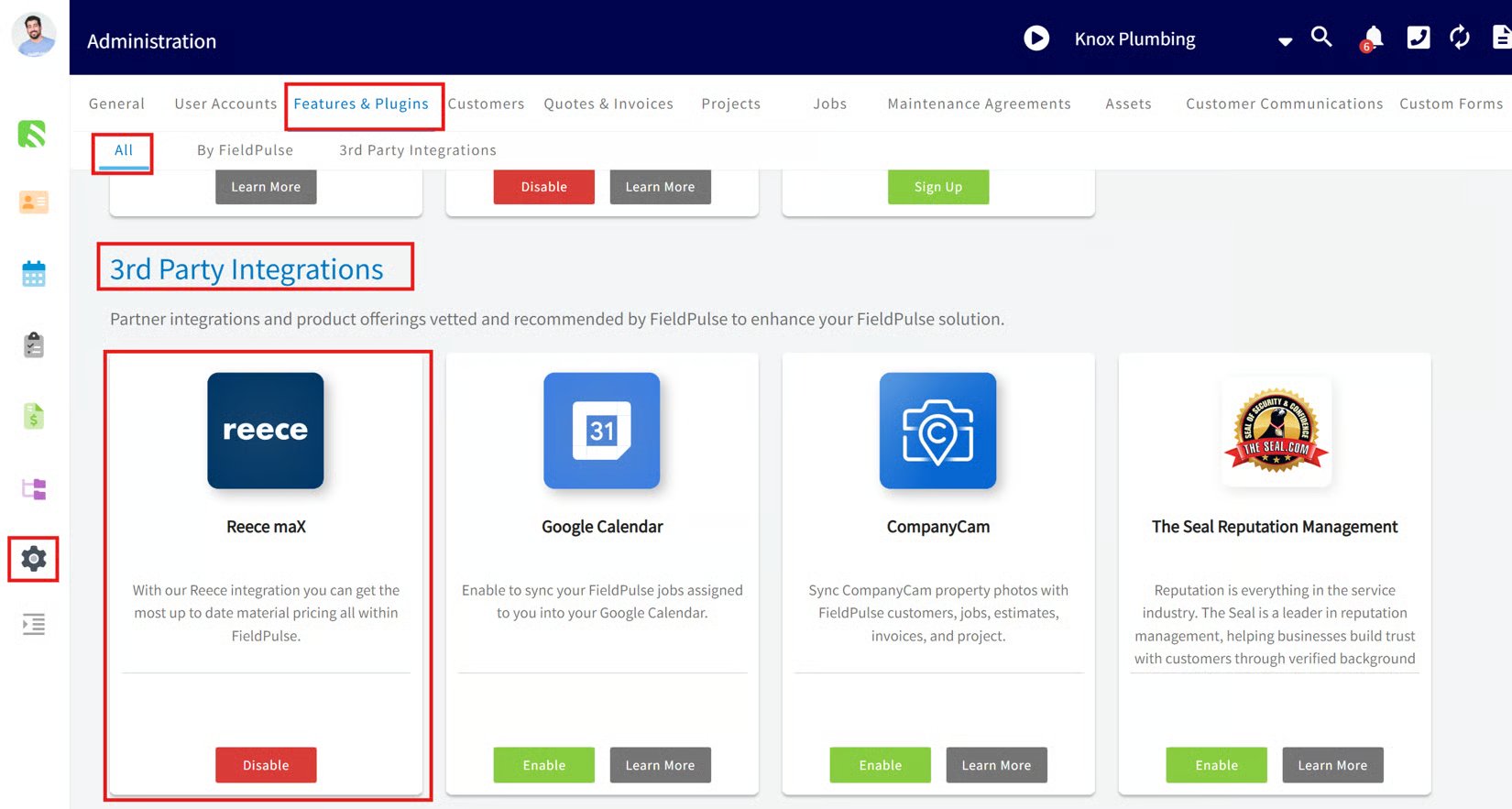
1. Log in to FieldPulse and go to **Company Settings > Features and Plugins**. Find the Reece maX integration and enable it.
Because Reece's model lets you treat [Reece](https://www.fieldpulse.com/company/partners/reece-hvac) as your own warehouse — taking what you need each day and returning unused items for a refund — FieldPulse suggests you do **not** save Reece items as inventory items in FieldPulse.
## Before you begin
Enable and authenticate the Reece maX integration before your team can add Reece items or send Reece purchase orders.
1. Log in to FieldPulse and go to **Company Settings > Features and Plugins**. Find the Reece maX integration and enable it.
 2. In the pop-up, select the link to authenticate your FieldPulse account with your Reece maX account. FieldPulse redirects you to the Reece maX login page.
3. Enter your Reece maX login details. On successful login, the integration is activated and your systems are connected.
To send Reece purchase orders, also make sure [purchase orders](/inventory-materials/purchase-orders/managing) are enabled in FieldPulse.
### Control who sees Reece costs
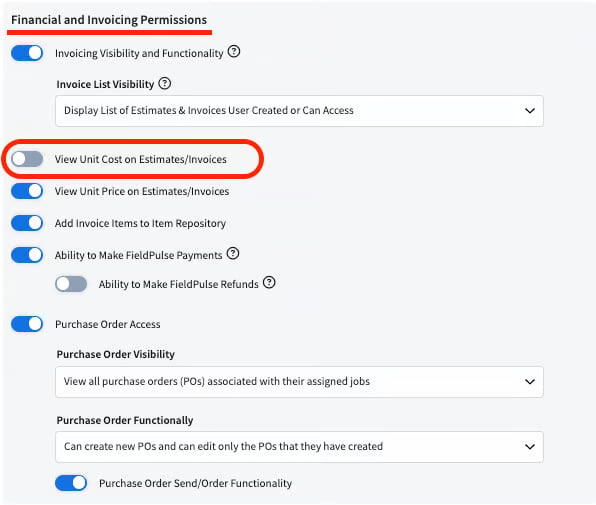
If you do not want your Service Agents to see the cost of Reece items, turn off the **View Unit Costs on Estimates/Invoices** permission for that role.
2. In the pop-up, select the link to authenticate your FieldPulse account with your Reece maX account. FieldPulse redirects you to the Reece maX login page.
3. Enter your Reece maX login details. On successful login, the integration is activated and your systems are connected.
To send Reece purchase orders, also make sure [purchase orders](/inventory-materials/purchase-orders/managing) are enabled in FieldPulse.
### Control who sees Reece costs
If you do not want your Service Agents to see the cost of Reece items, turn off the **View Unit Costs on Estimates/Invoices** permission for that role.
 ### Reece maX support
For Reece maX account questions, contact Reece at [maxsupport@reece.com.au](mailto:maxsupport@reece.com.au).
## Related articles
* [How to Pull a Reece Branch Quote into FieldPulse](/integrations/suppliers/reece-max/branch-quotes)
* [CMP Pricing Details](/integrations/suppliers/reece-max/cmp-pricing)
* [How to Track Reece Credit Notes by Job](/integrations/suppliers/reece-max/credit-notes)
* [How to Create a Reece Purchase Order](/integrations/suppliers/reece-max/purchase-orders)
* [How to Manage Purchase Orders](/inventory-materials/purchase-orders/managing) (FieldPulse)
* [Reece (US) Overview](/integrations/suppliers/reece-us/overview)
## Related topics
- [How to Manage Purchase Orders](/inventory-materials/purchase-orders/managing.md)
- [Reece MAX](/integrations/suppliers/reece-max/index.md)
- [Reece (US) Overview](/integrations/suppliers/reece-us/overview.md)
- [How to Create a Reece Purchase Order](/integrations/suppliers/reece-max/purchase-orders.md)
### Reece maX support
For Reece maX account questions, contact Reece at [maxsupport@reece.com.au](mailto:maxsupport@reece.com.au).
## Related articles
* [How to Pull a Reece Branch Quote into FieldPulse](/integrations/suppliers/reece-max/branch-quotes)
* [CMP Pricing Details](/integrations/suppliers/reece-max/cmp-pricing)
* [How to Track Reece Credit Notes by Job](/integrations/suppliers/reece-max/credit-notes)
* [How to Create a Reece Purchase Order](/integrations/suppliers/reece-max/purchase-orders)
* [How to Manage Purchase Orders](/inventory-materials/purchase-orders/managing) (FieldPulse)
* [Reece (US) Overview](/integrations/suppliers/reece-us/overview)
## Related topics
- [How to Manage Purchase Orders](/inventory-materials/purchase-orders/managing.md)
- [Reece MAX](/integrations/suppliers/reece-max/index.md)
- [Reece (US) Overview](/integrations/suppliers/reece-us/overview.md)
- [How to Create a Reece Purchase Order](/integrations/suppliers/reece-max/purchase-orders.md)