> ## Documentation Index
> Fetch the complete documentation index at: https://help.fieldpulse.com/llms.txt
> Use this file to discover all available pages before exploring further.
# Setting Up the Winsupply Costbook Integration
> Enable the Winsupply digital costbook in FieldPulse to price HVAC systems and items with pricing that updates automatically across web and mobile.
> **Who uses this:** An Admin requests the costbook; anyone who prices HVAC work in estimates, invoices, purchase orders, or Dynamic Proposals uses it. **Availability:** Requires a Winsupply account.
The Winsupply Costbook is a digital costbook inside FieldPulse that gives Winsupply customers an interactive way to price [HVAC](https://www.fieldpulse.com/solutions/hvac-r) systems and items on web and mobile. FieldPulse updates the costbook automatically, so your pricing stays current. To turn it on, you tell the [FieldPulse Support team](https://www.fieldpulse.com/company/contact-us) your company name and how you plan to use it.
## Overview
The Winsupply Costbook integration adds a **Costbook** tab to FieldPulse stocked with Winsupply HVAC system and item pricing. Once it's enabled, here's what flows and what you can do:
* **Catalog** — Browse Winsupply HVAC systems and items in an interactive digital interface on web and mobile.
* **Pricing** — FieldPulse updates your costbook automatically, so pricing is always up to date.
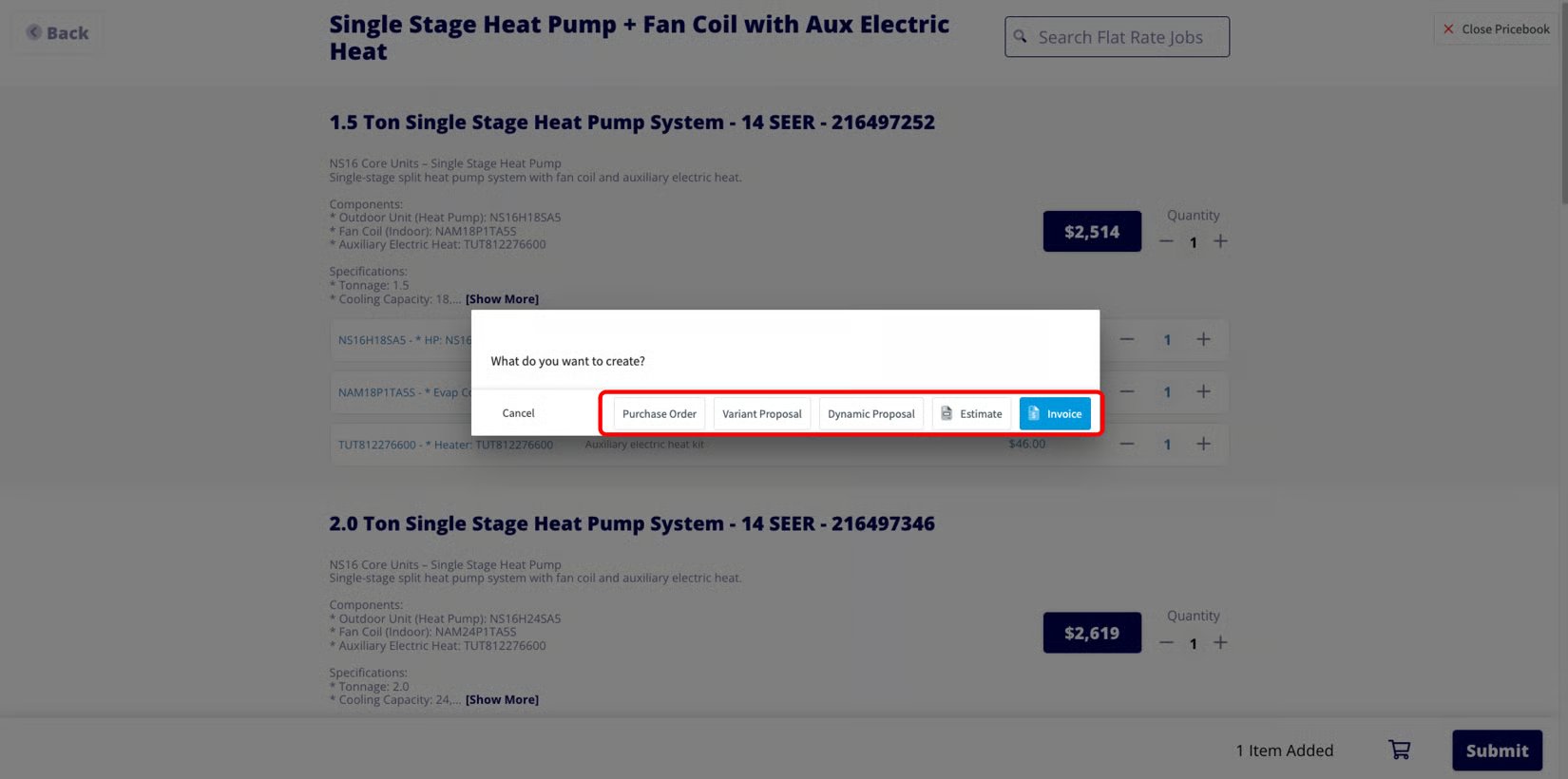
* **Ordering** — Add a costbook option to an [estimate](https://www.fieldpulse.com/solutions/hvac-sales-software), [invoice](https://www.fieldpulse.com/features/estimates-and-invoices), purchase order, or [Dynamic Proposal](https://www.fieldpulse.com/solutions/hvac-proposal-software) by selecting its total price.
You can also use the Winsupply Costbook as a pricebook to build additional flat-rate jobs and add pictures to Winsupply flat-rate jobs. Let the FieldPulse team know if you plan to use it this way when you reach out.
 ## Before you begin
* You need a Winsupply account.
* The costbook is currently only available to Winsupply customers in Austin, TX. To express interest in a costbook for another Winsupply branch, [contact the FieldPulse Support team](https://www.fieldpulse.com/company/contact-us).
* Have your **company name** ready.
* Decide how you'll use the costbook (pricing only, or also as a pricebook for flat-rate jobs) so the team can set it up accordingly.
## Connect the Winsupply Costbook
1. Contact the FieldPulse Support team at [support@fieldpulse.com](mailto:support@fieldpulse.com) or through the in-app chat, and tell them you want to enable the Winsupply Costbook.
2. Provide your **company name**, and note whether you'll also use the costbook as a pricebook for flat-rate jobs.
3. Wait for the FieldPulse team to enable the costbook on your account.
## What syncs
Once the costbook is enabled, here's how you use it:
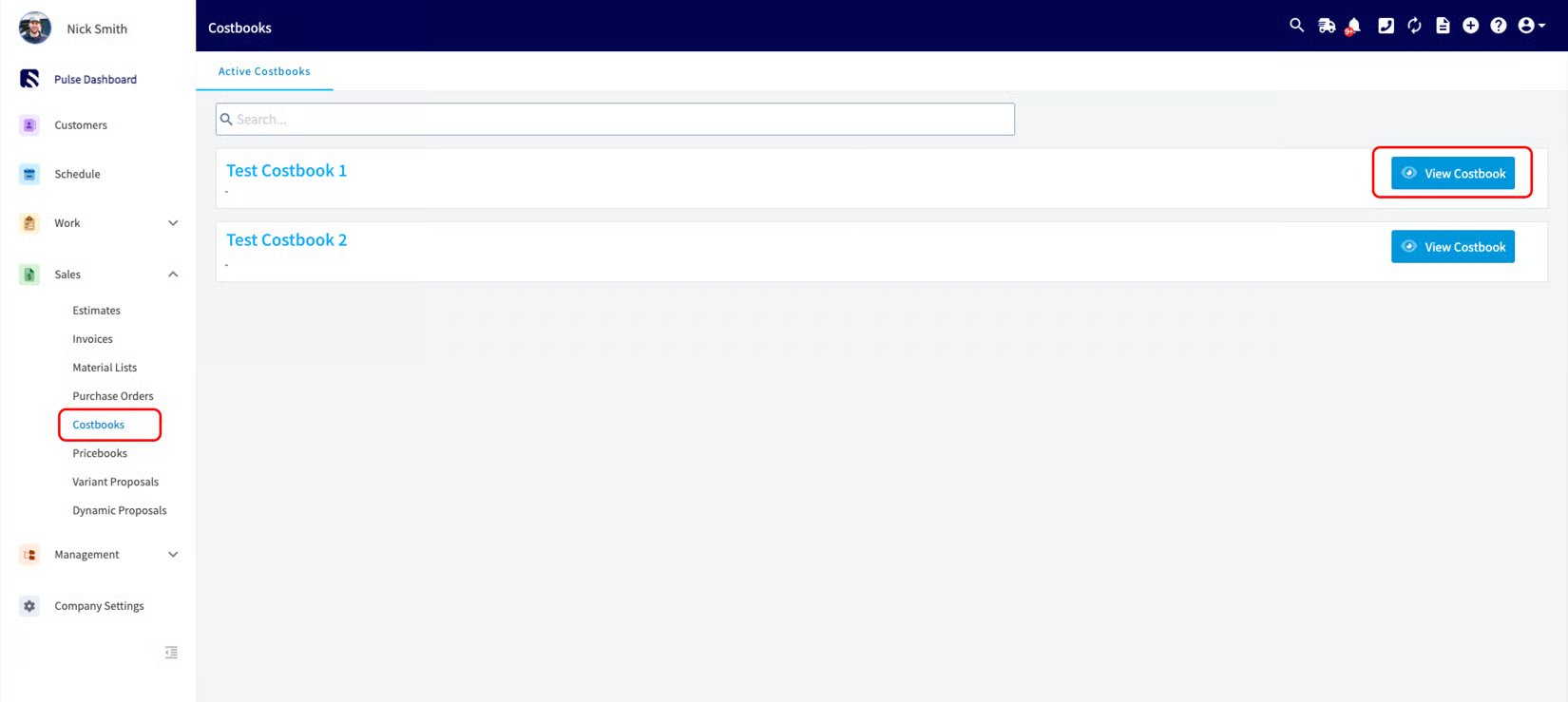
1. Select the **Costbook** tab in the left-side menu to open your Winsupply Costbook.
## Before you begin
* You need a Winsupply account.
* The costbook is currently only available to Winsupply customers in Austin, TX. To express interest in a costbook for another Winsupply branch, [contact the FieldPulse Support team](https://www.fieldpulse.com/company/contact-us).
* Have your **company name** ready.
* Decide how you'll use the costbook (pricing only, or also as a pricebook for flat-rate jobs) so the team can set it up accordingly.
## Connect the Winsupply Costbook
1. Contact the FieldPulse Support team at [support@fieldpulse.com](mailto:support@fieldpulse.com) or through the in-app chat, and tell them you want to enable the Winsupply Costbook.
2. Provide your **company name**, and note whether you'll also use the costbook as a pricebook for flat-rate jobs.
3. Wait for the FieldPulse team to enable the costbook on your account.
## What syncs
Once the costbook is enabled, here's how you use it:
1. Select the **Costbook** tab in the left-side menu to open your Winsupply Costbook.
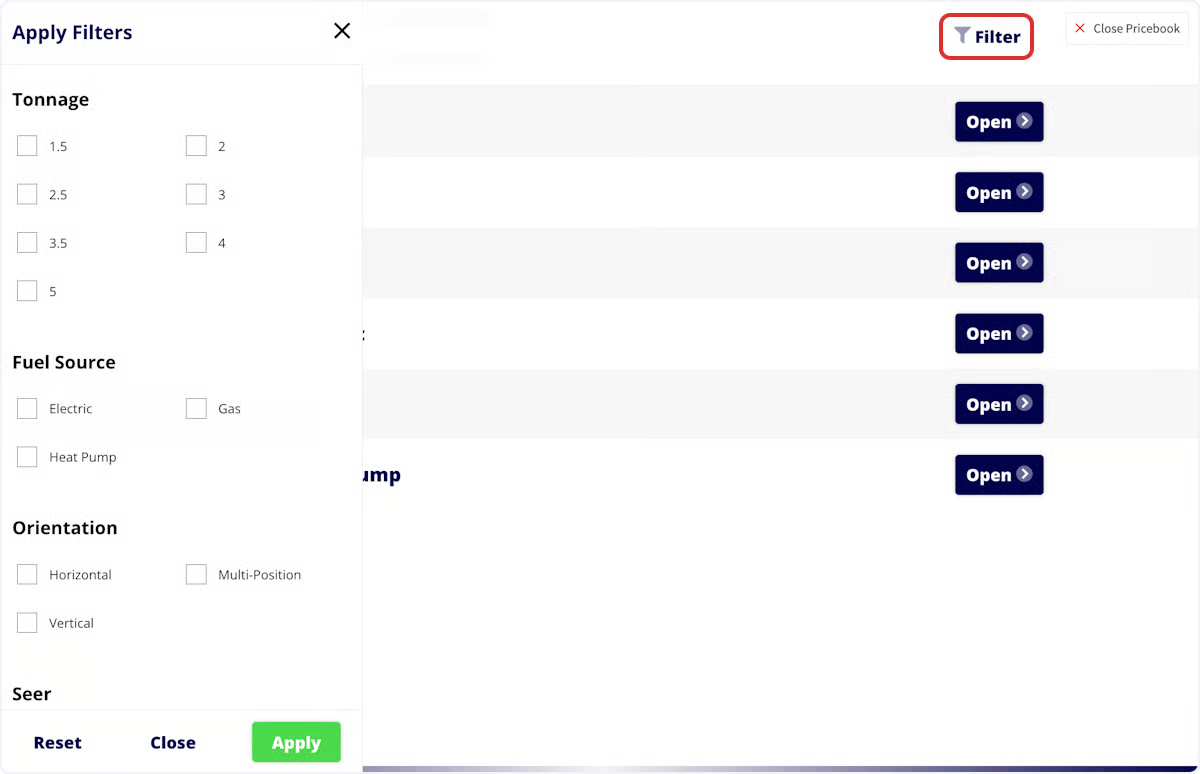
 2. Select **Filters** to narrow results. Available filters include **Tonnage**, **Fuel Source**, **Orientation**, **Seer**, and **Compressor**.
 3. Click an option's total price to add it to an estimate, invoice, purchase order, or Dynamic Proposal.
 ## Related articles
* [How to Manage Purchase Orders](/inventory-materials/purchase-orders/managing)
* [Setting Up Item List & Inventory](/inventory-materials/item-list/adding-items)
* [How to Create an Estimate](/estimates-invoices/creating/estimate)
* [How to Create an Invoice](/estimates-invoices/creating/invoice)
Your setup is working when you select the **Costbook** tab, open your Winsupply Costbook, filter to an HVAC system, and add its price to an estimate.
## Related topics
- [Suppliers & Distributors](/integrations/suppliers/index.md)
- [Setting Up the CHIIRP Integration](/integrations/marketing/chiirp.md)
- [Setting Up the Signpost Integration](/integrations/marketing/signpost.md)
- [Setting Up The Seal Integration](/integrations/partner-apps/the-seal.md)
## Related articles
* [How to Manage Purchase Orders](/inventory-materials/purchase-orders/managing)
* [Setting Up Item List & Inventory](/inventory-materials/item-list/adding-items)
* [How to Create an Estimate](/estimates-invoices/creating/estimate)
* [How to Create an Invoice](/estimates-invoices/creating/invoice)
Your setup is working when you select the **Costbook** tab, open your Winsupply Costbook, filter to an HVAC system, and add its price to an estimate.
## Related topics
- [Suppliers & Distributors](/integrations/suppliers/index.md)
- [Setting Up the CHIIRP Integration](/integrations/marketing/chiirp.md)
- [Setting Up the Signpost Integration](/integrations/marketing/signpost.md)
- [Setting Up The Seal Integration](/integrations/partner-apps/the-seal.md)