> ## Documentation Index
> Fetch the complete documentation index at: https://help.fieldpulse.com/llms.txt
> Use this file to discover all available pages before exploring further.
# Serialized Inventory Overview
> Track each unit by its own serial number in FieldPulse, add a specific serial to an invoice, and create an asset record from the unit you installed.
> **Who uses this:** Admins and Founding Users have full access; Team Manager and Service Agent access to the item list and its inventory hubs is set per user with the **Ability to View Item List** permission in **Company Settings > User Accounts**. **Availability:** All regions.
Serialized inventory tracks each individual unit by a unique serial number instead of counting units as an interchangeable quantity. Generic quantity tracking tells you how many air conditioners are on the shelf; serialized inventory tells you which specific air conditioner went out on which [invoice](https://www.fieldpulse.com/features/estimates-and-invoices), which gives you detailed monitoring and traceability for every unit you hold. Serialized inventory applies only to line items marked **Product - Inventory**, never to a **Service** item or a **Product - Non Inventory** item.
## Overview
Serialized inventory turns one tracked item into a list of individually numbered units. You import or create the serial numbers under the inventory hub that holds them, add a specific serial to an invoice when a tech uses that unit on a job, and — for equipment you install and service later — create an asset record from the invoice line. Once the invoice is paid, that serial number is removed from your inventory.
## Video walkthrough
Watch the [serialized inventory walkthrough](https://www.loom.com/share/be42cfe691a0476d870c3a5f61694364) for a run-through of the feature. The written steps below cover every stage on their own.
## Before you begin
* **Confirm the item type.** Serialized inventory can only be applied to a **Product - Inventory** line item, not to a **Service** or a **Product - Non Inventory** item. See [Setting Up Item List & Inventory](/inventory-materials/item-list/adding-items).
* **Set up your inventory hubs.** Each serial number is added under a hub, so the hubs where these units live need to exist first. See [Inventory Hubs Overview](/inventory-materials/item-list/inventory-hubs).
* **Have your serial numbers ready.** To bring in a large batch at once, use the mass import tool instead of adding units one at a time. See [How to Import Serialized Inventory](/settings/data/importing-serialized-inventory).
## How it works
Serialized inventory follows one path: load the serial numbers onto a **Product - Inventory** item, attach a specific serial to the invoice for the job it went out on, and turn that serial into an asset record when the unit is equipment you will service later. The sections below cover each stage.
### Import serialized inventory in bulk
The mass import tool loads serialized inventory items into FieldPulse in one upload rather than one at a time, and the imported units are then available when you create estimates and invoices. Follow [How to Import Serialized Inventory](/settings/data/importing-serialized-inventory) to prepare and upload your file.
### Create serialized inventory
1. Create a new line item, or open an existing one to edit it.
2. Set the **Item Type** to **Product - Inventory**.
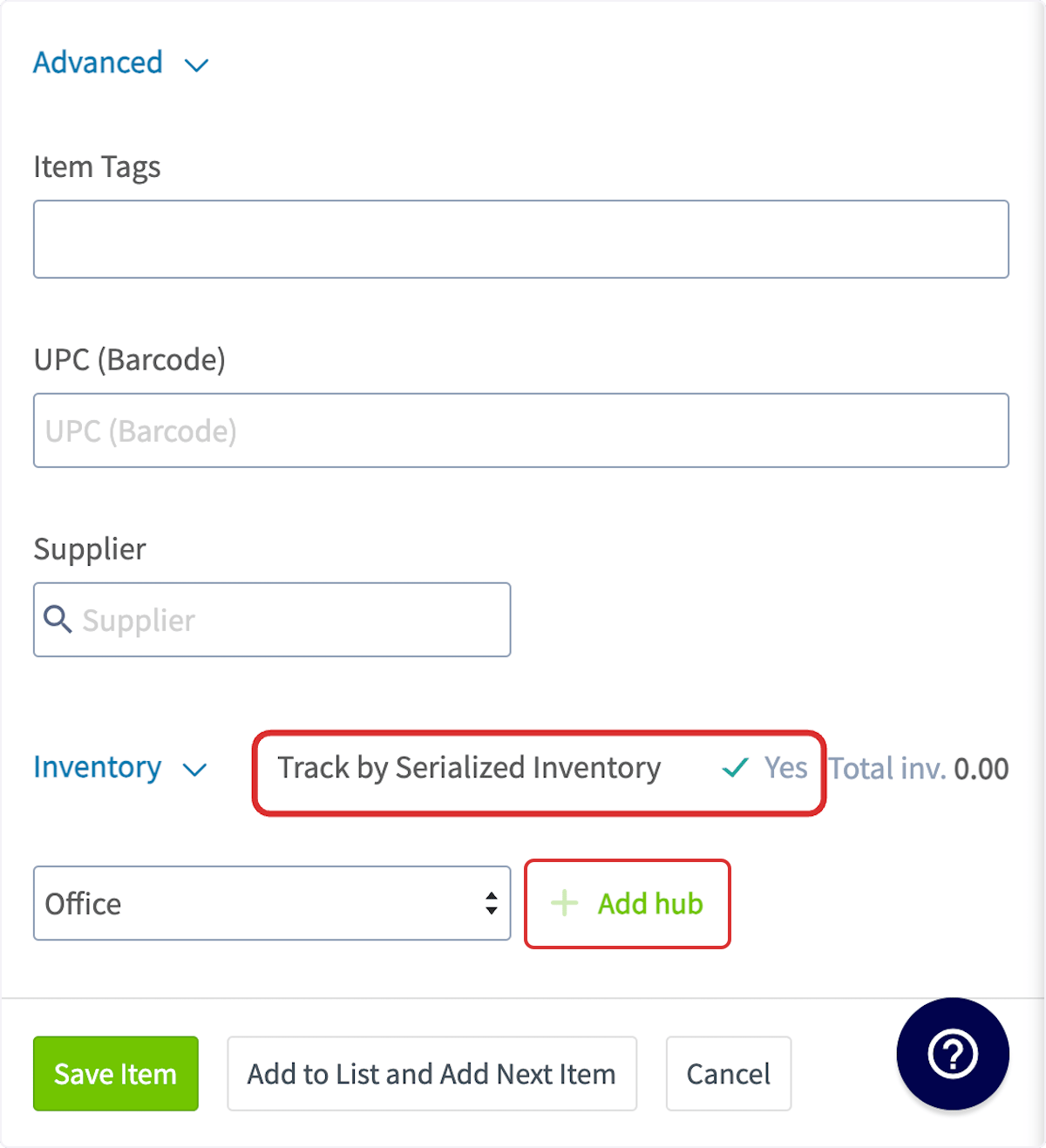
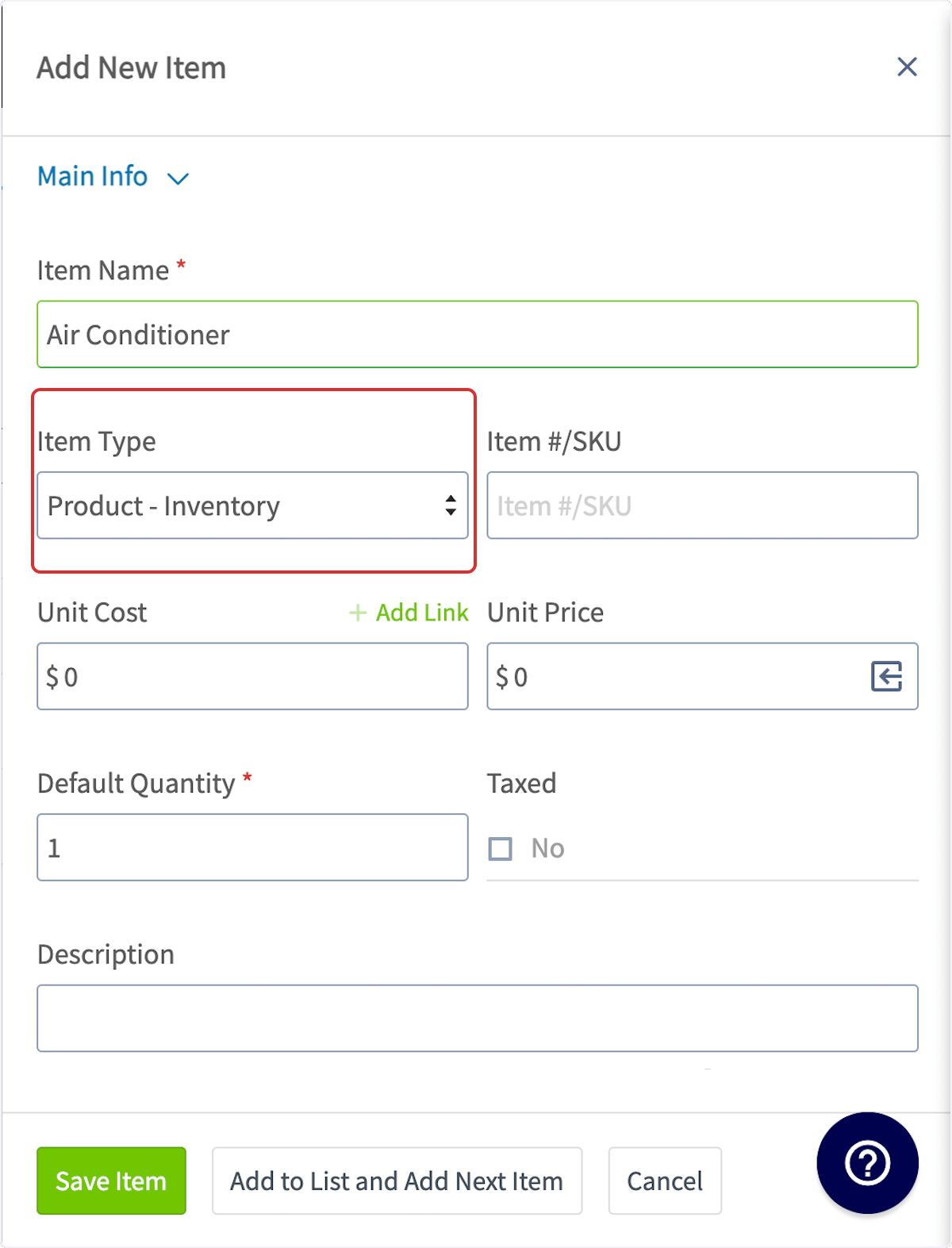 3. Scroll down to **Inventory** and turn **Track by Serialized Inventory** on.
4. Add the hub or hubs where the units are stored with **Add hub**. You can use a single hub or multiple hubs.
3. Scroll down to **Inventory** and turn **Track by Serialized Inventory** on.
4. Add the hub or hubs where the units are stored with **Add hub**. You can use a single hub or multiple hubs.
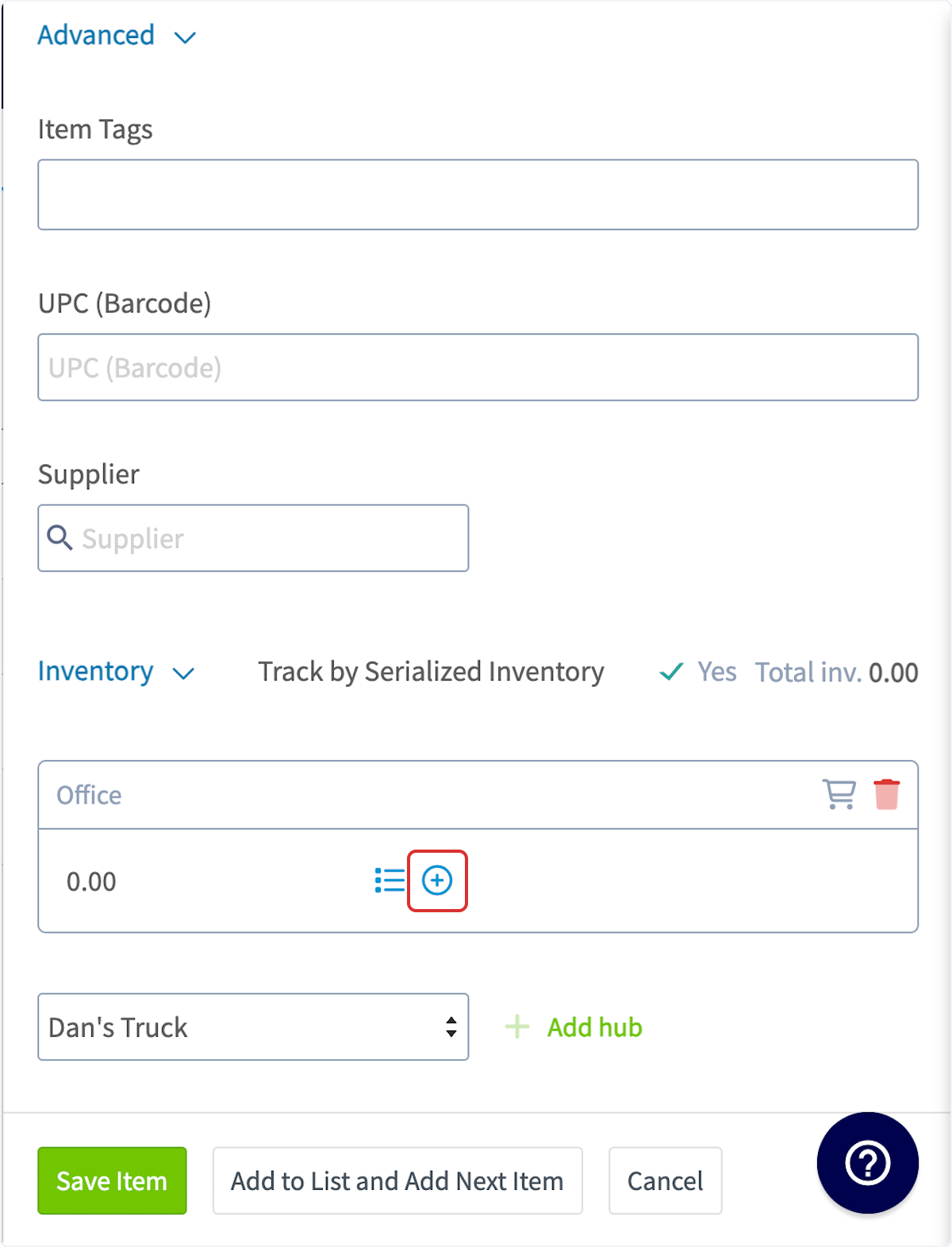
 5. Select the **plus icon** next to the name of the hub where the unit is located.
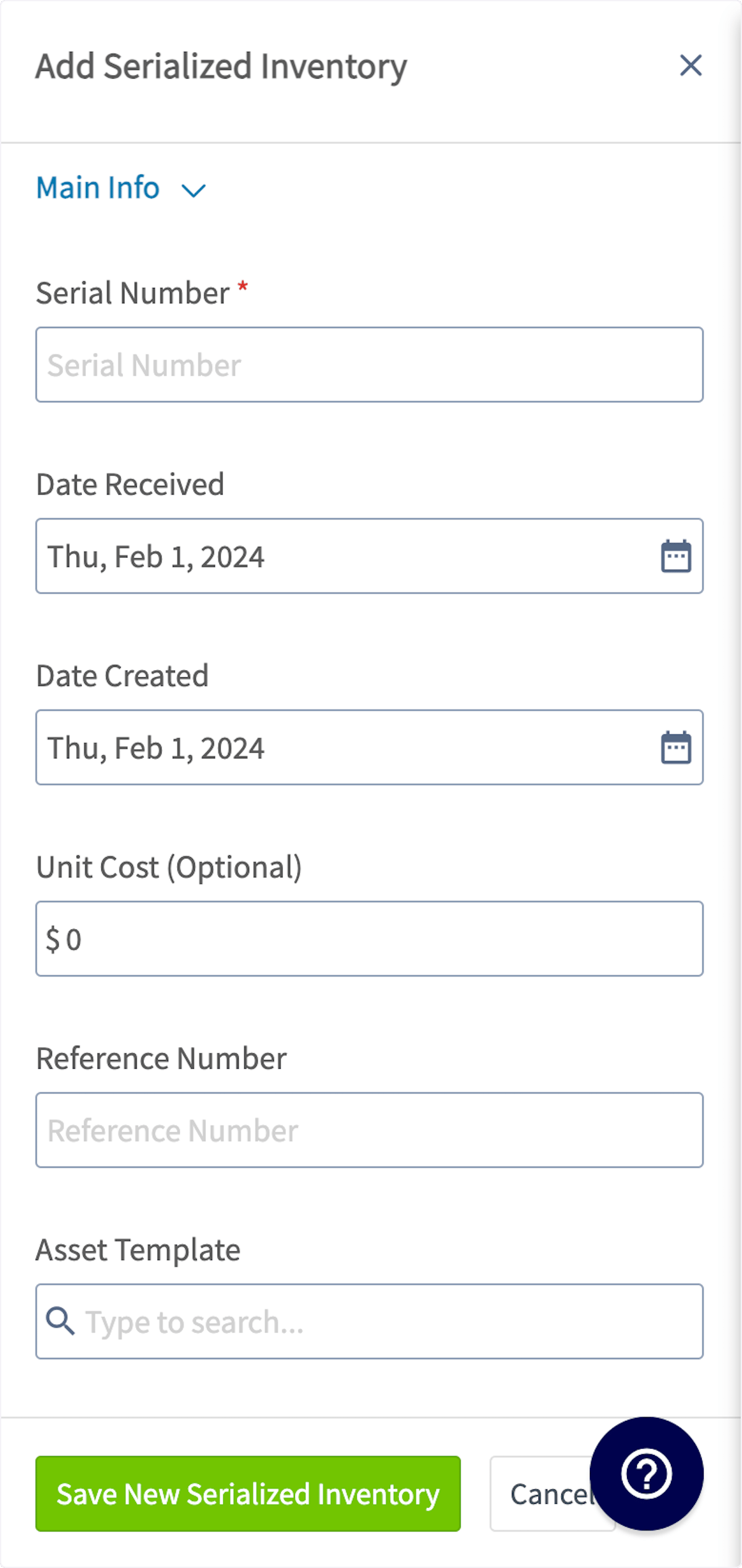
 6. Enter the **Serial Number**, which is required. You can also add the **Date Received**, **Unit Cost**, **Reference Number**, or an **Asset Template**.
7. Select **Save New Serialized Inventory**.
6. Enter the **Serial Number**, which is required. You can also add the **Date Received**, **Unit Cost**, **Reference Number**, or an **Asset Template**.
7. Select **Save New Serialized Inventory**.
 8. To add another unit, select the **plus icon** again and enter the next serial number.
9. Select **Save** to save the line item.
To move serialized units to other hubs later, see [How to Bulk Transfer Serialized Inventory](/inventory-materials/item-list/bulk-transfer-serialized).
### Add serialized inventory to an invoice
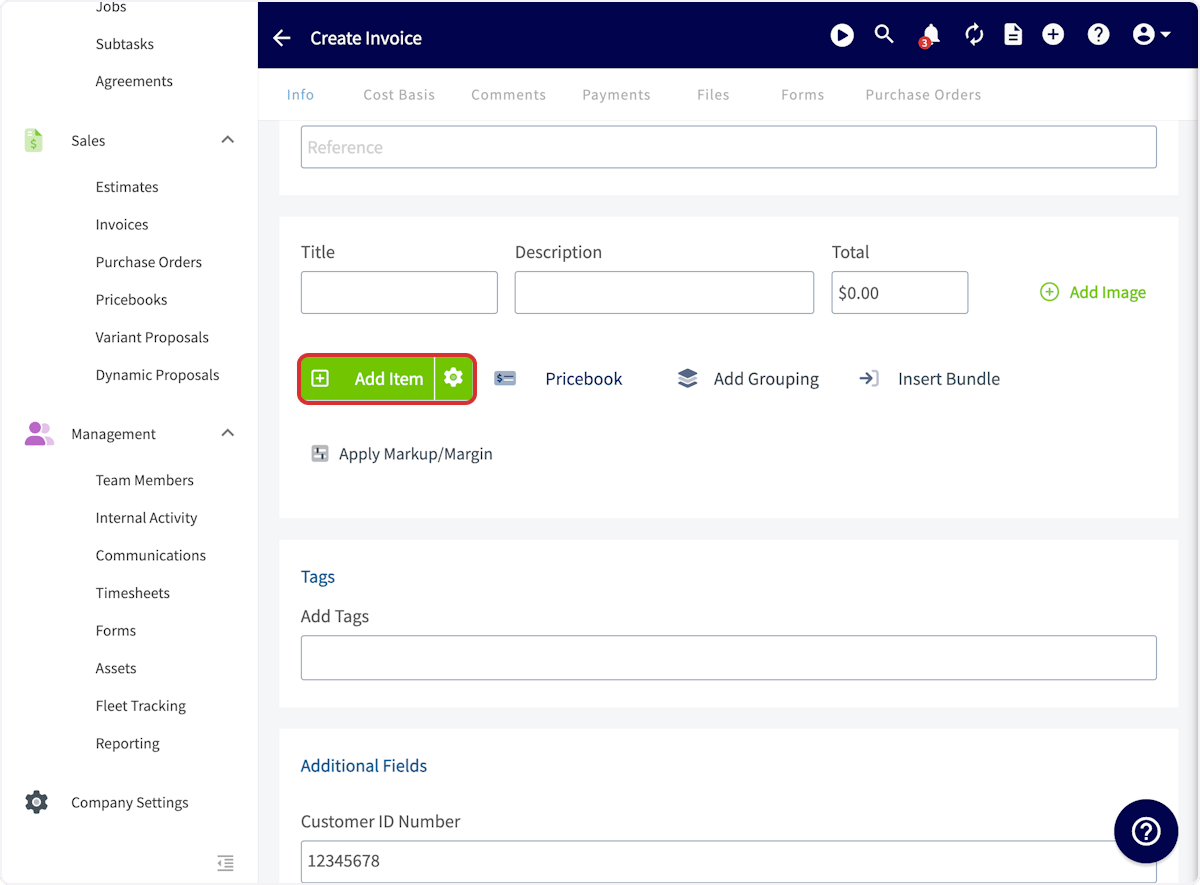
1. Create a new invoice, then select **Add Item**.
8. To add another unit, select the **plus icon** again and enter the next serial number.
9. Select **Save** to save the line item.
To move serialized units to other hubs later, see [How to Bulk Transfer Serialized Inventory](/inventory-materials/item-list/bulk-transfer-serialized).
### Add serialized inventory to an invoice
1. Create a new invoice, then select **Add Item**.
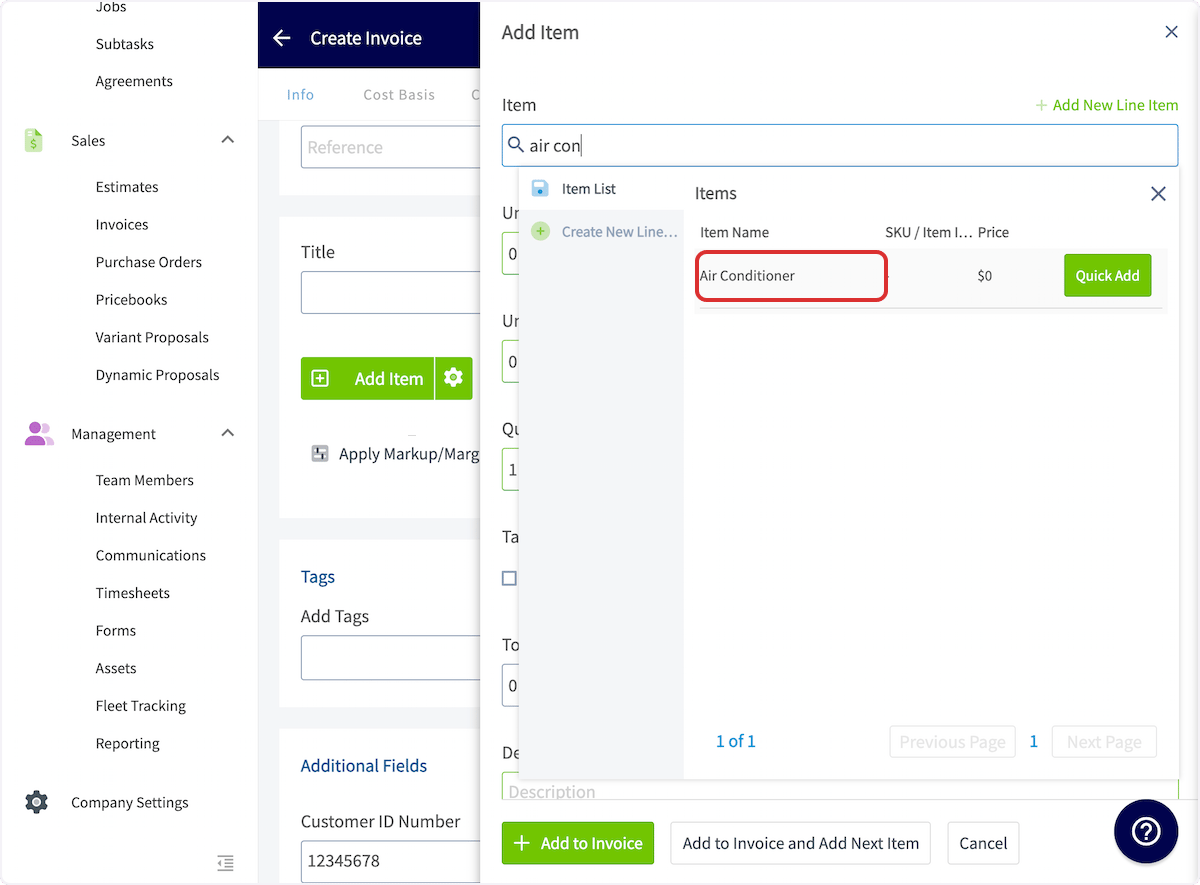
 2. Search for and select the serialized inventory item.
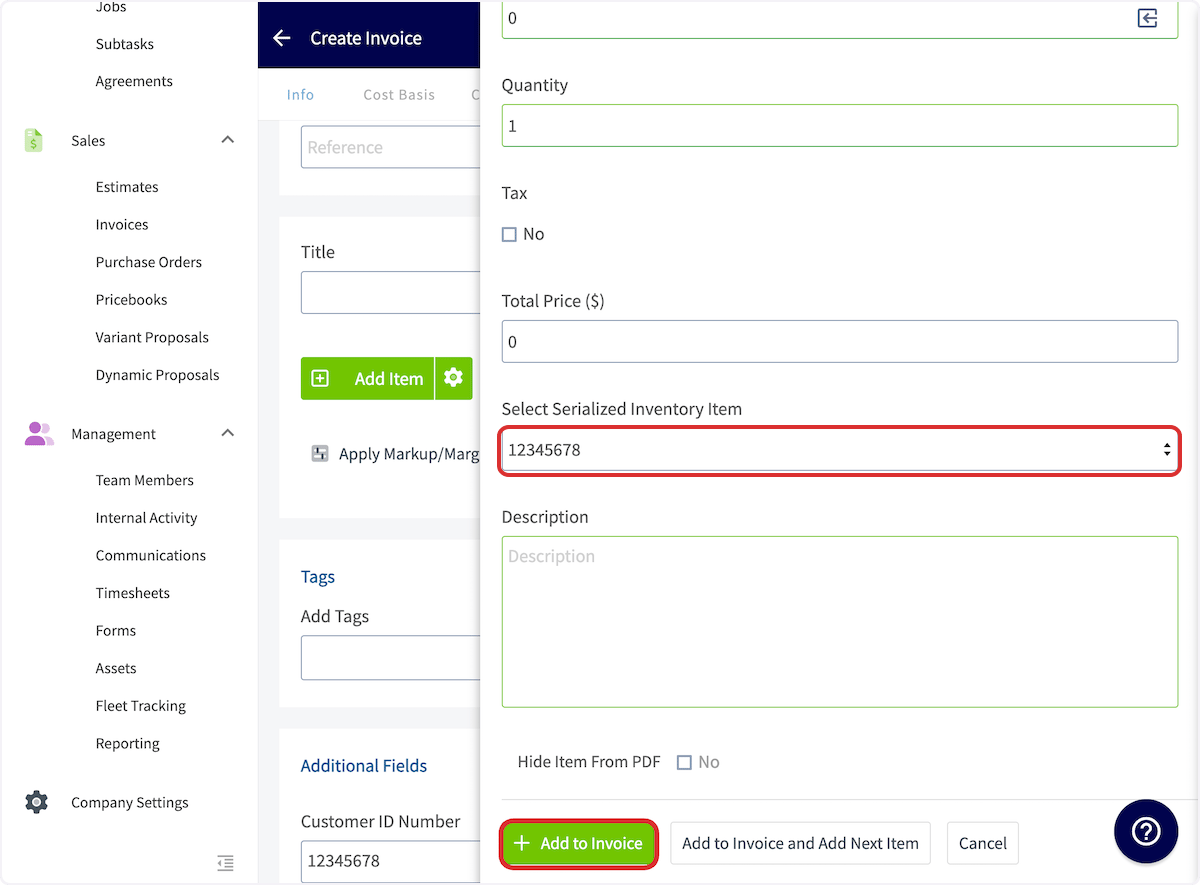
 3. Scroll down to the **Select Serialized Inventory Item** field and select the serial number of the unit used on the job.
4. Select **Add to Invoice**.
3. Scroll down to the **Select Serialized Inventory Item** field and select the serial number of the unit used on the job.
4. Select **Add to Invoice**.
 Once the invoice has been paid, that serial number is removed from your inventory.
### Create an asset from a serialized inventory item
After you add a serialized inventory item to an invoice, you can create an asset record directly from the invoice without navigating away.
1. Open the invoice that contains the serialized inventory item.
2. Scroll down to the serialized item you need to create an asset from.
3. Select **Create Asset** next to the line item to generate an asset record from that serialized item.
Once the invoice has been paid, that serial number is removed from your inventory.
### Create an asset from a serialized inventory item
After you add a serialized inventory item to an invoice, you can create an asset record directly from the invoice without navigating away.
1. Open the invoice that contains the serialized inventory item.
2. Scroll down to the serialized item you need to create an asset from.
3. Select **Create Asset** next to the line item to generate an asset record from that serialized item.
 The invoice line carries the item name followed by its serial number, so you can confirm which unit the asset record covers before you create it. See [How to Manage Assets](/jobs/assets/managing-assets) for working with the asset record afterward.
## Availability
Serialized inventory is available in all regions. It applies only to line items whose **Item Type** is **Product - Inventory** — a **Service** item or a **Product - Non Inventory** item cannot be tracked by serial number. Every serial number is stored under an inventory hub, and access to the item list and to individual hubs is granted per user, so a tech can be limited to the vans or warehouses they work from. See [Setting Up Inventory Permissions](/inventory-materials/item-list/permissions).
## Related articles
* [Setting Up Item List & Inventory](/inventory-materials/item-list/adding-items)
* [How to Import Serialized Inventory](/settings/data/importing-serialized-inventory)
* [How to Bulk Transfer Serialized Inventory](/inventory-materials/item-list/bulk-transfer-serialized)
* [Inventory Hubs Overview](/inventory-materials/item-list/inventory-hubs)
* [How to Deduct and Count Inventory](/inventory-materials/item-list/deducting-counting)
* [Setting Up Inventory Permissions](/inventory-materials/item-list/permissions)
* [How to Create Serialized Inventory Reports](/reporting/raw-data/serialized-inventory-reports)
* [How to Manage Assets](/jobs/assets/managing-assets)
## Related topics
- [Material Lists Overview](/inventory-materials/material-lists/material-lists.md)
- [How to Import Serialized Inventory](/settings/data/importing-serialized-inventory.md)
- [How to Bulk Transfer Serialized Inventory](/inventory-materials/item-list/bulk-transfer-serialized.md)
- [How to Create Serialized Inventory Reports](/reporting/raw-data/serialized-inventory-reports.md)
The invoice line carries the item name followed by its serial number, so you can confirm which unit the asset record covers before you create it. See [How to Manage Assets](/jobs/assets/managing-assets) for working with the asset record afterward.
## Availability
Serialized inventory is available in all regions. It applies only to line items whose **Item Type** is **Product - Inventory** — a **Service** item or a **Product - Non Inventory** item cannot be tracked by serial number. Every serial number is stored under an inventory hub, and access to the item list and to individual hubs is granted per user, so a tech can be limited to the vans or warehouses they work from. See [Setting Up Inventory Permissions](/inventory-materials/item-list/permissions).
## Related articles
* [Setting Up Item List & Inventory](/inventory-materials/item-list/adding-items)
* [How to Import Serialized Inventory](/settings/data/importing-serialized-inventory)
* [How to Bulk Transfer Serialized Inventory](/inventory-materials/item-list/bulk-transfer-serialized)
* [Inventory Hubs Overview](/inventory-materials/item-list/inventory-hubs)
* [How to Deduct and Count Inventory](/inventory-materials/item-list/deducting-counting)
* [Setting Up Inventory Permissions](/inventory-materials/item-list/permissions)
* [How to Create Serialized Inventory Reports](/reporting/raw-data/serialized-inventory-reports)
* [How to Manage Assets](/jobs/assets/managing-assets)
## Related topics
- [Material Lists Overview](/inventory-materials/material-lists/material-lists.md)
- [How to Import Serialized Inventory](/settings/data/importing-serialized-inventory.md)
- [How to Bulk Transfer Serialized Inventory](/inventory-materials/item-list/bulk-transfer-serialized.md)
- [How to Create Serialized Inventory Reports](/reporting/raw-data/serialized-inventory-reports.md)