> ## Documentation Index
> Fetch the complete documentation index at: https://help.fieldpulse.com/llms.txt
> Use this file to discover all available pages before exploring further.
# Material Lists Overview
> Build a list of the materials a job needs in FieldPulse, then move those items onto an estimate, invoice, or purchase order without re-entering them.
> **Who uses this:** An Admin enables material lists for the account, then grants each user — Admin, Team Manager, Service Agent, or Limited Agent — access with the **Is Material List Enabled?** permission in **Company Settings > User Accounts**. **Availability:** All regions · included in the FieldPulse subscription, no add-on required.
A material list records the materials a job needs and what the crew actually used, so a tech arrives with the right parts and nothing gets billed twice or missed. You build the list once against a customer, then move its items into an [estimate or invoice](https://www.fieldpulse.com/features/estimates-and-invoices), a purchase order, or a [job](https://www.fieldpulse.com/features/job-management) instead of typing the same line items again.
## Overview
A material list is a FieldPulse record that tracks what a job or project requires and how much of it the crew used. The level of detail is up to you. A list can stay narrow — only the items headed for the estimate or invoice — or cover the whole job: primary materials such as pipes, fittings, and fixtures; tools such as wrenches, pipe cutters, and plungers; consumables such as Teflon tape, sealants, and joint compound; and specialized equipment such as pipe inspection cameras or drain snakes.
Material lists fit two common patterns:
* A tech visits the site and lists everything the work needs, so your team knows exactly what to buy.
* Your office builds the estimate first, and the tech fills in the material list afterward with what the job needed or what was actually used.
Once the list exists, a colleague can review it, and you choose some or all of its items to carry onto the estimate or invoice so the customer sees exactly what they are paying for. The [FieldPulse mobile app](https://www.fieldpulse.com/features/mobile-app) keeps material lists working even when a device loses signal in the field.
Material lists work on the FieldPulse mobile app as well as on web. See [How to Use Material Lists on the Mobile App](/inventory-materials/material-lists/mobile-app) for creating, viewing, and pinning lists from the field.
## Video walkthrough
Watch the [material lists in Offline Mode walkthrough](https://www.loom.com/embed/210b379a16964b6fa2882ad9d87e30a1?hide_owner=true\&hide_share=true) for a run-through of building and editing a material list from the field with no signal. The written steps below cover every stage on their own.
## Before you begin
* **Enable the feature.** Material lists are off by default — an Admin turns them on for the account, and the steps are below.
* **Have the customer ready.** Every material list links to a customer. You can select an existing customer or create the customer while you build the list.
* **Save your reusable items first.** Items saved in your item list can be searched and added in a couple of clicks instead of typed from scratch — see [Setting Up Item List & Inventory](/inventory-materials/item-list/adding-items).
## How it works
Material lists follow one path: enable the feature, create a list against a customer, fill it with line items, then move those items onto the records that need them — an estimate, an invoice, a purchase order, or a job. The sections below walk through each stage, then cover templates, printing, permissions, and offline use.
### Enable material lists
1. Select **Company Settings** in the left menu.
2. Select **Features & Plugins**.
3. Find the **Material Lists** card and select **Enable**.
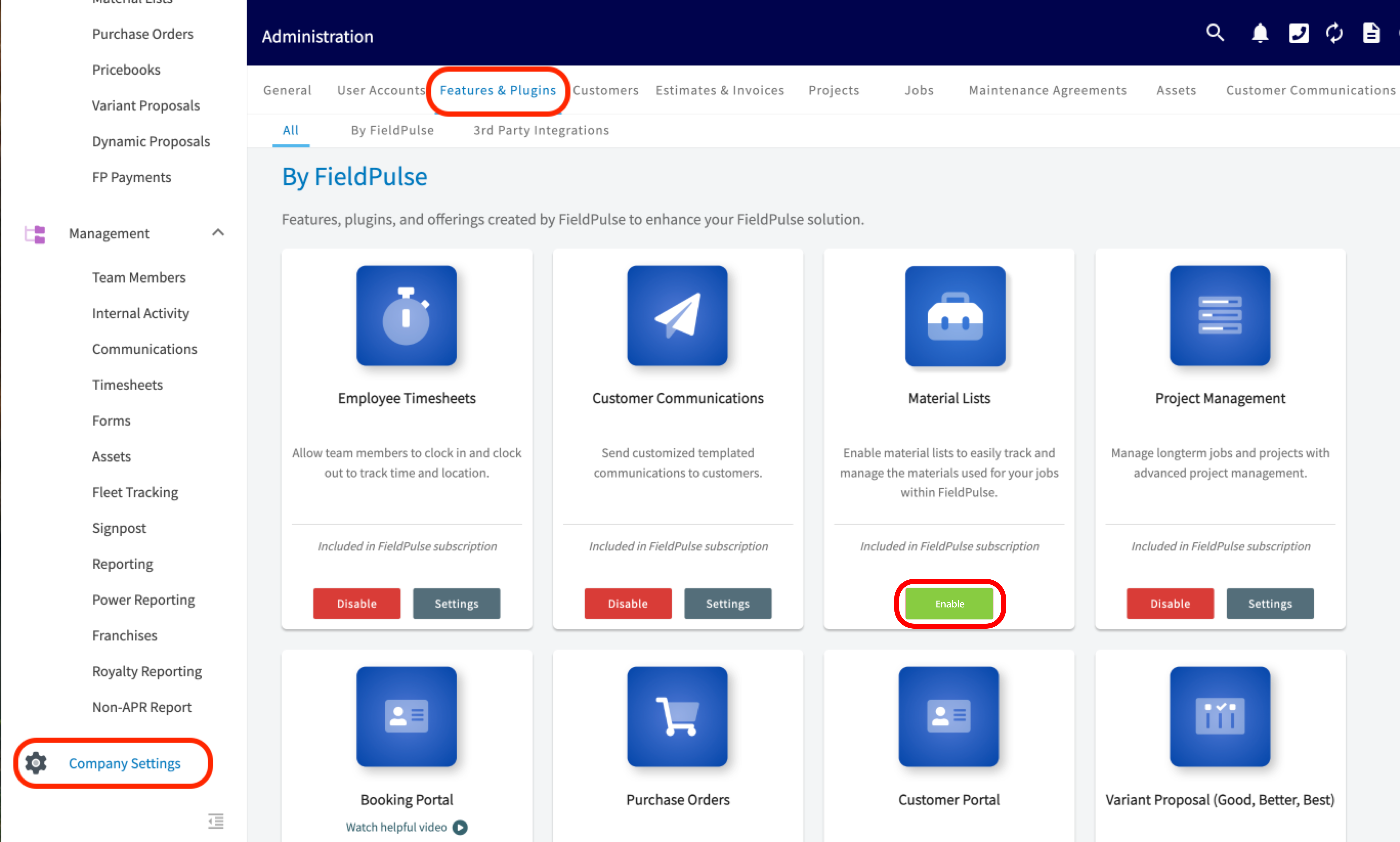 Enabling the card turns material lists on for the whole account. Access for each individual user is a separate setting — see **Set material list permissions** below.
### Create a material list
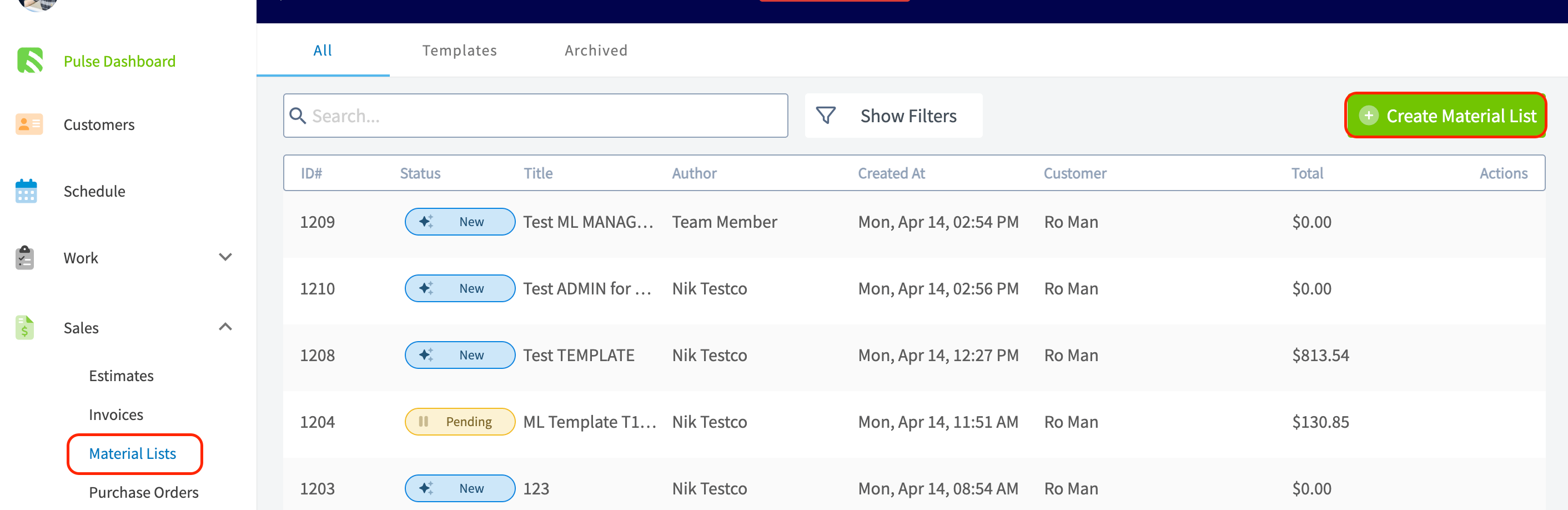
1. Select **Material Lists** under **Sales** in the left menu, then select the green **Create Material List** button.
Enabling the card turns material lists on for the whole account. Access for each individual user is a separate setting — see **Set material list permissions** below.
### Create a material list
1. Select **Material Lists** under **Sales** in the left menu, then select the green **Create Material List** button.
 2. To start from a saved layout instead of a blank list, select **Import Template** and choose a template.
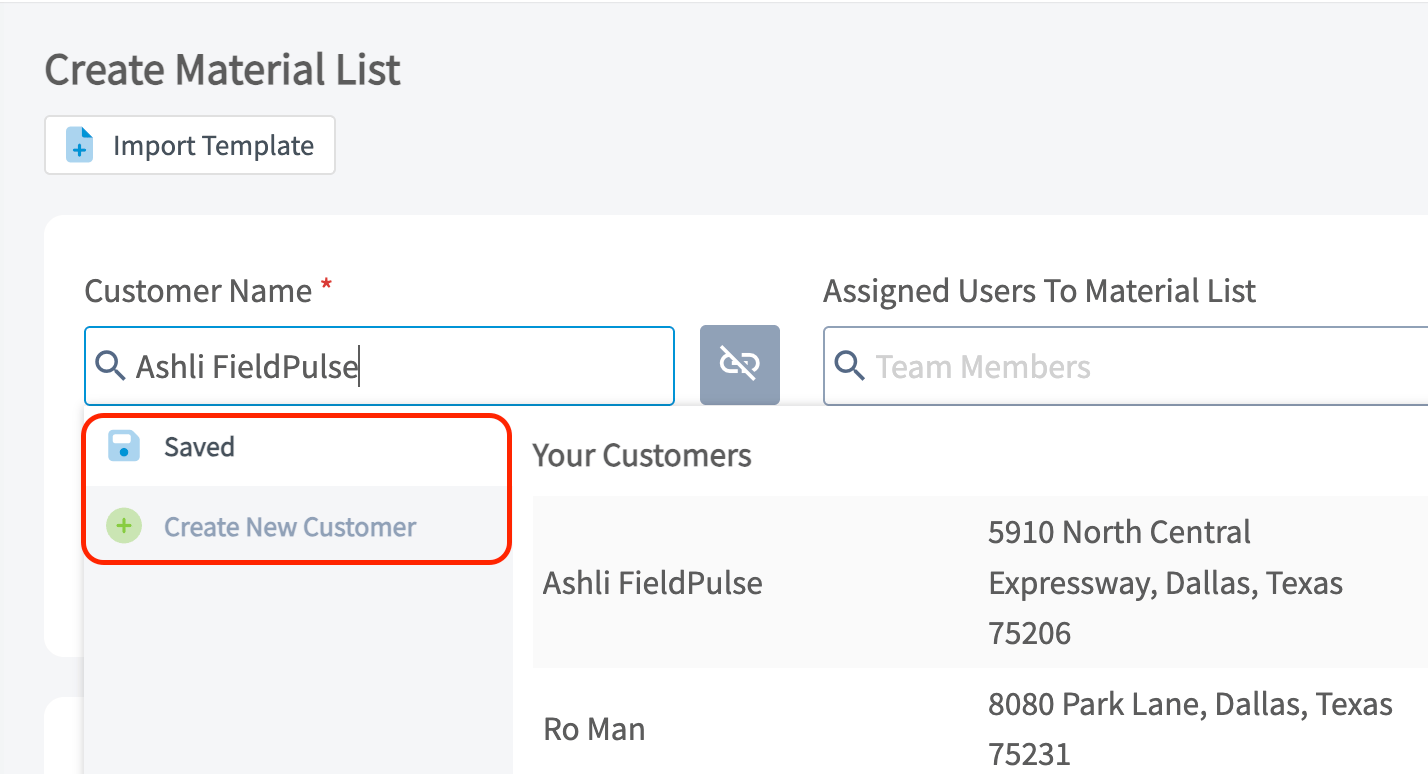
3. Link a customer. Search the **Customer Name** field and select a saved customer, or select **Create New Customer**.
2. To start from a saved layout instead of a blank list, select **Import Template** and choose a template.
3. Link a customer. Search the **Customer Name** field and select a saved customer, or select **Create New Customer**.
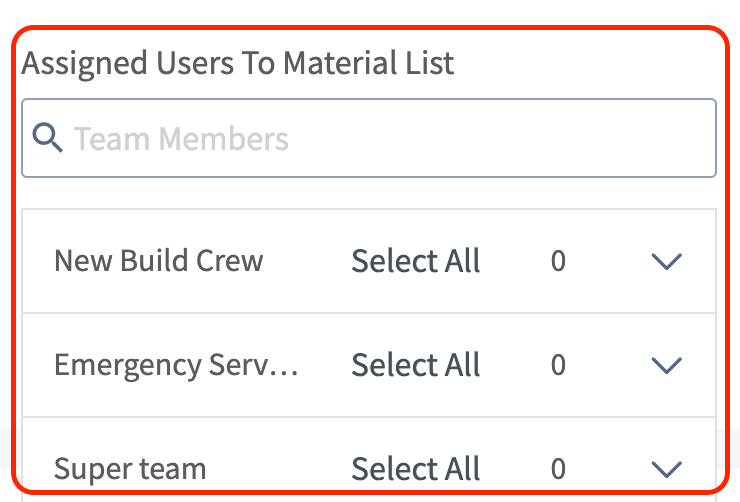
 4. Assign the list to individual users or to teams from the **Assigned Users To Material List** field.
 5. Give the list a unique **Title**, and select a **Status Workflow** if your account uses them. Material list statuses are internal — a customer never sees a material list — and each material list workflow is built in **Company Settings > Material List > Custom Status**. See [Workflow Design Overview](/jobs/workflows/designing-your-workflow) for how statuses are built.
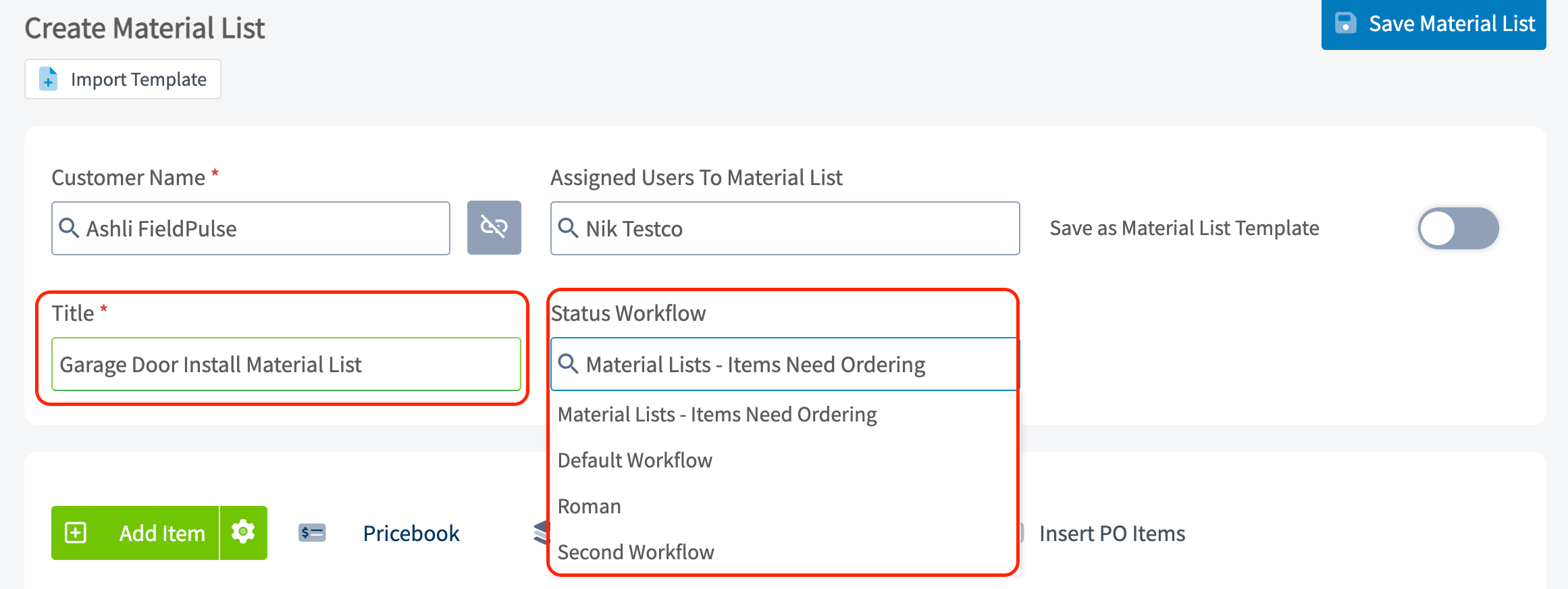 6. Add line items, tags, and notes as described below, then select **Save Material List**.
### Add line items
Line items are the materials, tools, and consumables that make up the list.
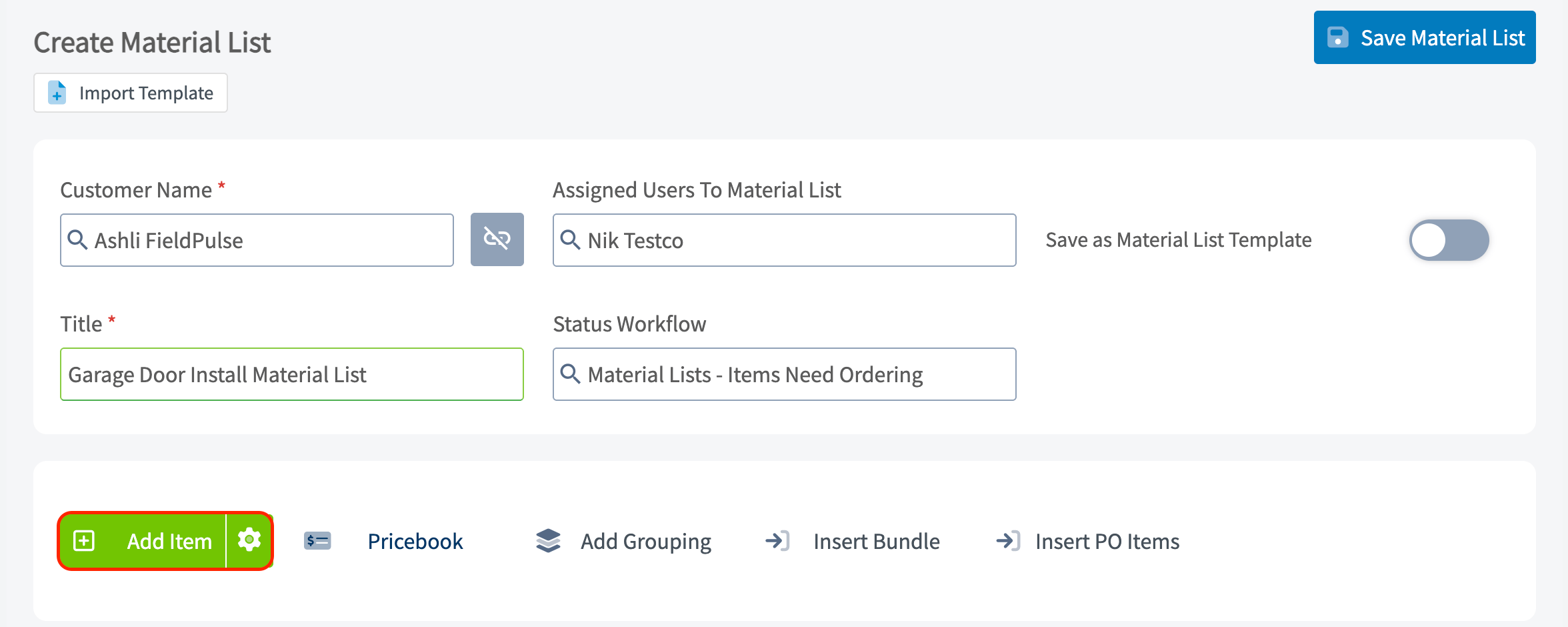
1. Select the green **Add Item** button. A panel opens on the right side of the screen. The same row also offers **Pricebook**, **Add Grouping** for organizing items into groups, **Insert Bundle**, and **Insert PO Items**.
6. Add line items, tags, and notes as described below, then select **Save Material List**.
### Add line items
Line items are the materials, tools, and consumables that make up the list.
1. Select the green **Add Item** button. A panel opens on the right side of the screen. The same row also offers **Pricebook**, **Add Grouping** for organizing items into groups, **Insert Bundle**, and **Insert PO Items**.
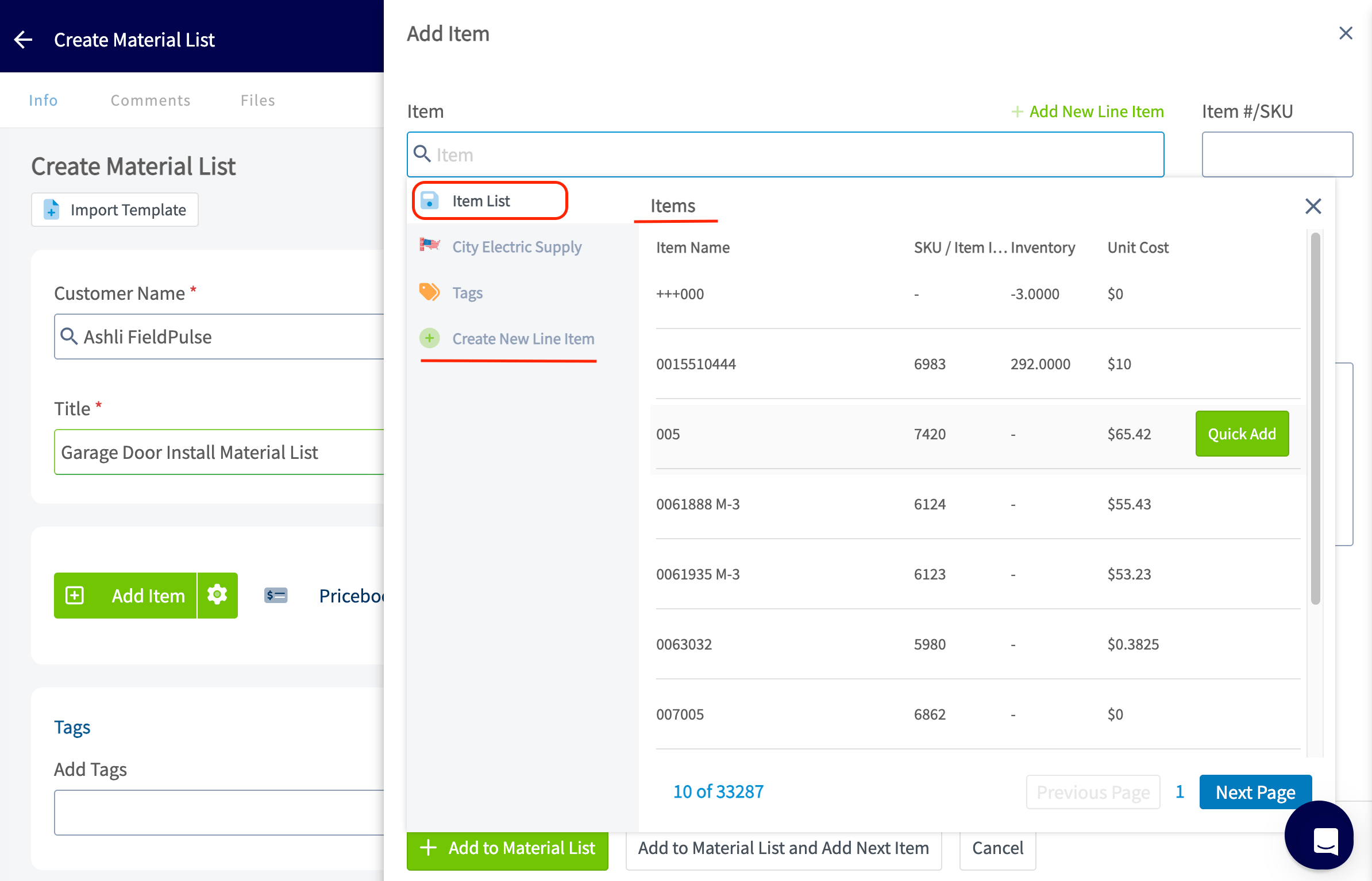
 2. To add an item you already saved, search your item list in the panel and select the item.
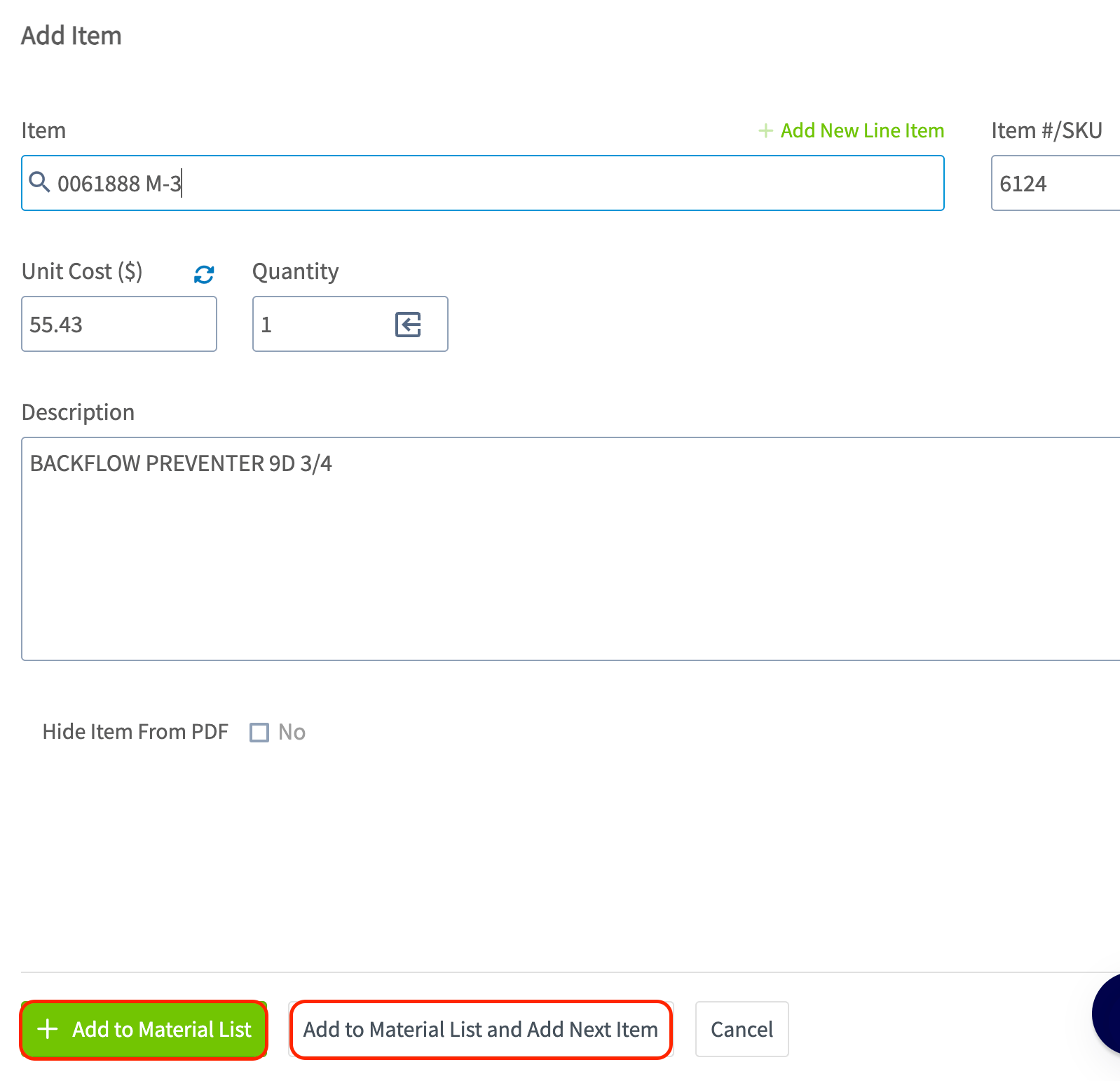
 3. Select **Add to Material List and Add Next Item** to keep adding, or **Add to Material List** if it is the last one.
 4. To create an item that is not saved yet, select **Add New Line Item** in the panel and fill in its details. The line-item form matches the one on an estimate — see the **Line items** section of [How to Create an Estimate](/estimates-invoices/creating/estimate) for how to build a new line item.
When you add a serialized item to a material list, its serial number displays on the line item and stays visible when you reopen that line item to edit it. See [Serialized Inventory Overview](/inventory-materials/item-list/serialized-inventory).
### Add tags, notes, and files
1. Add **tags** so you can filter or report on the list later. Search for an existing tag, or type a new one and press **Enter** to create it.
4. To create an item that is not saved yet, select **Add New Line Item** in the panel and fill in its details. The line-item form matches the one on an estimate — see the **Line items** section of [How to Create an Estimate](/estimates-invoices/creating/estimate) for how to build a new line item.
When you add a serialized item to a material list, its serial number displays on the line item and stays visible when you reopen that line item to edit it. See [Serialized Inventory Overview](/inventory-materials/item-list/serialized-inventory).
### Add tags, notes, and files
1. Add **tags** so you can filter or report on the list later. Search for an existing tag, or type a new one and press **Enter** to create it.
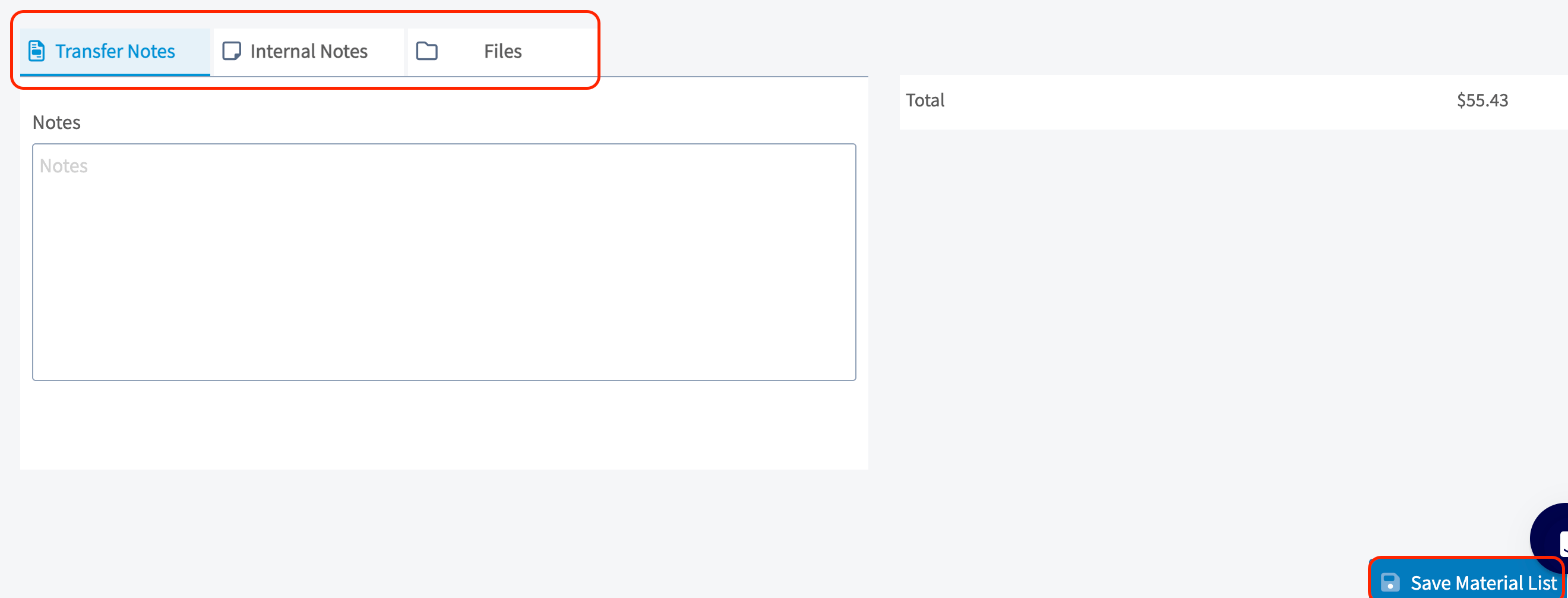
 2. Enter notes in **Internal Notes** or **Transfer Notes**. Notes in **Transfer Notes** carry over to any related record the material list is attached to; internal notes stay on the material list.
3. Attach any relevant files from the **Files** tab.
4. Select the blue **Save Material List** button.
2. Enter notes in **Internal Notes** or **Transfer Notes**. Notes in **Transfer Notes** carry over to any related record the material list is attached to; internal notes stay on the material list.
3. Attach any relevant files from the **Files** tab.
4. Select the blue **Save Material List** button.
 ### Save and reuse a material list template
A material list template is a saved list you can insert on any job, project, purchase order, estimate, or invoice, so a recurring job type does not get rebuilt from scratch each time.
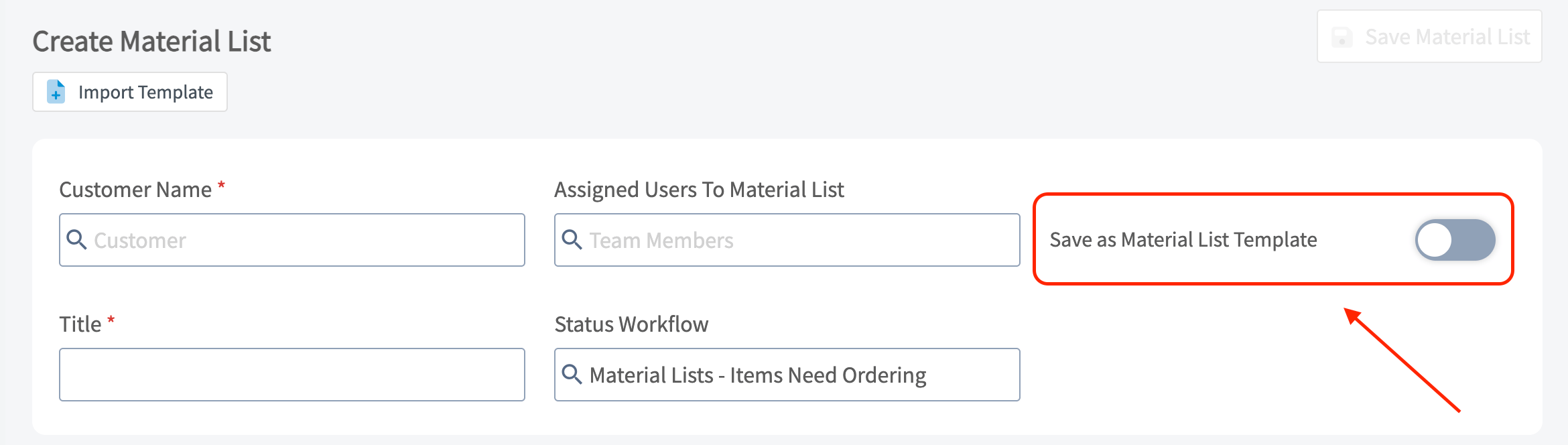
To save a list as a template, toggle on **Save as Material List Template** while you create it.
### Save and reuse a material list template
A material list template is a saved list you can insert on any job, project, purchase order, estimate, or invoice, so a recurring job type does not get rebuilt from scratch each time.
To save a list as a template, toggle on **Save as Material List Template** while you create it.
 To apply a template to a job record:
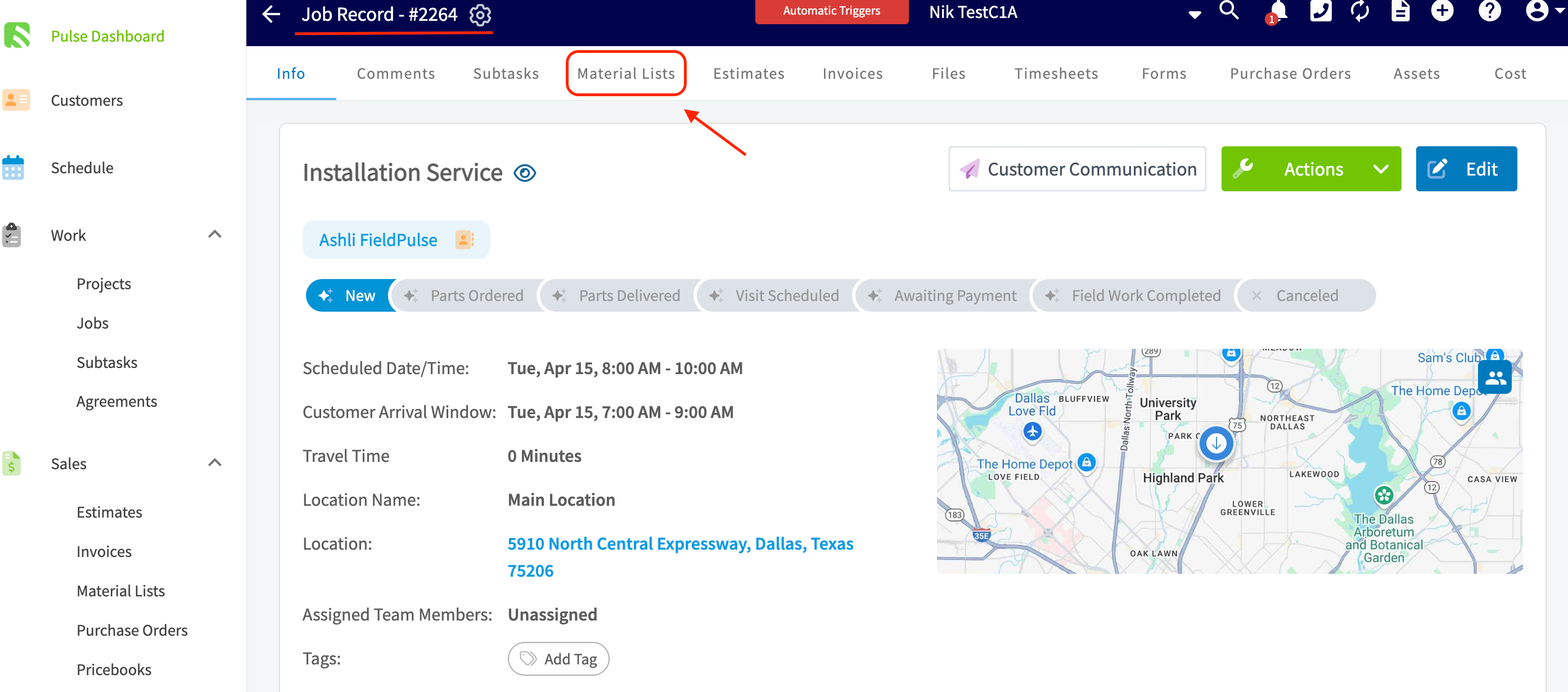
1. Open the job record and select the **Material Lists** subtab at the top.
To apply a template to a job record:
1. Open the job record and select the **Material Lists** subtab at the top.
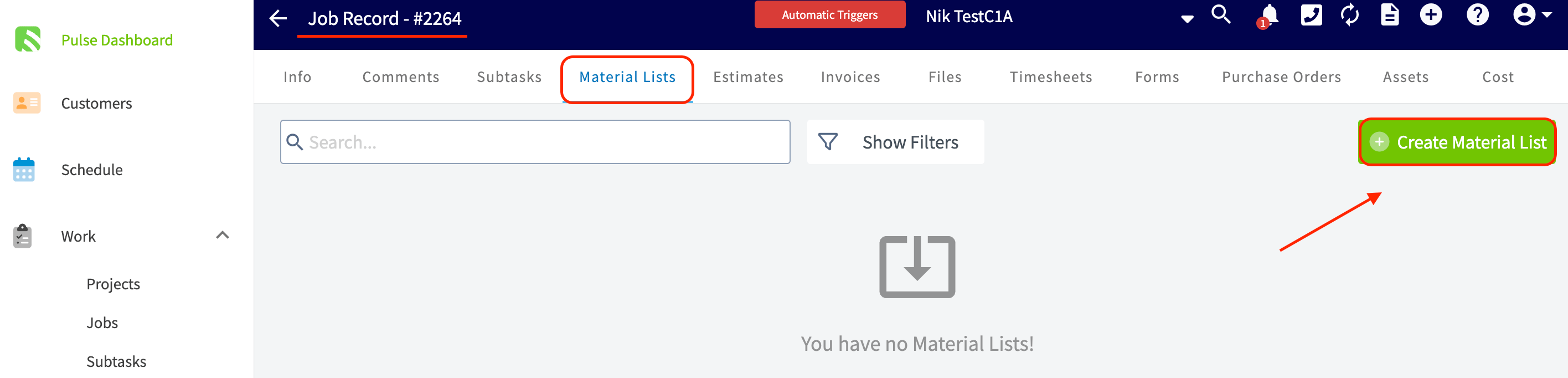
 2. Select the green **Create Material List** button.
 3. Select the **Import Template** button near the top left of the screen.
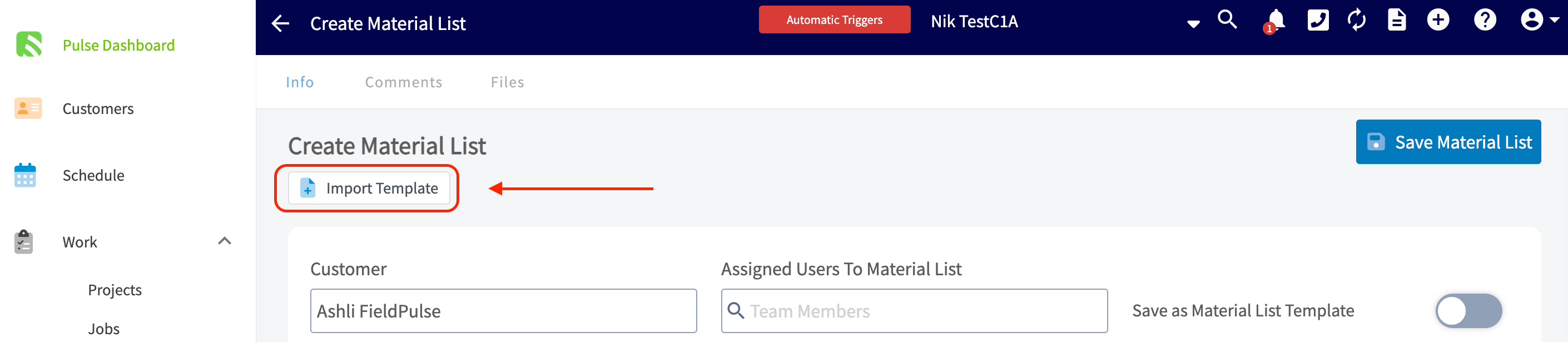 4. Choose the template from the dropdown, make any changes or additions, then select the blue **Save** button.
### Add material list items to a new record
From a saved material list, select **Add Items to New** and choose the record type: **Estimate**, **Invoice**, **Purchase Order**, **Material List**, or **Job**.
4. Choose the template from the dropdown, make any changes or additions, then select the blue **Save** button.
### Add material list items to a new record
From a saved material list, select **Add Items to New** and choose the record type: **Estimate**, **Invoice**, **Purchase Order**, **Material List**, or **Job**.
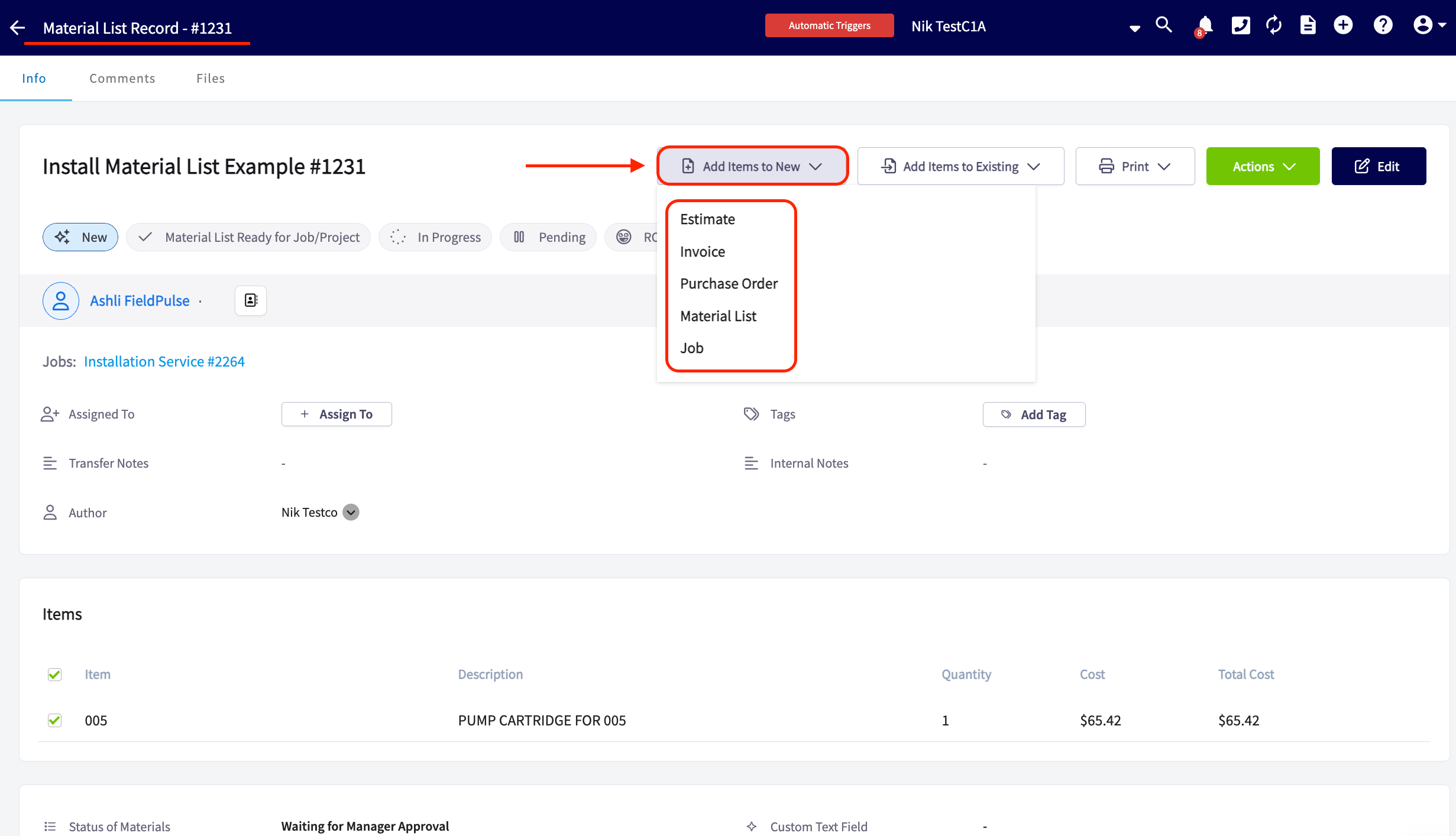 All items are selected by default, so uncheck any items, tools, or materials you do not want to carry over, then confirm the transfer.
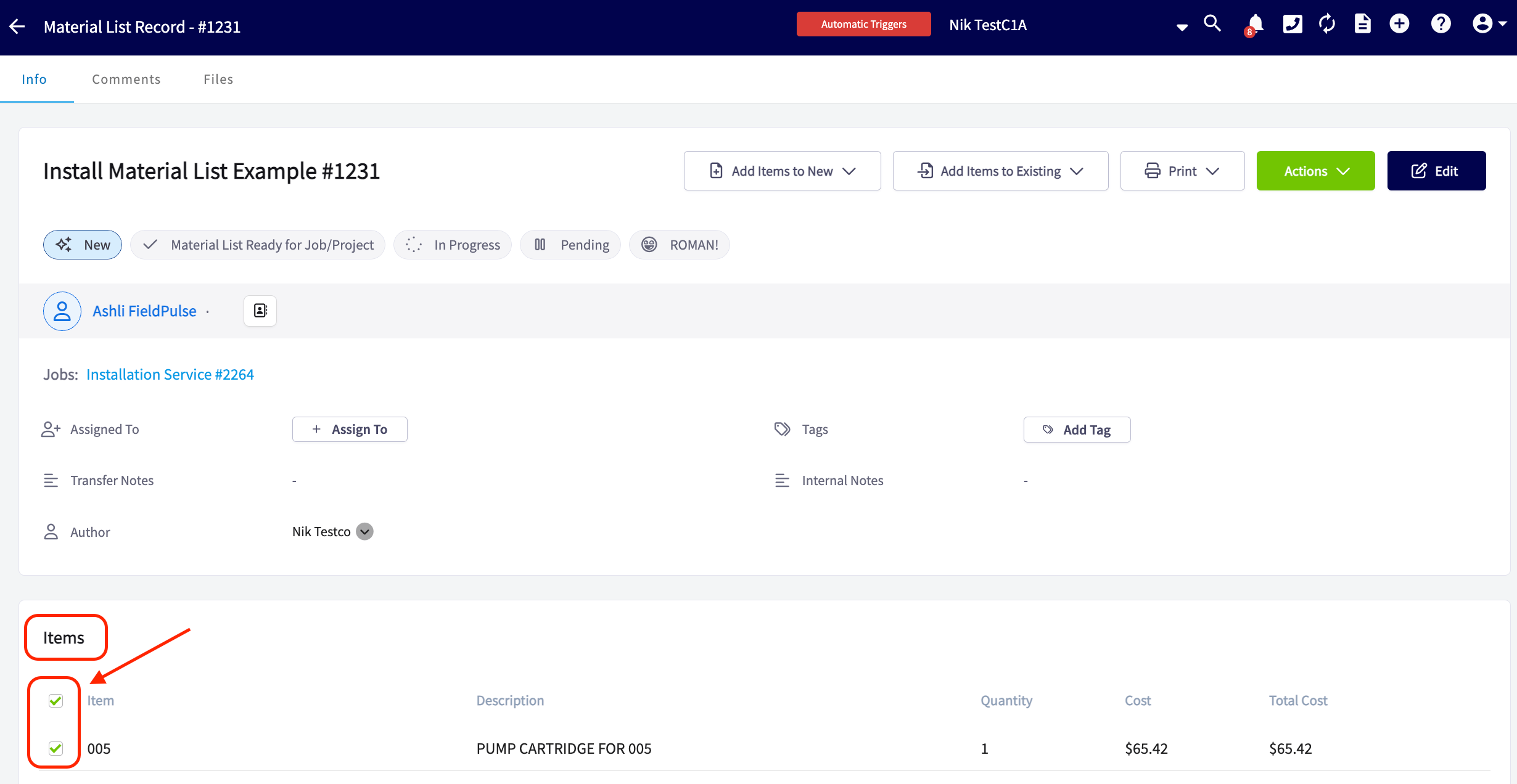 Serialized inventory items transfer to the new record with their serial number intact.
### Add material list items to an existing record
From a saved material list, select **Add Items to Existing** and choose the record type: **Estimate**, **Invoice**, **Purchase Order**, or **Job**.
Serialized inventory items transfer to the new record with their serial number intact.
### Add material list items to an existing record
From a saved material list, select **Add Items to Existing** and choose the record type: **Estimate**, **Invoice**, **Purchase Order**, or **Job**.
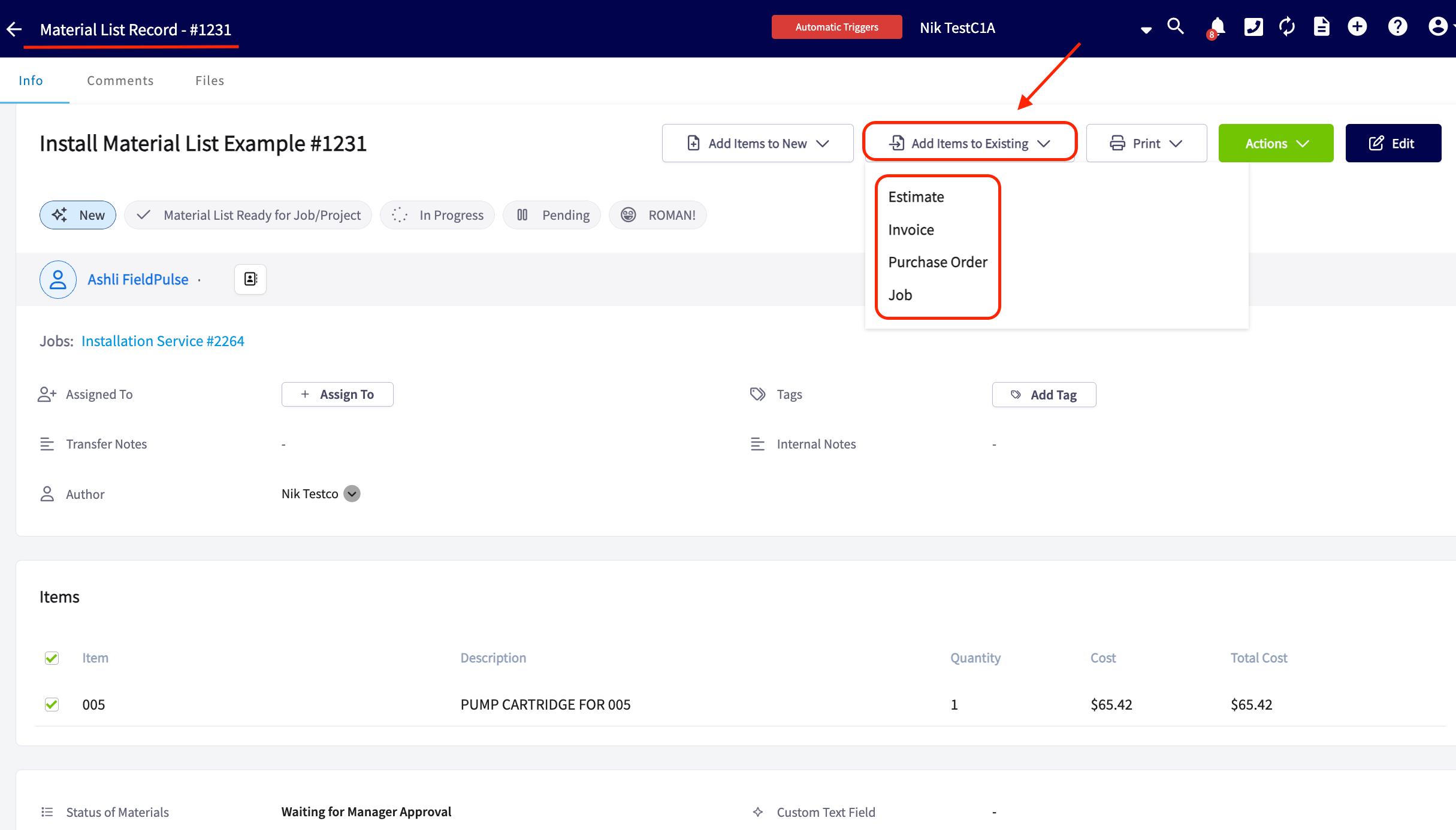 Use the search bar to find the record. When you select the search bar, FieldPulse lists the most recent records of that type for the linked customer.
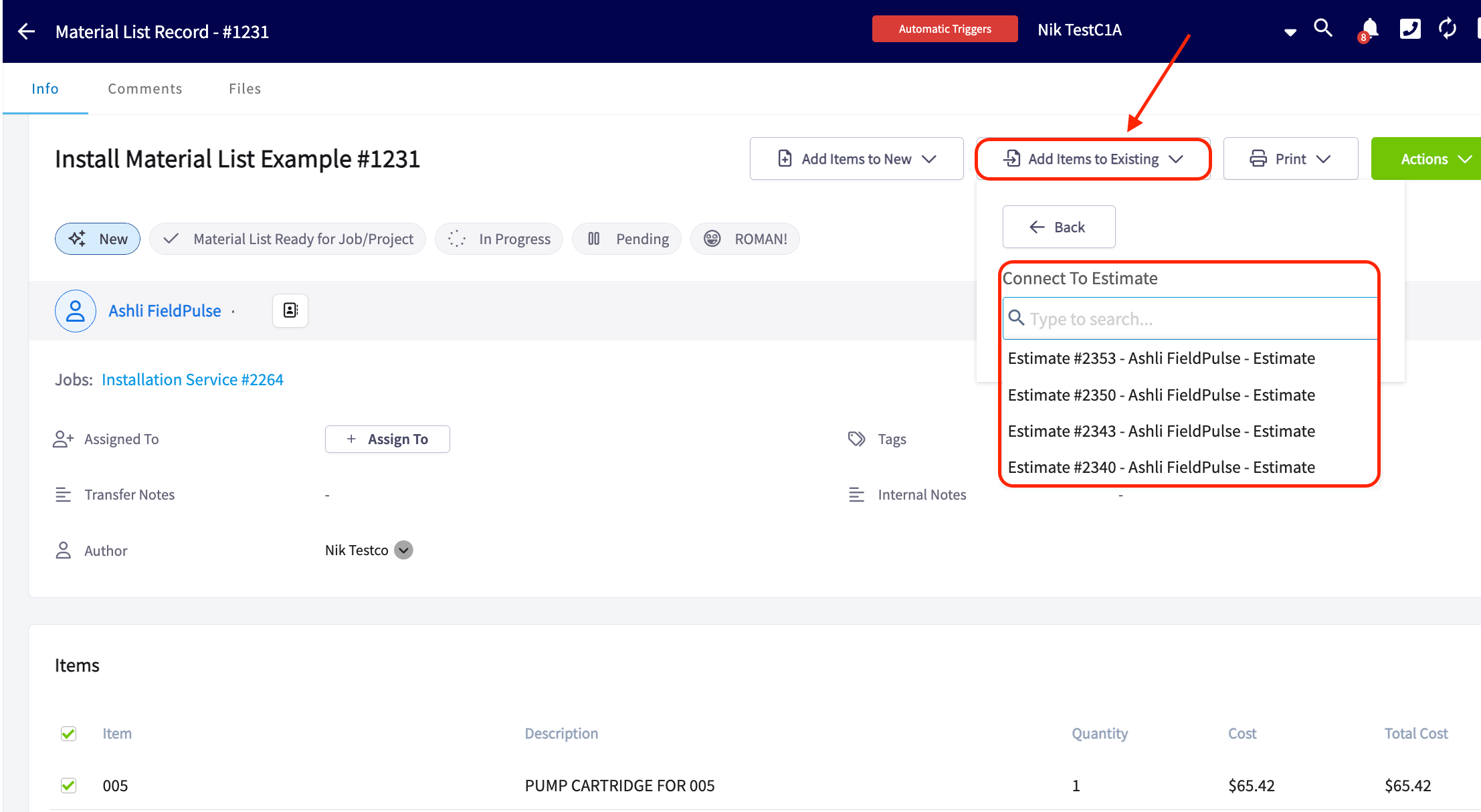 As with a new record, all items are selected by default — uncheck the ones you do not want before you confirm the transfer.
### See the records a material list is linked to
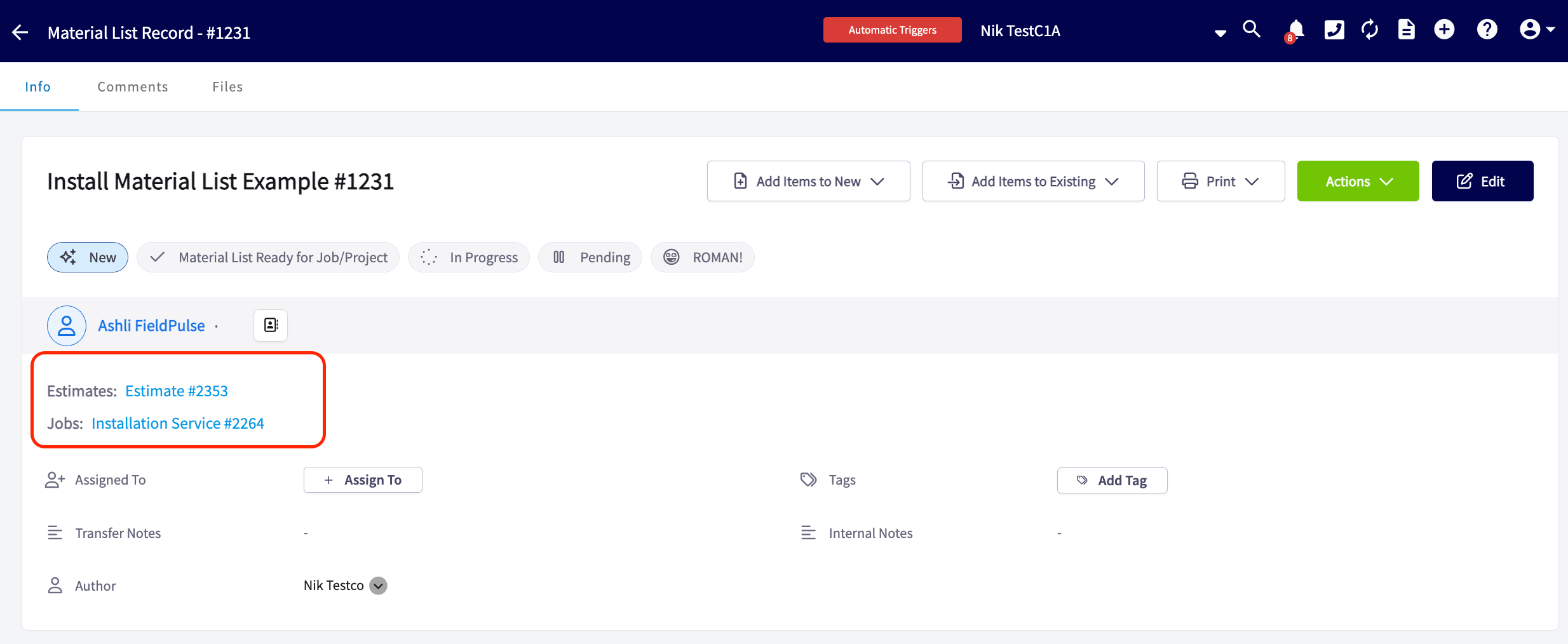
Any record a material list is connected to appears on the material list itself as a blue link. Select a link to open that record's details.
As with a new record, all items are selected by default — uncheck the ones you do not want before you confirm the transfer.
### See the records a material list is linked to
Any record a material list is connected to appears on the material list itself as a blue link. Select a link to open that record's details.
 ### Print a material list
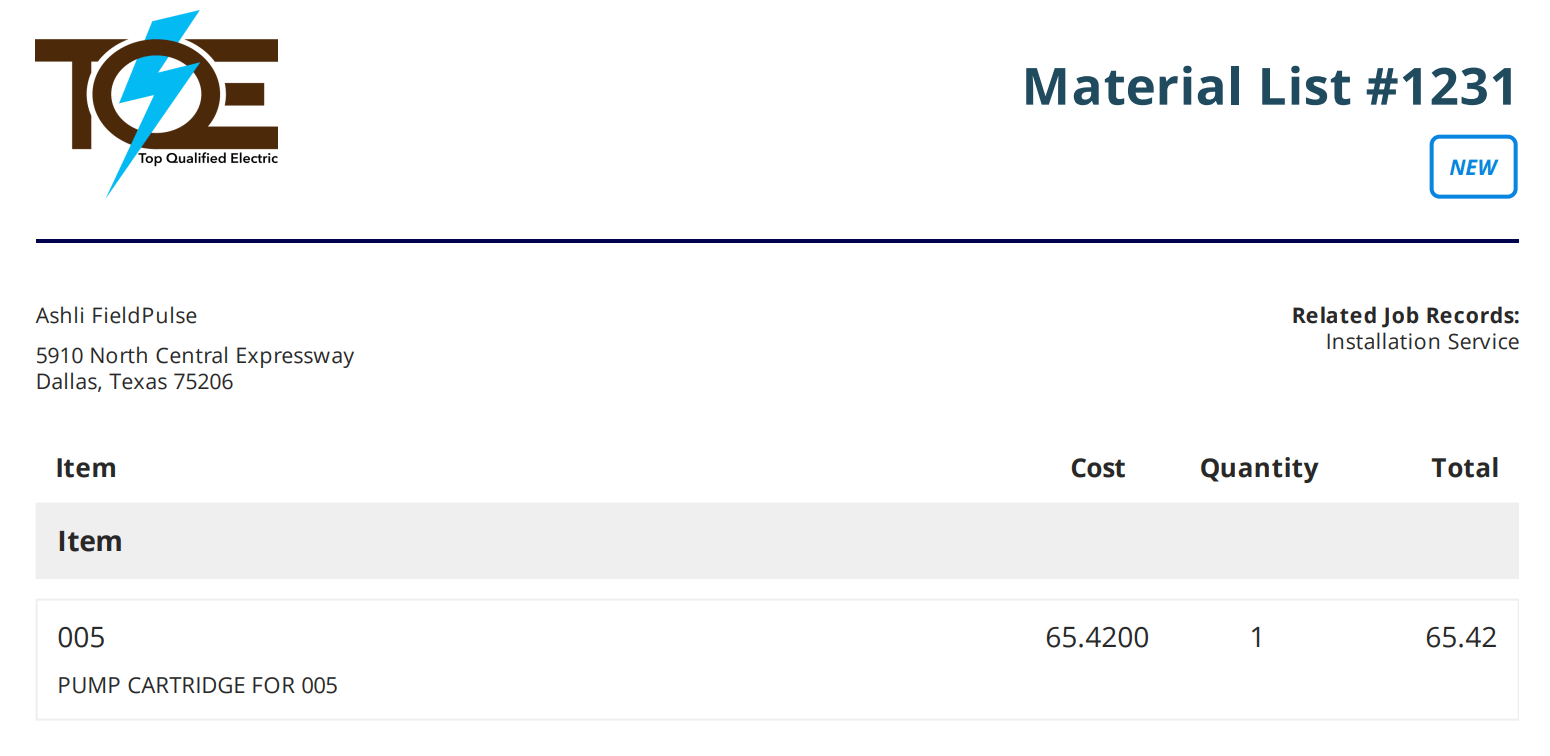
Print a material list to carry a clean, organized copy while you load the truck. Select **Print** on the material list record, then choose whether to include cost details — so you can hand a tech the materials without exposing pricing.
**With costs.** The printed list shows cost, quantity, and total for every item.
### Print a material list
Print a material list to carry a clean, organized copy while you load the truck. Select **Print** on the material list record, then choose whether to include cost details — so you can hand a tech the materials without exposing pricing.
**With costs.** The printed list shows cost, quantity, and total for every item.
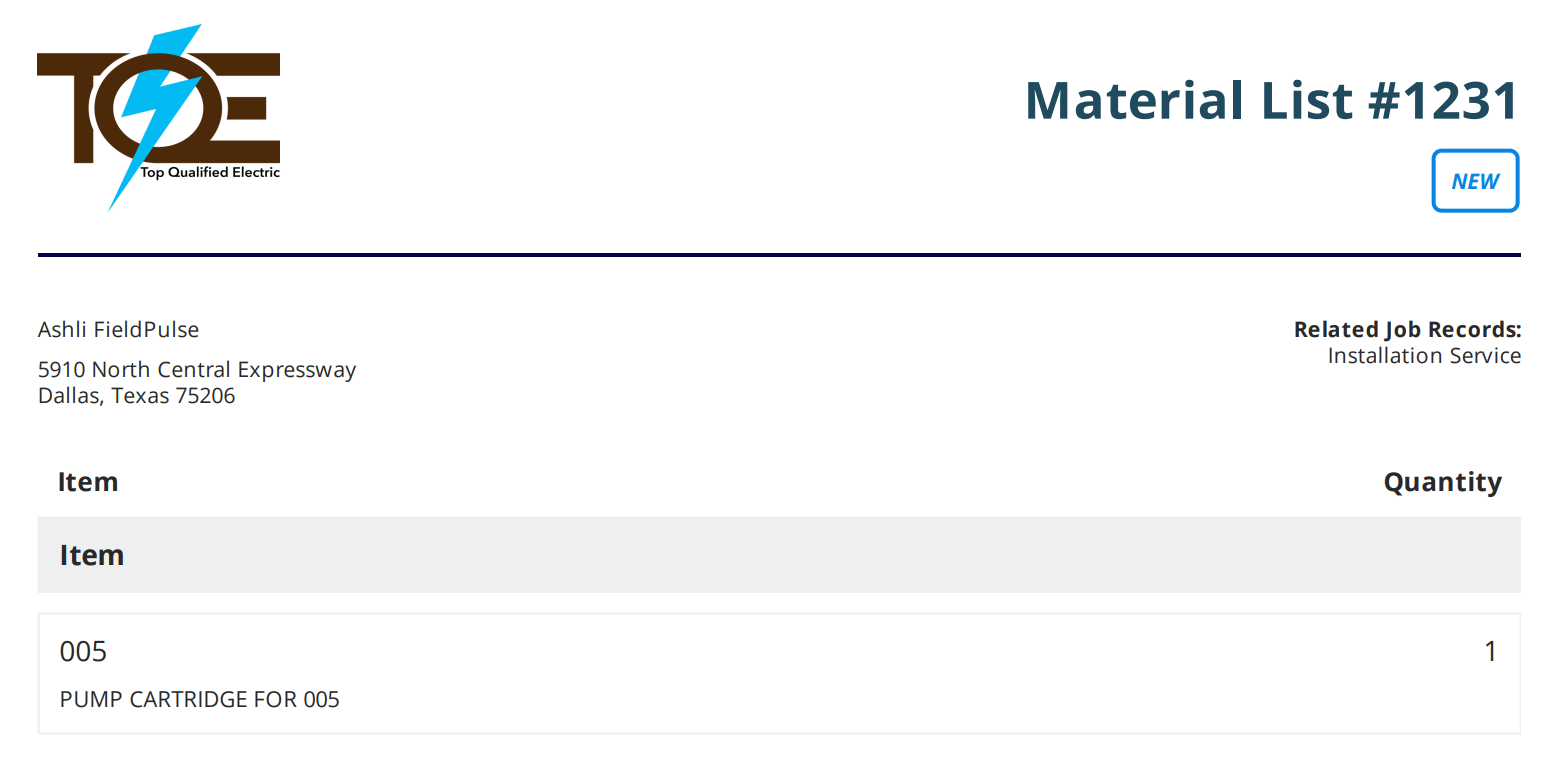
 **Without costs.** The printed list shows the items and quantities only.
 ### Set material list permissions
Material list access is set one user at a time in Company Settings.
1. Select **Company Settings** in the left menu, then select **User Accounts**.
2. Select the **Users** tab and select the user you want to adjust.
3. In the **Material List** section, turn **Is Material List Enabled?** on or off, and choose that user's access level from the dropdown.
### Set material list permissions
Material list access is set one user at a time in Company Settings.
1. Select **Company Settings** in the left menu, then select **User Accounts**.
2. Select the **Users** tab and select the user you want to adjust.
3. In the **Material List** section, turn **Is Material List Enabled?** on or off, and choose that user's access level from the dropdown.
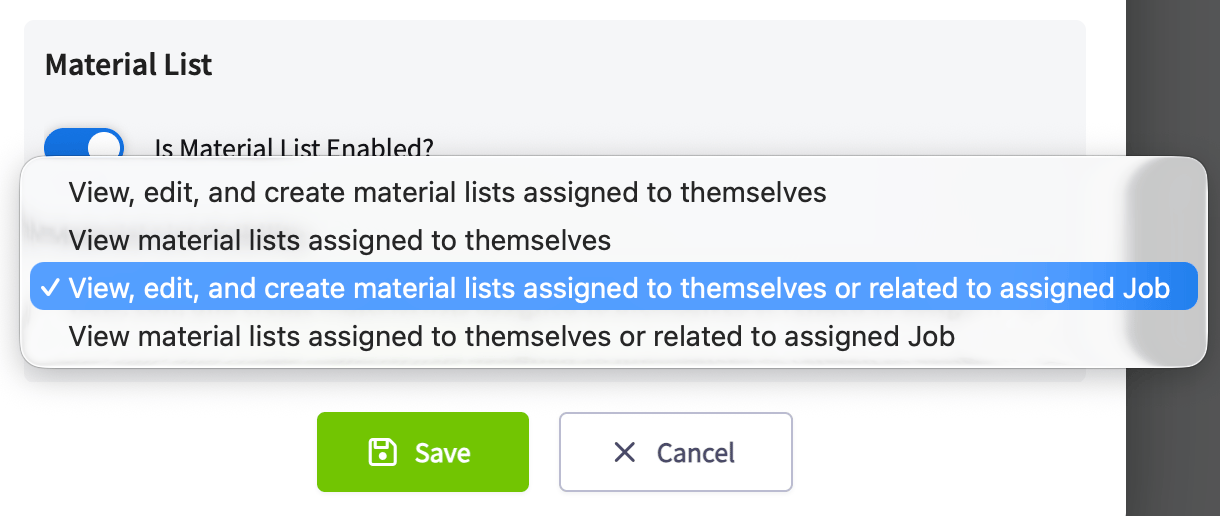 The access levels available for each user are:
* View, edit, and create material lists assigned to themselves
* View material lists assigned to themselves
* View, edit, and create material lists assigned to themselves or related to an assigned job
* View material lists assigned to themselves or related to an assigned job
4. Under **Financial and Invoicing Permissions**, set **View Unit Cost on Estimates/Invoices** and **View Unit Price on Estimates/Invoices** to control whether that user sees the cost and price of line items on the estimates and invoices they create.
The access levels available for each user are:
* View, edit, and create material lists assigned to themselves
* View material lists assigned to themselves
* View, edit, and create material lists assigned to themselves or related to an assigned job
* View material lists assigned to themselves or related to an assigned job
4. Under **Financial and Invoicing Permissions**, set **View Unit Cost on Estimates/Invoices** and **View Unit Price on Estimates/Invoices** to control whether that user sees the cost and price of line items on the estimates and invoices they create.
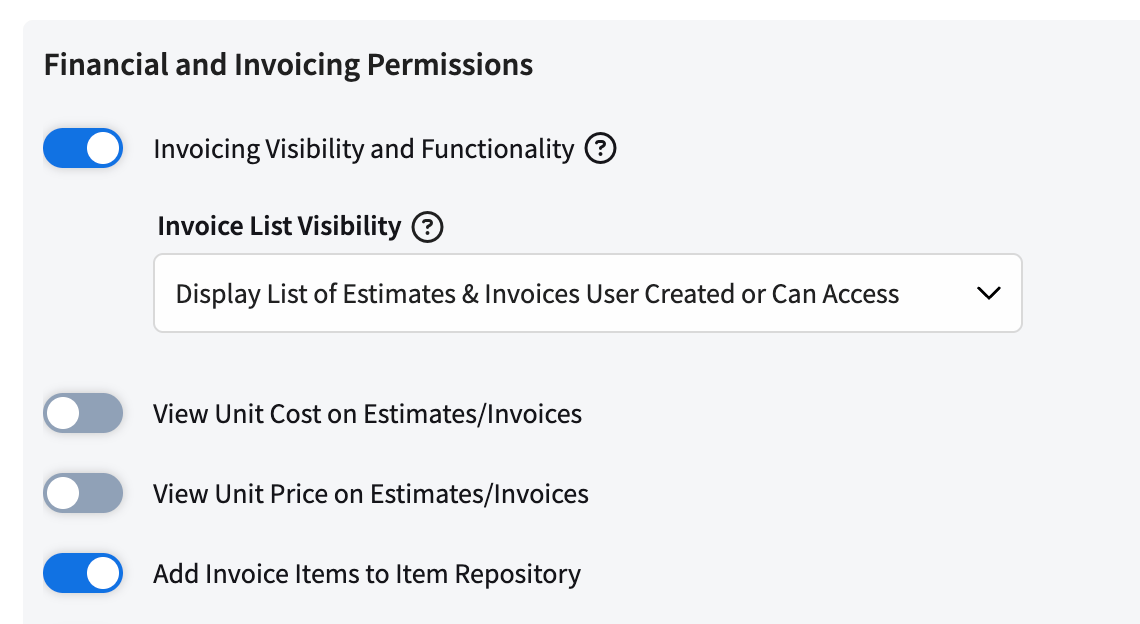 5. Select **Save**.
Repeat these steps for every user who needs the setting changed — material list permissions are set one user at a time. For how roles fit together, see [User Roles and Permissions Details](/settings/users-teams/user-roles).
### Work with material lists offline
The FieldPulse mobile app keeps material lists working when a tech loses signal in a basement or mechanical room. Offline Mode is available in the mobile app only, and it requires material lists to be enabled on your account and the FieldPulse mobile app to be installed and up to date.
FieldPulse detects when the device goes offline and prompts the tech to switch to Offline Mode. Everything entered offline syncs to your account automatically once the device reconnects, with no extra steps.
1. Tap to switch to Offline Mode when the prompt appears. A material list already in progress carries over automatically — nothing is lost.
5. Select **Save**.
Repeat these steps for every user who needs the setting changed — material list permissions are set one user at a time. For how roles fit together, see [User Roles and Permissions Details](/settings/users-teams/user-roles).
### Work with material lists offline
The FieldPulse mobile app keeps material lists working when a tech loses signal in a basement or mechanical room. Offline Mode is available in the mobile app only, and it requires material lists to be enabled on your account and the FieldPulse mobile app to be installed and up to date.
FieldPulse detects when the device goes offline and prompts the tech to switch to Offline Mode. Everything entered offline syncs to your account automatically once the device reconnects, with no extra steps.
1. Tap to switch to Offline Mode when the prompt appears. A material list already in progress carries over automatically — nothing is lost.
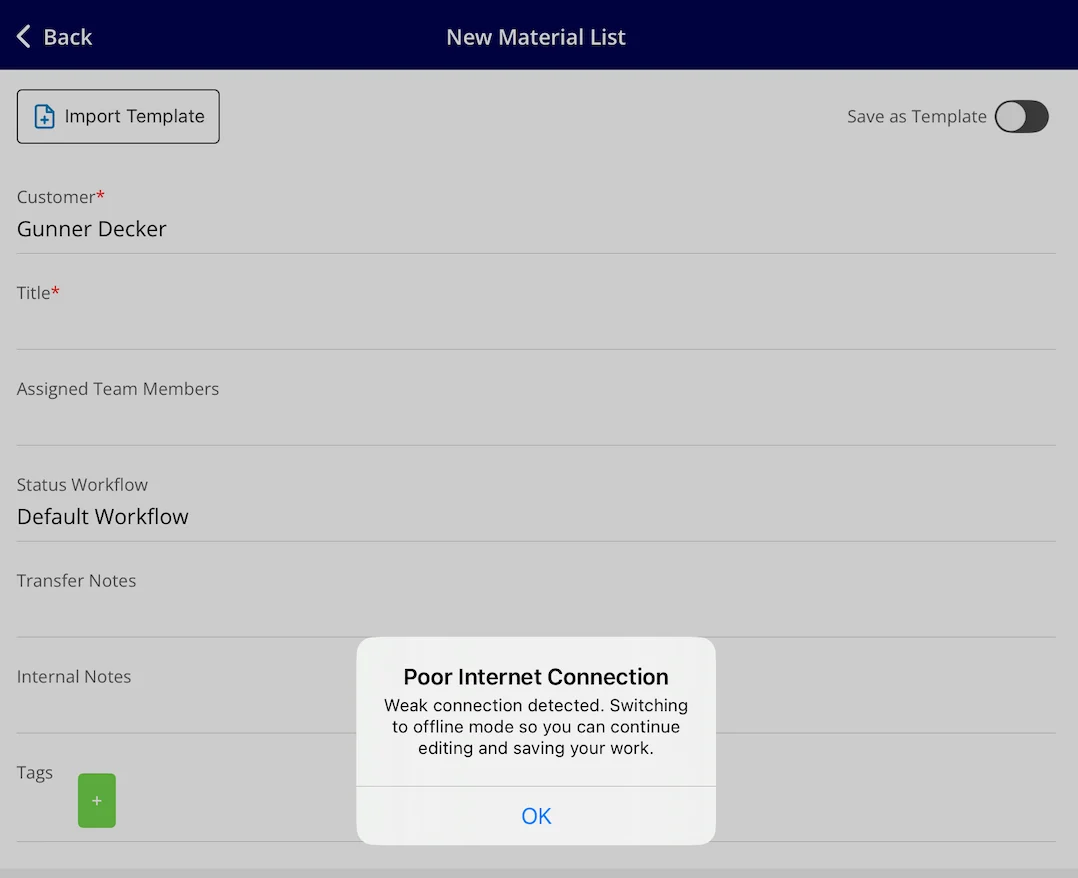 2. Keep working as normal — add line items, update details, and make changes. FieldPulse saves the material list as a draft and uploads it once the device is back online.
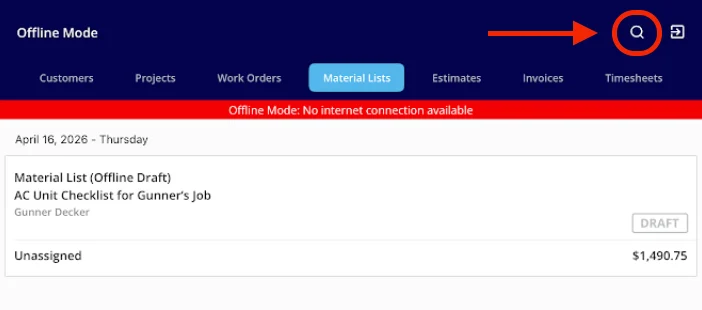
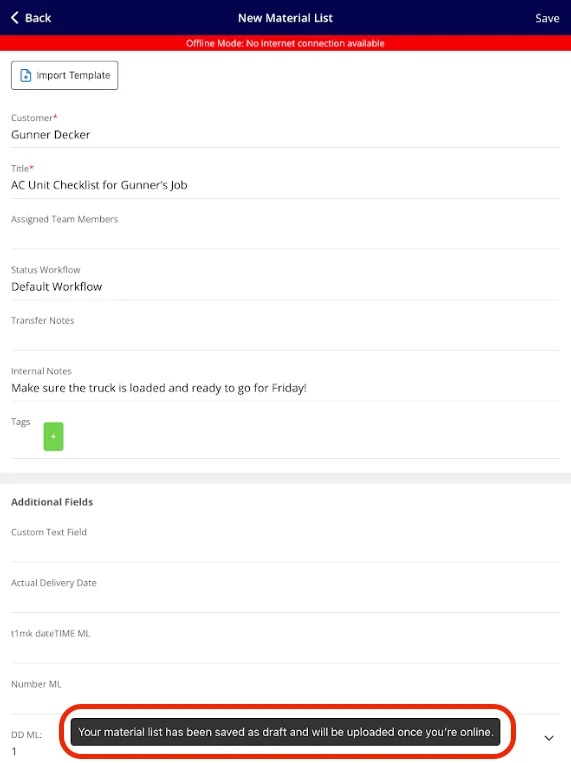 3. To open an existing record, use the search bar in the list view to find it by title, ID, or customer name.
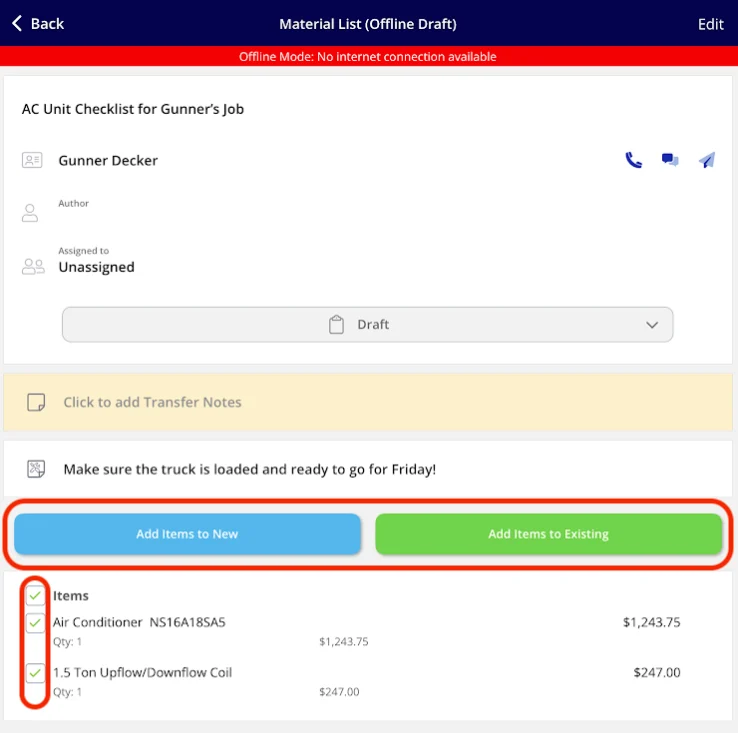
 4. Add material list items to a new or existing estimate or invoice with **Add Items to New** or **Add Items to Existing**.
 FieldPulse caches a limited set of records and items for offline use, prioritized by what was used most recently:
| What FieldPulse caches | Offline limit |
| ------------------------------ | ------------------------------------------------------------------------------------------------------------------- |
| Material list records | Up to 300, prioritized by most recently used and linked to the customers, jobs, and projects on the week's schedule |
| Line items from your item list | Up to 10,000, based on recent use across material lists, estimates, and invoices |
| Bundle items | Up to 100 |
With no connection, a tech can:
* Create new material lists linked to cached customers, jobs, or projects
* Edit the cached material lists
* Search records by title, ID, or customer name
* Add internal notes and transfer notes
* Add tags
* Build lists from cached line items and cached bundles
* Create groupings
* Import material list templates
* Update statuses on material lists
* Add material list items to a new or existing estimate or invoice
An **Offline Draft** badge stays on a record until it finishes syncing after the device reconnects. See [Offline Mode Overview](/troubleshooting/offline-mode/offline-mode) for how offline behavior works across the rest of the app.
## Availability
Material lists are available in all regions and are included in the FieldPulse subscription — the **Material Lists** card in **Company Settings > Features & Plugins** is marked "Included in FieldPulse subscription," with no add-on to buy. The feature stays off until an Admin enables it, and each user's access is granted individually in **User Accounts**. Working on material lists without a connection requires the FieldPulse mobile app.
## FAQs
### Can I print a material list without showing costs?
Yes. The print options include a version without cost details, which shows items and quantities only, so you can hand a tech the materials without exposing pricing. See [Print a material list](#print-a-material-list).
### Where can I use a material list template?
A saved material list template can be inserted on any job, project, purchase order, estimate, or invoice record. See [Save and reuse a material list template](#save-and-reuse-a-material-list-template) for saving a template and importing it onto a record.
### Why can't I find an item when I add line items offline?
The offline cache holds up to 10,000 recently used items. If an item is missing, use it on a material list, estimate, or invoice while you are online so it enters the cache — see [Work with material lists offline](#work-with-material-lists-offline).
### Why is the Offline Draft badge not clearing after I reconnected?
The record has not finished syncing yet. Keep the device on a stable connection and allow time for the sync to complete — see [Work with material lists offline](#work-with-material-lists-offline).
### My changes aren't showing in FieldPulse after I came back online. What do I do?
The sync is most likely still running. Wait on a stable connection for the **Offline Draft** badge to clear, and avoid editing the record again until it does — see [Work with material lists offline](#work-with-material-lists-offline).
## Related articles
* [How to Use Material Lists on the Mobile App](/inventory-materials/material-lists/mobile-app)
* [Setting Up Custom Fields on Material Lists](/inventory-materials/material-lists/custom-fields)
* [Setting Up Item List & Inventory](/inventory-materials/item-list/adding-items)
* [How to Manage Purchase Orders](/inventory-materials/purchase-orders/managing)
* [Serialized Inventory Overview](/inventory-materials/item-list/serialized-inventory)
* [Offline Mode Overview](/troubleshooting/offline-mode/offline-mode)
## Related topics
- [Offline Mode Overview](/troubleshooting/offline-mode/offline-mode.md)
- [How to Manage Purchase Orders](/inventory-materials/purchase-orders/managing.md)
- [Material Lists](/inventory-materials/material-lists/index.md)
- [Material Lists Offline Mode Details](/inventory-materials/material-lists/offline-behavior.md)
FieldPulse caches a limited set of records and items for offline use, prioritized by what was used most recently:
| What FieldPulse caches | Offline limit |
| ------------------------------ | ------------------------------------------------------------------------------------------------------------------- |
| Material list records | Up to 300, prioritized by most recently used and linked to the customers, jobs, and projects on the week's schedule |
| Line items from your item list | Up to 10,000, based on recent use across material lists, estimates, and invoices |
| Bundle items | Up to 100 |
With no connection, a tech can:
* Create new material lists linked to cached customers, jobs, or projects
* Edit the cached material lists
* Search records by title, ID, or customer name
* Add internal notes and transfer notes
* Add tags
* Build lists from cached line items and cached bundles
* Create groupings
* Import material list templates
* Update statuses on material lists
* Add material list items to a new or existing estimate or invoice
An **Offline Draft** badge stays on a record until it finishes syncing after the device reconnects. See [Offline Mode Overview](/troubleshooting/offline-mode/offline-mode) for how offline behavior works across the rest of the app.
## Availability
Material lists are available in all regions and are included in the FieldPulse subscription — the **Material Lists** card in **Company Settings > Features & Plugins** is marked "Included in FieldPulse subscription," with no add-on to buy. The feature stays off until an Admin enables it, and each user's access is granted individually in **User Accounts**. Working on material lists without a connection requires the FieldPulse mobile app.
## FAQs
### Can I print a material list without showing costs?
Yes. The print options include a version without cost details, which shows items and quantities only, so you can hand a tech the materials without exposing pricing. See [Print a material list](#print-a-material-list).
### Where can I use a material list template?
A saved material list template can be inserted on any job, project, purchase order, estimate, or invoice record. See [Save and reuse a material list template](#save-and-reuse-a-material-list-template) for saving a template and importing it onto a record.
### Why can't I find an item when I add line items offline?
The offline cache holds up to 10,000 recently used items. If an item is missing, use it on a material list, estimate, or invoice while you are online so it enters the cache — see [Work with material lists offline](#work-with-material-lists-offline).
### Why is the Offline Draft badge not clearing after I reconnected?
The record has not finished syncing yet. Keep the device on a stable connection and allow time for the sync to complete — see [Work with material lists offline](#work-with-material-lists-offline).
### My changes aren't showing in FieldPulse after I came back online. What do I do?
The sync is most likely still running. Wait on a stable connection for the **Offline Draft** badge to clear, and avoid editing the record again until it does — see [Work with material lists offline](#work-with-material-lists-offline).
## Related articles
* [How to Use Material Lists on the Mobile App](/inventory-materials/material-lists/mobile-app)
* [Setting Up Custom Fields on Material Lists](/inventory-materials/material-lists/custom-fields)
* [Setting Up Item List & Inventory](/inventory-materials/item-list/adding-items)
* [How to Manage Purchase Orders](/inventory-materials/purchase-orders/managing)
* [Serialized Inventory Overview](/inventory-materials/item-list/serialized-inventory)
* [Offline Mode Overview](/troubleshooting/offline-mode/offline-mode)
## Related topics
- [Offline Mode Overview](/troubleshooting/offline-mode/offline-mode.md)
- [How to Manage Purchase Orders](/inventory-materials/purchase-orders/managing.md)
- [Material Lists](/inventory-materials/material-lists/index.md)
- [Material Lists Offline Mode Details](/inventory-materials/material-lists/offline-behavior.md)