> ## Documentation Index
> Fetch the complete documentation index at: https://help.fieldpulse.com/llms.txt
> Use this file to discover all available pages before exploring further.
# How to Create a Maintenance Agreement
> Set a service frequency in FieldPulse, auto-create the jobs, add recurring billing and email reminders, link assets, and send a contract for signature.
> **Who uses this:** Admins have full account access. Team Managers can create, edit, and view maintenance agreements, and Service Agents can create and view them. **Availability:** All regions · included in the FieldPulse subscription; Maintenance Agreements must be enabled in **Company Settings > Features & Plugins**.
A [maintenance agreement](https://www.fieldpulse.com/features/maintenance-agreements) is the record that holds recurring service for one customer — the frequency, the jobs, the billing, the reminders, and the signed contract. You set the schedule once, and a twice-a-year tune-up no longer depends on someone remembering to put it on the calendar.
## Overview
A maintenance agreement ties recurring service to a customer and, when you want, to a specific asset. On the agreement you set the service frequency, associate a job template and choose whether occurrences are created manually or automatically, attach recurring billing, turn on automatic email service reminders, and add internal and customer-facing notes. You can build agreements from the web app or the mobile app, and save the ones you sell often as templates.
## Before you begin
* Enable Maintenance Agreements on your account. Go to **Company Settings**, select **Features & Plugins** from the top menu, find **Maintenance Agreements**, and select **Enable**. See [Features & Plugins Overview](/getting-started/next-steps/features-plugins-overview) for more on the Features & Plugins page.
## On web
### Create the agreement
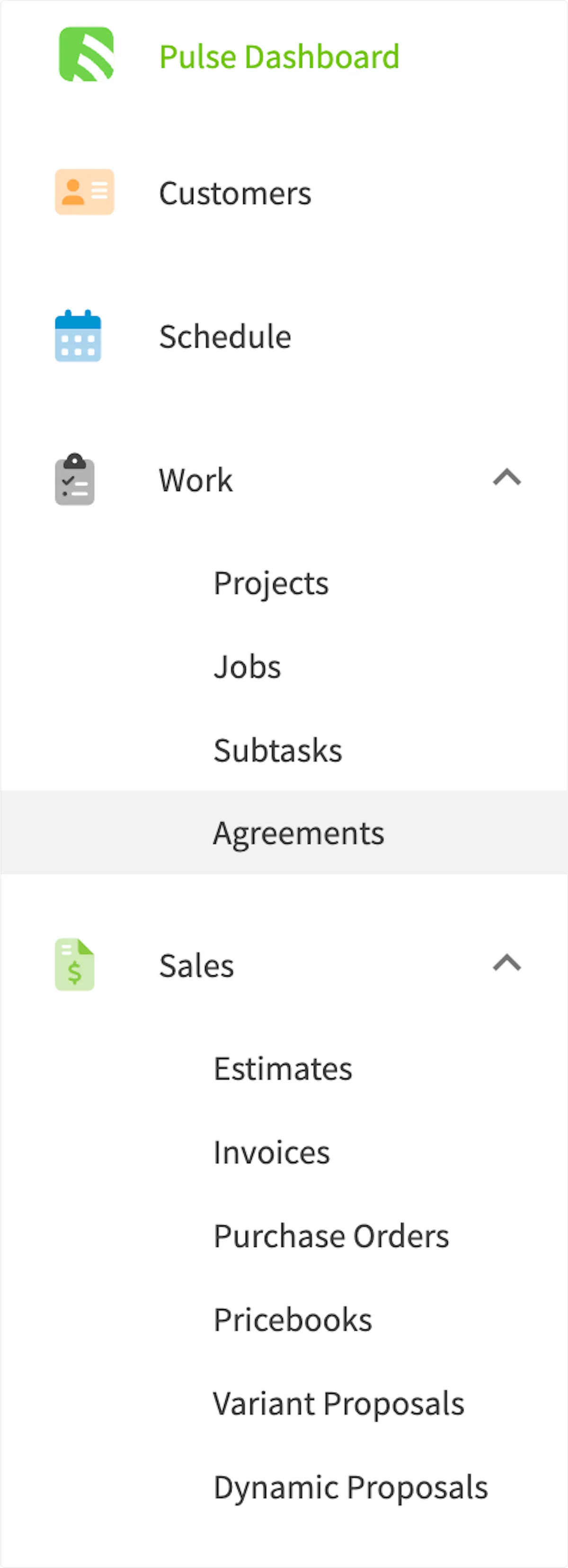
1. Select **Agreements** in the left-side menu.
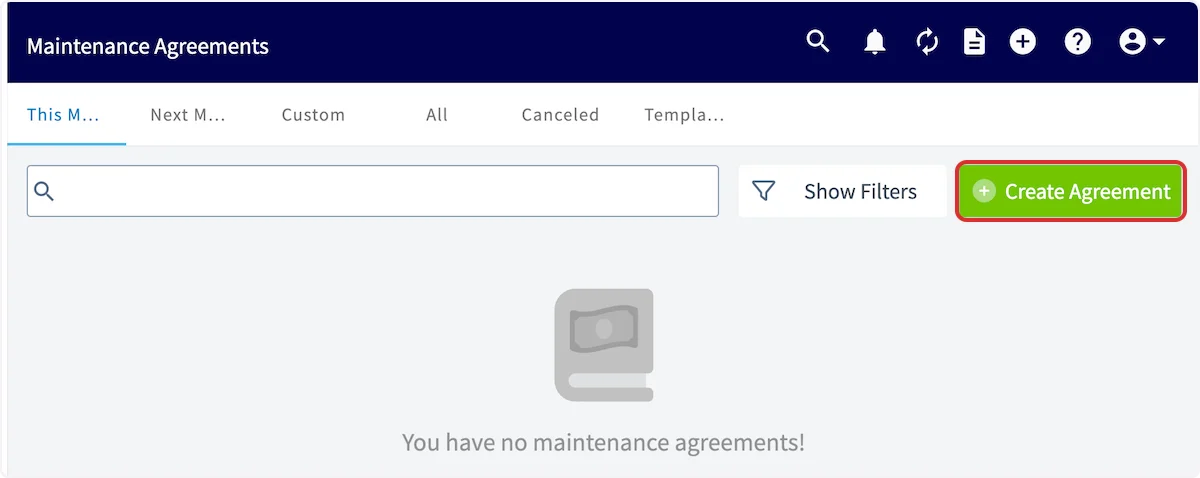
 2. Select **Create Agreement**. The tabs across the top of the Maintenance Agreements page — **This Month**, **Next Month**, **Custom**, **All**, **Canceled**, and **Templates** — sort the agreements you already have.
 You can also create a maintenance agreement directly from the Parent Job. That link lets you quickly identify the job where the agreement was originally sold or installed.
### General information
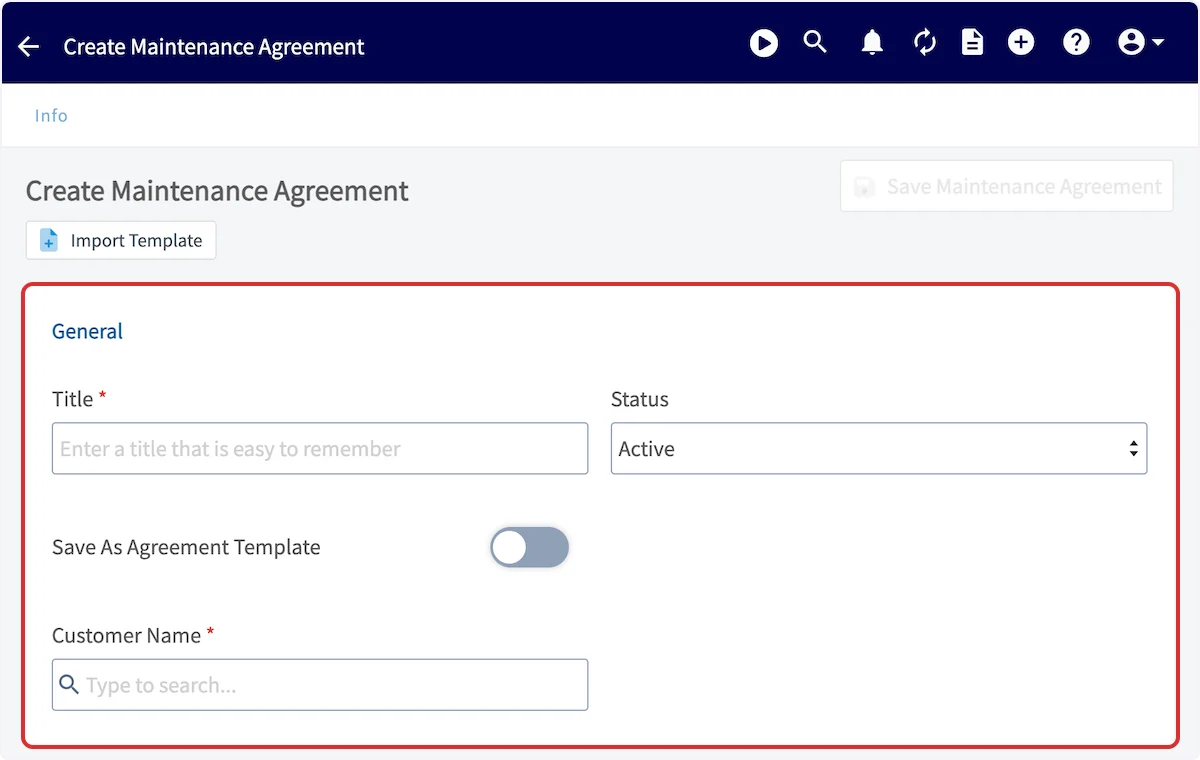
Add a **Title**, set the **Status**, and link a **Customer Name**. If you expect to build similar agreements many times, turn on **Save As Agreement Template** so you can reuse this one later with **Import Template**.
You can also create a maintenance agreement directly from the Parent Job. That link lets you quickly identify the job where the agreement was originally sold or installed.
### General information
Add a **Title**, set the **Status**, and link a **Customer Name**. If you expect to build similar agreements many times, turn on **Save As Agreement Template** so you can reuse this one later with **Import Template**.
 ### Service frequency
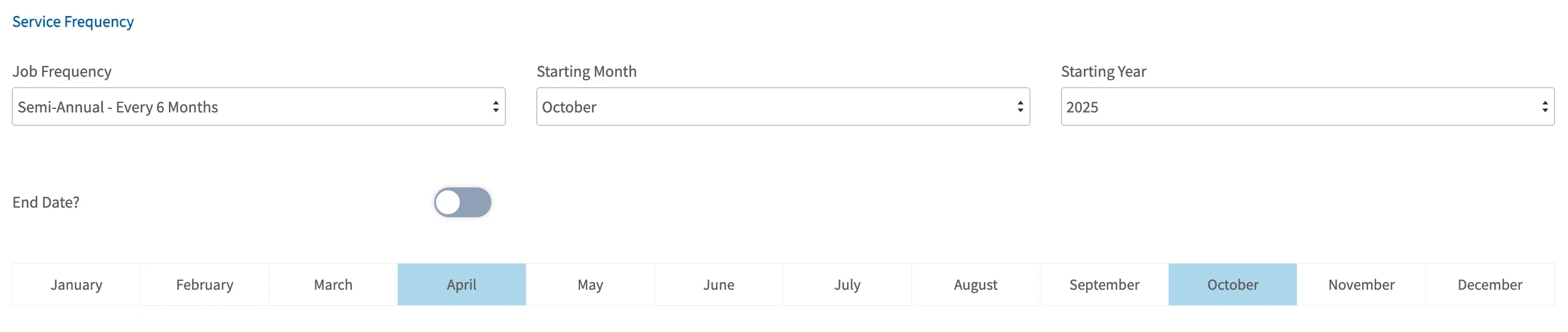
Select the **Job Frequency**, then the **Starting Month** and **Starting Year** for the service. If the agreement has an end date, turn on **End Date?** and identify the ending month and year. The calendar at the bottom of the section highlights the months that will have service.
### Service frequency
Select the **Job Frequency**, then the **Starting Month** and **Starting Year** for the service. If the agreement has an end date, turn on **End Date?** and identify the ending month and year. The calendar at the bottom of the section highlights the months that will have service.
 ### Occurrence creation
Associate a job template with each maintenance agreement occurrence. Turn on **Set Maintenance Agreement Job Template**, then search for an existing template under **Search Job Templates** or select **Create Template** to build one from this screen. For how templates are built, see [Setting Up Job Templates](/jobs/jobs-tasks/creating-job-templates).
After you select a template, the **Job Creation Method** dropdown appears with two options:
* **Manual** — every job associated with this maintenance agreement is created by hand from the maintenance agreement's **Jobs** tab.
* **Automatic** — jobs are auto-created from the selected template, maintaining a rolling basis of 12 months of future occurrences. These jobs are left unscheduled by default. You can schedule them from:
* The maintenance agreement's **Jobs** tab.
* The Job List (filter for unscheduled).
* The hourglass scheduling tool on the **Schedule** tab.
### Occurrence creation
Associate a job template with each maintenance agreement occurrence. Turn on **Set Maintenance Agreement Job Template**, then search for an existing template under **Search Job Templates** or select **Create Template** to build one from this screen. For how templates are built, see [Setting Up Job Templates](/jobs/jobs-tasks/creating-job-templates).
After you select a template, the **Job Creation Method** dropdown appears with two options:
* **Manual** — every job associated with this maintenance agreement is created by hand from the maintenance agreement's **Jobs** tab.
* **Automatic** — jobs are auto-created from the selected template, maintaining a rolling basis of 12 months of future occurrences. These jobs are left unscheduled by default. You can schedule them from:
* The maintenance agreement's **Jobs** tab.
* The Job List (filter for unscheduled).
* The hourglass scheduling tool on the **Schedule** tab.
 ### Recurring billing
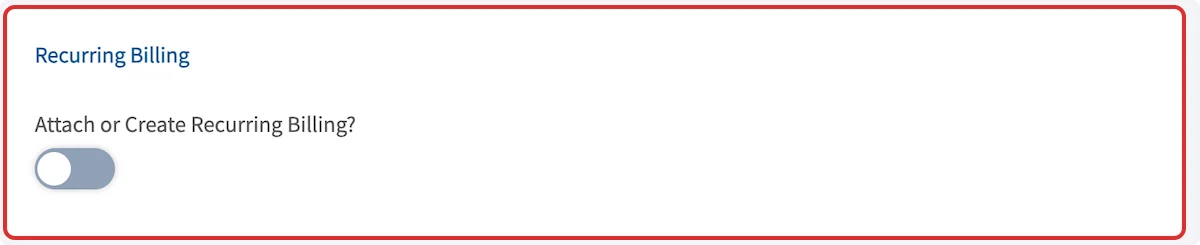
To bill this agreement on a recurring basis, turn on **Attach or Create Recurring Billing?**
### Recurring billing
To bill this agreement on a recurring basis, turn on **Attach or Create Recurring Billing?**
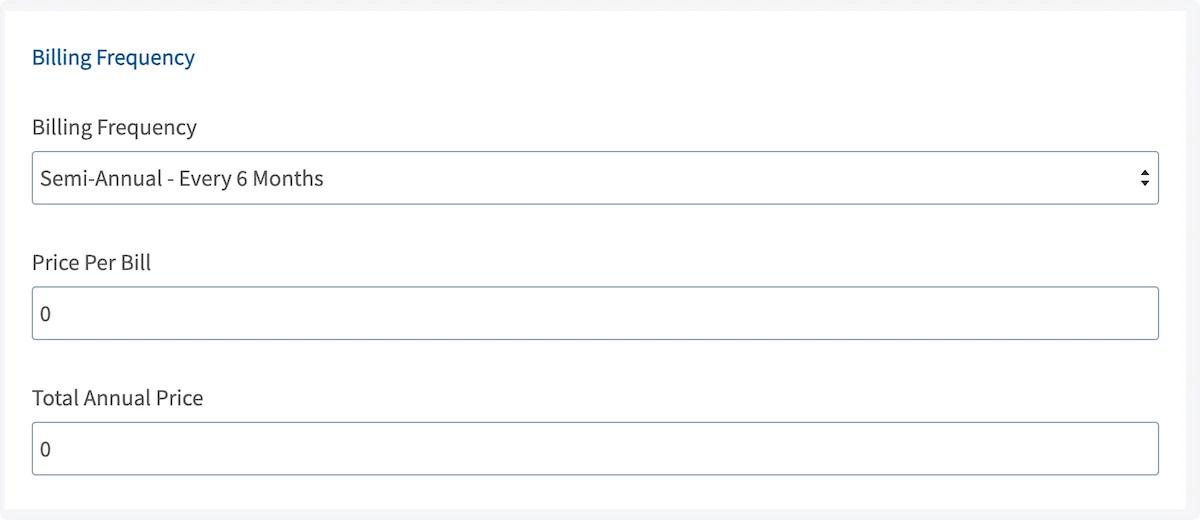
 Then set the **Billing Frequency** and enter the **Price Per Bill**. The **Total Annual Price** calculates automatically. For everything recurring billing can do, see [Setting Up Recurring Billing](/estimates-invoices/recurring/recurring-billing).
 ### Automatic reminders
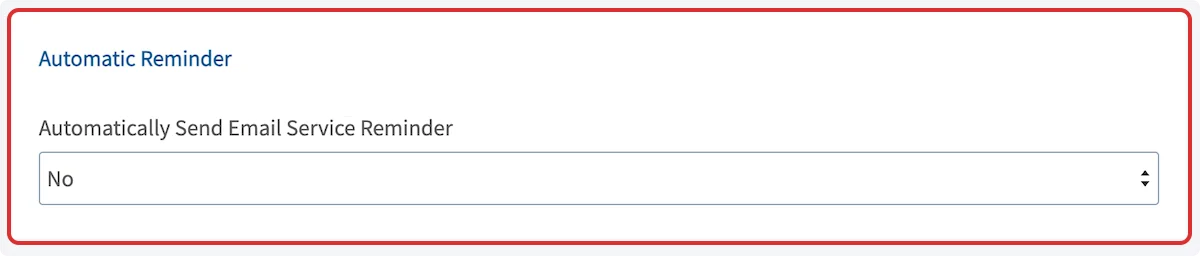
FieldPulse can send automatic email service reminders to customers and team members. Choose your preference from the **Automatically Send Email Service Reminder** dropdown.
### Automatic reminders
FieldPulse can send automatic email service reminders to customers and team members. Choose your preference from the **Automatically Send Email Service Reminder** dropdown.
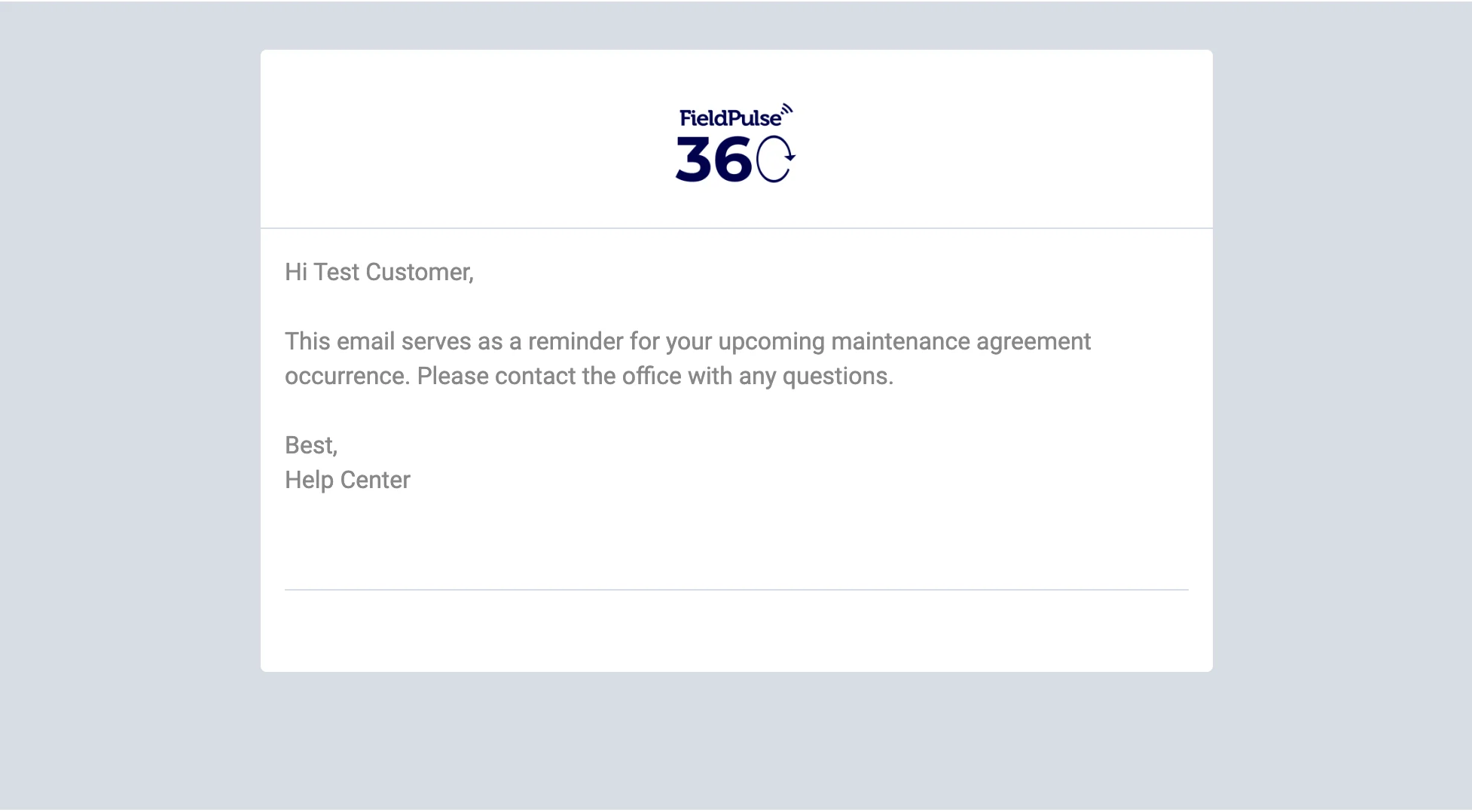
 You can customize the reminder email message and select which internal team members receive it. An example message may look like this:
 For what the reminder looks like from the customer's side and which parts of it you control, see [Maintenance Agreement Reminders Overview](/jobs/assets/maintenance-customer-view).
### Notes
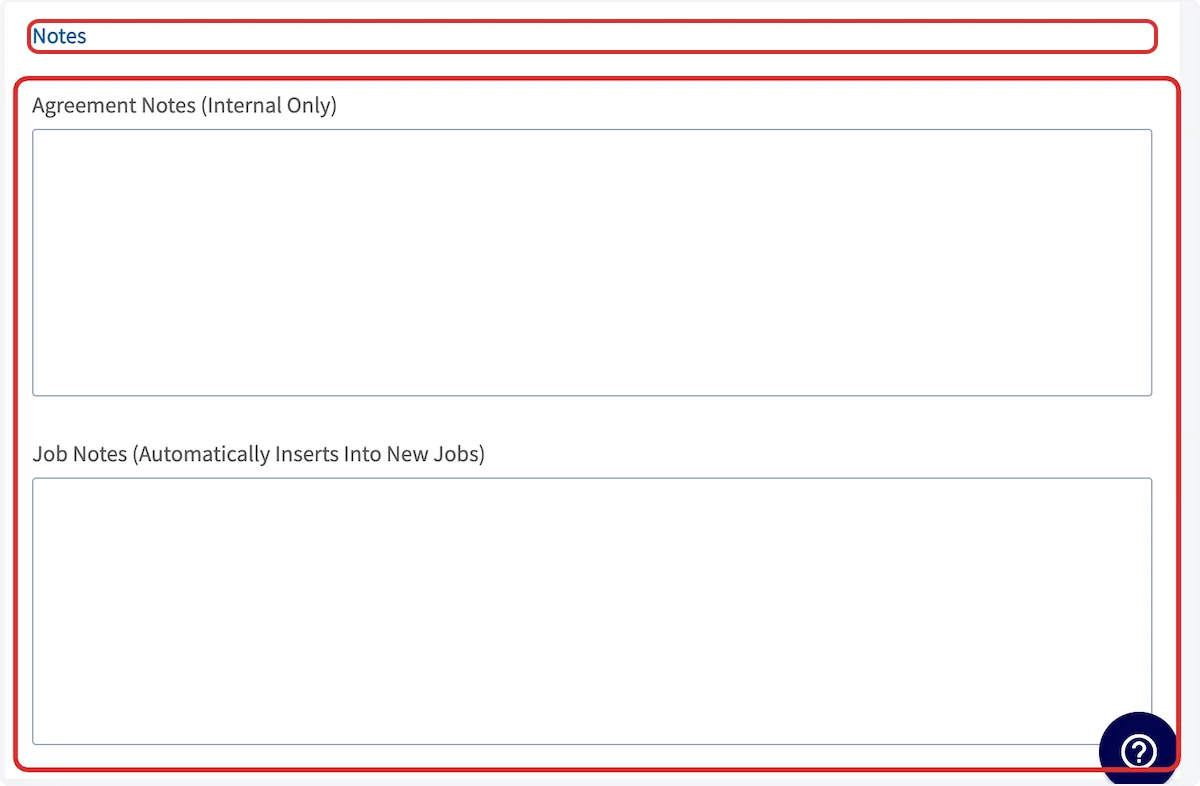
**Agreement Notes (Internal Only)** are internal records — your customers **will not** see them. **Job Notes (Automatically Inserts Into New Jobs)** are inserted into new job records — your customers **will** see them.
For what the reminder looks like from the customer's side and which parts of it you control, see [Maintenance Agreement Reminders Overview](/jobs/assets/maintenance-customer-view).
### Notes
**Agreement Notes (Internal Only)** are internal records — your customers **will not** see them. **Job Notes (Automatically Inserts Into New Jobs)** are inserted into new job records — your customers **will** see them.
 ### Link assets to the agreement
The **Assets** section appears only after a customer has been linked to the agreement.
### Link assets to the agreement
The **Assets** section appears only after a customer has been linked to the agreement.
 * To link an existing asset, select **Select Asset**. A panel opens on the right side of the screen with all assets belonging to the linked customer, where you can filter by location or view all of that customer's assets. Select the asset or assets you want to link.
* To create and link a new asset, select **Add Asset**.
Selected assets display as a comma-separated list in the field, and you can link multiple assets to a single maintenance agreement. When you save the maintenance agreement, all linked assets are automatically applied to every job occurrence generated at that time.
Select **Save Maintenance Agreement** once the agreement is complete.
### Save and reuse agreement templates
A saved template acts as a foundation for a new agreement — you insert it, then modify the details for the customer in front of you.
To create an agreement template:
1. Select **Agreements** in the left-side menu, then **Create Agreement**.
* To link an existing asset, select **Select Asset**. A panel opens on the right side of the screen with all assets belonging to the linked customer, where you can filter by location or view all of that customer's assets. Select the asset or assets you want to link.
* To create and link a new asset, select **Add Asset**.
Selected assets display as a comma-separated list in the field, and you can link multiple assets to a single maintenance agreement. When you save the maintenance agreement, all linked assets are automatically applied to every job occurrence generated at that time.
Select **Save Maintenance Agreement** once the agreement is complete.
### Save and reuse agreement templates
A saved template acts as a foundation for a new agreement — you insert it, then modify the details for the customer in front of you.
To create an agreement template:
1. Select **Agreements** in the left-side menu, then **Create Agreement**.
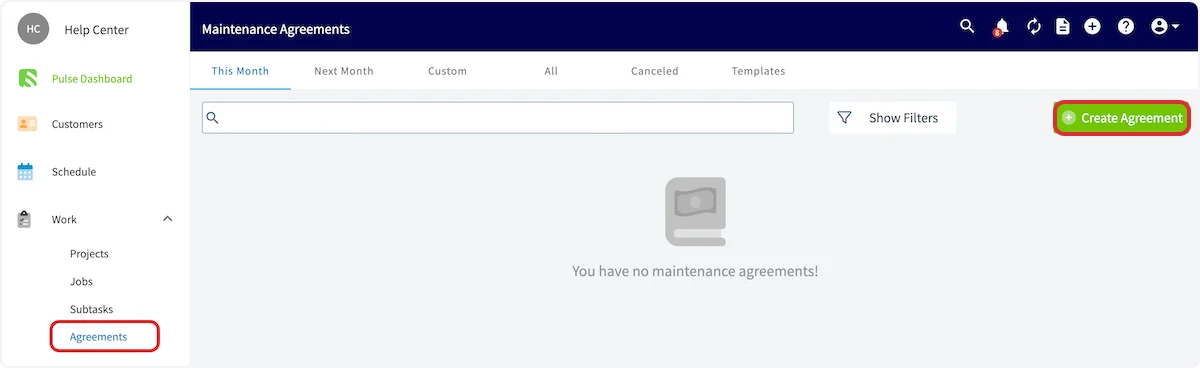 2. Before adding any information, turn on **Save As Agreement Template**.
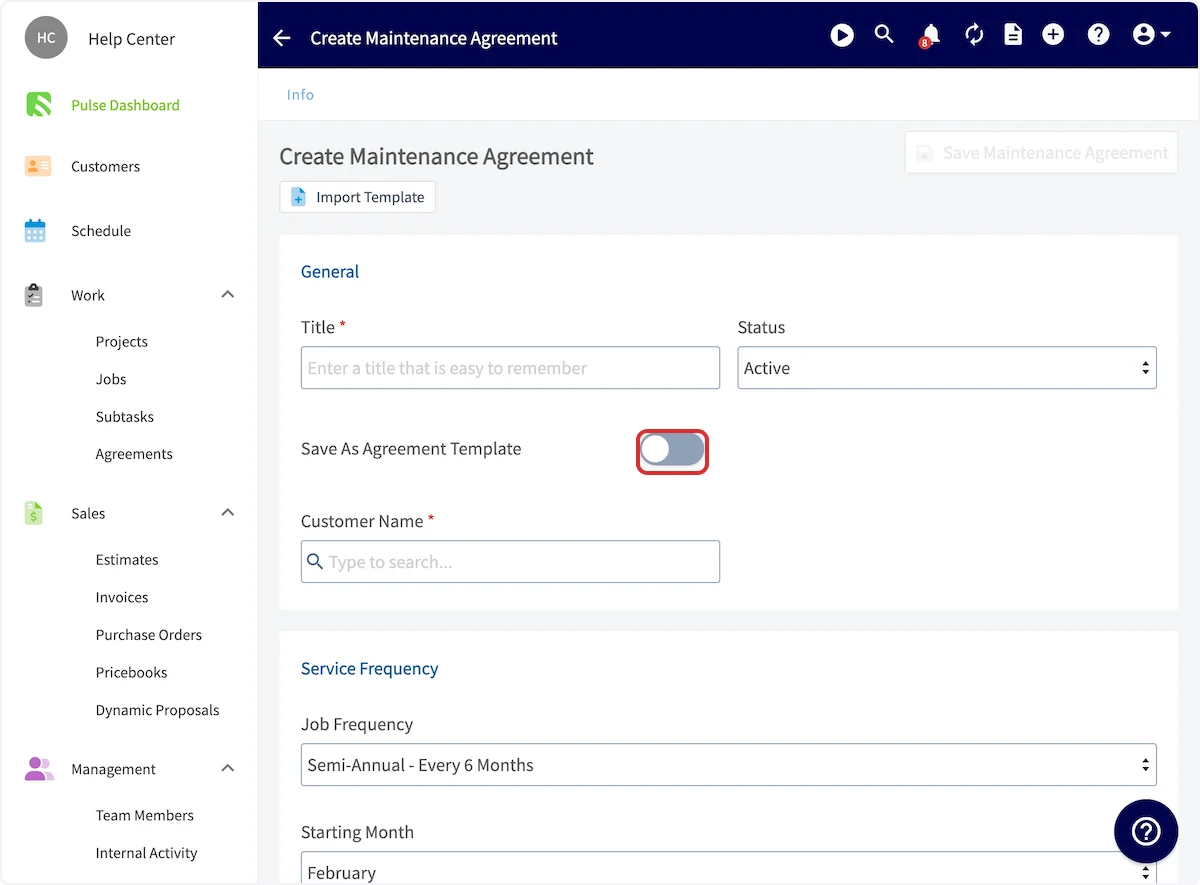 3. Title the template, then enter all pertinent details — scheduling, billing, automatic reminders, and notes.
4. Select **Save Maintenance Agreement**.
3. Title the template, then enter all pertinent details — scheduling, billing, automatic reminders, and notes.
4. Select **Save Maintenance Agreement**.
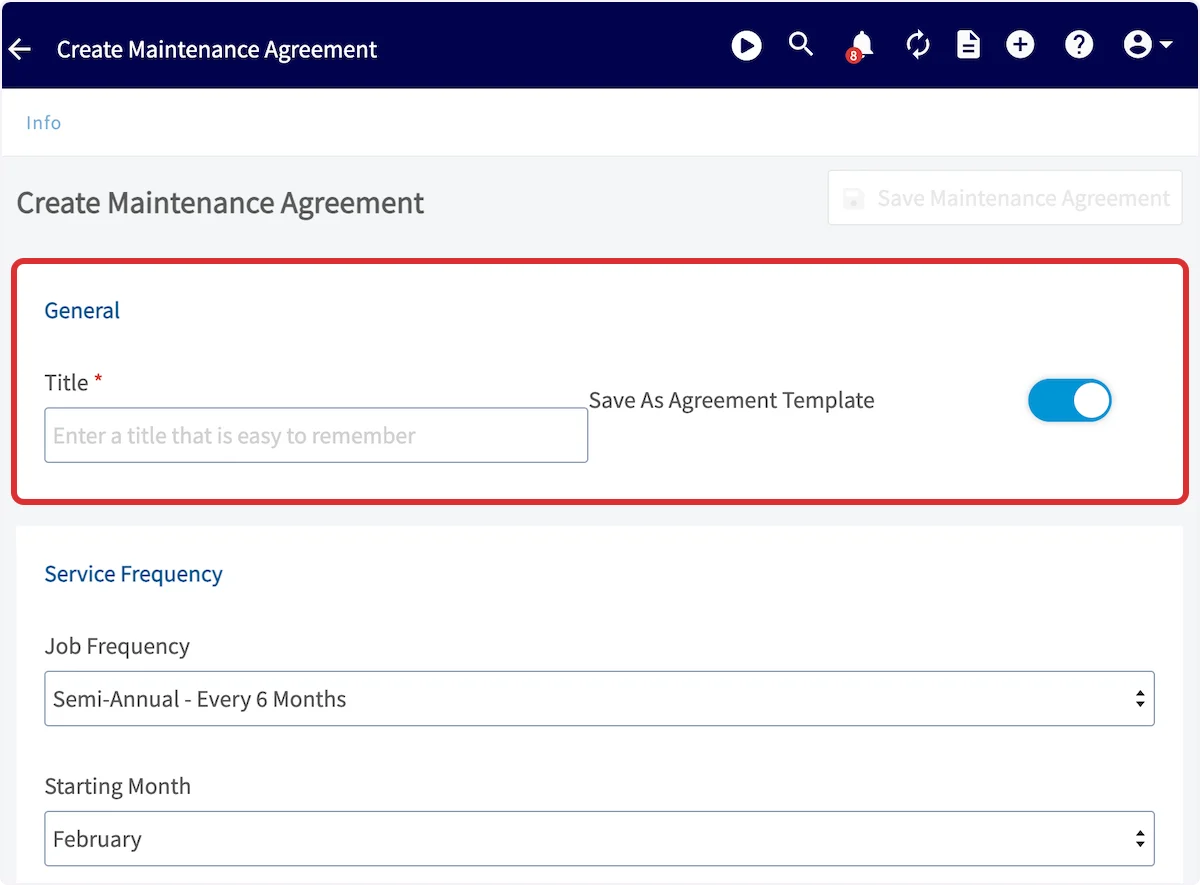 To insert an agreement template, select **Agreements** in the left-side menu, then **Create Agreement**. Before entering any details, select **Import Template** and choose the template you want.
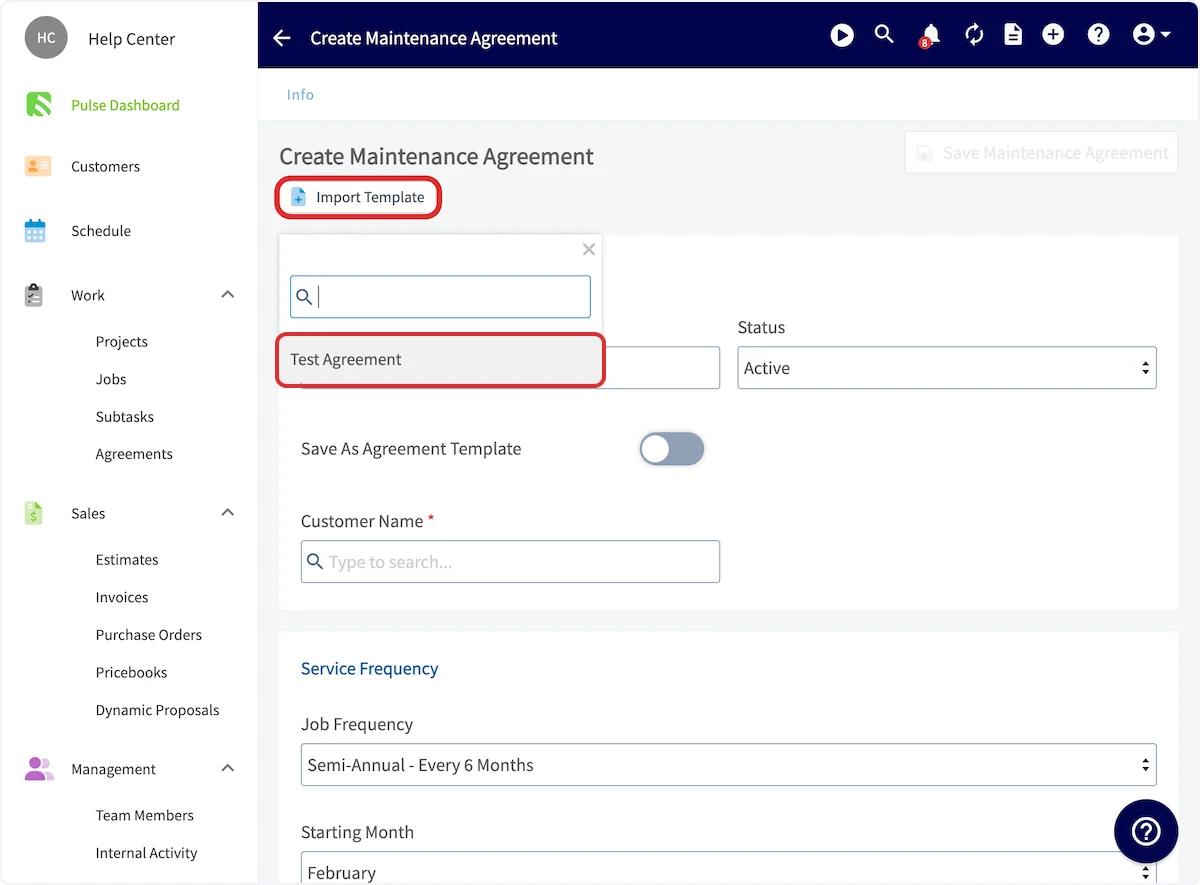 Every detail you entered in the template auto-populates and can be modified as needed. Select **Save Maintenance Agreement** after fine-tuning the agreement.
### Attach an agreement to an asset
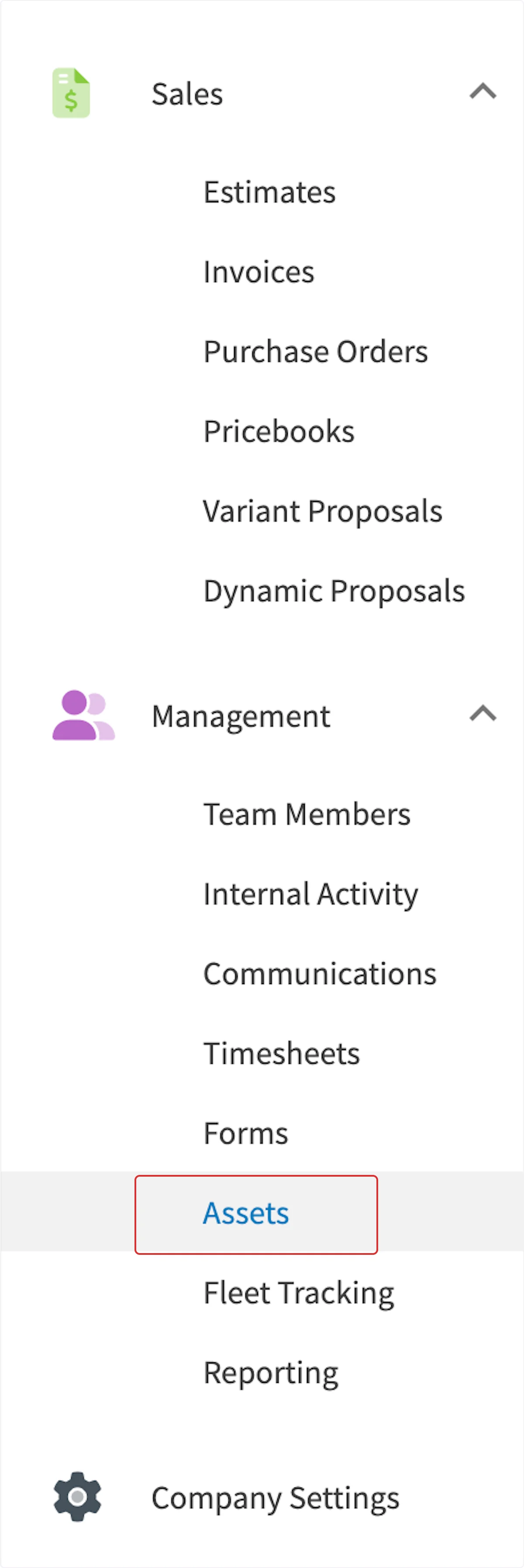
Select **Assets** from the left-side menu, then select **Create Asset**.
Every detail you entered in the template auto-populates and can be modified as needed. Select **Save Maintenance Agreement** after fine-tuning the agreement.
### Attach an agreement to an asset
Select **Assets** from the left-side menu, then select **Create Asset**.
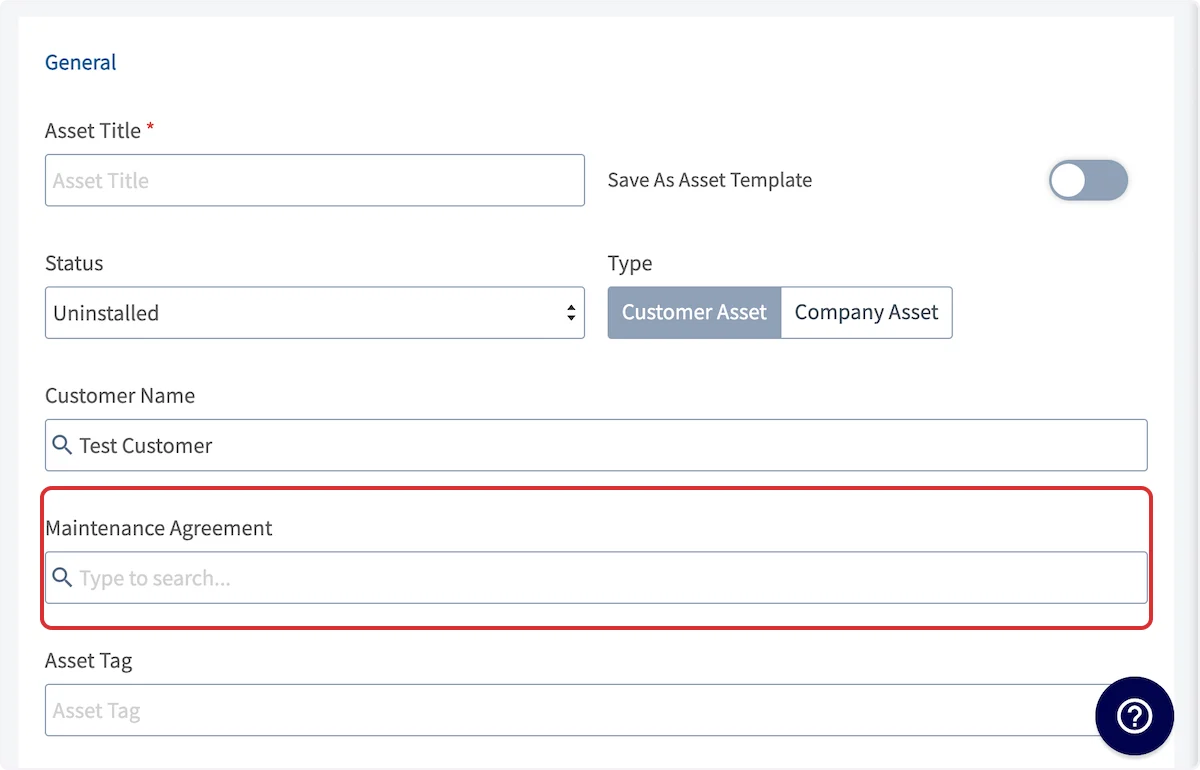
 After entering an **Asset Title** and linking a customer, you can attach an existing maintenance agreement. Search for it under **Maintenance Agreement**.
 To attach a new maintenance agreement instead, complete and save the asset without one, then select **Create Maintenance Agreement** on the asset record.
 ### Unlink an asset from an agreement
Open the maintenance agreement record and select the **Assets** tab. On the far right of the linked asset, select the **unlink** option. A pop-up asks whether you want to unlink the asset from all existing and future maintenance agreement occurrences, or only from future occurrences.
### Unlink an asset from an agreement
Open the maintenance agreement record and select the **Assets** tab. On the far right of the linked asset, select the **unlink** option. A pop-up asks whether you want to unlink the asset from all existing and future maintenance agreement occurrences, or only from future occurrences.
 ### Send a contract for signature
1. Create the maintenance agreement.
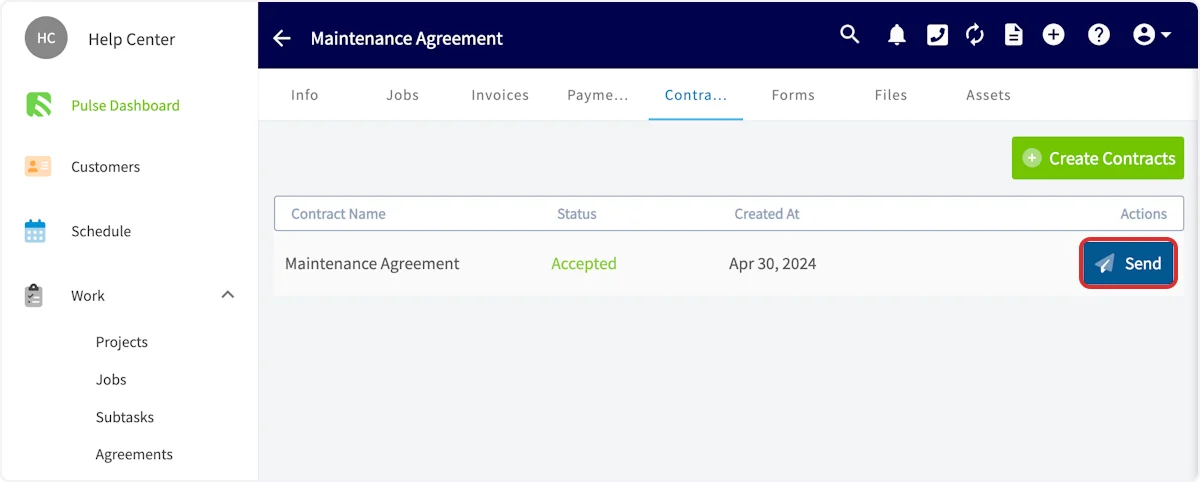
2. Select **Contracts** in the top menu of the agreement record. From here you can create a contract, send a contract already attached to the maintenance agreement, and view the status of attached contracts.
### Send a contract for signature
1. Create the maintenance agreement.
2. Select **Contracts** in the top menu of the agreement record. From here you can create a contract, send a contract already attached to the maintenance agreement, and view the status of attached contracts.
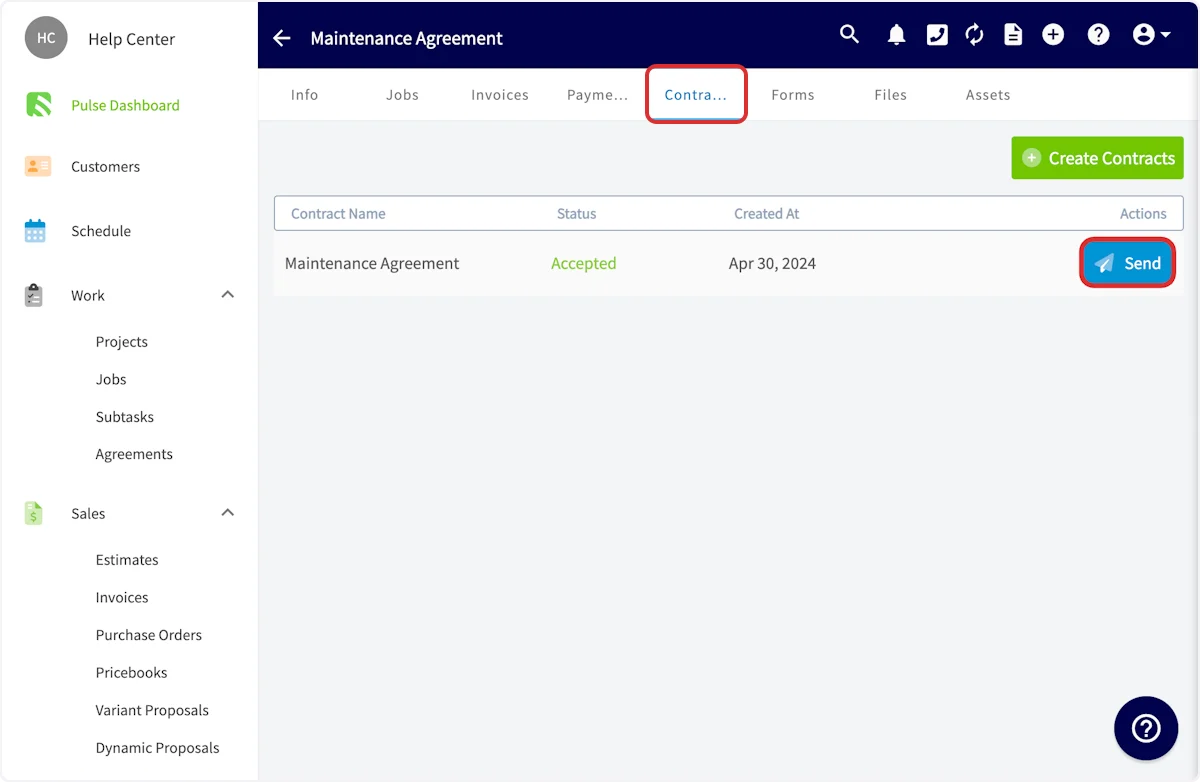 3. After creating a contract, select **Send** to email it to the customer for acceptance.
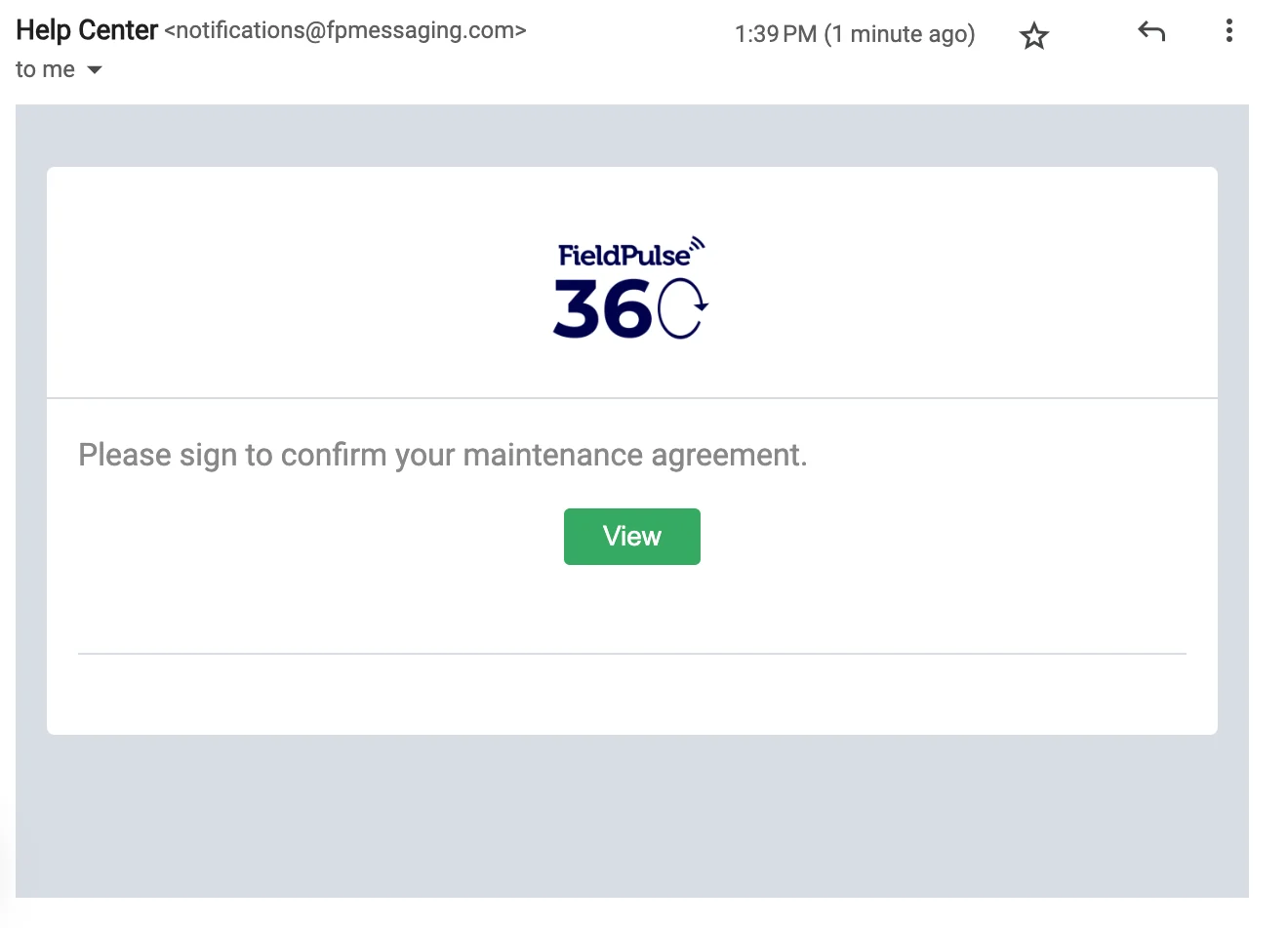
 4. Your customer receives an email with your customized message, logo, and name.
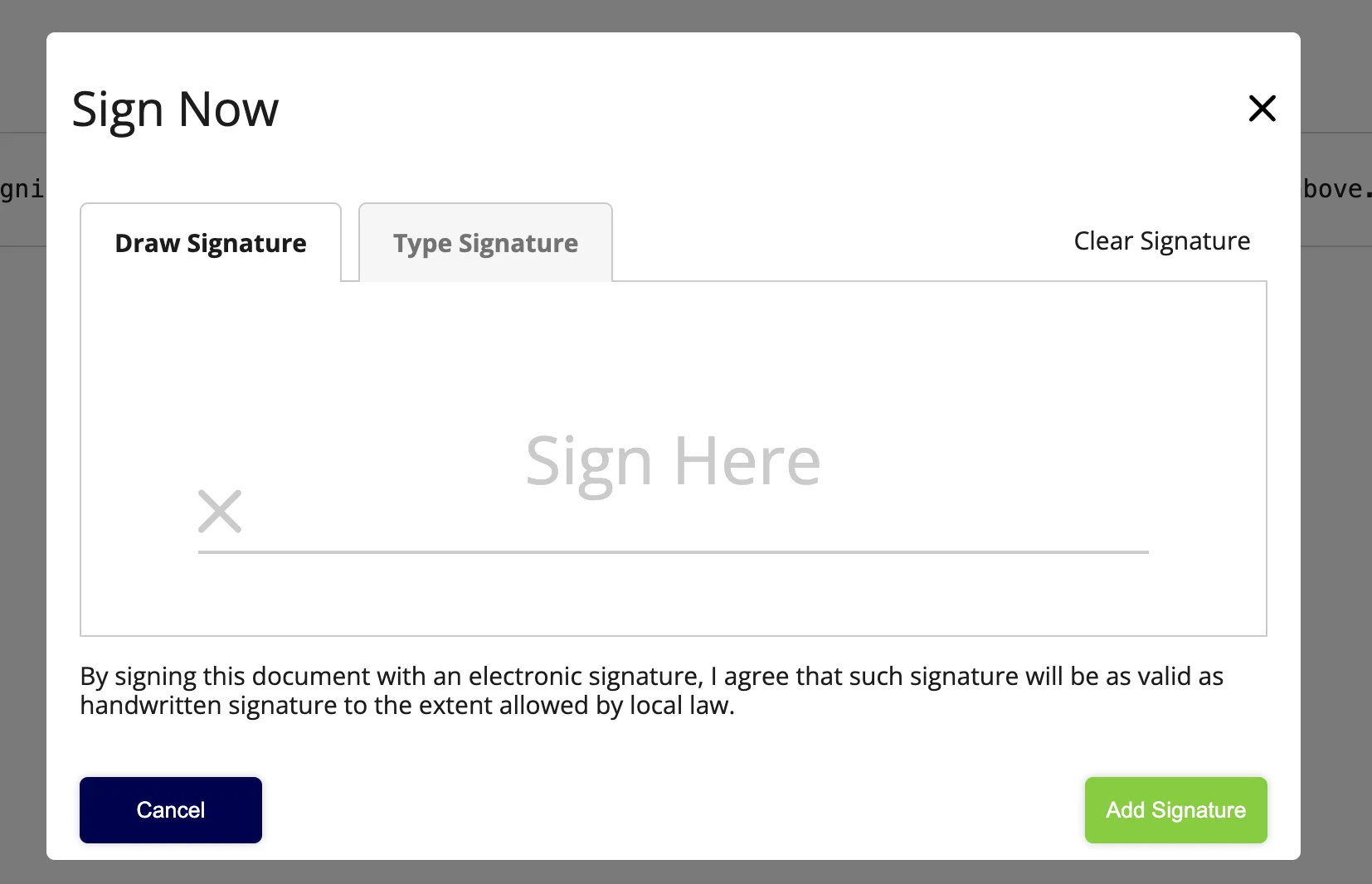
 5. The customer views the contract and accepts it by providing an e-signature.
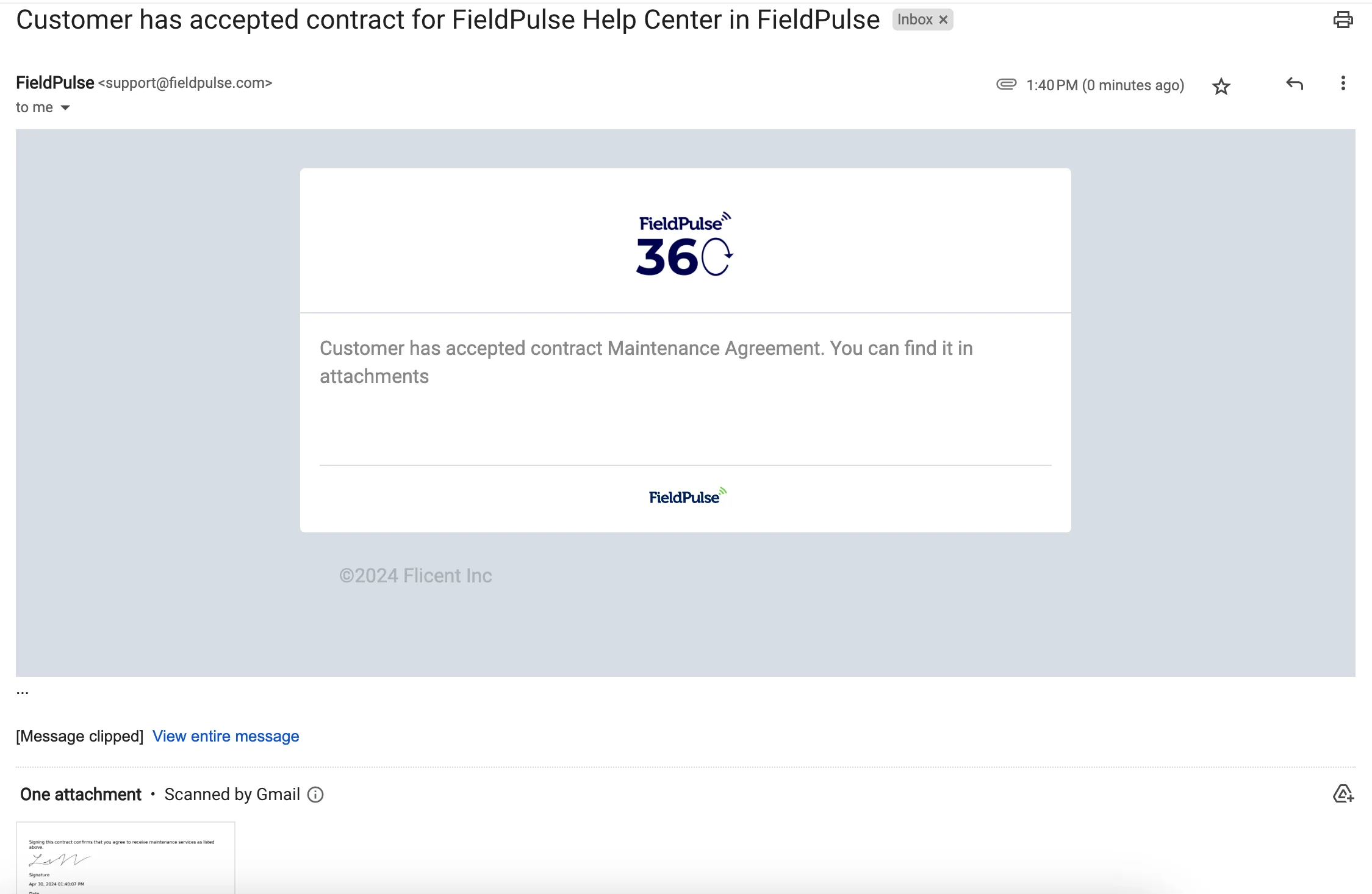
 6. Once the customer accepts the contract, you receive an email and can view the attached contract. The status of the contract is also updated on the maintenance agreement's **Contract** page.
 ### Schedule visits manually
1. Use the tabs at the top of the Maintenance Agreements page — **This Month**, **Next Month**, **Custom**, **All**, **Canceled**, and **Templates** — to sort your agreements and find the one you want to schedule a visit for.
2. Hover over the agreement and select the plus icon.
### Schedule visits manually
1. Use the tabs at the top of the Maintenance Agreements page — **This Month**, **Next Month**, **Custom**, **All**, **Canceled**, and **Templates** — to sort your agreements and find the one you want to schedule a visit for.
2. Hover over the agreement and select the plus icon.
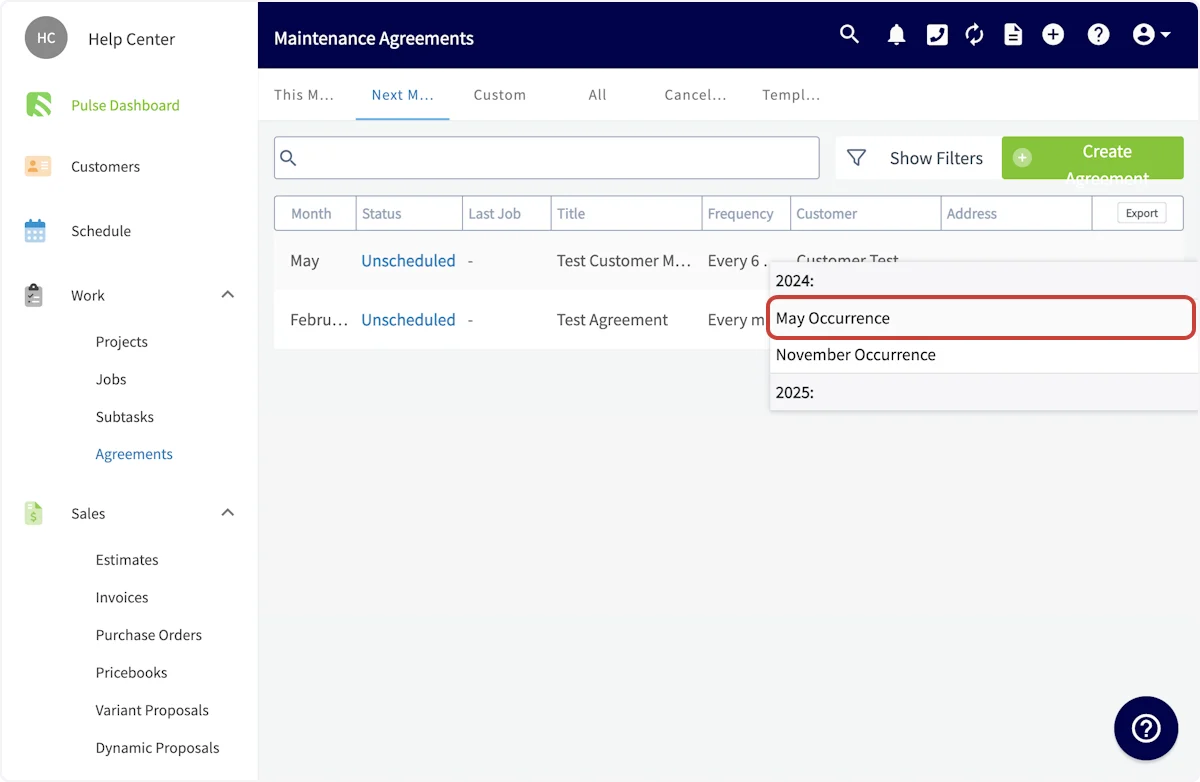
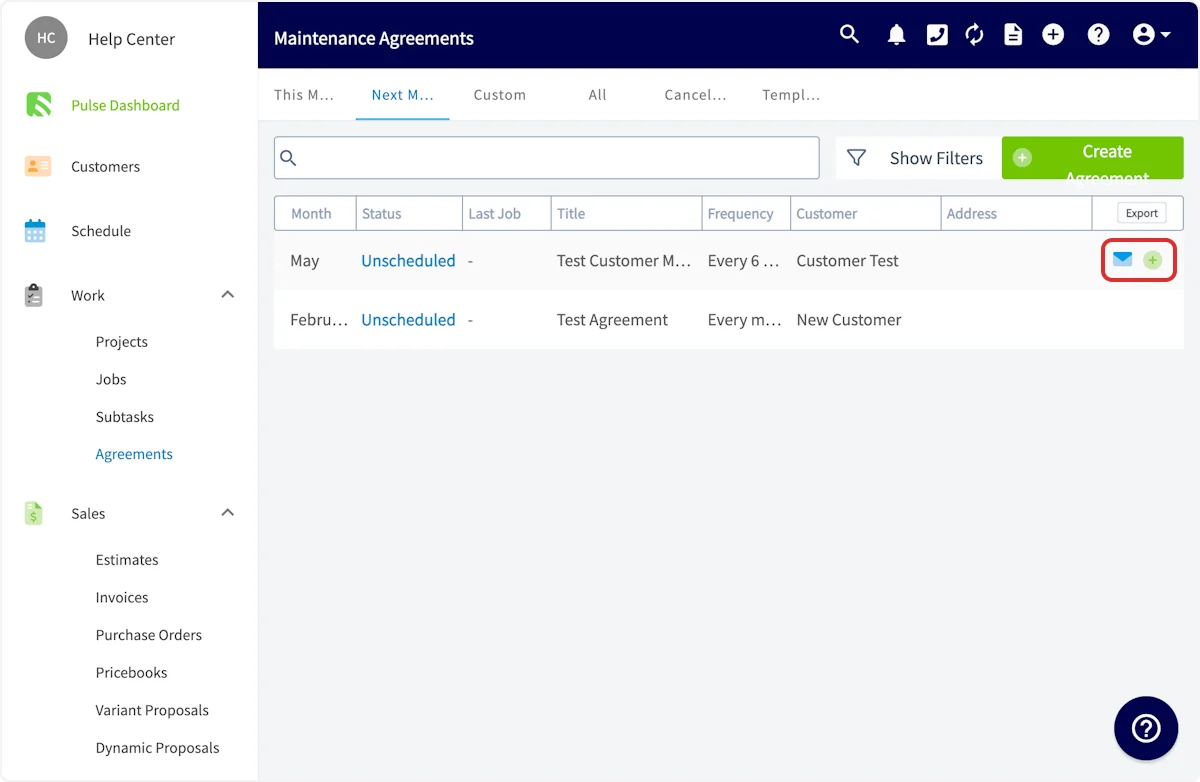 3. Select the upcoming occurrence you want to schedule a job for.
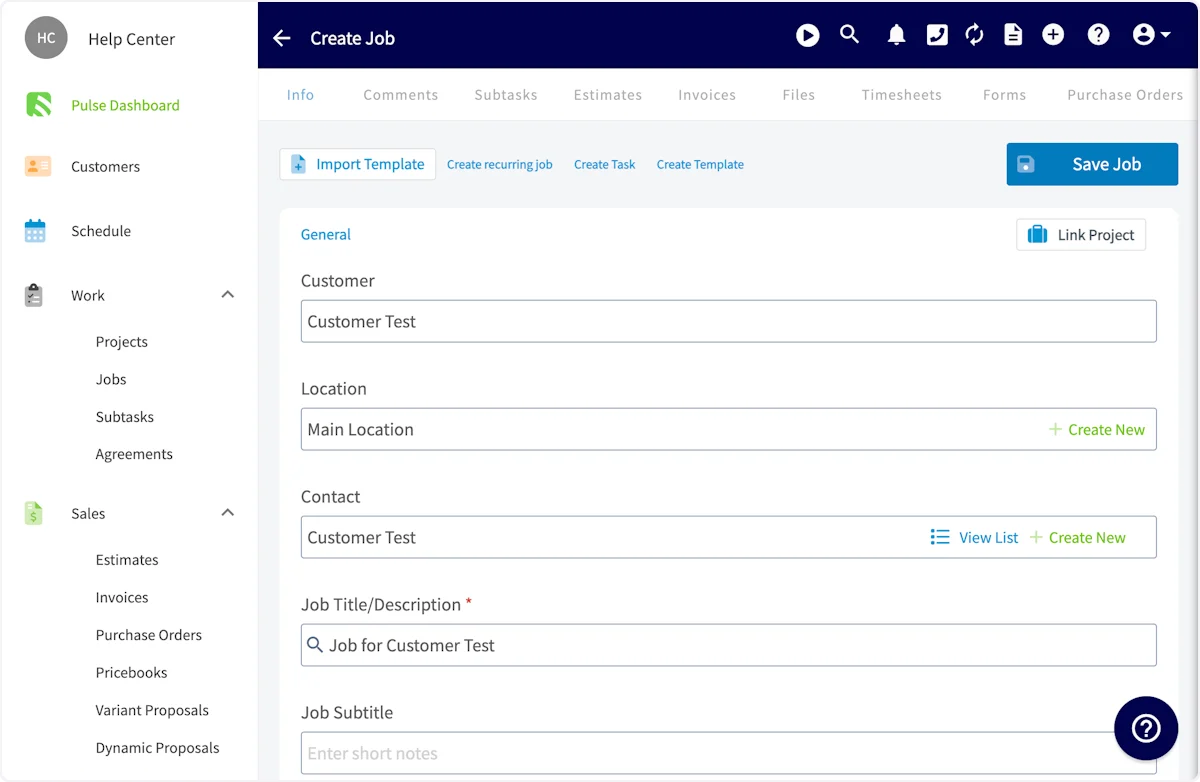
 4. A job record is auto-populated with your customer's name and details. Fill in any additional information, including date, time, and notes, then select **Save Job**.
 ### Schedule automatically created jobs
If you selected **Automatic** in the **Job Creation Method** dropdown, FieldPulse creates every job record associated with the maintenance agreement and leaves those jobs unscheduled, so you decide when they fit best into your schedule.
On the **Schedule** tab, select the hourglass icon. A window appears toward the left side of your screen. Select the filter icon, then filter for jobs associated with your maintenance agreements.
### Schedule automatically created jobs
If you selected **Automatic** in the **Job Creation Method** dropdown, FieldPulse creates every job record associated with the maintenance agreement and leaves those jobs unscheduled, so you decide when they fit best into your schedule.
On the **Schedule** tab, select the hourglass icon. A window appears toward the left side of your screen. Select the filter icon, then filter for jobs associated with your maintenance agreements.
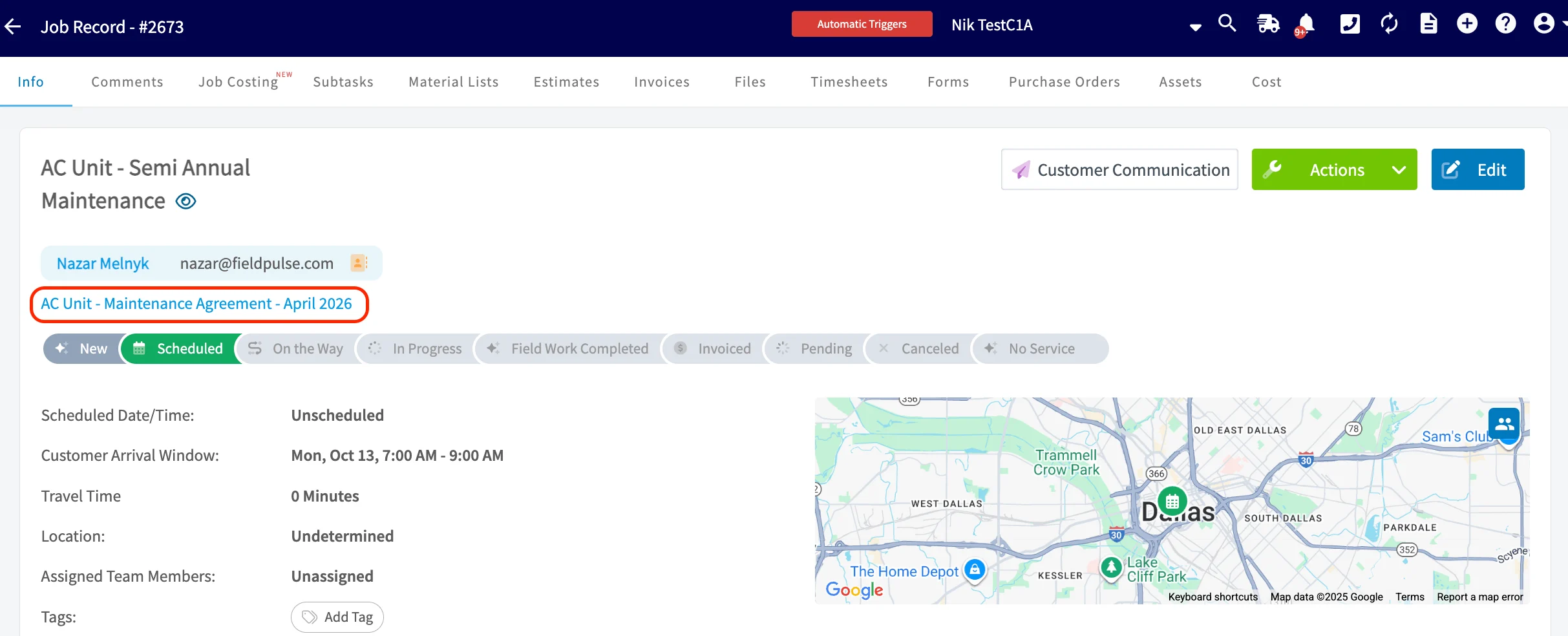
 Each auto-created job includes a link to the related maintenance agreement.
 ### Filter active and archived agreements
The **Active/Archived** filter toggles between active and archived agreements. You can view archived agreements and restore them whenever you need them. Cancelled agreements remain visible in both views, so you never lose track of a maintenance agreement after it has been cancelled, and the **Status** column distinguishes active from cancelled agreements at a glance.
### Filter active and archived agreements
The **Active/Archived** filter toggles between active and archived agreements. You can view archived agreements and restore them whenever you need them. Cancelled agreements remain visible in both views, so you never lose track of a maintenance agreement after it has been cancelled, and the **Status** column distinguishes active from cancelled agreements at a glance.

 ## On mobile
### Create an agreement
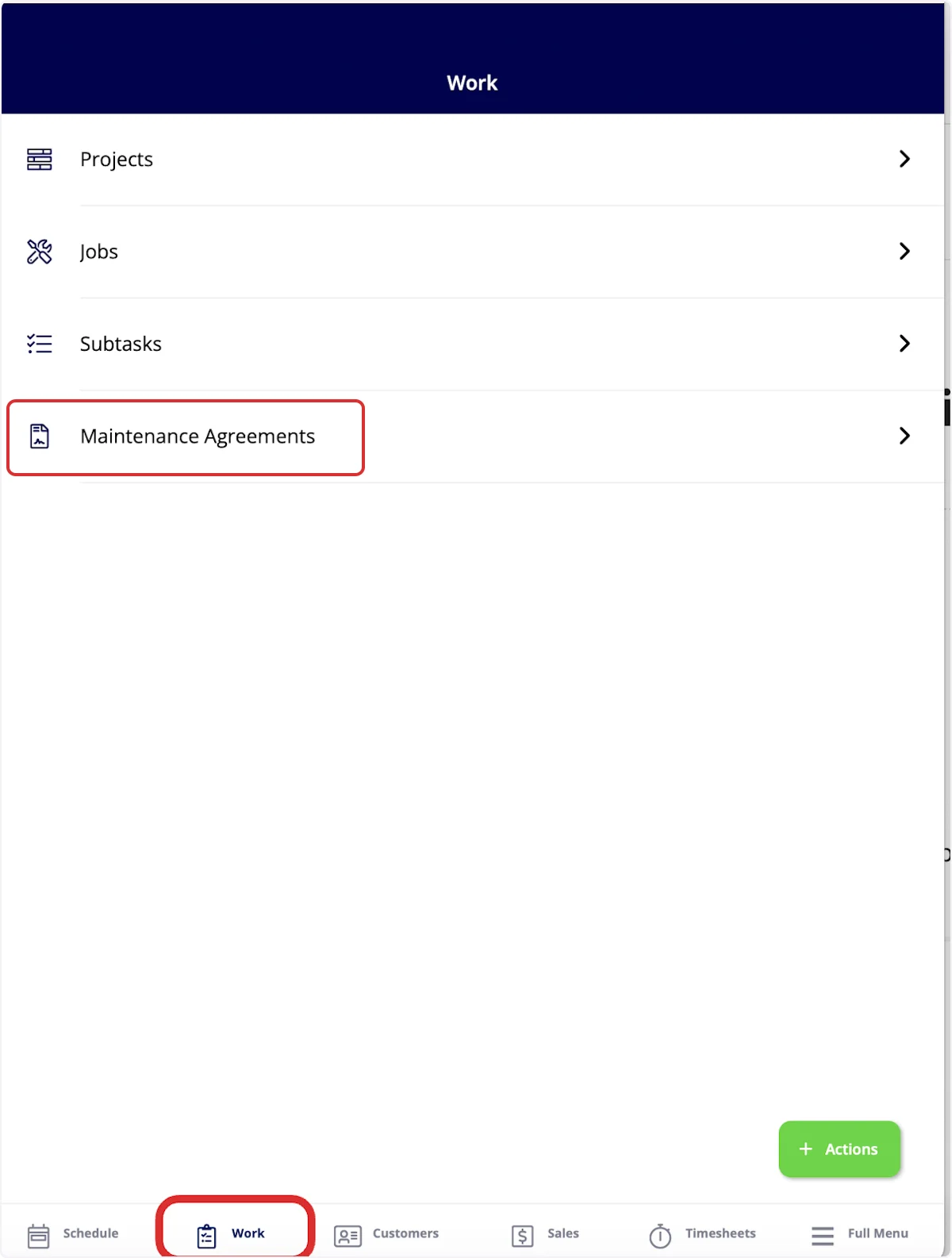
1. Select the **Work** tab in the bottom menu, then select **Maintenance Agreements**.
## On mobile
### Create an agreement
1. Select the **Work** tab in the bottom menu, then select **Maintenance Agreements**.
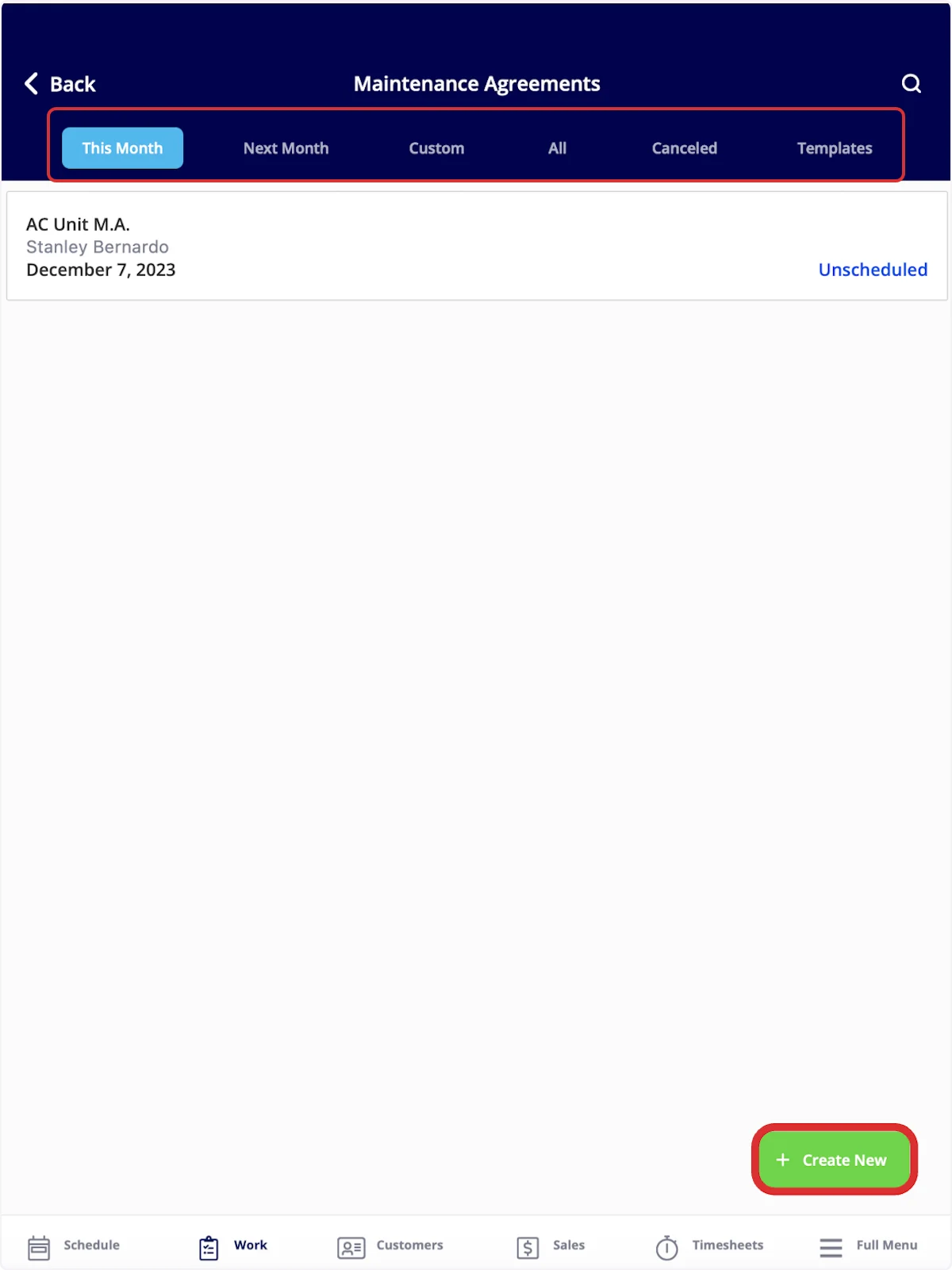
 2. Sort your maintenance agreements using the bar at the top of the screen — **This Month**, **Next Month**, **Custom**, **All**, **Canceled**, and **Templates**. To build a new one, select **Create New**.
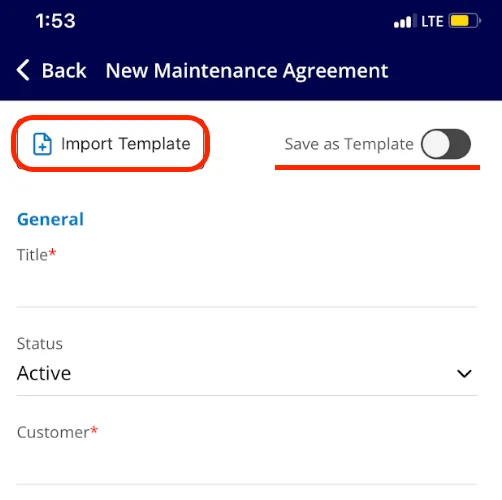
 3. Select **Import Template** to build the agreement from an existing template, or fill out the details to start from scratch. Turn on the **Save as Template** toggle if you want to reuse this agreement later. For what each field controls, see the On web steps above.
 ### View a customer's agreements
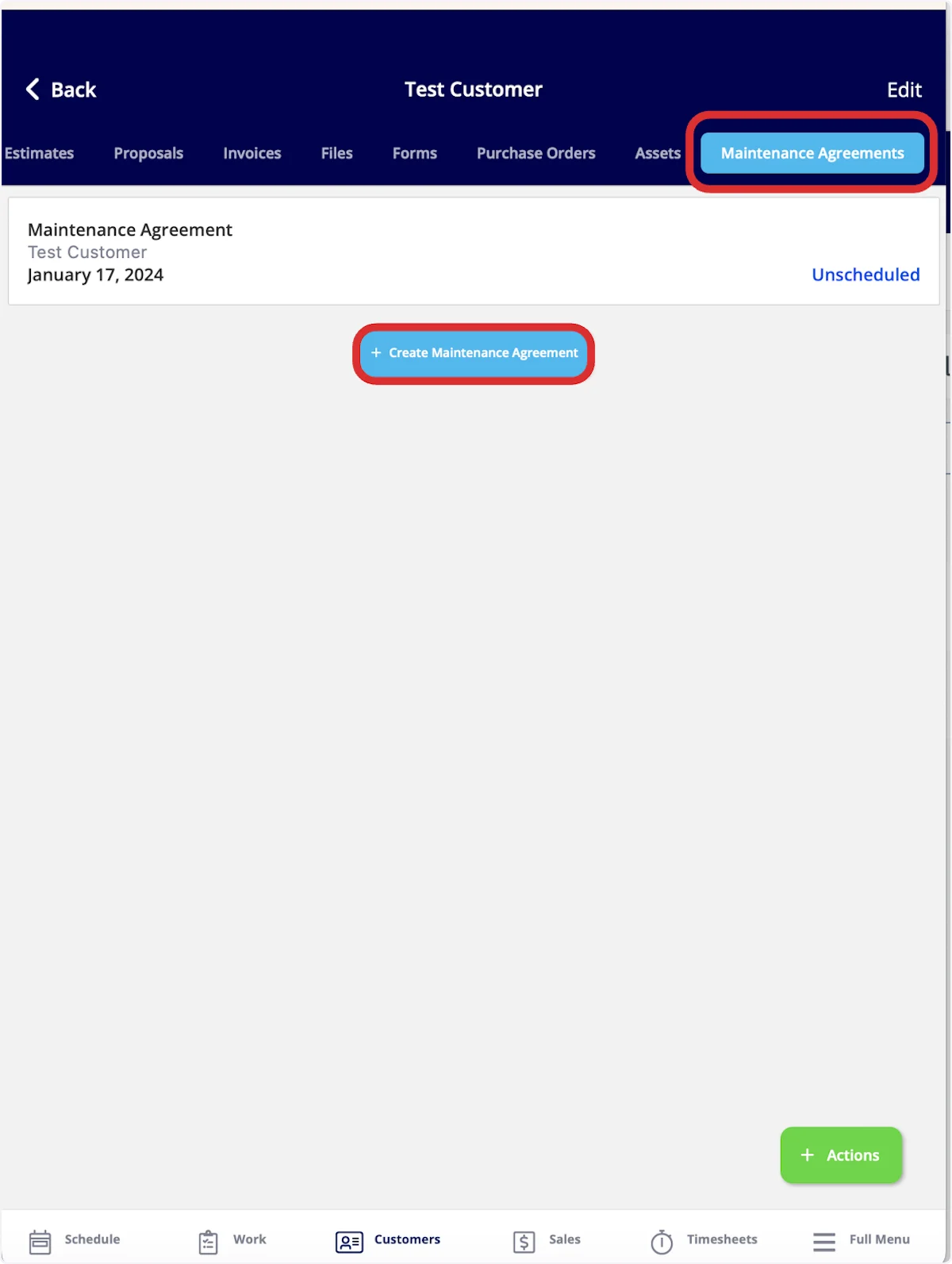
Select the **Customers** tab in the bottom menu, then open a customer. At the top of the customer record, select **Maintenance Agreements**. You can view and edit the existing maintenance agreements linked to this customer, and select **Create Maintenance Agreement** to add a new one.
### View a customer's agreements
Select the **Customers** tab in the bottom menu, then open a customer. At the top of the customer record, select **Maintenance Agreements**. You can view and edit the existing maintenance agreements linked to this customer, and select **Create Maintenance Agreement** to add a new one.
 ## Related articles
* [How to Manage Assets](/jobs/assets/managing-assets)
* [Maintenance Agreement Reminders Overview](/jobs/assets/maintenance-customer-view)
* [How to Create a Job](/jobs/jobs-tasks/creating-a-job)
* [Setting Up Job Templates](/jobs/jobs-tasks/creating-job-templates)
* [Setting Up Recurring Billing](/estimates-invoices/recurring/recurring-billing)
* [How to Create Maintenance Agreement Reports](/reporting/raw-data/maintenance-agreement-reports)
Your agreement is working when it is saved against the customer, the upcoming occurrences show on the Maintenance Agreements page, the signed contract is attached to the agreement, and the reminders and recurring bills go out without anyone re-entering them.
## Related topics
- [How to Create Maintenance Agreement Reports](/reporting/raw-data/maintenance-agreement-reports.md)
- [Maintenance Agreement Reminders Overview](/jobs/assets/maintenance-customer-view.md)
- [Assets & Maintenance](/jobs/assets/index.md)
- [How to Migrate from ServiceTitan to FieldPulse](/getting-started/migrating/servicetitan.md)
## Related articles
* [How to Manage Assets](/jobs/assets/managing-assets)
* [Maintenance Agreement Reminders Overview](/jobs/assets/maintenance-customer-view)
* [How to Create a Job](/jobs/jobs-tasks/creating-a-job)
* [Setting Up Job Templates](/jobs/jobs-tasks/creating-job-templates)
* [Setting Up Recurring Billing](/estimates-invoices/recurring/recurring-billing)
* [How to Create Maintenance Agreement Reports](/reporting/raw-data/maintenance-agreement-reports)
Your agreement is working when it is saved against the customer, the upcoming occurrences show on the Maintenance Agreements page, the signed contract is attached to the agreement, and the reminders and recurring bills go out without anyone re-entering them.
## Related topics
- [How to Create Maintenance Agreement Reports](/reporting/raw-data/maintenance-agreement-reports.md)
- [Maintenance Agreement Reminders Overview](/jobs/assets/maintenance-customer-view.md)
- [Assets & Maintenance](/jobs/assets/index.md)
- [How to Migrate from ServiceTitan to FieldPulse](/getting-started/migrating/servicetitan.md)