> ## Documentation Index
> Fetch the complete documentation index at: https://help.fieldpulse.com/llms.txt
> Use this file to discover all available pages before exploring further.
# Custom Form Field Types and Formulas Details
> Look up every custom form field type in FieldPulse, plus how field formulas, related-record fields, and conditional logic work when you build a form.
> **Who uses this:** Anyone with access to **Company Settings** > **Custom Forms** builds a form's fields; your team fills them in on the record. **Availability:** All regions · Custom Forms must be enabled under **Company Settings** > **Features & Plugins** — contact FieldPulse for pricing.
This is the reference for the building blocks of a [custom form](https://www.fieldpulse.com/features/custom-forms) — the field types you drag onto the form, the related-record fields that pull values off the record the form is attached to, the formulas that calculate a number for you, and the conditional logic that shows a field only when it applies.
## Overview
You add fields to a form by dragging them from the **Drag a field onto the form** palette on the right side of the form editor. Most field types collect input directly from the person filling out the form. Related-record fields instead import values that already exist on the linked customer, job, estimate, invoice, project, maintenance agreement, or asset. A **Number Field** can calculate its own value from a formula, and any field can be set to appear only when an earlier answer matches a condition. For how to create a form and arrange fields on it, see [How to Create a Custom Form](/jobs/custom-forms/create-a-form).
For a full breakdown of every setting available on a form — name, font sizes, offline availability, record attachment, permissions, and default email and SMS messaging — see [Custom Form Settings Details](/jobs/custom-forms/settings).
## Field types
A custom form supports eleven field types. Each one below shows what it collects and the options you can set on it.
| **Field type** | **What it does** |
| ------------------------------- | ----------------------------------------------------------------------------------------------------------------------------------------------------------------------------------------------------------------------------------------------------------------- |
| **Section Label** | Section header for names and titles. |
| **Text Field** | Free-text entry, so the person filling out the form can answer in their own words. |
| **Number Field** | Numeric-only input. Add an optional **Unit of Measure** — the suggestions are \$, hr, ft, ft², BTU, CFM, PSI, °F, and % — and check **Show unit before value** to place the unit ahead of the number instead of after it. |
| **Drop-down Field** | Select a single option from a list. |
| **Multi-select Dropdown Field** | Select multiple options from a list. Specify the minimum and maximum number of selections someone can make. |
| **Quick Select** | Multiple choice with up to 5 options. |
| **Checkbox** | Select for yes, leave blank for no. |
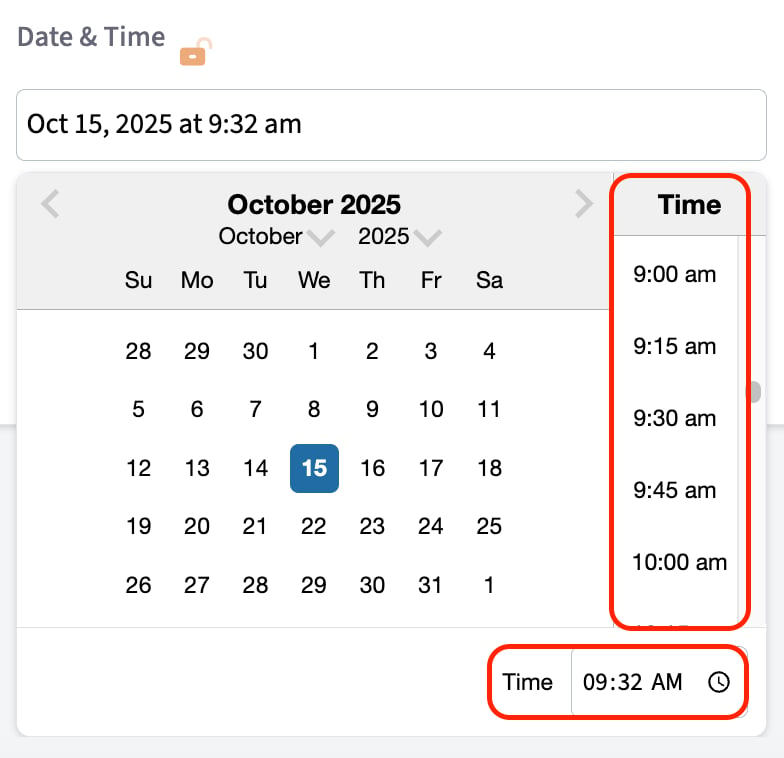
| **Date & Time** | Collect a date and time. Check the box to auto-fill the current date and time when someone submits the form. The time panel scrolls in 15-minute increments, and you can enter an exact time down to the minute in the **Time** field in the bottom right corner. |
| **Image/Video** | Upload jpg, pdf, mp4, and png files. Set the minimum and maximum number of files, from 1 to 10. |
| **Signature** | Collect a signature directly in the form. |
| **Related Record Fields** | Import values from the record the form is attached to. See the table in the next section. |
 ## Related-record fields
Related-record fields pull details that already exist on the linked record into the form, so your team does not retype them. If a customer has multiple locations or contacts, you specify which one's information fills the field.
| **Record** | **Values you can pull** |
| ------------------------- | ------------------------------------------------------------------------------------------------------------------------------------------------------------------------------------------------------------------------------------------------------- |
| **Customer** | Name, notes, job notes, email, phone, billing address, location, status/type, pipeline status, lead source, tags, and any custom fields on your customer records. |
| **Job** | Title, location name, location, job notes, field notes, status, assigned team members, scheduled date/time, customer arrival window, created by, tags, and any custom fields on your job records. |
| **Estimate** | Title, estimate notes, internal notes, estimate date, author, status, location, reference, expiration date, tags, and any custom fields on your estimate records. |
| **Invoice** | Title, invoice notes, internal notes, invoice date, author, status, location, reference, due date, tags, and any custom fields on your invoice records. |
| **Project** | Title, notes, job notes, start date, end date, completion percentage, and any custom fields on your project records. |
| **Maintenance Agreement** | Title, job location, status, price per bill, total annual fee, agreement notes, job notes, and any custom fields on your maintenance agreement records. |
| **Asset** | Asset tag, title, asset notes, install date, location, location details, category, manufacturer, model, model number, serial number, model year, model details, warranty, condition, warranty information, and any custom fields on your asset records. |
For more detail on adding related field values to a form, see [How to Link Custom Forms to Jobs](/jobs/custom-forms/link-to-jobs).
## Field formulas
A field formula lets a **Number Field** calculate its own value from other number fields and constants, so nobody has to work the math out by hand and type the answer in.
1. Select a **Number Field** on your form to open its settings.
## Related-record fields
Related-record fields pull details that already exist on the linked record into the form, so your team does not retype them. If a customer has multiple locations or contacts, you specify which one's information fills the field.
| **Record** | **Values you can pull** |
| ------------------------- | ------------------------------------------------------------------------------------------------------------------------------------------------------------------------------------------------------------------------------------------------------- |
| **Customer** | Name, notes, job notes, email, phone, billing address, location, status/type, pipeline status, lead source, tags, and any custom fields on your customer records. |
| **Job** | Title, location name, location, job notes, field notes, status, assigned team members, scheduled date/time, customer arrival window, created by, tags, and any custom fields on your job records. |
| **Estimate** | Title, estimate notes, internal notes, estimate date, author, status, location, reference, expiration date, tags, and any custom fields on your estimate records. |
| **Invoice** | Title, invoice notes, internal notes, invoice date, author, status, location, reference, due date, tags, and any custom fields on your invoice records. |
| **Project** | Title, notes, job notes, start date, end date, completion percentage, and any custom fields on your project records. |
| **Maintenance Agreement** | Title, job location, status, price per bill, total annual fee, agreement notes, job notes, and any custom fields on your maintenance agreement records. |
| **Asset** | Asset tag, title, asset notes, install date, location, location details, category, manufacturer, model, model number, serial number, model year, model details, warranty, condition, warranty information, and any custom fields on your asset records. |
For more detail on adding related field values to a form, see [How to Link Custom Forms to Jobs](/jobs/custom-forms/link-to-jobs).
## Field formulas
A field formula lets a **Number Field** calculate its own value from other number fields and constants, so nobody has to work the math out by hand and type the answer in.
1. Select a **Number Field** on your form to open its settings.
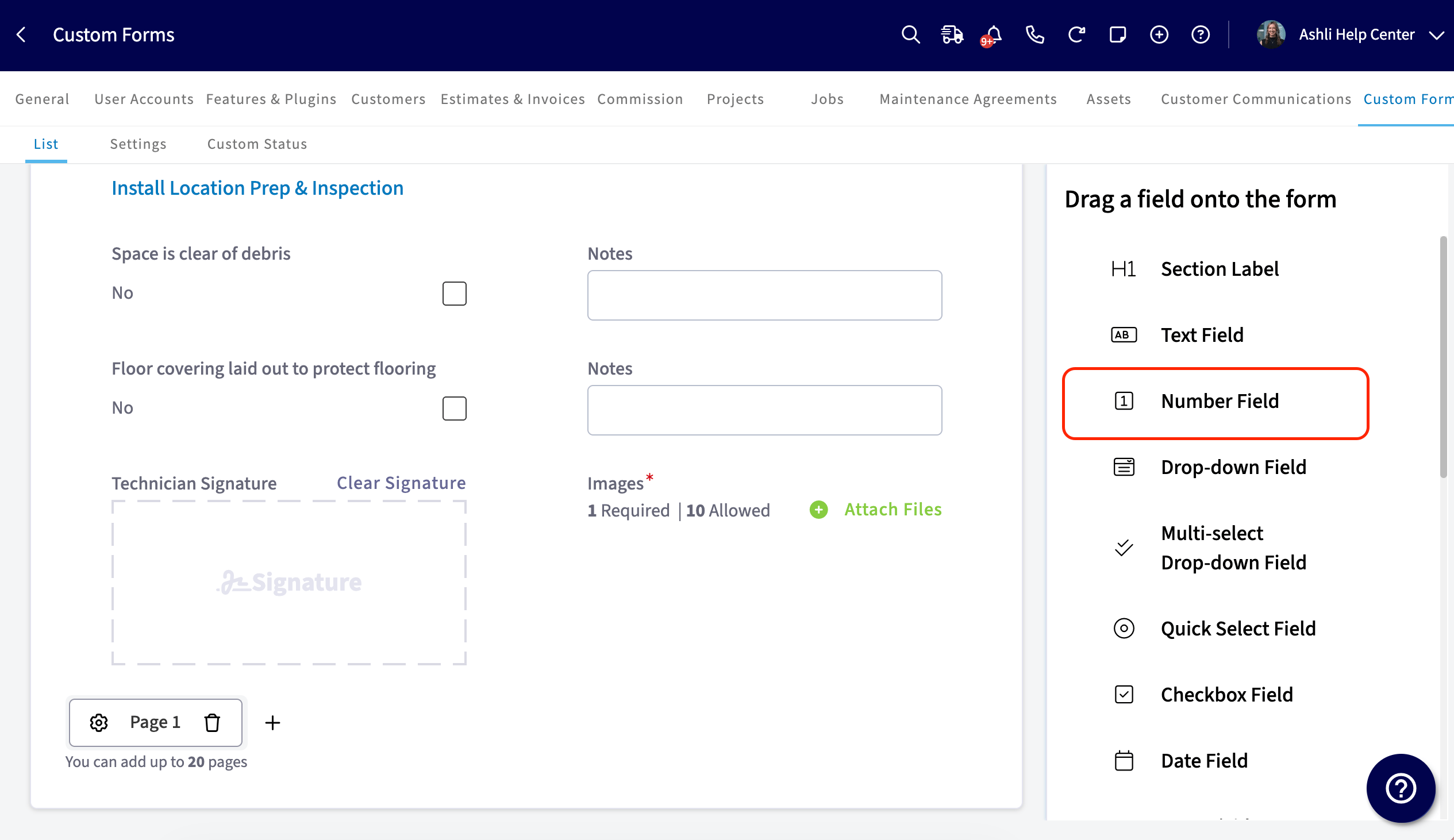 2. Select **Use Formula as Default Value** above the **Default Value** field.
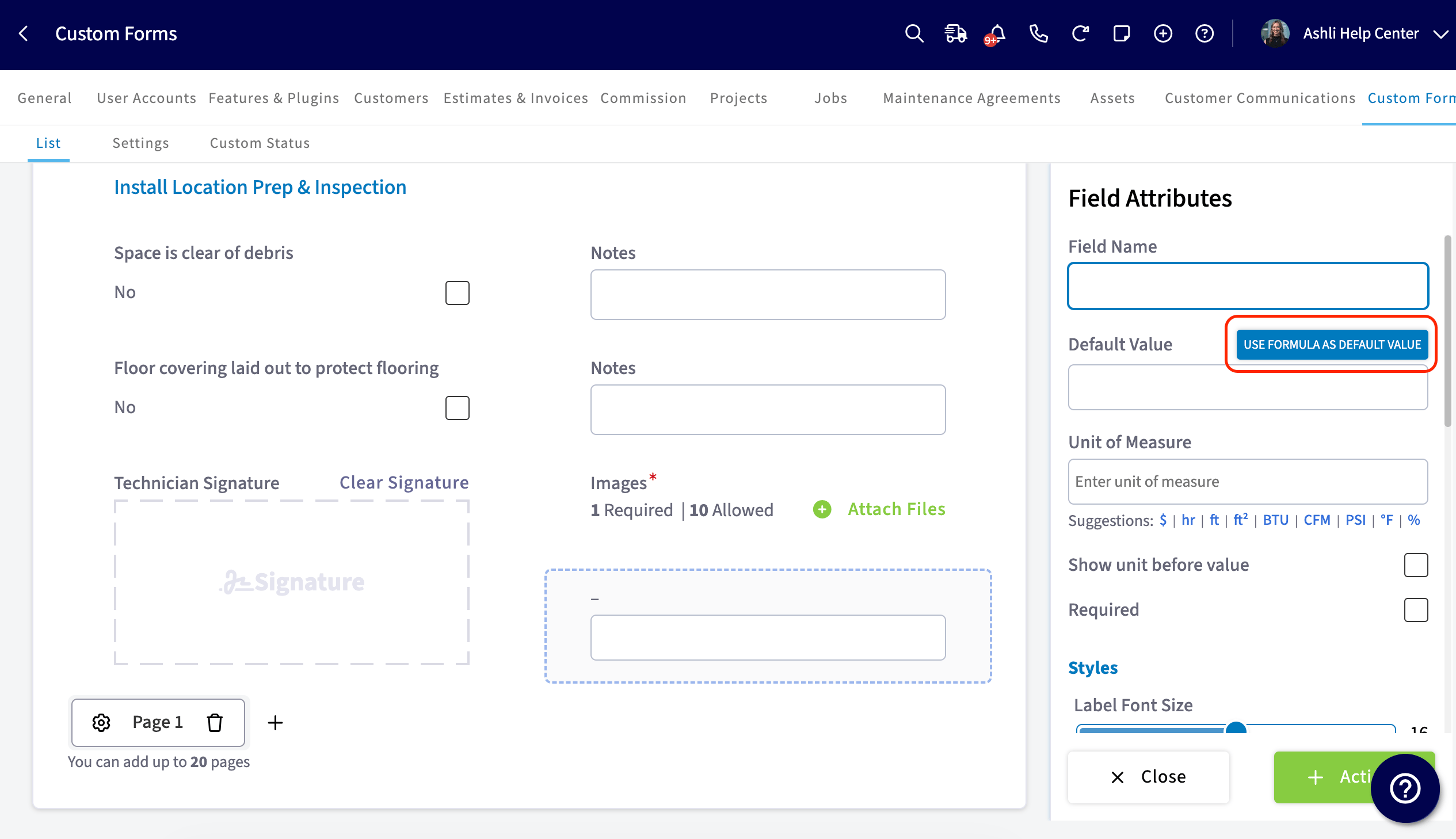 3. In the **Default Value** selector, choose an existing formula or select **Add or Edit Formulas**.
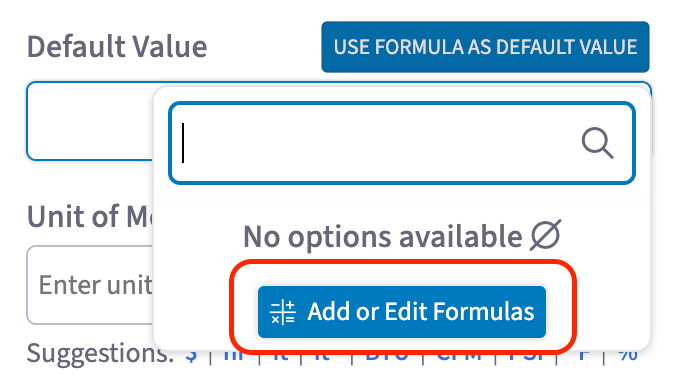 4. In the **Formulas** modal, select **Add Formula** and give the formula a name.
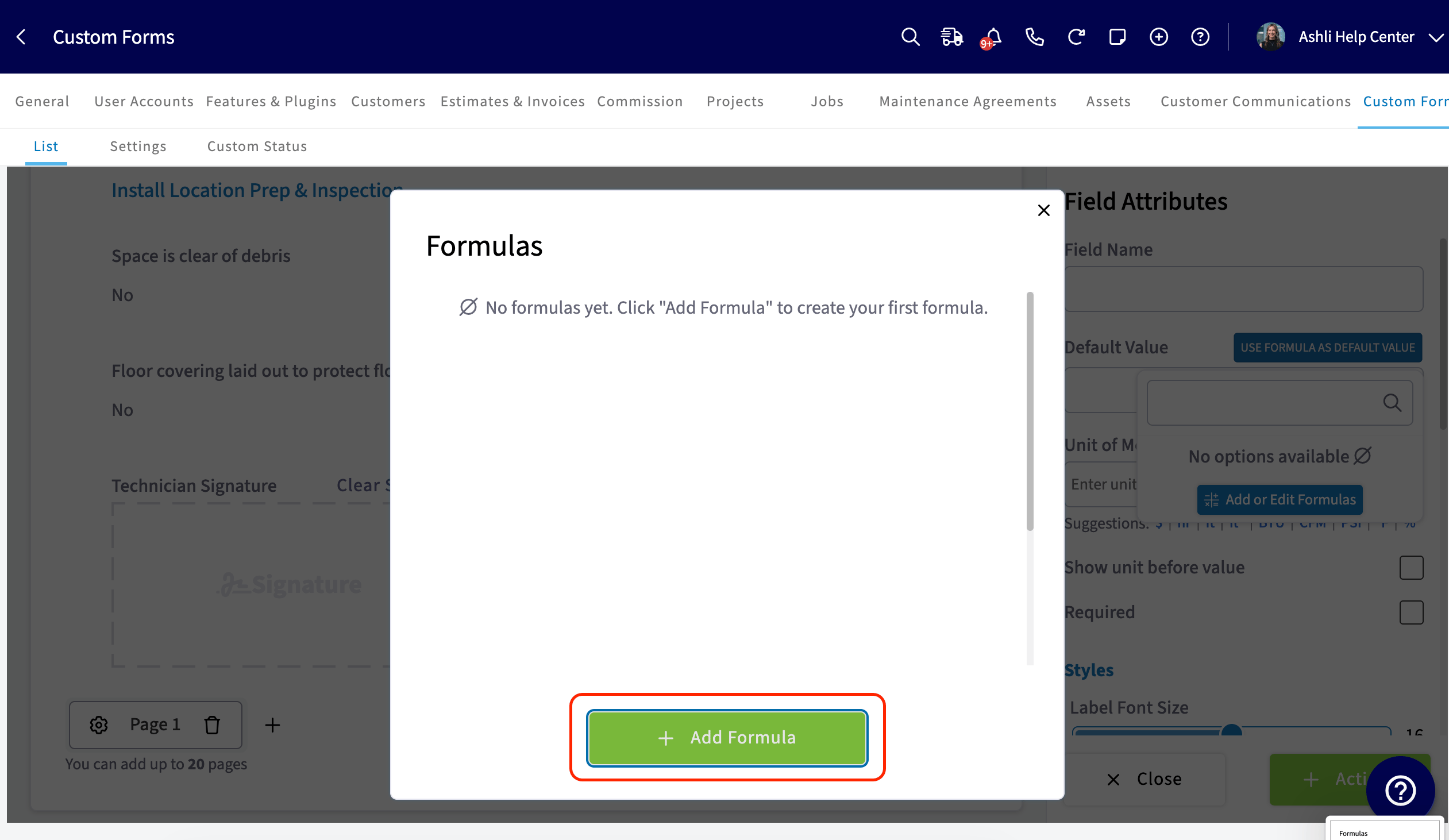 5. Select **Insert Numeric Field or Formula** to bring other number fields or existing formulas in as variables.
6. Connect the variables with arithmetic operators — add, subtract, multiply, divide. You can multiply a field by a set constant, and a formula can reference another formula so calculations build on each other.
5. Select **Insert Numeric Field or Formula** to bring other number fields or existing formulas in as variables.
6. Connect the variables with arithmetic operators — add, subtract, multiply, divide. You can multiply a field by a set constant, and a formula can reference another formula so calculations build on each other.
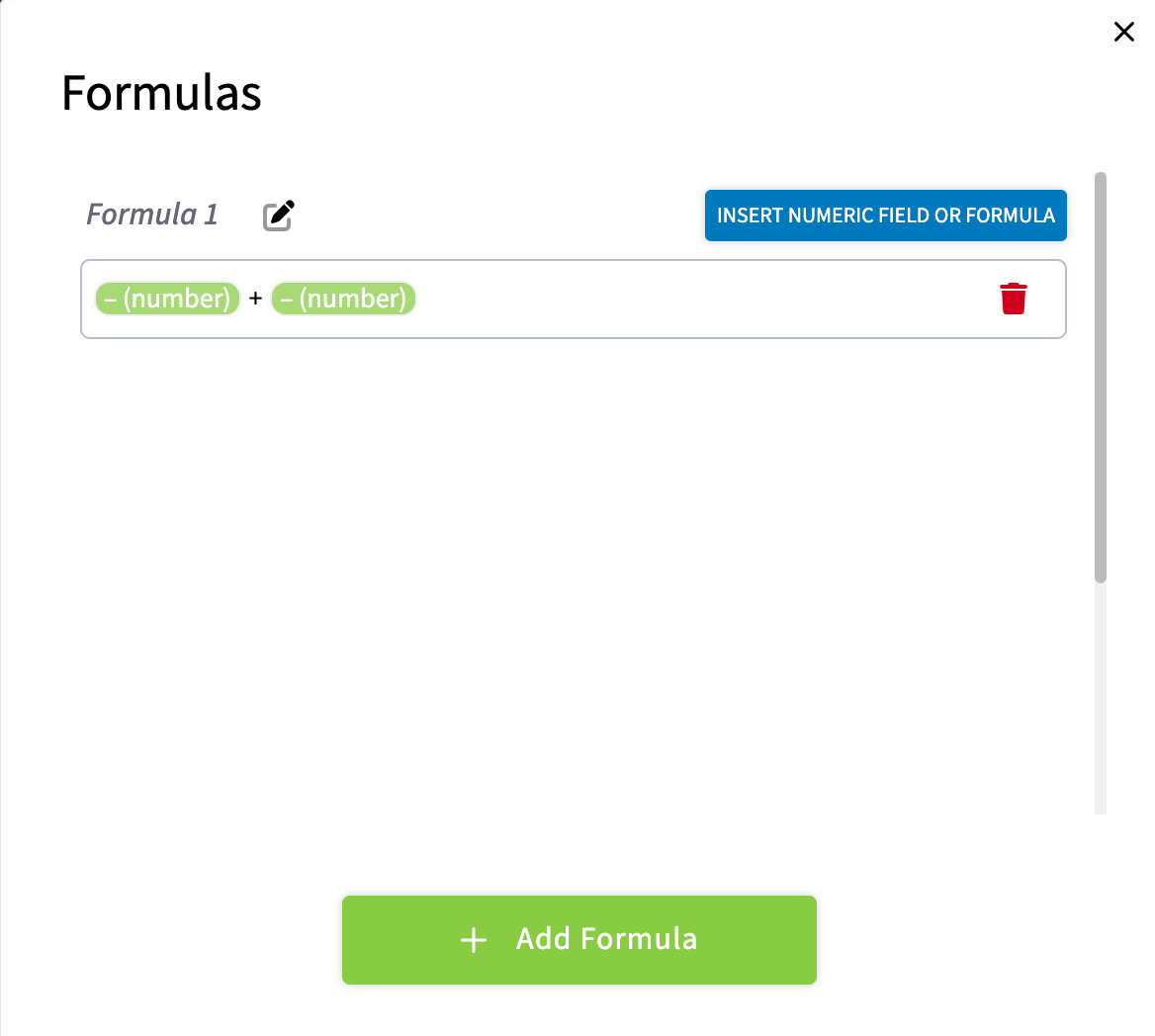 7. Save the formula and close the modal.
8. Select the formula as the **Default Value** for the field.
Once a formula is set, the **Number Field** is read-only while someone fills out the form, because FieldPulse calculates the value. To take the formula off the field, select **Remove** in the field's settings.
## Conditional logic
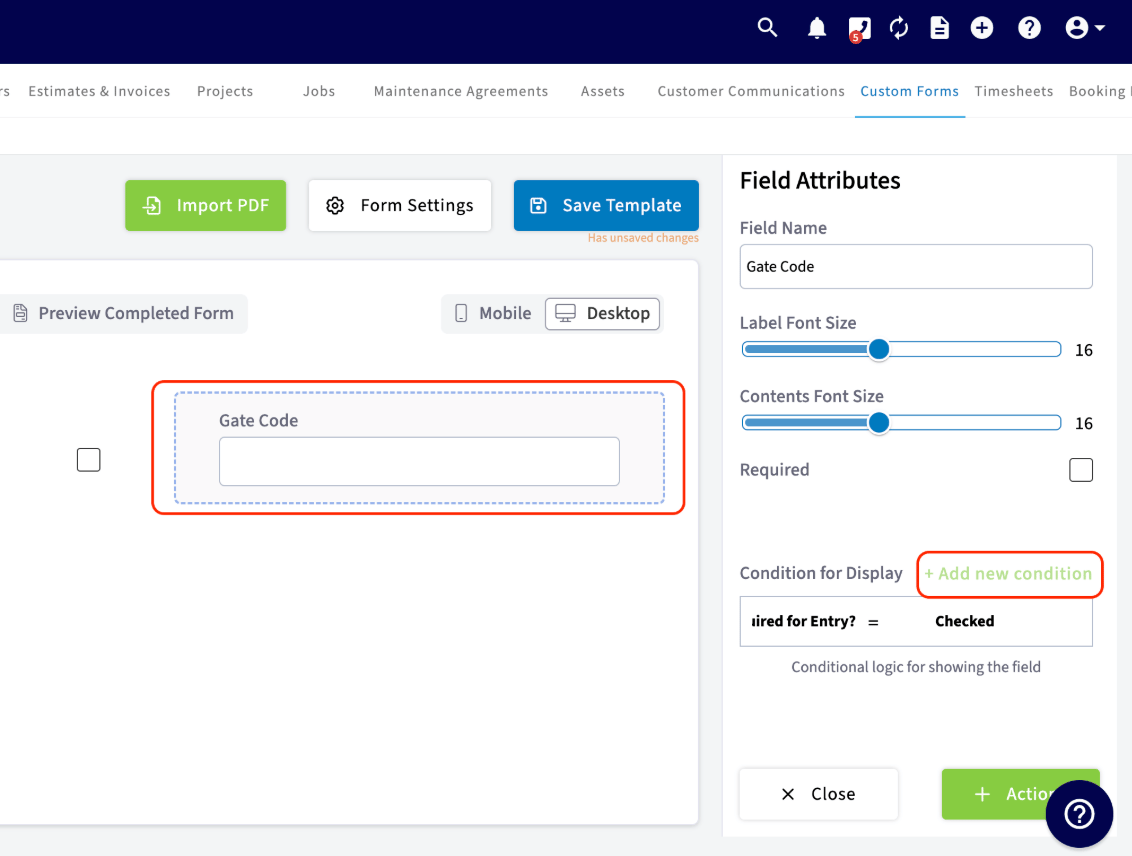
Conditional logic makes a field appear or change based on an answer given earlier in the form, so the form asks only for what applies. In the example below, a **Gate Code** field appears only when the **Gate Code Required for Entry?** checkbox is checked.
1. Select the field you want conditional logic to control — here, the **Gate Code** field.
2. Under **Condition for Display**, select **Add new condition**.
7. Save the formula and close the modal.
8. Select the formula as the **Default Value** for the field.
Once a formula is set, the **Number Field** is read-only while someone fills out the form, because FieldPulse calculates the value. To take the formula off the field, select **Remove** in the field's settings.
## Conditional logic
Conditional logic makes a field appear or change based on an answer given earlier in the form, so the form asks only for what applies. In the example below, a **Gate Code** field appears only when the **Gate Code Required for Entry?** checkbox is checked.
1. Select the field you want conditional logic to control — here, the **Gate Code** field.
2. Under **Condition for Display**, select **Add new condition**.
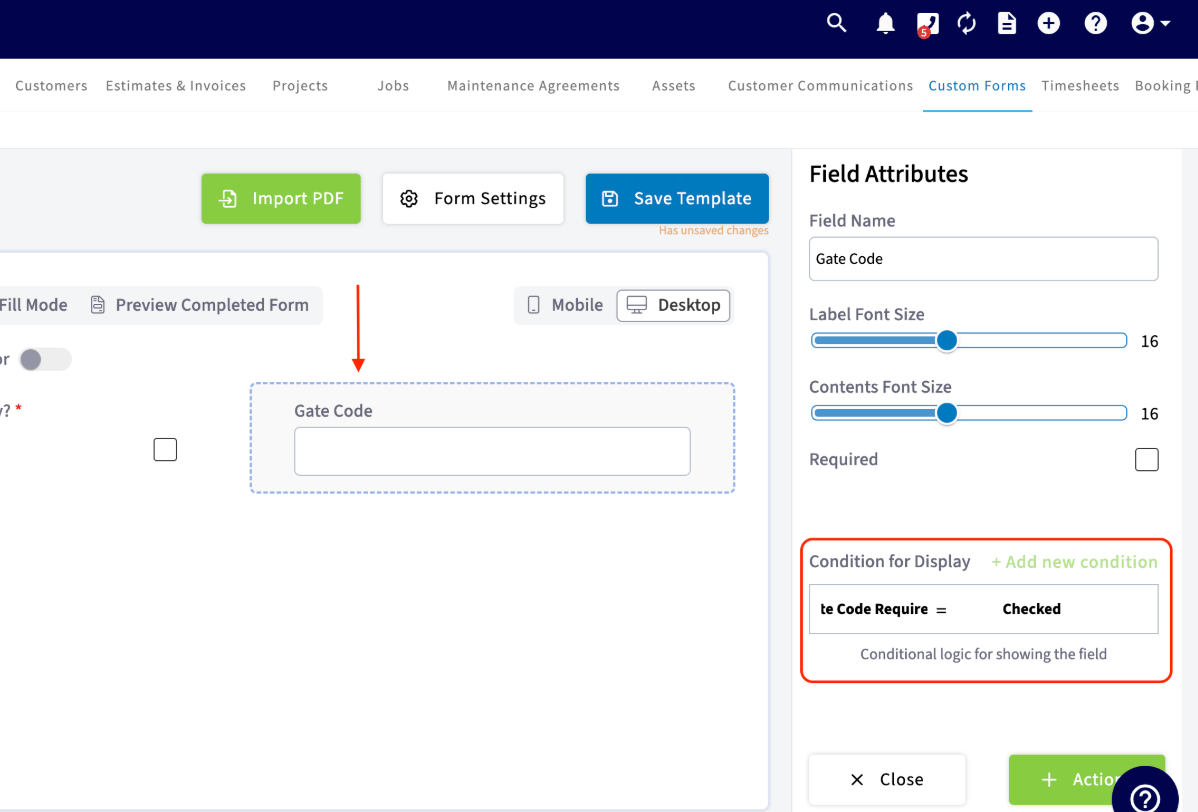
 3. Choose the field the condition depends on — here, **Gate Code Required for Entry?** — and the value to match. The values you can choose from depend on the type of field you picked.
4. Set the condition. In this example it reads **Gate Code Required for Entry? = Checked**, so the **Gate Code** field displays for the person filling out the form once that box is checked.
3. Choose the field the condition depends on — here, **Gate Code Required for Entry?** — and the value to match. The values you can choose from depend on the type of field you picked.
4. Set the condition. In this example it reads **Gate Code Required for Entry? = Checked**, so the **Gate Code** field displays for the person filling out the form once that box is checked.
 ## Notes & limitations
* A custom form holds a maximum of **20 pages**. The web app paginates every 10 pages; the mobile app paginates every 4 pages. See [How to Create a Custom Form](/jobs/custom-forms/create-a-form).
* **Image/Video** fields accept jpg, pdf, mp4, and png files, and each field allows between 1 and 10 files.
* **Quick Select** holds up to 5 options.
* A **Number Field** with a formula is read-only while someone fills out the form.
* In Offline Mode, related-record fields do not populate on their own. The field shows the message *The value will be filled automatically when you are back online*, and the value fills in once the device reconnects. See [Custom Forms Offline Mode Details](/jobs/custom-forms/offline-behavior).
## Notes & limitations
* A custom form holds a maximum of **20 pages**. The web app paginates every 10 pages; the mobile app paginates every 4 pages. See [How to Create a Custom Form](/jobs/custom-forms/create-a-form).
* **Image/Video** fields accept jpg, pdf, mp4, and png files, and each field allows between 1 and 10 files.
* **Quick Select** holds up to 5 options.
* A **Number Field** with a formula is read-only while someone fills out the form.
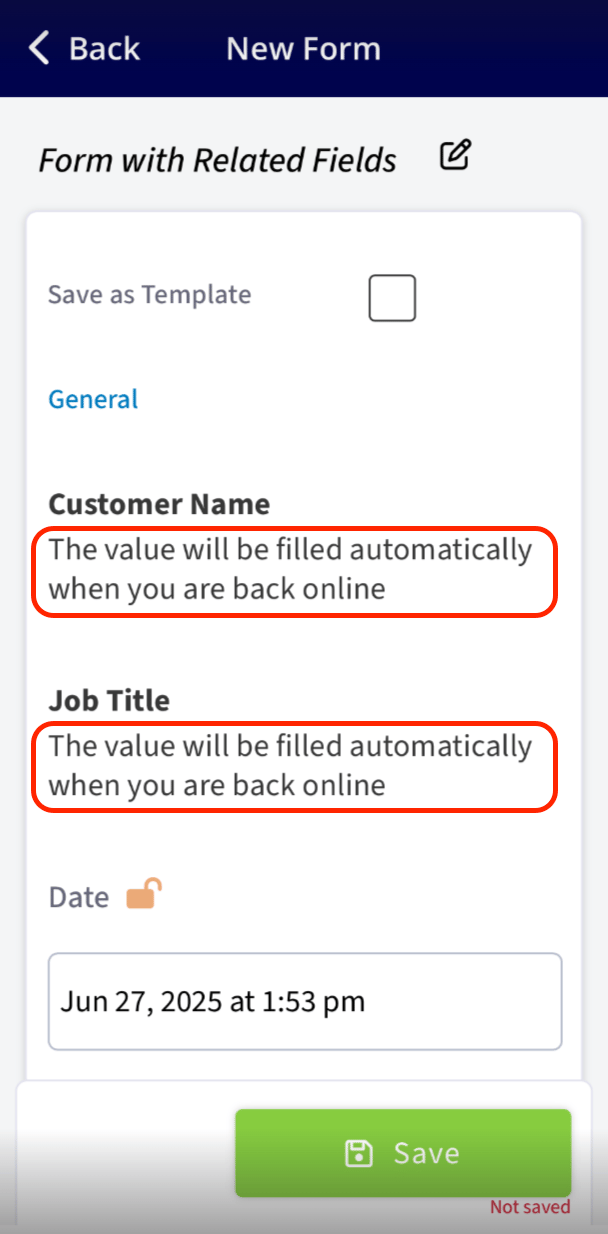
* In Offline Mode, related-record fields do not populate on their own. The field shows the message *The value will be filled automatically when you are back online*, and the value fills in once the device reconnects. See [Custom Forms Offline Mode Details](/jobs/custom-forms/offline-behavior).
 ## FAQs
### Can I add fields that only my team sees, not the customer?
Yes. Check **Internally Visible Field Only** in the field's attributes and the field stays off customer-facing displays, including PDFs, while your team still sees it. When a field is hidden the rest of the form adjusts around it, and you can designate an internal PDF for printing so internal fields appear on that copy — see [How to Create a Custom Form](/jobs/custom-forms/create-a-form).
## Related articles
* [How to Create a Custom Form](/jobs/custom-forms/create-a-form)
* [Custom Form Settings Details](/jobs/custom-forms/settings)
* [How to Link Custom Forms to Jobs](/jobs/custom-forms/link-to-jobs)
* [Custom Forms Offline Mode Details](/jobs/custom-forms/offline-behavior)
* [Custom Forms Overview](/jobs/custom-forms/overview)
## Related topics
- [Custom Forms Overview](/jobs/custom-forms/overview.md)
- [Custom Form Settings Details](/jobs/custom-forms/settings.md)
- [How to Create a Custom Form](/jobs/custom-forms/create-a-form.md)
- [Custom Forms](/jobs/custom-forms/index.md)
## FAQs
### Can I add fields that only my team sees, not the customer?
Yes. Check **Internally Visible Field Only** in the field's attributes and the field stays off customer-facing displays, including PDFs, while your team still sees it. When a field is hidden the rest of the form adjusts around it, and you can designate an internal PDF for printing so internal fields appear on that copy — see [How to Create a Custom Form](/jobs/custom-forms/create-a-form).
## Related articles
* [How to Create a Custom Form](/jobs/custom-forms/create-a-form)
* [Custom Form Settings Details](/jobs/custom-forms/settings)
* [How to Link Custom Forms to Jobs](/jobs/custom-forms/link-to-jobs)
* [Custom Forms Offline Mode Details](/jobs/custom-forms/offline-behavior)
* [Custom Forms Overview](/jobs/custom-forms/overview)
## Related topics
- [Custom Forms Overview](/jobs/custom-forms/overview.md)
- [Custom Form Settings Details](/jobs/custom-forms/settings.md)
- [How to Create a Custom Form](/jobs/custom-forms/create-a-form.md)
- [Custom Forms](/jobs/custom-forms/index.md)