> ## Documentation Index
> Fetch the complete documentation index at: https://help.fieldpulse.com/llms.txt
> Use this file to discover all available pages before exploring further.
# How to Import and Export Custom Form Templates
> Export a finished custom form template as JSON and import it into another FieldPulse account instead of rebuilding every field by hand.
> **Who uses this:** Admins — Import / Export JSON is admin-only and lives in **Company Settings** under **Custom Forms**. · **Availability:** All regions. Web only — the Import / Export JSON option is not in the mobile app.
Building a [custom form](https://www.fieldpulse.com/features/custom-forms) takes time. Once you have the fields, sections, and conditional logic the way you want them, you can export the template as a JSON file and import it somewhere else instead of rebuilding 50-plus fields by hand.
## Overview
Every custom form template can be exported to a `.json` file and imported into another FieldPulse account. The file carries the form's structure — fields and field-level settings, sections and layout, conditional logic, and PDF mappings. Account-specific settings, such as the status workflow and permissions, are excluded from the file and are configured again in the destination account.
Both actions run from the **Import / Export JSON** dropdown in the Custom Form Template editor, next to **Import PDF**, **Form Settings**, and **Save Template**.
Use import and export to:
* Replicate a single source-of-truth template across child accounts
* Import a pre-built Custom Form template
* Share a working template with someone outside FieldPulse
* Back up your most important forms before making big changes
## Before you begin
* Sign in as an admin on the web app. Import / Export JSON is admin-only and is not available in the mobile app.
* Have Custom Forms enabled for your account. See [Setting Up Custom Forms](/jobs/custom-forms/enabling).
* Leave the `.json` file as FieldPulse wrote it. A file edited by hand can stop matching the expected schema and fail to import.
## On web
### Export a template
1. Select **Company Settings** in the left-side menu, then select the **Custom Forms** tab.
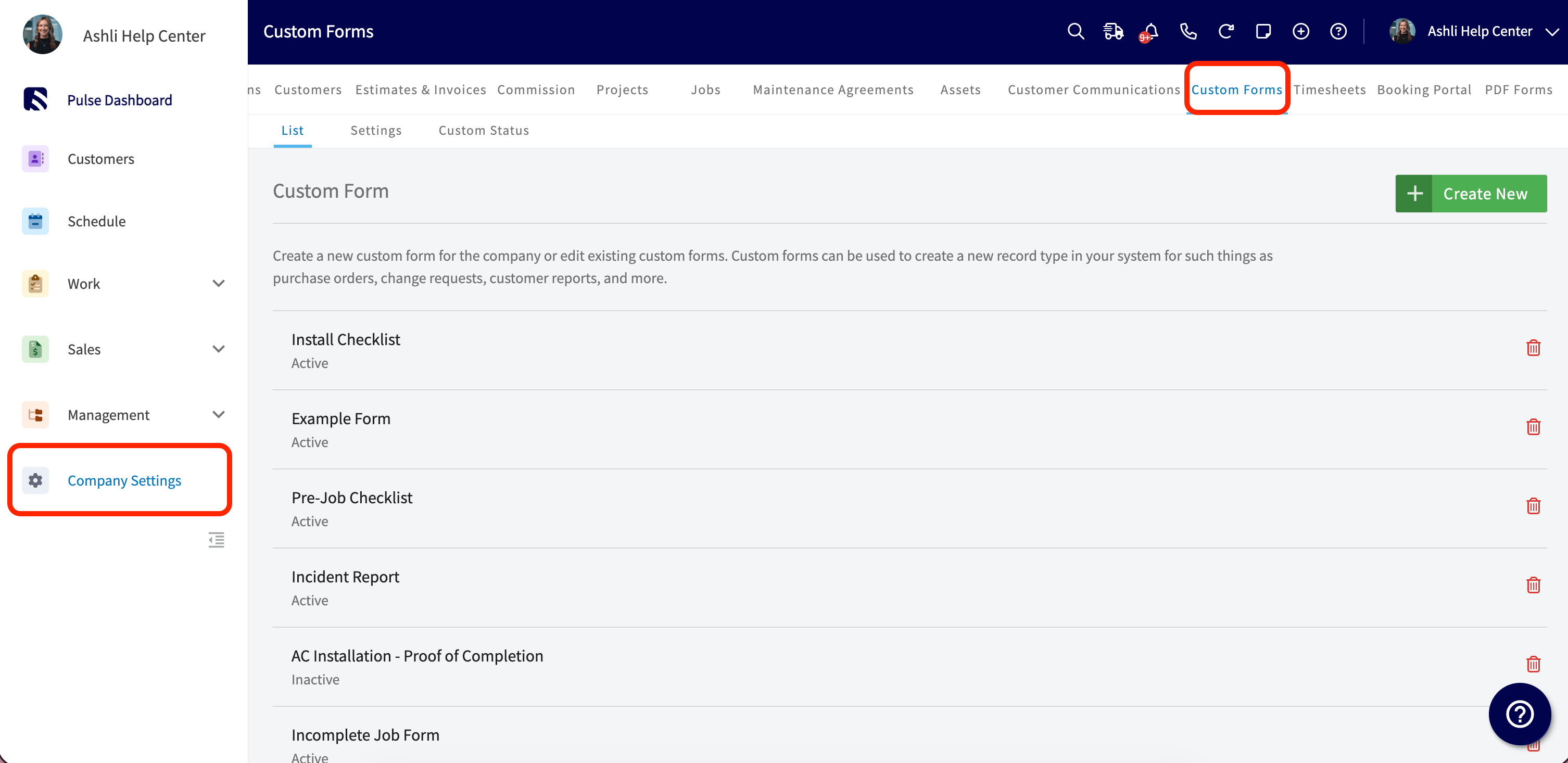 2. Open the template you want to export, then select **Import / Export JSON**.
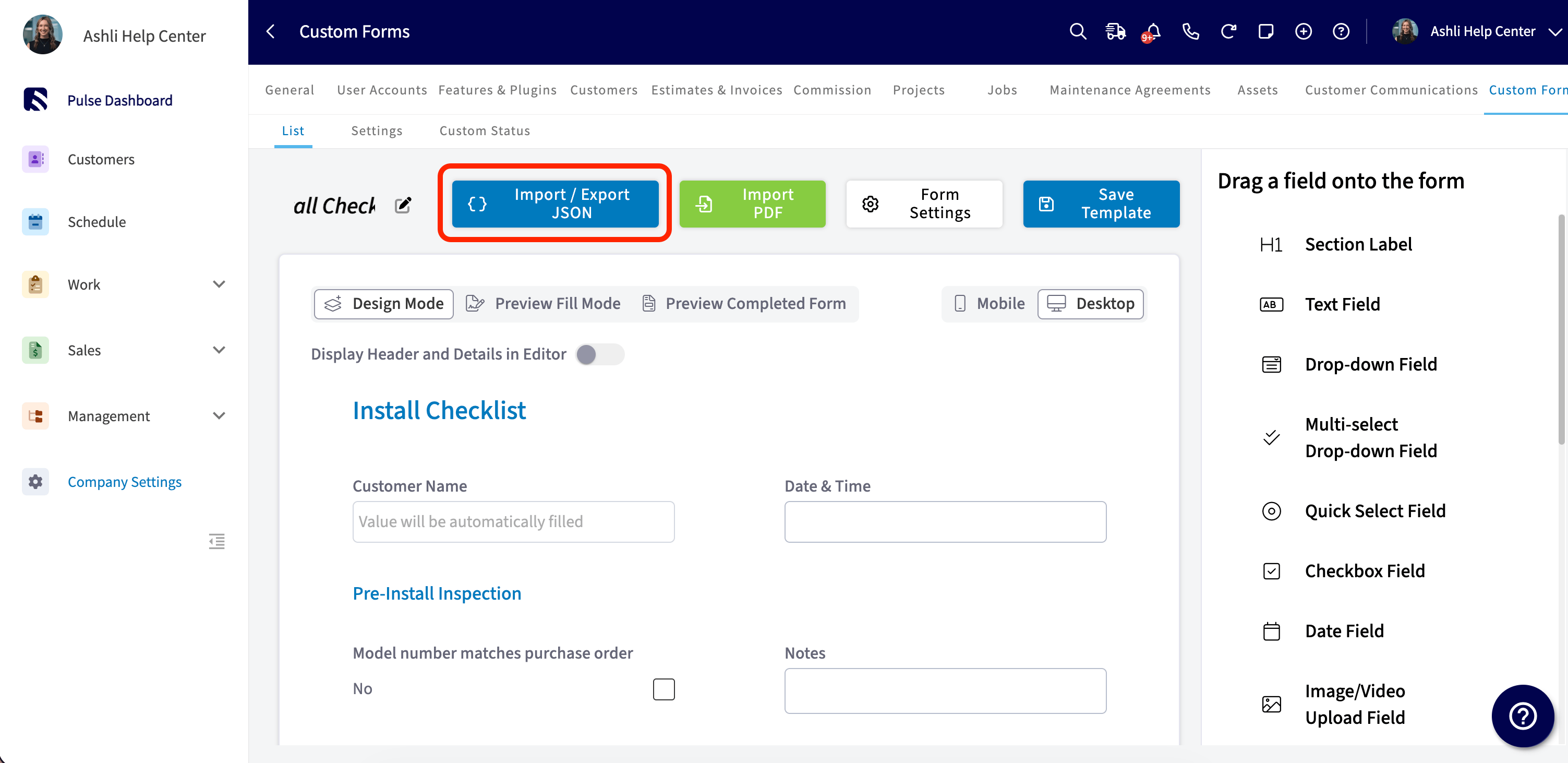 3. Select **Export JSON**.
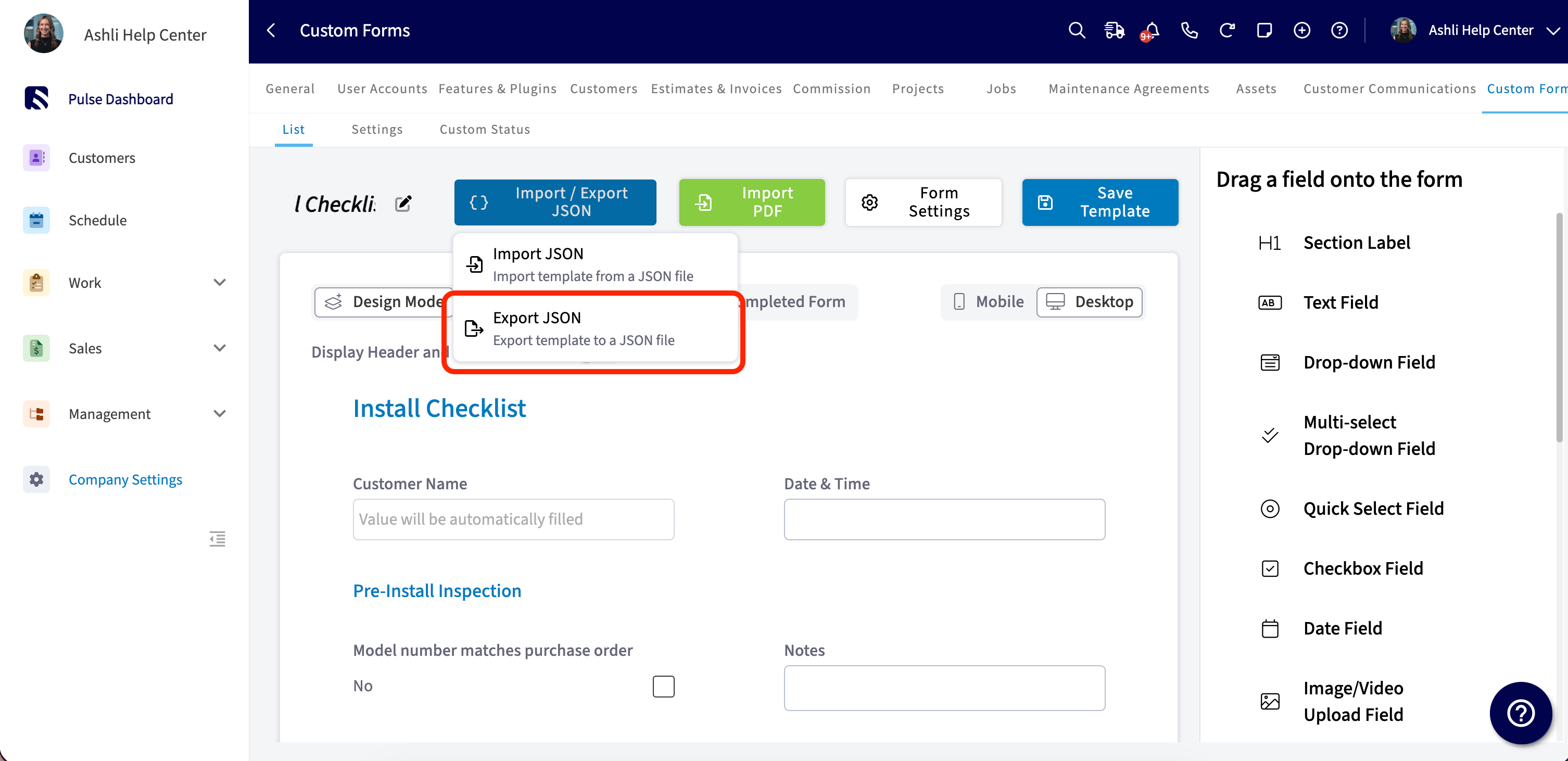 Your browser downloads a `.json` file named after the template. Save the file somewhere safe, or send it to whoever needs it.
### Import a template
1. Select **Company Settings** in the left-side menu of the destination account, then select the **Custom Forms** tab.
2. Select **Create New** to start a new form, or open the existing template you want to replace.
3. Select **Import / Export JSON**, then select **Import JSON**.
Your browser downloads a `.json` file named after the template. Save the file somewhere safe, or send it to whoever needs it.
### Import a template
1. Select **Company Settings** in the left-side menu of the destination account, then select the **Custom Forms** tab.
2. Select **Create New** to start a new form, or open the existing template you want to replace.
3. Select **Import / Export JSON**, then select **Import JSON**.
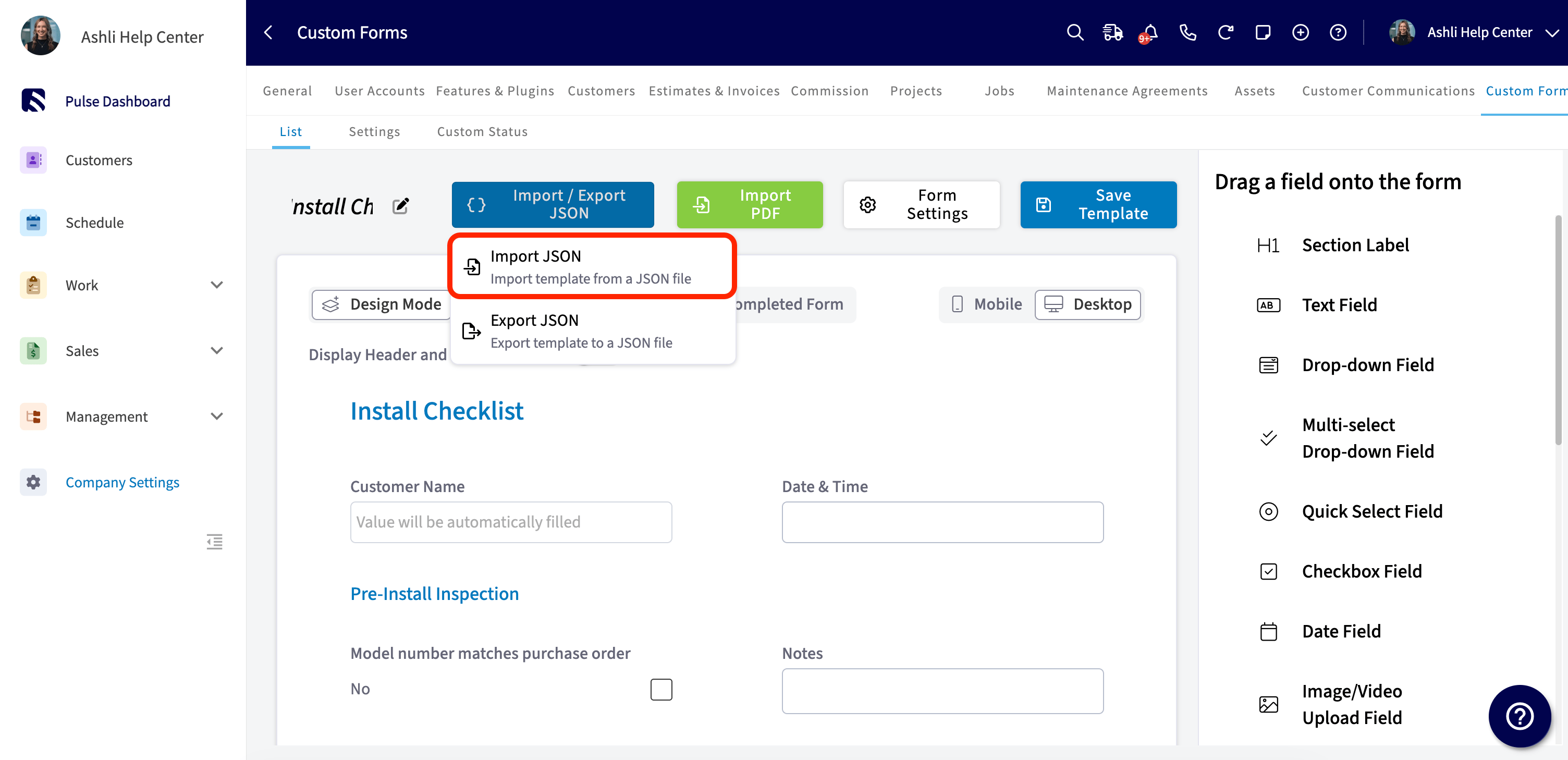 4. Choose the `.json` file on your computer.
5. Review the fields, sections, and conditional logic that came in.
6. Select **Save Template**. The imported template is not added to your Custom Forms list until you save it.
## What transfers with the file
Account-specific settings stay out of the file to keep imports clean. Reconfigure the excluded settings in **Form Settings** on the destination account.
| **Setting** | **Comes with the file** |
| ---------------------------------------------------------------------- | ------------------------------------------------- |
| Fields and field-level settings | Yes |
| Sections and layout | Yes |
| Conditional logic | Yes |
| PDF mappings | Yes |
| Status Workflow | No — set it up again in the destination account |
| View and Edit Permissions for teams and users | No — set them up again in the destination account |
| Page Settings, including Page Background | No — set them up again in the destination account |
| Form submissions, including customer responses, signatures, and photos | No — past responses stay in the original account |
## Common issues
| **Issue** | **Likely cause** | **Fix** |
| ---------------------------------------------------------------- | --------------------------------------------------------------- | ------------------------------------------------------------------------------------------------------------- |
| Import shows an error after picking a file | The JSON file is corrupted or doesn't match the expected schema | Re-export from the source account and try again. Avoid editing the JSON file by hand. |
| Imported template doesn't appear in the Custom Forms list | **Save Template** wasn't selected after the import loaded | Re-open the editor and select **Save Template** to keep your changes. |
| Permissions, status workflow, or page background didn't transfer | These settings are excluded from import and export by design | Reconfigure them in **Form Settings** on the destination account. |
| The **Import / Export JSON** button isn't there | You're not signed in as an admin, or you're on mobile | Sign in as an admin on the web app, then open the template through **Company Settings** and **Custom Forms**. |
## FAQs
### Will my form submissions, including customer responses, signatures, and photos, come along?
No. Import / Export JSON moves the template structure only, not the data your customers or technicians have submitted. Past form responses stay in the original account.
### Is there a limit on how many templates I can import?
No hard limit. If you're adding a long list of templates to your account, import them one at a time and save each one before starting the next.
### How do I create a form template I can reuse?
Build the form once in **Company Settings** > **Custom Forms** and turn on **Allow Template Creation** in **Form Settings** so you can use that form as a template for future forms. To reuse it in another account, open the template editor, choose **Import / Export JSON** to export a `.json` file, then import that file in the destination account — an admin-only action available on web. Fields, sections, conditional logic, and PDF mappings travel with the file; you set up the status workflow, view and edit permissions, and page settings again in the destination account, as covered in [How to Import and Export Custom Form Templates](/jobs/custom-forms/import-export).
## Related articles
* [Custom Forms Overview](/jobs/custom-forms/overview)
* [How to Create a Custom Form](/jobs/custom-forms/create-a-form)
* [Custom Form Settings Details](/jobs/custom-forms/settings)
* [How to Use the PDF Form Filler](/jobs/custom-forms/pdf-form-filler)
* [How to Link Custom Forms to Jobs](/jobs/custom-forms/link-to-jobs)
Your import is working when the template opens in the destination account with every field, section, and rule in place, and the only work left is setting the status workflow, permissions, and page settings.
## Related topics
- [Custom Forms Overview](/jobs/custom-forms/overview.md)
- [Custom Forms](/jobs/custom-forms/index.md)
- [Custom Form Settings Details](/jobs/custom-forms/settings.md)
- [How to Create a Custom Form](/jobs/custom-forms/create-a-form.md)
4. Choose the `.json` file on your computer.
5. Review the fields, sections, and conditional logic that came in.
6. Select **Save Template**. The imported template is not added to your Custom Forms list until you save it.
## What transfers with the file
Account-specific settings stay out of the file to keep imports clean. Reconfigure the excluded settings in **Form Settings** on the destination account.
| **Setting** | **Comes with the file** |
| ---------------------------------------------------------------------- | ------------------------------------------------- |
| Fields and field-level settings | Yes |
| Sections and layout | Yes |
| Conditional logic | Yes |
| PDF mappings | Yes |
| Status Workflow | No — set it up again in the destination account |
| View and Edit Permissions for teams and users | No — set them up again in the destination account |
| Page Settings, including Page Background | No — set them up again in the destination account |
| Form submissions, including customer responses, signatures, and photos | No — past responses stay in the original account |
## Common issues
| **Issue** | **Likely cause** | **Fix** |
| ---------------------------------------------------------------- | --------------------------------------------------------------- | ------------------------------------------------------------------------------------------------------------- |
| Import shows an error after picking a file | The JSON file is corrupted or doesn't match the expected schema | Re-export from the source account and try again. Avoid editing the JSON file by hand. |
| Imported template doesn't appear in the Custom Forms list | **Save Template** wasn't selected after the import loaded | Re-open the editor and select **Save Template** to keep your changes. |
| Permissions, status workflow, or page background didn't transfer | These settings are excluded from import and export by design | Reconfigure them in **Form Settings** on the destination account. |
| The **Import / Export JSON** button isn't there | You're not signed in as an admin, or you're on mobile | Sign in as an admin on the web app, then open the template through **Company Settings** and **Custom Forms**. |
## FAQs
### Will my form submissions, including customer responses, signatures, and photos, come along?
No. Import / Export JSON moves the template structure only, not the data your customers or technicians have submitted. Past form responses stay in the original account.
### Is there a limit on how many templates I can import?
No hard limit. If you're adding a long list of templates to your account, import them one at a time and save each one before starting the next.
### How do I create a form template I can reuse?
Build the form once in **Company Settings** > **Custom Forms** and turn on **Allow Template Creation** in **Form Settings** so you can use that form as a template for future forms. To reuse it in another account, open the template editor, choose **Import / Export JSON** to export a `.json` file, then import that file in the destination account — an admin-only action available on web. Fields, sections, conditional logic, and PDF mappings travel with the file; you set up the status workflow, view and edit permissions, and page settings again in the destination account, as covered in [How to Import and Export Custom Form Templates](/jobs/custom-forms/import-export).
## Related articles
* [Custom Forms Overview](/jobs/custom-forms/overview)
* [How to Create a Custom Form](/jobs/custom-forms/create-a-form)
* [Custom Form Settings Details](/jobs/custom-forms/settings)
* [How to Use the PDF Form Filler](/jobs/custom-forms/pdf-form-filler)
* [How to Link Custom Forms to Jobs](/jobs/custom-forms/link-to-jobs)
Your import is working when the template opens in the destination account with every field, section, and rule in place, and the only work left is setting the status workflow, permissions, and page settings.
## Related topics
- [Custom Forms Overview](/jobs/custom-forms/overview.md)
- [Custom Forms](/jobs/custom-forms/index.md)
- [Custom Form Settings Details](/jobs/custom-forms/settings.md)
- [How to Create a Custom Form](/jobs/custom-forms/create-a-form.md)