> ## Documentation Index
> Fetch the complete documentation index at: https://help.fieldpulse.com/llms.txt
> Use this file to discover all available pages before exploring further.
# How to Use the PDF Form Filler
> Import a PDF into FieldPulse, add fillable fields and signature boxes, and attach the finished form to customers, jobs, projects, and invoices.
> **Who uses this:** PDF forms are built in Company Settings, and each form attached to a file library names the roles allowed to import it. **Availability:** All regions. The PDF Form Filler is turned on by request — email FieldPulse support to enable it.
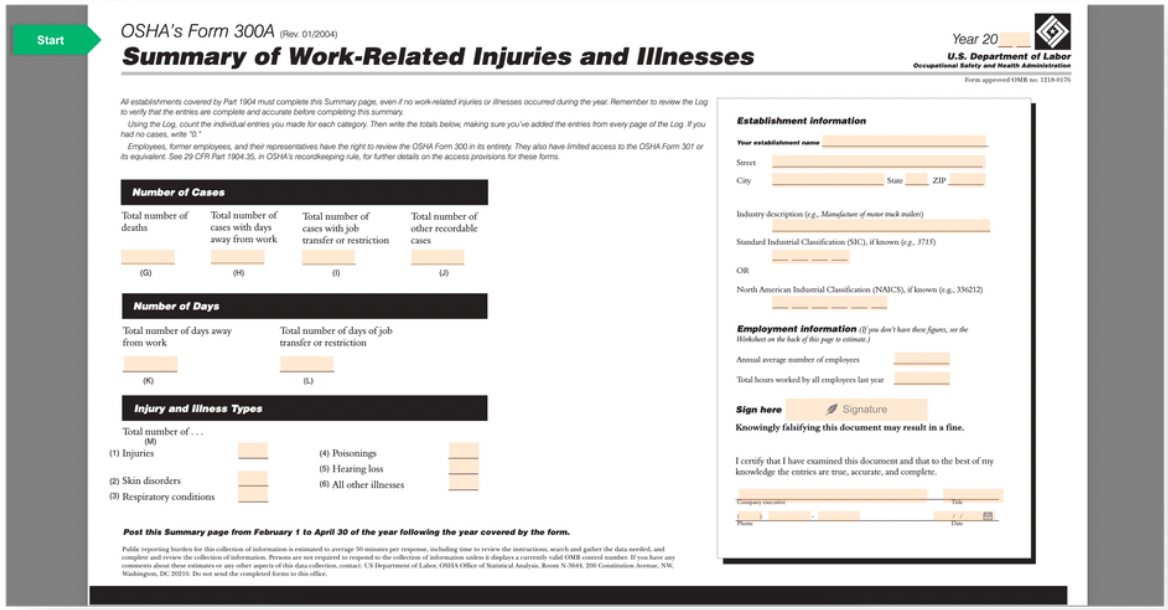
The forms your team carries into the field — the inspection checklist, the county-required permit, the customer sign-off — don't have to be printed, filled in by hand, and scanned back at the end of the day. The PDF Form Filler, part of [custom forms](https://www.fieldpulse.com/features/custom-forms), takes a PDF you already have, lets you drop fillable fields onto it, and keeps the completed copy on the record it belongs to.
## Overview
The PDF Form Filler turns an existing PDF into a form your team fills out inside FieldPulse. You import the PDF in **Company Settings**, drag fillable elements onto the page, save the form, and attach it to a customer, job, project, or invoice. Forms are filled out and signed in both the FieldPulse web app and the [mobile app](https://www.fieldpulse.com/features/mobile-app), and the finished copy is stored on the record for anyone who needs it later.
PDF forms support e-signatures, attaching a form to customer communications, saving to customer and job records, and full integration with FieldPulse for smart fill. Custom field types include short answer, paragraph, multiple choice, checkboxes, dropdown, and file upload. You can also import a PDF that already contains fillable fields, so a form you bring from another platform doesn't have to be rebuilt from scratch.
 ## Video walkthrough
## Before you begin
* The PDF Form Filler has to be enabled for your account. Email [support@fieldpulse.com](mailto:support@fieldpulse.com) or use the chat feature in the bottom-right corner of your screen to request it.
* Have the PDF you want to build on ready to upload.
## Creating a PDF form
### Import and name the PDF
1. Go to **Company Settings** and select **PDF Forms** from the top menu.
## Video walkthrough
## Before you begin
* The PDF Form Filler has to be enabled for your account. Email [support@fieldpulse.com](mailto:support@fieldpulse.com) or use the chat feature in the bottom-right corner of your screen to request it.
* Have the PDF you want to build on ready to upload.
## Creating a PDF form
### Import and name the PDF
1. Go to **Company Settings** and select **PDF Forms** from the top menu.
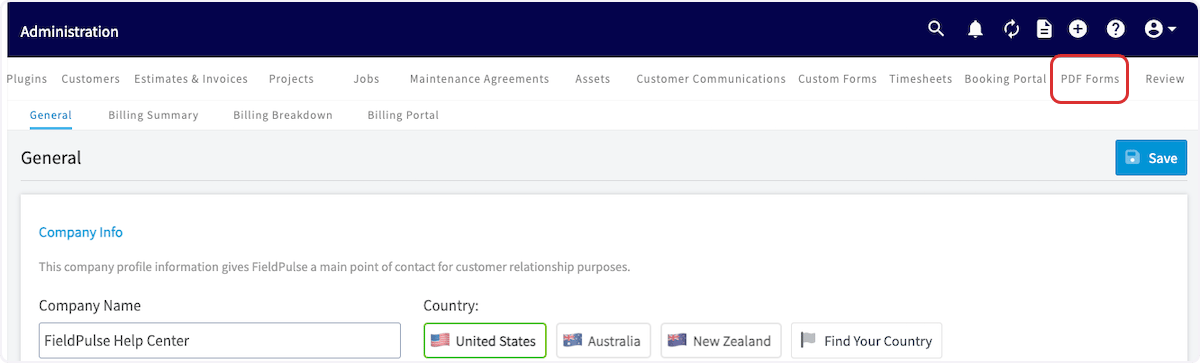 2. Select **Import File** and choose the PDF you want to build on.
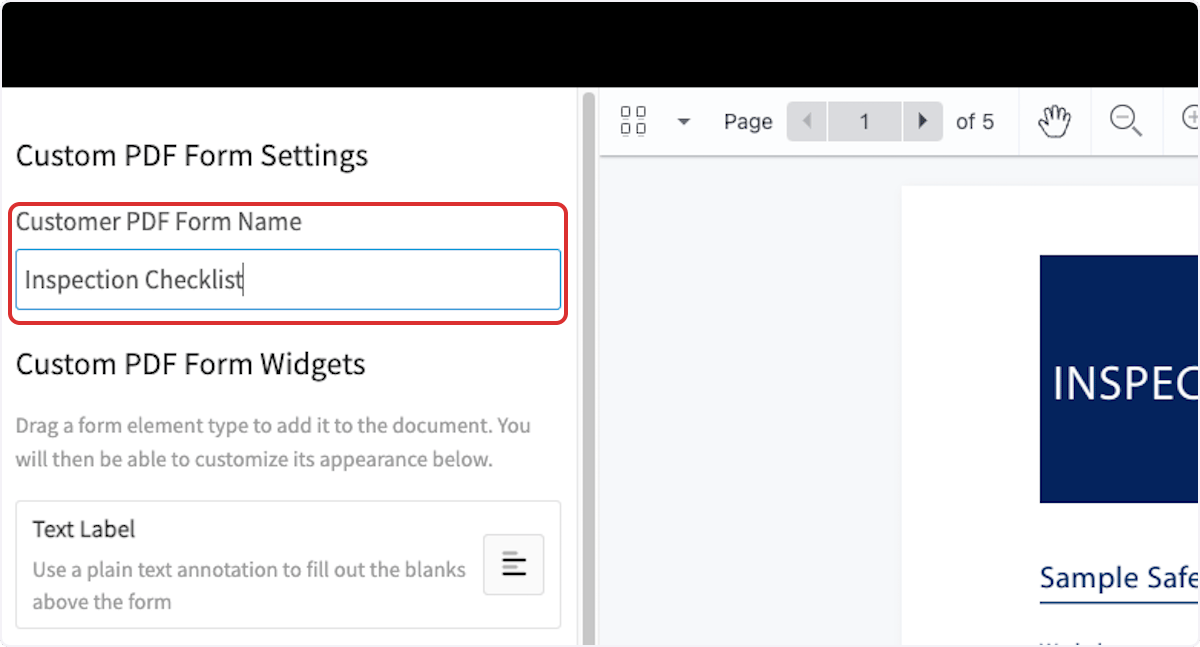
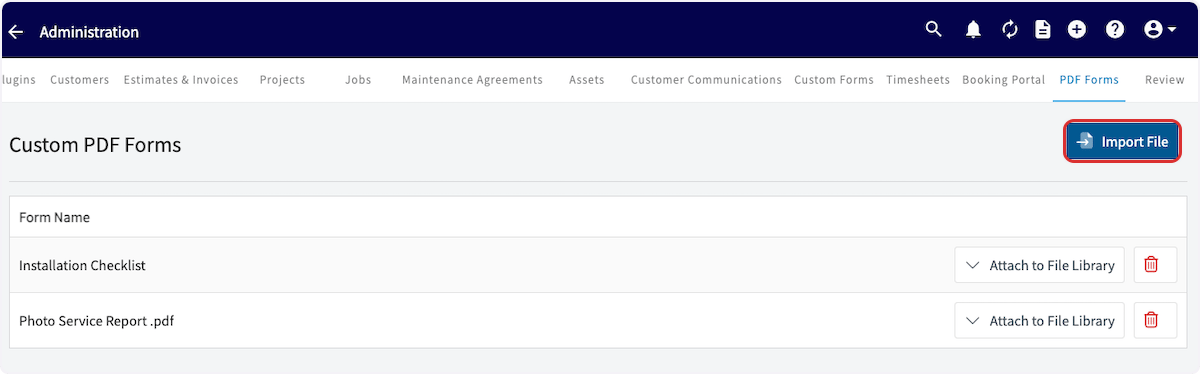 3. Enter a clear name in **Customer PDF Form Name** so your team can find the form later.
 ### Add form elements
Drag an element from the **Custom PDF Form Widgets** menu on the left onto the PDF. Once an element is placed, you can resize it and adjust its appearance.
| **Element** | **What it adds to the PDF** |
| ----------------------------- | --------------------------------------------------------------------------------------------------------------------------------- |
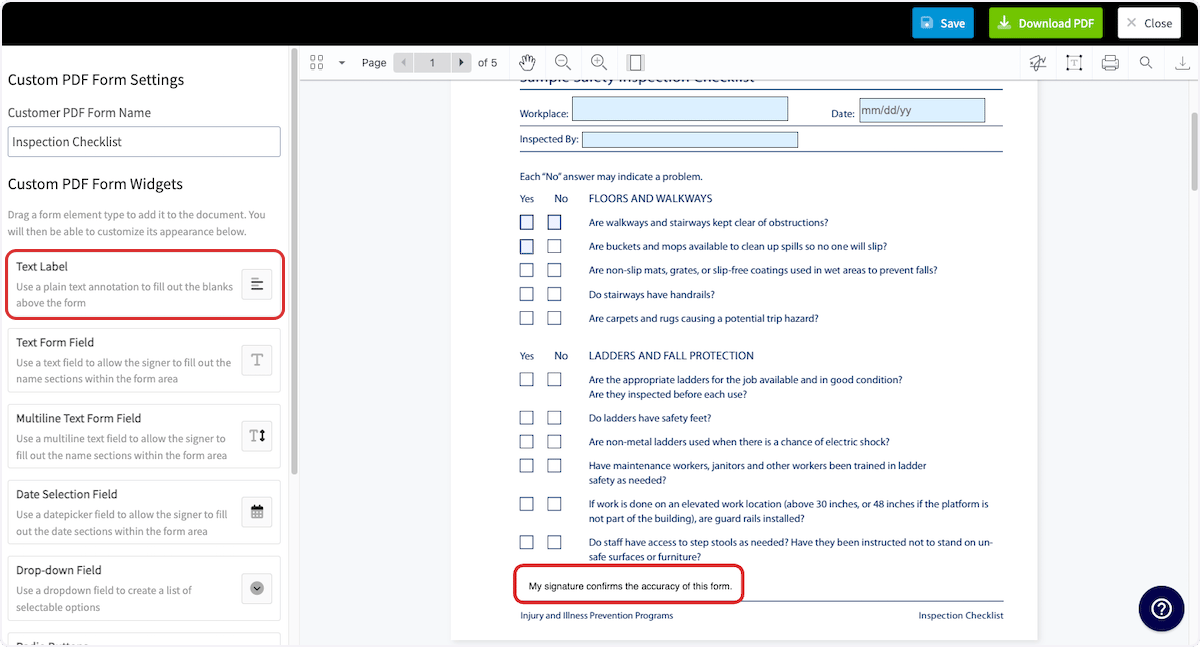
| **Text Label** | Plain text you write onto the page. A text label is not an editable field, so it stays fixed for everyone who fills out the form. |
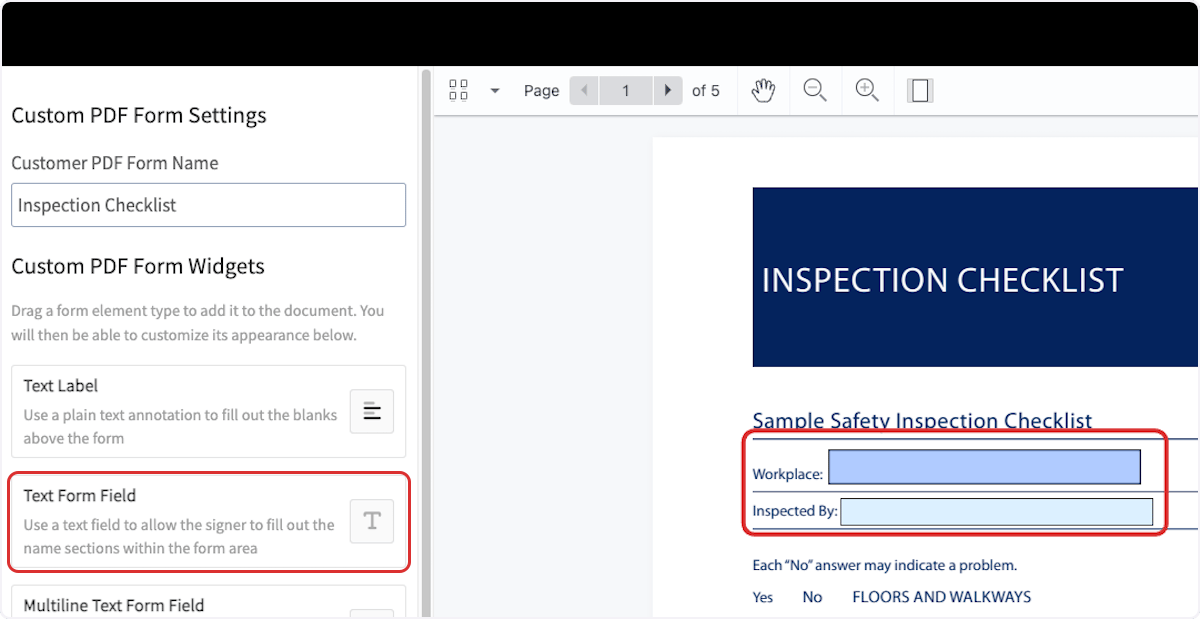
| **Text Form Field** | A blank space to type in, for the name sections and other single-line entries in the form. |
| **Multiline Text Form Field** | A text field that holds more than one line of typed text. |
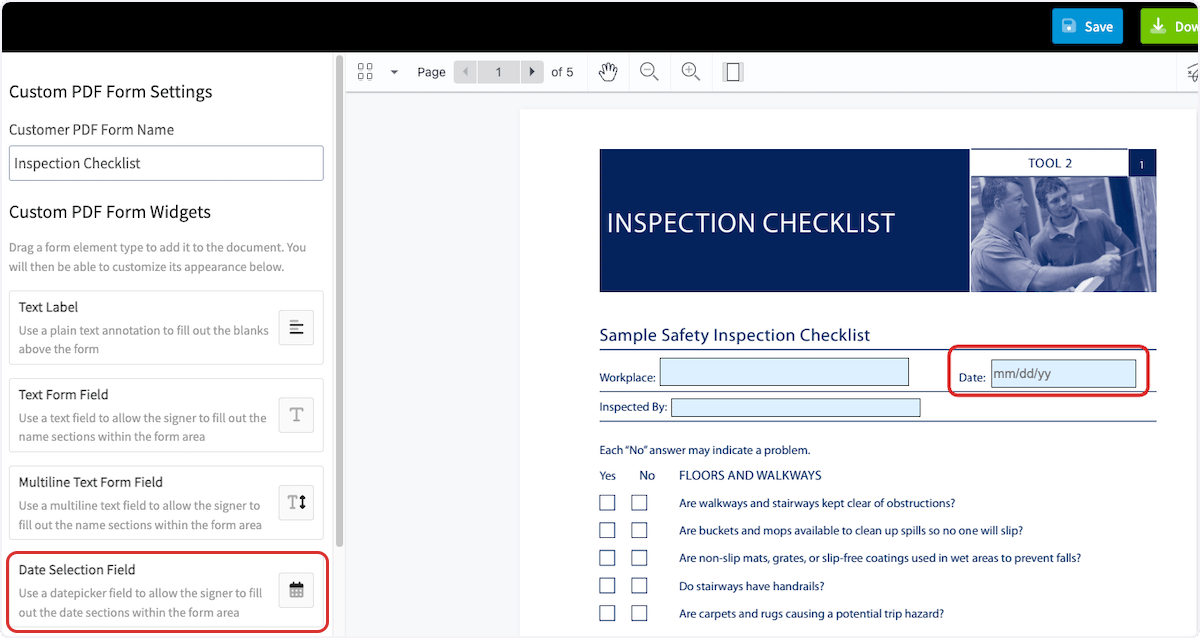
| **Date Selection Field** | A datepicker for filling in the date sections of the form. |
| **Drop-down Field** | A list of selectable options. |
| **Radio Buttons** | Radio groups where only one button in a group can be selected at a time. |
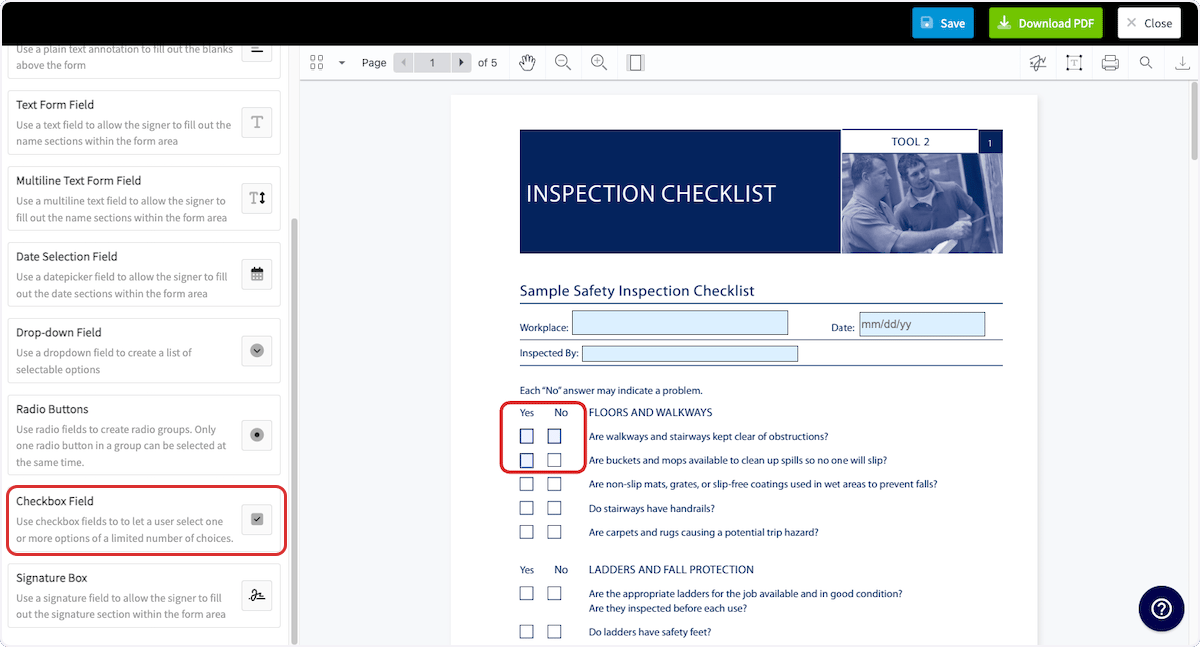
| **Checkbox Field** | Checkboxes that let someone select one or more options from a limited set of choices. |
| **Signature Box** | A space to write or type a signature. |
The examples below show a text form field, a date selection field, checkboxes, a text label, and a signature box placed on a safety inspection checklist.
### Add form elements
Drag an element from the **Custom PDF Form Widgets** menu on the left onto the PDF. Once an element is placed, you can resize it and adjust its appearance.
| **Element** | **What it adds to the PDF** |
| ----------------------------- | --------------------------------------------------------------------------------------------------------------------------------- |
| **Text Label** | Plain text you write onto the page. A text label is not an editable field, so it stays fixed for everyone who fills out the form. |
| **Text Form Field** | A blank space to type in, for the name sections and other single-line entries in the form. |
| **Multiline Text Form Field** | A text field that holds more than one line of typed text. |
| **Date Selection Field** | A datepicker for filling in the date sections of the form. |
| **Drop-down Field** | A list of selectable options. |
| **Radio Buttons** | Radio groups where only one button in a group can be selected at a time. |
| **Checkbox Field** | Checkboxes that let someone select one or more options from a limited set of choices. |
| **Signature Box** | A space to write or type a signature. |
The examples below show a text form field, a date selection field, checkboxes, a text label, and a signature box placed on a safety inspection checklist.
 \|
\|  |
|  |
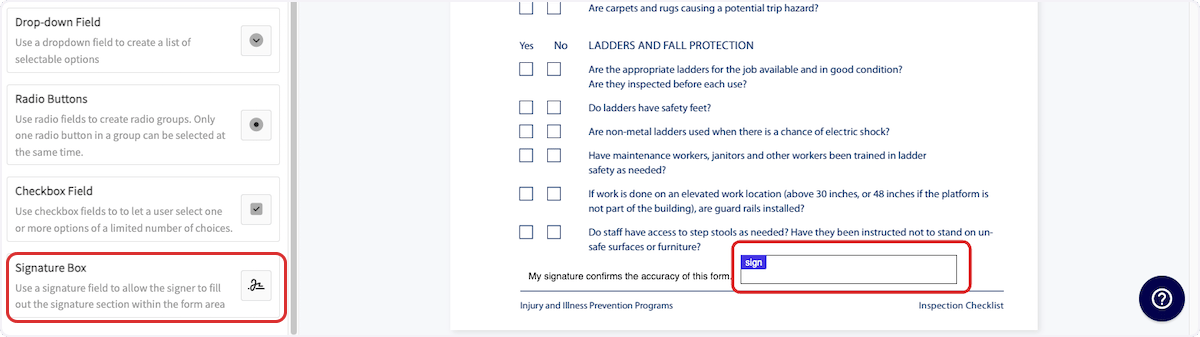
A **Signature Box** drops onto the signature line, where the person completing the form writes or types a signature.
|
A **Signature Box** drops onto the signature line, where the person completing the form writes or types a signature.
 ### Save the form and choose where it lives
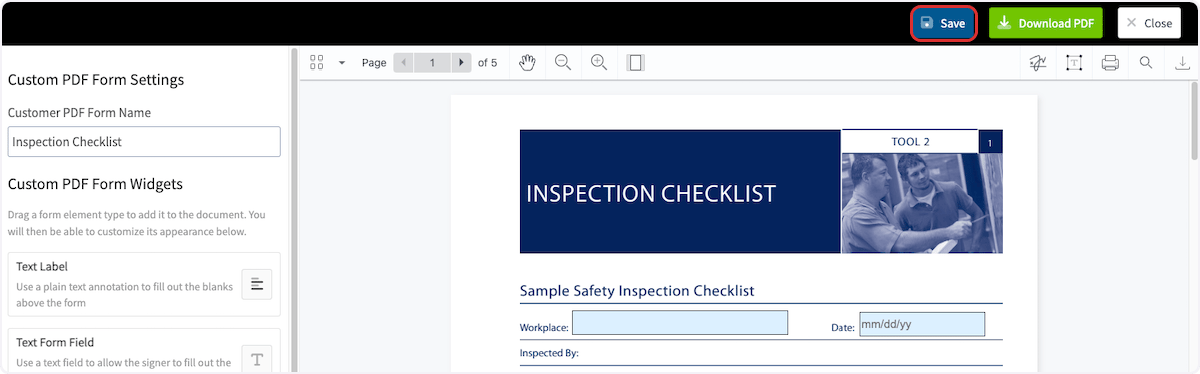
1. Select **Save** once your elements are placed.
### Save the form and choose where it lives
1. Select **Save** once your elements are placed.
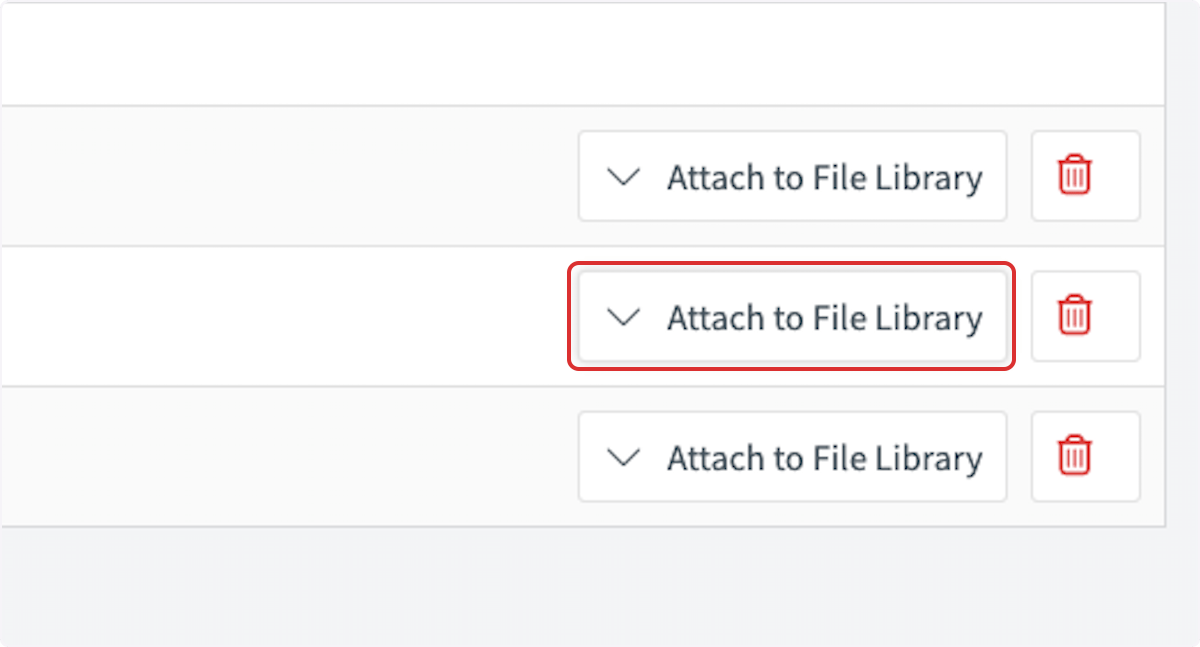
 2. Select **Attach to File Library** next to the name of your new PDF form.
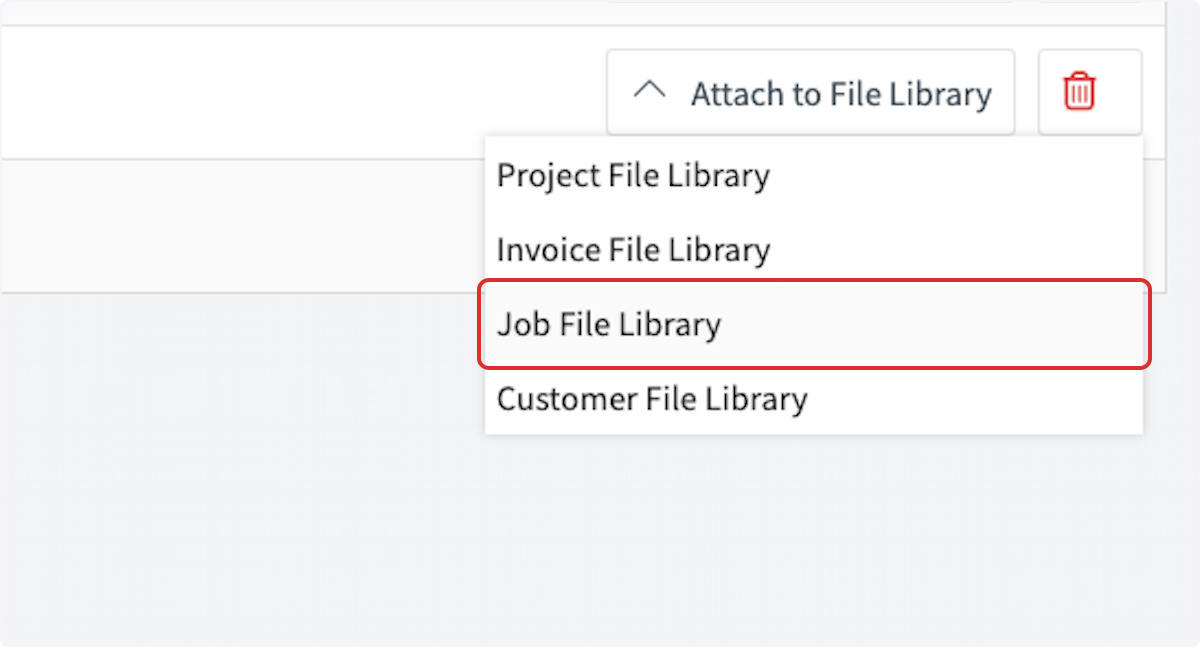
 3. Select the library where you want to store the form — **Project File Library**, **Invoice File Library**, **Job File Library**, or **Customer File Library**.
 4. Select the roles allowed to import the file onto records in the **File Import Permissions** window, then select **Save**.
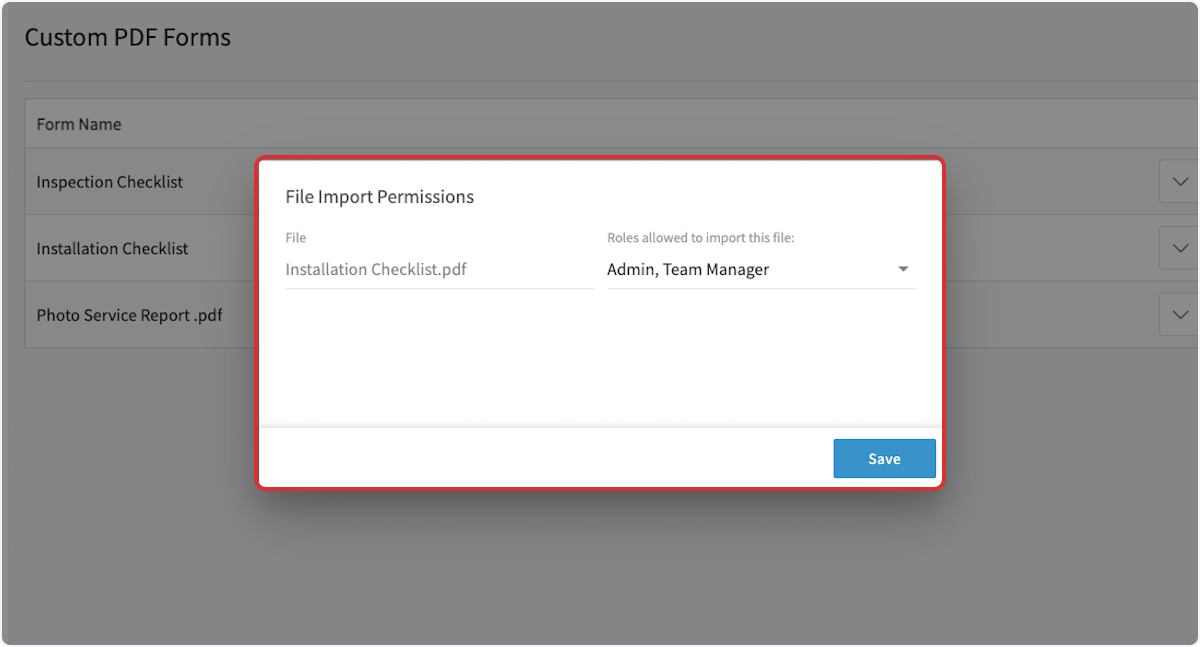 Every PDF form is stored in the PDF Library. Adding a form to a specific file library as well keeps it organized and sets which roles can import it onto records.
Store a form in a specific file library when the form pertains directly to that library's records.
## Attaching a PDF form to a record
PDF forms can be attached to customers, jobs, projects, invoices, and more. The steps below use a job record as the example.
1. Open the record you want to attach the form to.
Every PDF form is stored in the PDF Library. Adding a form to a specific file library as well keeps it organized and sets which roles can import it onto records.
Store a form in a specific file library when the form pertains directly to that library's records.
## Attaching a PDF form to a record
PDF forms can be attached to customers, jobs, projects, invoices, and more. The steps below use a job record as the example.
1. Open the record you want to attach the form to.
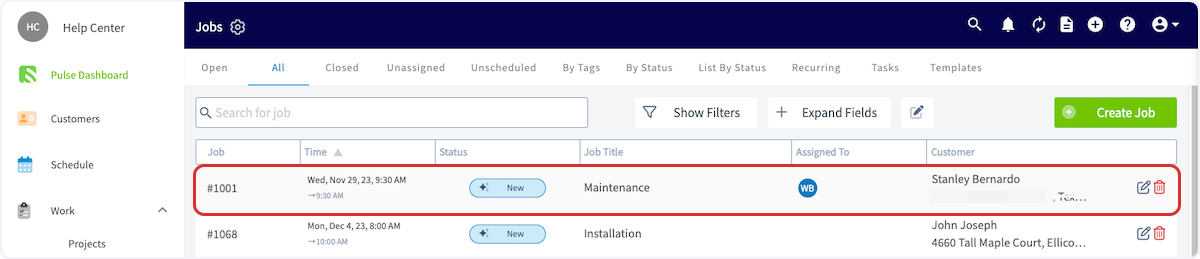 2. Select **Files** from the menu at the top of the screen.
3. Choose where to pull the form from:
* **Import From File Library** — shows only the PDF forms added to the library that matches the record you have open. On a job record, that is the forms in the Job File Library.
* **Import From PDF Library** — shows every PDF form in your account.
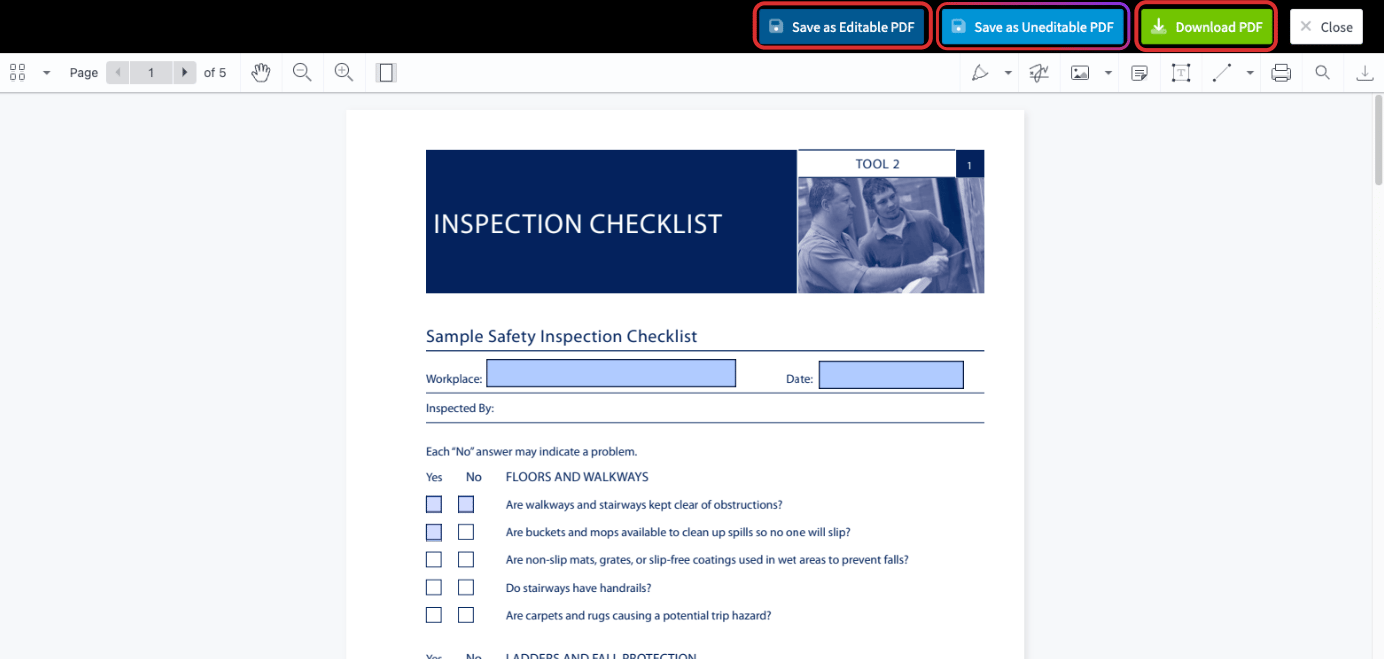
4. Preview the PDF, then choose how to save it from the options at the top of the screen:
* **Save as Editable PDF** — saves the form with its fields still fillable.
* **Save as Uneditable PDF** — saves the form with its fields locked so they can't be filled out.
* **Download PDF** — downloads the PDF to your device.
2. Select **Files** from the menu at the top of the screen.
3. Choose where to pull the form from:
* **Import From File Library** — shows only the PDF forms added to the library that matches the record you have open. On a job record, that is the forms in the Job File Library.
* **Import From PDF Library** — shows every PDF form in your account.
4. Preview the PDF, then choose how to save it from the options at the top of the screen:
* **Save as Editable PDF** — saves the form with its fields still fillable.
* **Save as Uneditable PDF** — saves the form with its fields locked so they can't be filled out.
* **Download PDF** — downloads the PDF to your device.
 ## Still need help?
Reach the [FieldPulse support team](https://www.fieldpulse.com/company/contact-us) at [support@fieldpulse.com](mailto:support@fieldpulse.com) or through the chat feature in the bottom-right corner of your screen.
## Related articles
* [Custom Forms Overview](/jobs/custom-forms/overview)
* [How to Create a Custom Form](/jobs/custom-forms/create-a-form)
* [How to View Photos and Files on Form PDFs](/jobs/custom-forms/viewing-photos-files)
* [How to Import and Export Custom Form Templates](/jobs/custom-forms/import-export)
* [Custom Forms Offline Mode Details](/jobs/custom-forms/offline-behavior)
* [Custom Forms FAQs](/jobs/custom-forms/overview)
Your PDF form is working when it appears in the file library you chose, opens on a record from **Files**, and saves back to that record with its fields and signature filled in.
## Related topics
- [Custom Forms Overview](/jobs/custom-forms/overview.md)
- [How to View Photos and Files on Form PDFs](/jobs/custom-forms/viewing-photos-files.md)
- [Custom Forms Offline Mode Details](/jobs/custom-forms/offline-behavior.md)
- [How to Link Custom Forms to Jobs](/jobs/custom-forms/link-to-jobs.md)
## Still need help?
Reach the [FieldPulse support team](https://www.fieldpulse.com/company/contact-us) at [support@fieldpulse.com](mailto:support@fieldpulse.com) or through the chat feature in the bottom-right corner of your screen.
## Related articles
* [Custom Forms Overview](/jobs/custom-forms/overview)
* [How to Create a Custom Form](/jobs/custom-forms/create-a-form)
* [How to View Photos and Files on Form PDFs](/jobs/custom-forms/viewing-photos-files)
* [How to Import and Export Custom Form Templates](/jobs/custom-forms/import-export)
* [Custom Forms Offline Mode Details](/jobs/custom-forms/offline-behavior)
* [Custom Forms FAQs](/jobs/custom-forms/overview)
Your PDF form is working when it appears in the file library you chose, opens on a record from **Files**, and saves back to that record with its fields and signature filled in.
## Related topics
- [Custom Forms Overview](/jobs/custom-forms/overview.md)
- [How to View Photos and Files on Form PDFs](/jobs/custom-forms/viewing-photos-files.md)
- [Custom Forms Offline Mode Details](/jobs/custom-forms/offline-behavior.md)
- [How to Link Custom Forms to Jobs](/jobs/custom-forms/link-to-jobs.md)