> ## Documentation Index
> Fetch the complete documentation index at: https://help.fieldpulse.com/llms.txt
> Use this file to discover all available pages before exploring further.
# How to Use Comments
> Leave a comment on a job, estimate, or invoice in FieldPulse to reach the office from the field, and send job updates to the Customer Portal.
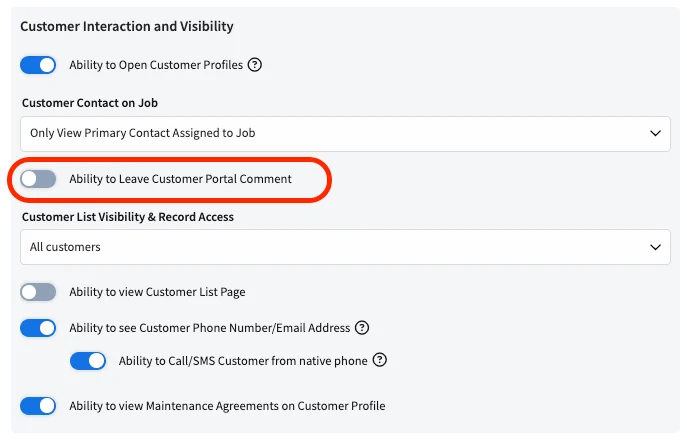
> **Who uses this:** Admins, Team Managers, and Service Agents — Team Manager and Service Agent commenting depends on the user feature permissions set by the founding FieldPulse user, and sending a comment to the Customer Portal requires the **Ability to Leave Customer Portal Comment** permission for Service Agents. · **Availability:** All regions.
When a tech needs a part or the office needs a status, that conversation shouldn't live in a group text no one can find later. Comments keep it on the [job record](https://www.fieldpulse.com/features/job-management), where the whole team and — when you choose — the customer can see it.
## Overview
A comment is a note left on a FieldPulse record so your team can talk on the record itself. Comments do two jobs: they carry [communication](https://www.fieldpulse.com/features/customer-communication) between the field and the office, and on jobs and projects they can be sent to the customer through the [Customer Portal Overview](/customers/customer-portal/customer-portal). Either way, the exchange stays documented on the record.
### Where you can leave comments
You can leave comments on these records in FieldPulse:
* Customer
* Job
* Project
* Subtask
* Estimate
* Invoice
* Material List
* Purchase Order
Customers can also leave comments from the Customer Portal on the jobs and projects shared with them.
### What teams use comments for
* **Office and technician communication** — a technician can request additional resources, ask for a scheduling change, or ask for clarification on instructions, and office staff can answer on the record so the technician has the details before heading to the job site.
* **Communication between technicians** — a technician who hits an unexpected issue on site can comment on the job record to tell internal staff about the problem and ask for advice.
* **Customer communication through the Customer Portal** — comments left through a job or project give the customer visibility into the work being completed, and the customer can reply with questions or feedback.
* **Sharing best practices** — Team Managers can use comments to discuss strategies that worked on similar jobs, so the rest of the team can learn from them.
## Before you begin
Access to comments depends on the user's role and on the user feature permissions the founding FieldPulse user sets. See [User Roles and Permissions Details](/settings/users-teams/user-roles) for how those permissions work.
| **Role** | **Commenting access** |
| ------------- | -------------------------------------------------------------------------------------------------------------------------------------------------------------- |
| Admin | Can comment on every record type listed above, and can send comments to the Customer Portal. |
| Team Manager | Commenting depends on user feature permissions. Has full access to send comments to the Customer Portal. |
| Service Agent | Commenting depends on user feature permissions. Sending a comment to the Customer Portal requires the **Ability to Leave Customer Portal Comment** permission. |
An admin turns the **Ability to Leave Customer Portal Comment** permission on or off for a Service Agent under **Customer Interaction and Visibility** in that user's feature permissions.
 ## On web
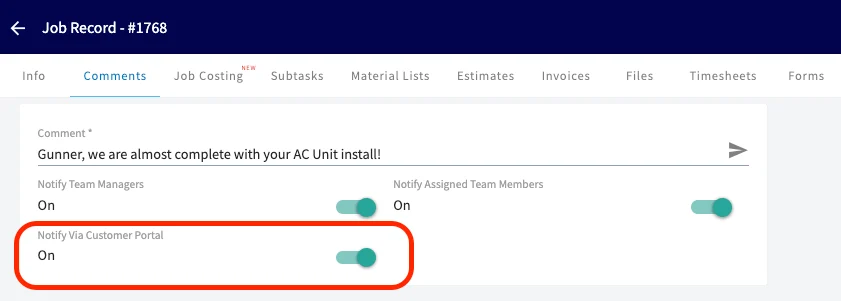
1. Open the record you want to comment on and select the **Comments** tab.
2. Type your note in the **Comment** field.
3. Set the notification toggles for this comment — **Notify Team Managers**, **Notify Assigned Team Members**, and, on jobs and projects, **Notify Via Customer Portal**.
4. Select the send arrow to post the comment.
## On web
1. Open the record you want to comment on and select the **Comments** tab.
2. Type your note in the **Comment** field.
3. Set the notification toggles for this comment — **Notify Team Managers**, **Notify Assigned Team Members**, and, on jobs and projects, **Notify Via Customer Portal**.
4. Select the send arrow to post the comment.
 ## On mobile
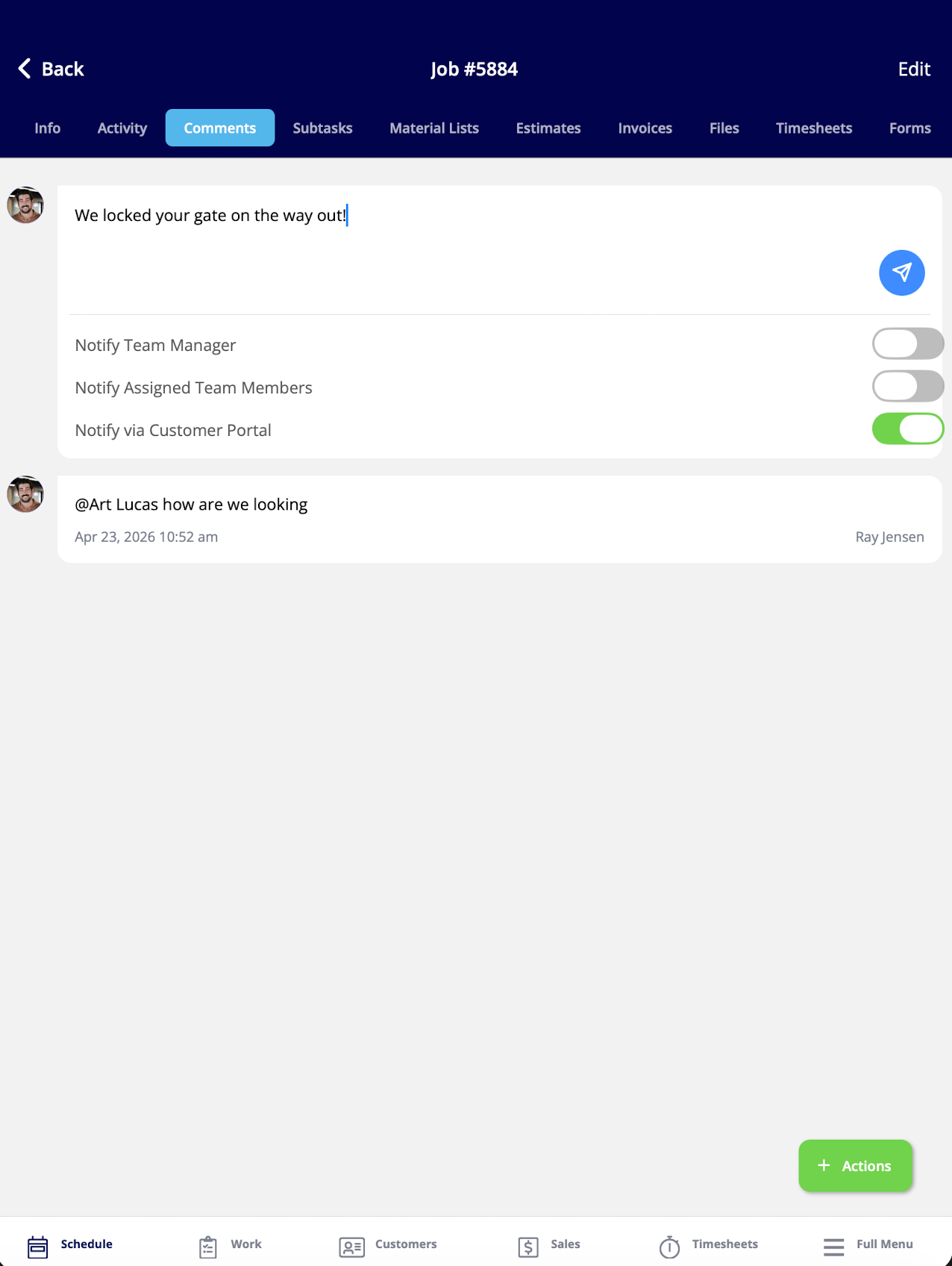
1. Open the job or record you want to comment on and select the **Comments** tab.
2. Type your note in the comment field.
3. Set the notification toggles for this comment — **Notify Team Manager**, **Notify Assigned Team Members**, and, on jobs and projects, **Notify via Customer Portal**.
4. Select the send arrow to post the comment.
## On mobile
1. Open the job or record you want to comment on and select the **Comments** tab.
2. Type your note in the comment field.
3. Set the notification toggles for this comment — **Notify Team Manager**, **Notify Assigned Team Members**, and, on jobs and projects, **Notify via Customer Portal**.
4. Select the send arrow to post the comment.
 ## Share a comment with the customer
Comments left on job and project records can also be sent to the Customer Portal, where your customers can read them. Turn on the **Notify via Customer Portal** toggle when you leave the comment, and the comment cascades to the related job or project in the Customer Portal.
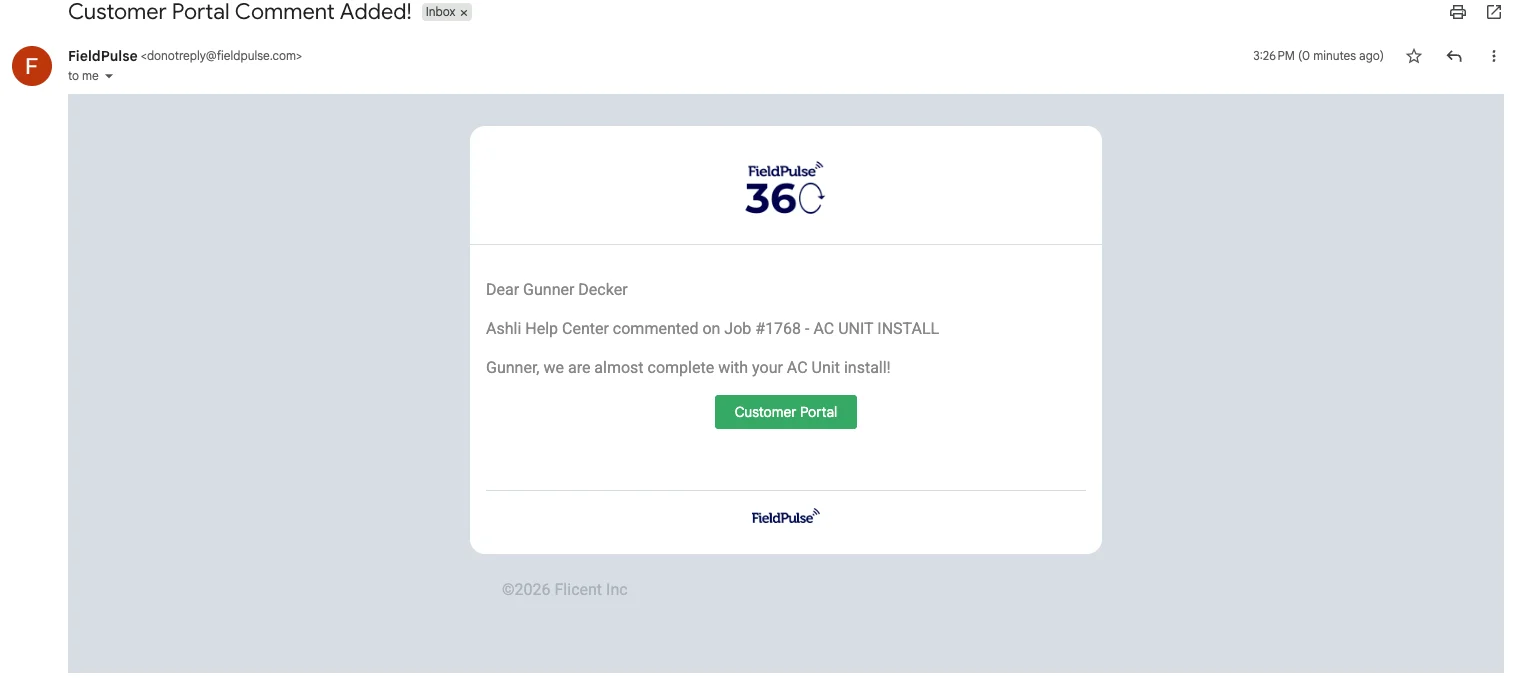
The customer also receives an email notification whenever a comment is left. The email shows the comment and includes a link that opens it in the Customer Portal.
## Share a comment with the customer
Comments left on job and project records can also be sent to the Customer Portal, where your customers can read them. Turn on the **Notify via Customer Portal** toggle when you leave the comment, and the comment cascades to the related job or project in the Customer Portal.
The customer also receives an email notification whenever a comment is left. The email shows the comment and includes a link that opens it in the Customer Portal.
 Using the Customer Portal this way documents the communication on the related job or project in FieldPulse, so you keep a record of what was said and when.
## Set your notification preferences
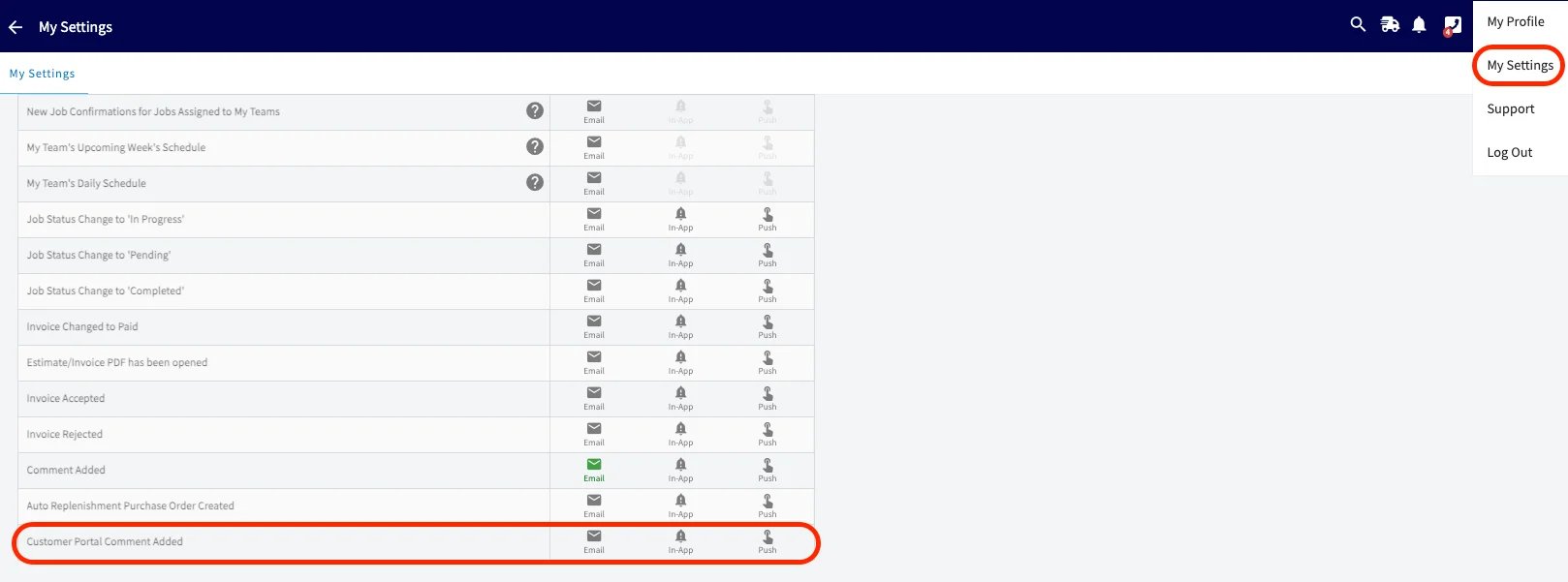
Each Admin, Team Manager, and Service Agent decides how they are notified when a customer adds a comment in the Customer Portal. Choose one or more of these methods for **Customer Portal Comment Added** in **My Settings**:
* Email
* In-app notifications
* Push notifications
Using the Customer Portal this way documents the communication on the related job or project in FieldPulse, so you keep a record of what was said and when.
## Set your notification preferences
Each Admin, Team Manager, and Service Agent decides how they are notified when a customer adds a comment in the Customer Portal. Choose one or more of these methods for **Customer Portal Comment Added** in **My Settings**:
* Email
* In-app notifications
* Push notifications
 For every other notification you can turn on, see the [Notifications Overview](/settings/notifications/notifications-master-guide).
## Related articles
* [How to Manage Files](/jobs/jobs-tasks/file-management)
* [How to Create Dynamic Job Reports](/jobs/jobs-tasks/dynamic-job-reports)
* [Customer Portal Overview](/customers/customer-portal/customer-portal)
* [User Roles and Permissions Details](/settings/users-teams/user-roles)
* [Notifications Overview](/settings/notifications/notifications-master-guide)
Comments are working when a technician's question reaches the office on the record instead of in a lost text, and the customer sees the update in the Customer Portal without anyone drafting a separate email.
## Related topics
- [How to Complete a Job in the Field](/jobs/jobs-tasks/completing-a-job.md)
- [How to Use Subtasks](/jobs/jobs-tasks/subtasks.md)
- [How to Manage Files](/jobs/jobs-tasks/file-management.md)
- [Jobs & Tasks](/jobs/jobs-tasks/index.md)
For every other notification you can turn on, see the [Notifications Overview](/settings/notifications/notifications-master-guide).
## Related articles
* [How to Manage Files](/jobs/jobs-tasks/file-management)
* [How to Create Dynamic Job Reports](/jobs/jobs-tasks/dynamic-job-reports)
* [Customer Portal Overview](/customers/customer-portal/customer-portal)
* [User Roles and Permissions Details](/settings/users-teams/user-roles)
* [Notifications Overview](/settings/notifications/notifications-master-guide)
Comments are working when a technician's question reaches the office on the record instead of in a lost text, and the customer sees the update in the Customer Portal without anyone drafting a separate email.
## Related topics
- [How to Complete a Job in the Field](/jobs/jobs-tasks/completing-a-job.md)
- [How to Use Subtasks](/jobs/jobs-tasks/subtasks.md)
- [How to Manage Files](/jobs/jobs-tasks/file-management.md)
- [Jobs & Tasks](/jobs/jobs-tasks/index.md)