> ## Documentation Index
> Fetch the complete documentation index at: https://help.fieldpulse.com/llms.txt
> Use this file to discover all available pages before exploring further.
# How to Complete a Job in the Field
> Wrap up a job from the FieldPulse mobile app by logging field notes and photos, marking the status Completed, and clocking out before you drive off.
> **Who uses this:** The team member working the job closes it out from the FieldPulse mobile app. **Availability:** All regions.
Finishing a job is more than putting the tools away. From the FieldPulse [mobile app](https://www.fieldpulse.com/features/mobile-app), the person on site updates the [job](https://www.fieldpulse.com/features/job-management) status, logs field notes, attaches photos and files, and leaves comments for the office — so the record is current before anyone drives away.
## Overview
Completing a job in the field happens in the FieldPulse mobile app. Open the job record, document the work with field notes, photos, files, and comments, change the job status to **Completed**, and clock out of the job. FieldPulse tracks how long the job spends in each status, and records the job duration when the status changes to **Completed**.
## Video walkthrough
Watch the walkthrough, then follow the written steps below.
## Before you begin
* The job has to exist before anyone can work it and close it out. See [How to Create a Job](/jobs/jobs-tasks/creating-a-job) to build one, or [How to Create Recurring Jobs](/jobs/jobs-tasks/recurring-jobs) for work that repeats.
* Every step below happens in the FieldPulse mobile app, on the phone or tablet you carry to the site.
## On mobile
### Find and open the job
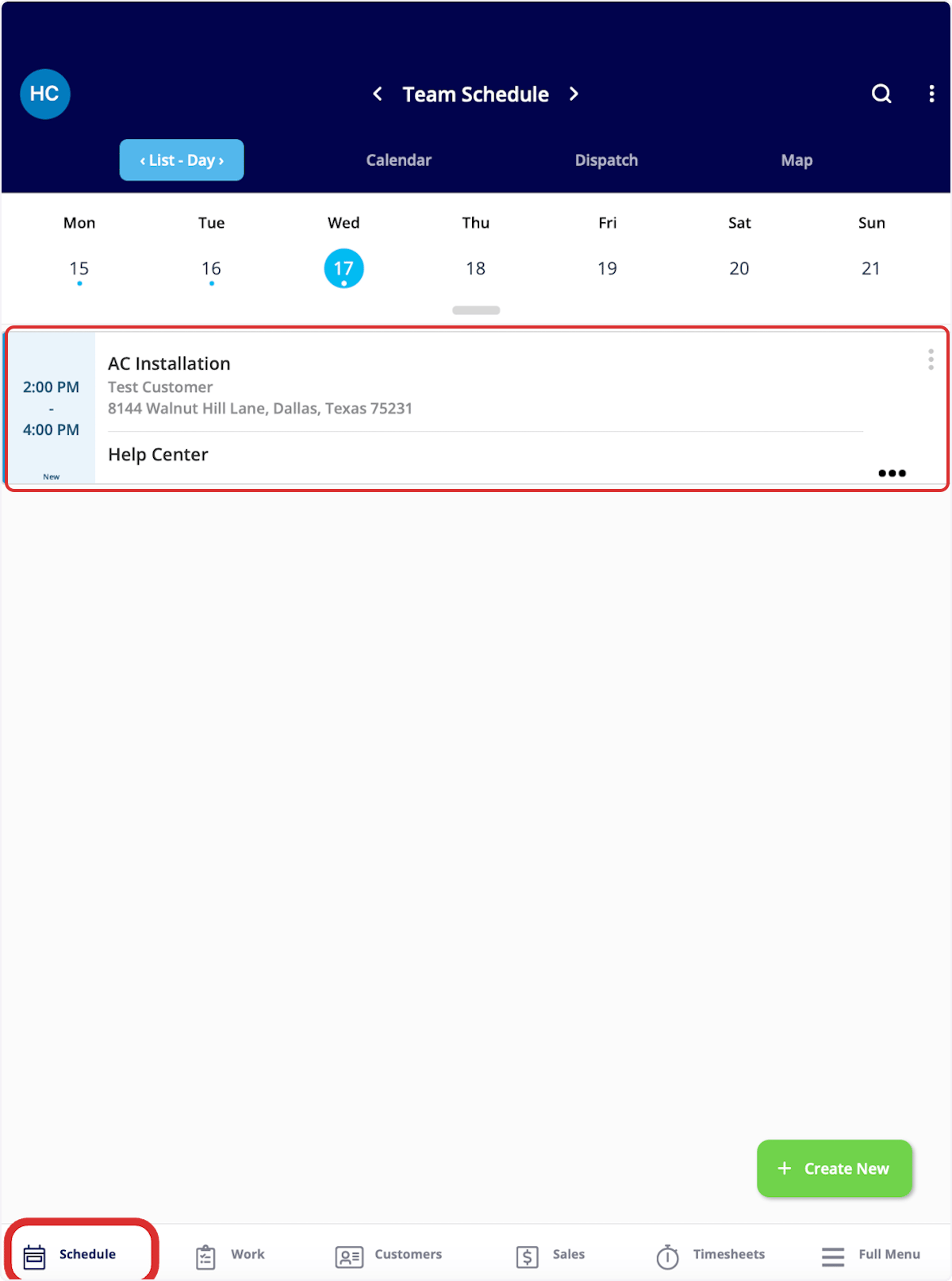
There are several ways to find a job in the mobile app. This example uses the **Schedule** tab.
1. Select the **Schedule** tab in the bottom menu.
2. Select the job to open its job record.
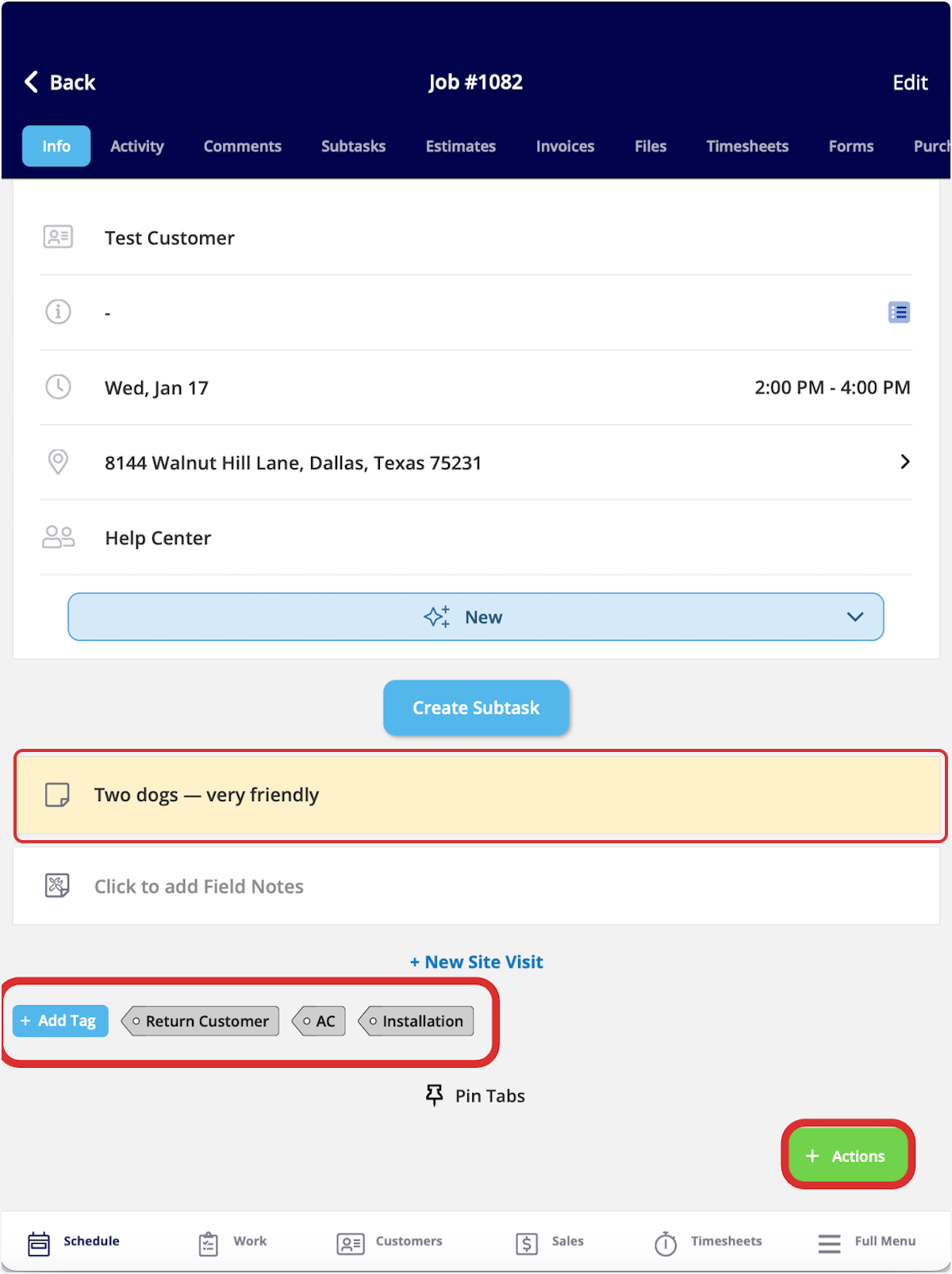
 The **Info** page of the job record holds the details you need on site:
* **Customer details** — the customer's name and address
* **Notes** — internal notes, highlighted in yellow
* **Tags** — the job's existing tags, plus **+ Add Tag** to add more
The **Info** page of the job record holds the details you need on site:
* **Customer details** — the customer's name and address
* **Notes** — internal notes, highlighted in yellow
* **Tags** — the job's existing tags, plus **+ Add Tag** to add more
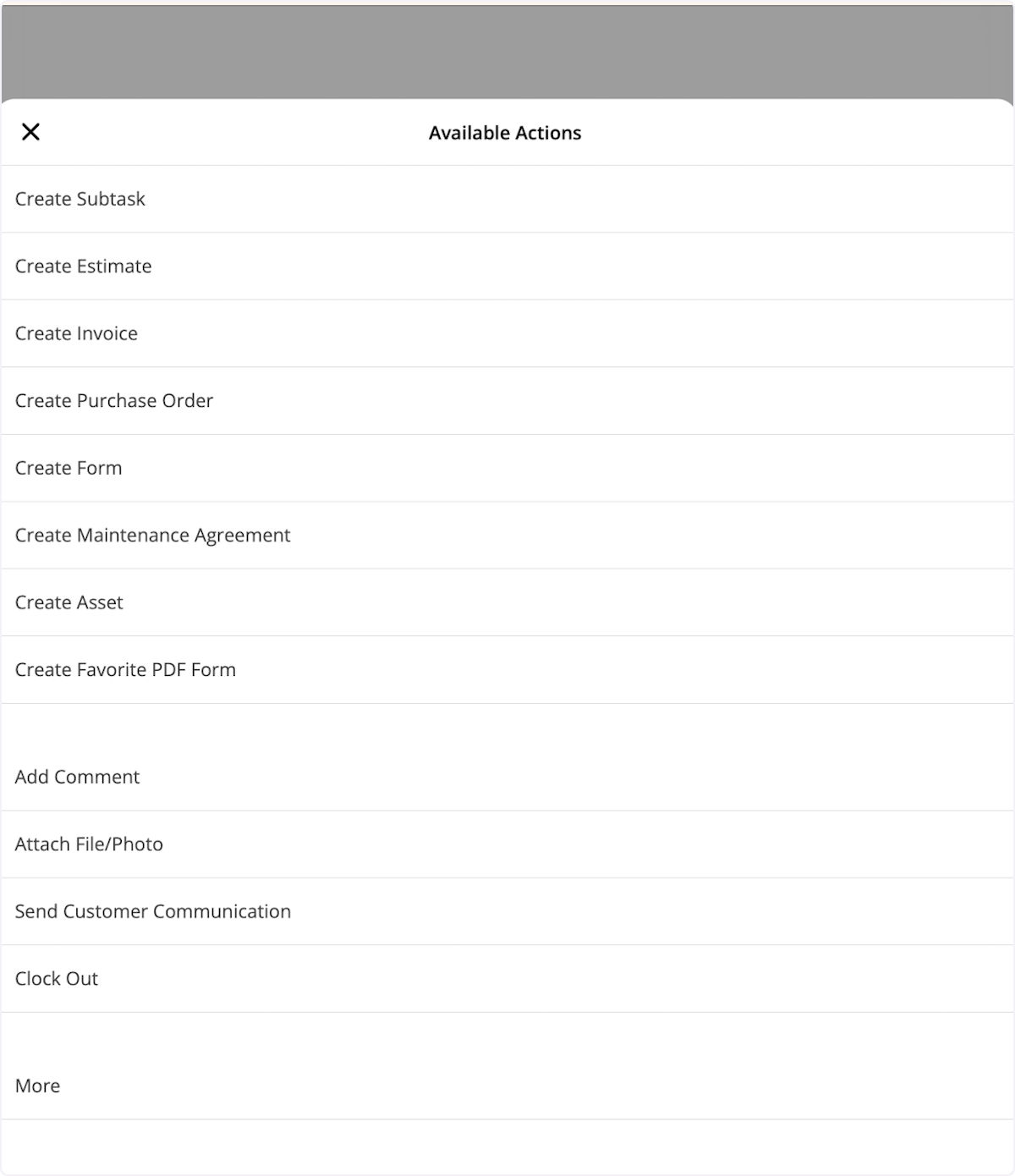
 Select **Actions** to open the list of available actions for the job. You can clock in from this menu — see [How to Use Employee Timesheets](/jobs/timesheets/employee-timesheets) for more on clocking in and out.
 ### Change the job status
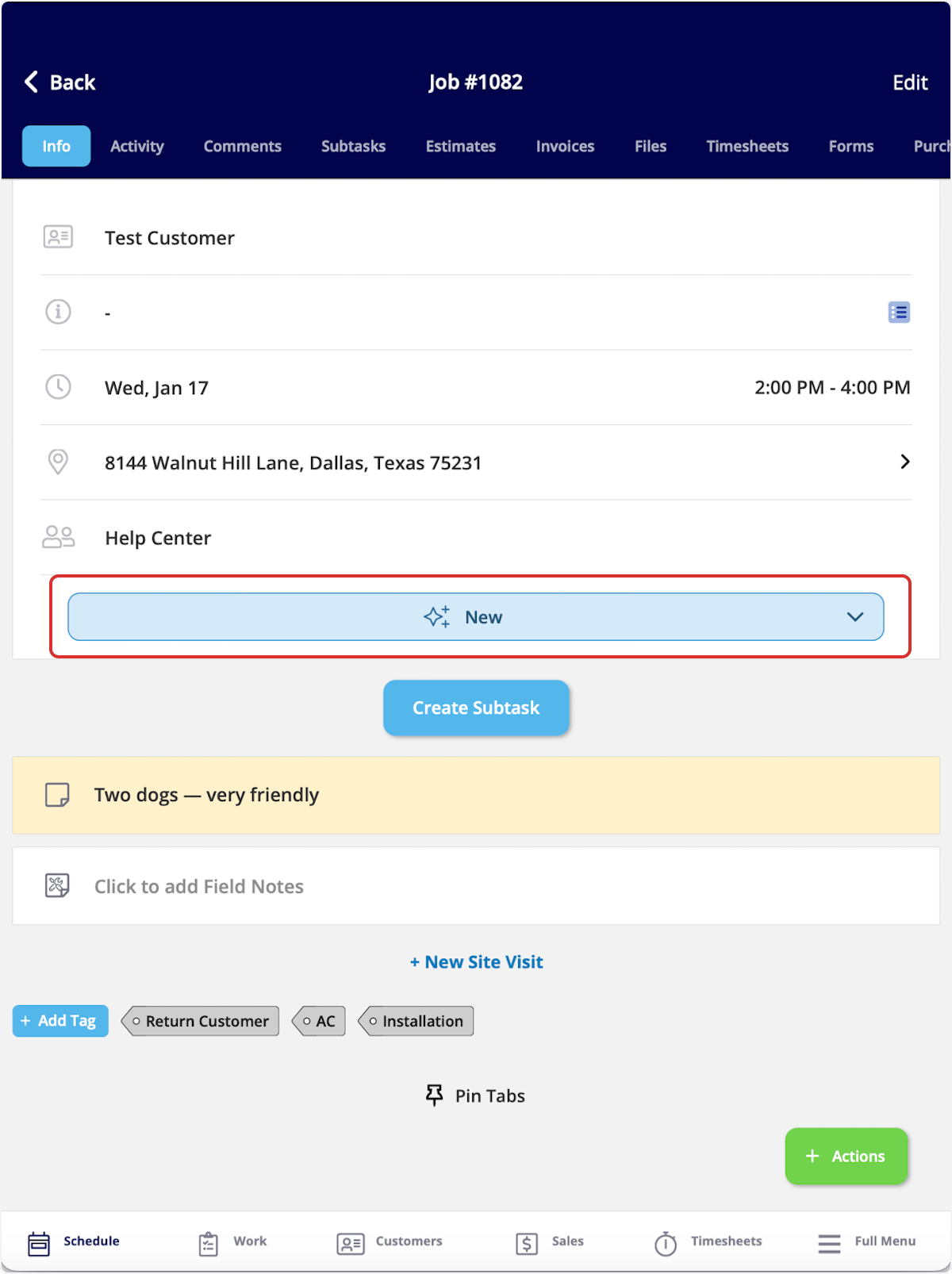
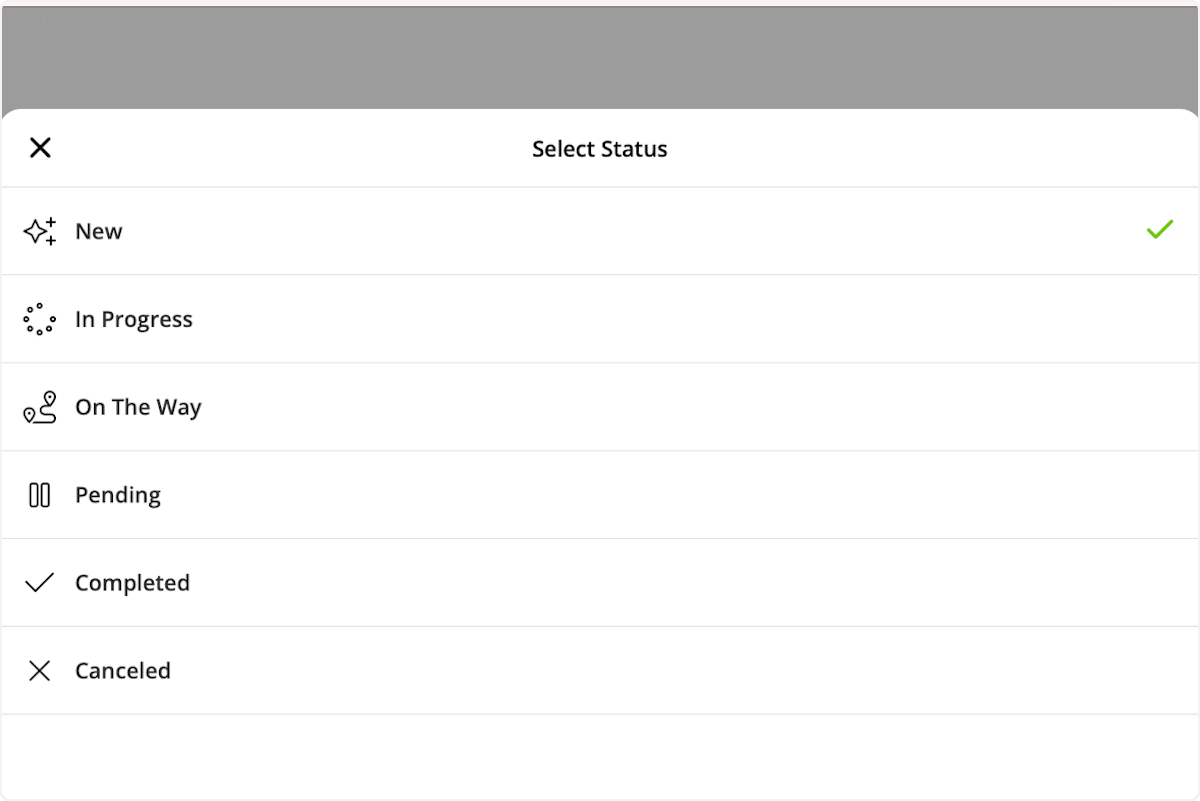
Change the job status from the **Info** page of the job record, at any point in the work.
1. Select the current status — **New**, in the example below.
2. Select the status you want from the **Select Status** list.
FieldPulse tracks and records how long the job spends in each status.
### Change the job status
Change the job status from the **Info** page of the job record, at any point in the work.
1. Select the current status — **New**, in the example below.
2. Select the status you want from the **Select Status** list.
FieldPulse tracks and records how long the job spends in each status.
 To send your customer automatic communications based on status changes, see [Customer Communications Overview](/customers/communications/overview). To send one by hand instead, select **Actions**, then **Send Customer Communication**, at any time.
### Navigate to the customer's location
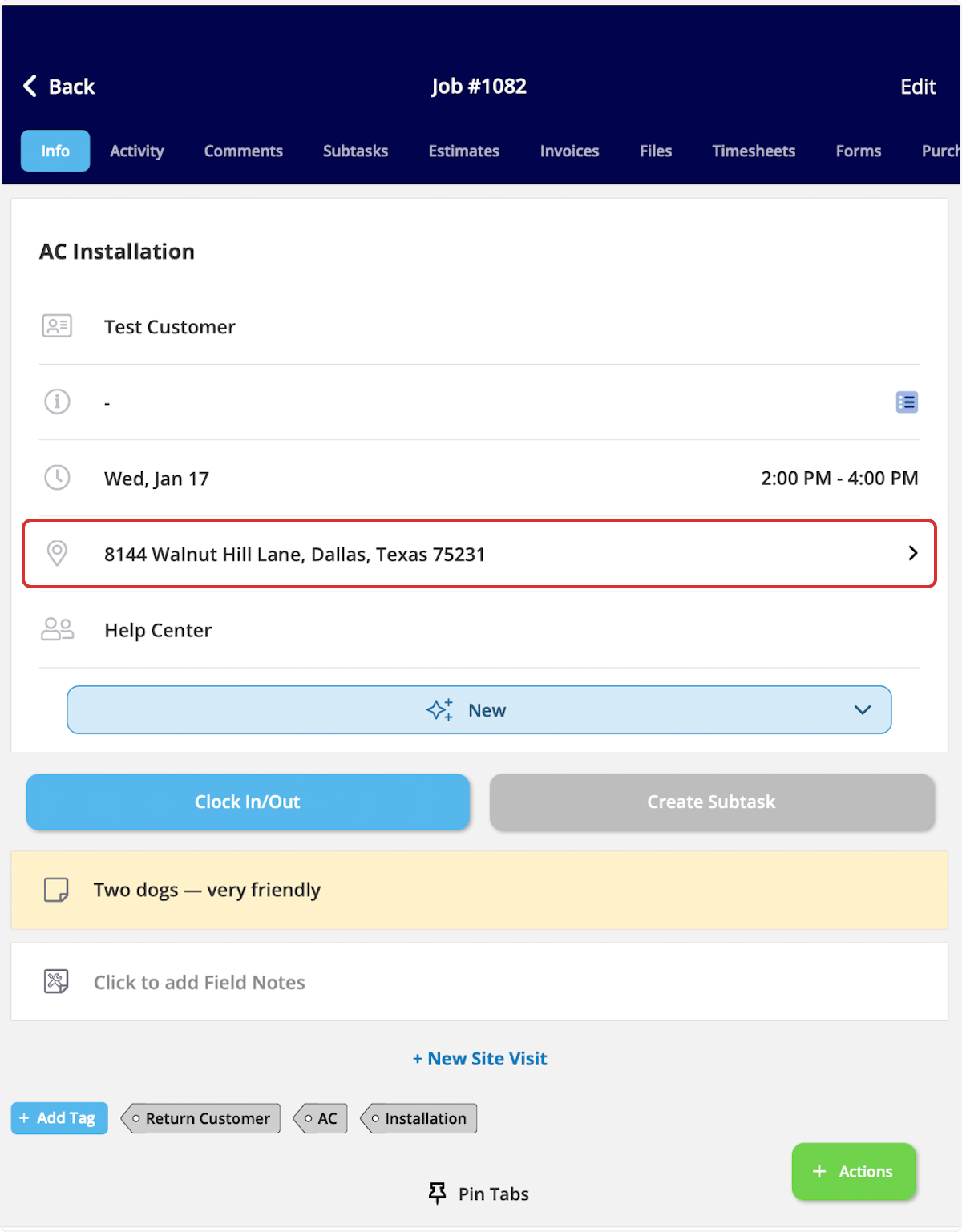
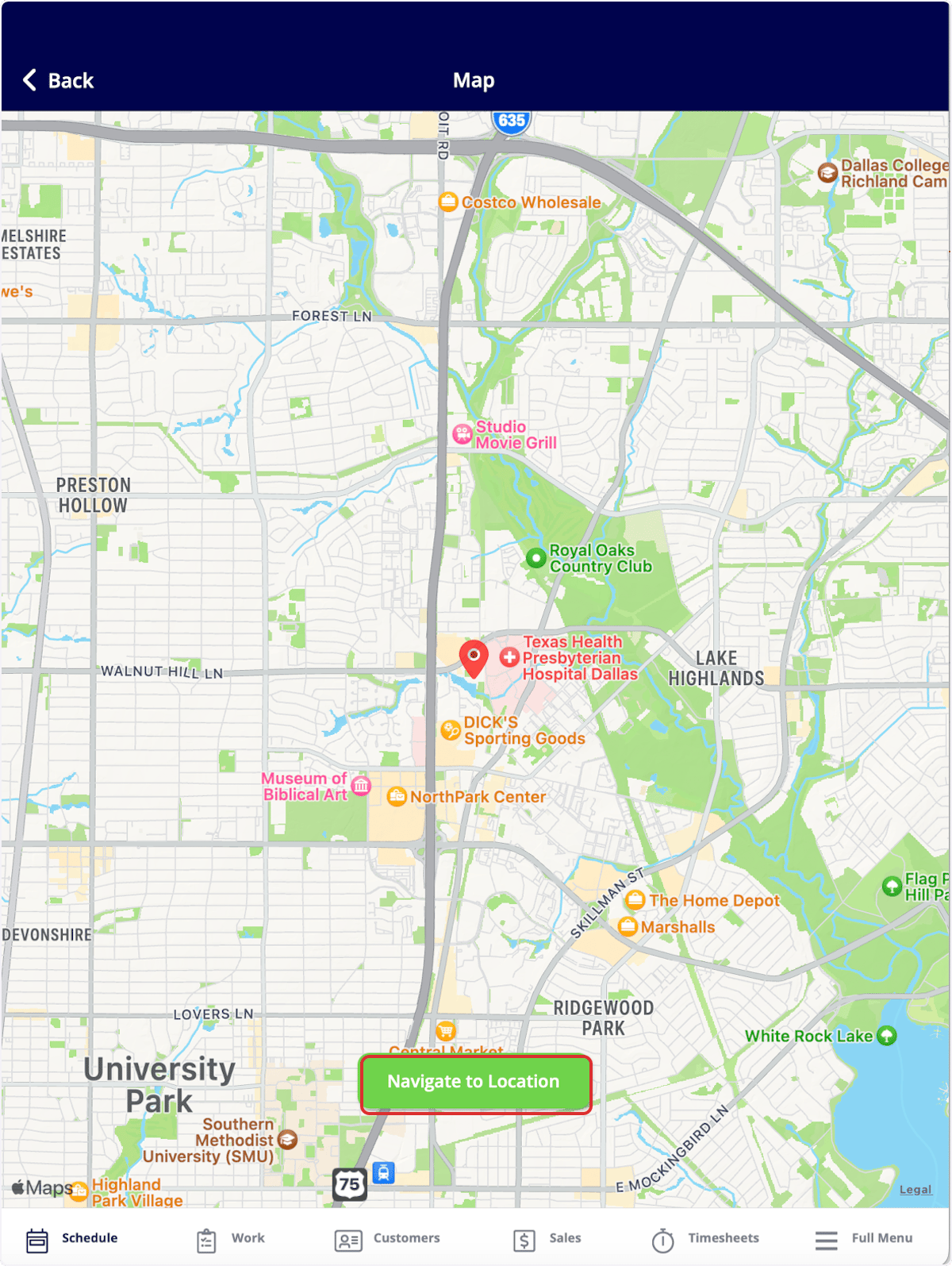
1. On the **Info** page, select the customer's **address**. The address opens on a map.
2. Select **Navigate to Location**, then choose your preferred map application for turn-by-turn directions.
To send your customer automatic communications based on status changes, see [Customer Communications Overview](/customers/communications/overview). To send one by hand instead, select **Actions**, then **Send Customer Communication**, at any time.
### Navigate to the customer's location
1. On the **Info** page, select the customer's **address**. The address opens on a map.
2. Select **Navigate to Location**, then choose your preferred map application for turn-by-turn directions.
 ### Add field notes
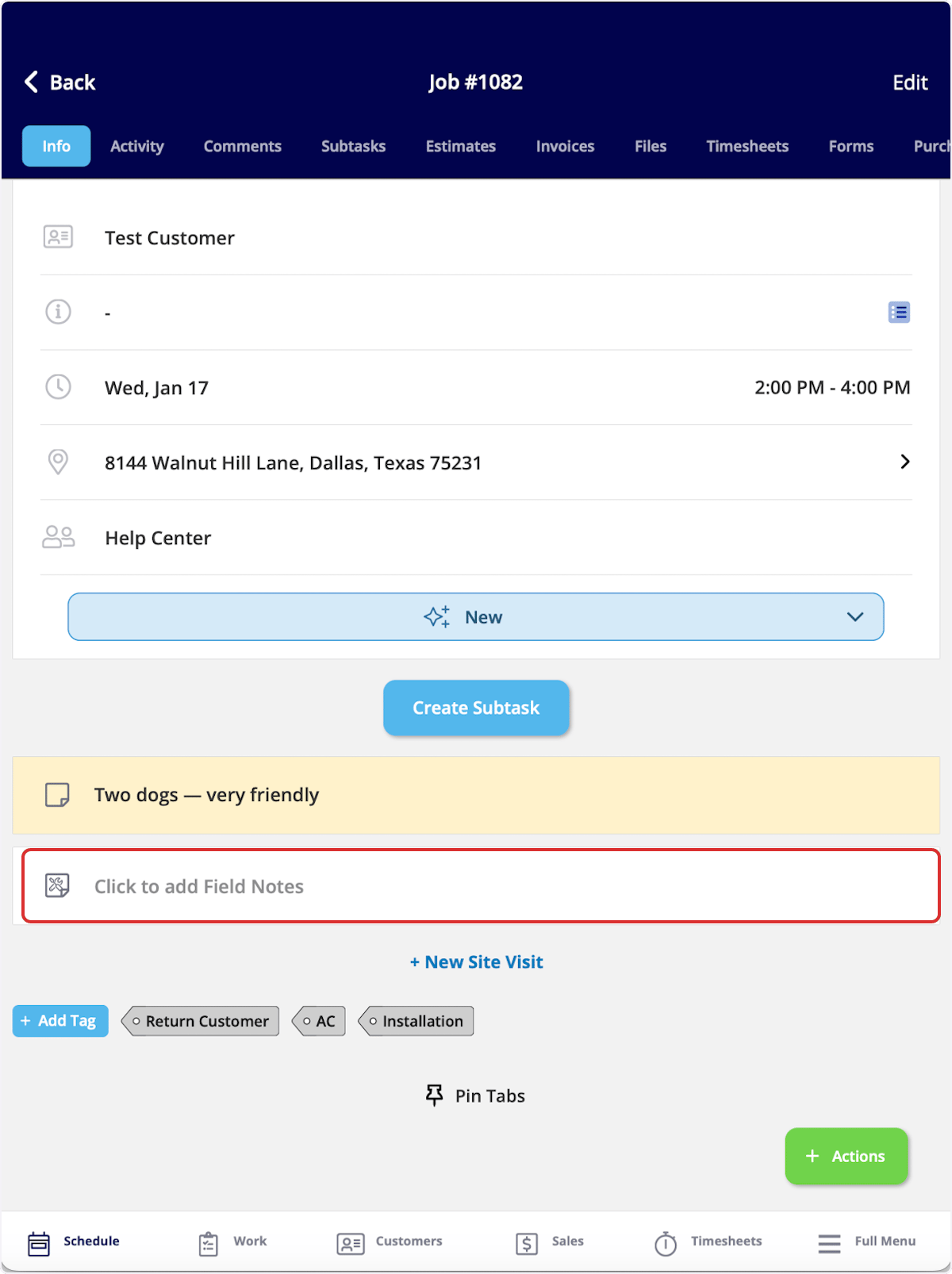
Field notes go on the **Info** page of the job record.
1. On the **Info** page, select **Click to add Field Notes**.
2. Enter your information.
### Add field notes
Field notes go on the **Info** page of the job record.
1. On the **Info** page, select **Click to add Field Notes**.
2. Enter your information.
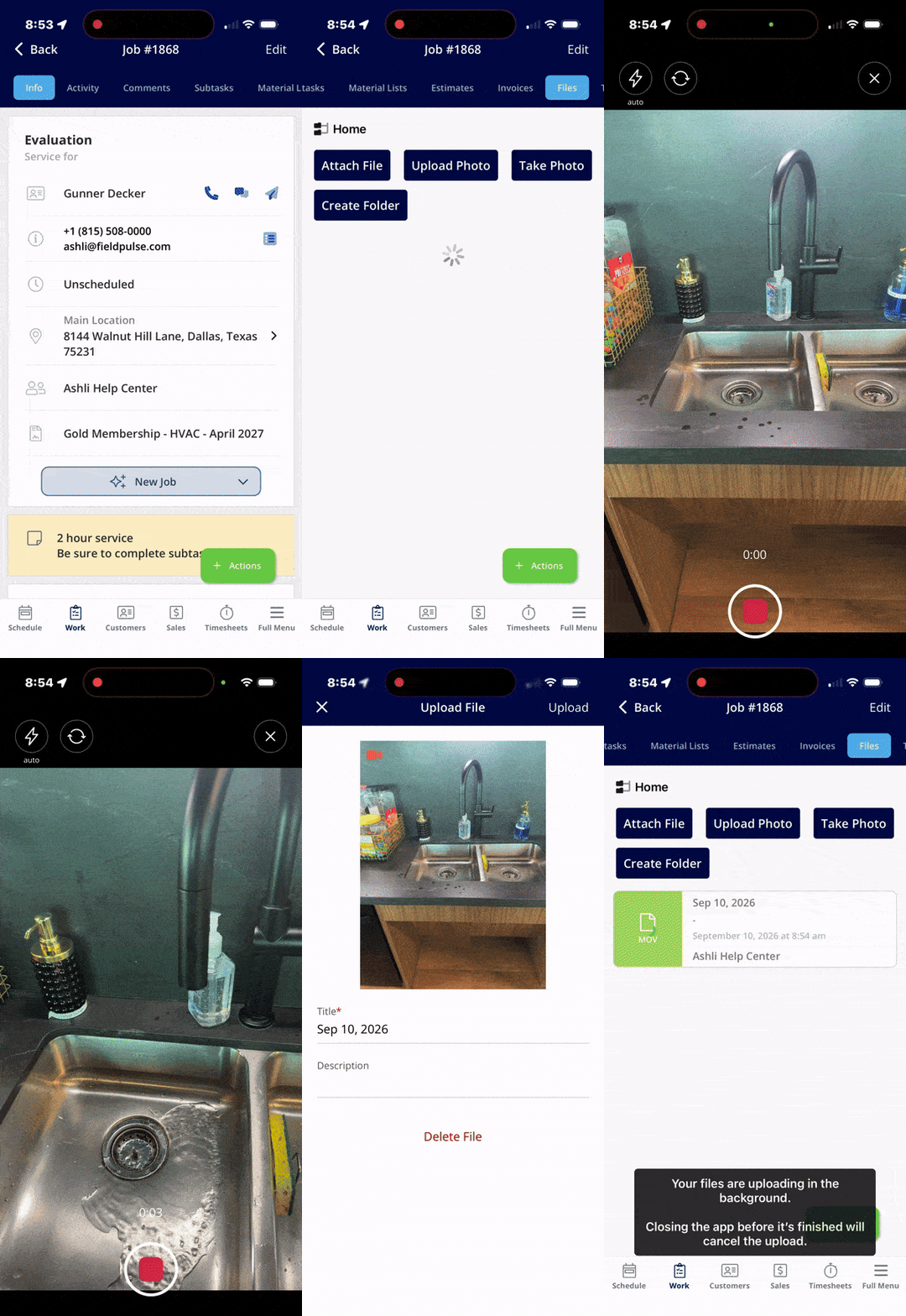
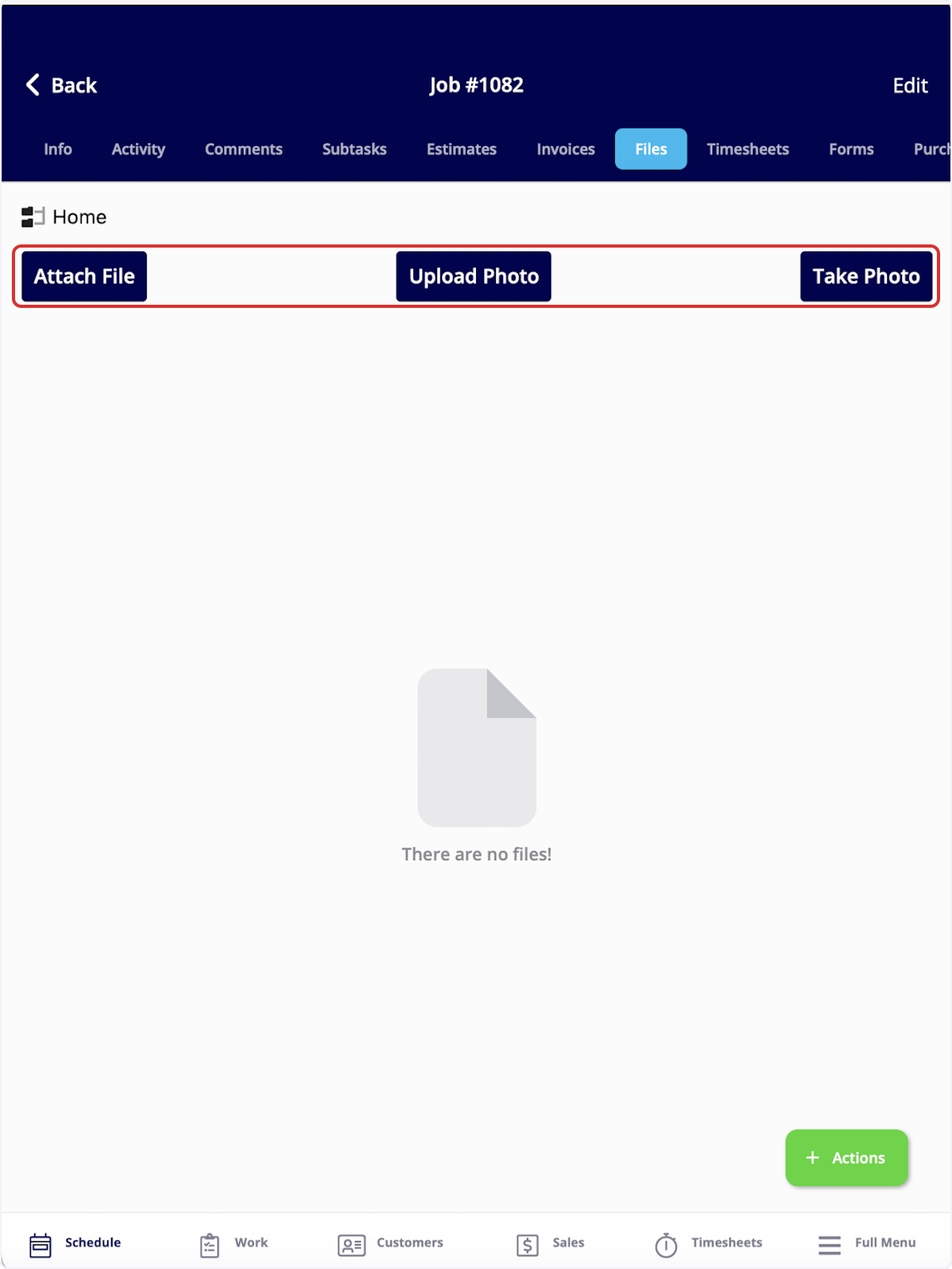
 ### Attach files and photos
Files and photos go on the **Files** tab of the job record.
1. Select the **Files** tab in the top menu.
2. Select **Attach File**, **Upload Photo**, or **Take Photo**. **Take Photo** opens the in-app camera, where you can capture a photo or switch to video mode to record a video. Whatever you capture is attached to the job record right away.
### Attach files and photos
Files and photos go on the **Files** tab of the job record.
1. Select the **Files** tab in the top menu.
2. Select **Attach File**, **Upload Photo**, or **Take Photo**. **Take Photo** opens the in-app camera, where you can capture a photo or switch to video mode to record a video. Whatever you capture is attached to the job record right away.
 For more on organizing what you attach, see [How to Manage Files](/jobs/jobs-tasks/file-management).
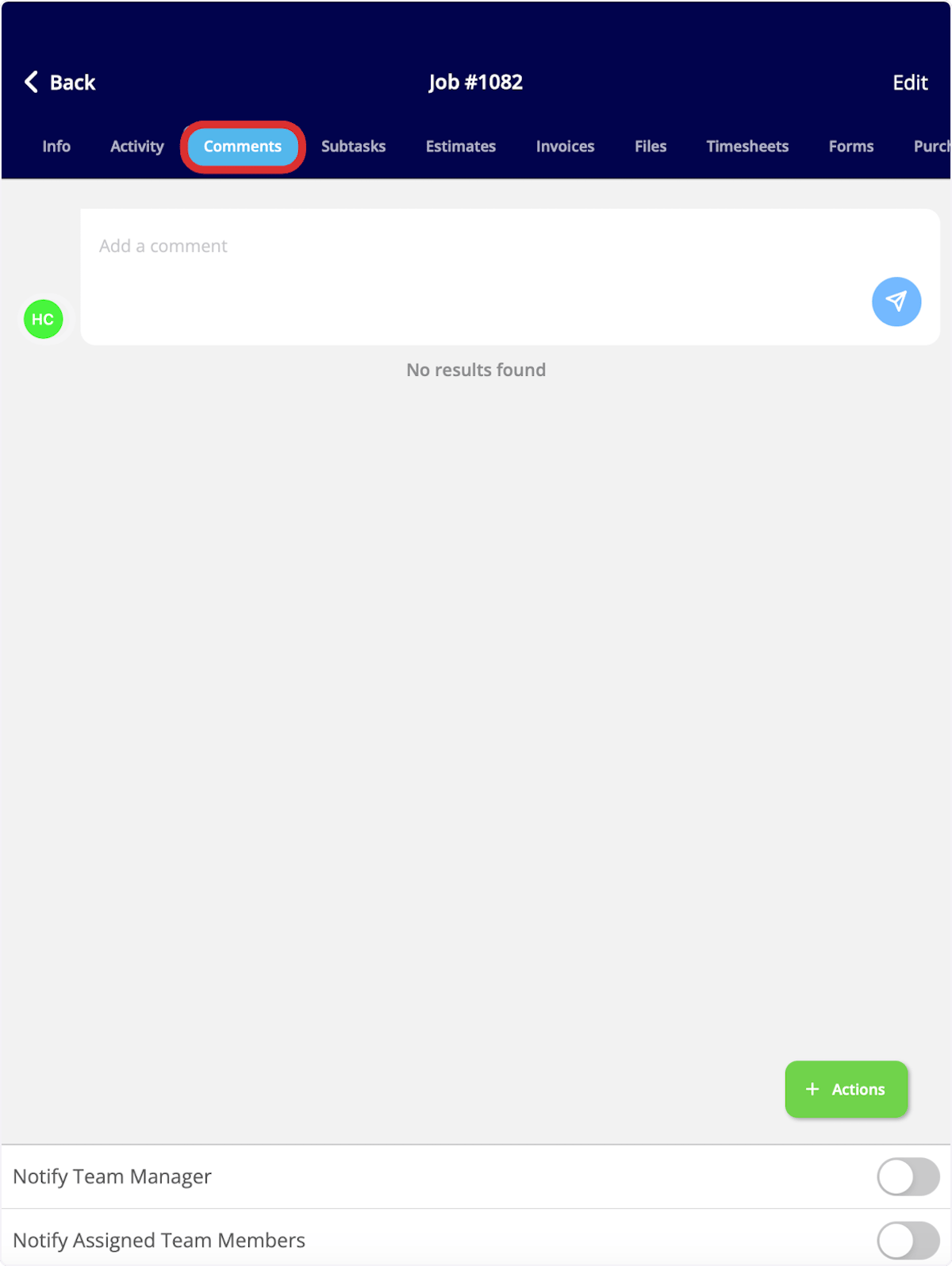
### Leave a comment for the team
Comments go on the **Comments** tab of the job record.
1. Select the **Comments** tab in the top menu.
2. Set the notification toggles at the bottom of the screen — **Notify Team Manager** and **Notify Assigned Team Members** — as needed.
3. Enter your comment and send it.
For more on organizing what you attach, see [How to Manage Files](/jobs/jobs-tasks/file-management).
### Leave a comment for the team
Comments go on the **Comments** tab of the job record.
1. Select the **Comments** tab in the top menu.
2. Set the notification toggles at the bottom of the screen — **Notify Team Manager** and **Notify Assigned Team Members** — as needed.
3. Enter your comment and send it.
 For everything comments can do, see [How to Use Comments](/jobs/jobs-tasks/comments).
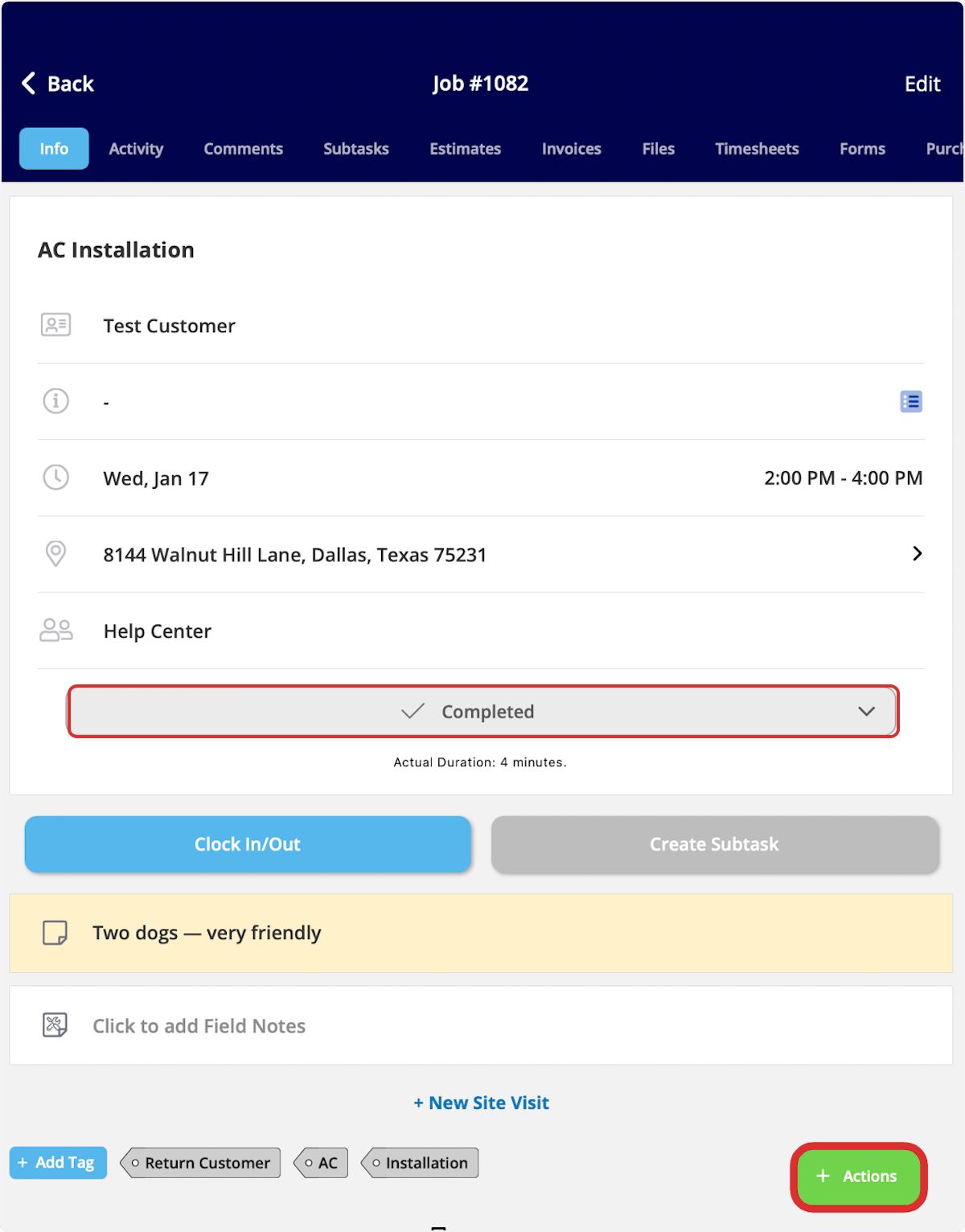
### Mark the job complete and clock out
Finishing a job takes two actions — set the status to **Completed**, and clock out of the job.
1. On the **Info** page, select the status bar, then select **Completed**. FieldPulse records the job duration.
2. Select **Actions**, then **Clock Out**.
For everything comments can do, see [How to Use Comments](/jobs/jobs-tasks/comments).
### Mark the job complete and clock out
Finishing a job takes two actions — set the status to **Completed**, and clock out of the job.
1. On the **Info** page, select the status bar, then select **Completed**. FieldPulse records the job duration.
2. Select **Actions**, then **Clock Out**.
 ## FAQs
### How do I turn off the "Mark Payment" pop-up that appears when I complete a job?
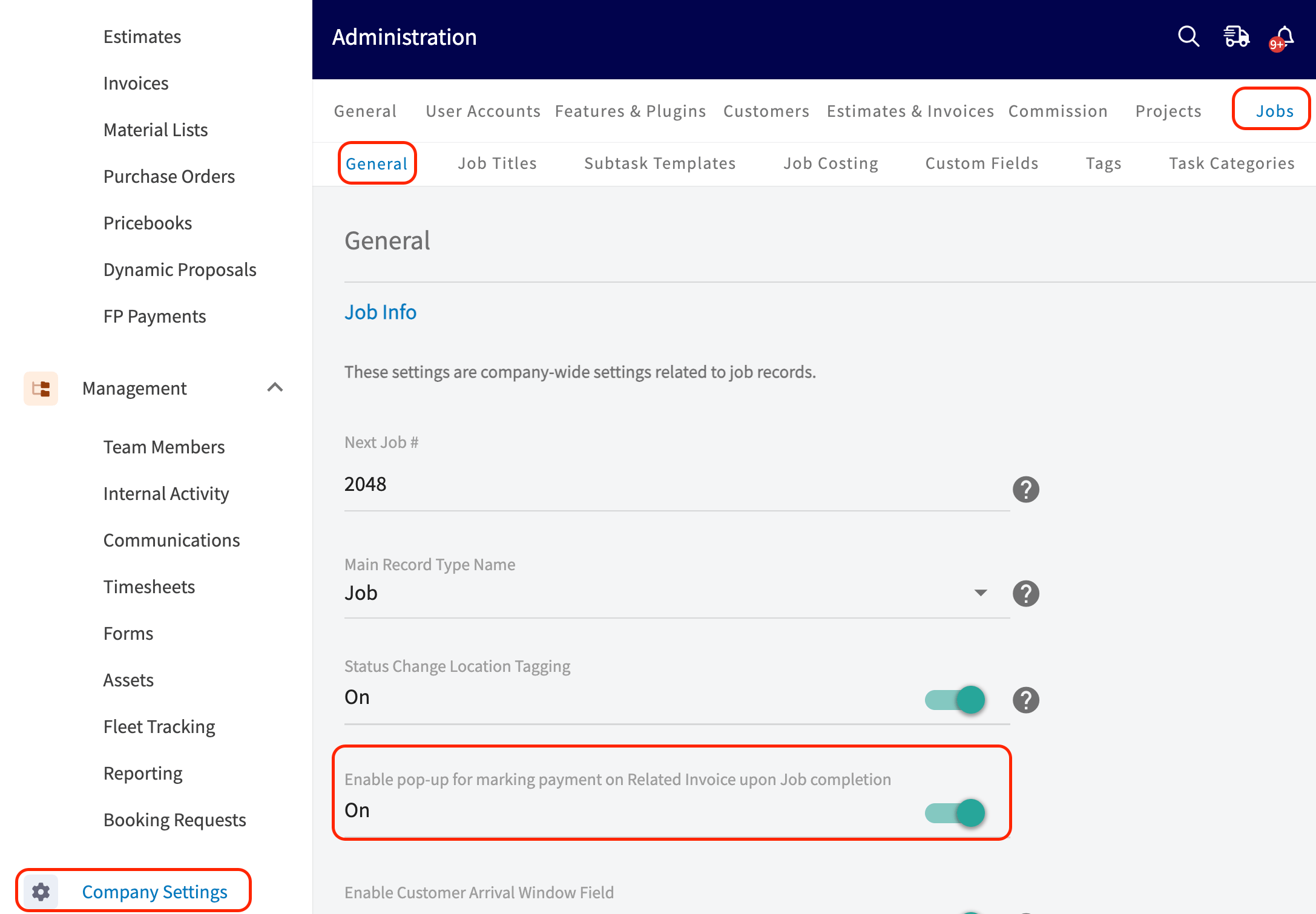
By default, marking a job that has a related invoice as **Completed** brings up a pop-up asking *"Do you want to mark payment on your invoice?"*. To turn it off, go to **Company Settings**, then the **Jobs** tab, then **General**, and toggle off **Enable pop-up for marking payment on Related Invoice upon Job completion**.
## FAQs
### How do I turn off the "Mark Payment" pop-up that appears when I complete a job?
By default, marking a job that has a related invoice as **Completed** brings up a pop-up asking *"Do you want to mark payment on your invoice?"*. To turn it off, go to **Company Settings**, then the **Jobs** tab, then **General**, and toggle off **Enable pop-up for marking payment on Related Invoice upon Job completion**.
 ## Still need help?
Reach the [FieldPulse support team](https://www.fieldpulse.com/company/contact-us) at [support@fieldpulse.com](mailto:support@fieldpulse.com) or through the chat feature in the bottom-right corner of your screen.
## Related articles
* [How to Create a Job](/jobs/jobs-tasks/creating-a-job)
* [How to Create Recurring Jobs](/jobs/jobs-tasks/recurring-jobs)
* [How to Use Employee Timesheets](/jobs/timesheets/employee-timesheets)
* [How to Use Comments](/jobs/jobs-tasks/comments)
* [How to Manage Files](/jobs/jobs-tasks/file-management)
* [Customer Communications Overview](/customers/communications/overview)
The job is closed out when the status reads **Completed**, the field notes and photos are on the record, and you have clocked out — so the office sees the finished work without having to call and ask.
## Related topics
- [How to Create a Job](/jobs/jobs-tasks/creating-a-job.md)
- [How to Create Recurring Jobs](/jobs/jobs-tasks/recurring-jobs.md)
- [How to Create Dynamic Job Reports](/jobs/jobs-tasks/dynamic-job-reports.md)
- [Jobs & Projects Offline Mode Details](/jobs/jobs-tasks/offline-behavior.md)
## Still need help?
Reach the [FieldPulse support team](https://www.fieldpulse.com/company/contact-us) at [support@fieldpulse.com](mailto:support@fieldpulse.com) or through the chat feature in the bottom-right corner of your screen.
## Related articles
* [How to Create a Job](/jobs/jobs-tasks/creating-a-job)
* [How to Create Recurring Jobs](/jobs/jobs-tasks/recurring-jobs)
* [How to Use Employee Timesheets](/jobs/timesheets/employee-timesheets)
* [How to Use Comments](/jobs/jobs-tasks/comments)
* [How to Manage Files](/jobs/jobs-tasks/file-management)
* [Customer Communications Overview](/customers/communications/overview)
The job is closed out when the status reads **Completed**, the field notes and photos are on the record, and you have clocked out — so the office sees the finished work without having to call and ask.
## Related topics
- [How to Create a Job](/jobs/jobs-tasks/creating-a-job.md)
- [How to Create Recurring Jobs](/jobs/jobs-tasks/recurring-jobs.md)
- [How to Create Dynamic Job Reports](/jobs/jobs-tasks/dynamic-job-reports.md)
- [Jobs & Projects Offline Mode Details](/jobs/jobs-tasks/offline-behavior.md)