> ## Documentation Index
> Fetch the complete documentation index at: https://help.fieldpulse.com/llms.txt
> Use this file to discover all available pages before exploring further.
# Setting Up Custom Fields on Job Records
> Add fields like gate code or warranty number to every FieldPulse job record, then set which roles can view each field and which can edit it.
> **Who uses this:** Admins create job custom fields in **Company Settings**, which only Admins can see, and set each field's visibility and editability for the **Managers**, **Service Agent**, and **Subcontractor** roles. **Availability:** All regions.
Every business tracks something the standard job record has no spot for — a warranty number, a gate code, an equipment model. A custom field gives that detail a permanent home on the [job record](https://www.fieldpulse.com/features/job-management) instead of leaving it in a tech's head or buried in a note. You create the field once in Company Settings, choose the kind of data it holds, and decide which roles can see it and which can change it.
## Overview
A job custom field is an extra field you define in Company Settings. The next time you create a job, that field appears on the job record under **Additional Fields**. Each field carries a **Type** that sets the kind of data it holds, its own **Field Visibility by Role** and **Field Editability by Role** settings, and a **Cascade to Related Record** setting — see [Settings reference](#settings-reference) below for what each one controls.
The **Custom Fields for Job Records** page lists every field you have created. You can set the order your custom fields appear in, so you control how they are displayed to your team members.
## Video walkthrough
## Before you begin
* Decide who should see the field and who should be able to change it. You set visibility and editability separately, for **Managers**, **Service Agent**, and **Subcontractor**.
* Name the field for the data it holds rather than for one specific job.
* Plan the choices for a **Drop-down** field in advance. You create and edit the drop-down options before you save the field.
## Step-by-step setup
Create each job custom field once in Company Settings, then open a job to confirm it landed where you expect.
### Create a custom field
1. Go to **Company Settings**.
2. Select the **Jobs** tab, then the **Custom Fields** tab.
3. Select **Create New**.
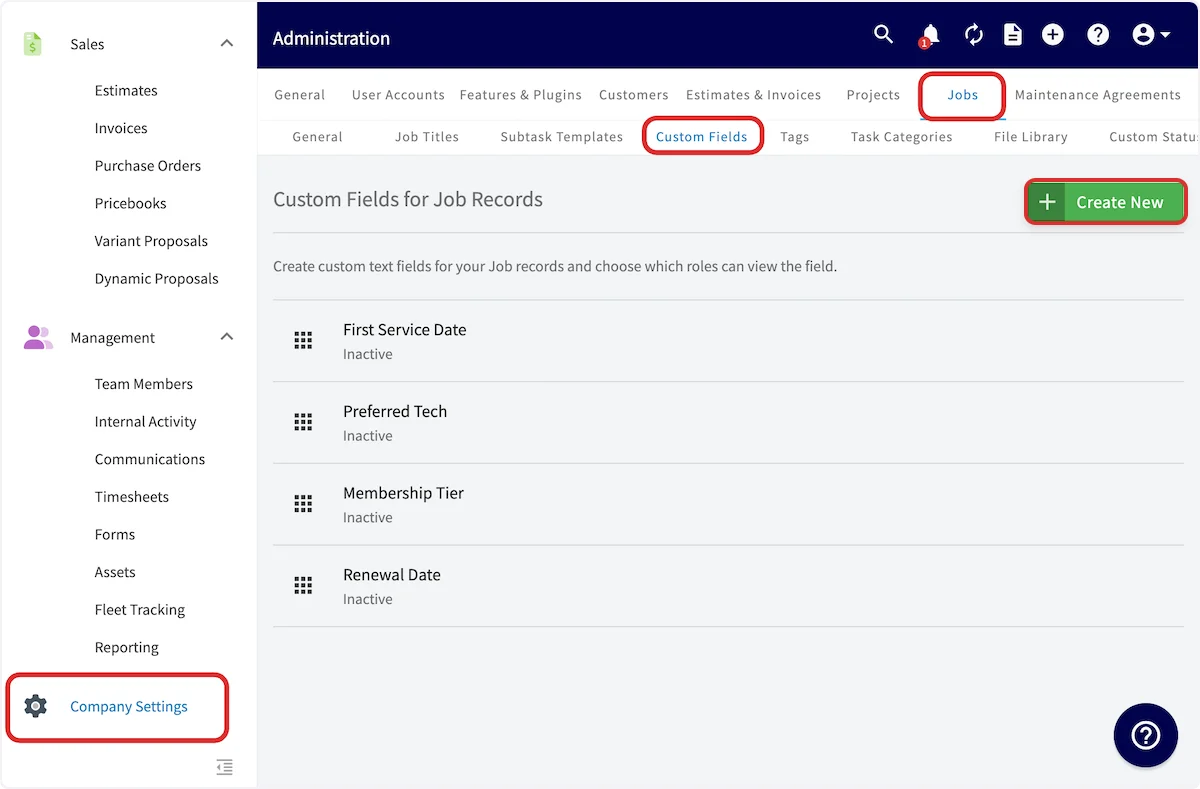 4. In the **Add Custom Field** window, enter the **Field Name**. This is the label your team sees on the job record.
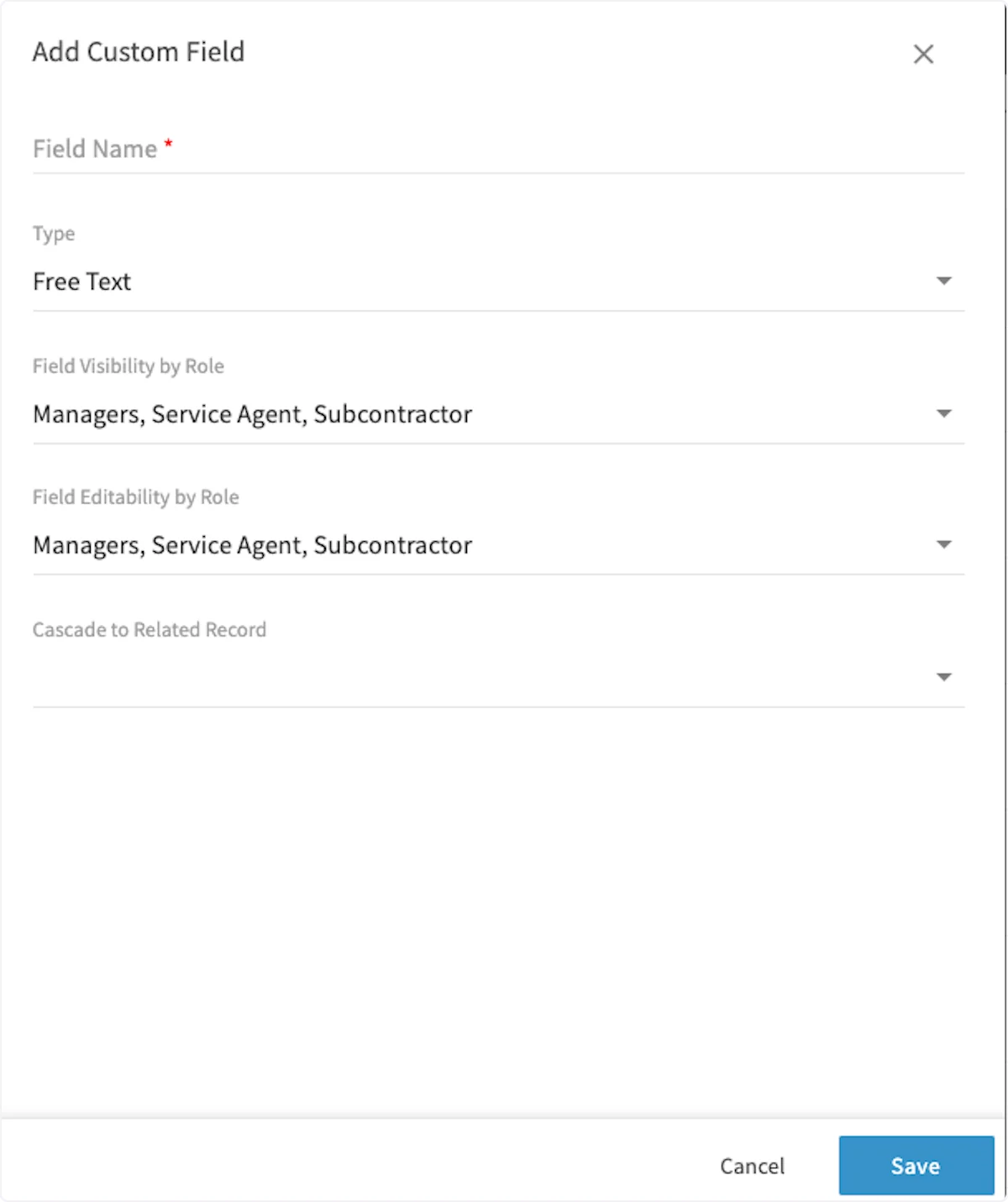 5. Select the **Type** of data the field holds: Free Text, Number, Date, Drop-down, or Checkbox.
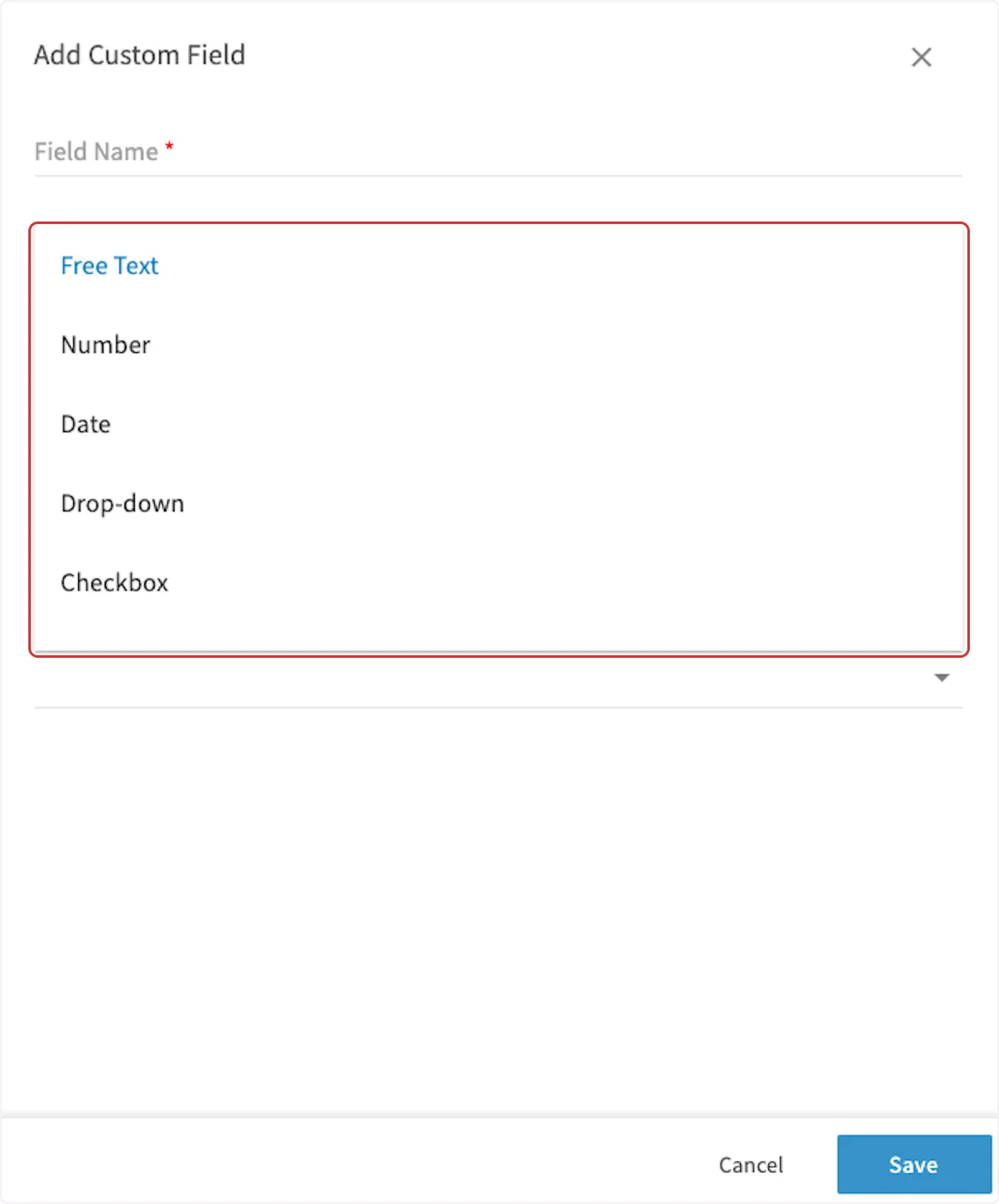 6. For a **Drop-down** field, select **+ Add New Option** and enter each choice you want. Create and edit the drop-down options now, before you save the field.
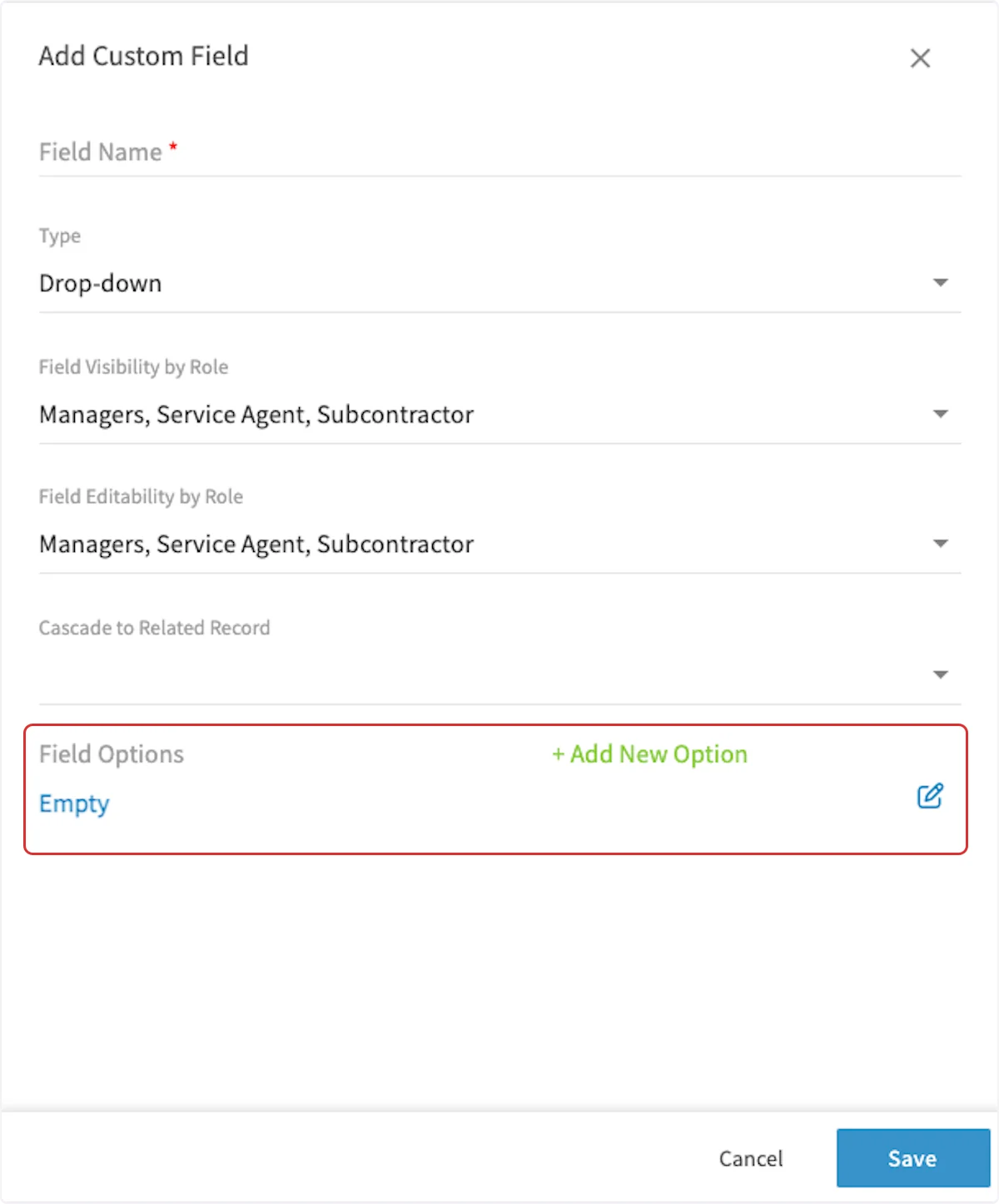 7. Set **Field Visibility by Role** for the roles that should see the field, and **Field Editability by Role** for the roles that should be able to change its value.
8. Use **Cascade to Related Record** to select the additional FieldPulse records where the information recorded in this custom field should also appear.
9. Select **Save**.
### Check the field on a job record
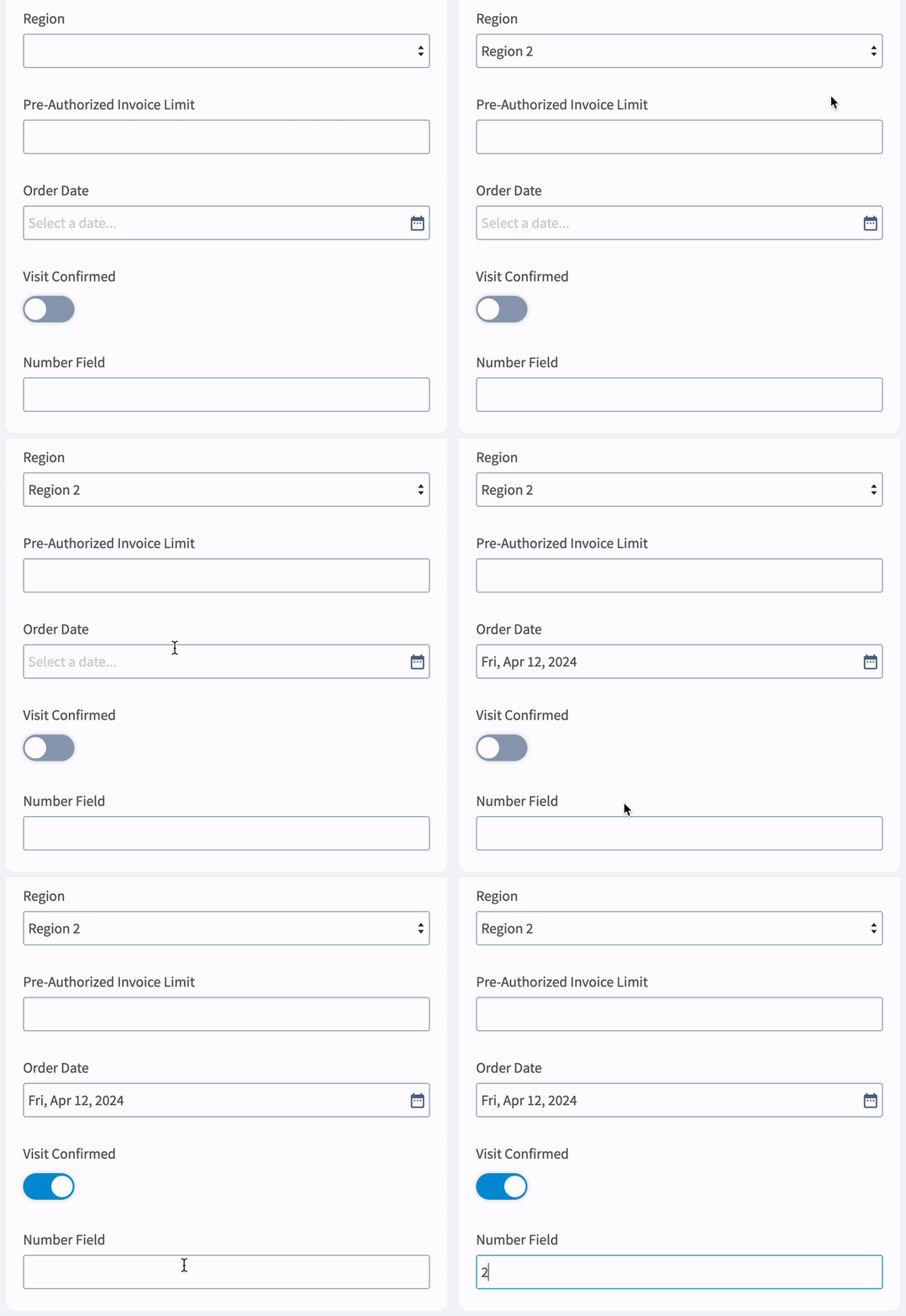
The next time you create a job, your new custom field appears under **Additional Fields**, and each type takes its own kind of entry.
7. Set **Field Visibility by Role** for the roles that should see the field, and **Field Editability by Role** for the roles that should be able to change its value.
8. Use **Cascade to Related Record** to select the additional FieldPulse records where the information recorded in this custom field should also appear.
9. Select **Save**.
### Check the field on a job record
The next time you create a job, your new custom field appears under **Additional Fields**, and each type takes its own kind of entry.
 The mobile apps need a full re-sync before newly created custom fields show up there. That sometimes means logging out and logging back in.
## Settings reference
The **Add Custom Field** window holds every setting on a job custom field.
| **Setting** | **What it controls** |
| ----------------------------- | -------------------------------------------------------------------------------------------------------------------------------------------------------------------------------------------------------------------------------------------------- |
| **Field Name** | The label your team sees on the job record. Required. |
| **Type** | The kind of data the field holds. **Free Text** takes text typed in your own words, **Number** takes a number, **Date** opens a date picker, **Drop-down** offers one selection from the options you define, and **Checkbox** is an on/off toggle. |
| **Field Options** | The choices available in a **Drop-down** field. Create and edit them before saving the field. |
| **Field Visibility by Role** | Which roles can see the field — **Managers**, **Service Agent**, **Subcontractor**. |
| **Field Editability by Role** | Which roles can change the field's value — **Managers**, **Service Agent**, **Subcontractor**. |
| **Cascade to Related Record** | The additional FieldPulse records where the information recorded in this custom field also appears. |
## Still need help?
Reach the [FieldPulse support team](https://www.fieldpulse.com/company/contact-us) at [support@fieldpulse.com](mailto:support@fieldpulse.com) or through the chat feature in the bottom-right corner of your screen.
## Related articles
* [How to Create a Job](/jobs/jobs-tasks/creating-a-job)
* [Setting Up Custom Fields on Project Records](/jobs/projects/custom-fields)
* [Setting Up Customer Custom Fields](/customers/managing-customers/custom-fields)
* [Setting Up Custom Fields on Material Lists](/inventory-materials/material-lists/custom-fields)
* [How to Use Mass Import for Custom Fields](/settings/data/mass-import-custom-fields)
* [How to Create Custom Tags for Jobs](/jobs/jobs-tasks/custom-tags)
Your setup is working when a tech opens a job, finds the new field under **Additional Fields**, and records the detail there — visible to the roles you selected and editable by the roles you allowed.
## Related topics
- [How to Create a Job](/jobs/jobs-tasks/creating-a-job.md)
- [Setting Up Custom Fields on Project Records](/jobs/projects/custom-fields.md)
- [Jobs & Tasks](/jobs/jobs-tasks/index.md)
- [How to Use Mass Import for Custom Fields](/settings/data/mass-import-custom-fields.md)
The mobile apps need a full re-sync before newly created custom fields show up there. That sometimes means logging out and logging back in.
## Settings reference
The **Add Custom Field** window holds every setting on a job custom field.
| **Setting** | **What it controls** |
| ----------------------------- | -------------------------------------------------------------------------------------------------------------------------------------------------------------------------------------------------------------------------------------------------- |
| **Field Name** | The label your team sees on the job record. Required. |
| **Type** | The kind of data the field holds. **Free Text** takes text typed in your own words, **Number** takes a number, **Date** opens a date picker, **Drop-down** offers one selection from the options you define, and **Checkbox** is an on/off toggle. |
| **Field Options** | The choices available in a **Drop-down** field. Create and edit them before saving the field. |
| **Field Visibility by Role** | Which roles can see the field — **Managers**, **Service Agent**, **Subcontractor**. |
| **Field Editability by Role** | Which roles can change the field's value — **Managers**, **Service Agent**, **Subcontractor**. |
| **Cascade to Related Record** | The additional FieldPulse records where the information recorded in this custom field also appears. |
## Still need help?
Reach the [FieldPulse support team](https://www.fieldpulse.com/company/contact-us) at [support@fieldpulse.com](mailto:support@fieldpulse.com) or through the chat feature in the bottom-right corner of your screen.
## Related articles
* [How to Create a Job](/jobs/jobs-tasks/creating-a-job)
* [Setting Up Custom Fields on Project Records](/jobs/projects/custom-fields)
* [Setting Up Customer Custom Fields](/customers/managing-customers/custom-fields)
* [Setting Up Custom Fields on Material Lists](/inventory-materials/material-lists/custom-fields)
* [How to Use Mass Import for Custom Fields](/settings/data/mass-import-custom-fields)
* [How to Create Custom Tags for Jobs](/jobs/jobs-tasks/custom-tags)
Your setup is working when a tech opens a job, finds the new field under **Additional Fields**, and records the detail there — visible to the roles you selected and editable by the roles you allowed.
## Related topics
- [How to Create a Job](/jobs/jobs-tasks/creating-a-job.md)
- [Setting Up Custom Fields on Project Records](/jobs/projects/custom-fields.md)
- [Jobs & Tasks](/jobs/jobs-tasks/index.md)
- [How to Use Mass Import for Custom Fields](/settings/data/mass-import-custom-fields.md)