> ## Documentation Index
> Fetch the complete documentation index at: https://help.fieldpulse.com/llms.txt
> Use this file to discover all available pages before exploring further.
# Setting Up Customer Arrival Windows
> Turn on arrival windows in FieldPulse so customers get a clear time range in their messages while your team works the exact internal schedule.
> **Who uses this:** Admins turn arrival windows on for the account in **Company Settings**, which only Admins can view; the **Customer Arrival Window Visibility** setting names the roles that can see and edit the window on a record. **Availability:** All regions.
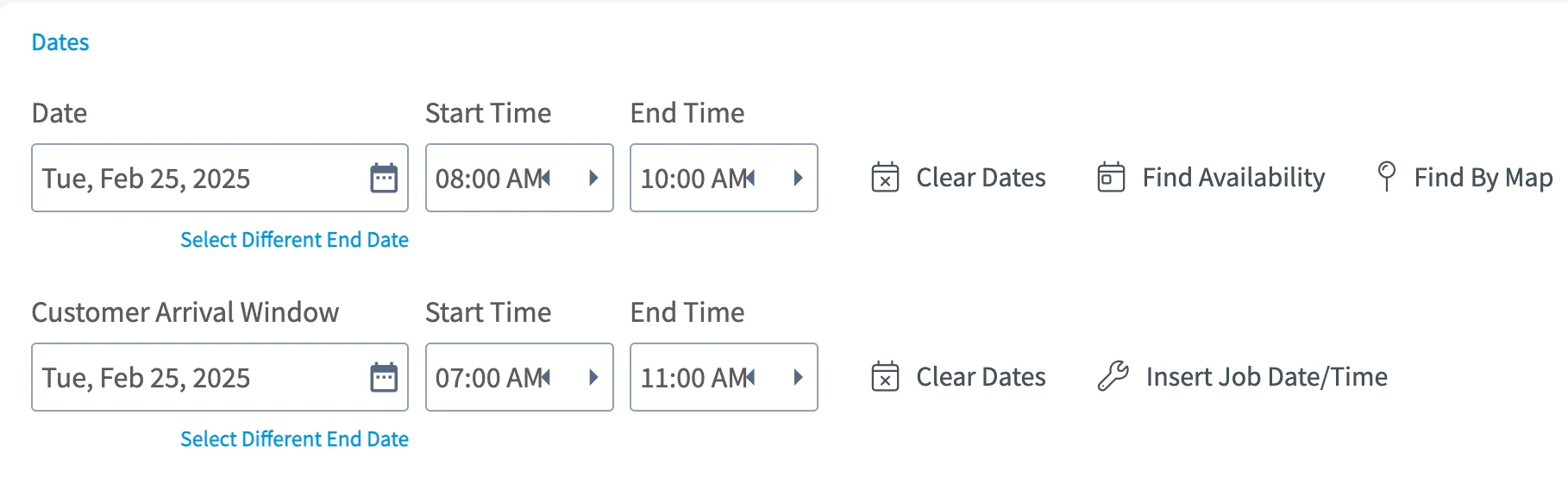
Your dispatcher schedules the tech for 8:00 AM, but you would rather tell the homeowner "between 7:00 and 11:00" so one slow first call doesn't turn into a missed-appointment complaint. A customer arrival window is a second date and time range you set on a [job](https://www.fieldpulse.com/features/job-management), separate from the internal start and end times, and you can send that range to the customer in your [customer communication](https://www.fieldpulse.com/features/customer-communication) templates.
## Overview
The customer arrival window is its own **Date**, **Start Time**, and **End Time** row in the **Dates** section of a job record, sitting directly under the job's internal date and times. The two sets of times are independent, so the job can start at 8:00 AM internally while the customer is told 7:00 AM to 11:00 AM. An arrival window helps to minimize the time customers spend waiting for service.
 Setting up the customer arrival window takes three passes: turn the field on in **Company Settings**, set the default buffers that build the window, and add the arrival window field values to the email and SMS templates your customers receive.
Site visits carry the same field. The arrival window on a site visit pre-populates from your company default and can be edited on the visit — see [How to Add Site Visits](/jobs/jobs-tasks/site-visits).
The arrival window fields also appear on the mobile New Work Order form when you create a job in the FieldPulse mobile app — see [How to Create a Job](/jobs/jobs-tasks/creating-a-job).
## Before you begin
* All of the account-wide settings on this page live in **Company Settings** > **Jobs** > **General**.
* Decide which roles should see and edit the arrival window before you set **Customer Arrival Window Visibility**.
* To send the window to customers, you need an email or SMS template to put it in. See [Setting Up Email & SMS Templates](/customers/communications/message-templates).
## Step-by-step setup
### 1. Turn on the arrival window
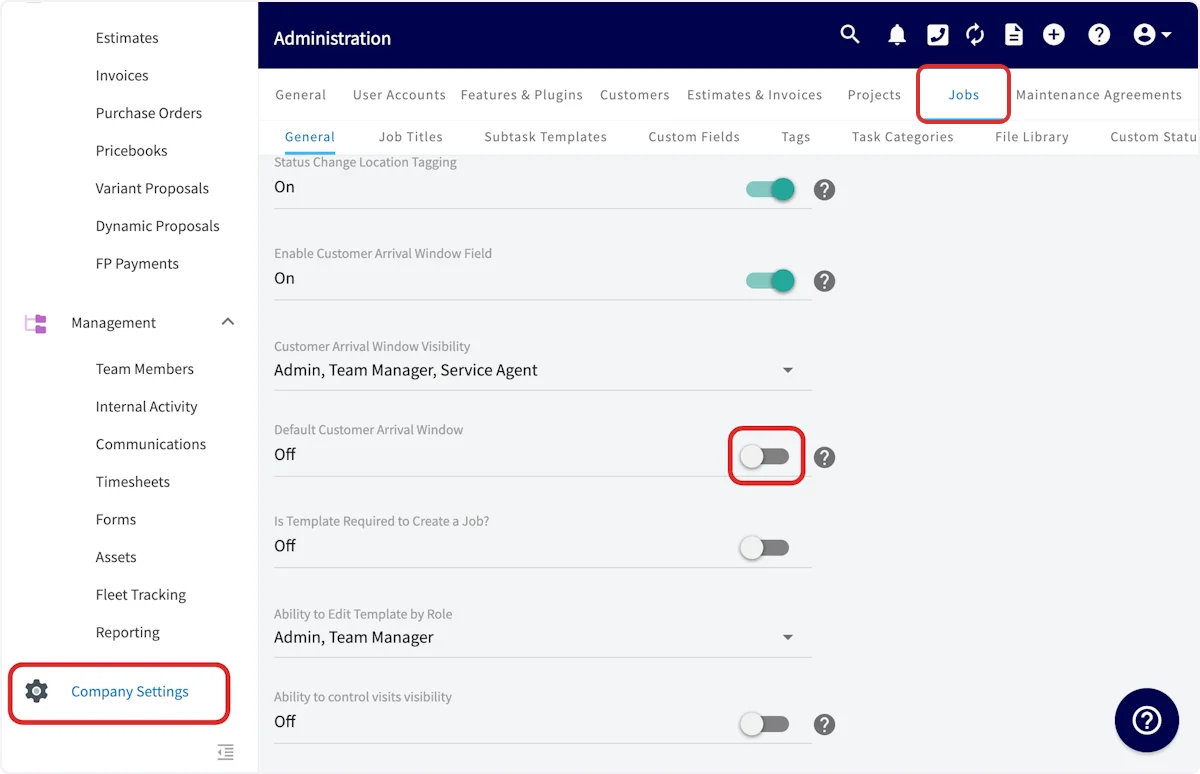
1. Open **Company Settings**.
2. Select the **Jobs** tab, then **General**.
3. Turn on **Enable Customer Arrival Window Field**.
4. Turn on **Default Customer Arrival Window**.
Setting up the customer arrival window takes three passes: turn the field on in **Company Settings**, set the default buffers that build the window, and add the arrival window field values to the email and SMS templates your customers receive.
Site visits carry the same field. The arrival window on a site visit pre-populates from your company default and can be edited on the visit — see [How to Add Site Visits](/jobs/jobs-tasks/site-visits).
The arrival window fields also appear on the mobile New Work Order form when you create a job in the FieldPulse mobile app — see [How to Create a Job](/jobs/jobs-tasks/creating-a-job).
## Before you begin
* All of the account-wide settings on this page live in **Company Settings** > **Jobs** > **General**.
* Decide which roles should see and edit the arrival window before you set **Customer Arrival Window Visibility**.
* To send the window to customers, you need an email or SMS template to put it in. See [Setting Up Email & SMS Templates](/customers/communications/message-templates).
## Step-by-step setup
### 1. Turn on the arrival window
1. Open **Company Settings**.
2. Select the **Jobs** tab, then **General**.
3. Turn on **Enable Customer Arrival Window Field**.
4. Turn on **Default Customer Arrival Window**.
 ### 2. Choose who can see the arrival window
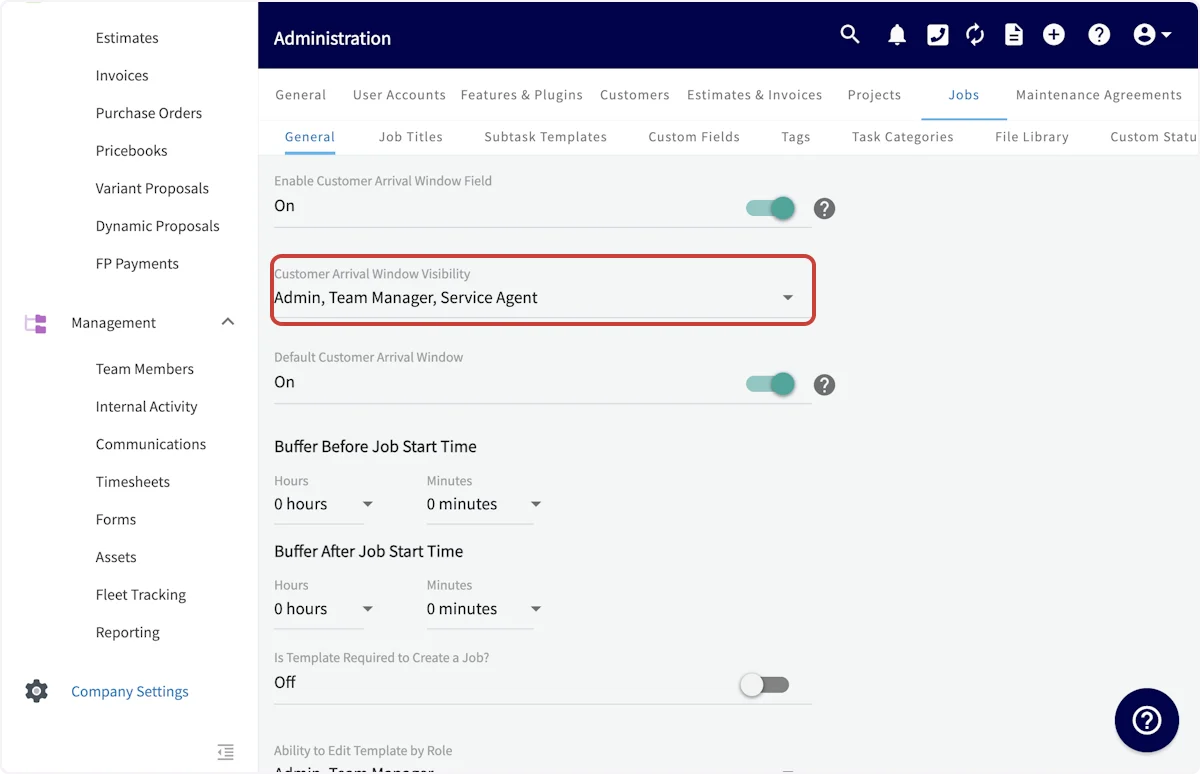
Use the **Customer Arrival Window Visibility** dropdown to pick the roles that can see and edit the arrival window on a record.
### 2. Choose who can see the arrival window
Use the **Customer Arrival Window Visibility** dropdown to pick the roles that can see and edit the arrival window on a record.
 ### 3. Set the default buffers
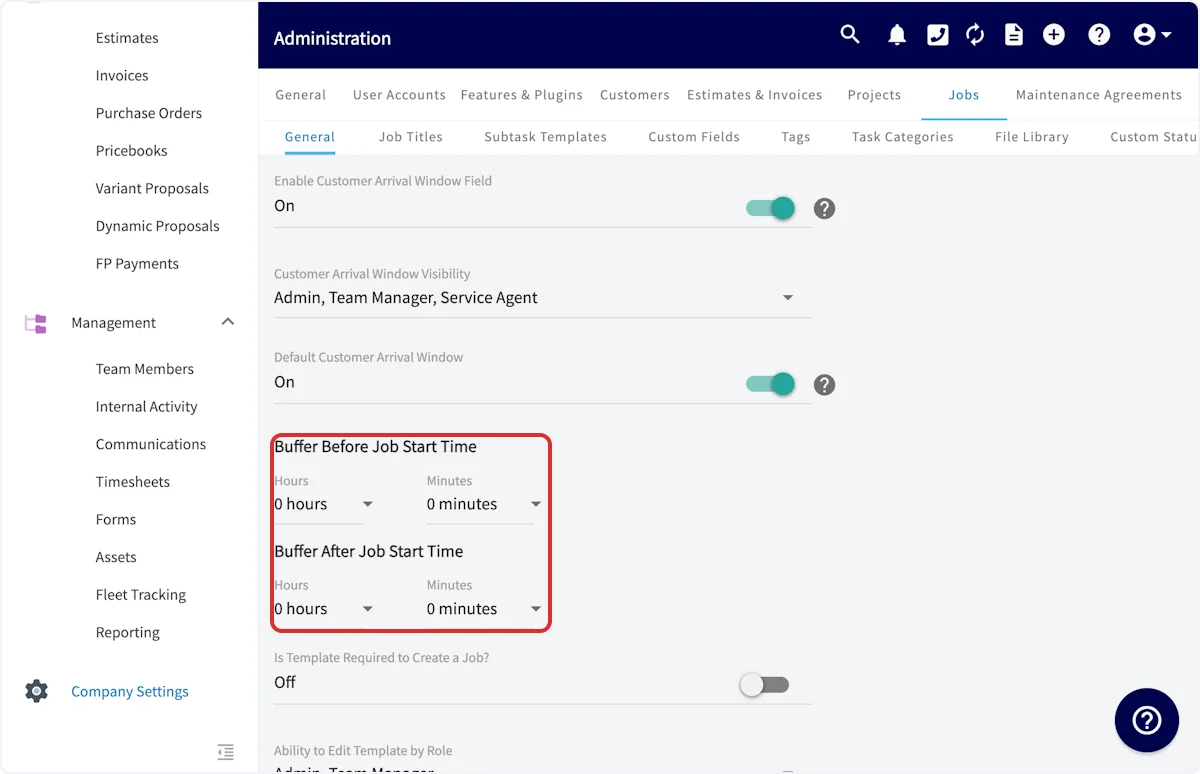
With **Default Customer Arrival Window** on, two buffer settings appear. Both are measured from the job's start time, and together they form the standard window your records start with.
1. Set the **Hours** and **Minutes** for **Buffer Before Job Start Time**.
2. Set the **Hours** and **Minutes** for **Buffer After Job Start Time**.
You can change the window on any individual job record, so the default only decides where each record starts.
### 3. Set the default buffers
With **Default Customer Arrival Window** on, two buffer settings appear. Both are measured from the job's start time, and together they form the standard window your records start with.
1. Set the **Hours** and **Minutes** for **Buffer Before Job Start Time**.
2. Set the **Hours** and **Minutes** for **Buffer After Job Start Time**.
You can change the window on any individual job record, so the default only decides where each record starts.
 ### 4. Add the arrival window to customer messages
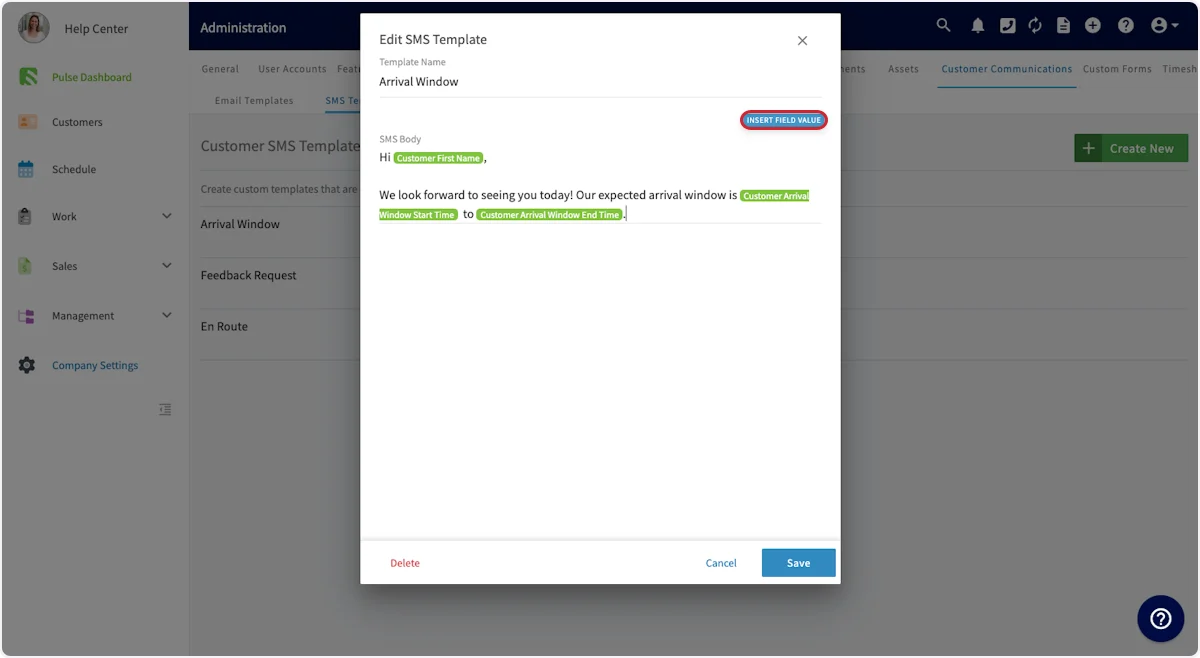
The arrival window reaches the customer through a customer communication template. Four field values carry it: the customer arrival window **start date**, **start time**, **end date**, and **end time**.
1. In **Company Settings**, open **Customer Communications**, then **Email Templates** or **SMS Templates**.
2. Open the template you want to edit, or select **Create New**.
3. Write the message body, and where the time range belongs, select **Insert Field Value** and choose the arrival window component you want.
4. Select **Save**.
Automatic triggers for site visits carry their own **Site Visit Arrival Window Start Date / Start Time** and **Site Visit Arrival Window End Date / End Time** field values — see [Setting Up Automatic Communication Triggers](/customers/communications/automatic-triggers). For everything else these templates can do, see [Customer Communications Overview](/customers/communications/overview).
### 4. Add the arrival window to customer messages
The arrival window reaches the customer through a customer communication template. Four field values carry it: the customer arrival window **start date**, **start time**, **end date**, and **end time**.
1. In **Company Settings**, open **Customer Communications**, then **Email Templates** or **SMS Templates**.
2. Open the template you want to edit, or select **Create New**.
3. Write the message body, and where the time range belongs, select **Insert Field Value** and choose the arrival window component you want.
4. Select **Save**.
Automatic triggers for site visits carry their own **Site Visit Arrival Window Start Date / Start Time** and **Site Visit Arrival Window End Date / End Time** field values — see [Setting Up Automatic Communication Triggers](/customers/communications/automatic-triggers). For everything else these templates can do, see [Customer Communications Overview](/customers/communications/overview).
 ## Settings reference
| **Setting** | **Where it lives** | **What it controls** |
| ---------------------------------------- | --------------------------------- | ------------------------------------------------------------------------------- |
| **Enable Customer Arrival Window Field** | Company Settings > Jobs > General | Turns the customer arrival window field on for the account |
| **Customer Arrival Window Visibility** | Company Settings > Jobs > General | The roles that can see and edit the arrival window on a record |
| **Default Customer Arrival Window** | Company Settings > Jobs > General | Pre-populates records with a standard arrival window built from the two buffers |
| **Buffer Before Job Start Time** | Company Settings > Jobs > General | Hours and minutes added before the job start time to open the window |
| **Buffer After Job Start Time** | Company Settings > Jobs > General | Hours and minutes added after the job start time to close the window |
## Still need help?
Reach the [FieldPulse support team](https://www.fieldpulse.com/company/contact-us) at [support@fieldpulse.com](mailto:support@fieldpulse.com) or through the chat feature in the bottom-right corner of your screen.
## Related articles
* [How to Create a Job](/jobs/jobs-tasks/creating-a-job)
* [How to Add Site Visits](/jobs/jobs-tasks/site-visits)
* [Setting Up Email & SMS Templates](/customers/communications/message-templates)
* [Setting Up Automatic Communication Triggers](/customers/communications/automatic-triggers)
* [Customer Communications Overview](/customers/communications/overview)
Your setup is working when the customer's message shows a range like 7:00 AM to 11:00 AM, the job record still shows the 8:00 AM start your dispatcher scheduled, and nobody calls to say the tech was late for a time you never promised.
## Related topics
- [How to Create a Job](/jobs/jobs-tasks/creating-a-job.md)
- [How to Add Site Visits](/jobs/jobs-tasks/site-visits.md)
- [Jobs & Tasks](/jobs/jobs-tasks/index.md)
- [Setting Up Customer Custom Fields](/customers/managing-customers/custom-fields.md)
## Settings reference
| **Setting** | **Where it lives** | **What it controls** |
| ---------------------------------------- | --------------------------------- | ------------------------------------------------------------------------------- |
| **Enable Customer Arrival Window Field** | Company Settings > Jobs > General | Turns the customer arrival window field on for the account |
| **Customer Arrival Window Visibility** | Company Settings > Jobs > General | The roles that can see and edit the arrival window on a record |
| **Default Customer Arrival Window** | Company Settings > Jobs > General | Pre-populates records with a standard arrival window built from the two buffers |
| **Buffer Before Job Start Time** | Company Settings > Jobs > General | Hours and minutes added before the job start time to open the window |
| **Buffer After Job Start Time** | Company Settings > Jobs > General | Hours and minutes added after the job start time to close the window |
## Still need help?
Reach the [FieldPulse support team](https://www.fieldpulse.com/company/contact-us) at [support@fieldpulse.com](mailto:support@fieldpulse.com) or through the chat feature in the bottom-right corner of your screen.
## Related articles
* [How to Create a Job](/jobs/jobs-tasks/creating-a-job)
* [How to Add Site Visits](/jobs/jobs-tasks/site-visits)
* [Setting Up Email & SMS Templates](/customers/communications/message-templates)
* [Setting Up Automatic Communication Triggers](/customers/communications/automatic-triggers)
* [Customer Communications Overview](/customers/communications/overview)
Your setup is working when the customer's message shows a range like 7:00 AM to 11:00 AM, the job record still shows the 8:00 AM start your dispatcher scheduled, and nobody calls to say the tech was late for a time you never promised.
## Related topics
- [How to Create a Job](/jobs/jobs-tasks/creating-a-job.md)
- [How to Add Site Visits](/jobs/jobs-tasks/site-visits.md)
- [Jobs & Tasks](/jobs/jobs-tasks/index.md)
- [Setting Up Customer Custom Fields](/customers/managing-customers/custom-fields.md)