> ## Documentation Index
> Fetch the complete documentation index at: https://help.fieldpulse.com/llms.txt
> Use this file to discover all available pages before exploring further.
# How to Add Site Visits
> Schedule follow-ups and multi-day work in FieldPulse as separate visits under one parent job, each with its own date, crew, notes, and status.
> **Who uses this:** You add and schedule site visits on web; your field team works them on mobile. **Availability:** All regions.
A site visit is an additional appointment tied to a single [job](https://www.fieldpulse.com/features/job-management). Use one for a follow-up, a multi-day installation, or any work that takes more than one trip. Each visit carries its own date, team, notes, and status, and every visit stays grouped under the parent job.
## Overview
Site visits keep every trip for one piece of work under a single job record. Instead of creating a separate job each time your team needs to come back, you add a site visit to the parent job, and each visit gets its own date, team, notes, and status. You add and schedule site visits on web, and your field team works them on mobile.
## Video walkthrough
Watch the site visits video, then follow the written steps below.
## Before you begin
* A site visit attaches to a job, so you need a job record. You can add a site visit while creating a new job or to a job that already exists — see [How to Create a Job](/jobs/jobs-tasks/creating-a-job).
* To set a customer arrival window on a site visit, turn the arrival window on in your company settings first. The steps are below, and [Setting Up Customer Arrival Windows](/jobs/jobs-tasks/customer-arrival-window) covers the feature in full.
## On web
### Add a site visit to a job
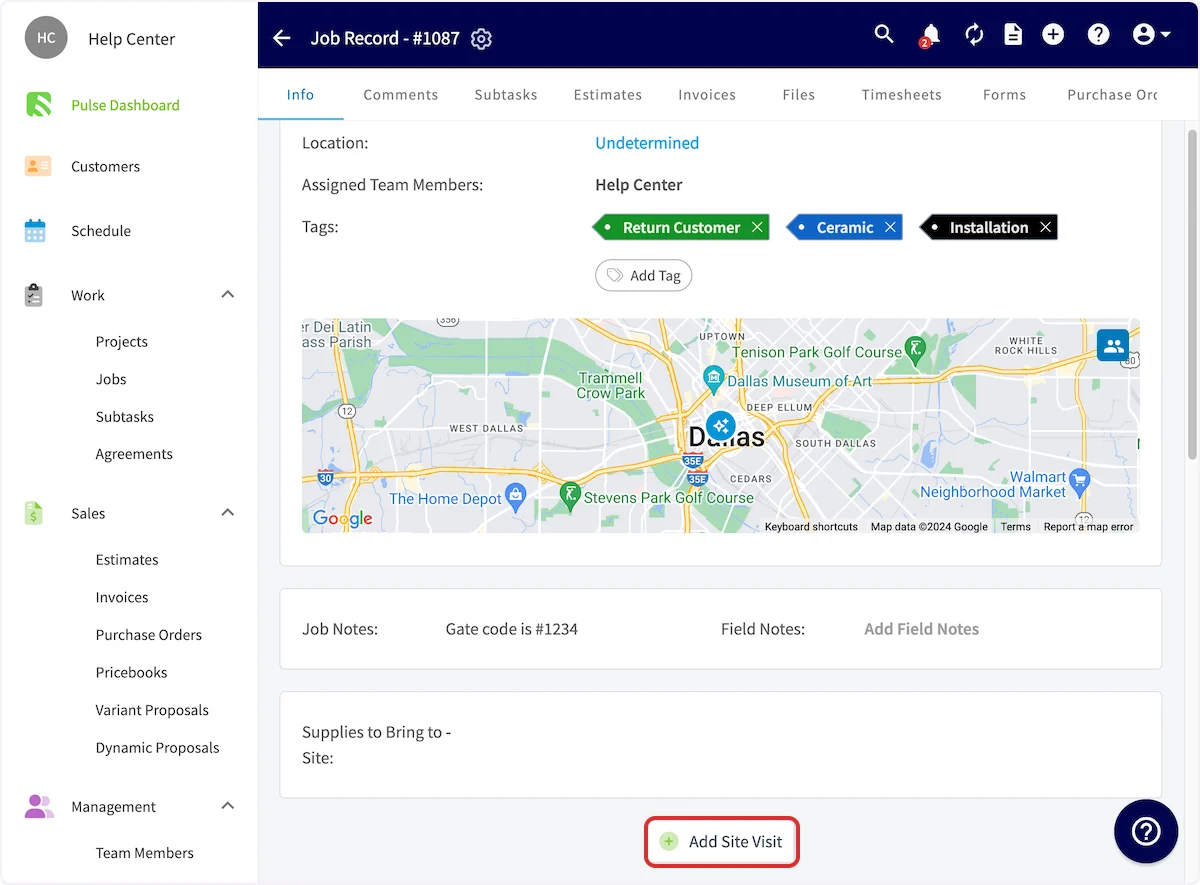
1. Open the job record.
2. Scroll to the bottom of the record and select **Add Site Visit**.
3. Complete the details in the pop-up:
* Rename the site visit
* Select a **Custom Status Workflow**
* Set a date and time for the visit
* Add **Notes** (internal)
* Add **Field Notes**
* Assign team members
* Set the **Customer Arrival Window** (if enabled)
4. Select **Save** to add the visit to the job record and the schedule.
5. Repeat to add more site visits.
 Site visit notes carry over to [job templates](/jobs/jobs-tasks/creating-job-templates) and appear in [site visit reporting](/reporting/raw-data/site-visit-reports).
### Keep a visit on the calendar during work hours only
A **Display on calendar within work hours only** toggle appears when you create or edit a site visit. Turn it on to show that visit on team calendars only during working hours. This keeps after-hours slots clear and your dispatch view focused on the times that matter.
### Set a customer arrival window
Set an arrival window directly on the site visit so customers know when to expect your team. The arrival window pre-populates from your company default, and you can edit it on the visit.
To set your company default:
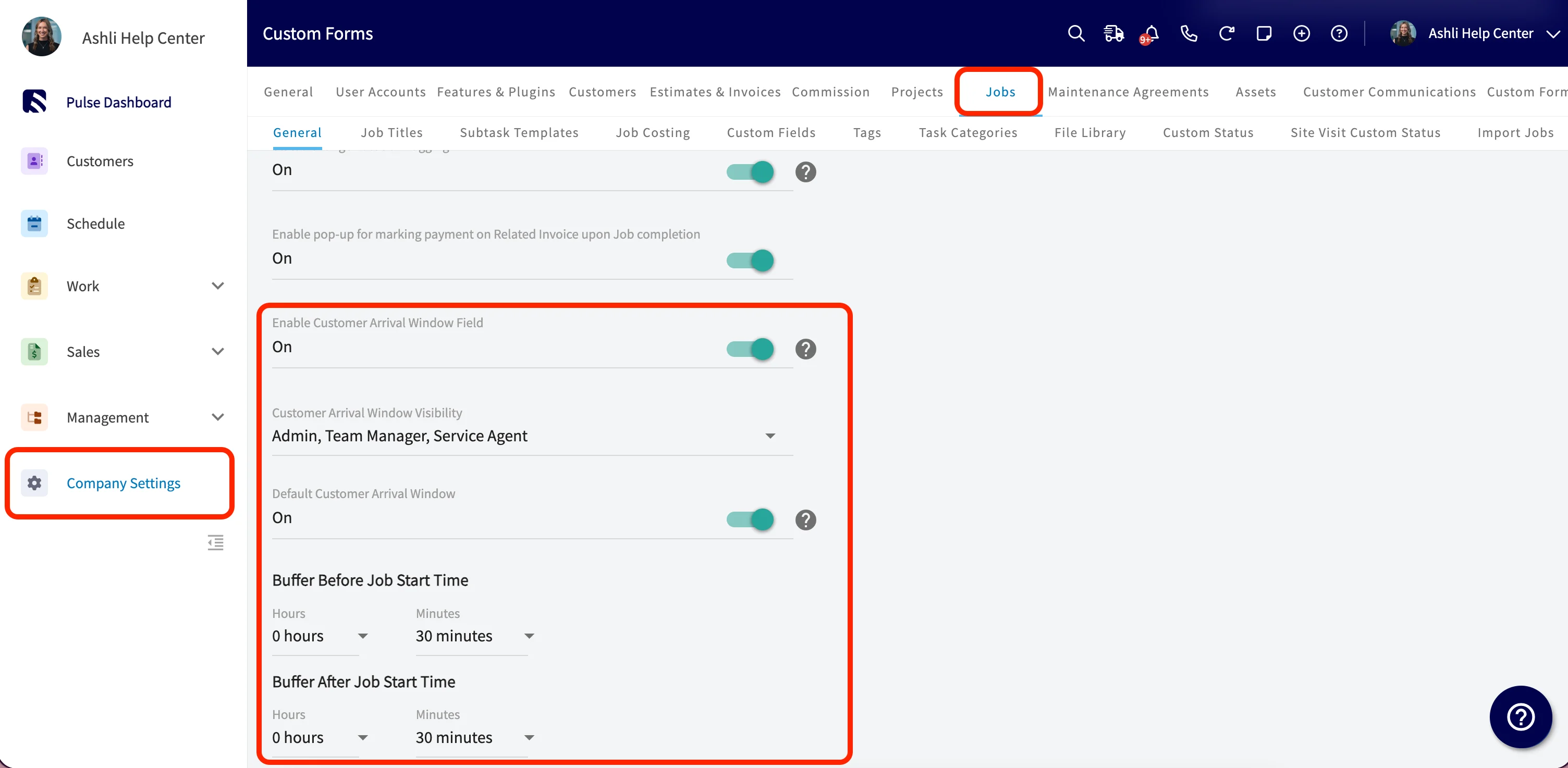
1. Go to **Company Settings**, then the **Jobs** tab, then **General**.
2. Turn on **Enable Customer Arrival Window Field**.
3. Set **Customer Arrival Window Visibility** to the roles that can see and edit the window.
4. Turn on **Default Customer Arrival Window**.
5. Configure **Buffer Before Job Start Time** and **Buffer After Job Start Time**.
Site visit notes carry over to [job templates](/jobs/jobs-tasks/creating-job-templates) and appear in [site visit reporting](/reporting/raw-data/site-visit-reports).
### Keep a visit on the calendar during work hours only
A **Display on calendar within work hours only** toggle appears when you create or edit a site visit. Turn it on to show that visit on team calendars only during working hours. This keeps after-hours slots clear and your dispatch view focused on the times that matter.
### Set a customer arrival window
Set an arrival window directly on the site visit so customers know when to expect your team. The arrival window pre-populates from your company default, and you can edit it on the visit.
To set your company default:
1. Go to **Company Settings**, then the **Jobs** tab, then **General**.
2. Turn on **Enable Customer Arrival Window Field**.
3. Set **Customer Arrival Window Visibility** to the roles that can see and edit the window.
4. Turn on **Default Customer Arrival Window**.
5. Configure **Buffer Before Job Start Time** and **Buffer After Job Start Time**.
 ### Check for scheduling conflicts
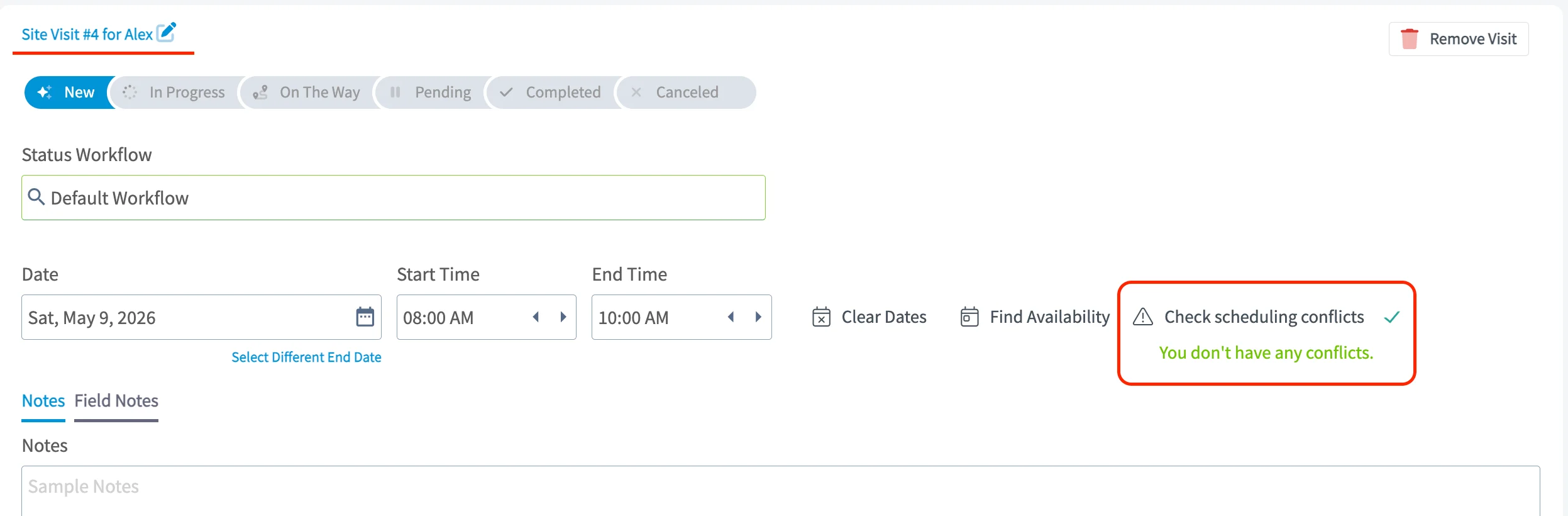
FieldPulse checks for overlaps whenever you create or edit a site visit, comparing the visit against every scheduled job and site visit on your calendar. A **Check scheduling conflicts** button appears on every site visit record, so you don't book a technician for a job and a site visit at the same time.
The booking portal uses the same check. When customers book online, availability factors in both jobs and site visits, so they see only slots that are truly open — see [Setting Up the Booking Portal](/jobs/booking-portal/booking-portal-setup).
### Check for scheduling conflicts
FieldPulse checks for overlaps whenever you create or edit a site visit, comparing the visit against every scheduled job and site visit on your calendar. A **Check scheduling conflicts** button appears on every site visit record, so you don't book a technician for a job and a site visit at the same time.
The booking portal uses the same check. When customers book online, availability factors in both jobs and site visits, so they see only slots that are truly open — see [Setting Up the Booking Portal](/jobs/booking-portal/booking-portal-setup).
 ### Schedule unassigned and unscheduled site visits
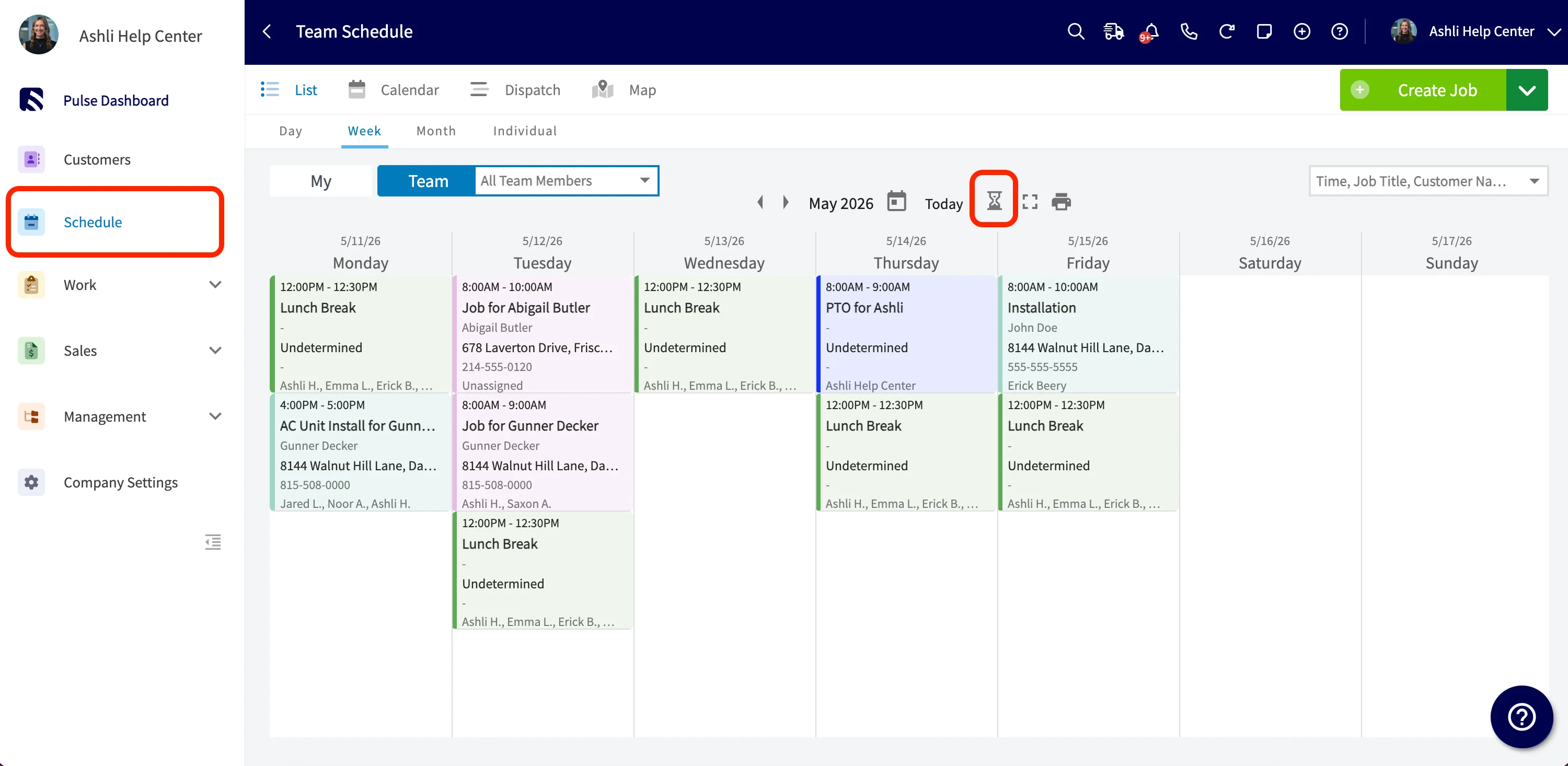
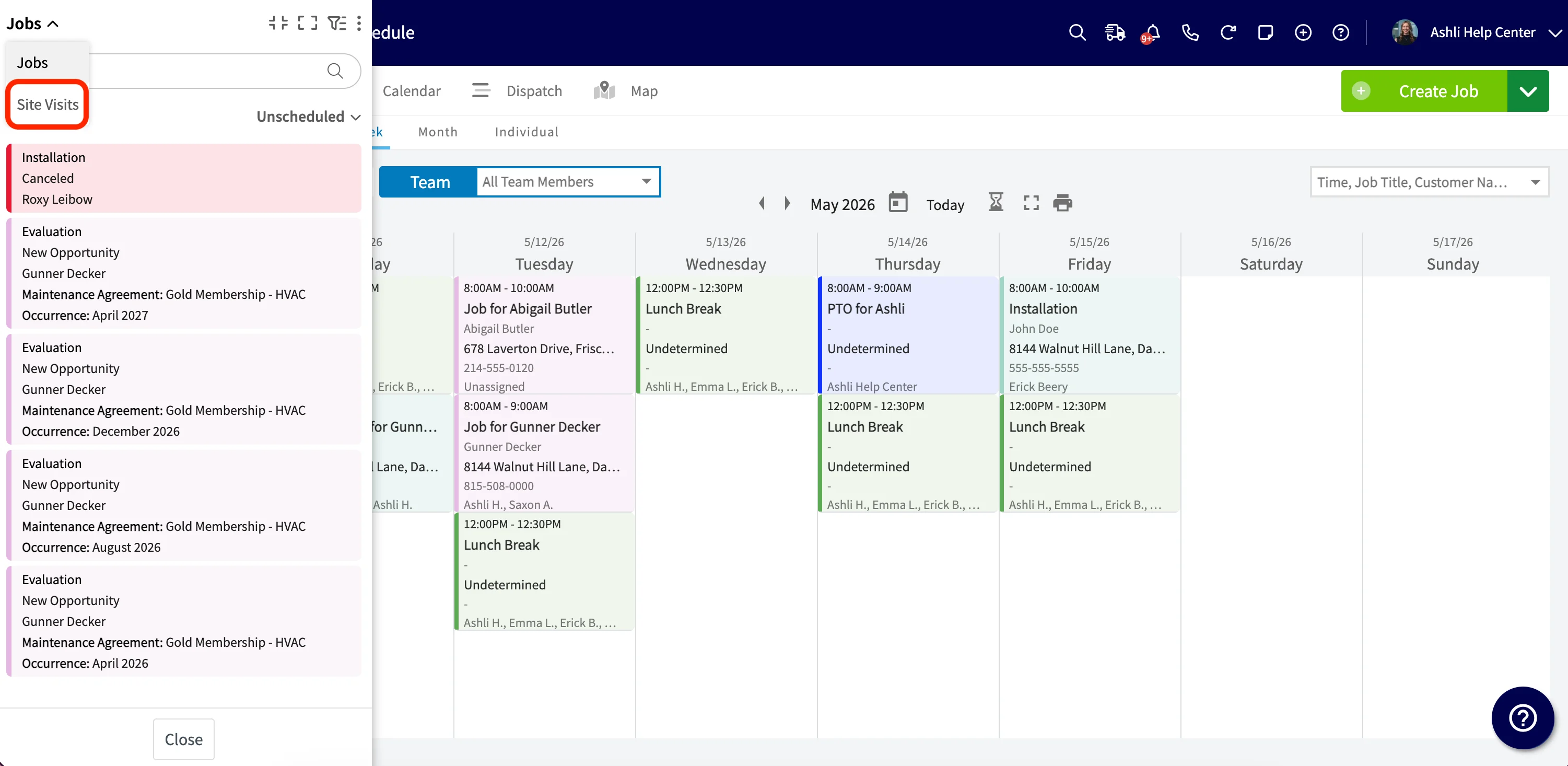
The **Hourglass** view on the Schedule page handles site visits alongside jobs.
1. Open the **Schedule** page and select the **Hourglass** icon.
2. At the top left of the slide-out, use the dropdown to switch between **Jobs** and **Site Visits**.
3. Find the visit you want. Site visits display as "Job Title: Site Visit Title" so you keep the parent context.
4. Drag and drop the site visit onto a team member's calendar in calendar or dispatch view.
5. Review the start and end time, team, and assigned team member in the confirmation modal.
6. Select **Yes** to schedule the visit, which removes it from the unscheduled list, or **No** to cancel.
### Schedule unassigned and unscheduled site visits
The **Hourglass** view on the Schedule page handles site visits alongside jobs.
1. Open the **Schedule** page and select the **Hourglass** icon.
2. At the top left of the slide-out, use the dropdown to switch between **Jobs** and **Site Visits**.
3. Find the visit you want. Site visits display as "Job Title: Site Visit Title" so you keep the parent context.
4. Drag and drop the site visit onto a team member's calendar in calendar or dispatch view.
5. Review the start and end time, team, and assigned team member in the confirmation modal.
6. Select **Yes** to schedule the visit, which removes it from the unscheduled list, or **No** to cancel.
 The same slide-out handles unscheduled jobs — see [How to Manage Unassigned & Unscheduled Jobs](/jobs/jobs-tasks/unassigned-unscheduled-jobs).
### Automate emails and SMS for site visits
Set up automated email and SMS for site visits the same way you do for jobs: add site-visit fields to a message template, then point an automatic trigger at a site-visit event.
To add site-visit fields to a template:
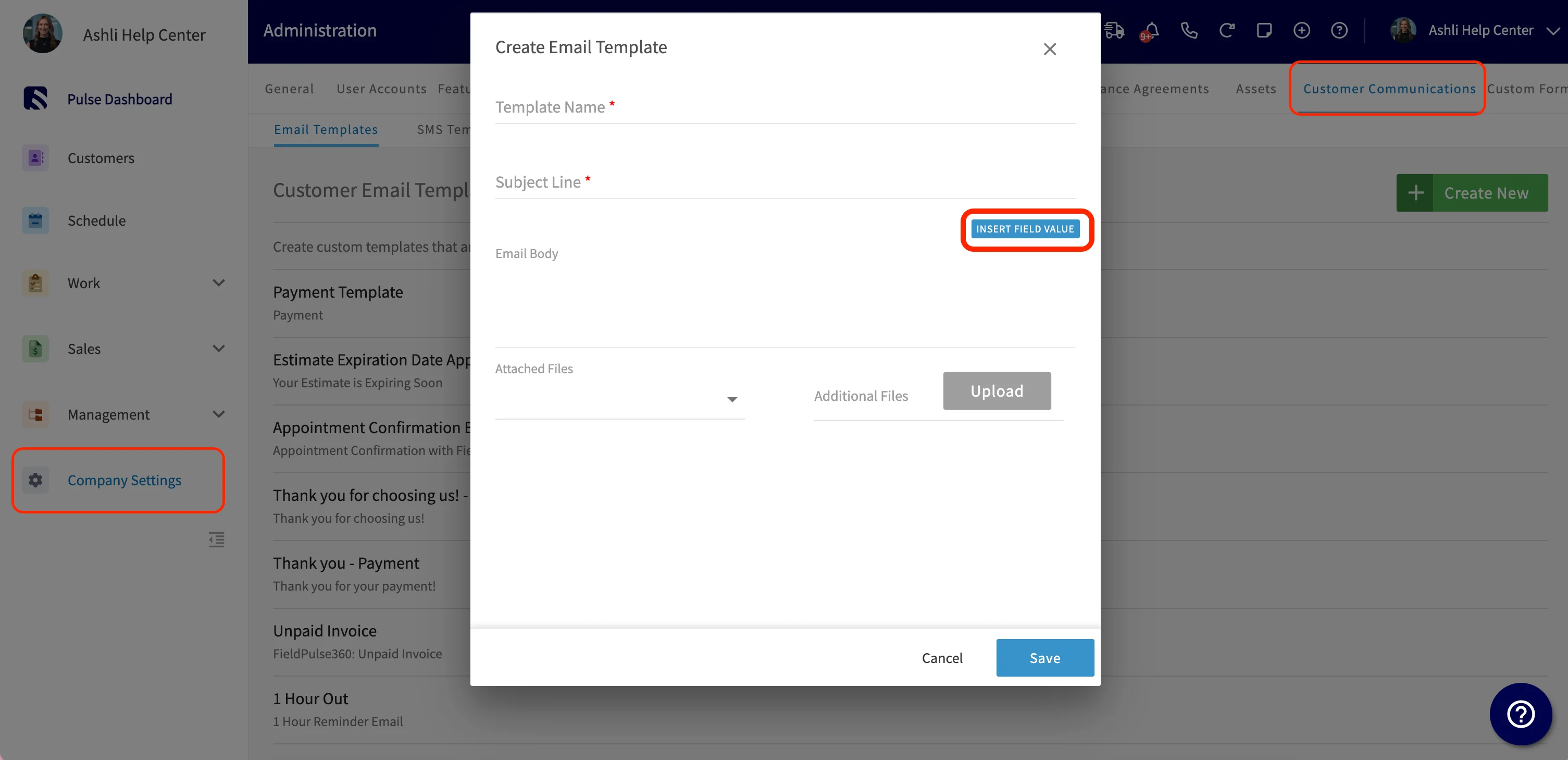
1. Go to **Company Settings**, then **Customer Communications**, then **Email Templates** or **SMS Templates**.
2. Open an existing template, or select **Create New**.
3. Select **Insert Field Value** and add any of these site-visit fields:
* Site Visit Title
* Site Visit Start Date / Start Time
* Site Visit End Date / End Time
* Site Visit Assigned Team Members
* Site Visit Notes
* Site Visit Arrival Window Start Date / Start Time
* Site Visit Arrival Window End Date / End Time
The same slide-out handles unscheduled jobs — see [How to Manage Unassigned & Unscheduled Jobs](/jobs/jobs-tasks/unassigned-unscheduled-jobs).
### Automate emails and SMS for site visits
Set up automated email and SMS for site visits the same way you do for jobs: add site-visit fields to a message template, then point an automatic trigger at a site-visit event.
To add site-visit fields to a template:
1. Go to **Company Settings**, then **Customer Communications**, then **Email Templates** or **SMS Templates**.
2. Open an existing template, or select **Create New**.
3. Select **Insert Field Value** and add any of these site-visit fields:
* Site Visit Title
* Site Visit Start Date / Start Time
* Site Visit End Date / End Time
* Site Visit Assigned Team Members
* Site Visit Notes
* Site Visit Arrival Window Start Date / Start Time
* Site Visit Arrival Window End Date / End Time
 For more on building the messages themselves, see [Setting Up Email & SMS Templates](/customers/communications/message-templates).
To set up an automation trigger for site visits:
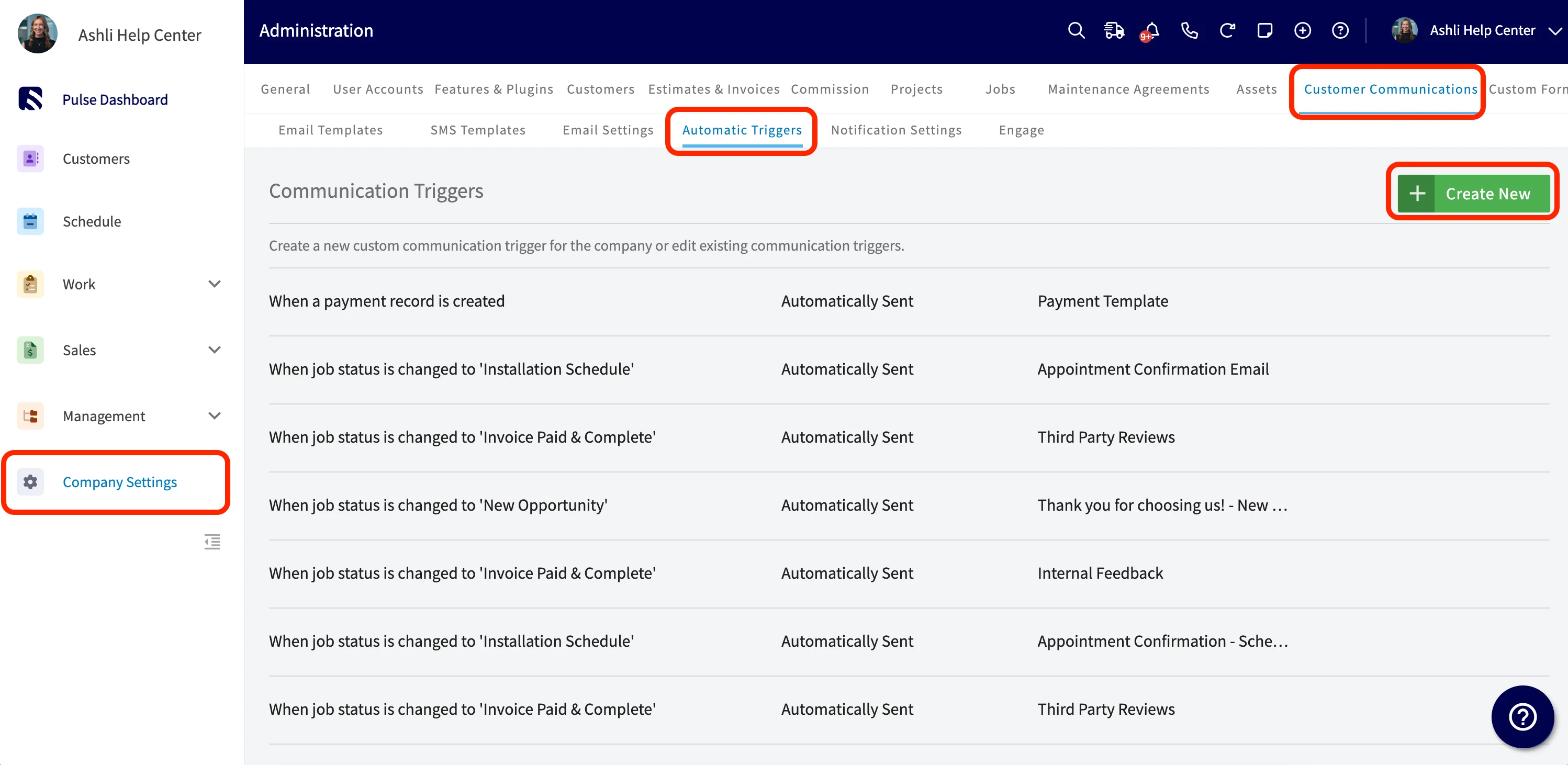
1. Go to **Company Settings**, then **Customer Communications**, then **Automatic Triggers**.
2. Select **Create New**, or open an existing trigger.
3. In **Choose Trigger**, pick one of the two site-visit triggers.
4. Choose your communication template and save.
| **Site-visit trigger** | **Sending options it supports** |
| -------------------------------------------- | --------------------------------------------------------------------------------------------------------------------- |
| When a Site Visit is newly created | Automatically Sent, Prompts Confirmation Prior to Sending, Scheduled Based On Timing, and Scheduled With Confirmation |
| Set Time Prior to Site Visit Start Date/Time | Scheduled Based On Timing — a good fit for day-before reminders |
For more on building the messages themselves, see [Setting Up Email & SMS Templates](/customers/communications/message-templates).
To set up an automation trigger for site visits:
1. Go to **Company Settings**, then **Customer Communications**, then **Automatic Triggers**.
2. Select **Create New**, or open an existing trigger.
3. In **Choose Trigger**, pick one of the two site-visit triggers.
4. Choose your communication template and save.
| **Site-visit trigger** | **Sending options it supports** |
| -------------------------------------------- | --------------------------------------------------------------------------------------------------------------------- |
| When a Site Visit is newly created | Automatically Sent, Prompts Confirmation Prior to Sending, Scheduled Based On Timing, and Scheduled With Confirmation |
| Set Time Prior to Site Visit Start Date/Time | Scheduled Based On Timing — a good fit for day-before reminders |
 For the full trigger catalog, see [Setting Up Automatic Communication Triggers](/customers/communications/automatic-triggers).
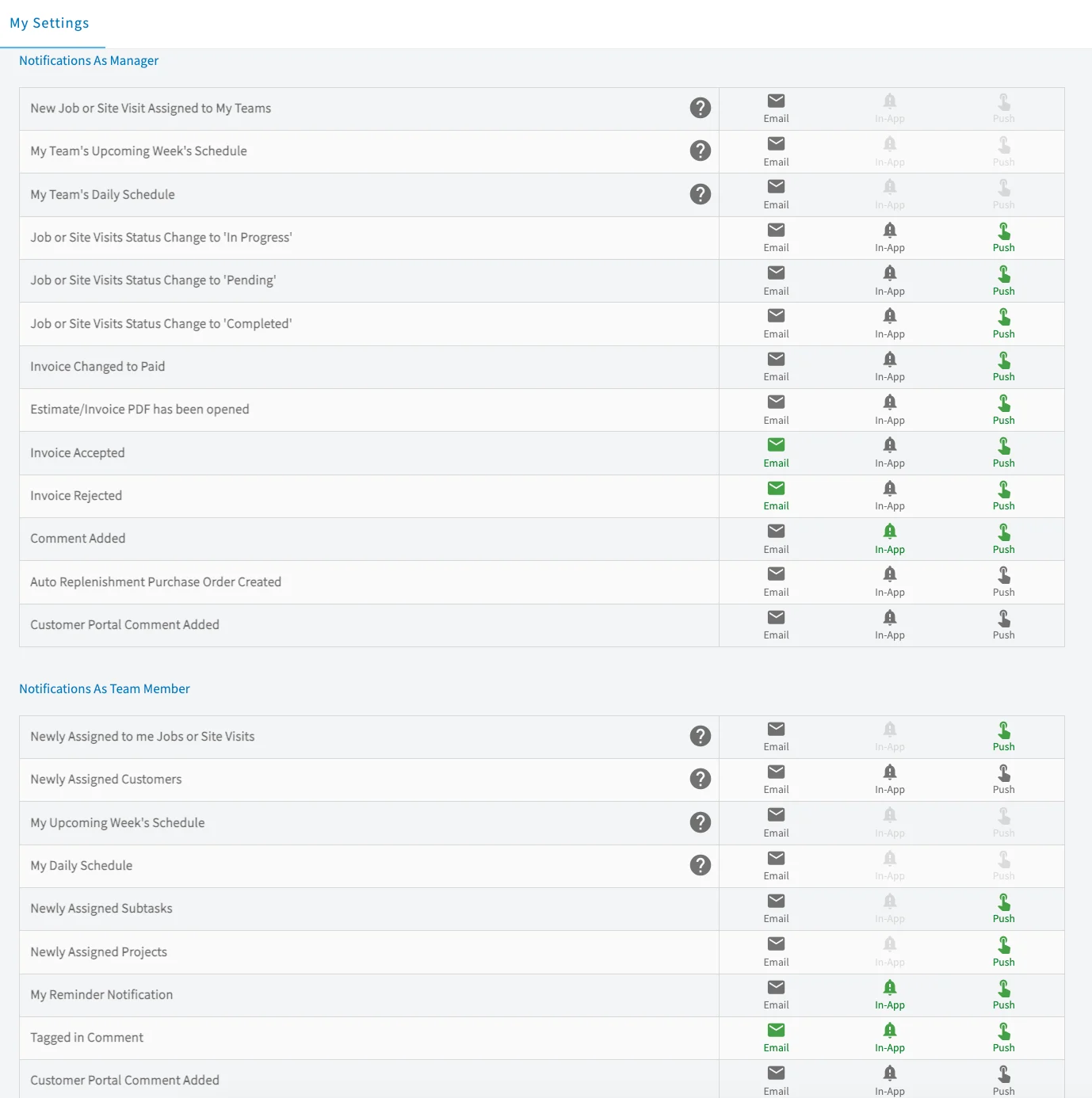
### Turn on notifications for site visits
Notifications keep the right people updated when a site visit is created, reassigned, status-changed, or commented on.
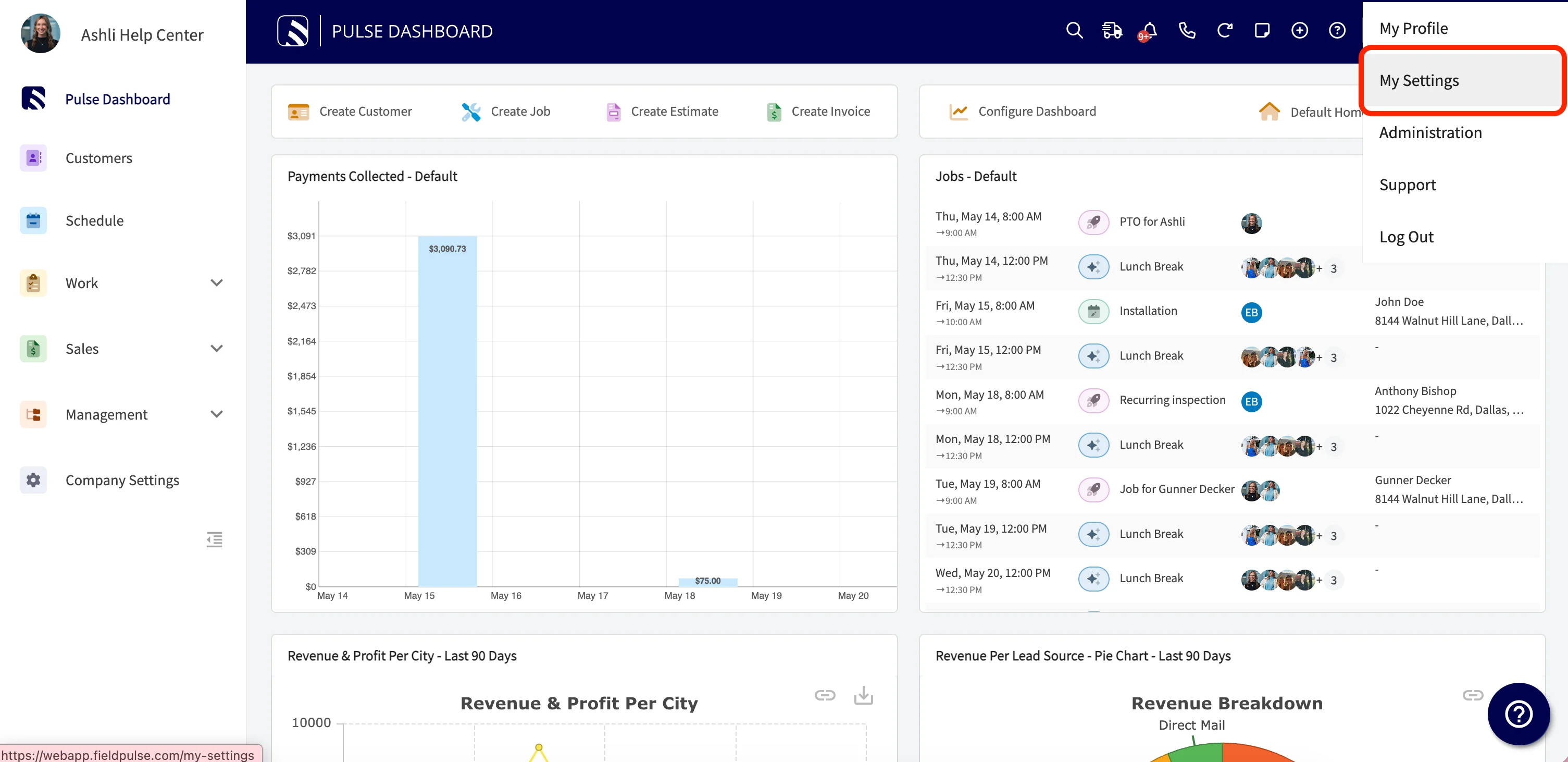
1. Go to **My Settings**, then **Notifications**.
2. Under **As a Manager**, turn on the **Jobs or Site Visits** triggers you want — new assignments, daily and weekly schedules, status changes (Pending, In Progress, Completed), and comments.
3. Under **As a Team Member**, turn on new assignments, daily and weekly schedules, subtasks within site visits, and comment tags.
For the full trigger catalog, see [Setting Up Automatic Communication Triggers](/customers/communications/automatic-triggers).
### Turn on notifications for site visits
Notifications keep the right people updated when a site visit is created, reassigned, status-changed, or commented on.
1. Go to **My Settings**, then **Notifications**.
2. Under **As a Manager**, turn on the **Jobs or Site Visits** triggers you want — new assignments, daily and weekly schedules, status changes (Pending, In Progress, Completed), and comments.
3. Under **As a Team Member**, turn on new assignments, daily and weekly schedules, subtasks within site visits, and comment tags.
 The [Notifications Overview](/settings/notifications/notifications-master-guide) covers every trigger, and [How to Use Subtasks](/jobs/jobs-tasks/subtasks) covers the subtasks these notifications reference.
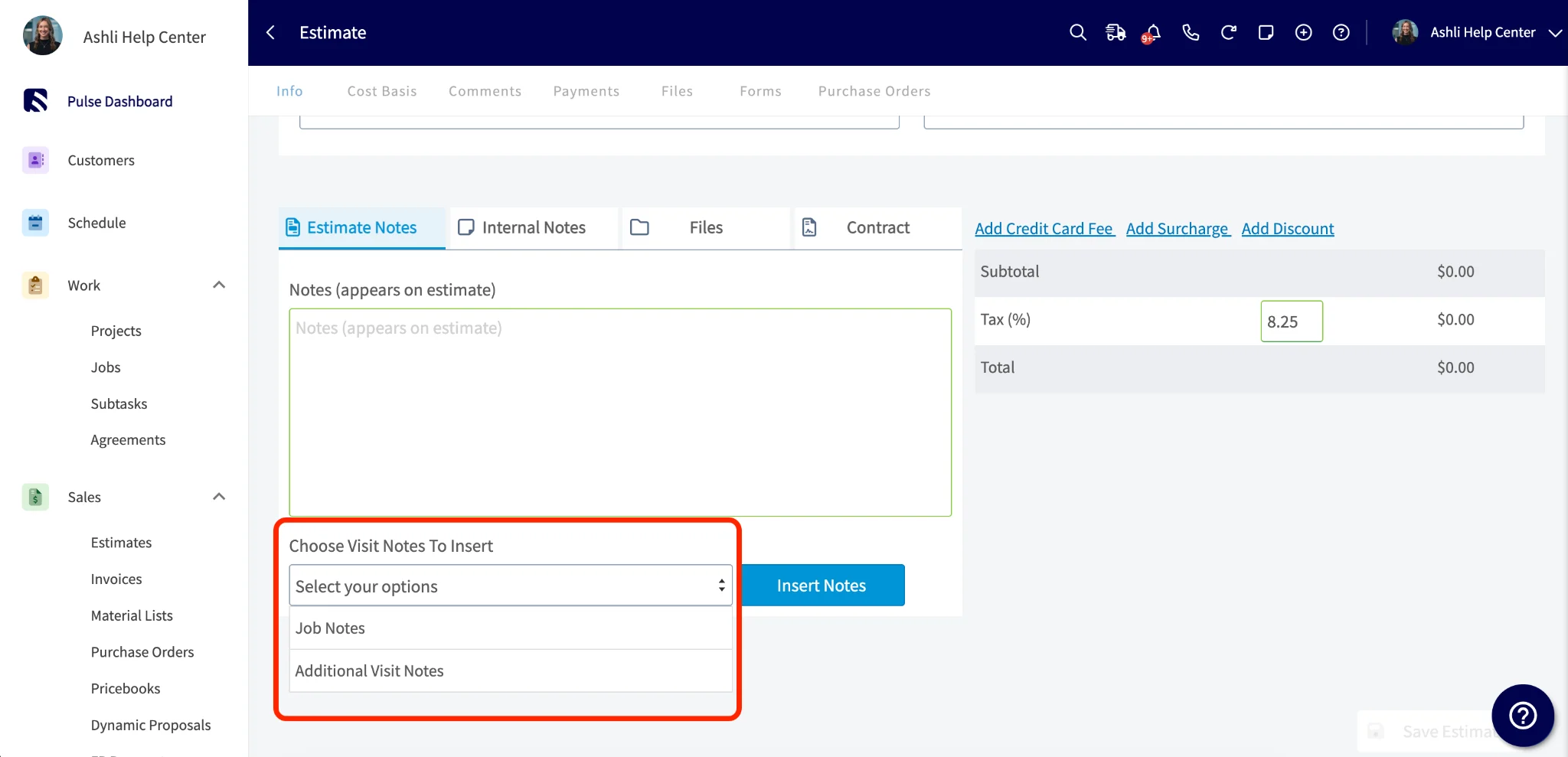
### Insert site visit notes into an estimate or invoice
Pull site visit notes straight into an estimate or invoice instead of copying, pasting, and moving between records.
1. Open the **Estimate Notes** tab on the estimate, or the notes tab on the invoice.
2. Select the **Choose Visit Notes To Insert** dropdown.
3. Multi-select any combination of notes — Job Notes, Job Field Notes, Site Visit #1 Notes, Site Visit #1 Field Notes, and so on.
4. Select **Insert Notes**. Every selected note drops into the notes field at once.
The [Notifications Overview](/settings/notifications/notifications-master-guide) covers every trigger, and [How to Use Subtasks](/jobs/jobs-tasks/subtasks) covers the subtasks these notifications reference.
### Insert site visit notes into an estimate or invoice
Pull site visit notes straight into an estimate or invoice instead of copying, pasting, and moving between records.
1. Open the **Estimate Notes** tab on the estimate, or the notes tab on the invoice.
2. Select the **Choose Visit Notes To Insert** dropdown.
3. Multi-select any combination of notes — Job Notes, Job Field Notes, Site Visit #1 Notes, Site Visit #1 Field Notes, and so on.
4. Select **Insert Notes**. Every selected note drops into the notes field at once.
 ## On mobile
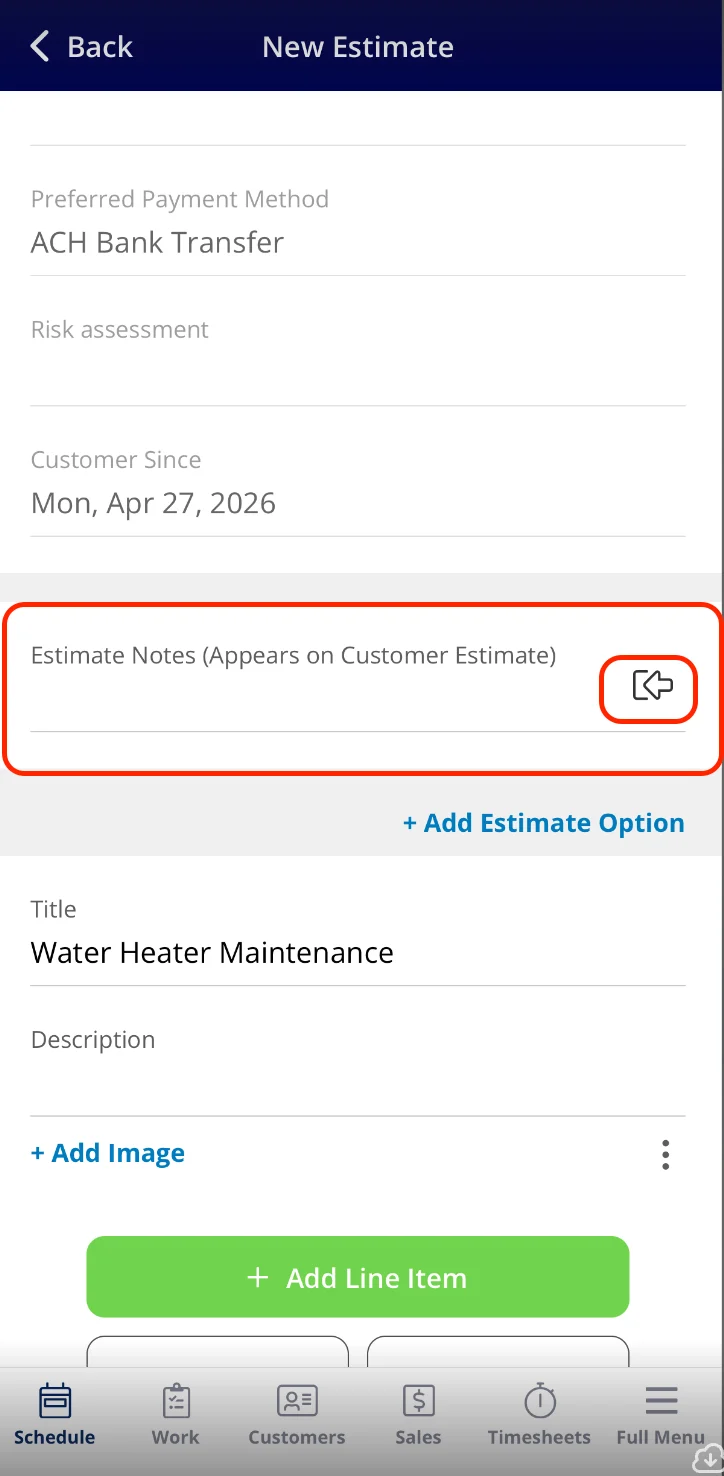
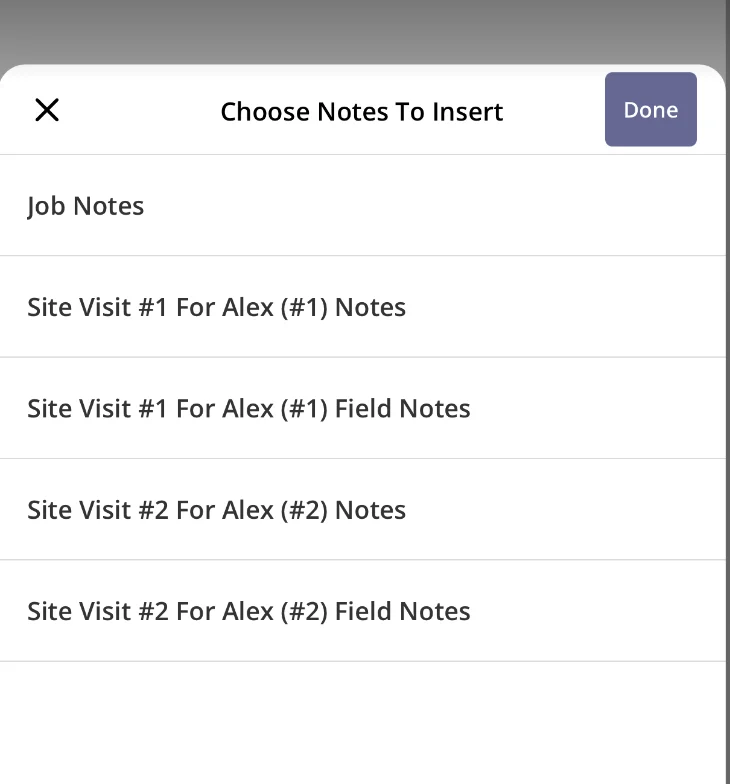
### Insert site visit notes into an estimate or invoice
1. On the estimate or invoice record, scroll to **Estimate Notes** and select the insert button.
2. Select the notes you want to insert, then select **Done**.
You can multi-select any combination of notes, and every selected note drops into the notes field at once.
## On mobile
### Insert site visit notes into an estimate or invoice
1. On the estimate or invoice record, scroll to **Estimate Notes** and select the insert button.
2. Select the notes you want to insert, then select **Done**.
You can multi-select any combination of notes, and every selected note drops into the notes field at once.
 ## FAQs
### Why isn't an automated email or SMS firing for a site visit?
The trigger is using a job-level event instead of a site-visit-level event. Edit the trigger and pick **When a Site Visit is newly created** or **Set Time Prior to Site Visit Start Date/Time** from **Choose Trigger**.
### Why isn't a site visit showing in the Hourglass list?
The visit's status is set to **Canceled** or **Completed**, or your filters are set to **Unscheduled & Unassigned** and the visit already has one of those filled. Switch the filter to **All Open Site Visits** to confirm the visit is there.
### Why isn't a team member getting site visit notifications?
Their **Jobs or Site Visits** toggles are off. Have the team member open **My Settings**, then **Notifications**, and turn on the relevant triggers under **As a Manager** and **As a Team Member**.
## Still need help?
Reach the [FieldPulse support team](https://www.fieldpulse.com/company/contact-us) at [support@fieldpulse.com](mailto:support@fieldpulse.com) or through the chat feature in the bottom-right corner of your screen.
## Related articles
* [How to Create a Job](/jobs/jobs-tasks/creating-a-job)
* [How to Manage Unassigned & Unscheduled Jobs](/jobs/jobs-tasks/unassigned-unscheduled-jobs)
* [How to Use Subtasks](/jobs/jobs-tasks/subtasks)
* [Setting Up Customer Arrival Windows](/jobs/jobs-tasks/customer-arrival-window)
* [Projects vs. Jobs vs. Site Visits Details](/jobs/projects/projects-vs-jobs-vs-site-visits)
Your site visits are working when a multi-trip job stays under one record, each visit carries its own date and crew, and the office and the field see the same schedule without conflicts or duplicate jobs.
## Related topics
- [How to Create a Job](/jobs/jobs-tasks/creating-a-job.md)
- [How to Create Site Visit Reports](/reporting/raw-data/site-visit-reports.md)
- [Projects vs. Jobs vs. Site Visits Details](/jobs/projects/projects-vs-jobs-vs-site-visits.md)
- [How to Migrate from Service Fusion to FieldPulse](/getting-started/migrating/service-fusion.md)
## FAQs
### Why isn't an automated email or SMS firing for a site visit?
The trigger is using a job-level event instead of a site-visit-level event. Edit the trigger and pick **When a Site Visit is newly created** or **Set Time Prior to Site Visit Start Date/Time** from **Choose Trigger**.
### Why isn't a site visit showing in the Hourglass list?
The visit's status is set to **Canceled** or **Completed**, or your filters are set to **Unscheduled & Unassigned** and the visit already has one of those filled. Switch the filter to **All Open Site Visits** to confirm the visit is there.
### Why isn't a team member getting site visit notifications?
Their **Jobs or Site Visits** toggles are off. Have the team member open **My Settings**, then **Notifications**, and turn on the relevant triggers under **As a Manager** and **As a Team Member**.
## Still need help?
Reach the [FieldPulse support team](https://www.fieldpulse.com/company/contact-us) at [support@fieldpulse.com](mailto:support@fieldpulse.com) or through the chat feature in the bottom-right corner of your screen.
## Related articles
* [How to Create a Job](/jobs/jobs-tasks/creating-a-job)
* [How to Manage Unassigned & Unscheduled Jobs](/jobs/jobs-tasks/unassigned-unscheduled-jobs)
* [How to Use Subtasks](/jobs/jobs-tasks/subtasks)
* [Setting Up Customer Arrival Windows](/jobs/jobs-tasks/customer-arrival-window)
* [Projects vs. Jobs vs. Site Visits Details](/jobs/projects/projects-vs-jobs-vs-site-visits)
Your site visits are working when a multi-trip job stays under one record, each visit carries its own date and crew, and the office and the field see the same schedule without conflicts or duplicate jobs.
## Related topics
- [How to Create a Job](/jobs/jobs-tasks/creating-a-job.md)
- [How to Create Site Visit Reports](/reporting/raw-data/site-visit-reports.md)
- [Projects vs. Jobs vs. Site Visits Details](/jobs/projects/projects-vs-jobs-vs-site-visits.md)
- [How to Migrate from Service Fusion to FieldPulse](/getting-started/migrating/service-fusion.md)