> ## Documentation Index
> Fetch the complete documentation index at: https://help.fieldpulse.com/llms.txt
> Use this file to discover all available pages before exploring further.
# How to Manage Unassigned & Unscheduled Jobs
> Create a job in FieldPulse before the date or the crew is settled, then find it under the Unassigned tab and schedule it with a drag onto the calendar.
> **Who uses this:** Roles with permission to create and edit jobs. **Availability:** All regions.
You can create a [job](https://www.fieldpulse.com/features/job-management) in FieldPulse that is not assigned to a particular team member and not scheduled ahead of time. For example, you may have a job to complete sometime in the next two weeks where the day is flexible and you have not yet decided which team member to assign it to. Create the job now as unassigned and unscheduled, then assign and schedule it at a later date.
## Overview
An **unassigned** job has no team members on it. An **unscheduled** job has no date on it. A job can be unassigned, unscheduled, or both, and the job record shows each of those states until you fill them in.
Once the job exists, you assign and schedule it in one of two places. The **Unassigned** tab under **Jobs** lists these jobs so you can open one and edit it, and the **Hourglass** list on the **Schedule** page lets you drag one onto a date and time.
## Video walkthrough
## Before you begin
* Decide what you are leaving blank — the crew, the date, or both. Everything else on the job is filled in the same way as any other job.
* [How to Create a Job](/jobs/jobs-tasks/creating-a-job) covers the rest of the job form, including linking the customer and setting the job title.
## On web
### Create an unassigned or unscheduled job
1. Select **Jobs** under **Work** in the left-side menu, then select **Create Job**.
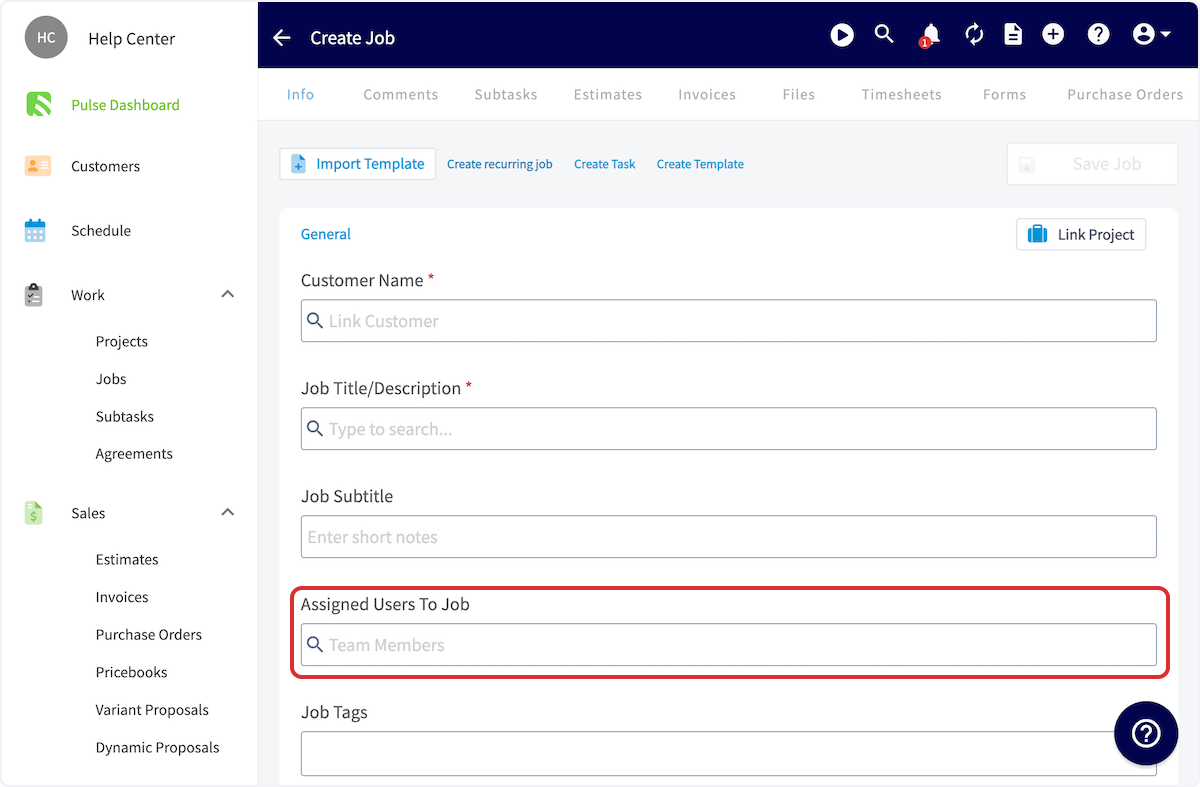
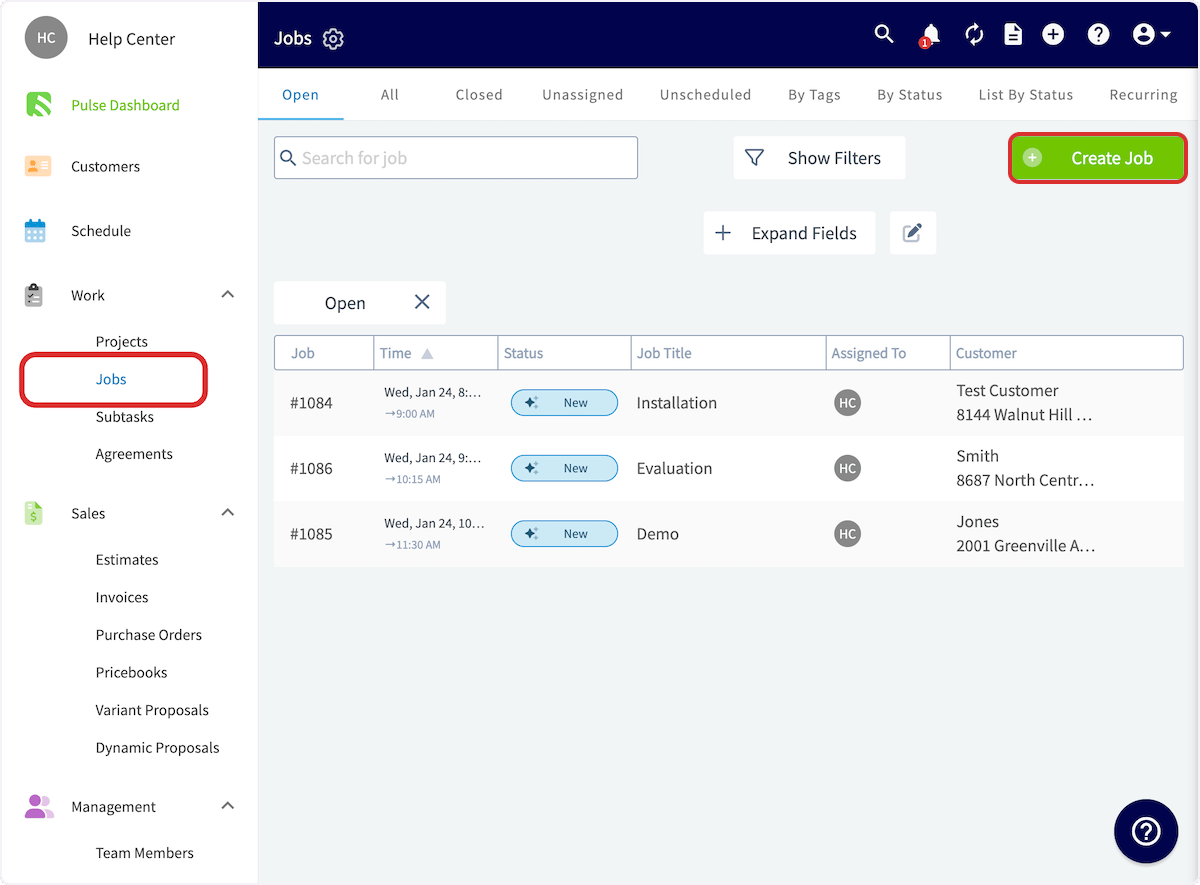 2. Complete the job details as normal. To create an **unassigned** job, leave the **Assigned Users To Job** field empty instead of adding team members.
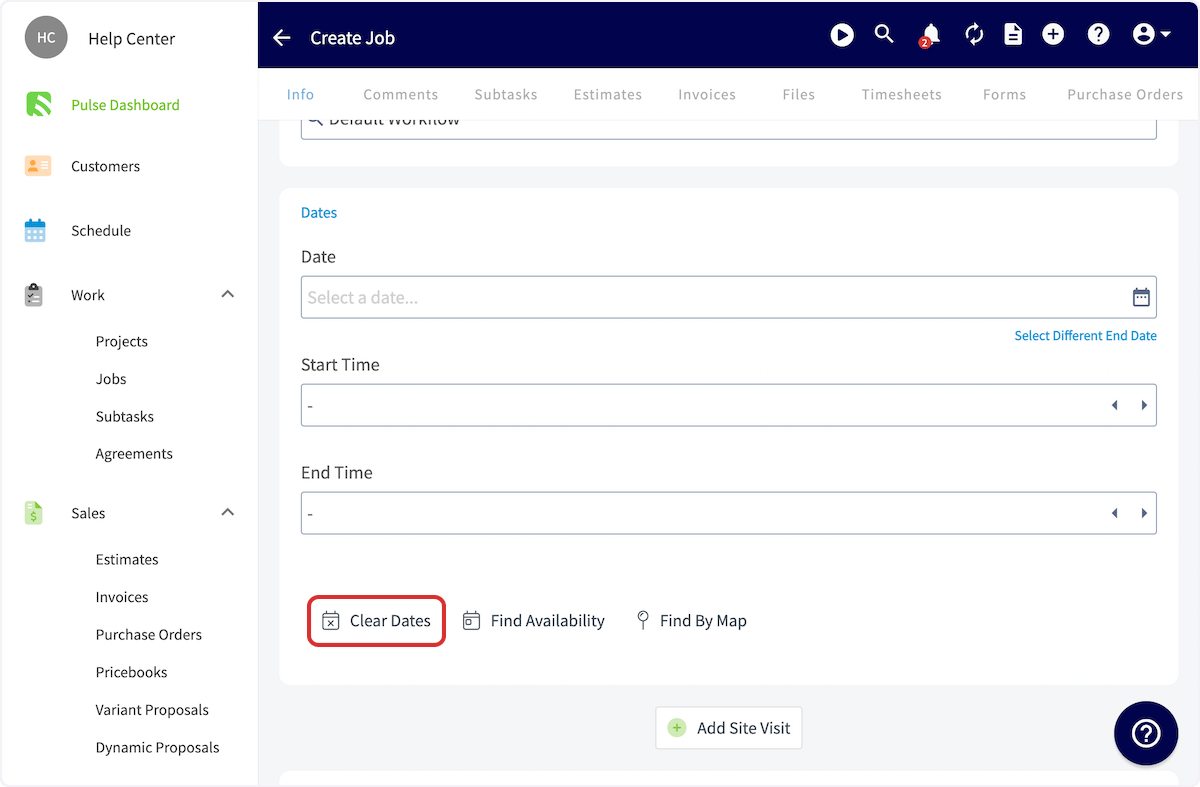
 3. To create an **unscheduled** job, select **Clear Dates** in the **Dates** section to remove the date and time information.
 4. Add any other details you need, then select **Save Job**.
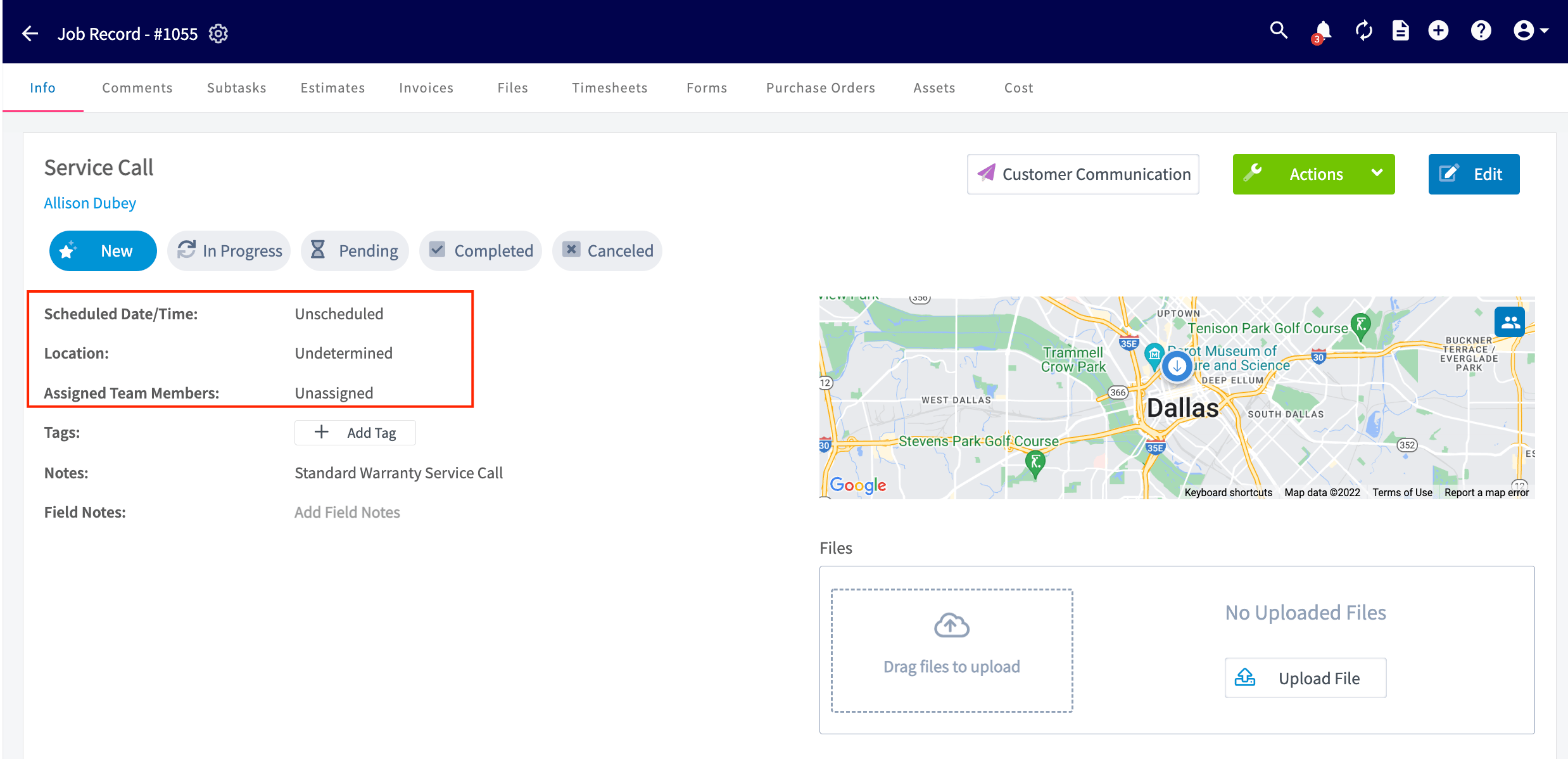
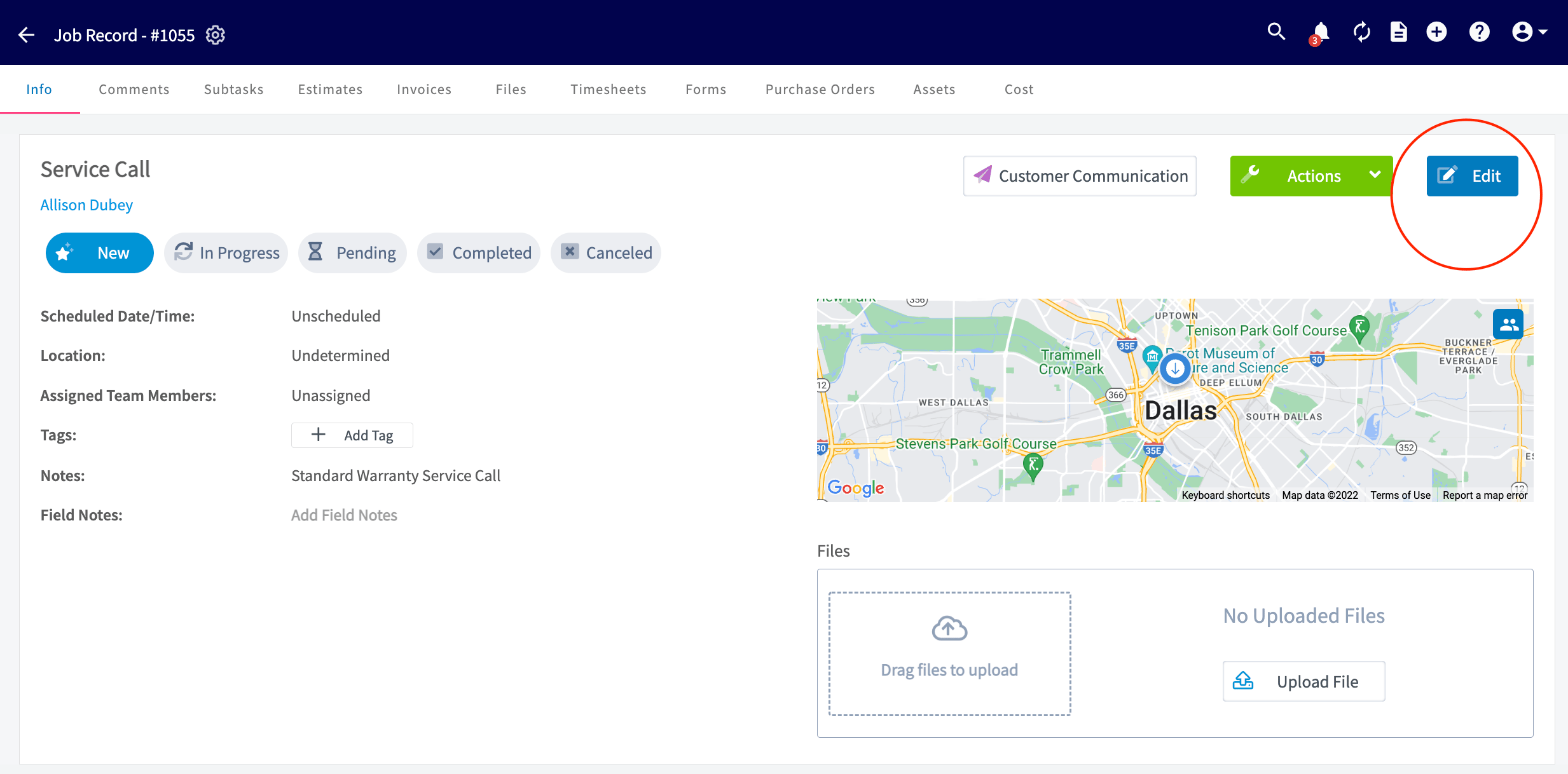
The new job record shows **Unscheduled** as the scheduled date and time and **Unassigned** as the assigned team members. You can schedule or assign the job at any time by selecting **Edit**.
4. Add any other details you need, then select **Save Job**.
The new job record shows **Unscheduled** as the scheduled date and time and **Unassigned** as the assigned team members. You can schedule or assign the job at any time by selecting **Edit**.
 ### Schedule a job from the Unassigned tab
1. Select **Jobs** in the left-side menu, then select the **Unassigned** tab. The page lists the jobs that are unscheduled, unassigned, or both.
### Schedule a job from the Unassigned tab
1. Select **Jobs** in the left-side menu, then select the **Unassigned** tab. The page lists the jobs that are unscheduled, unassigned, or both.
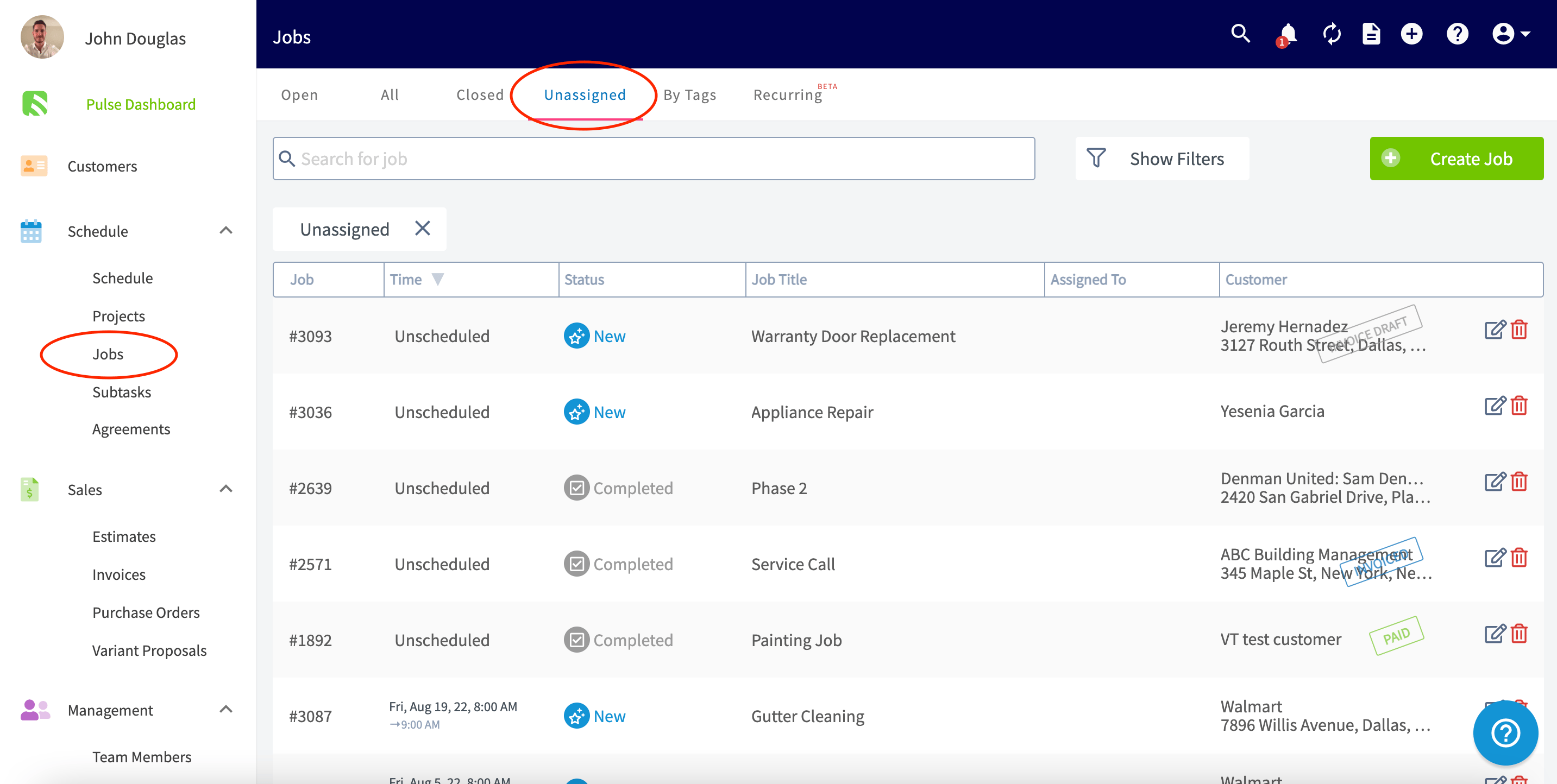 2. Select the job you want to schedule or assign.
3. Select **Edit** to add a date and assign team members.
2. Select the job you want to schedule or assign.
3. Select **Edit** to add a date and assign team members.
 ### Schedule a job from the Schedule page
1. Open the **Schedule** page and select the **Hourglass** icon on any schedule view to show unassigned and unscheduled jobs.
### Schedule a job from the Schedule page
1. Open the **Schedule** page and select the **Hourglass** icon on any schedule view to show unassigned and unscheduled jobs.
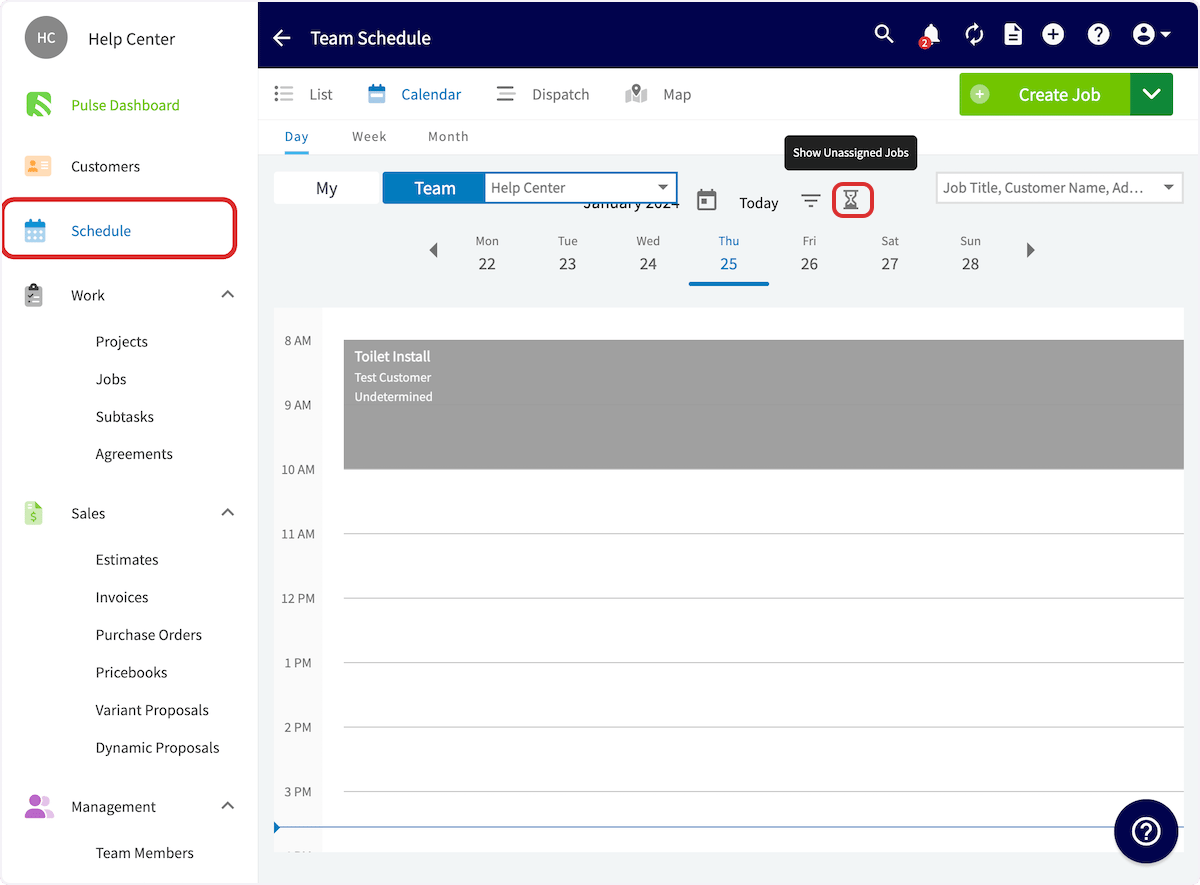 2. Drag a job from the **Unassigned Jobs** list on the left side of the screen onto the date and time you want.
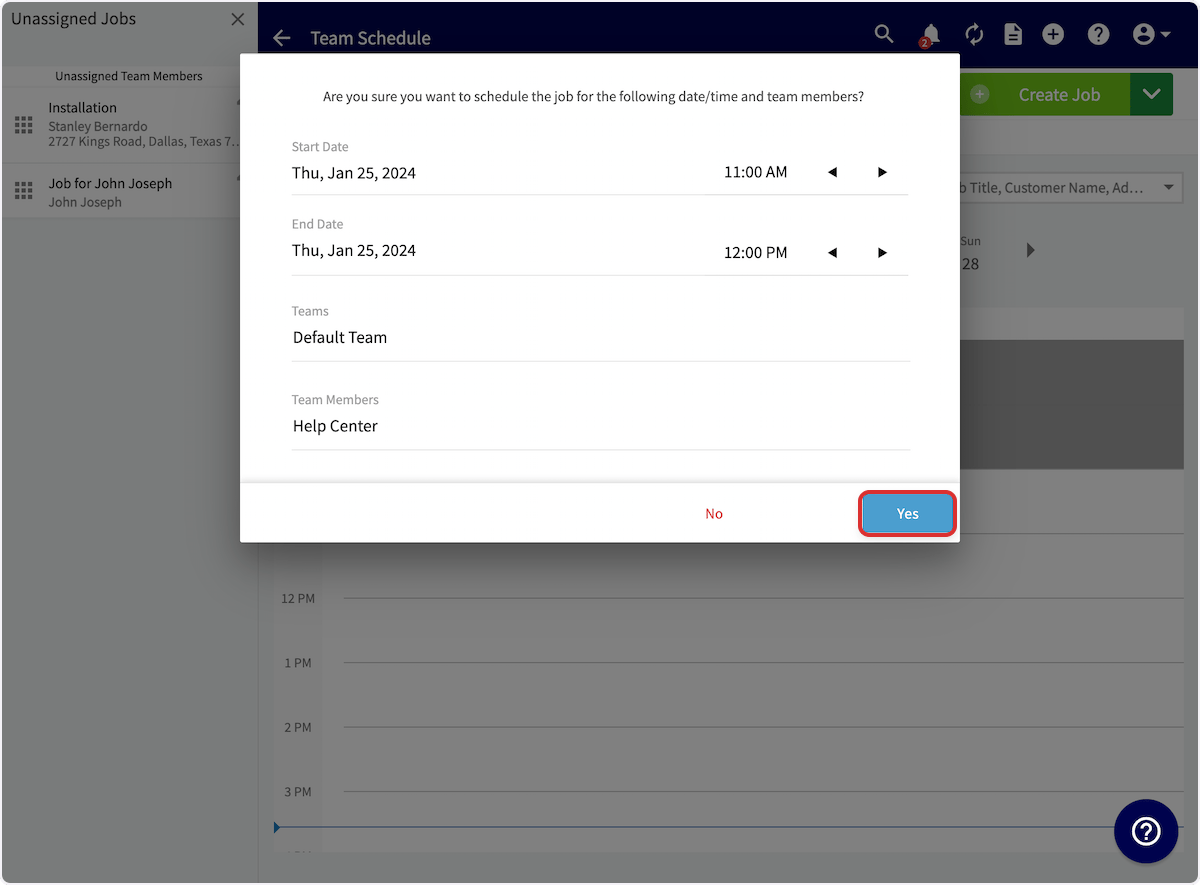
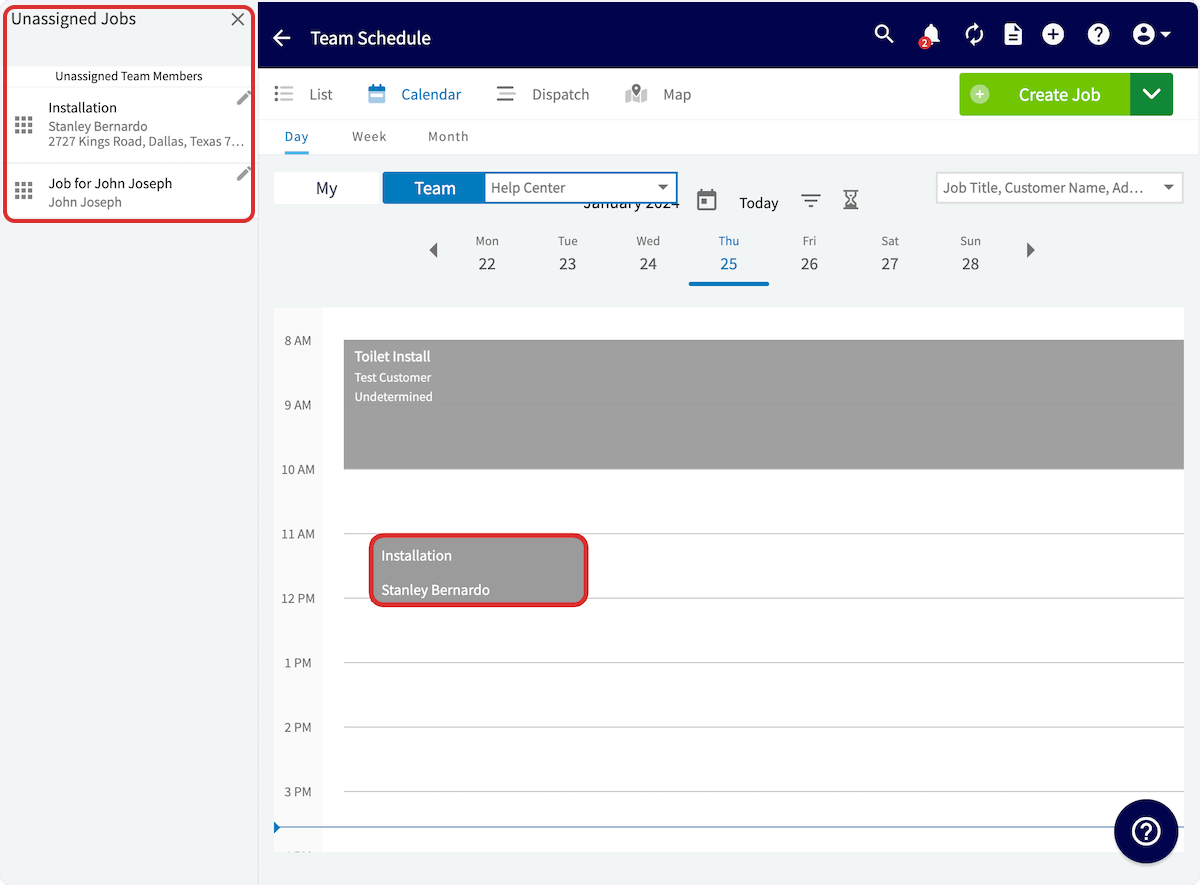 3. Review the start date and time, end date and time, teams, and team members in the confirmation prompt.
4. Select **Yes** to schedule the job.
3. Review the start date and time, end date and time, teams, and team members in the confirmation prompt.
4. Select **Yes** to schedule the job.
 ## Still need help?
Reach the [FieldPulse support team](https://www.fieldpulse.com/company/contact-us) at [support@fieldpulse.com](mailto:support@fieldpulse.com) or through the chat feature in the bottom-right corner of your screen.
## Related articles
* [How to Create a Job](/jobs/jobs-tasks/creating-a-job)
* [How to Add Site Visits](/jobs/jobs-tasks/site-visits)
* [How to Use a Job Template](/jobs/jobs-tasks/using-job-templates)
* [How to Find Availability](/scheduling-dispatch/availability/finding-availability)
You are on top of this when work is captured the day the customer calls, every job without a date or a crew sits on the Unassigned tab, and scheduling one is a drag onto the day you want.
## Related topics
- [How to Add Site Visits](/jobs/jobs-tasks/site-visits.md)
- [Route Optimization Overview](/scheduling-dispatch/dispatch/route-optimization.md)
- [Jobs & Tasks](/jobs/jobs-tasks/index.md)
- [Setting Up Operator AI](/add-ons/ai/operator-ai.md)
## Still need help?
Reach the [FieldPulse support team](https://www.fieldpulse.com/company/contact-us) at [support@fieldpulse.com](mailto:support@fieldpulse.com) or through the chat feature in the bottom-right corner of your screen.
## Related articles
* [How to Create a Job](/jobs/jobs-tasks/creating-a-job)
* [How to Add Site Visits](/jobs/jobs-tasks/site-visits)
* [How to Use a Job Template](/jobs/jobs-tasks/using-job-templates)
* [How to Find Availability](/scheduling-dispatch/availability/finding-availability)
You are on top of this when work is captured the day the customer calls, every job without a date or a crew sits on the Unassigned tab, and scheduling one is a drag onto the day you want.
## Related topics
- [How to Add Site Visits](/jobs/jobs-tasks/site-visits.md)
- [Route Optimization Overview](/scheduling-dispatch/dispatch/route-optimization.md)
- [Jobs & Tasks](/jobs/jobs-tasks/index.md)
- [Setting Up Operator AI](/add-ons/ai/operator-ai.md)