> ## Documentation Index
> Fetch the complete documentation index at: https://help.fieldpulse.com/llms.txt
> Use this file to discover all available pages before exploring further.
# How to Use a Job Template
> Import a saved job template on the Create Job screen in FieldPulse so a repeat service starts with its notes, custom forms, and material list filled in.
> **Who uses this:** Roles with permission to create jobs. **Availability:** All regions.
A job template holds the setup for a kind of [job](https://www.fieldpulse.com/features/job-management) you run again and again. Once the template exists, you start the next one from it — import the template on the new job, and the saved details fill themselves in.
## Overview
Starting a job from a job template pulls the details saved on that template into the new job record. A job template can carry the job title, location, notes, scheduling parameters, [custom forms](https://www.fieldpulse.com/features/custom-forms), and a material list, so a new job is ready in one click. You import a template at the start of creating a job, in the web app and in the FieldPulse mobile app.
Three parts of the template do their work after the job is created:
* **Custom forms** attached to the template are available to fill out on every job created from that template.
* **Materials** saved on the template are automatically included in any new job created from that template.
* **Scheduling parameters** saved on the template are taken into account by [How to Find Availability](/scheduling-dispatch/availability/finding-availability) when you schedule a job built from that template.
## Before you begin
* Build the template you want to start from. See [Setting Up Job Templates](/jobs/jobs-tasks/creating-job-templates).
* Import the template before you enter any job details — that is the point in the job form where the template's details populate.
## On web
### Start a job from a template
1. Go to **Jobs** in the left-side menu and select **Create Job**.
2. Select **Import Template**, before entering any details.
3. Choose a template from the dropdown list. The list has a search field for finding a template by name.
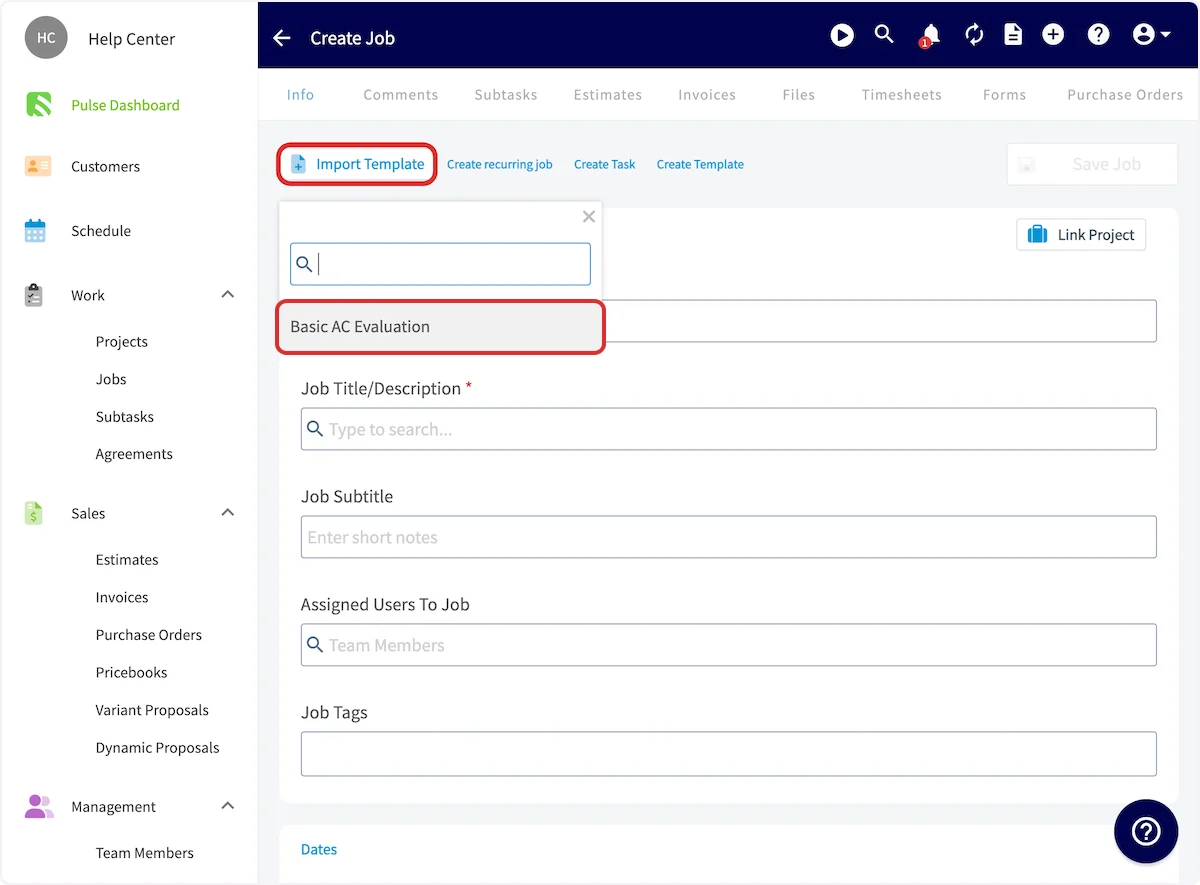 4. The template details auto-populate into the job record. Add anything specific to this job, then select **Save Job**.
### View your templates
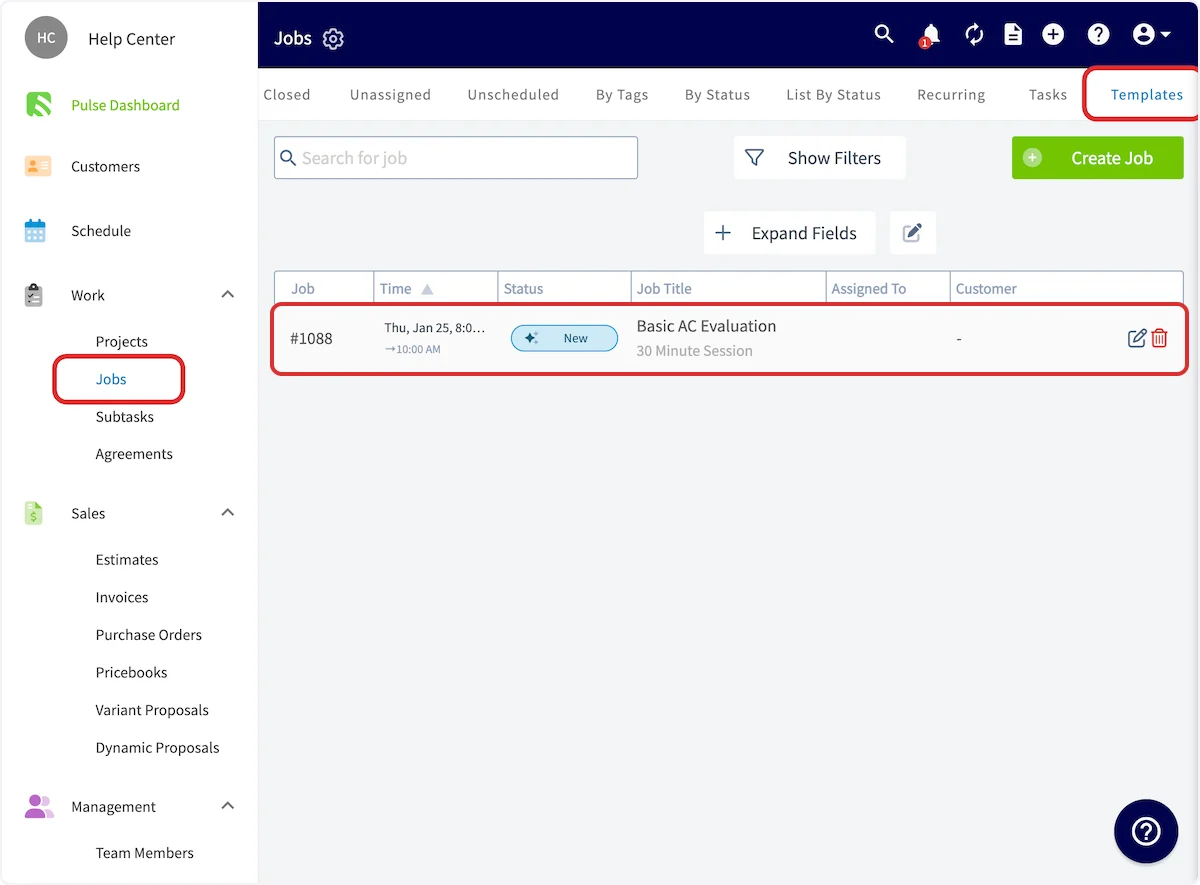
Go to **Jobs**, then the **Templates** tab. Every saved job template is listed there, each with a pencil icon to edit it and a trash icon to delete it — see [Setting Up Job Templates](/jobs/jobs-tasks/creating-job-templates) for what those two icons change.
4. The template details auto-populate into the job record. Add anything specific to this job, then select **Save Job**.
### View your templates
Go to **Jobs**, then the **Templates** tab. Every saved job template is listed there, each with a pencil icon to edit it and a trash icon to delete it — see [Setting Up Job Templates](/jobs/jobs-tasks/creating-job-templates) for what those two icons change.
 ## On mobile
### Start a job from a template
1. Start creating a new job.
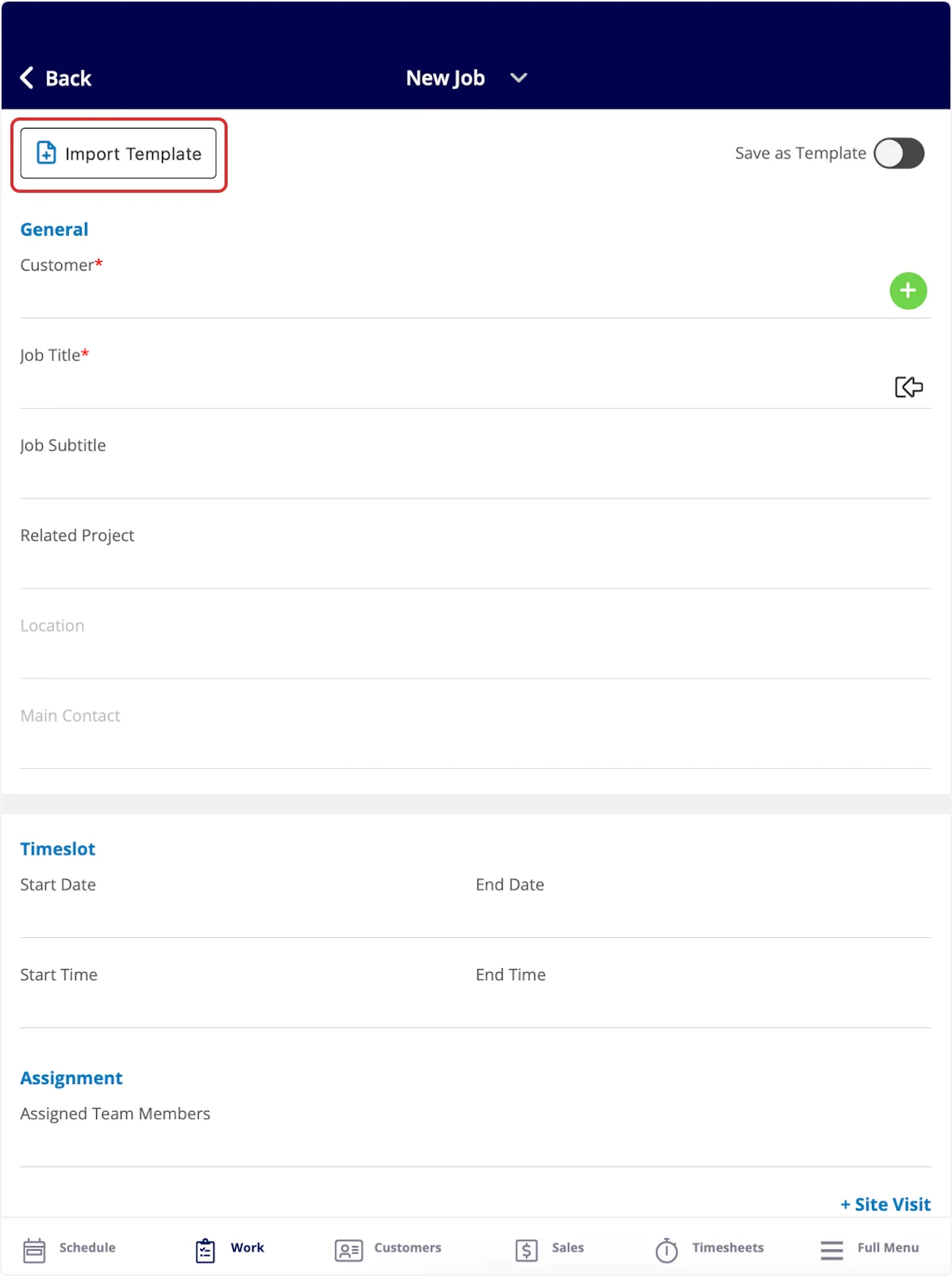
2. Select **Import Template** in the top-left corner to pull from your saved templates.
## On mobile
### Start a job from a template
1. Start creating a new job.
2. Select **Import Template** in the top-left corner to pull from your saved templates.
 ### View your templates
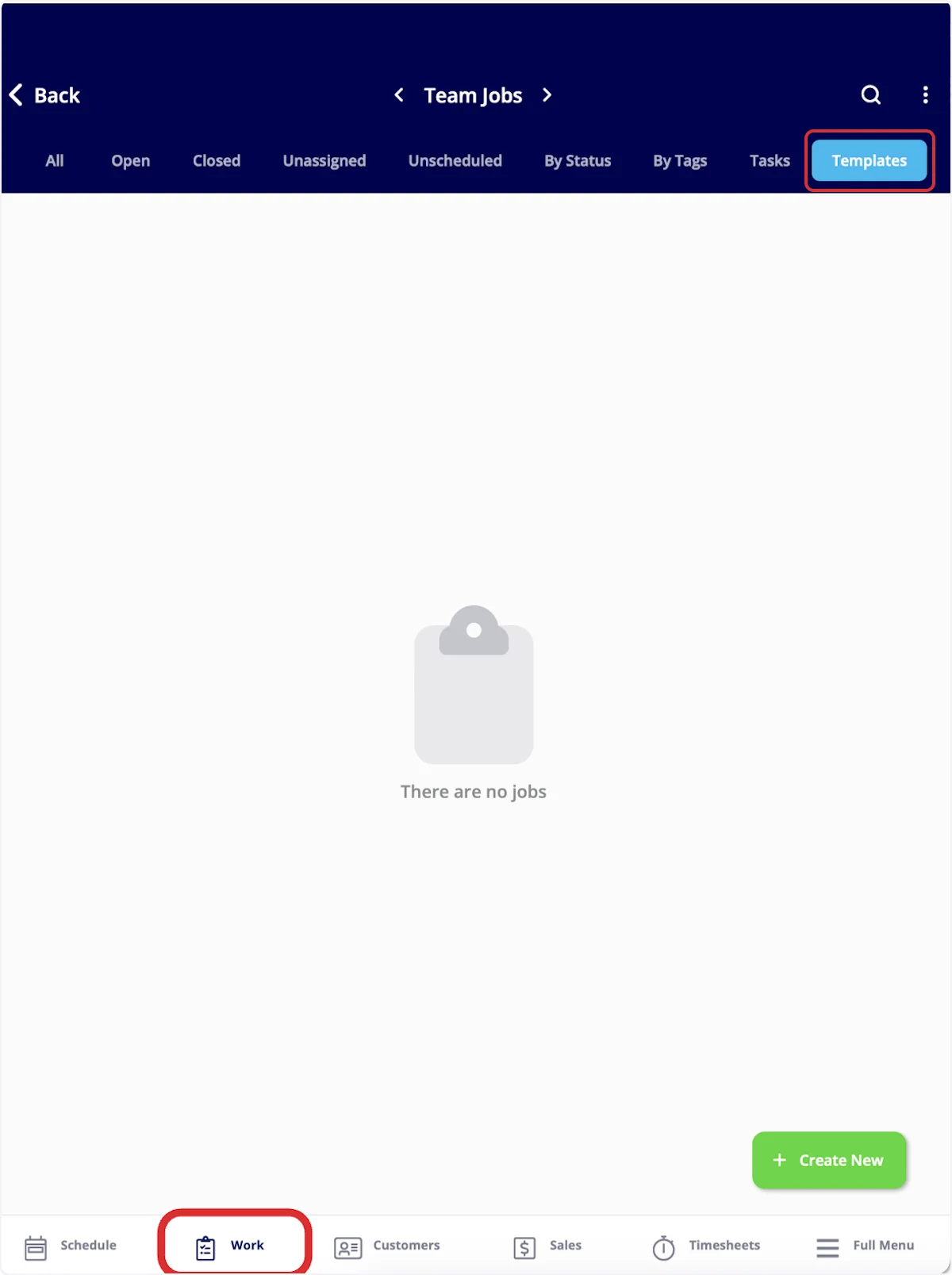
1. Select **Work** in the bottom menu.
2. Select **Templates**.
### View your templates
1. Select **Work** in the bottom menu.
2. Select **Templates**.
 ## FAQs
### Will folders set up on a job template be carried over to any job created from that template?
Yes. Folders created on job templates populate into instances where job templates are used.
## Related articles
* [Setting Up Job Templates](/jobs/jobs-tasks/creating-job-templates)
* [How to Create a Job](/jobs/jobs-tasks/creating-a-job)
* [How to Use Subtasks](/jobs/jobs-tasks/subtasks)
* [How to Find Availability](/scheduling-dispatch/availability/finding-availability)
You have used the template correctly when the new job opens with the title, notes, custom forms, and material list already filled in from the template, and the only thing left to add is what is specific to that visit.
## Related topics
- [How to Create a Job](/jobs/jobs-tasks/creating-a-job.md)
- [Setting Up Job Templates](/jobs/jobs-tasks/creating-job-templates.md)
- [How to Use Subtasks](/jobs/jobs-tasks/subtasks.md)
- [Jobs & Tasks](/jobs/jobs-tasks/index.md)
## FAQs
### Will folders set up on a job template be carried over to any job created from that template?
Yes. Folders created on job templates populate into instances where job templates are used.
## Related articles
* [Setting Up Job Templates](/jobs/jobs-tasks/creating-job-templates)
* [How to Create a Job](/jobs/jobs-tasks/creating-a-job)
* [How to Use Subtasks](/jobs/jobs-tasks/subtasks)
* [How to Find Availability](/scheduling-dispatch/availability/finding-availability)
You have used the template correctly when the new job opens with the title, notes, custom forms, and material list already filled in from the template, and the only thing left to add is what is specific to that visit.
## Related topics
- [How to Create a Job](/jobs/jobs-tasks/creating-a-job.md)
- [Setting Up Job Templates](/jobs/jobs-tasks/creating-job-templates.md)
- [How to Use Subtasks](/jobs/jobs-tasks/subtasks.md)
- [Jobs & Tasks](/jobs/jobs-tasks/index.md)