> ## Documentation Index
> Fetch the complete documentation index at: https://help.fieldpulse.com/llms.txt
> Use this file to discover all available pages before exploring further.
# Maverick Overview
> Ask Maverick, the AI assistant in the FieldPulse web app, about your own records, run reports, and create or edit records with approval on every change.
> **Who uses this:** Admins, Team Managers, and Service Agents, based on each person’s own FieldPulse permissions. Limited Agents and Subcontractors never get Maverick. **Availability:** FieldPulse Webapp.
Maverick is the AI assistant in the FieldPulse Webapp. It answers questions from your own account’s records, and it can create and edit records, run reports, and schedule jobs, with every change waiting for your approval before anything saves.
## Overview
Maverick is an AI assistant built into the FieldPulse Webapp. Ask it a question in plain language and it answers using your own account’s records, including customers, jobs, invoices, and estimates. Maverick can also create and edit records, run reports, and schedule jobs, and every change it makes waits for your approval before anything saves.
Maverick exists so you don’t have to build a report to get a number, or click through several pages to find a record. It can also turn a phone call directly into a Customer, Job, or Estimate while you’re still on the line, instead of typing it in from memory afterward.
Watch the [interactive Maverick demo](https://app.storylane.io/share/0mboqh2e6pp7) to see Maverick in action.
## How it works
Ask Maverick a question or describe what you want to do, in the chat panel. For a question, it answers from your account’s own records and lists what it used. For a change, it opens a card showing exactly what it’s about to create or update. Review the card, fix anything that’s wrong, and select Create or Save. Nothing saves, sends, or schedules until you do.
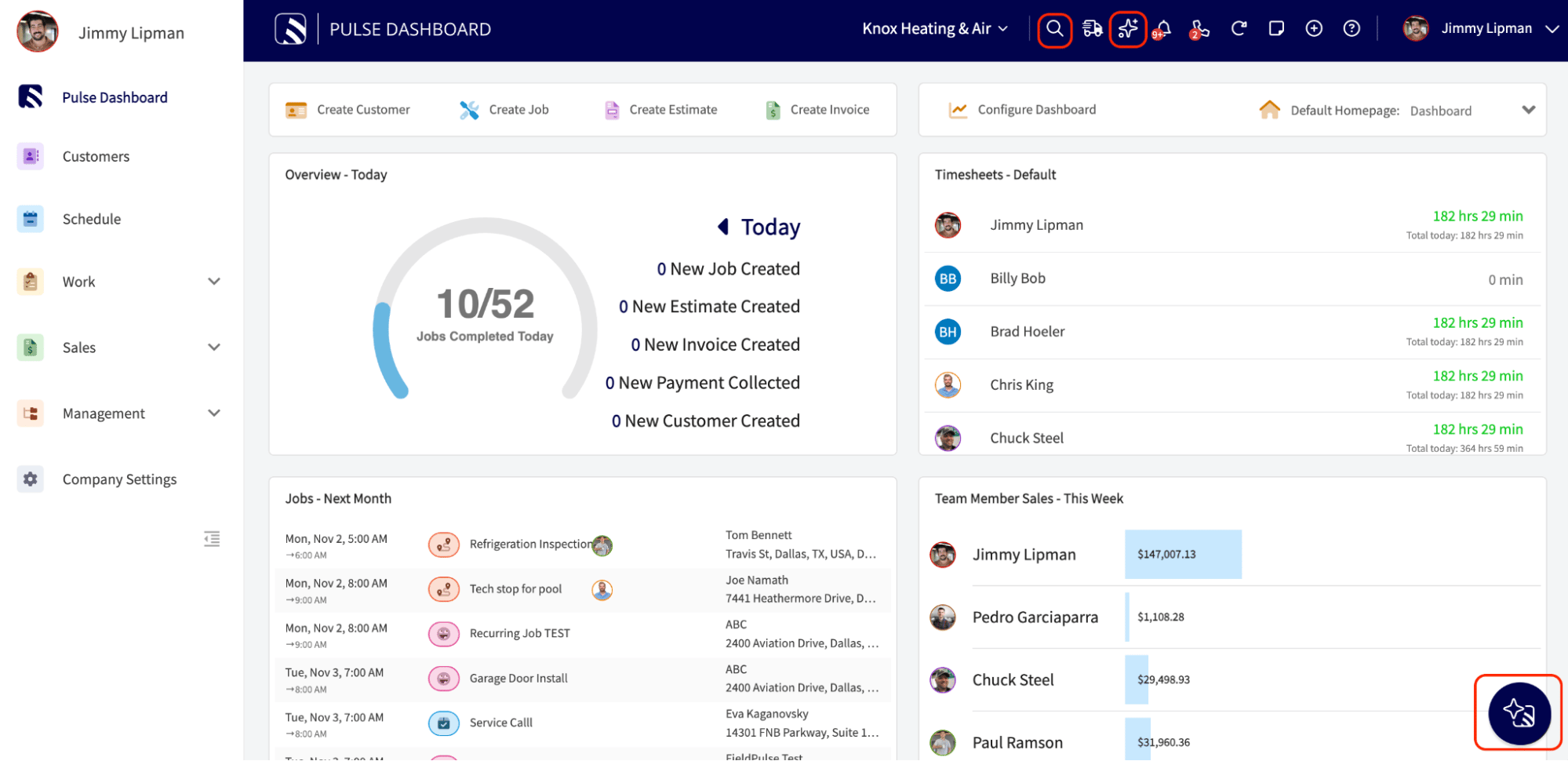
Open Maverick from the icon in the bottom-right corner of the Webapp, from the Refine tool in a notes field, from the sparkle icon in the top-bar or from **Smart search** in the top-bar search.
 ## Settings reference
Maverick has its own Settings area for adjusting how it works. What you see depends on your role.
## Settings reference
Maverick has its own Settings area for adjusting how it works. What you see depends on your role.
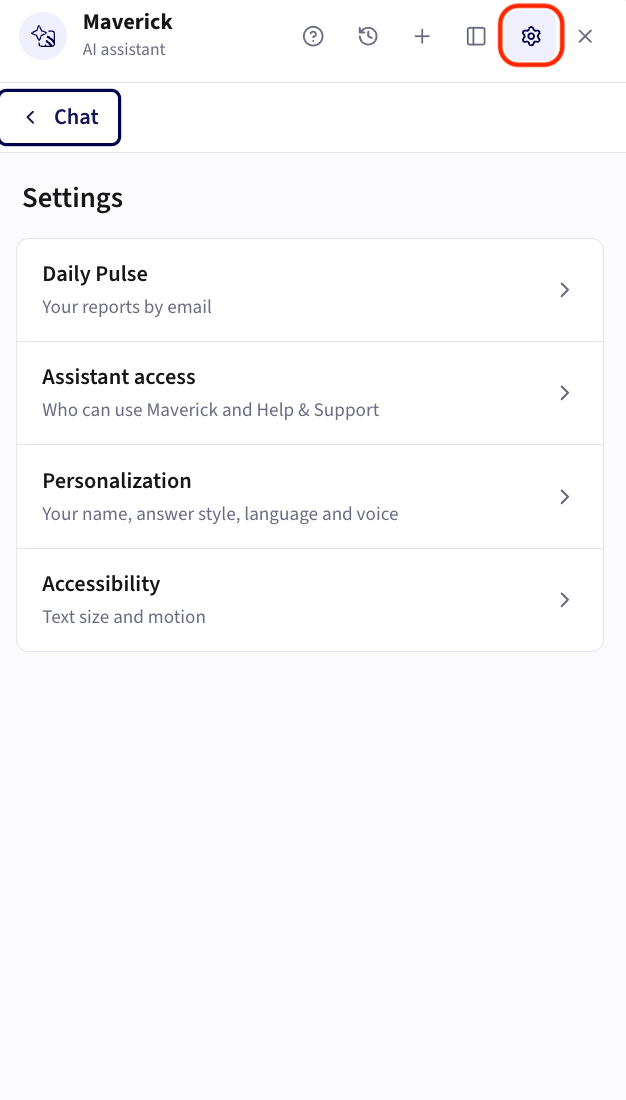 **Daily Pulse**
* Choose which reports go in your Daily Pulse email, reorder, pause, or remove them, and send yourself a preview. See The Daily Pulse in the table below.
**Assistant access**
* Choose which roles can use Maverick. Admin, Team Manager, and Service Agent each have a switch, and all three start on. Anyone in a role that’s switched off gets the Help & Support assistant instead. Limited Agents and Subcontractors never get Maverick. What people can see or do inside Maverick still follows their FieldPulse permissions.
**Personalization**
* Set what Maverick calls you and choose short, standard, or step-by-step answers.
* Add a note of up to 500 characters that Maverick keeps in mind in every chat.
* Choose whether you want chats in English or Spanish. Spanish switches Maverick’s replies and the microphone, while cards and settings stay in English.
* A speaker under every reply reads it aloud, and you can pick the voice (five to choose from) and speed (0.8x to 2x).
**Accessibility**
* Choose from four text sizes, which save to your account so they follow you to any browser.
* Turn off Stream responses to see each reply in full once it’s ready, instead of typed out as it’s written.
* Turn on Reduce motion to remove panel animations and the typing effect. It turns on by itself if your device already asks for reduced motion.
## What Maverick can do
| Action | What it does |
| - | - |
| **Grounded answers** | Answers questions using your account’s own records, and shows which records it used. |
| **Record search** | Finds Customers, Jobs, Invoices, Estimates, Payments, and Item List entries by name or description. Select a result to open it, or ask for one record by name to see the full details, such as a Job’s site visits and subtasks or an Invoice’s lines and payments. |
| **Reporting** | Answers business questions with a number, table, chart, or a list of up to 50 records, built from your account’s records across 12 areas. Five of the 12 are count-only, so a question like “PO spend by vendor” returns a count of purchase orders rather than a dollar total. |
| **Save reports & widgets** | Pins any report Maverick builds to your dashboard as a live widget, or saves it in the Reporting tab. |
| **Create & edit Customers** | Builds a new Customer from what you type, paste, or dictate, and turns the address into a mappable Location. Also edits an existing customer’s details, contacts, Locations, notes, and comments. |
| **Create & edit Jobs** | Builds a new Job with the work and requested time, and edits an existing Job’s schedule, assignment, status, tags, and title. |
| **Create & edit Estimates & Invoices** | Builds a priced Estimate from your account’s own Item List, and edits dates, tax, prices, and line items on a saved Estimate or Invoice. Converts an Estimate to an Invoice. |
| **Find availability & schedule** | Finds real open time slots, checks technician skills, and books the time and crew together with one confirmation. |
| **Approval on every change** | Shows a card for every create or edit with the before and after, editable before you confirm. Nothing changes until you select Save. |
| **Record activity** | Answers “what changed, when, and by whom” for 16 record types. Changes made through Maverick are tagged “via Maverick.” |
| **Create & edit Item List entries** | Adds items to your Item List from a pasted list or CSV, and updates prices on entries already there. |
| **Web search** | Searches the web with cited sources, and reads a page you point it to. |
| **Help Center answers** | Answers how-do-I questions from the Help Center and opens the cited article in the panel at the section it used. |
| **Navigation** | Open any page in the Webapp by name. |
| **Voice input** | Turns speech into text in the message box. Your browser needs microphone access. |
| **Attachments** | Accepts images, PDFs, and large blocks of pasted text in the conversation. |
| **Getting started checklist** | Walks a new user through four first actions in their own account and only checks off a step once it succeeds. |
| **Support handoff** | Connects you to a live support rep without leaving the conversation. |
| **Feedback** | Accepts a thumbs up or down with a reason on any answer, plus a general feedback form. |
| **Saved conversations** | Saves past chats so you can switch between them, search by title or message text, and pick up where you left off. |
| **Create & edit Material Lists** | Builds a Material List from an Estimate or Job, and updates needed and used quantities. |
| **Create & edit Purchase Orders** | Builds a Purchase Order from an Estimate or Job, including status, expected date, and received quantities. Adds a new Vendor/Supplier inline if needed. |
| **Create & edit Projects** | Searches existing Projects, and creates or edits one using the same approval card as other records. |
| **Create & edit Assets** | Logs equipment at a customer site, including make, model, serial, install date, and warranty windows, and shows its service log, linked agreements, and lifetime spend. |
| **Create & edit Maintenance Agreements** | Sets up a recurring service plan, covering customer, service, billing cadence, price, and start and end dates, in the same conversation. Canceling an agreement with billing attached cancels that billing too. |
| **Create & edit Site Visits** | Books a follow-up visit on a Job with its own schedule, arrival window, status, and crew. A visit can’t be moved to a different Job. |
| **Create & edit Tasks** | Blocks out non-customer time on the schedule, like PTO, meetings, or drive time. Tasks are one-time only; they don’t repeat. |
| **Create & edit Subtasks** | Adds, renames, reassigns, re-dates, or checks off checklist steps under a Job or Task. |
| **Create & edit Recurring Jobs** | Sets a Job to repeat weekly, monthly, or yearly, and updates the cadence, crew, or tags later. This handles the schedule, separate from Recurring Billing below, which handles invoicing. |
| **Record & edit Payments** | Records a cash or check payment against an Invoice, and edits the method, date, or note afterward. Refunds and removing a payment aren’t included. |
| **Create & edit Recurring Billing** | Sets up the invoice series behind a maintenance plan, covering cadence, amount, and end date. |
| **The Daily Pulse** | Emails Administrators a summary of business reports on weekdays, every day, or Fridays only. Add reports from the Daily Pulse tab in Settings or pin one from chat. |
| **Change company settings** | Lets Administrators look up a company setting by name and change 18 of them on the approval card. Refresh the settings page afterward if it’s open in another tab. |
| **Ask Maverick from search** | Select Ask Maverick at the end of top-bar search results to open a new conversation with your search already sent. |
| **Refine** | Select the sparkle button in a note box to have Maverick fix the grammar, make it customer-friendly, or summarize the work. Copy, Replace, or Add the draft, then save as usual. |
| **See more ideas** | Browse all 37 example questions from the welcome screen, grouped by task. |
| **Dock to the side** | Switch between a floating window and a resizable sidebar. |
### Questions to try
Not sure what to ask first? Here are some examples. Maverick answers from your own account’s records, so the more specific you are, the better the answer.
**Money and profitability**
* Am I charging enough per job to actually turn a profit?
* Which of my jobs is the most profitable?
* How much of my revenue is sitting in unpaid invoices right now?
**Leads and follow-up**
* What’s the best way to track my leads in FieldPulse so I stop losing track of who I quoted?
* How many estimates did I send out that I never followed up on?
**Team and workflow**
* Which tech is generating the most revenue, and who’s falling behind?
* Where in my workflow are jobs getting stuck the longest?
* Where are the leaky buckets in my business?
**Growth**
* How do I tell the difference between a slow month and a real problem?
* Can you suggest bundles or groupings that would save me time?
* What kind of upsells should I offer?
## Related articles
* [Pulse Dashboard Overview](/reporting/pulse/pulse-dashboard)
* [How to Build and Configure the Custom Reporting Dashboard](/reporting/custom/custom-reporting-dashboard)
* [How to Use Raw Data Reporting](/reporting/raw-data/using-raw-data-reporting)
## Related topics
- [Maverick Basics](/maverick/basics/index.md)
- [Maverick](/maverick/index.md)
- [Xero Overview](/integrations/accounting/xero/overview.md)
- [Engage Overview](/add-ons/engage/overview.md)
This documentation is built and hosted on [Mintlify](https://mintlify.com), a developer documentation platform.
**Daily Pulse**
* Choose which reports go in your Daily Pulse email, reorder, pause, or remove them, and send yourself a preview. See The Daily Pulse in the table below.
**Assistant access**
* Choose which roles can use Maverick. Admin, Team Manager, and Service Agent each have a switch, and all three start on. Anyone in a role that’s switched off gets the Help & Support assistant instead. Limited Agents and Subcontractors never get Maverick. What people can see or do inside Maverick still follows their FieldPulse permissions.
**Personalization**
* Set what Maverick calls you and choose short, standard, or step-by-step answers.
* Add a note of up to 500 characters that Maverick keeps in mind in every chat.
* Choose whether you want chats in English or Spanish. Spanish switches Maverick’s replies and the microphone, while cards and settings stay in English.
* A speaker under every reply reads it aloud, and you can pick the voice (five to choose from) and speed (0.8x to 2x).
**Accessibility**
* Choose from four text sizes, which save to your account so they follow you to any browser.
* Turn off Stream responses to see each reply in full once it’s ready, instead of typed out as it’s written.
* Turn on Reduce motion to remove panel animations and the typing effect. It turns on by itself if your device already asks for reduced motion.
## What Maverick can do
| Action | What it does |
| - | - |
| **Grounded answers** | Answers questions using your account’s own records, and shows which records it used. |
| **Record search** | Finds Customers, Jobs, Invoices, Estimates, Payments, and Item List entries by name or description. Select a result to open it, or ask for one record by name to see the full details, such as a Job’s site visits and subtasks or an Invoice’s lines and payments. |
| **Reporting** | Answers business questions with a number, table, chart, or a list of up to 50 records, built from your account’s records across 12 areas. Five of the 12 are count-only, so a question like “PO spend by vendor” returns a count of purchase orders rather than a dollar total. |
| **Save reports & widgets** | Pins any report Maverick builds to your dashboard as a live widget, or saves it in the Reporting tab. |
| **Create & edit Customers** | Builds a new Customer from what you type, paste, or dictate, and turns the address into a mappable Location. Also edits an existing customer’s details, contacts, Locations, notes, and comments. |
| **Create & edit Jobs** | Builds a new Job with the work and requested time, and edits an existing Job’s schedule, assignment, status, tags, and title. |
| **Create & edit Estimates & Invoices** | Builds a priced Estimate from your account’s own Item List, and edits dates, tax, prices, and line items on a saved Estimate or Invoice. Converts an Estimate to an Invoice. |
| **Find availability & schedule** | Finds real open time slots, checks technician skills, and books the time and crew together with one confirmation. |
| **Approval on every change** | Shows a card for every create or edit with the before and after, editable before you confirm. Nothing changes until you select Save. |
| **Record activity** | Answers “what changed, when, and by whom” for 16 record types. Changes made through Maverick are tagged “via Maverick.” |
| **Create & edit Item List entries** | Adds items to your Item List from a pasted list or CSV, and updates prices on entries already there. |
| **Web search** | Searches the web with cited sources, and reads a page you point it to. |
| **Help Center answers** | Answers how-do-I questions from the Help Center and opens the cited article in the panel at the section it used. |
| **Navigation** | Open any page in the Webapp by name. |
| **Voice input** | Turns speech into text in the message box. Your browser needs microphone access. |
| **Attachments** | Accepts images, PDFs, and large blocks of pasted text in the conversation. |
| **Getting started checklist** | Walks a new user through four first actions in their own account and only checks off a step once it succeeds. |
| **Support handoff** | Connects you to a live support rep without leaving the conversation. |
| **Feedback** | Accepts a thumbs up or down with a reason on any answer, plus a general feedback form. |
| **Saved conversations** | Saves past chats so you can switch between them, search by title or message text, and pick up where you left off. |
| **Create & edit Material Lists** | Builds a Material List from an Estimate or Job, and updates needed and used quantities. |
| **Create & edit Purchase Orders** | Builds a Purchase Order from an Estimate or Job, including status, expected date, and received quantities. Adds a new Vendor/Supplier inline if needed. |
| **Create & edit Projects** | Searches existing Projects, and creates or edits one using the same approval card as other records. |
| **Create & edit Assets** | Logs equipment at a customer site, including make, model, serial, install date, and warranty windows, and shows its service log, linked agreements, and lifetime spend. |
| **Create & edit Maintenance Agreements** | Sets up a recurring service plan, covering customer, service, billing cadence, price, and start and end dates, in the same conversation. Canceling an agreement with billing attached cancels that billing too. |
| **Create & edit Site Visits** | Books a follow-up visit on a Job with its own schedule, arrival window, status, and crew. A visit can’t be moved to a different Job. |
| **Create & edit Tasks** | Blocks out non-customer time on the schedule, like PTO, meetings, or drive time. Tasks are one-time only; they don’t repeat. |
| **Create & edit Subtasks** | Adds, renames, reassigns, re-dates, or checks off checklist steps under a Job or Task. |
| **Create & edit Recurring Jobs** | Sets a Job to repeat weekly, monthly, or yearly, and updates the cadence, crew, or tags later. This handles the schedule, separate from Recurring Billing below, which handles invoicing. |
| **Record & edit Payments** | Records a cash or check payment against an Invoice, and edits the method, date, or note afterward. Refunds and removing a payment aren’t included. |
| **Create & edit Recurring Billing** | Sets up the invoice series behind a maintenance plan, covering cadence, amount, and end date. |
| **The Daily Pulse** | Emails Administrators a summary of business reports on weekdays, every day, or Fridays only. Add reports from the Daily Pulse tab in Settings or pin one from chat. |
| **Change company settings** | Lets Administrators look up a company setting by name and change 18 of them on the approval card. Refresh the settings page afterward if it’s open in another tab. |
| **Ask Maverick from search** | Select Ask Maverick at the end of top-bar search results to open a new conversation with your search already sent. |
| **Refine** | Select the sparkle button in a note box to have Maverick fix the grammar, make it customer-friendly, or summarize the work. Copy, Replace, or Add the draft, then save as usual. |
| **See more ideas** | Browse all 37 example questions from the welcome screen, grouped by task. |
| **Dock to the side** | Switch between a floating window and a resizable sidebar. |
### Questions to try
Not sure what to ask first? Here are some examples. Maverick answers from your own account’s records, so the more specific you are, the better the answer.
**Money and profitability**
* Am I charging enough per job to actually turn a profit?
* Which of my jobs is the most profitable?
* How much of my revenue is sitting in unpaid invoices right now?
**Leads and follow-up**
* What’s the best way to track my leads in FieldPulse so I stop losing track of who I quoted?
* How many estimates did I send out that I never followed up on?
**Team and workflow**
* Which tech is generating the most revenue, and who’s falling behind?
* Where in my workflow are jobs getting stuck the longest?
* Where are the leaky buckets in my business?
**Growth**
* How do I tell the difference between a slow month and a real problem?
* Can you suggest bundles or groupings that would save me time?
* What kind of upsells should I offer?
## Related articles
* [Pulse Dashboard Overview](/reporting/pulse/pulse-dashboard)
* [How to Build and Configure the Custom Reporting Dashboard](/reporting/custom/custom-reporting-dashboard)
* [How to Use Raw Data Reporting](/reporting/raw-data/using-raw-data-reporting)
## Related topics
- [Maverick Basics](/maverick/basics/index.md)
- [Maverick](/maverick/index.md)
- [Xero Overview](/integrations/accounting/xero/overview.md)
- [Engage Overview](/add-ons/engage/overview.md)
This documentation is built and hosted on [Mintlify](https://mintlify.com), a developer documentation platform.