> ## Documentation Index
> Fetch the complete documentation index at: https://help.fieldpulse.com/llms.txt
> Use this file to discover all available pages before exploring further.
# Creating a Customer - Mobile App
> Add a new customer from the Pulse Dashboard, Customers tab, or Full Menu on the FieldPulse mobile app.
There are several ways to create a customer in the mobile app:
1. You can create a customer from the *Pulse Dashboard*
2. You can create a customer from the *Customers* tab in the bottom menu
3. You can create a customer from the *Full Menu* tab
***
## Method 1: From the Pulse Dashboard
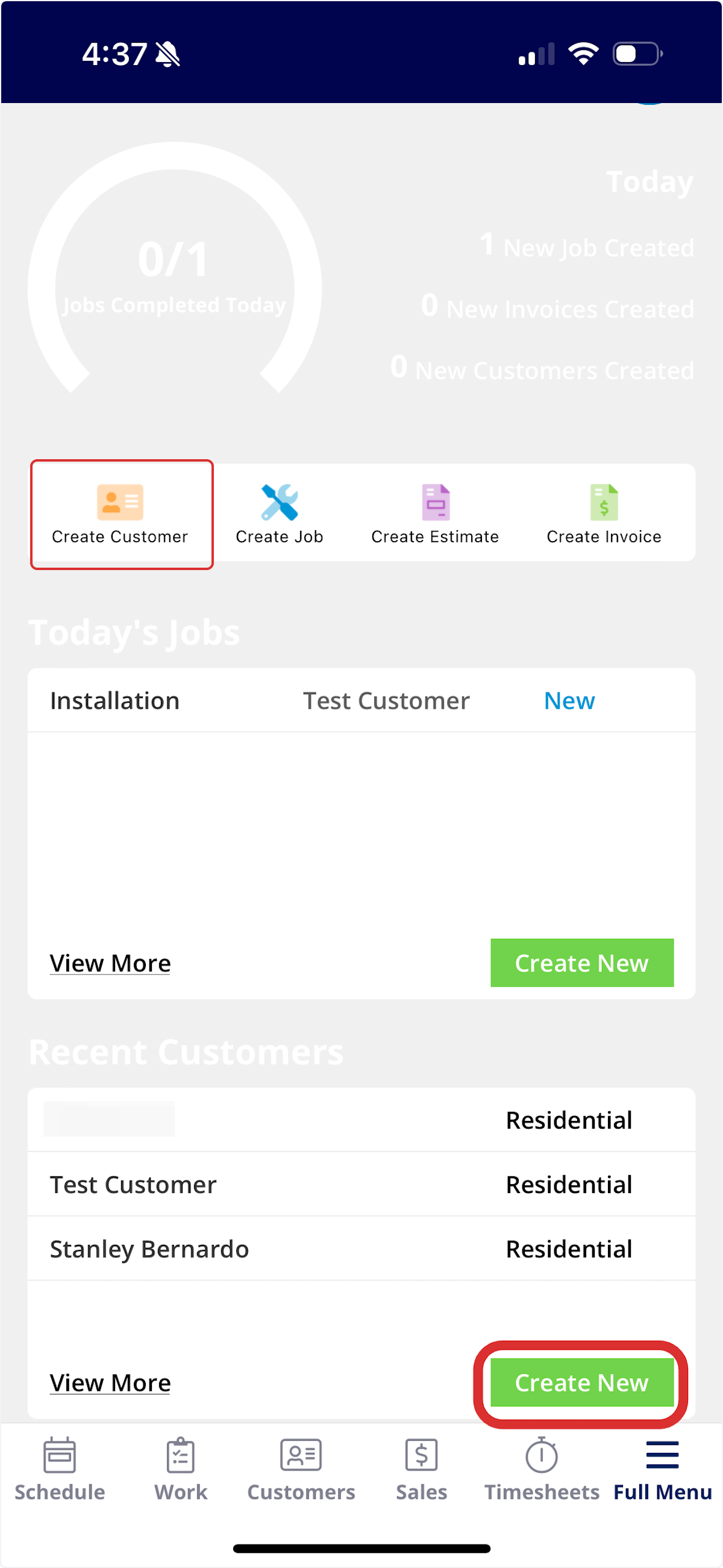
To create a new customer from the *Pulse Dashboard*, select *Create Customer* or *Create New* under Recent Customers.
 ***
## Method 2: From the Customers Tab
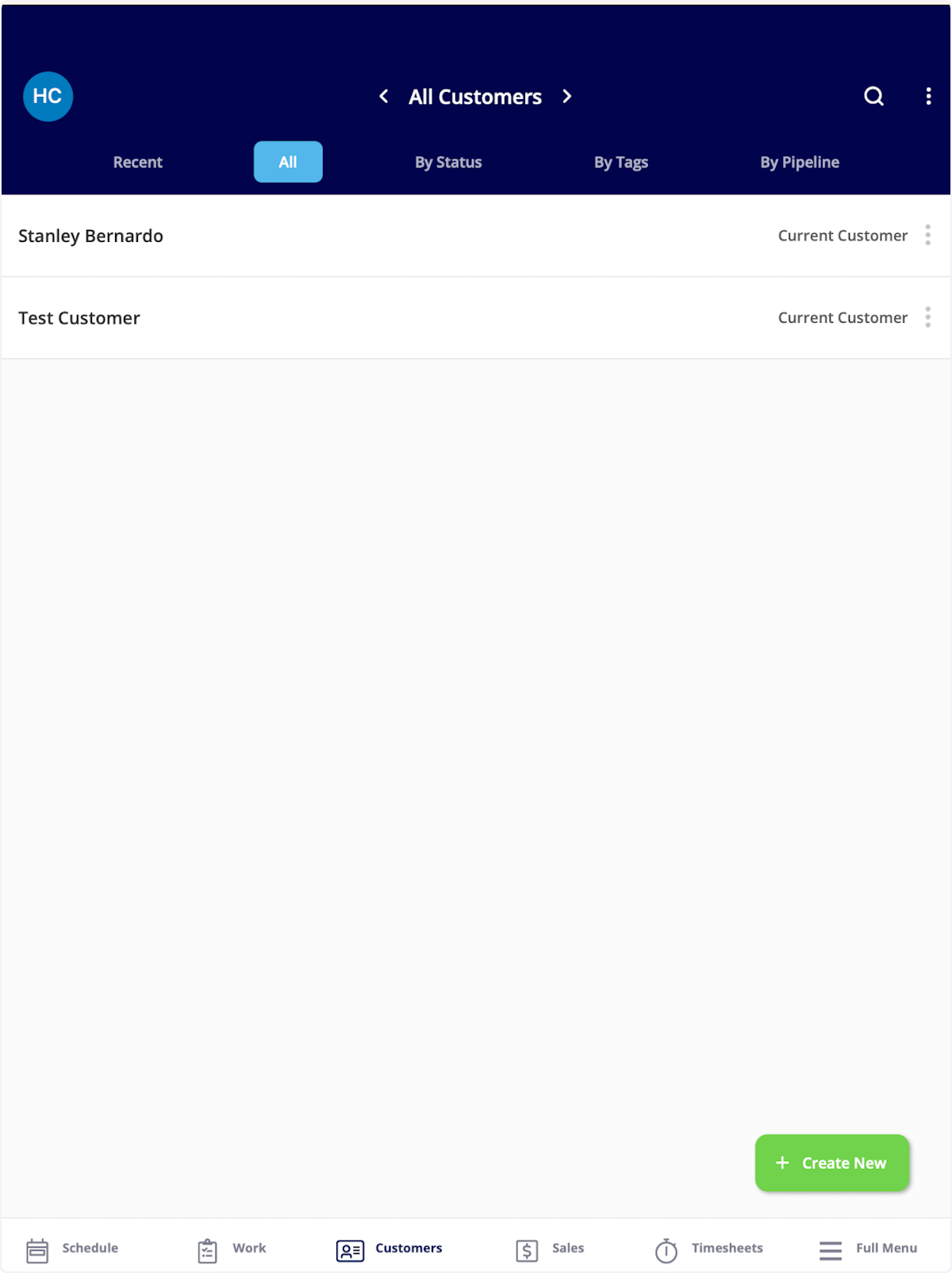
To create a new customer from the *Customers* tab, select *Customers* from the menu at the bottom of the screen. Then click *Create New*.
***
## Method 2: From the Customers Tab
To create a new customer from the *Customers* tab, select *Customers* from the menu at the bottom of the screen. Then click *Create New*.
 ***
## Method 3: From the Full Menu
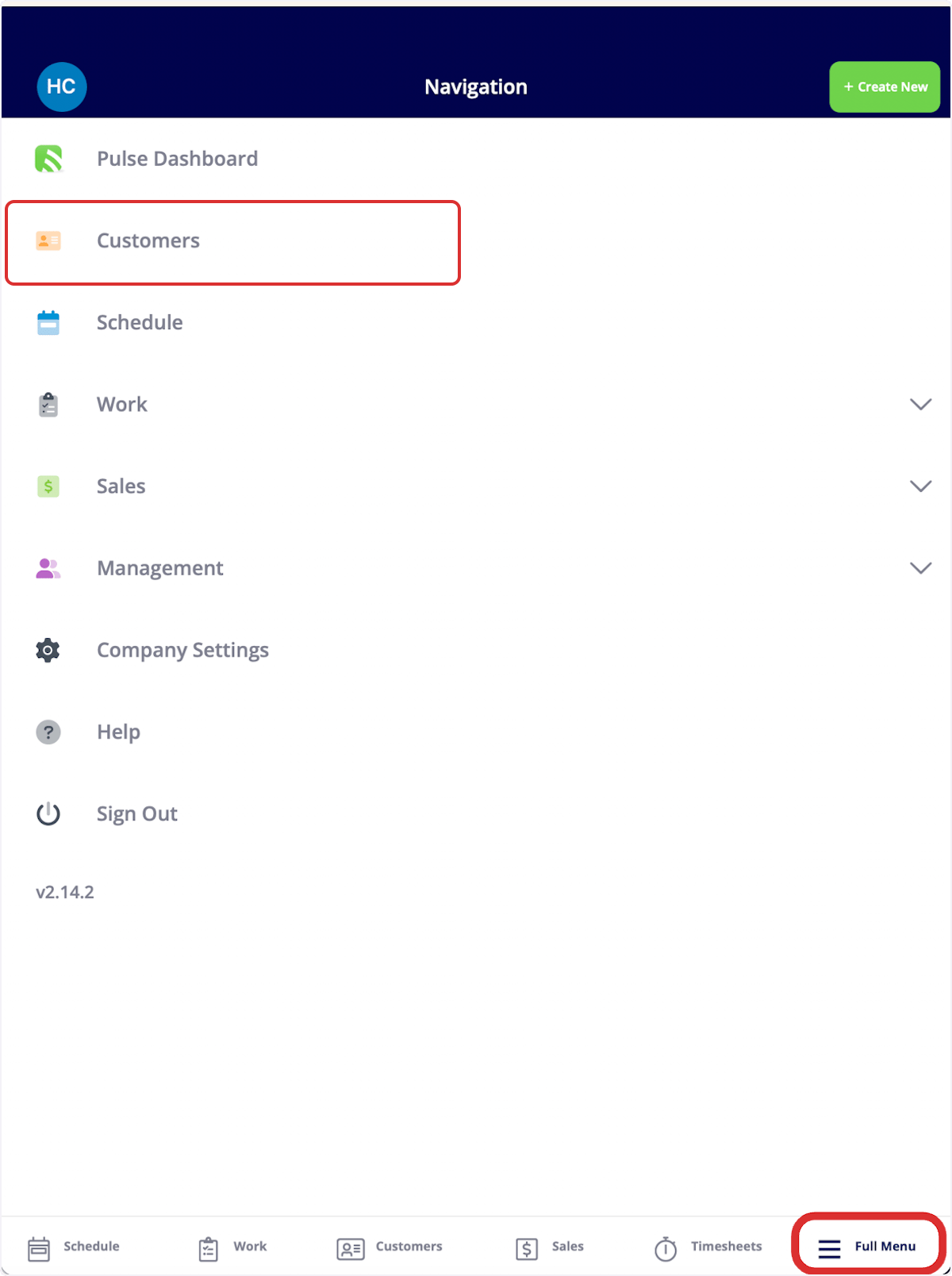
To create a new customer from the full menu, select *Full Menu* from the menu at the bottom of the screen and then click *Customers*.
***
## Method 3: From the Full Menu
To create a new customer from the full menu, select *Full Menu* from the menu at the bottom of the screen and then click *Customers*.
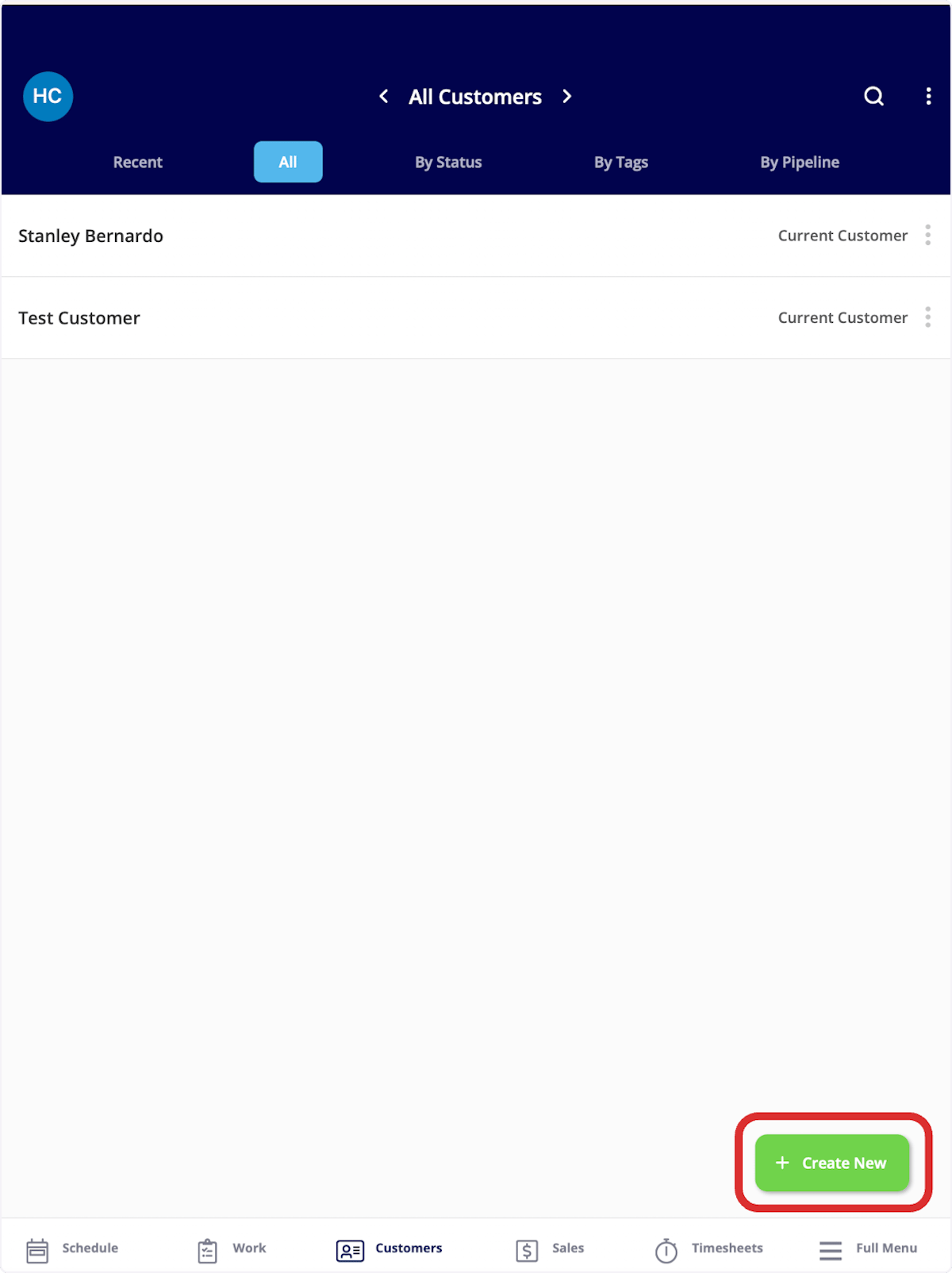
 Then click *Create New*.
 ***
# Creating a Customer
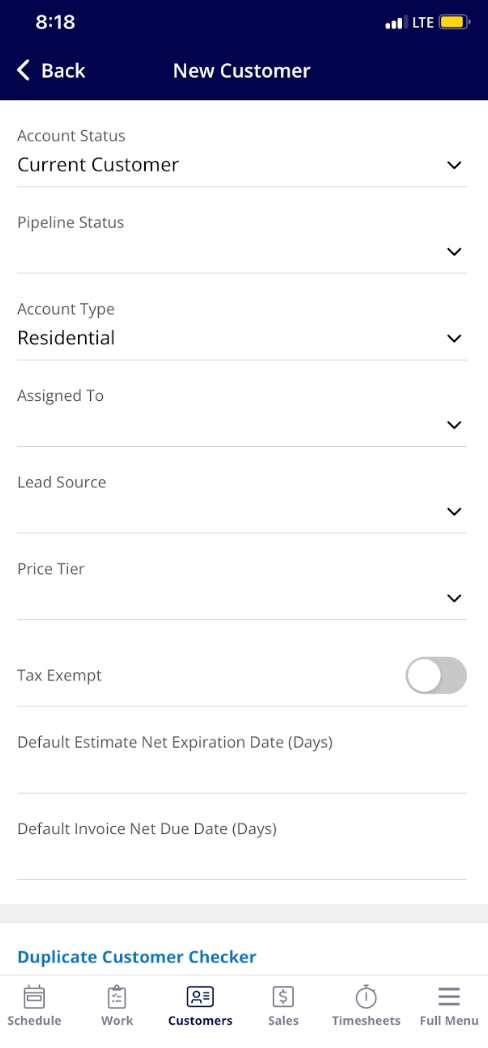
From here, you can begin to fill out the Account Status, Pipeline Status, Account Type, if you'd like to assign this customer to a specific team member, Lead Source and Primary contact information. Once you are finished entering the information, click *Save* in the top right corner.
***
# Creating a Customer
From here, you can begin to fill out the Account Status, Pipeline Status, Account Type, if you'd like to assign this customer to a specific team member, Lead Source and Primary contact information. Once you are finished entering the information, click *Save* in the top right corner.
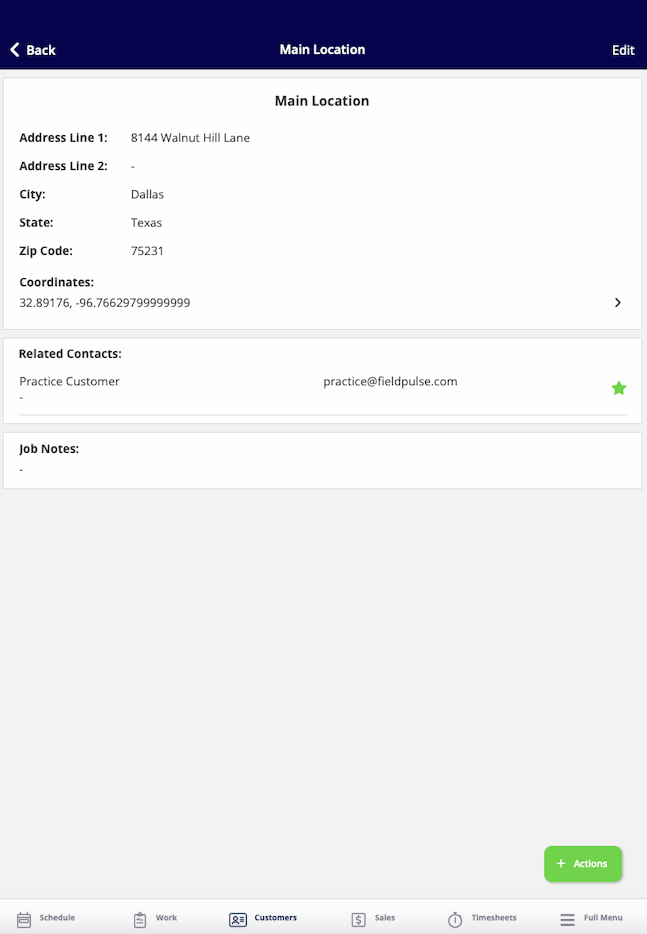
 You can enter GPS coordinates in *Address Line 1* on the mobile app. FieldPulse will display the GPS coordinates associated with your customer's address — tap the coordinates to open them in your preferred maps app.
 ***
**Have additional questions?**
*Contact us at [support@fieldpulse.com](mailto:support@fieldpulse.com) or use the chat feature in the bottom right corner of your screen.*
## Related topics
- [Creating Custom Barcodes for Easy Scanning with the FieldPulse Mobile App](/troubleshooting-technical-specs/creating-custom-barcodes-for-easy-scanning-with-the-fieldpulse-mobile-app.md)
- [Dynamic Job Reports](/using-fieldpulse/work/dynamic-job-reports.md)
- [Creating a Job](/using-fieldpulse/work/creating-a-job.md)
- [Creating an Estimate](/using-fieldpulse/estimates-invoices/creating-an-estimate.md)
- [Creating an Invoice](/using-fieldpulse/estimates-invoices/creating-an-invoice.md)
***
**Have additional questions?**
*Contact us at [support@fieldpulse.com](mailto:support@fieldpulse.com) or use the chat feature in the bottom right corner of your screen.*
## Related topics
- [Creating Custom Barcodes for Easy Scanning with the FieldPulse Mobile App](/troubleshooting-technical-specs/creating-custom-barcodes-for-easy-scanning-with-the-fieldpulse-mobile-app.md)
- [Dynamic Job Reports](/using-fieldpulse/work/dynamic-job-reports.md)
- [Creating a Job](/using-fieldpulse/work/creating-a-job.md)
- [Creating an Estimate](/using-fieldpulse/estimates-invoices/creating-an-estimate.md)
- [Creating an Invoice](/using-fieldpulse/estimates-invoices/creating-an-invoice.md)