> ## Documentation Index
> Fetch the complete documentation index at: https://help.fieldpulse.com/llms.txt
> Use this file to discover all available pages before exploring further.
# Customer Communications - Mobile App
> Send customer SMS from the mobile app with the assigned tech's profile photo attached so clients know who's arriving.
# User Profile Photo Messages
Let your customers know who to expect! You can send the assigned user's profile photo along with a customer communication SMS in the FieldPulse mobile app. This is available when sending SMS via your native phone, and can't be used with automatic communication triggers at this time.
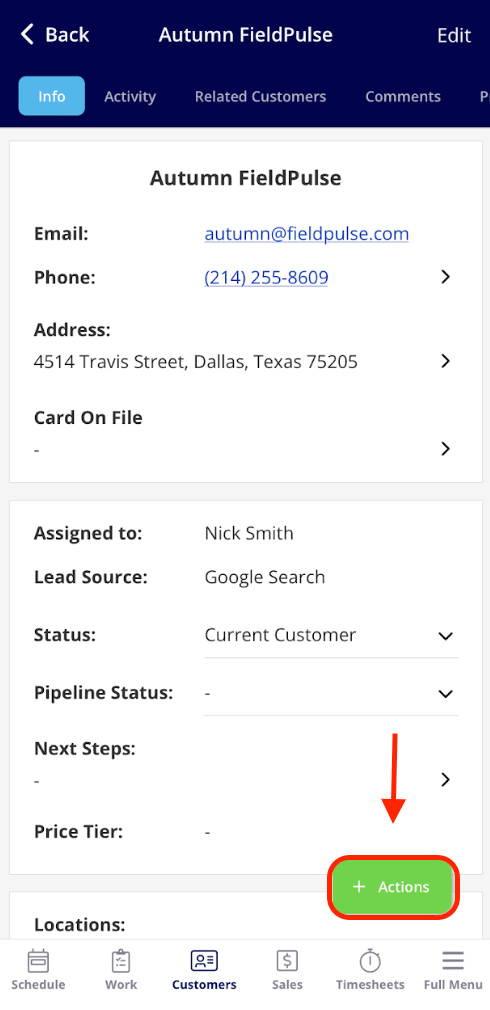
When on the Customer record, select the green *Actions* button.
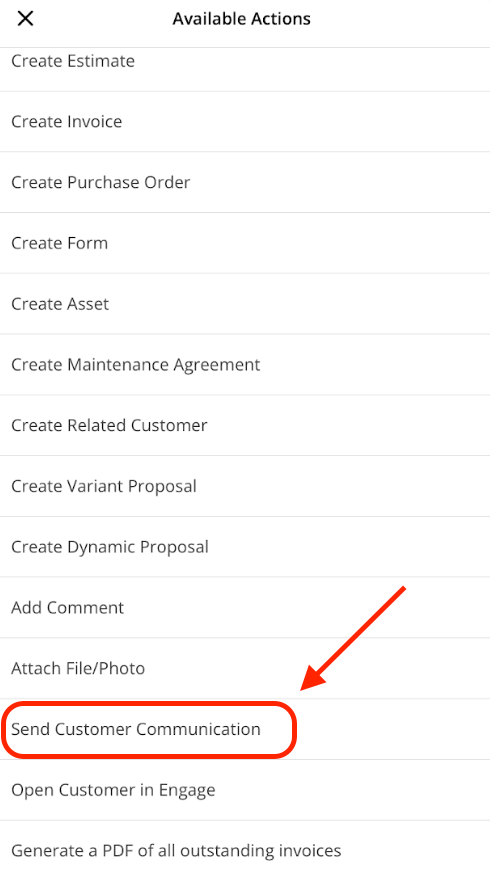
 After selecting the green *Actions* button, locate where it says *Send Customer Communication*.
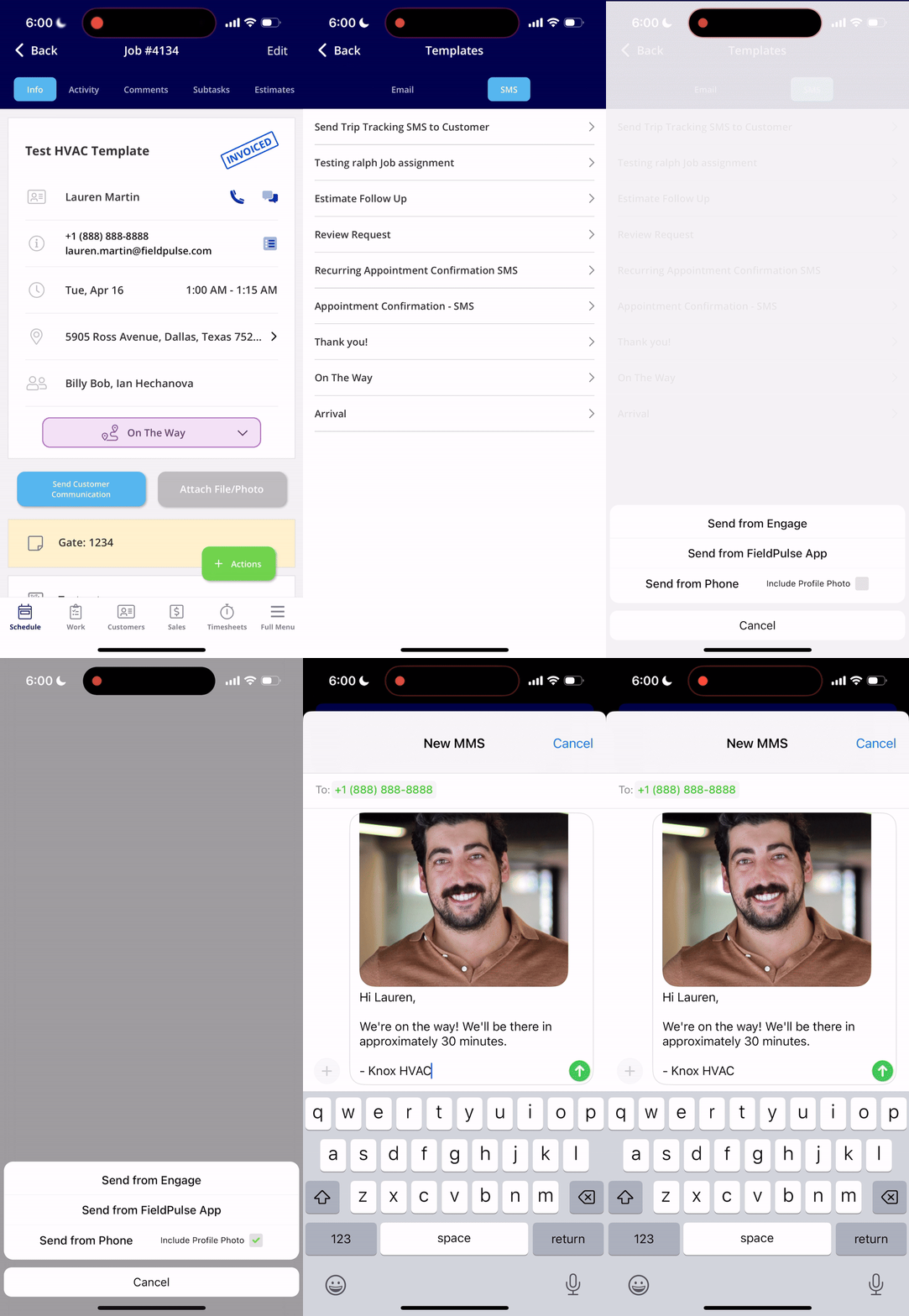
 Select *Send Customer Communication*, then select the SMS template you'd like to send. Select *Include Profile Photo*, then click *Send from Phone*.
 ***
# Trip Tracking Messages
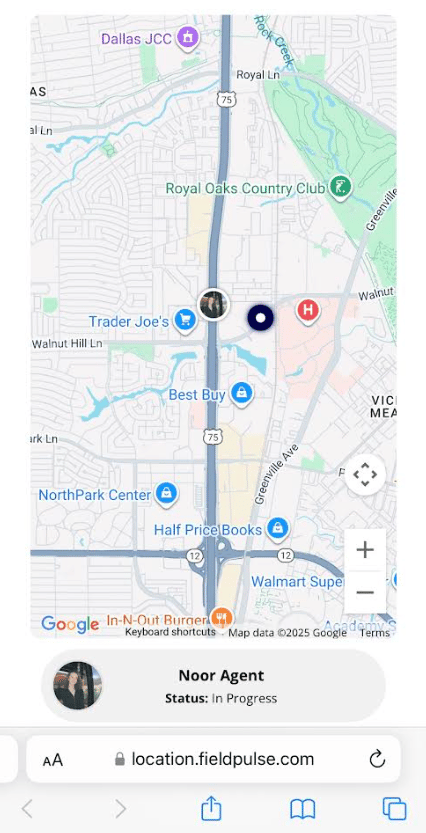
Did you know you can send a text to your customers when you're on the way, sharing your real time vehicle location and ETA?
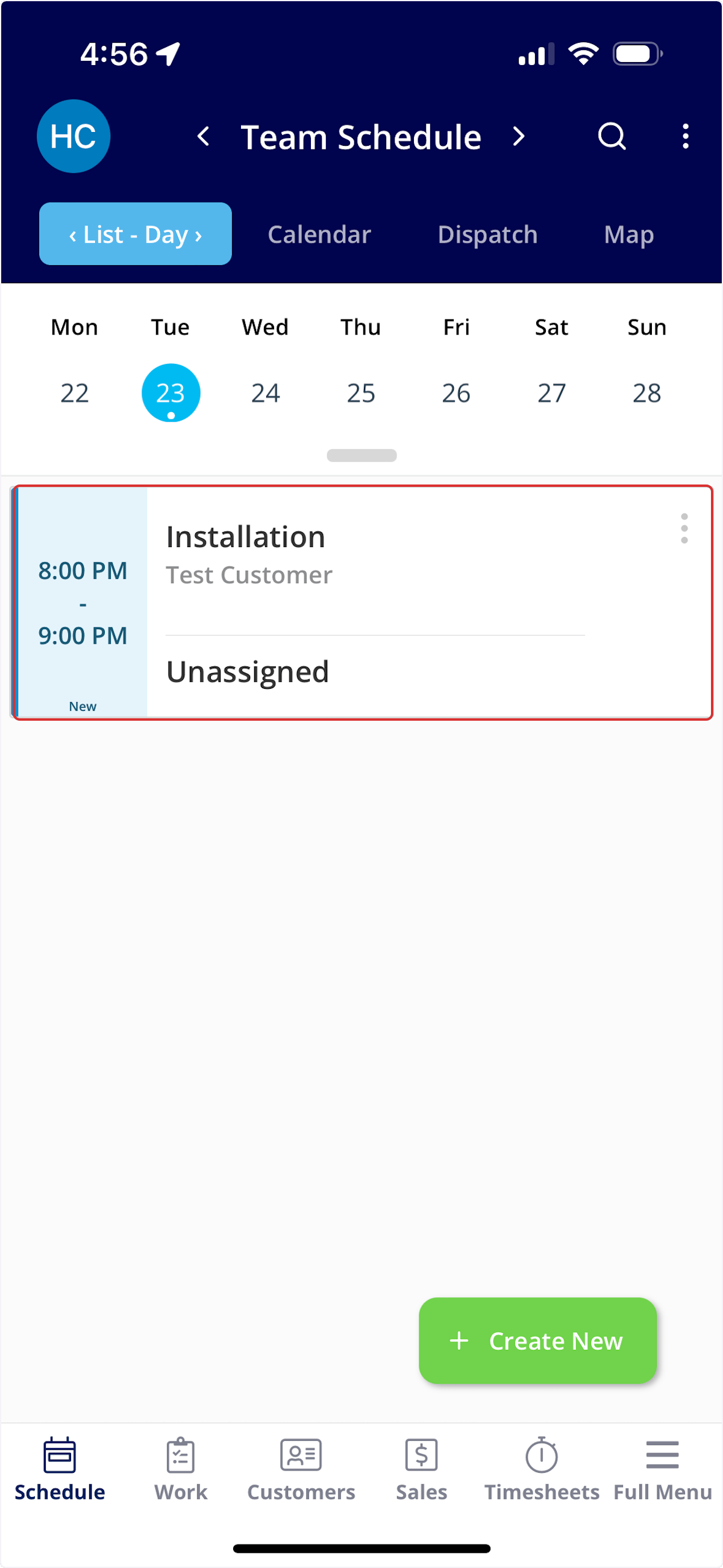
To send a location tracking text, begin by clicking on the job you're heading to.
***
# Trip Tracking Messages
Did you know you can send a text to your customers when you're on the way, sharing your real time vehicle location and ETA?
To send a location tracking text, begin by clicking on the job you're heading to.
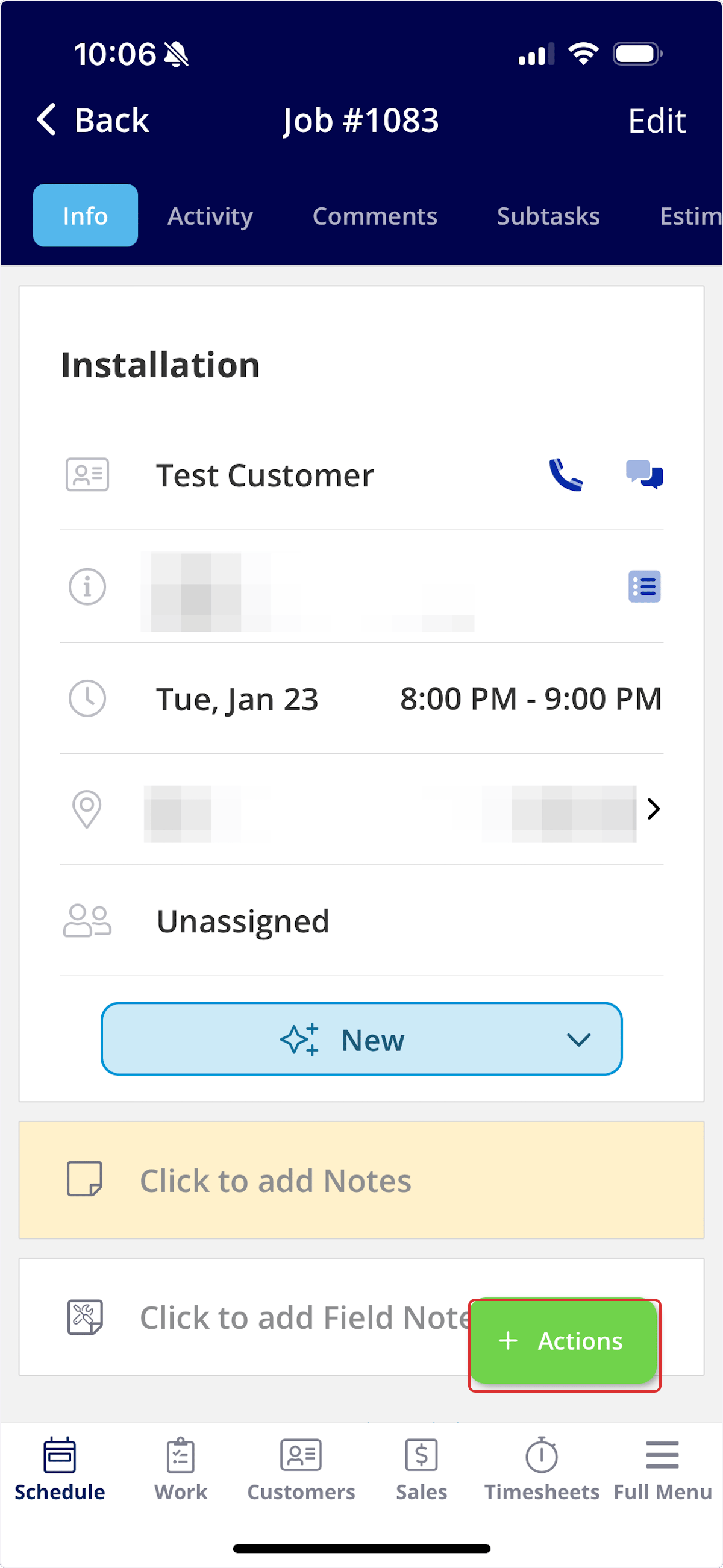
 Once on the job record, select *Actions*.
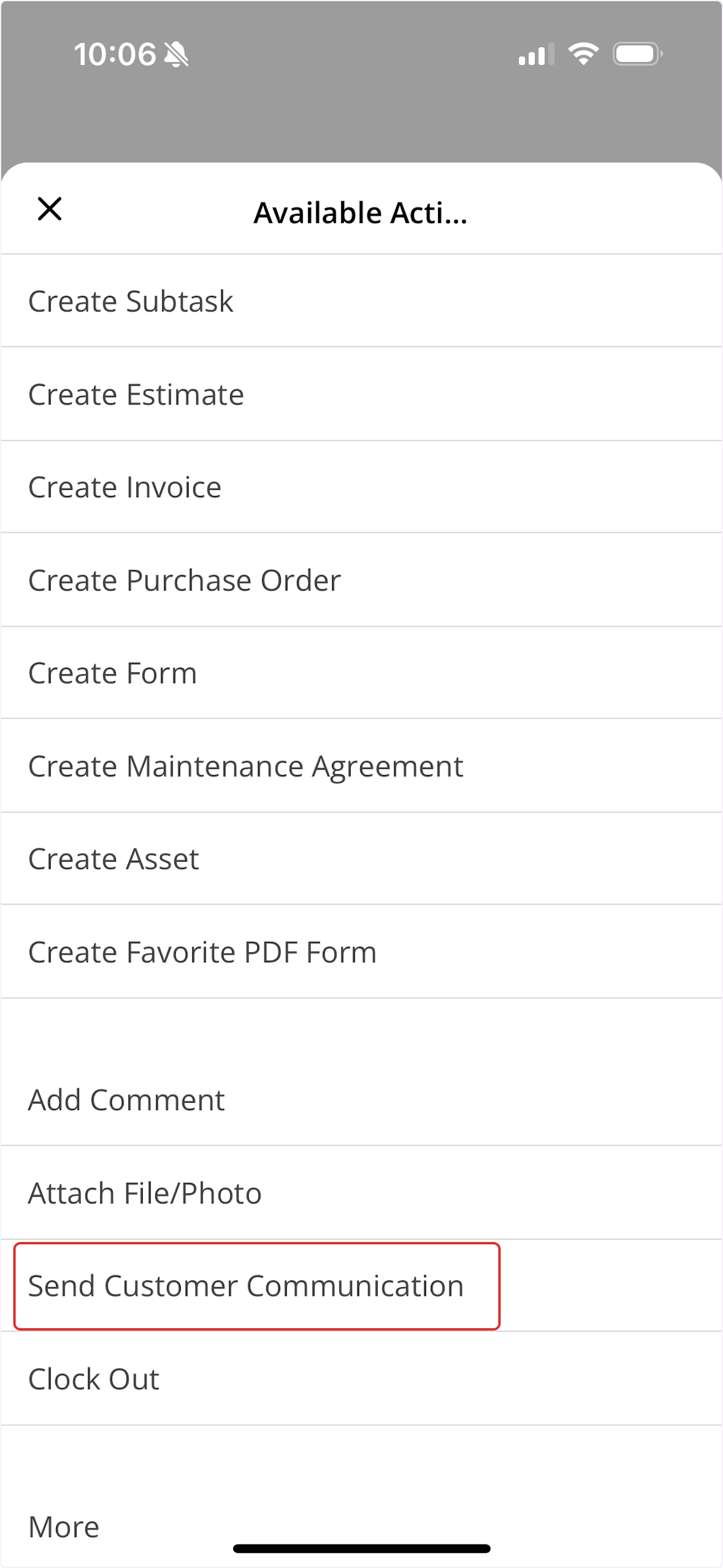
 Now, click on *Send Customer Communication*.
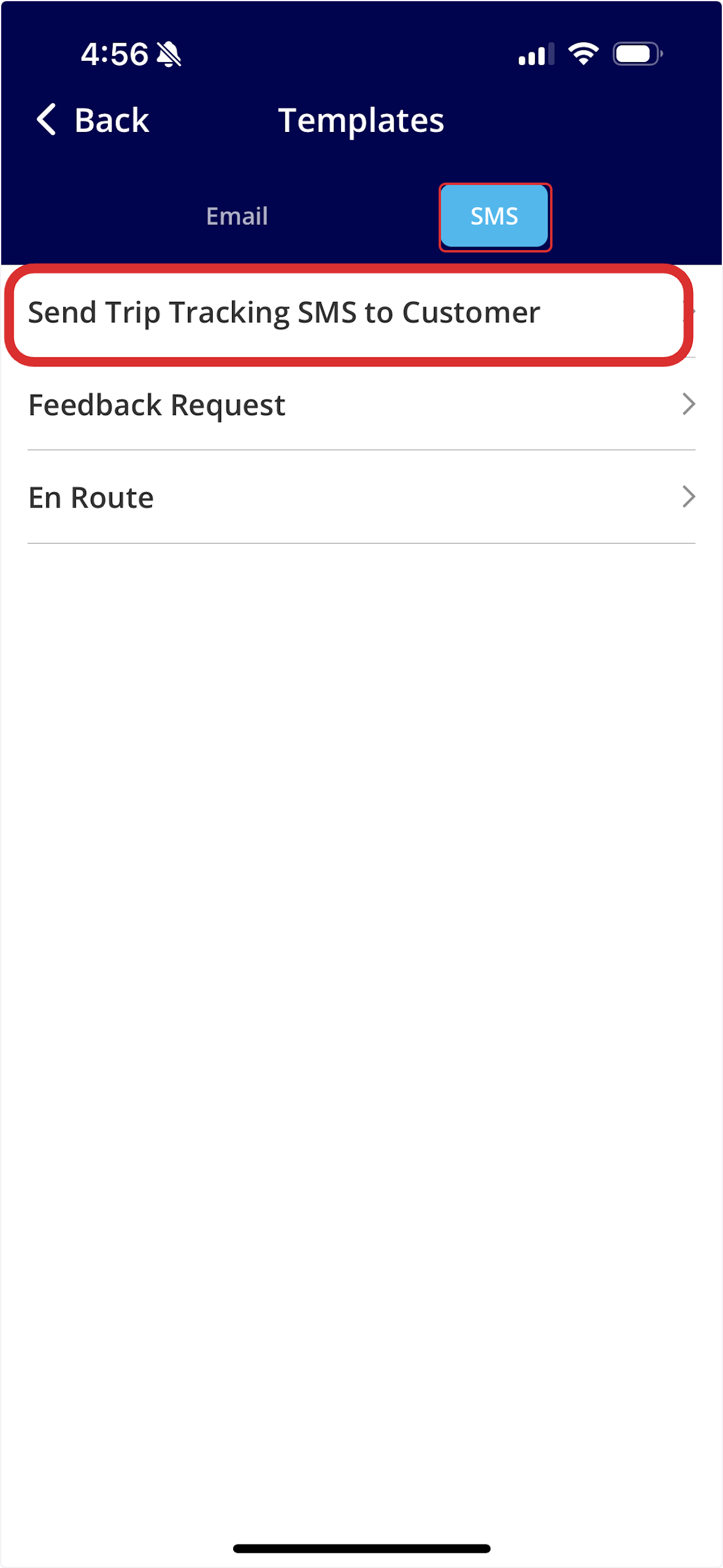
 To send a location tracking and ETA message, select *SMS* then *Send Trip Tracking SMS to Customer*.
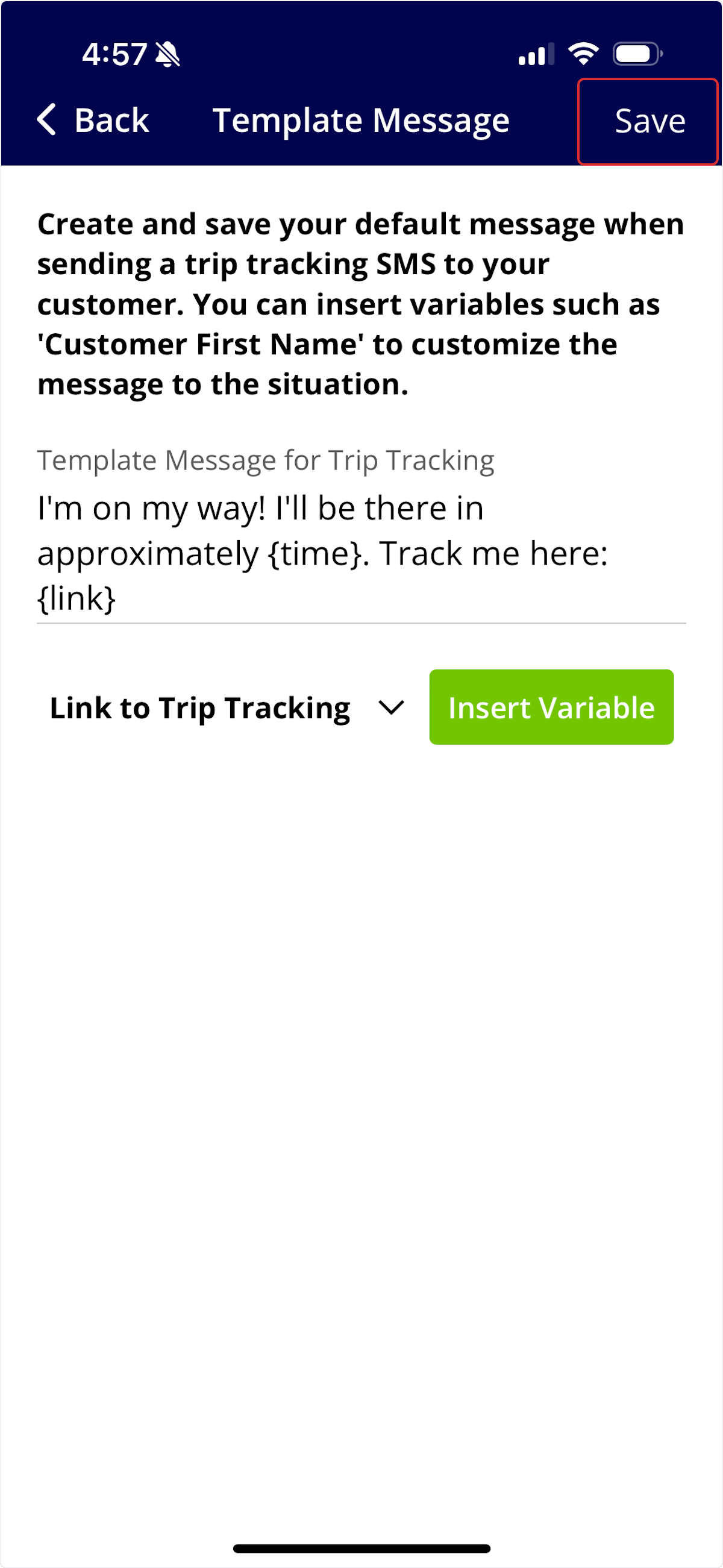
 If this is your first time sending a trip tracking message, you'll be able to create and save a default trip tracking message. When you're satisfied with the message, press *Save*.
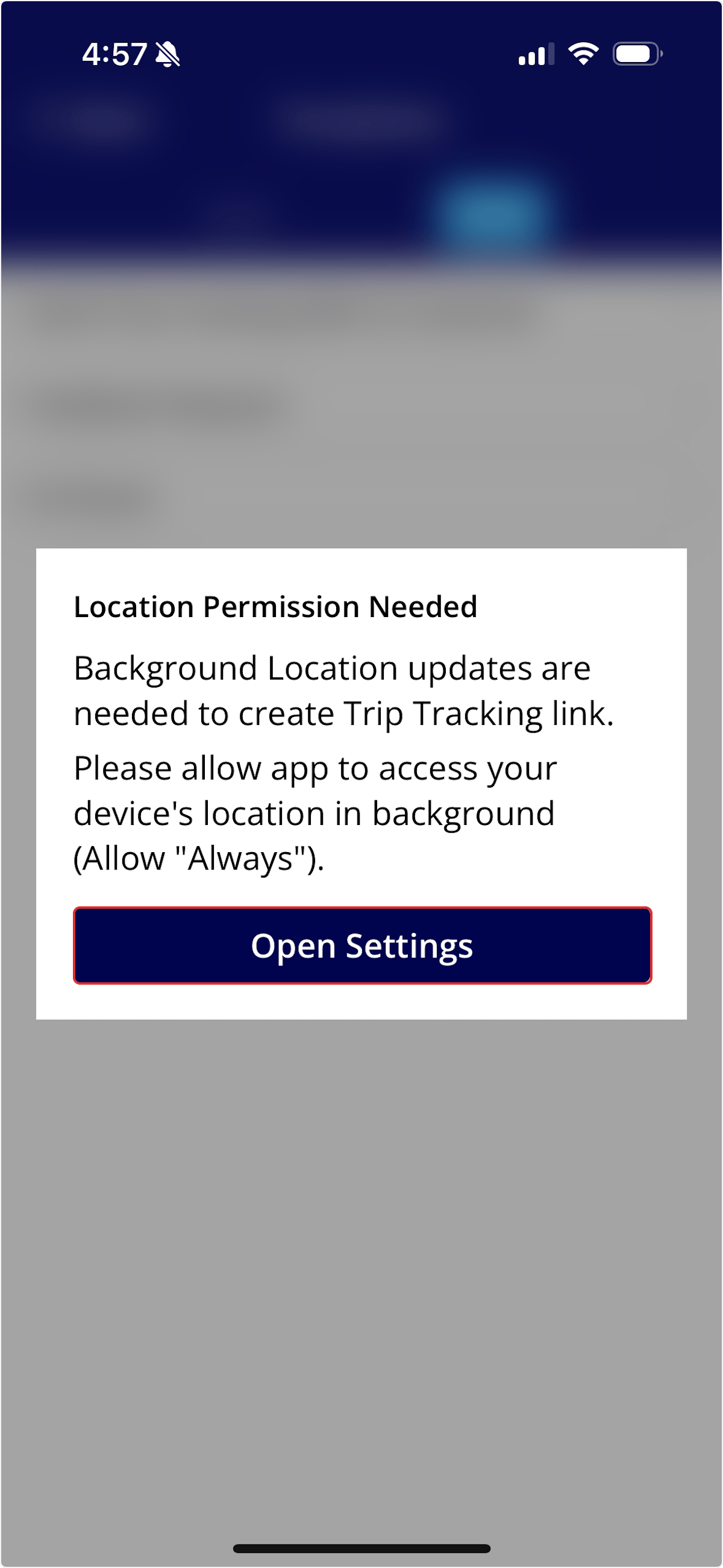
 You may receive a message regarding your location sharing settings like this one. FieldPulse needs to have access to your location in order to accurately share trip tracking information with your customer. Navigate to your device's settings in order to enable location services.
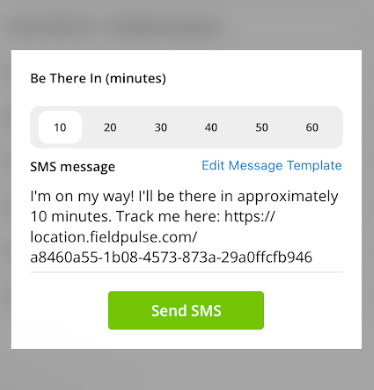
 You can now adjust the time estimate provided to your customer, as well as take a look at the message again before sending.
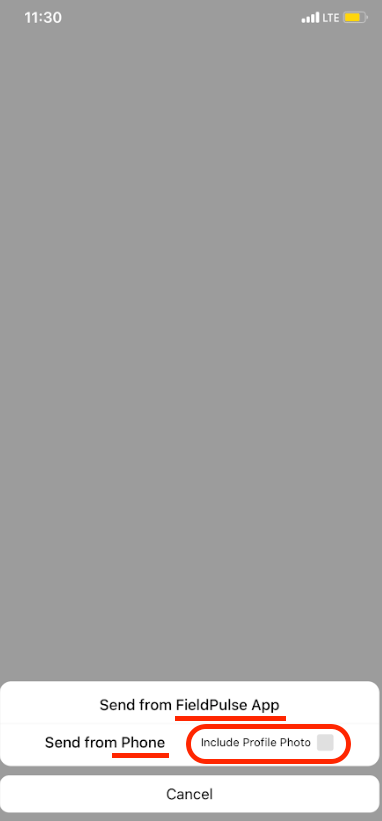
 You will be prompted to send the text either from the FieldPulse app or from your device's messaging system. **Please note that if you choose your device's messaging system, the text will be sent from your phone number.** You also can check the box if you would like to include a photo of your team member.
 ## The live location tracking link will remain active for one hour after it is sent. This ensures that your privacy is protected while your team is on the move throughout the day.
***
# Customer Experience
## Example trip tracking text
## The live location tracking link will remain active for one hour after it is sent. This ensures that your privacy is protected while your team is on the move throughout the day.
***
# Customer Experience
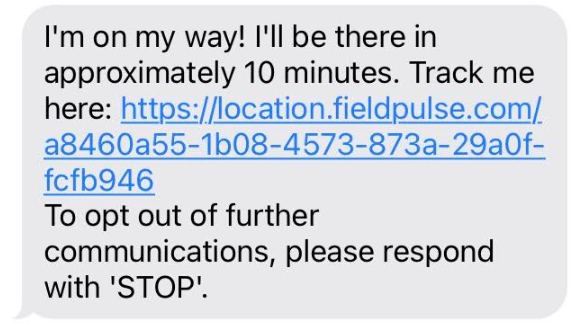
## Example trip tracking text
 ## Example trip tracking map
 ***
**Have additional questions?**
*Contact us at [support@fieldpulse.com](mailto:support@fieldpulse.com) or use the chat feature in the bottom right corner of your screen.*
## Related topics
- [Customer Communications](/using-fieldpulse/communications-notifications/customer-communications.md)
- [Customer Notification Preferences](/using-fieldpulse/communications-notifications/customer-notification-preferences.md)
- [Communications](/using-fieldpulse/other/communications.md)
- [Engage Overview](/features-add-ons/engage-phone-system/engage-overview.md)
- [Supplier Chat](/features-add-ons/supplier-chat.md)
***
**Have additional questions?**
*Contact us at [support@fieldpulse.com](mailto:support@fieldpulse.com) or use the chat feature in the bottom right corner of your screen.*
## Related topics
- [Customer Communications](/using-fieldpulse/communications-notifications/customer-communications.md)
- [Customer Notification Preferences](/using-fieldpulse/communications-notifications/customer-notification-preferences.md)
- [Communications](/using-fieldpulse/other/communications.md)
- [Engage Overview](/features-add-ons/engage-phone-system/engage-overview.md)
- [Supplier Chat](/features-add-ons/supplier-chat.md)