> ## Documentation Index
> Fetch the complete documentation index at: https://help.fieldpulse.com/llms.txt
> Use this file to discover all available pages before exploring further.
# Invoices - Mobile App
> Build invoices from your phone, start from a saved template or from scratch, and send them before you leave the customer's driveway.
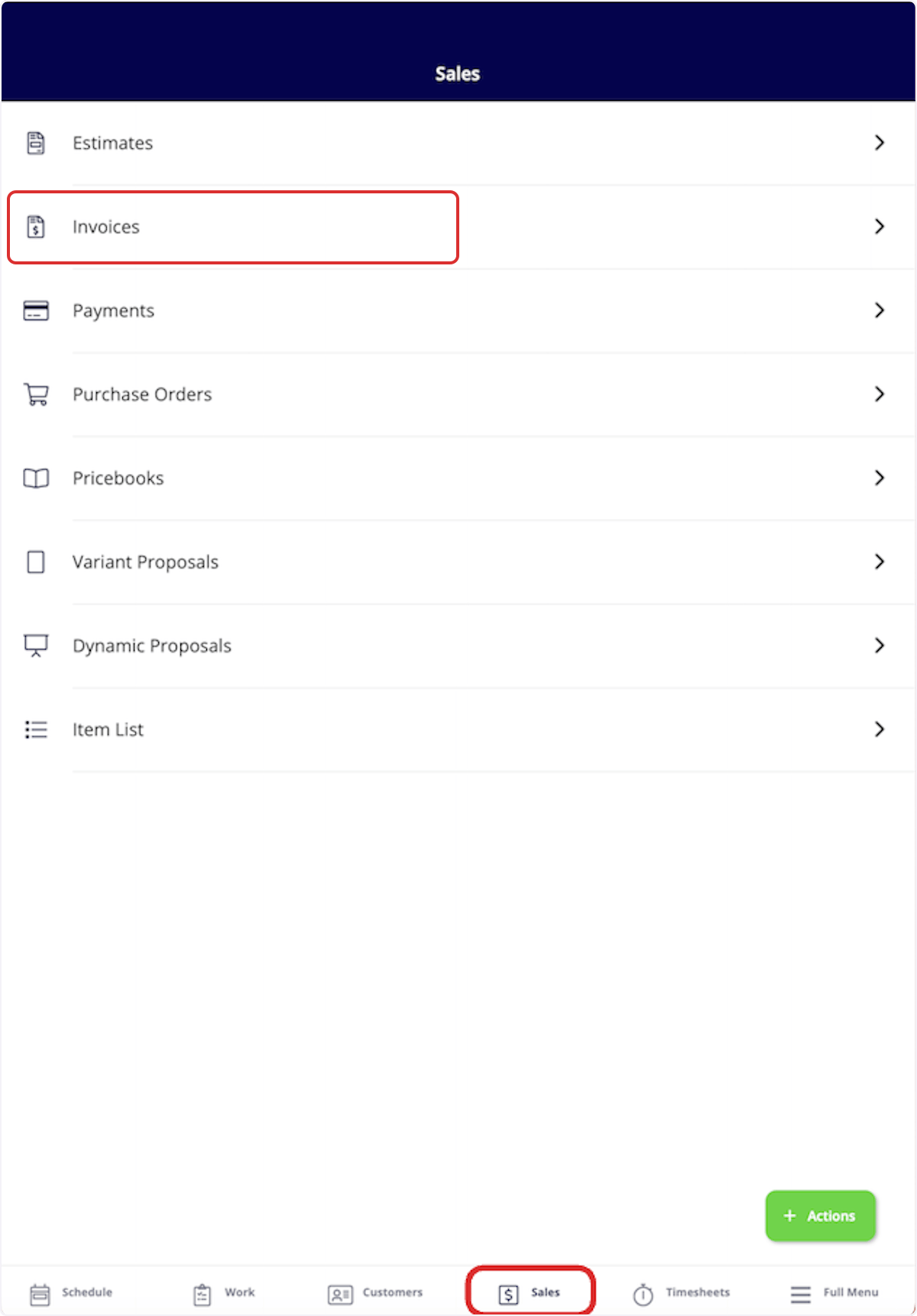
To create a new invoice, navigate to the *Sales* tab in the bottom menu, then select *Invoices*.
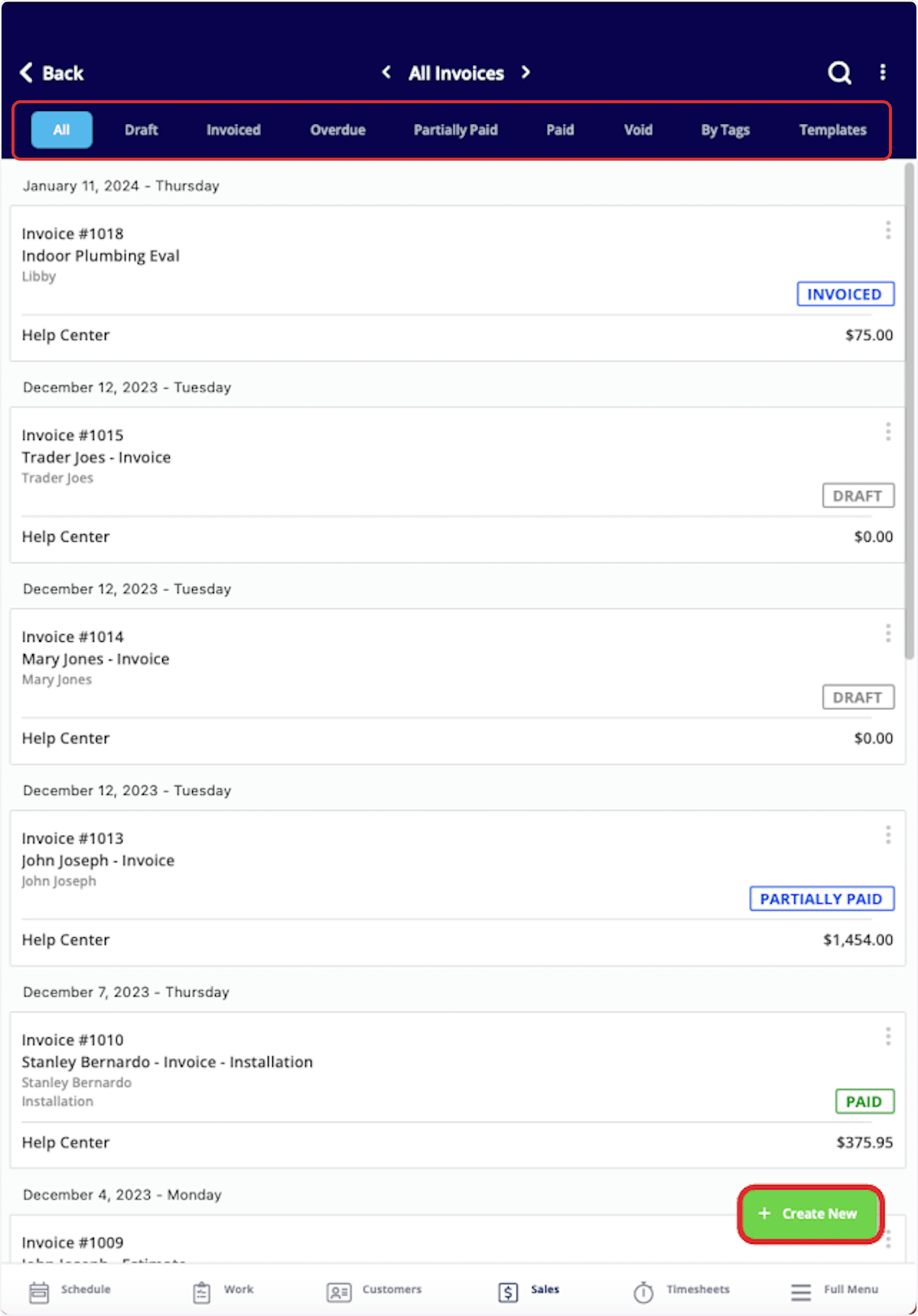
 Once here, you can sort your existing invoices using the menu at the top of the screen. Additionally, you can select the *Create New* button to build a new invoice.
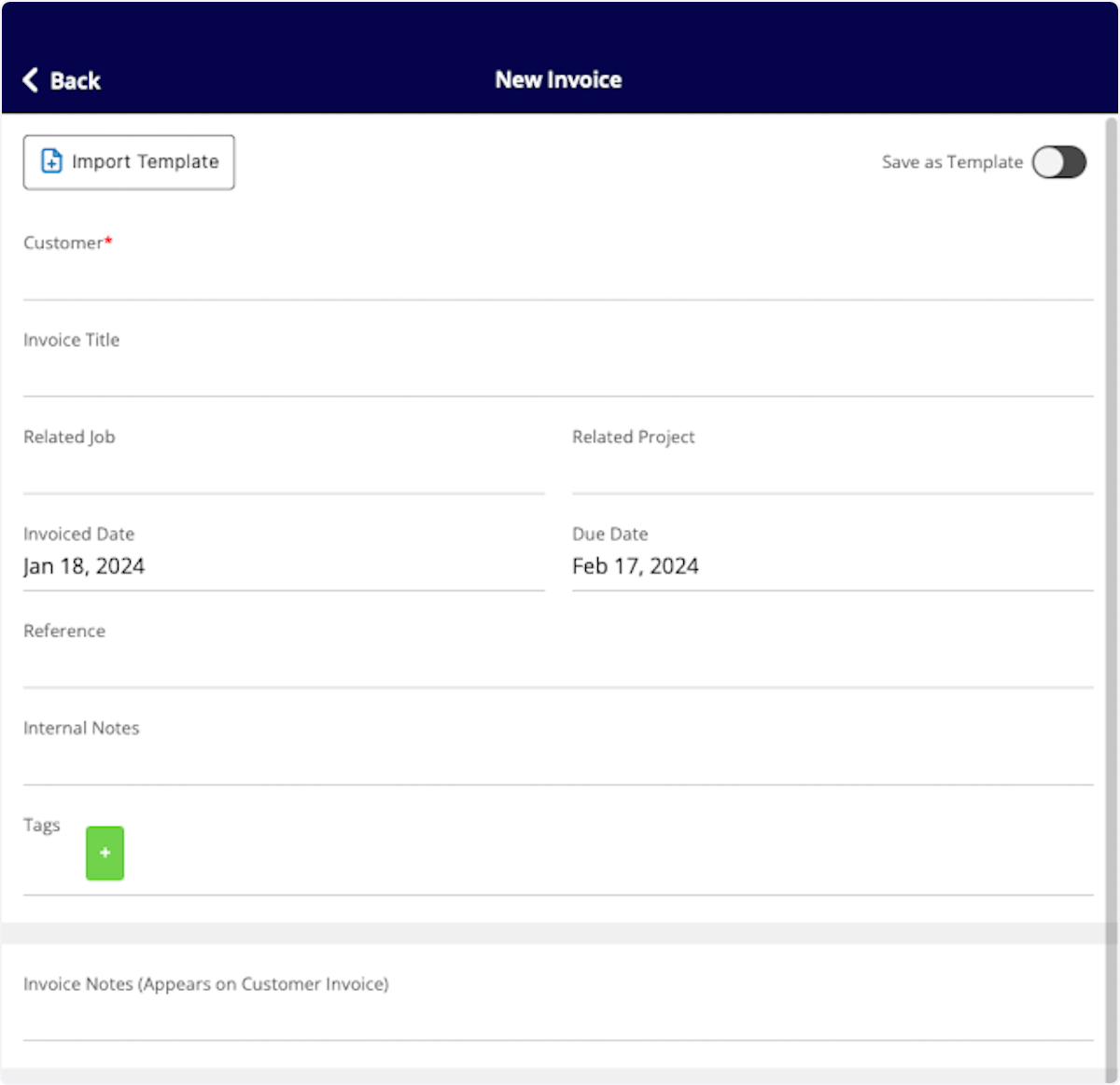
 You can select *Import Template* to build your invoice from an existing template, or fill out the details to start from scratch. If you expect to use this invoice frequently, toggle on *Save as Template* to save time in the future!
You can now select a customer to link to this invoice. If the invoice is connected to an existing job or project, search for and select the job/project in the *Related Job*/*Related Project* field.
Include internal notes and tags as needed on the invoice as well. You can also manually adjust the invoice due date. To change your default invoice settings, learn more [the default invoice settings](/using-fieldpulse/estimates-invoices/default-estimate-invoice-settings).
You can select *Import Template* to build your invoice from an existing template, or fill out the details to start from scratch. If you expect to use this invoice frequently, toggle on *Save as Template* to save time in the future!
You can now select a customer to link to this invoice. If the invoice is connected to an existing job or project, search for and select the job/project in the *Related Job*/*Related Project* field.
Include internal notes and tags as needed on the invoice as well. You can also manually adjust the invoice due date. To change your default invoice settings, learn more [the default invoice settings](/using-fieldpulse/estimates-invoices/default-estimate-invoice-settings).
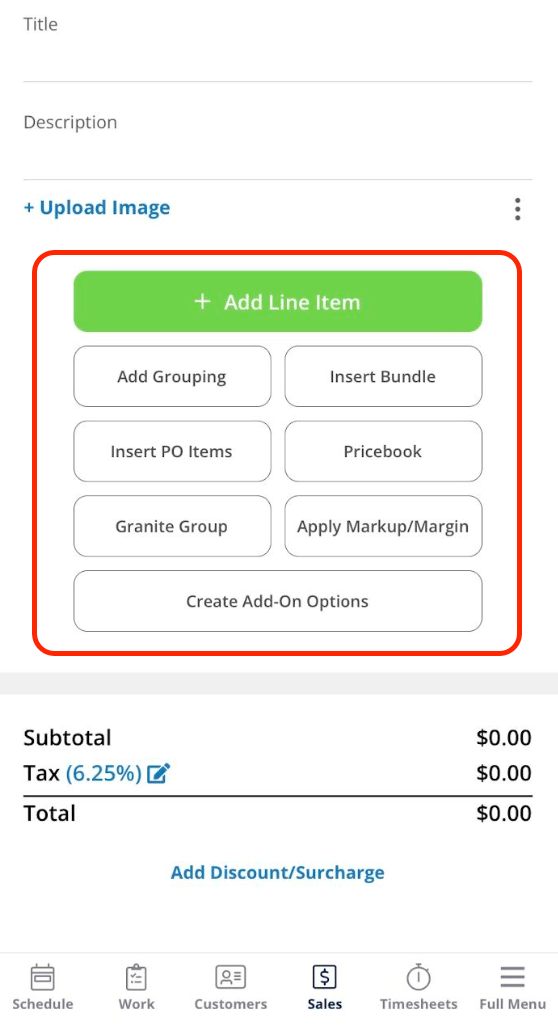
 Now it's time to add items to your invoice. There are a variety of ways to do this, based on your business needs and your preferences.
***Add Line Item:*** Selecting Add Line Item will allow you to search your item list in order to add items to the invoice.
***Add Grouping:*** allows you to organize your line items on the invoice, as well as control the visibility of the line item names and prices for your customer. Simply create a grouping then drag and drop line items into it to begin organizing your invoice!
***Insert Bundle:*** Bundles are for services and parts that are often grouped together. To learn more about bundles and how to create them, [the line item bundles guide](/using-fieldpulse/estimates-invoices/line-item-bundles-groupings).
***Insert PO Items:*** Populate an invoice with items from a purchase order. To learn more, visit the [Purchase Orders article](/using-fieldpulse/purchase-orders/purchase-orders).
***Pricebook:*** By selecting Pricebook, you will have the option to add flat-rate jobs straight from the Pricebook you created.
***The Granite Group:*** Add purchase orders items from The Granite Group to your invoice. To learn more, visit [The Granite Group article](/integrations-partners/suppliers-distributors/the-granite-group-integration).
***Apply Markup/Margin:*** allows you to apply a markup or achieve a margin, which will overwrite all the item prices in your invoice.
***Create Add-On Options:*** allows you to create add-ons for your customer to select and add on to the standard items listed in the invoice. This may look like an extended warranty, upgraded parts, or an additional service.
Now it's time to add items to your invoice. There are a variety of ways to do this, based on your business needs and your preferences.
***Add Line Item:*** Selecting Add Line Item will allow you to search your item list in order to add items to the invoice.
***Add Grouping:*** allows you to organize your line items on the invoice, as well as control the visibility of the line item names and prices for your customer. Simply create a grouping then drag and drop line items into it to begin organizing your invoice!
***Insert Bundle:*** Bundles are for services and parts that are often grouped together. To learn more about bundles and how to create them, [the line item bundles guide](/using-fieldpulse/estimates-invoices/line-item-bundles-groupings).
***Insert PO Items:*** Populate an invoice with items from a purchase order. To learn more, visit the [Purchase Orders article](/using-fieldpulse/purchase-orders/purchase-orders).
***Pricebook:*** By selecting Pricebook, you will have the option to add flat-rate jobs straight from the Pricebook you created.
***The Granite Group:*** Add purchase orders items from The Granite Group to your invoice. To learn more, visit [The Granite Group article](/integrations-partners/suppliers-distributors/the-granite-group-integration).
***Apply Markup/Margin:*** allows you to apply a markup or achieve a margin, which will overwrite all the item prices in your invoice.
***Create Add-On Options:*** allows you to create add-ons for your customer to select and add on to the standard items listed in the invoice. This may look like an extended warranty, upgraded parts, or an additional service.
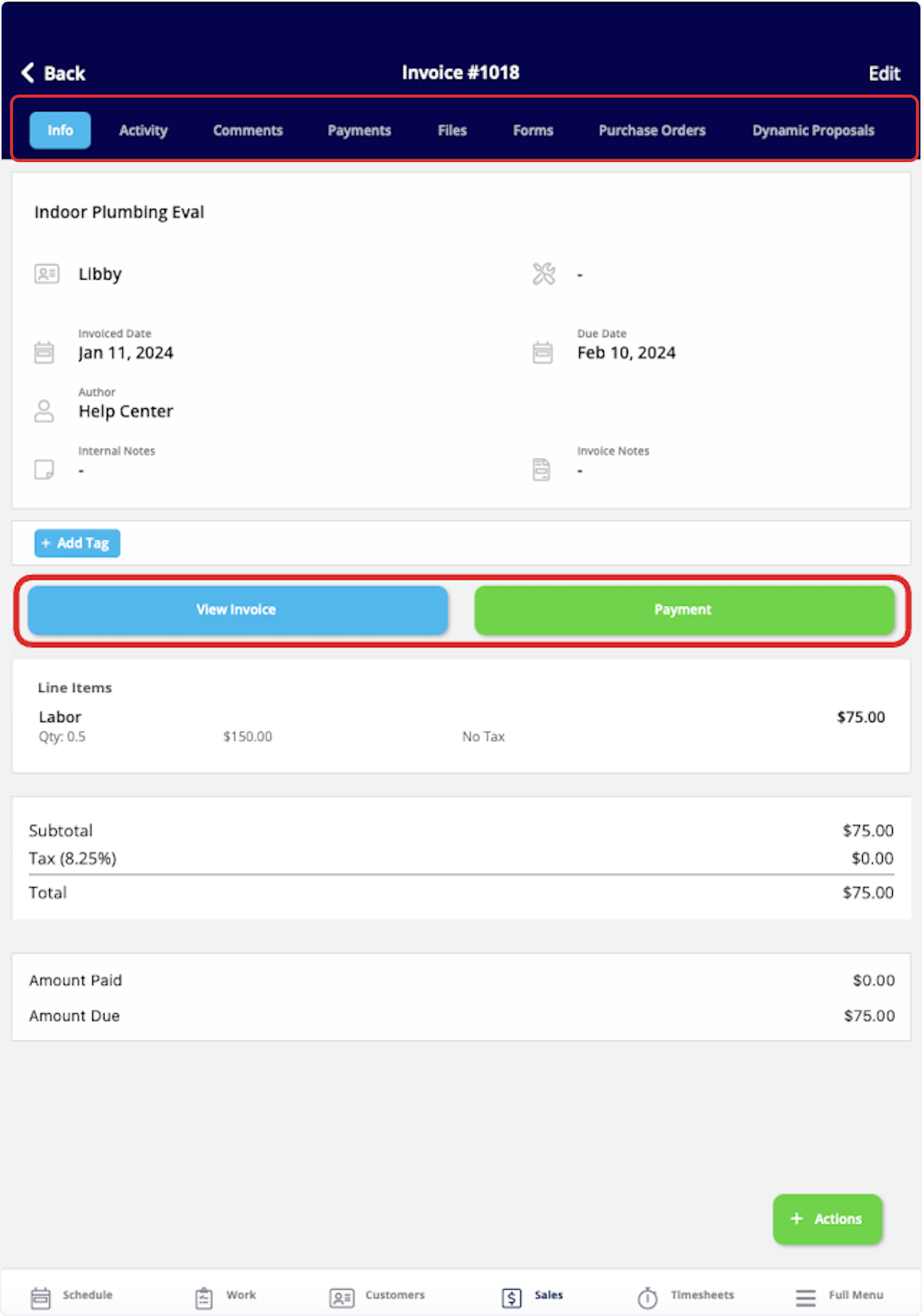
 After saving your invoice, you can now view the invoice record. Use the top menu to add related material to the invoice or view recent changes. When you're ready, select *View Invoice* to show the invoice in person, or to email it to your customer.
If you want to collect or mark payment on-site, select *Payment*. To learn more about collecting or marking payment, visit the [Payments - Mobile App article](/offline-mode/sales/payments-mobile-app).
After saving your invoice, you can now view the invoice record. Use the top menu to add related material to the invoice or view recent changes. When you're ready, select *View Invoice* to show the invoice in person, or to email it to your customer.
If you want to collect or mark payment on-site, select *Payment*. To learn more about collecting or marking payment, visit the [Payments - Mobile App article](/offline-mode/sales/payments-mobile-app).
 ***
***
# Convert an Estimate to an Invoice
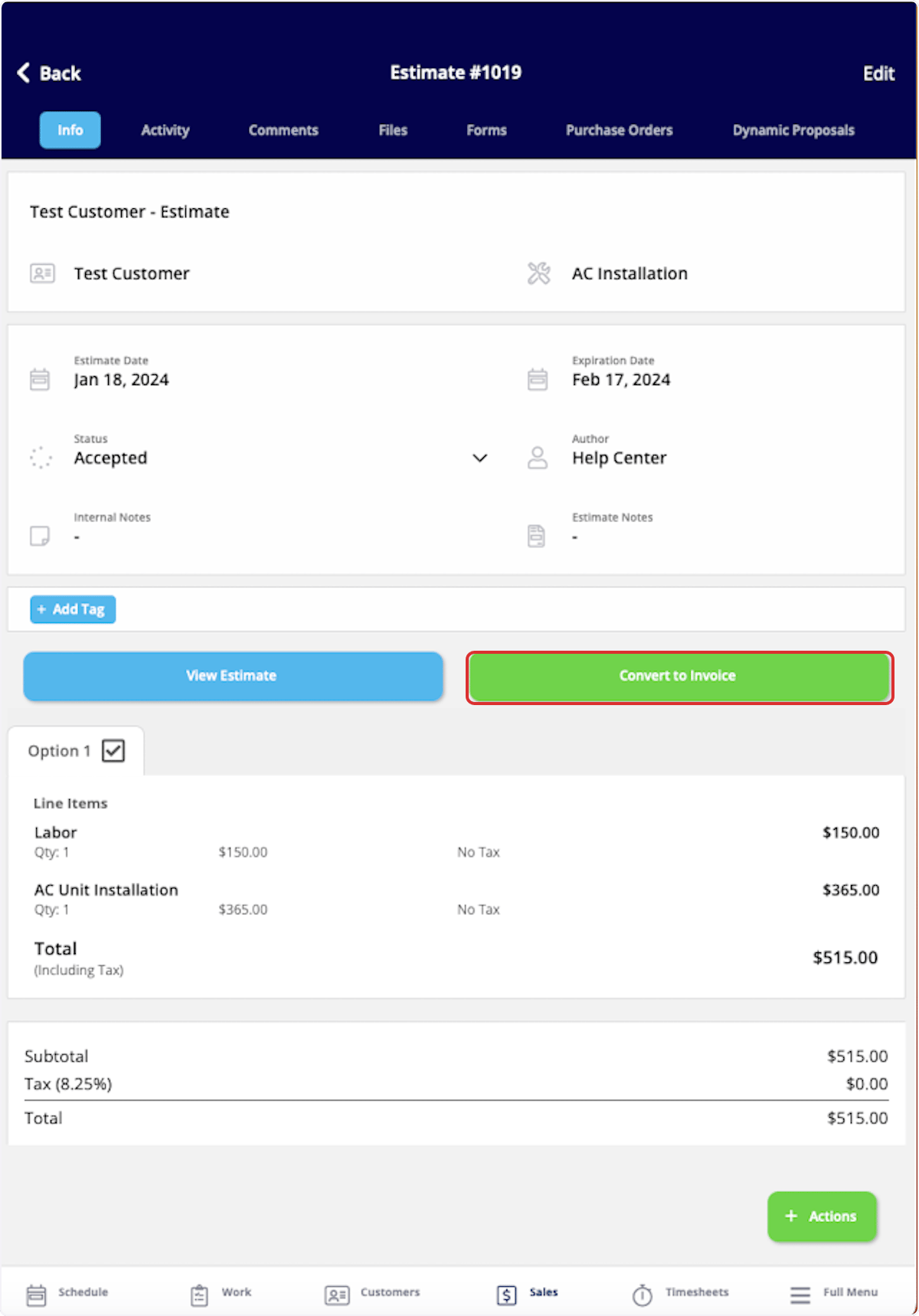
If your customer accepts an estimate, select *Convert to Invoice* to transfer all the details from the estimate into an invoice record to save time.
To begin, navigate to the *Sales* tab in the bottom menu and select *Estimates*.
***
***
# Convert an Estimate to an Invoice
If your customer accepts an estimate, select *Convert to Invoice* to transfer all the details from the estimate into an invoice record to save time.
To begin, navigate to the *Sales* tab in the bottom menu and select *Estimates*.
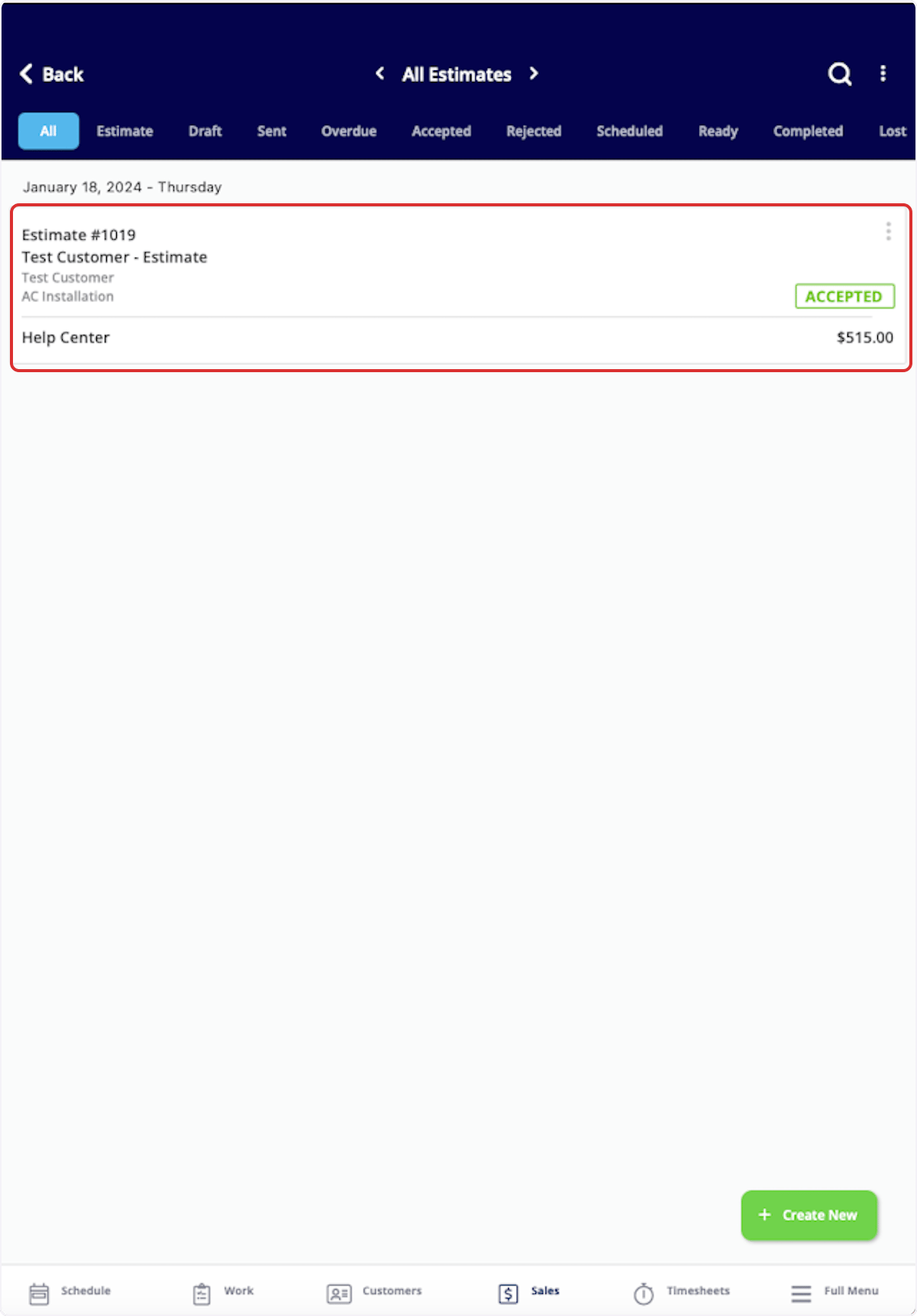
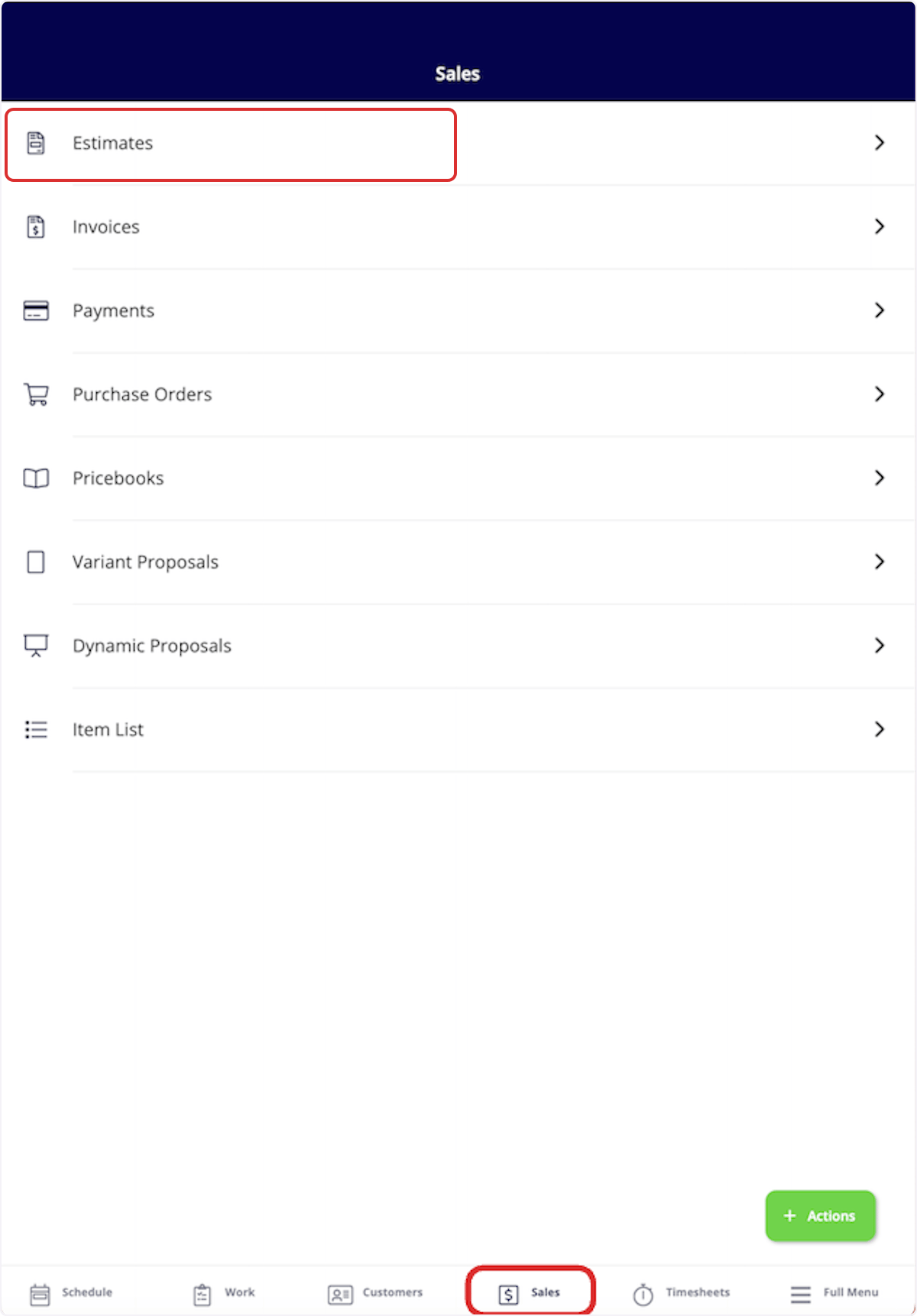 Select the estimate you'd like to convert to an invoice.
 Once in the estimate record, select *Convert to Invoice*. *(**Note:** that the estimate record will no longer exist, as it will become an invoice record. If you want to maintain the estimate record after converting it to an invoice, learn more [the estimate and invoice settings](/using-fieldpulse/estimates-invoices/default-estimate-invoice-settings).)*
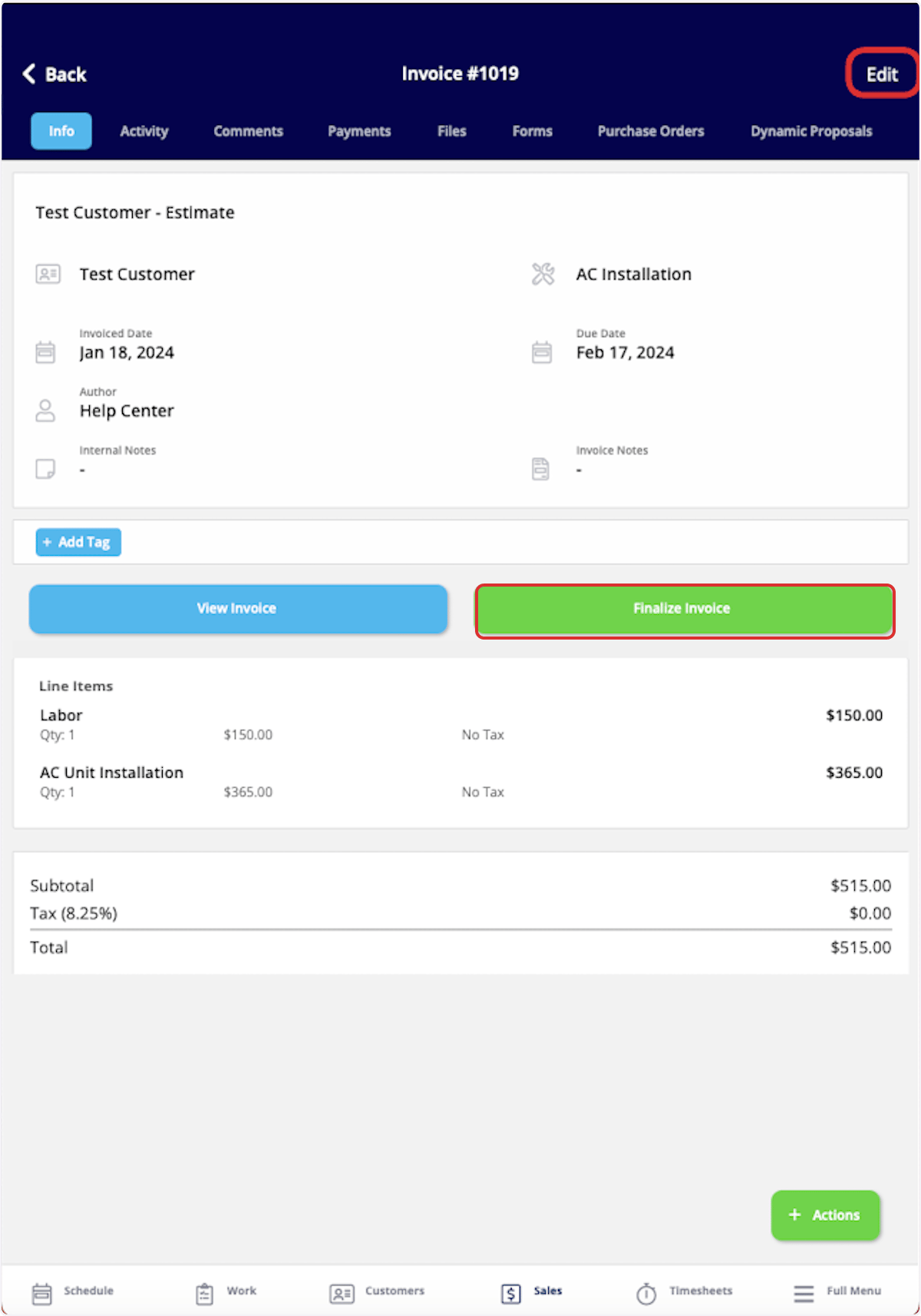
 Once converted into an invoice, you can make changes by selecting the *Edit* button. If everything looks good, select *Finalize Invoice*.
 ***
# Create an Invoice from a Job Record
To create an invoice directly from a job record, begin by navigating to the job record. Once in the record, select *Actions* then *Create Invoice*, or select *Invoices* from the top menu then *Create Invoice*.
***
# Create an Invoice from a Job Record
To create an invoice directly from a job record, begin by navigating to the job record. Once in the record, select *Actions* then *Create Invoice*, or select *Invoices* from the top menu then *Create Invoice*.
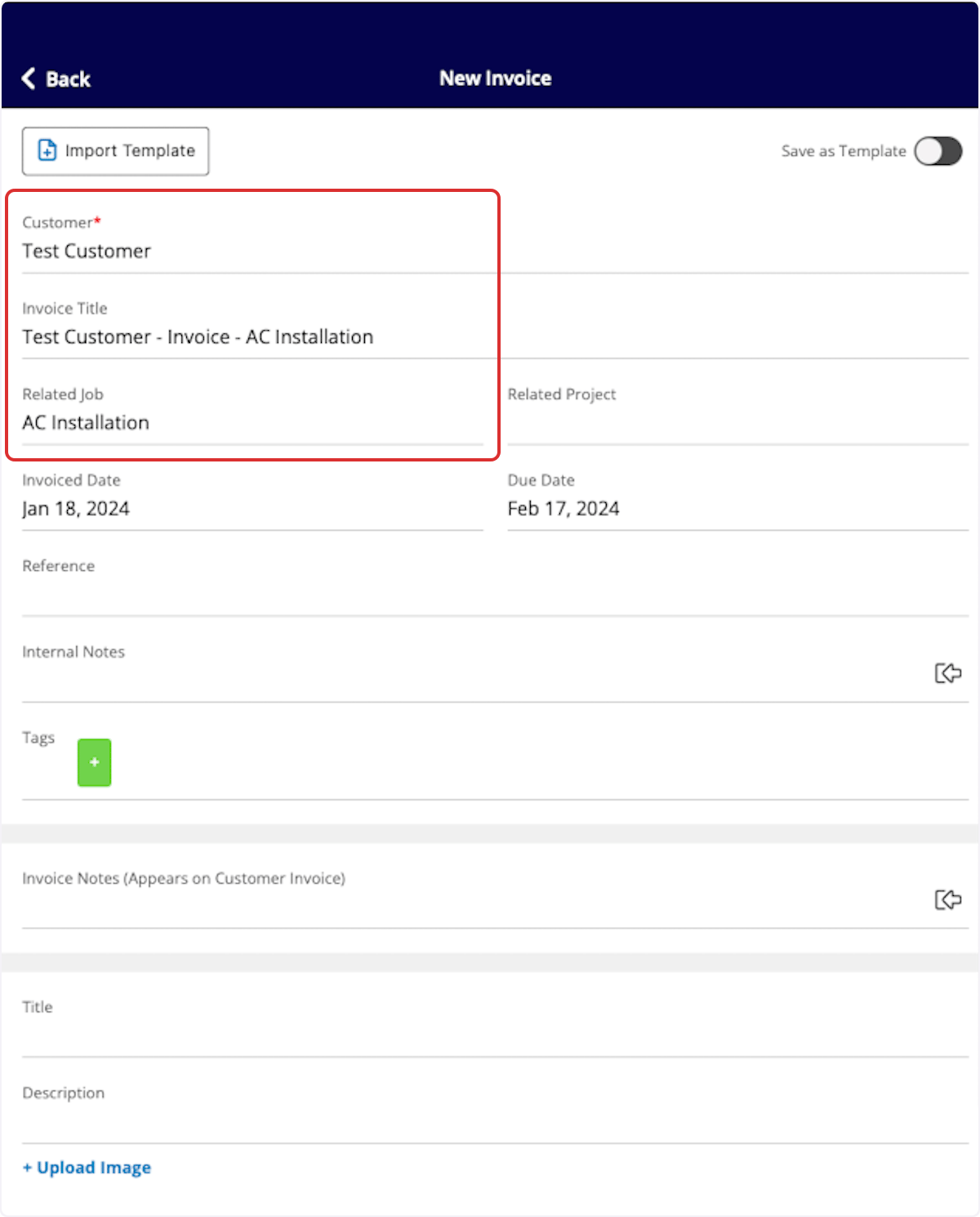
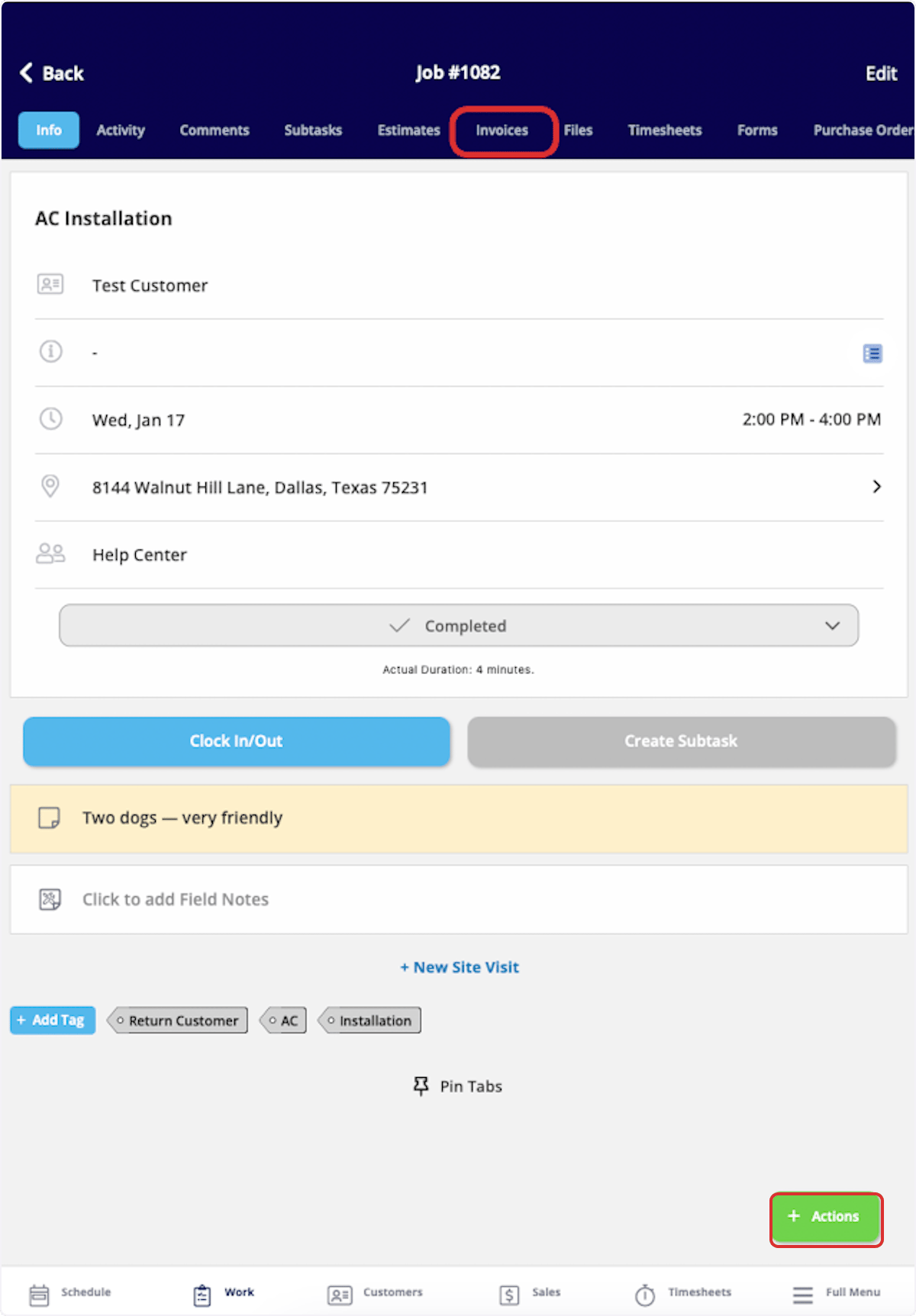 Notice that the customer name, invoice title, and related job have been automatically entered as the invoice was created directly from the job record.
 ***
# Invoice Statuses
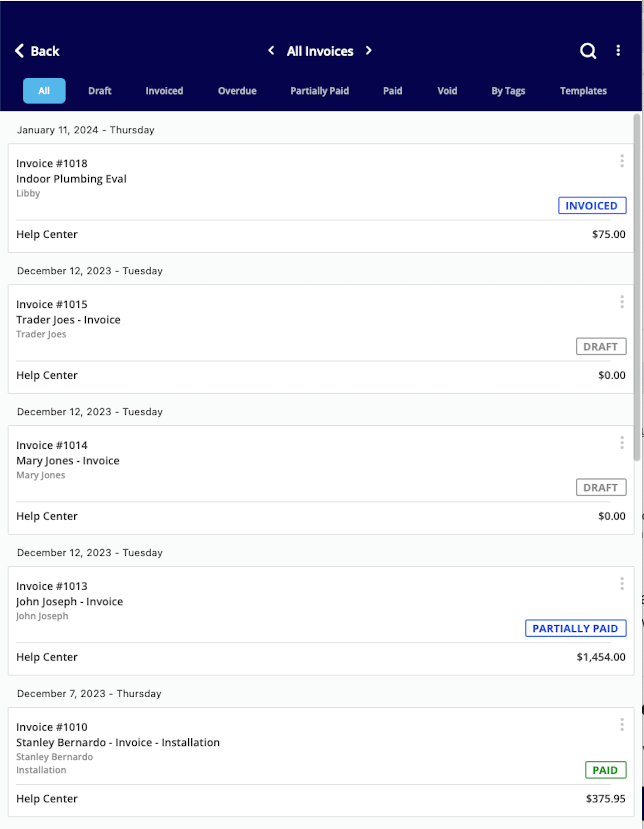
As you create and send invoices, FieldPulse makes keeping track of the statuses easy. On your *Invoices* page, notice the statuses listed on the right side of each invoice record. Statuses include: *Draft*, *Invoiced*, *Partially Paid*, *Paid*, *Overdue*, and *Void*. These statuses are automatically updated by FieldPulse. You can also use the menu at the top of the *Invoices* page to sort your invoices by status.
***
# Invoice Statuses
As you create and send invoices, FieldPulse makes keeping track of the statuses easy. On your *Invoices* page, notice the statuses listed on the right side of each invoice record. Statuses include: *Draft*, *Invoiced*, *Partially Paid*, *Paid*, *Overdue*, and *Void*. These statuses are automatically updated by FieldPulse. You can also use the menu at the top of the *Invoices* page to sort your invoices by status.
 ***
# Customer Invoice Experience
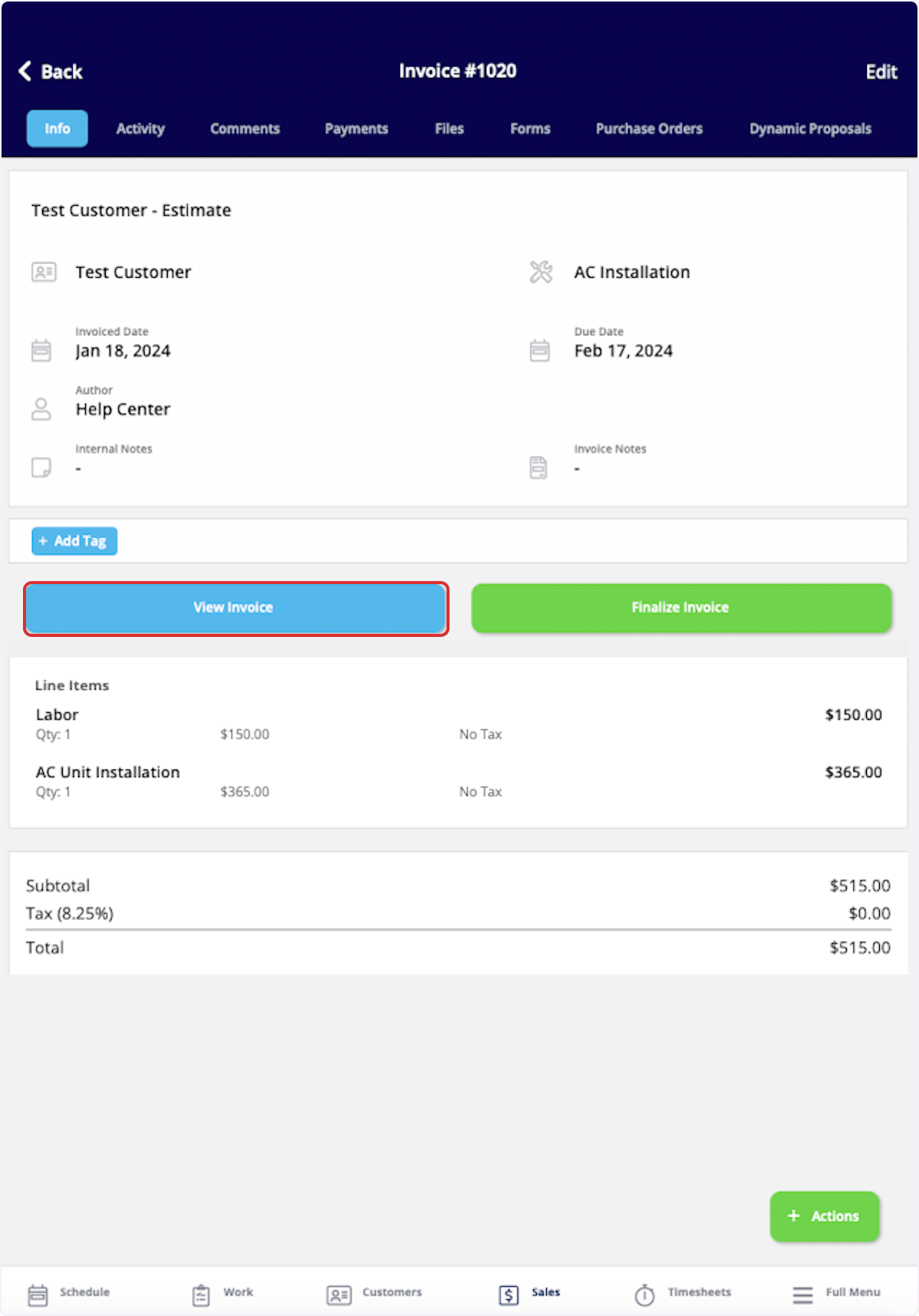
To preview, send, or show an invoice, select *View Invoice* on the invoice record.
***
# Customer Invoice Experience
To preview, send, or show an invoice, select *View Invoice* on the invoice record.
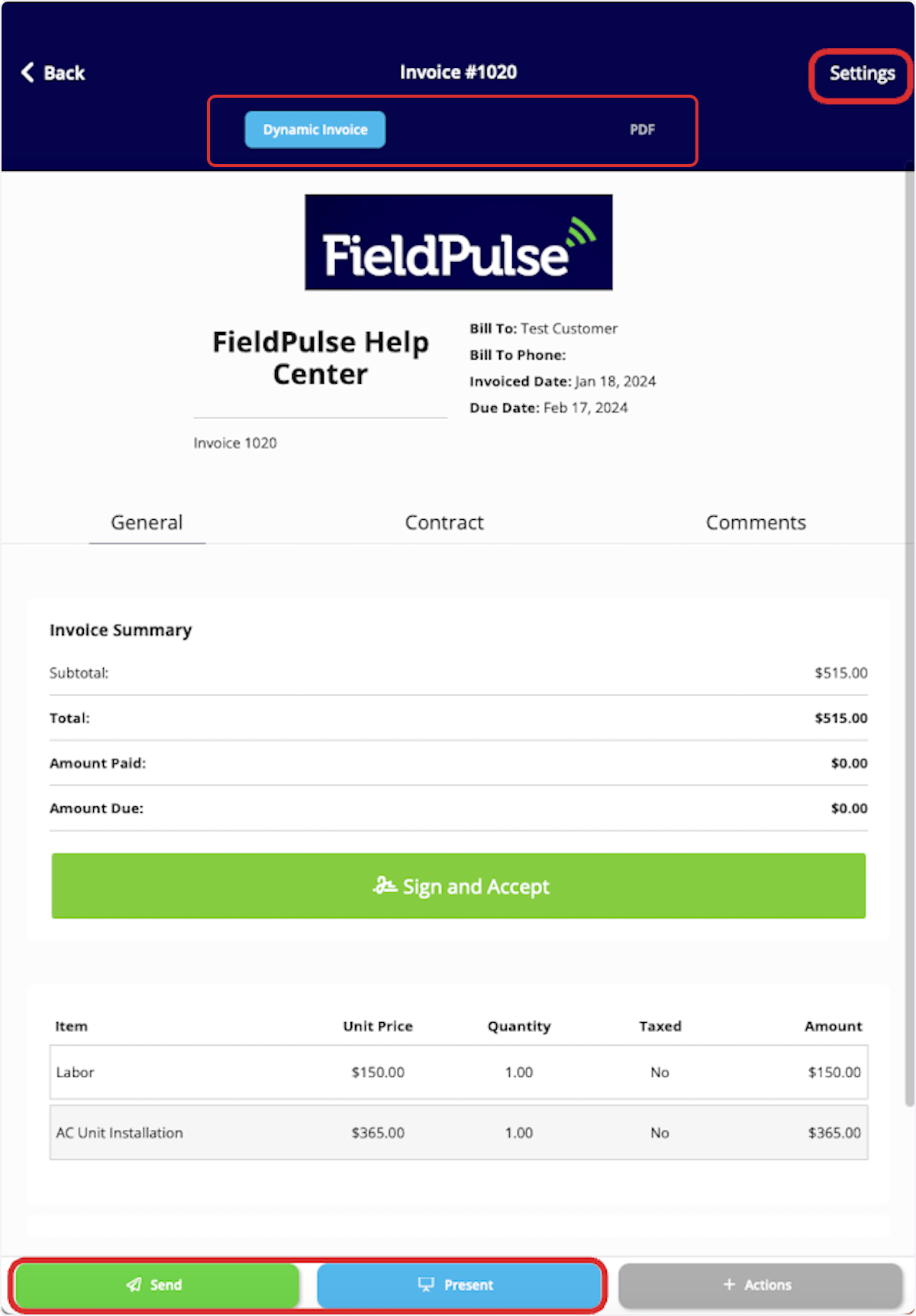
 Once here, you can select the invoice view you'd like to use: *Dynamic Invoice* or *PDF*. You can also send the invoice to your customer using the *Send* button, or select *Present* to show your customer the invoice in-person.
To change the invoice settings for this invoice, select *Settings*. If you want to change your default invoice settings, visit [this article](/using-fieldpulse/estimates-invoices/default-estimate-invoice-settings).
Once here, you can select the invoice view you'd like to use: *Dynamic Invoice* or *PDF*. You can also send the invoice to your customer using the *Send* button, or select *Present* to show your customer the invoice in-person.
To change the invoice settings for this invoice, select *Settings*. If you want to change your default invoice settings, visit [this article](/using-fieldpulse/estimates-invoices/default-estimate-invoice-settings).
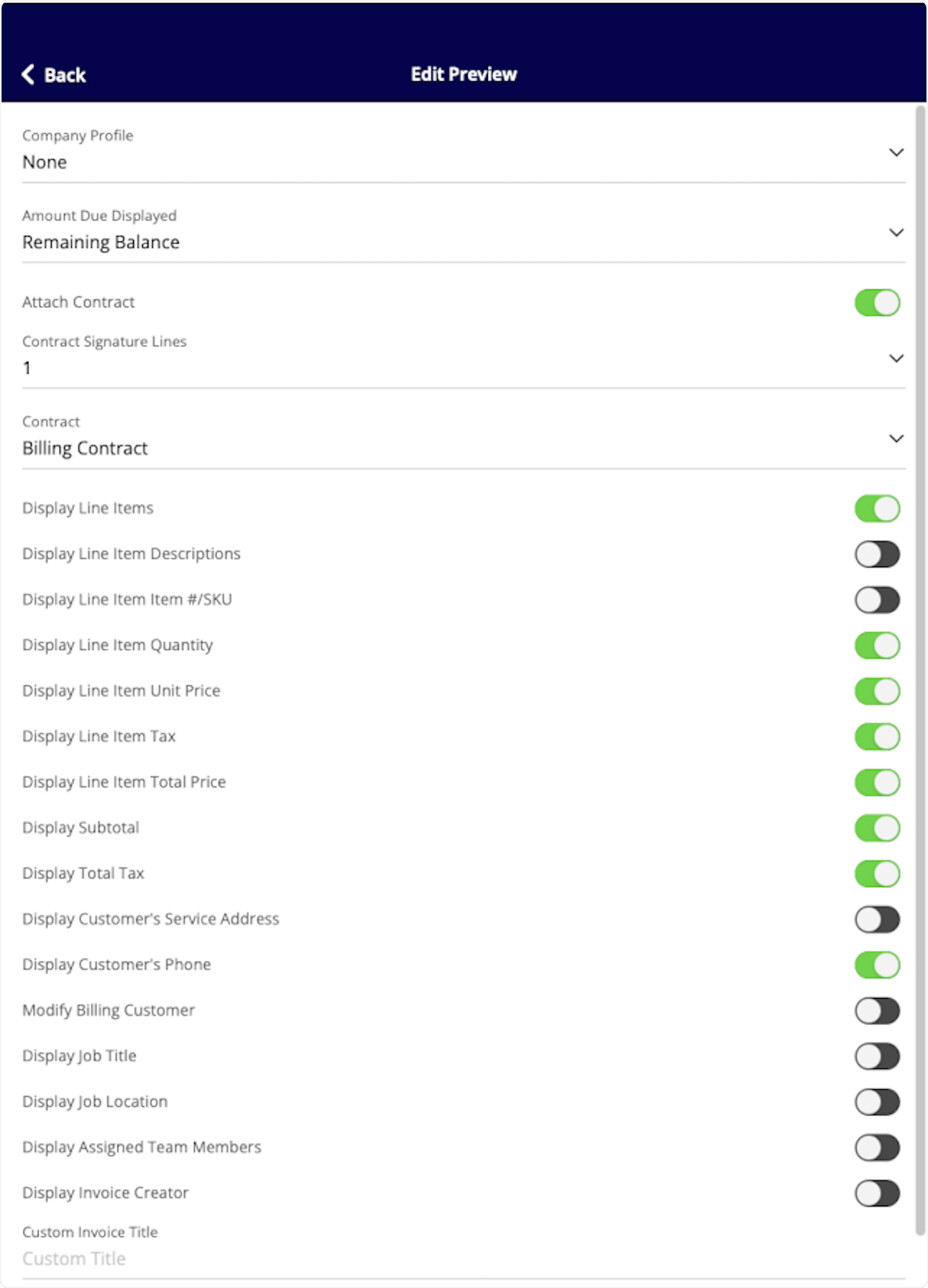
 If you select *Settings*, you will be presented with these options.
 ***
**Have additional questions?**
*Contact us at [support@fieldpulse.com](mailto:support@fieldpulse.com) or use the chat feature in the bottom right corner of your screen.*
***
**Have additional questions?**
*Contact us at [support@fieldpulse.com](mailto:support@fieldpulse.com) or use the chat feature in the bottom right corner of your screen.*