> ## Documentation Index
> Fetch the complete documentation index at: https://help.fieldpulse.com/llms.txt
> Use this file to discover all available pages before exploring further.
# Purchase Orders - Mobile App
> Create, fill out, and send purchase orders to suppliers from your phone while you're on the job site.
You can create and send purchase orders on the web app or mobile app!
To learn more about purchase orders, [the purchase orders guide](/using-fieldpulse/purchase-orders/purchase-orders).
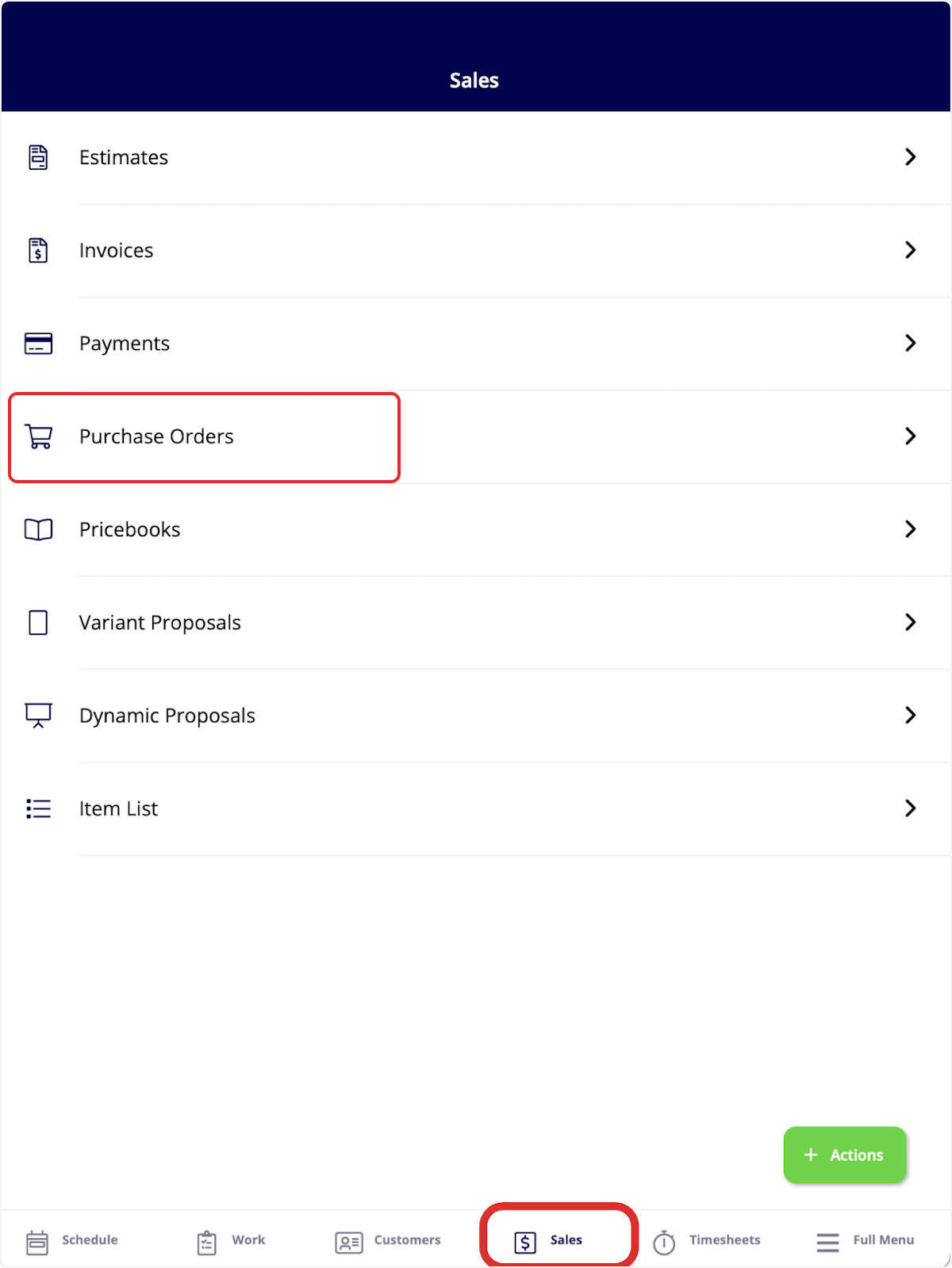
To begin, select the *Sales* tab at the bottom of the screen, then click on *Purchase Orders*.
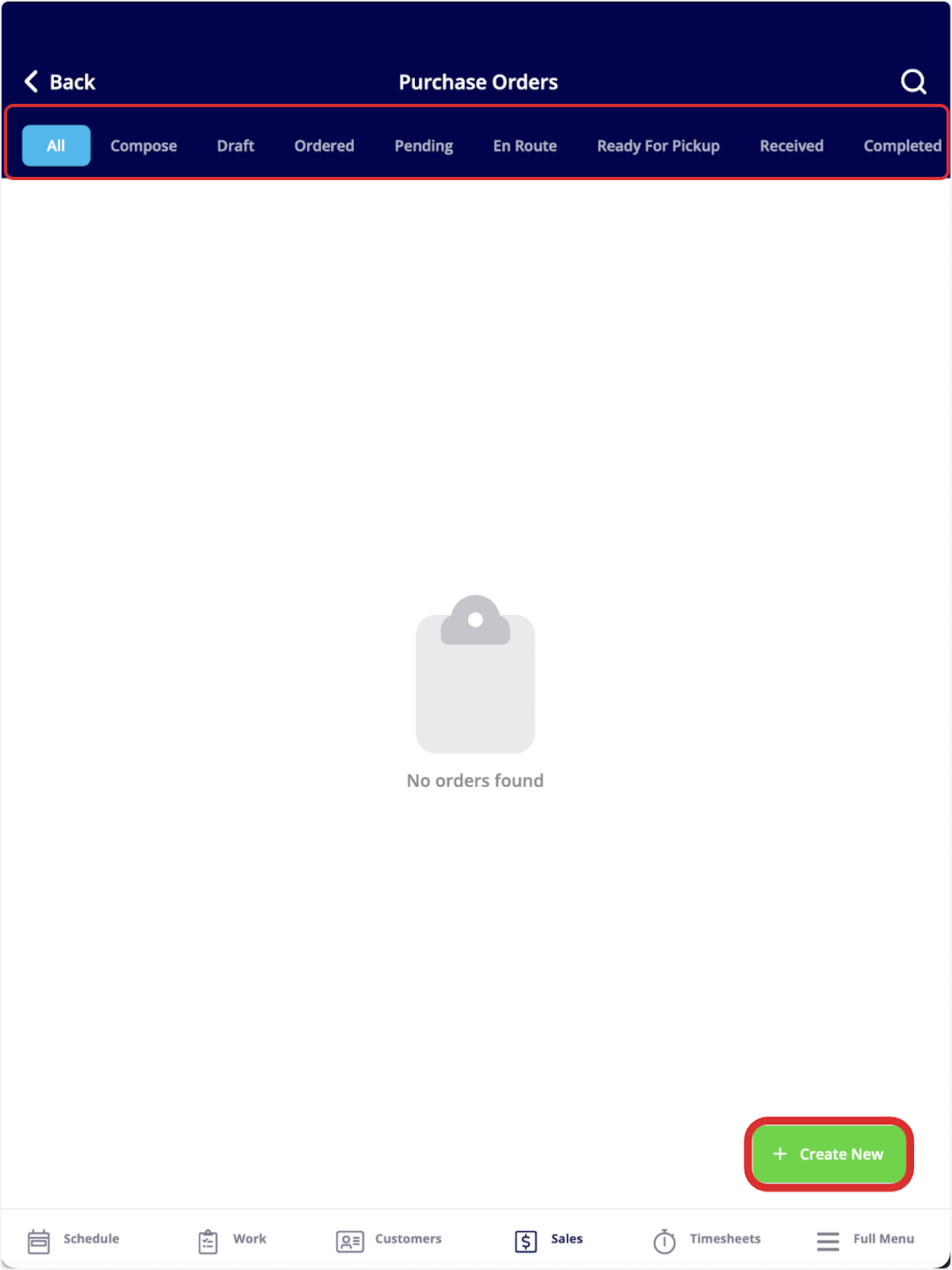
 You can sort existing purchase orders using the tabs at the top of the screen, or create a new purchase order using the *Create New* button.
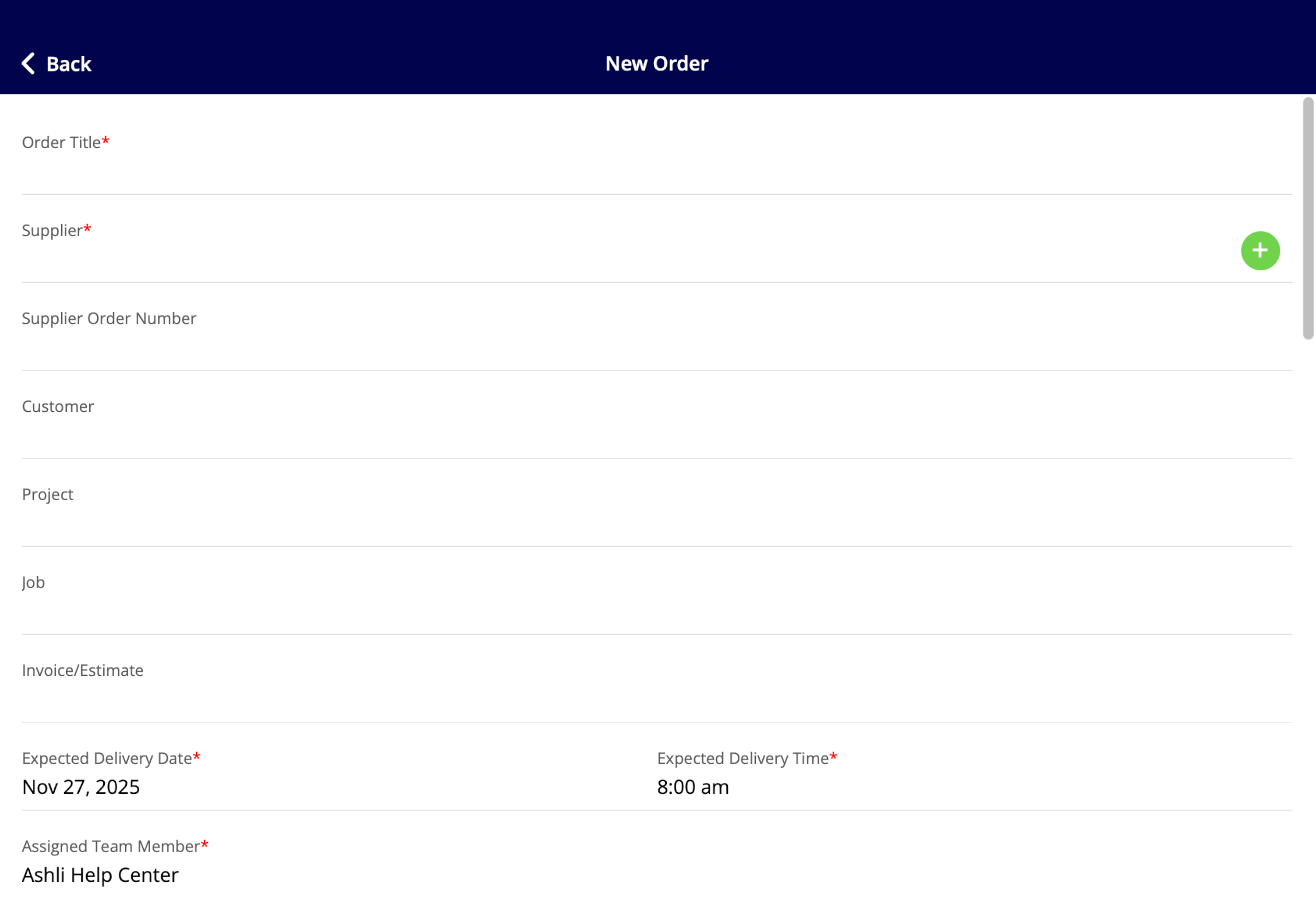
 Once creating a new purchase order, fill in all pertinent details and attach an existing supplier or create a new supplier.
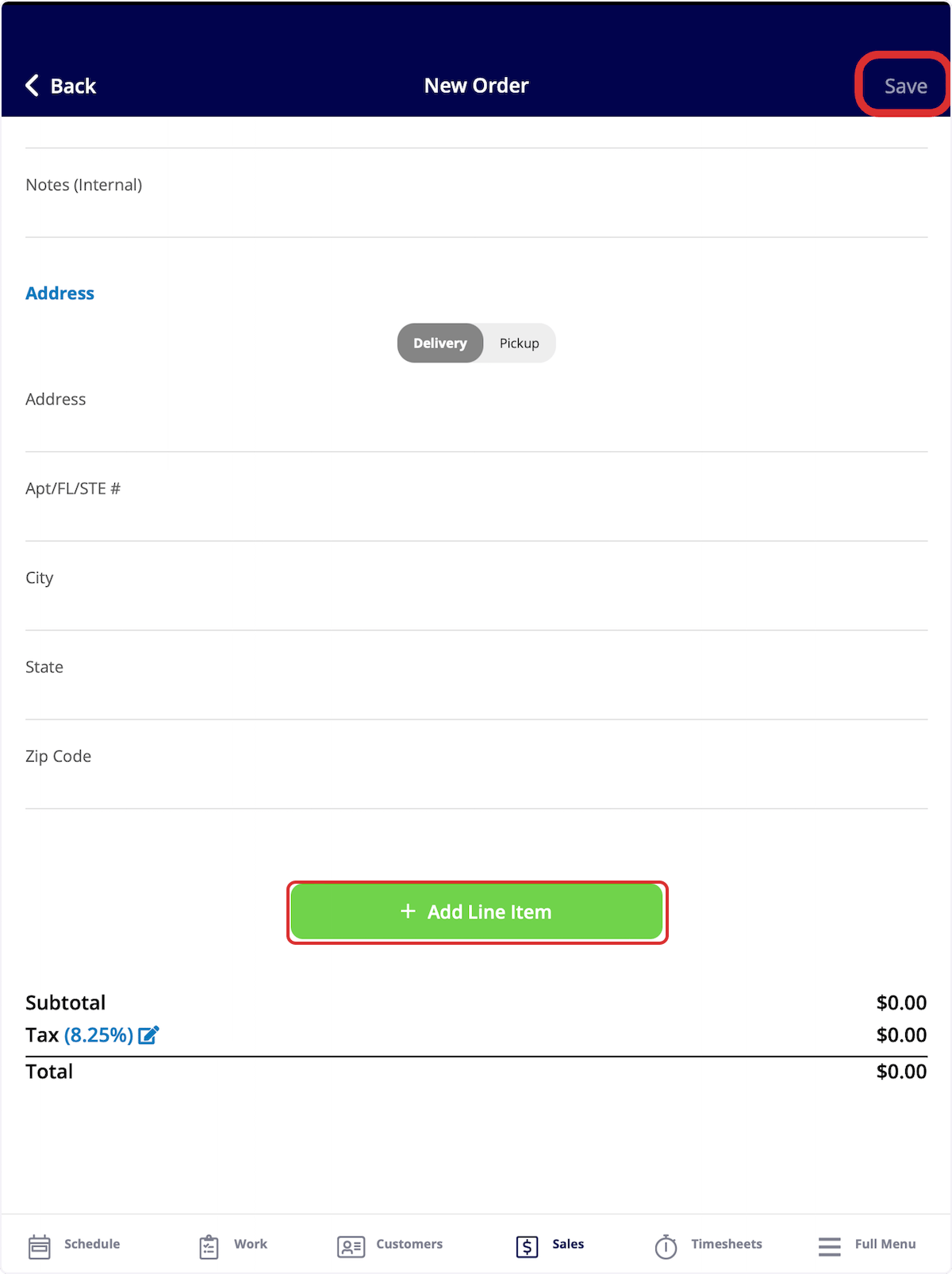
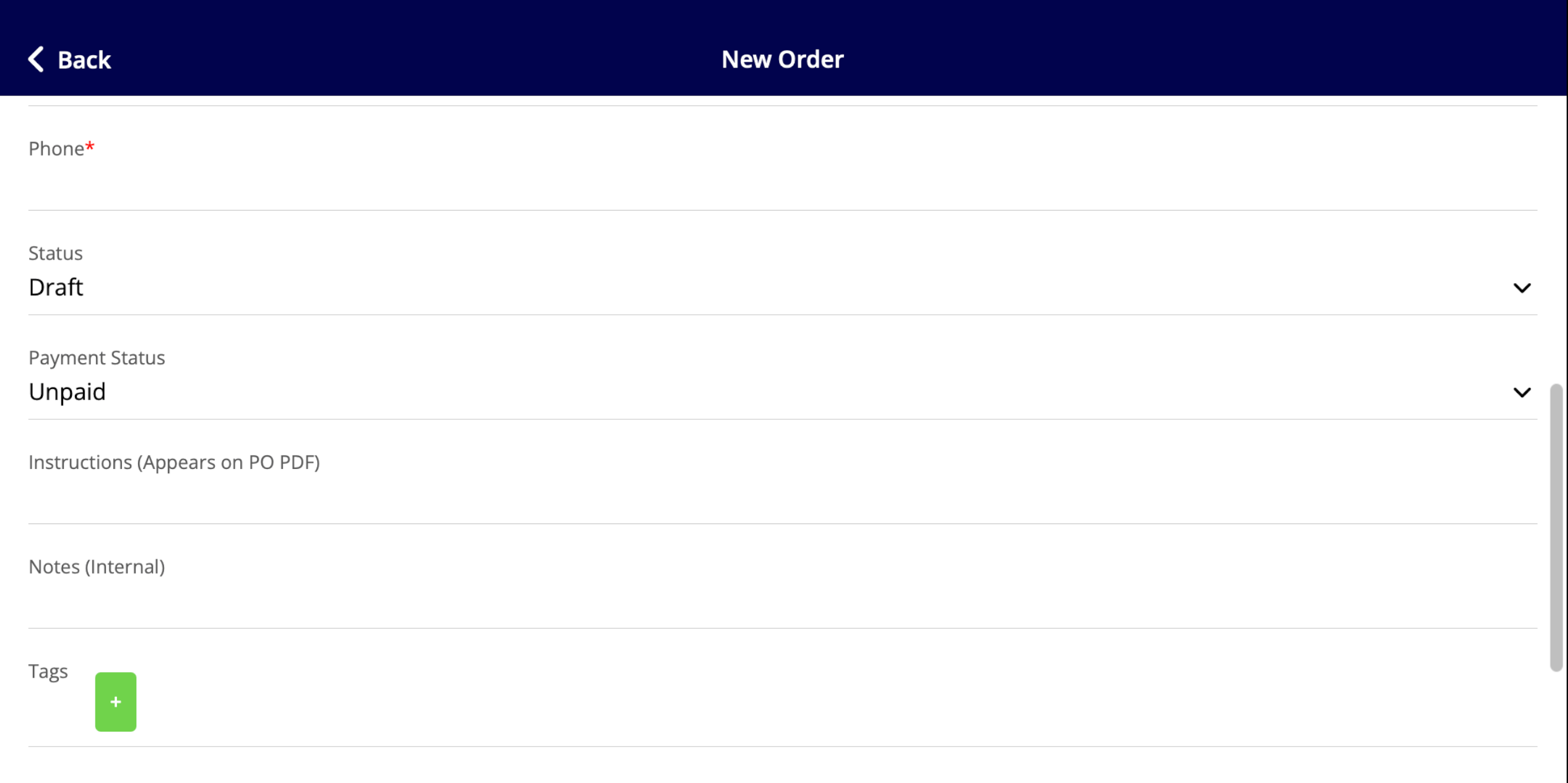 To add items to your purchase order, select *Add Line Item*. Once completed, click *Save* in the top right corner to send your purchase order.
 ***
***
**Have additional questions?**
*Contact us at [support@fieldpulse.com](mailto:support@fieldpulse.com) or use the chat feature in the bottom right corner of your screen.*
## Related topics
- [Supplier Chat](/features-add-ons/supplier-chat.md)
- [Custom Fields on Purchase Orders](/using-fieldpulse/purchase-orders/custom-fields-on-purchase-orders.md)
- [Purchase Orders](/using-fieldpulse/purchase-orders/purchase-orders.md)
- [Material Lists - Mobile App](/using-fieldpulse/material-lists/material-lists-mobile-app.md)
- [Mobile App Overview - Admins & Team Managers](/getting-started/core-features-first-tasks/in-the-field-overview-mobile-experience/mobile-app-overview-admins-team-managers.md)
***
***
**Have additional questions?**
*Contact us at [support@fieldpulse.com](mailto:support@fieldpulse.com) or use the chat feature in the bottom right corner of your screen.*
## Related topics
- [Supplier Chat](/features-add-ons/supplier-chat.md)
- [Custom Fields on Purchase Orders](/using-fieldpulse/purchase-orders/custom-fields-on-purchase-orders.md)
- [Purchase Orders](/using-fieldpulse/purchase-orders/purchase-orders.md)
- [Material Lists - Mobile App](/using-fieldpulse/material-lists/material-lists-mobile-app.md)
- [Mobile App Overview - Admins & Team Managers](/getting-started/core-features-first-tasks/in-the-field-overview-mobile-experience/mobile-app-overview-admins-team-managers.md)