> ## Documentation Index
> Fetch the complete documentation index at: https://help.fieldpulse.com/llms.txt
> Use this file to discover all available pages before exploring further.
# Timesheets - Offline Mode
> Keep clocking in and out when you lose signal in the field; entries cache locally and sync back to FieldPulse once you reconnect.
# Overview
If you lose internet connection while out in the field, you can continue clocking in and out using FieldPulse's Offline Mode. The app will automatically switch to Offline Mode when your connection becomes unstable. Once you reconnect, all time entries sync automatically with the rest of your FieldPulse data.
***
# Prerequisites
Before your technicians can use Timesheets in Offline Mode, make sure the following are in place:
* Timesheets are enabled in your account
* The FieldPulse mobile app is installed and up to date
***
# What Gets Cached
## **Here's what's available offline:**
* Your timesheet entries for the current day
* General Timesheet and Job Timesheet entry types
* Only your own time entries are accessible in Offline Mode. Other team members' timesheets are not available until you're back online (if you have permission to view these).
***
# On Mobile: Field Experience
Lost your signal before you could clock in or out for the day? No problem. FieldPulse detects when you go offline and prompts you to switch to Offline Mode. Here’s exactly what to do:
## Clocking In from the Timesheets Page
**Step 1:**
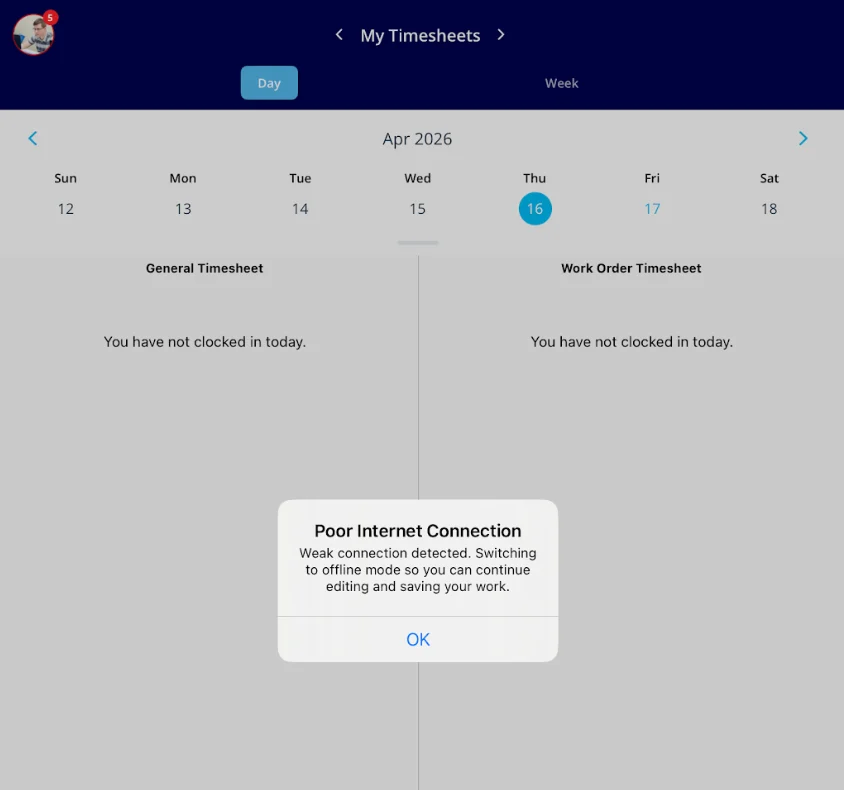
If you're trying to clock in or out via the Timesheets tab and you lose signal, tap to switch to Offline Mode when the prompt appears.
 **Step 2:**
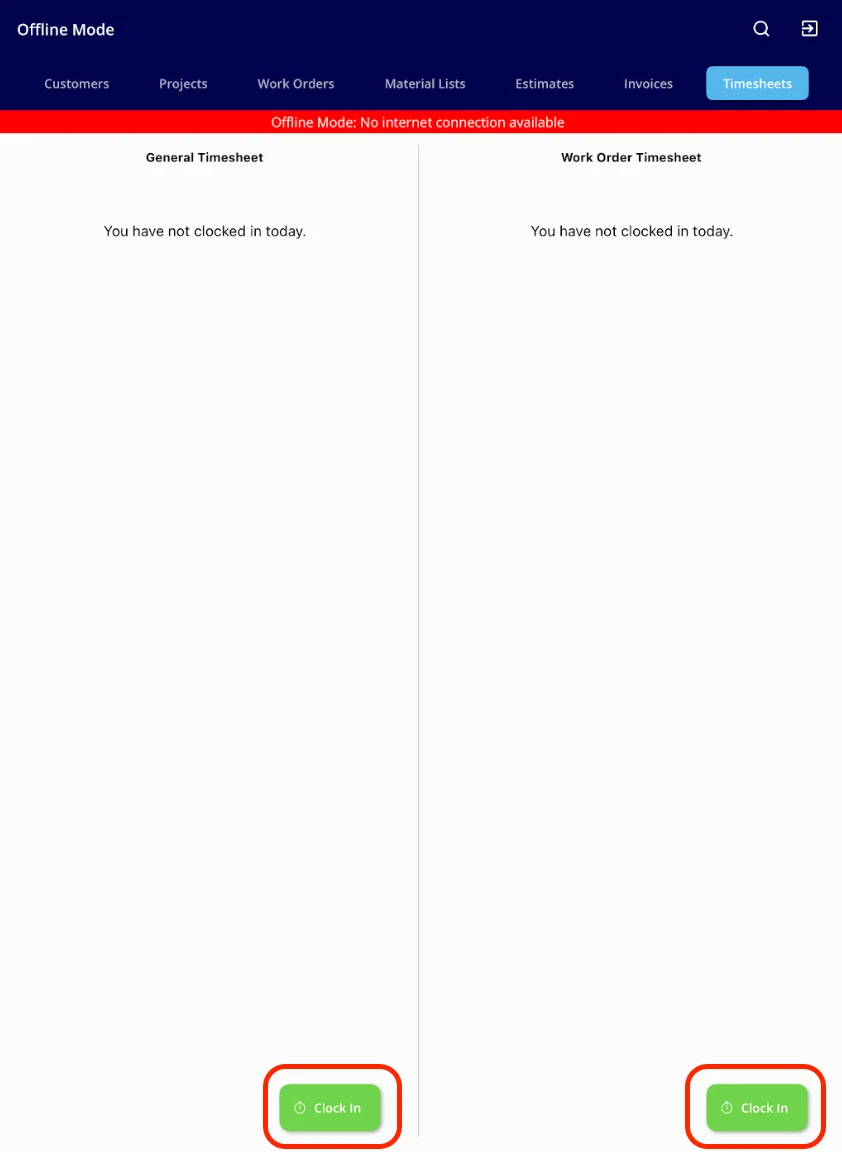
Proceed as normal by tapping the *Clock In* or *Clock Out* button under General Timesheet or Job Timesheet.
**Step 2:**
Proceed as normal by tapping the *Clock In* or *Clock Out* button under General Timesheet or Job Timesheet.
 **Step 3:**
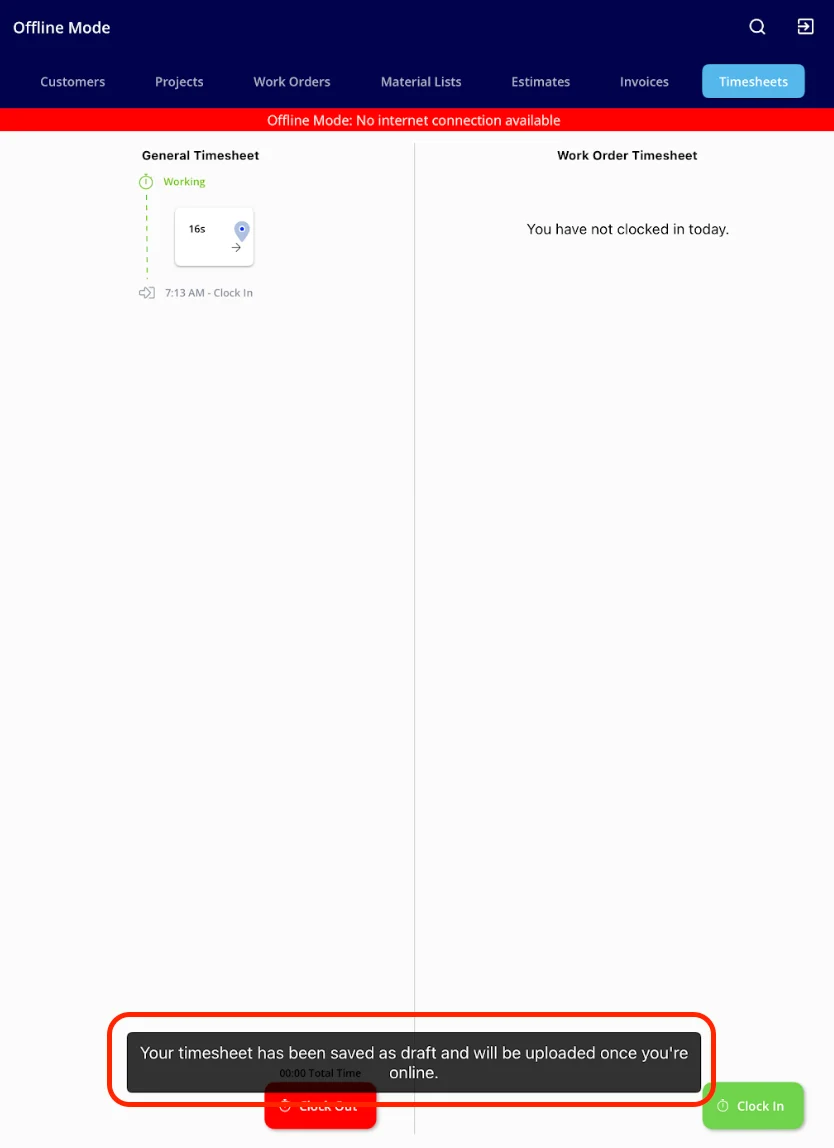
Save your time as usual and rest assured that this will be cached until you regain signal.
**Step 3:**
Save your time as usual and rest assured that this will be cached until you regain signal.
 ## Clocking In from a Job Record
**Step 1:**
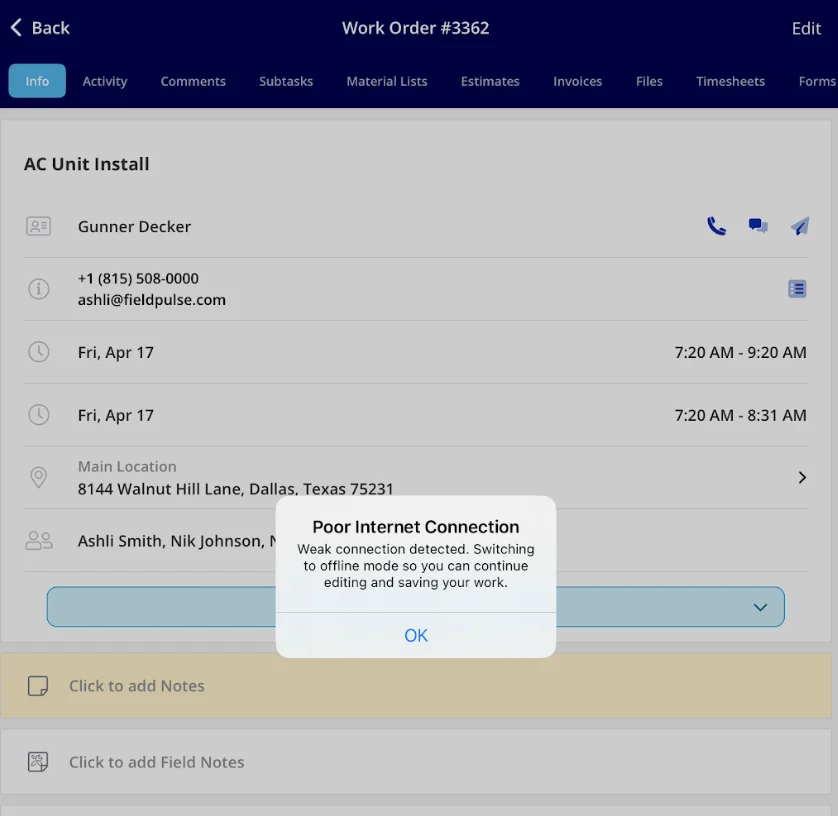
If you're trying to clock in or out via a Job record and you lose signal, tap to switch to Offline Mode when the prompt appears.
## Clocking In from a Job Record
**Step 1:**
If you're trying to clock in or out via a Job record and you lose signal, tap to switch to Offline Mode when the prompt appears.
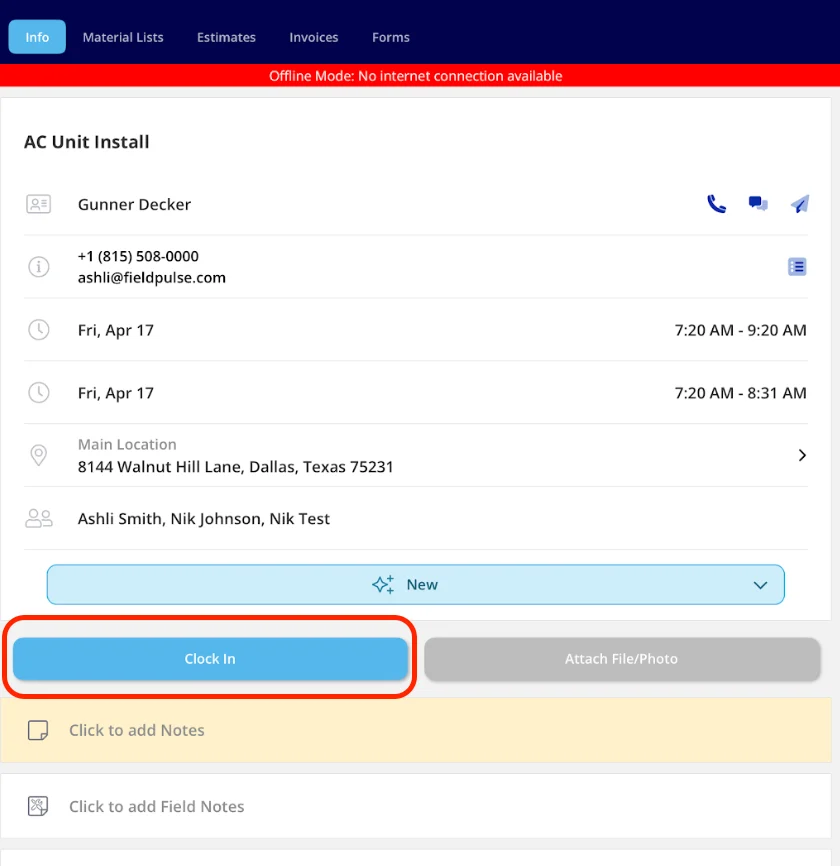
 **Step 2:**
Proceed as normal by tapping the *Clock In* or *Clock Out* button on the record. By doing so, this entry links directly to that Job's timesheet.
**Step 2:**
Proceed as normal by tapping the *Clock In* or *Clock Out* button on the record. By doing so, this entry links directly to that Job's timesheet.
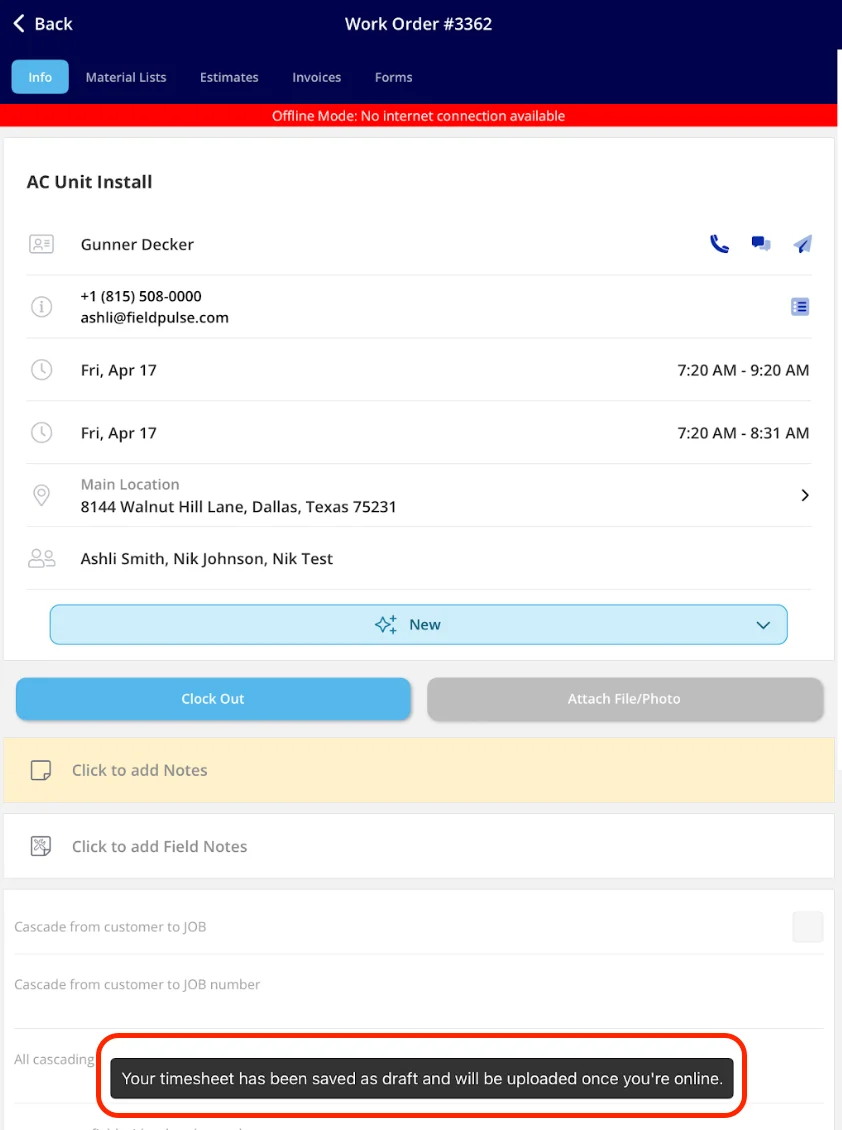
 **Step 3:**
Save your time as usual and rest assured that this will be cached until you regain signal.
**Step 3:**
Save your time as usual and rest assured that this will be cached until you regain signal.
 ## Here's what you can do offline
* Clock in and out on a General Timesheet
* Clock in and out on a Job Timesheet
* View your own time entries for the current day
* Link time entries to a Job that is cached for the current day
Once your connection is restored, FieldPulse will sync your clock in and clock out time stamps to the appropriate Job Timesheet or General Timesheet. No extra steps needed on your end.
***
# Video Tutorial
***
# Troubleshooting
| **Issue** | **Likely Cause** | **Fix** |
| ---------------------------------------------------------------- | ---------------------------------------------------- | ------------------------------------------------------------------------------------------------- |
| Can’t see other team members’ timesheets | Only your own entries are accessible in Offline Mode | Full timesheet visibility is available when back online if you have the permissions to view these |
| Time entries from yesterday or earlier not visible | Only current-day entries are available offline | Prior-day entries are accessible when back online |
| Clock-in time not appearing in FieldPulse after returning online | Sync still in progress | Ensure a stable internet connection and wait for the entries to sync |
***
**Have additional questions?**
*Contact us at [support@fieldpulse.com](mailto:support@fieldpulse.com) or use the chat feature in the bottom right corner of your screen.*
## Here's what you can do offline
* Clock in and out on a General Timesheet
* Clock in and out on a Job Timesheet
* View your own time entries for the current day
* Link time entries to a Job that is cached for the current day
Once your connection is restored, FieldPulse will sync your clock in and clock out time stamps to the appropriate Job Timesheet or General Timesheet. No extra steps needed on your end.
***
# Video Tutorial
***
# Troubleshooting
| **Issue** | **Likely Cause** | **Fix** |
| ---------------------------------------------------------------- | ---------------------------------------------------- | ------------------------------------------------------------------------------------------------- |
| Can’t see other team members’ timesheets | Only your own entries are accessible in Offline Mode | Full timesheet visibility is available when back online if you have the permissions to view these |
| Time entries from yesterday or earlier not visible | Only current-day entries are available offline | Prior-day entries are accessible when back online |
| Clock-in time not appearing in FieldPulse after returning online | Sync still in progress | Ensure a stable internet connection and wait for the entries to sync |
***
**Have additional questions?**
*Contact us at [support@fieldpulse.com](mailto:support@fieldpulse.com) or use the chat feature in the bottom right corner of your screen.*