> ## Documentation Index
> Fetch the complete documentation index at: https://help.fieldpulse.com/llms.txt
> Use this file to discover all available pages before exploring further.
# Timesheets - Mobile App
> To get started with timesheets, visit the Employee Timesheets article. Once you've activated your timesheets, follow this guide to use and manage…
To get started with timesheets, visit the [Employee Timesheets](/using-fieldpulse/work/employee-timesheets) article. Once you've activated your timesheets, follow this guide to use and manage timesheets in the FieldPulse mobile app!
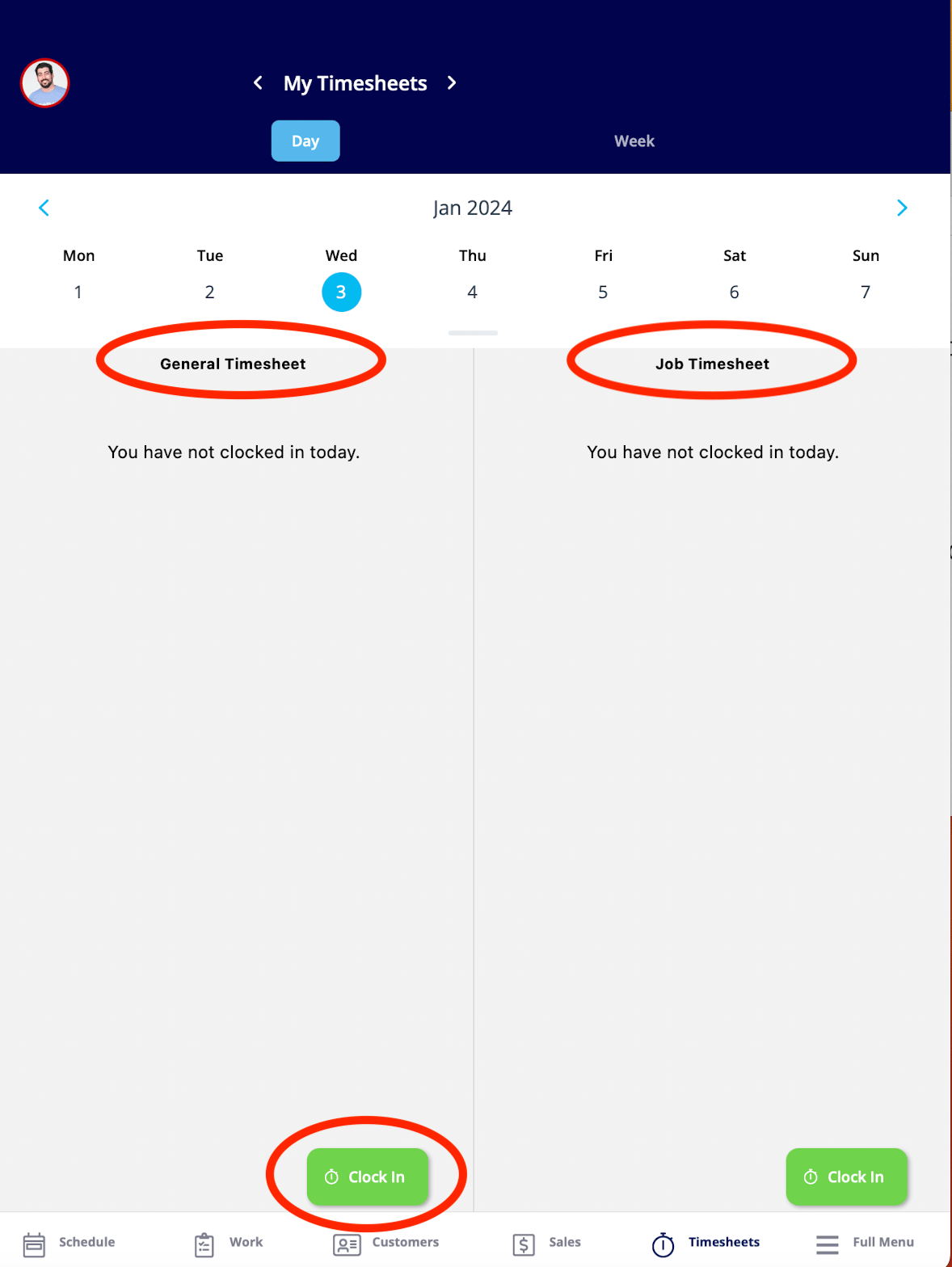
After selecting *Timesheets* from the bottom menu, you'll notice two categories -- *General Timesheets* and *Job Timesheets*. If you only see General Timesheets but would like to track Job Timesheets as well, check out the [Employee Timesheets](/using-fieldpulse/work/employee-timesheets) article to change your settings.
***
# Clocking In & Out
## General Timesheets
To clock in to your general timesheet in the mobile app, use the bottom menu to navigate to *Timesheets*. Then, select *Clock In* under *General Timesheet*. You will repeat this process when you're ready to clock out.
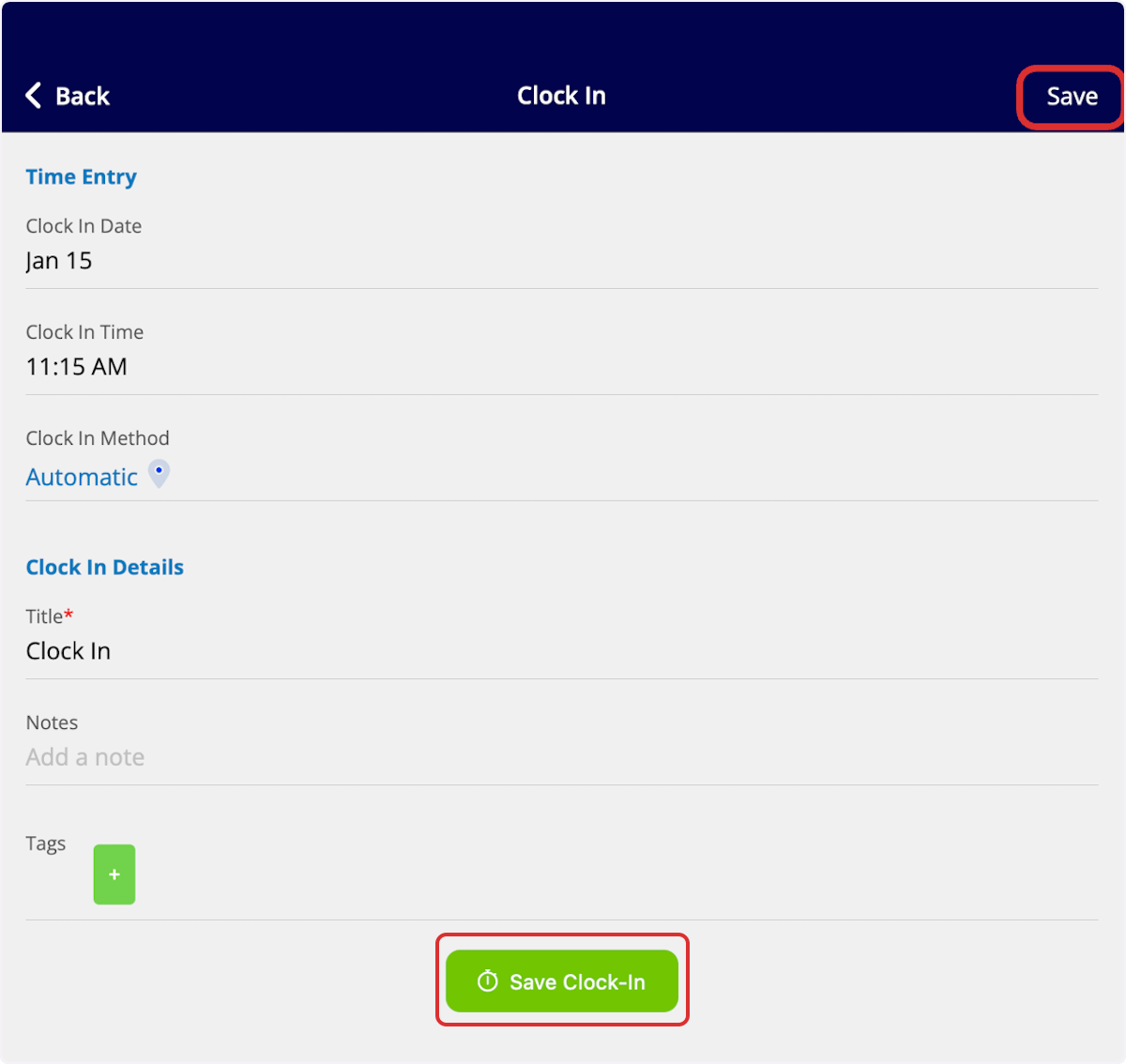
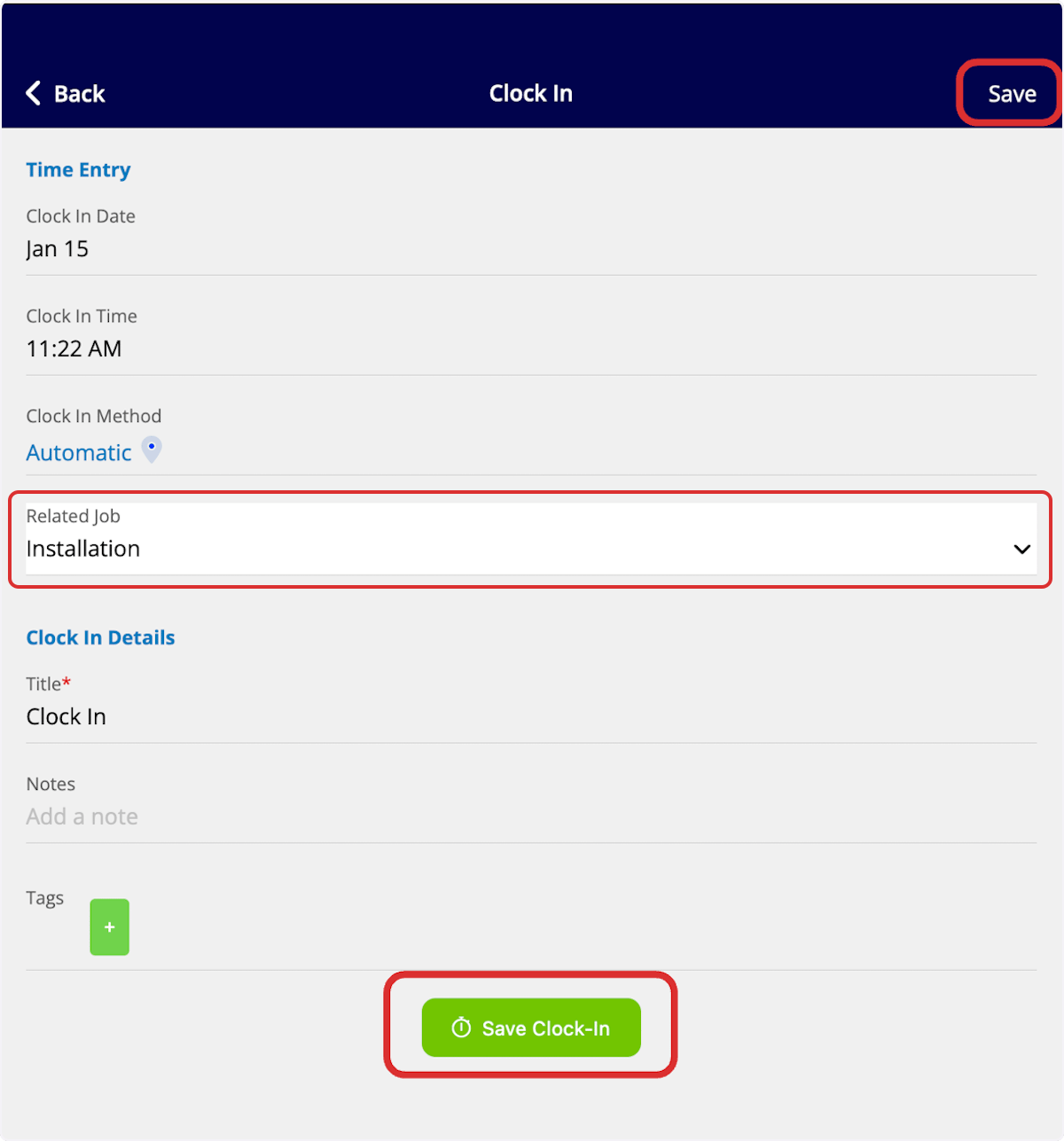
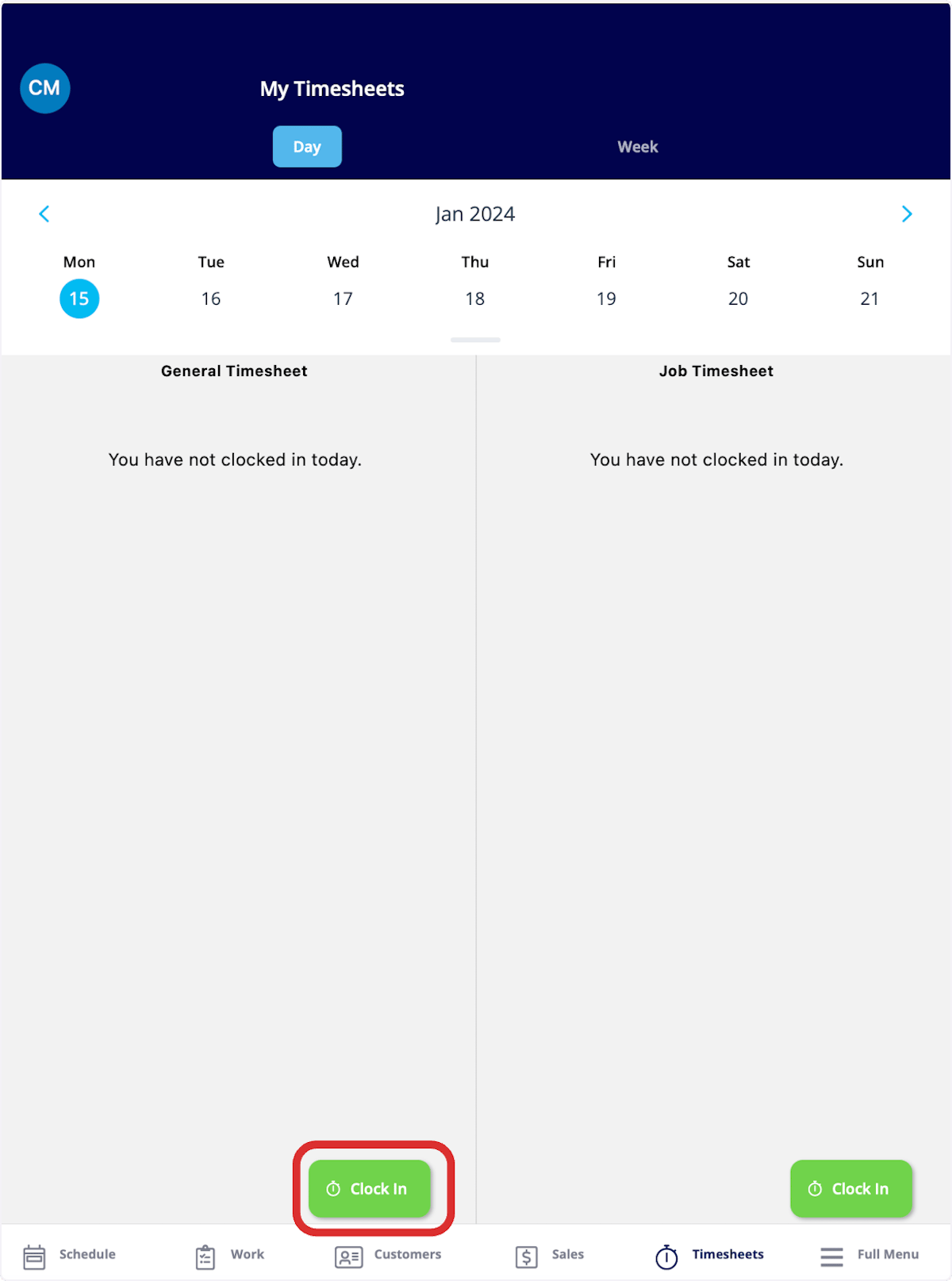 After selecting *Clock In*, you will have the option to add notes or tags to your clock in. Be sure to press *Save Clock-In* or *Save* to ensure your time is recorded.
 ## Job Timesheets
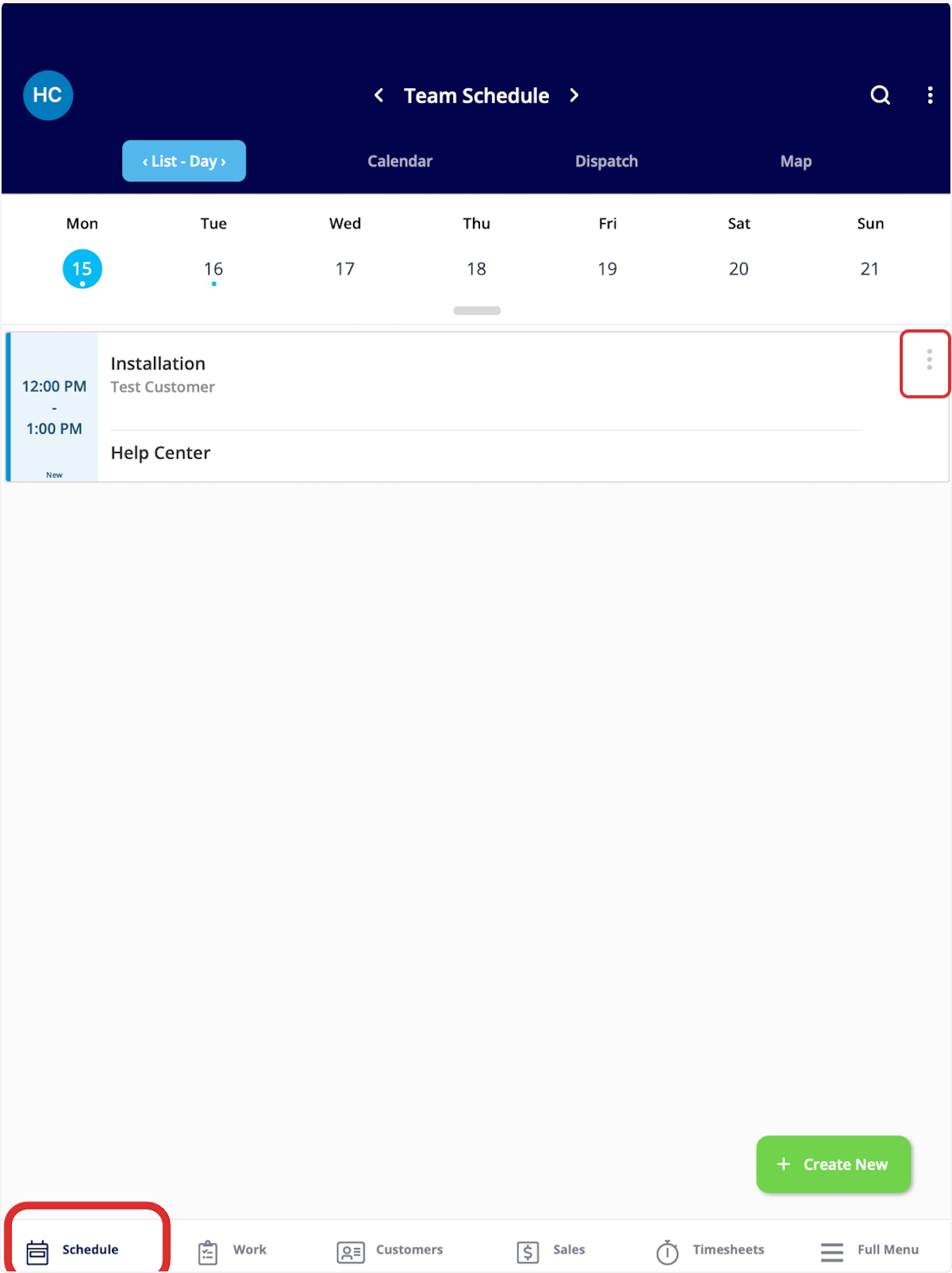
To clock in for a job, begin by clicking the *Schedule* tab on the bottom of the screen. Here, you will see a list of your jobs for the day. To clock in for a job, select the three dots on the right side of the job.
## Job Timesheets
To clock in for a job, begin by clicking the *Schedule* tab on the bottom of the screen. Here, you will see a list of your jobs for the day. To clock in for a job, select the three dots on the right side of the job.
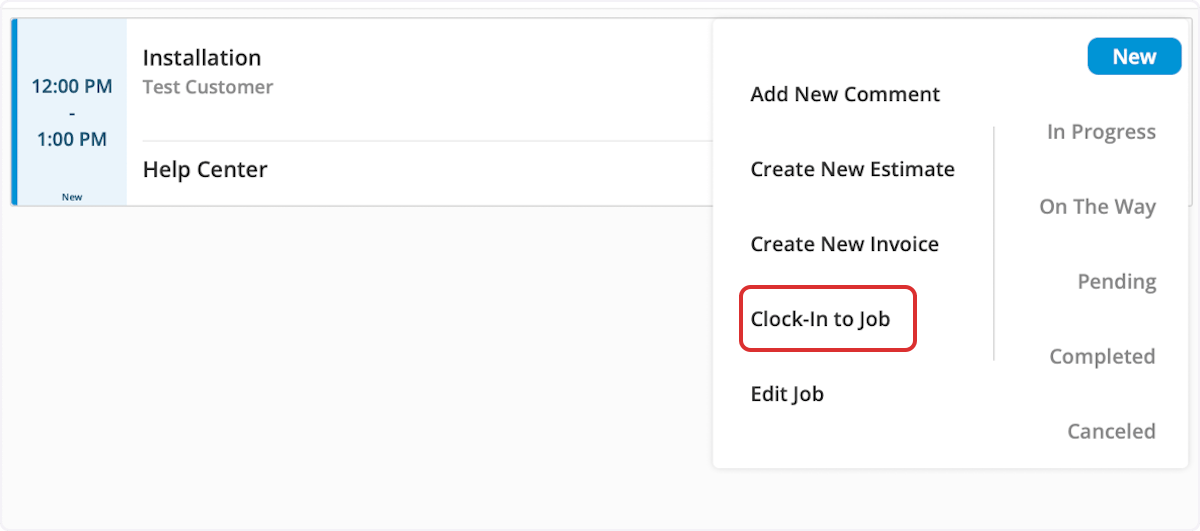
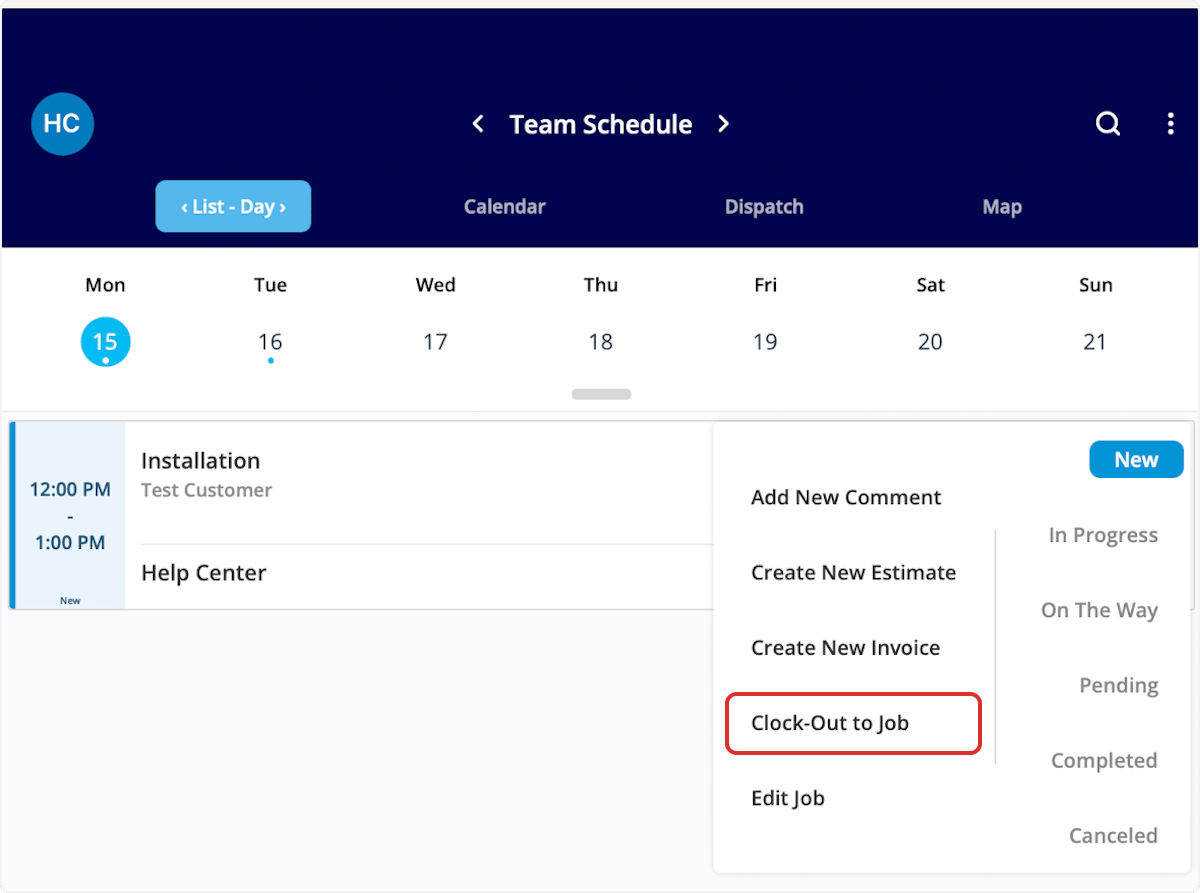
 A short menu will appear, and you should select *Clock-In to Job*.
 From here, a clock in page will appear where you can add notes or tags. Notice that the related job field contains the title of the job you are clocking in for. Be sure to press *Save Clock-In* or *Save* to ensure your time is recorded.
 To clock out of a job, return to the *Schedule* tab and again select the three dots next to the job. You can now select *Clock-Out to Job* to finish tracking your time for this job.
 ## Clocking Out
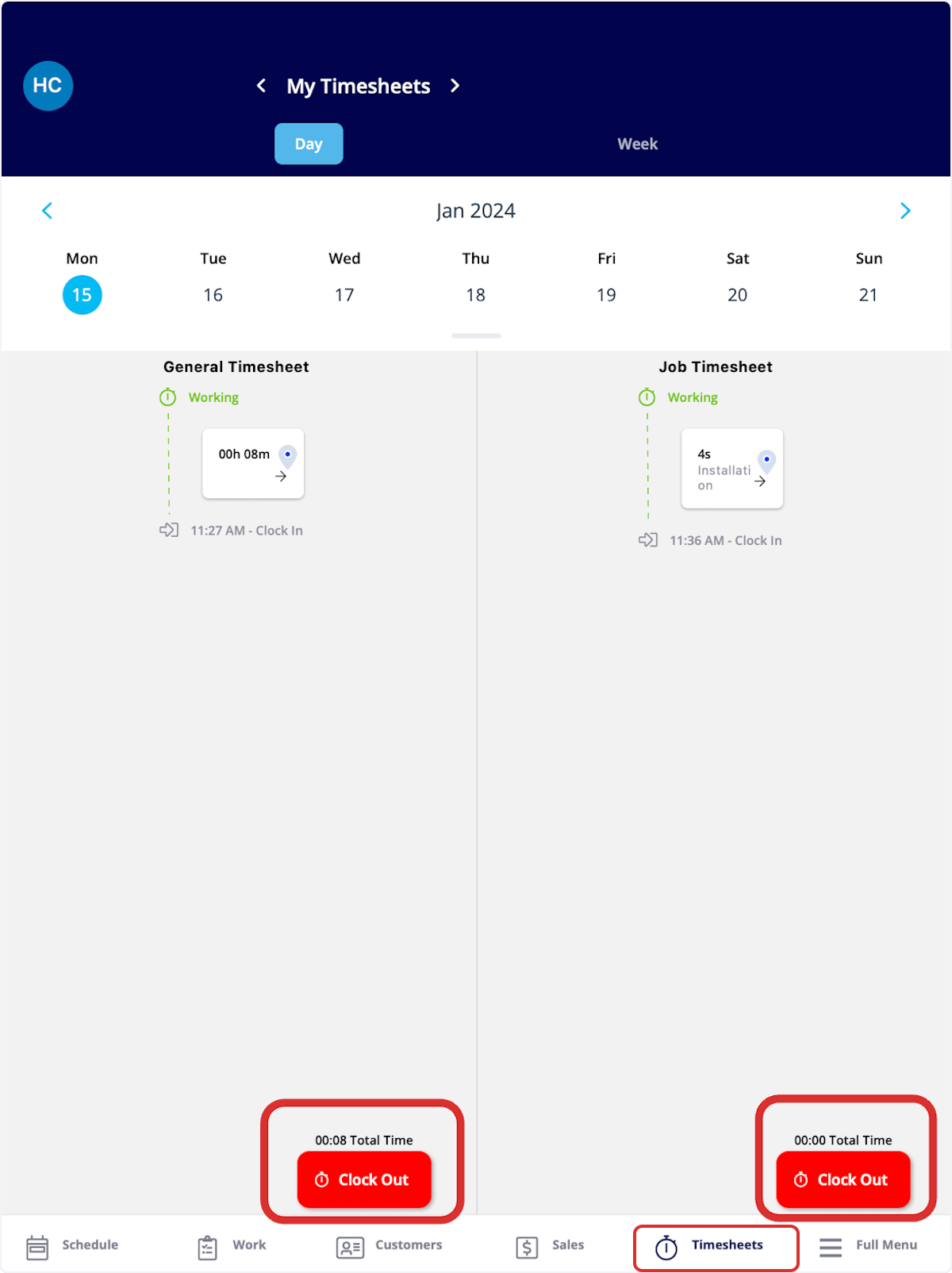
To clock out of a general timesheet or a job-specific timesheet, navigate to the *Timesheets* tab at the bottom of the screen. You can now select clock out for either timesheet, as well as view your previous timesheets by selecting a day or week from the top of your screen.
## Clocking Out
To clock out of a general timesheet or a job-specific timesheet, navigate to the *Timesheets* tab at the bottom of the screen. You can now select clock out for either timesheet, as well as view your previous timesheets by selecting a day or week from the top of your screen.
 ***
# Viewing Timesheets
## My Timesheets
This section allows you to easily view your timesheets by day or week, which can be changed at the top of your screen. You can also clock in or out from this view using the *Clock In* or *Clock Out* buttons at the bottom of your screen.
***
# Viewing Timesheets
## My Timesheets
This section allows you to easily view your timesheets by day or week, which can be changed at the top of your screen. You can also clock in or out from this view using the *Clock In* or *Clock Out* buttons at the bottom of your screen.
 ## Viewing Team Timesheets
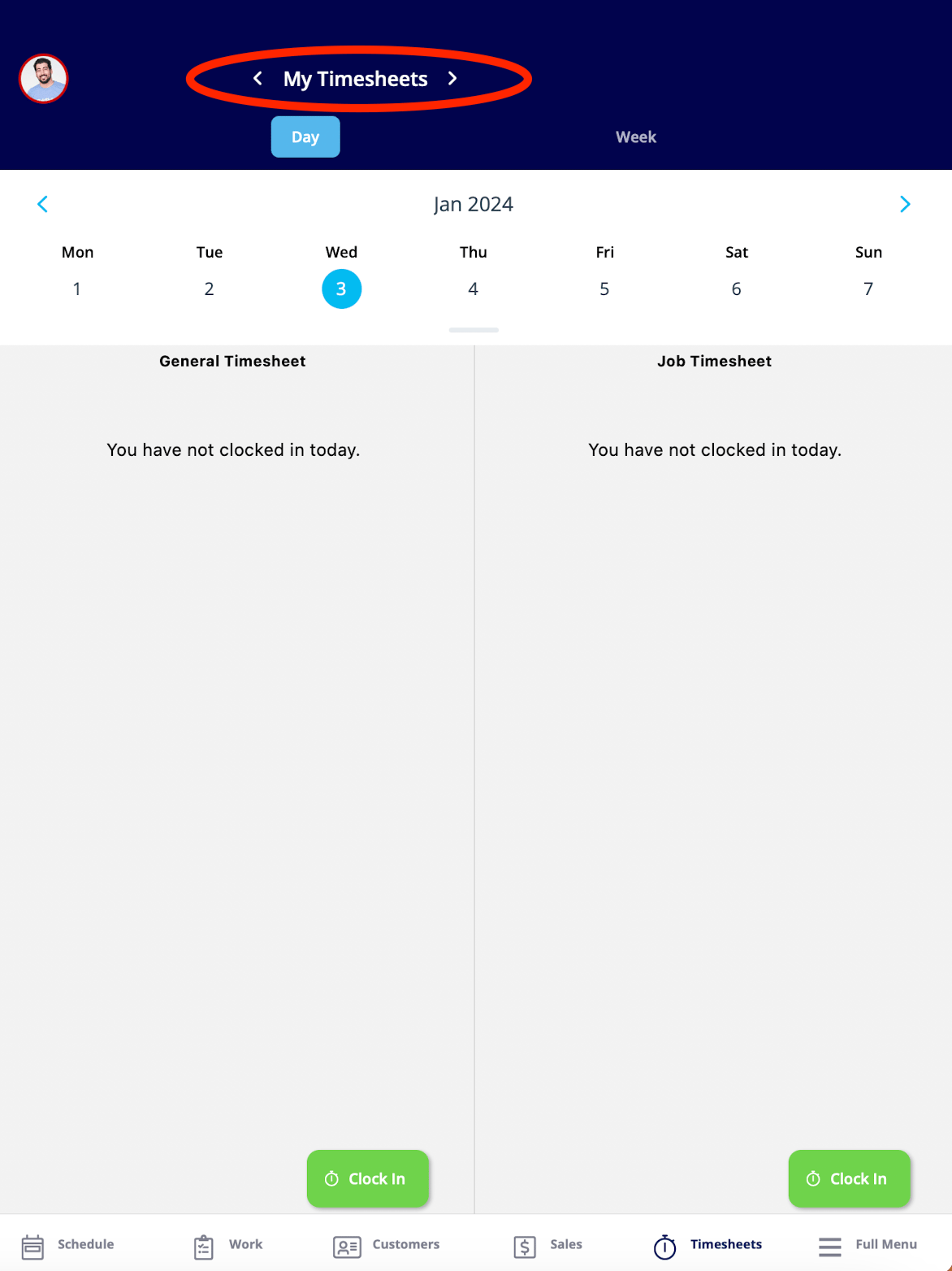
If you'd like to view the timesheets for your team, click the arrows next to the *My Timesheets* to switch your view to *Team Timesheets.*
## Viewing Team Timesheets
If you'd like to view the timesheets for your team, click the arrows next to the *My Timesheets* to switch your view to *Team Timesheets.*
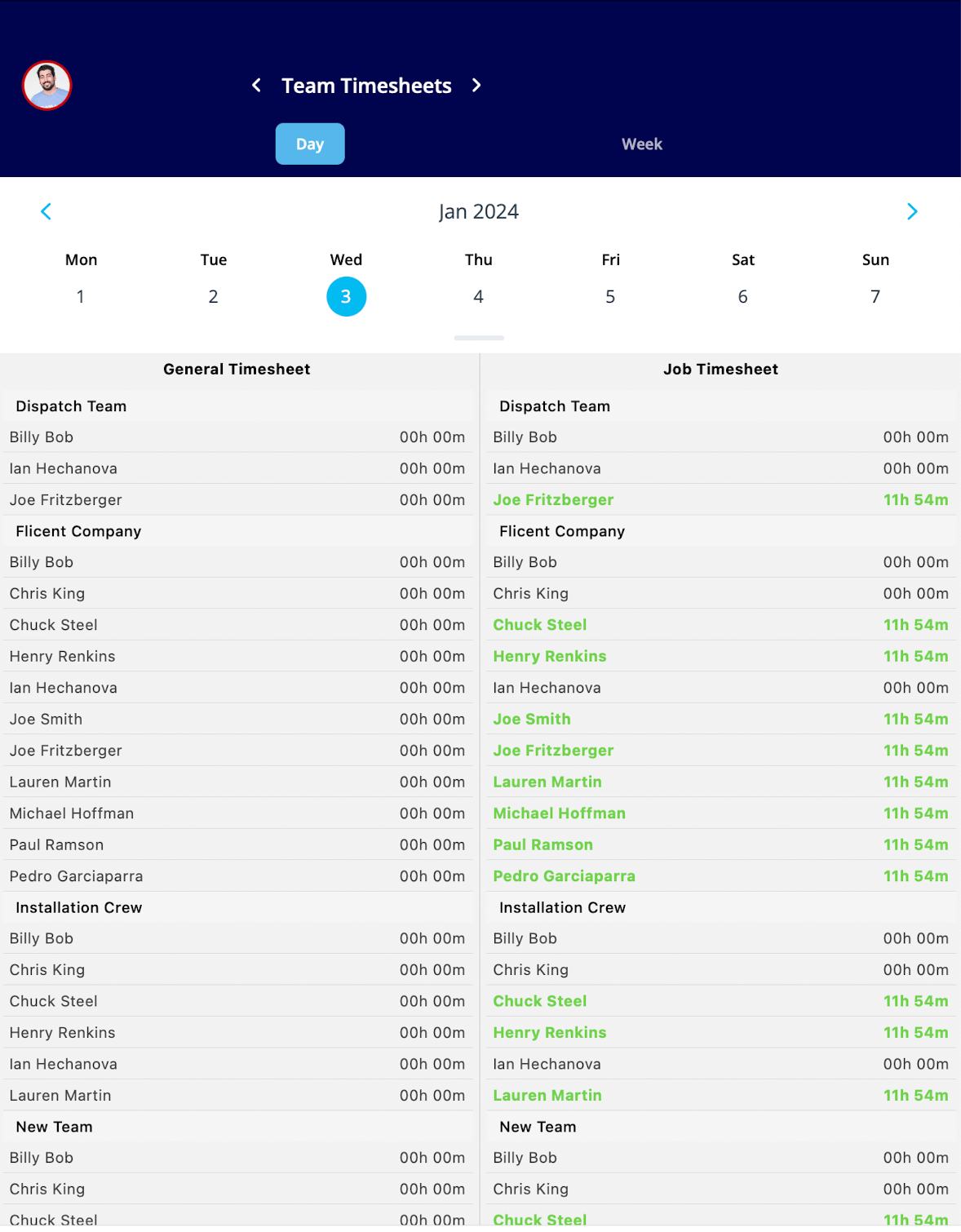
 Now you can see your team member's timesheets sorted into *General Timesheets* and *Job Timesheets*. You can also view timesheets by day or week, just like in *My Timesheets*.
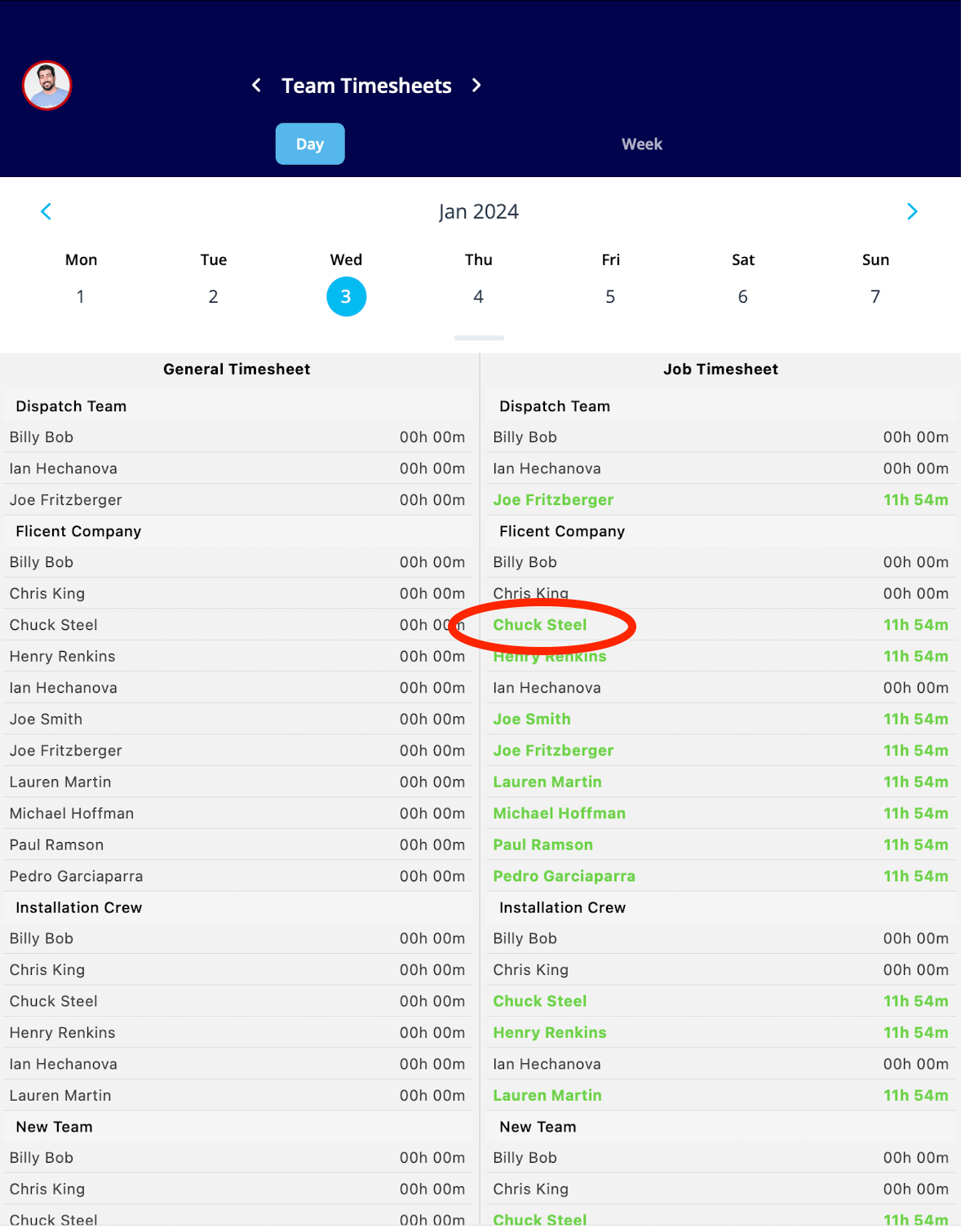
 If you'd like to look more closely at a timesheet, simply click on the team member's name.
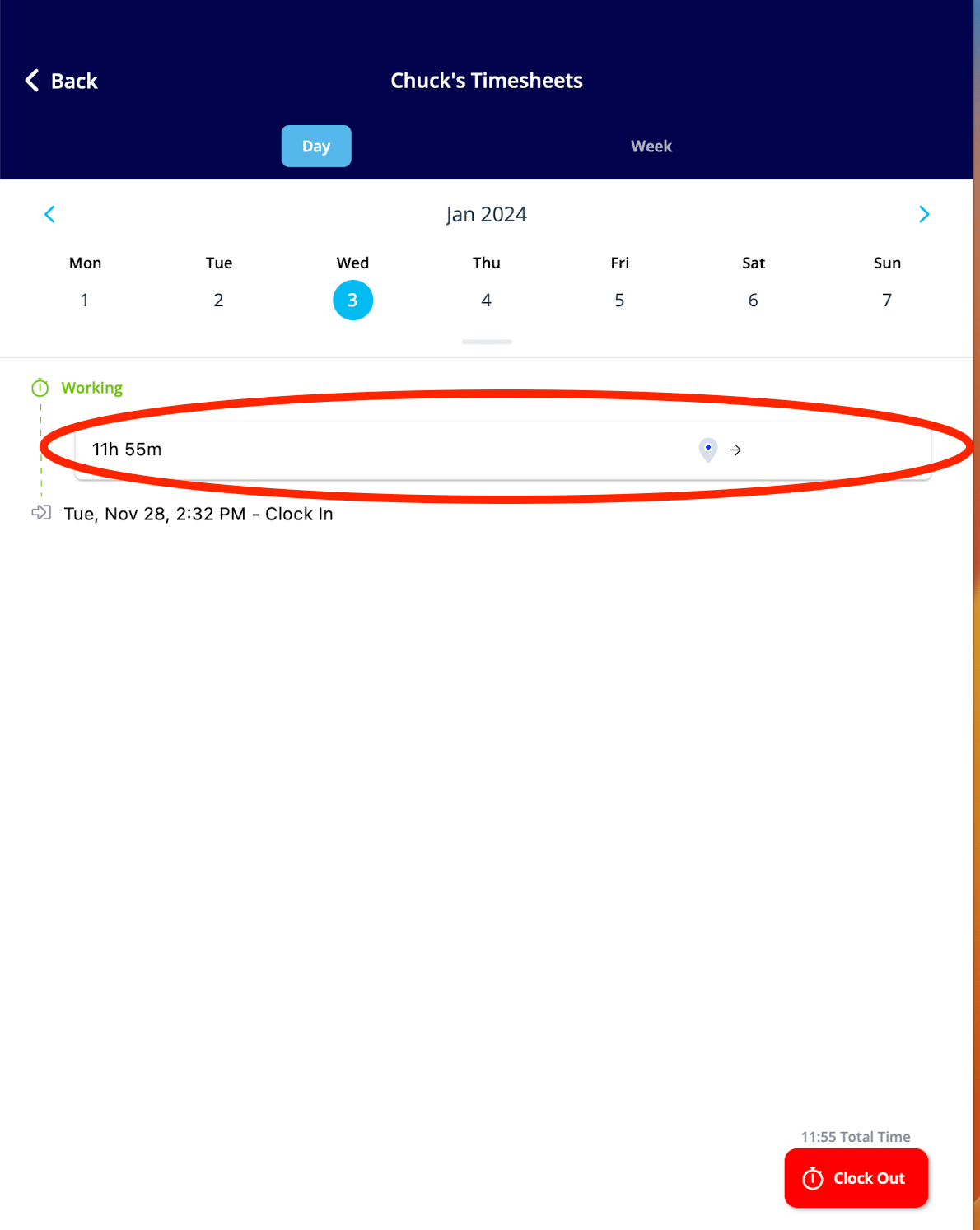
 This allows you to view the details, as well as to adjust the clock-in and clock-out times if necessary. To make these changes, click on the recorded time.
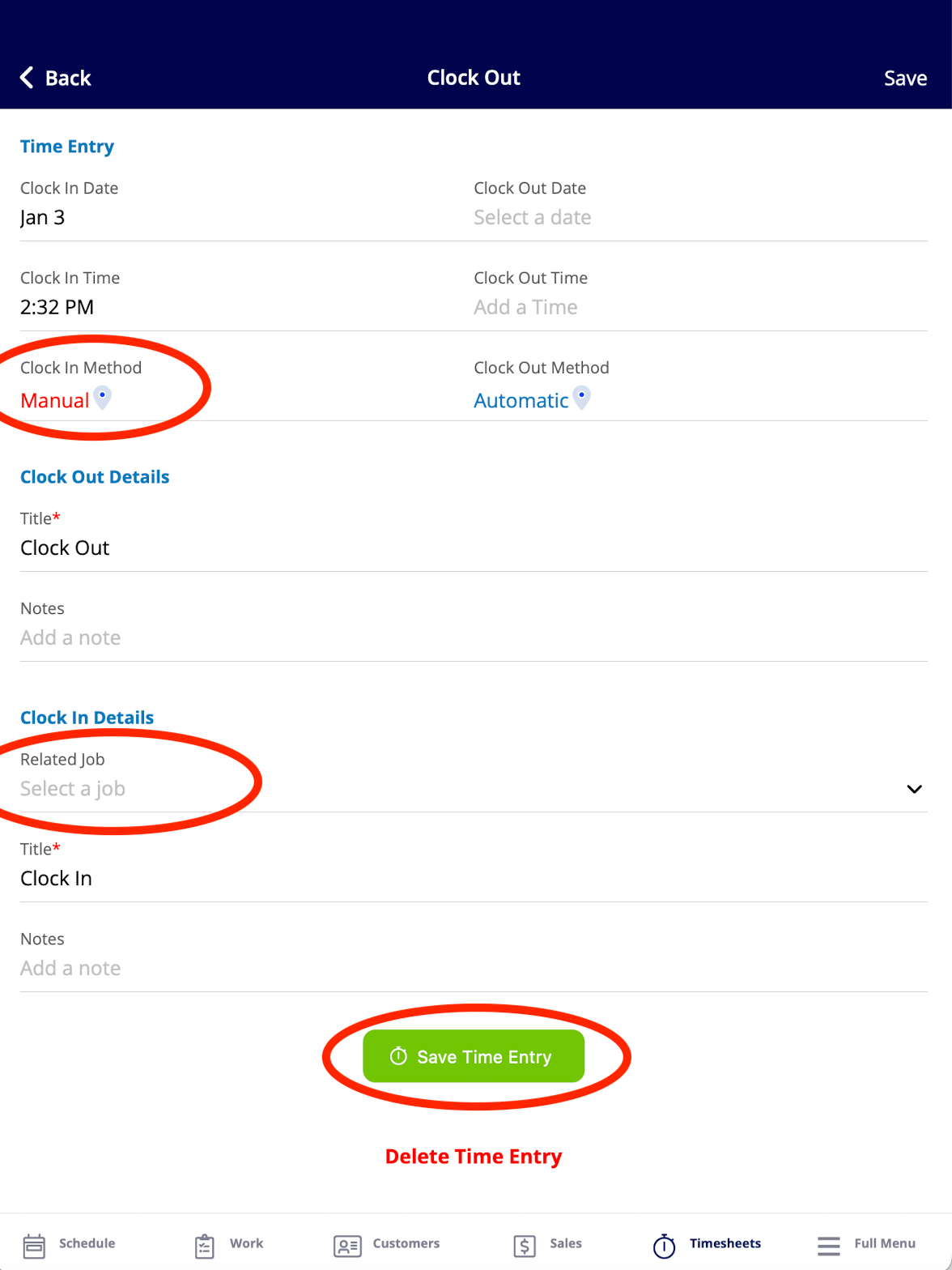
 Here, you can manually adjust the timesheet data for your team members. You can change the clock-in and clock-out times, as well as select a related job for this timesheet to be attached to. Note that when changes are made to clock-in or clock-out times, the *Clock-In Method* on this record will change from *Automatic* to *Manual*. Be sure to press *Save Time Entry* after making changes.
 To pull reports on your timesheets or change your team member's timesheet settings, check out the [Employee Timesheets](/using-fieldpulse/work/employee-timesheets) article.
***
# Video Tutorial
***
## **Have additional questions?**
*Contact us at [support@fieldpulse.com](mailto:support@fieldpulse.com) or use the chat feature in the bottom right corner of your screen.*
To pull reports on your timesheets or change your team member's timesheet settings, check out the [Employee Timesheets](/using-fieldpulse/work/employee-timesheets) article.
***
# Video Tutorial
***
## **Have additional questions?**
*Contact us at [support@fieldpulse.com](mailto:support@fieldpulse.com) or use the chat feature in the bottom right corner of your screen.*