> ## Documentation Index
> Fetch the complete documentation index at: https://help.fieldpulse.com/llms.txt
> Use this file to discover all available pages before exploring further.
# How to Mark a Payment
> Record a payment your customer already made against a FieldPulse invoice so it reads Paid or Partially Paid and balances due stay accurate.
> **Who uses this:** Anyone who can open and edit an invoice record. **Availability:** Web app and mobile app — marking a payment does not require FieldPulse Payments.
Marking a payment records money your customer has already paid — cash, a check, or any method handled outside FieldPulse — against the [invoice](https://www.fieldpulse.com/features/estimates-and-invoices) it belongs to. The payment record is what moves the invoice to **Paid** or **Partially Paid** and keeps the balance due accurate. To take a card or ACH payment through FieldPulse instead of recording one, see [How to Collect Payments: 3 Methods](/payments/collecting/collecting-payments-3-methods).
## Overview
Marking a payment attaches a payment record to an invoice with the payment method, amount, date, and any notes. Payment records are what mark an invoice **Paid** or **Partially Paid** — with the full amount recorded the invoice reads **Paid**, and with part of the amount recorded it reads **Partially Paid**.
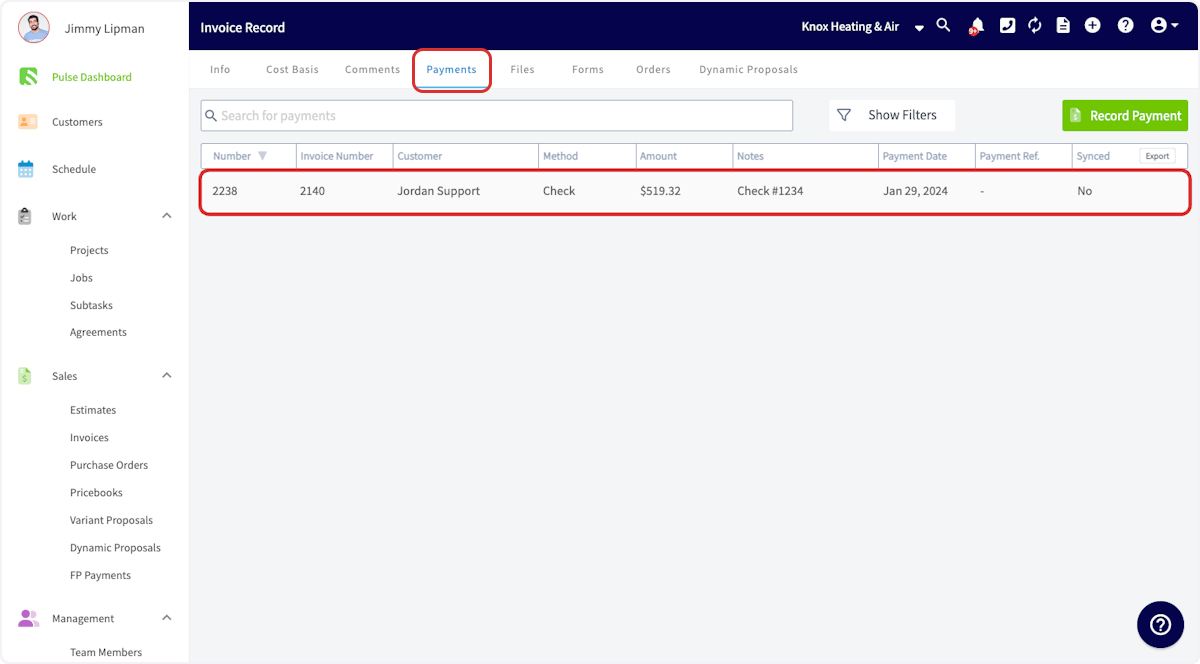
Every payment record lives under the **Payments** tab of the invoice record, in a row that shows **Number**, **Invoice Number**, **Customer**, **Method**, **Amount**, **Notes**, **Payment Date**, **Payment Ref.**, and **Synced**. You can mark a payment on one invoice at a time on the web app or the mobile app, or mark several invoices paid at once from the **Invoices** list.
## Before you begin
* Collecting a credit card payment, collecting an ACH payment, and sending a payment request all require FieldPulse Payments — see [How to Collect Payments: 3 Methods](/payments/collecting/collecting-payments-3-methods).
* Have the payment method, amount, and date in front of you so the record matches what the customer paid.
## On web
### Mark a payment on an invoice
Record the payment on the invoice it belongs to.
1. Open the invoice record you want to apply the payment to.
2. Select **Payment**.
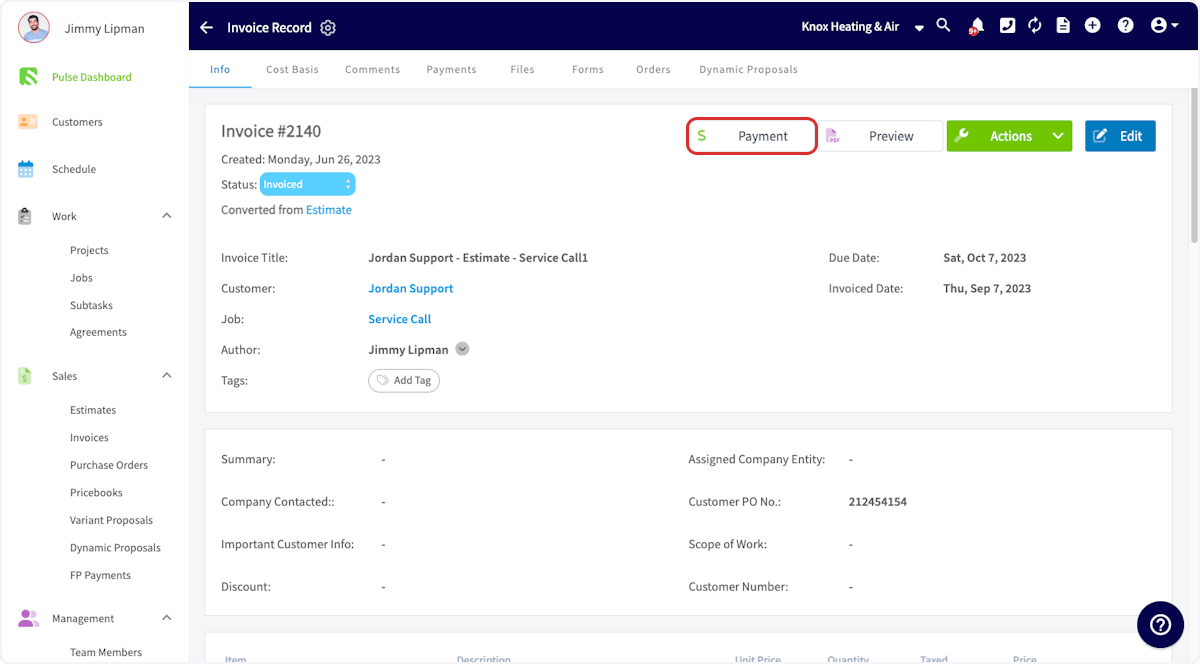 3. In the window that opens, select **Mark Payment**. This is also the window where you process a credit card if you use FieldPulse Payments.
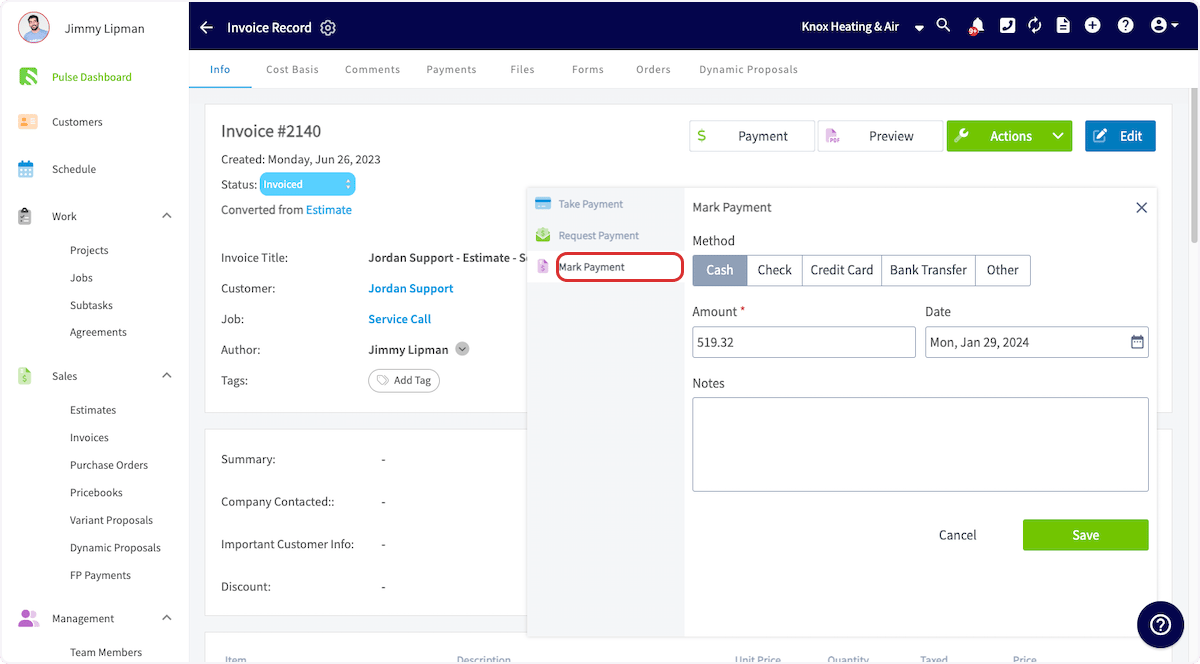 4. Choose the **Method** — **Cash**, **Check**, **Credit Card**, **Bank Transfer**, or **Other**.
5. Confirm the **Amount** and the **Date**.
6. Add any **Notes**.
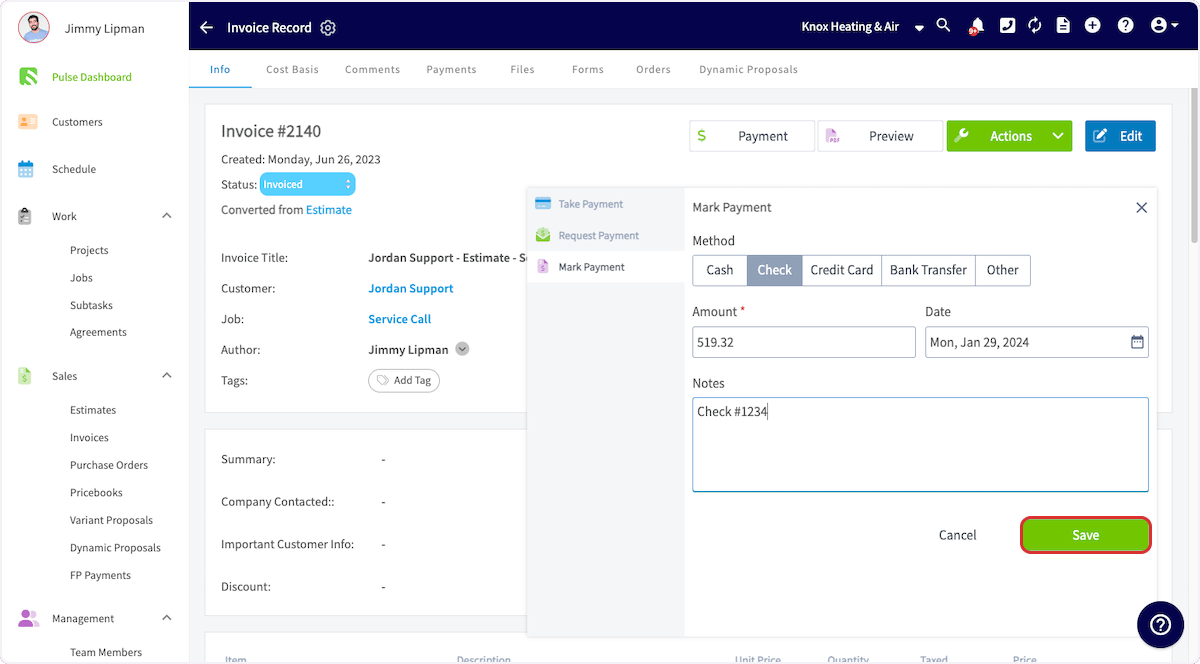
7. Select **Save**.
4. Choose the **Method** — **Cash**, **Check**, **Credit Card**, **Bank Transfer**, or **Other**.
5. Confirm the **Amount** and the **Date**.
6. Add any **Notes**.
7. Select **Save**.
 The payment record appears under the **Payments** tab on the invoice record. Deleting or modifying a payment record changes the invoice status, and moving the invoice back to a previous status or marking it void removes its payment records automatically.
 ### Mark bulk payments
Mark several invoices paid in one pass from the **Invoices** list.
1. Go to your **Invoices** list and select the pencil icon.
2. Select the checkbox on each invoice you want to mark as paid.
3. Adjust the payment method, date, and notes.
4. Save the payment record.
Bulk marking records payments only — it does not collect them.
## On mobile
### Open the invoice
Start from the invoice record you want to apply the payment to.
1. Select the **Sales** tab at the bottom of your screen, then select **Invoices**.
### Mark bulk payments
Mark several invoices paid in one pass from the **Invoices** list.
1. Go to your **Invoices** list and select the pencil icon.
2. Select the checkbox on each invoice you want to mark as paid.
3. Adjust the payment method, date, and notes.
4. Save the payment record.
Bulk marking records payments only — it does not collect them.
## On mobile
### Open the invoice
Start from the invoice record you want to apply the payment to.
1. Select the **Sales** tab at the bottom of your screen, then select **Invoices**.
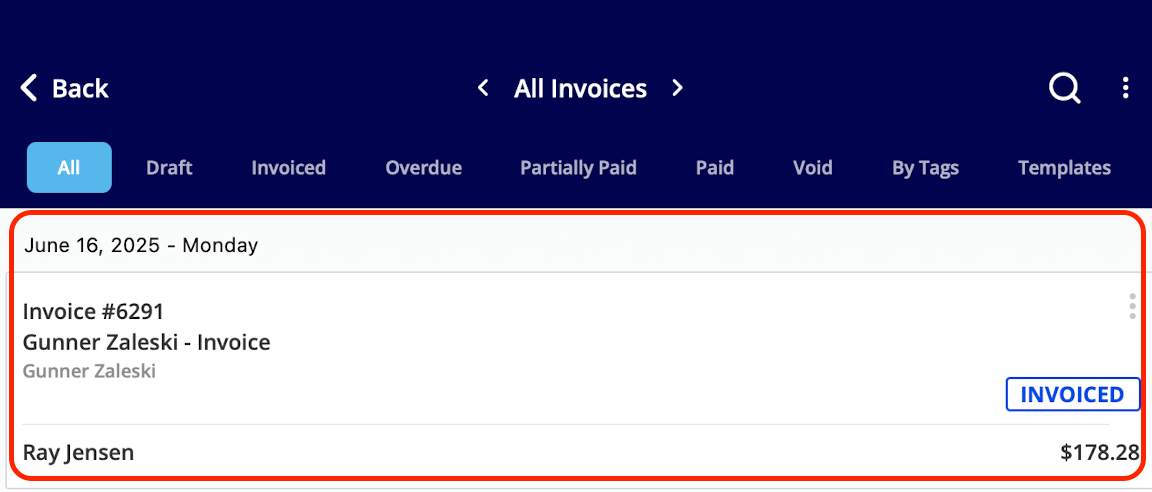
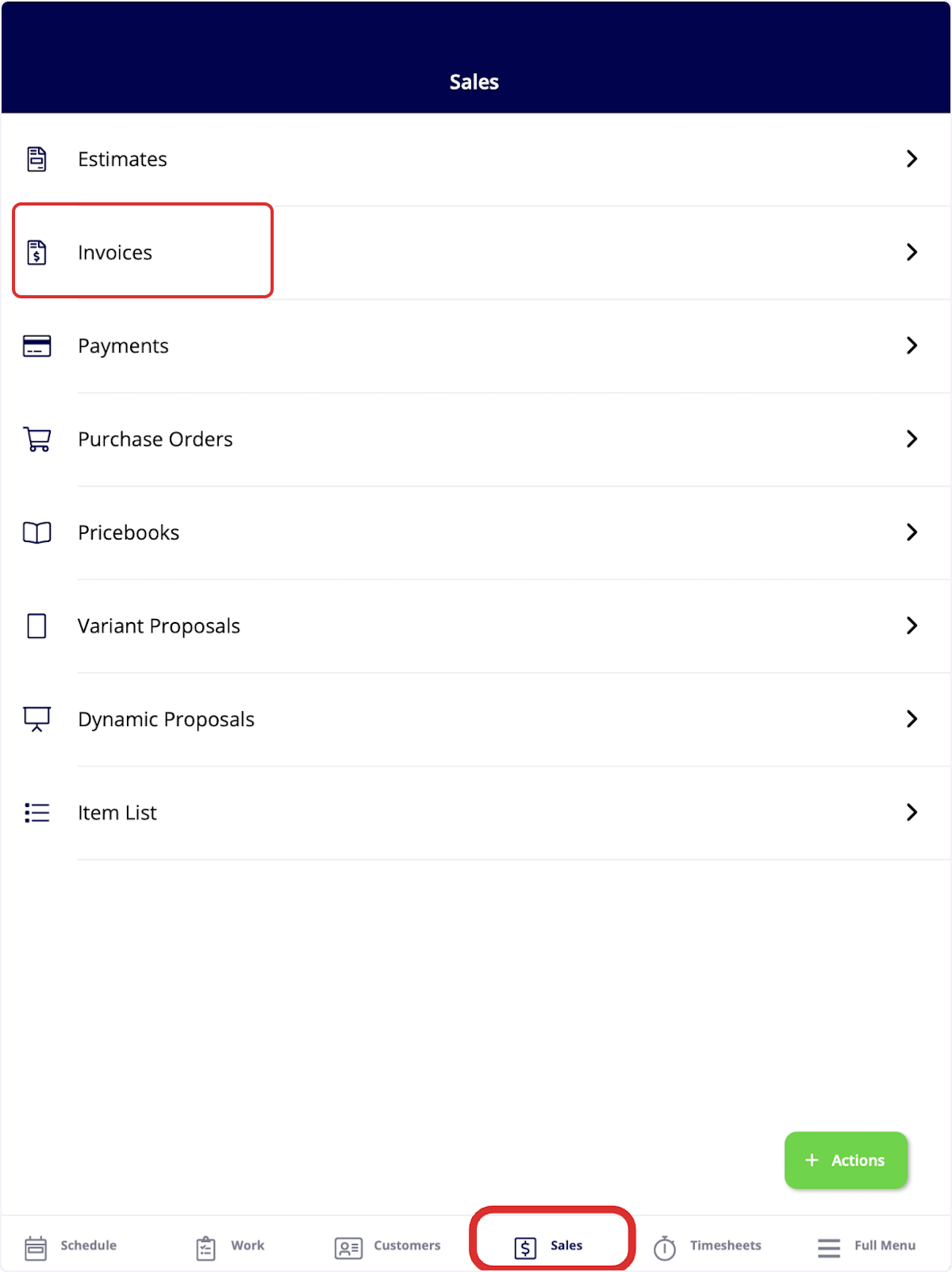 2. Select the invoice record you want to apply the payment to.
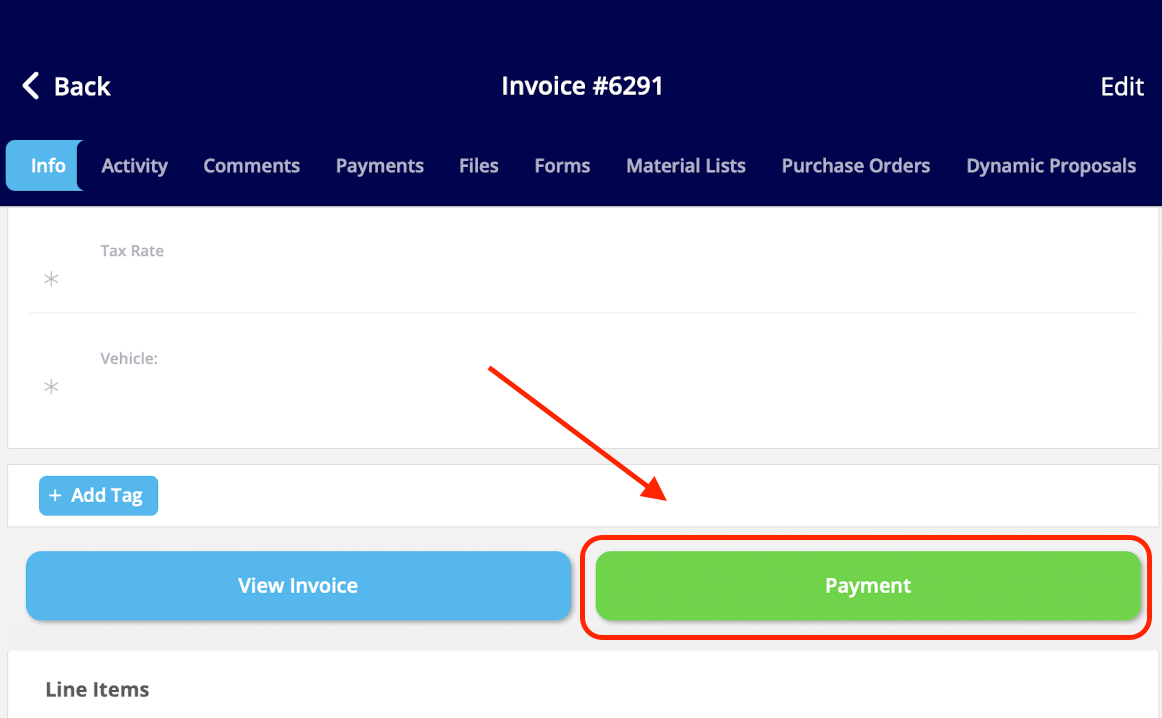
 3. Select the green **Payment** button, next to **View Invoice**.
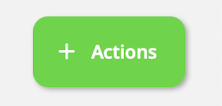
 Or select the green **Actions** button and choose **Payment** from **Available Actions**.
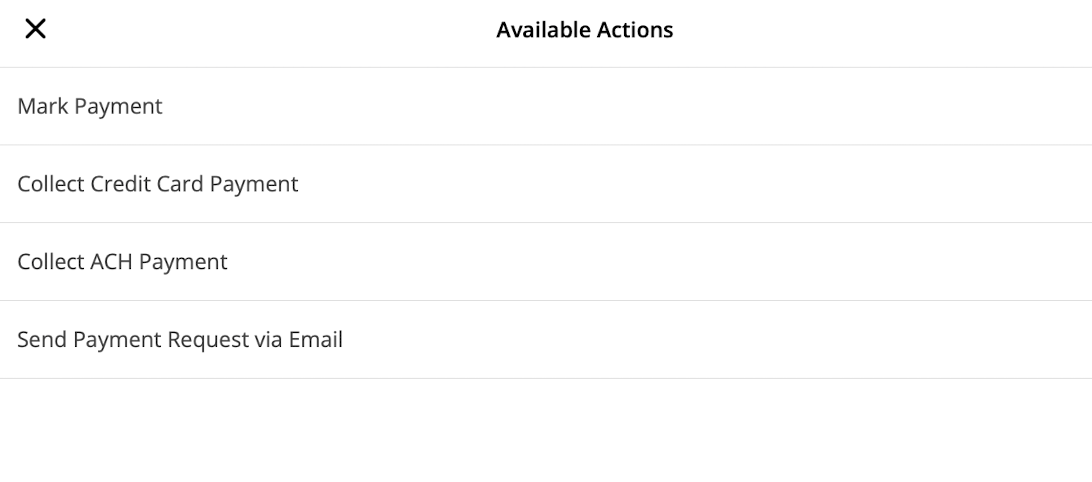
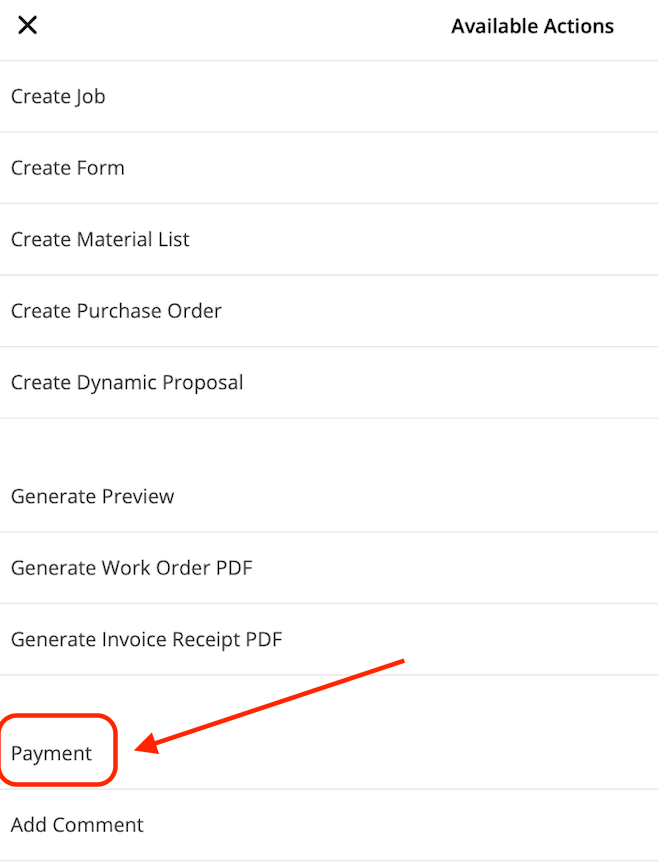 Either route opens the same four options — **Mark Payment**, **Collect Credit Card Payment**, **Collect ACH Payment**, and **Send Payment Request via Email**. **Collect Credit Card Payment**, **Collect ACH Payment**, and **Send Payment Request via Email** require FieldPulse Payments; see the [FieldPulse Payments Overview](/payments/getting-started/fieldpulse-payments).
 ### Mark the payment
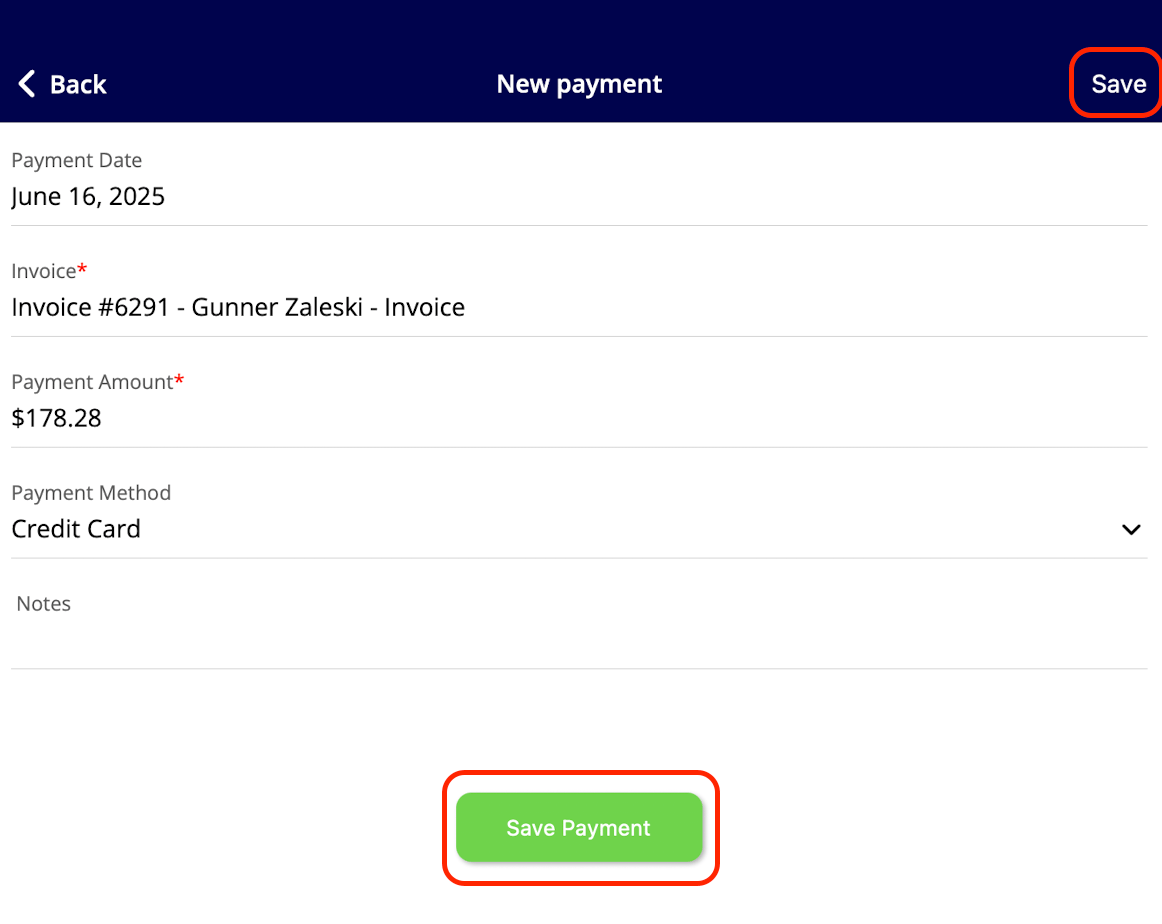
Record what the customer paid on the **New payment** screen, which also shows the payment date and the invoice the payment applies to.
1. Select **Mark Payment**.
2. Adjust the **Payment Amount** and the **Payment Method**.
3. Add any **Notes**.
4. Select **Save Payment**, or **Save** in the top-right corner.
### Mark the payment
Record what the customer paid on the **New payment** screen, which also shows the payment date and the invoice the payment applies to.
1. Select **Mark Payment**.
2. Adjust the **Payment Amount** and the **Payment Method**.
3. Add any **Notes**.
4. Select **Save Payment**, or **Save** in the top-right corner.
 ## Invoice statuses
An invoice's status follows its payment records. Once the full payment record is attached, the invoice reads **Paid**; if the payments recorded are less than the total invoice amount, the status reads **Partially Paid**. See [FieldPulse Deposit and Payment Status Details](/payments/getting-started/deposits-payment-statuses) for how each status behaves.
## FAQs
### Can I mark a payment while completing a job?
Yes. When you mark a job with a related invoice **Completed**, FieldPulse shows a pop-up asking whether you want to mark payment on that invoice — turn the pop-up off under **Company Settings** > **Jobs** > **General**. See [How to Complete a Job in the Field](/jobs/jobs-tasks/completing-a-job) for the rest of the job close-out flow.
## Still need help?
Reach the [FieldPulse support team](https://www.fieldpulse.com/company/contact-us) at [support@fieldpulse.com](mailto:support@fieldpulse.com) or through the chat feature in the bottom-right corner of your screen.
## Related articles
* [How to Collect Payments: 3 Methods](/payments/collecting/collecting-payments-3-methods)
* [How to Take Partial and Progress Payments](/payments/collecting/partial-progress-payments)
* [FieldPulse Payments Overview](/payments/getting-started/fieldpulse-payments)
* [FieldPulse Deposit and Payment Status Details](/payments/getting-started/deposits-payment-statuses)
* [How to Process a Refund](/payments/collecting/refunds)
You have marked the payment when the record shows under the invoice's **Payments** tab and the invoice status reads **Paid** for the full amount or **Partially Paid** for part of the balance.
## Related topics
- [Payment Receipts Overview](/payments/collecting/payment-receipts-customer-view.md)
- [How to Collect Payments: 3 Methods](/payments/collecting/collecting-payments-3-methods.md)
- [How to Create Payment Reports](/reporting/raw-data/payment-reports.md)
- [How to Take Partial and Progress Payments](/payments/collecting/partial-progress-payments.md)
## Invoice statuses
An invoice's status follows its payment records. Once the full payment record is attached, the invoice reads **Paid**; if the payments recorded are less than the total invoice amount, the status reads **Partially Paid**. See [FieldPulse Deposit and Payment Status Details](/payments/getting-started/deposits-payment-statuses) for how each status behaves.
## FAQs
### Can I mark a payment while completing a job?
Yes. When you mark a job with a related invoice **Completed**, FieldPulse shows a pop-up asking whether you want to mark payment on that invoice — turn the pop-up off under **Company Settings** > **Jobs** > **General**. See [How to Complete a Job in the Field](/jobs/jobs-tasks/completing-a-job) for the rest of the job close-out flow.
## Still need help?
Reach the [FieldPulse support team](https://www.fieldpulse.com/company/contact-us) at [support@fieldpulse.com](mailto:support@fieldpulse.com) or through the chat feature in the bottom-right corner of your screen.
## Related articles
* [How to Collect Payments: 3 Methods](/payments/collecting/collecting-payments-3-methods)
* [How to Take Partial and Progress Payments](/payments/collecting/partial-progress-payments)
* [FieldPulse Payments Overview](/payments/getting-started/fieldpulse-payments)
* [FieldPulse Deposit and Payment Status Details](/payments/getting-started/deposits-payment-statuses)
* [How to Process a Refund](/payments/collecting/refunds)
You have marked the payment when the record shows under the invoice's **Payments** tab and the invoice status reads **Paid** for the full amount or **Partially Paid** for part of the balance.
## Related topics
- [Payment Receipts Overview](/payments/collecting/payment-receipts-customer-view.md)
- [How to Collect Payments: 3 Methods](/payments/collecting/collecting-payments-3-methods.md)
- [How to Create Payment Reports](/reporting/raw-data/payment-reports.md)
- [How to Take Partial and Progress Payments](/payments/collecting/partial-progress-payments.md)