> ## Documentation Index
> Fetch the complete documentation index at: https://help.fieldpulse.com/llms.txt
> Use this file to discover all available pages before exploring further.
# How to Save a Payment Method on File
> Store a customer's card or ACH account in FieldPulse, then charge it on the next invoice or set it as the automatic payment for recurring billing.
> **Who uses this:** Users with FieldPulse Payments access — the user roles you grant access to when your application is approved, plus per-user access set under **Company Settings** > **User Accounts**. **Availability:** FieldPulse Payments is available to businesses located in the United States. ACH on file has to be turned on by a FieldPulse team member.
A saved payment method is a customer's credit card or ACH bank account stored on their customer record. Once a method is on file, you can charge it for a one-off invoice or set it as the automatic payment for recurring billing, without asking the customer for the details every time you bill them. Every saved payment method is tokenized, so card numbers and bank account numbers stay protected.
## Overview
Saving payment methods on file is included with [FieldPulse Payments](https://www.fieldpulse.com/features/fieldpulse-payments). Cards and bank accounts show together in a single, scannable list on the customer record, each one with the brand or bank icon, the last 4 digits, and either an expiry date (cards) or the account type — checking or savings (ACH).
You can put a method on file from the customer record, or save it while you collect a payment. Once it is stored, you can charge it from an invoice on the web app or the mobile app, or set it as the payment method on a recurring billing record.
## Video walkthrough
Watch the walkthrough, then follow the written steps below.
## Before you begin
* FieldPulse Payments has to be enabled on your account. See [FieldPulse Payments Overview](/payments/getting-started/fieldpulse-payments).
* For ACH on file, a FieldPulse team member has to turn ACH on. Reach out through chat support, or contact your Customer Success Manager directly if you have Premium Support. While ACH is off, only credit card options appear when you save a payment method.
> **Recommended:** If you enable Next-Business-Day Funding, Plaid is used for the fastest deposits. ACH transfers that are validated settle in 1 business day; unvalidated ACH transfers take about 4 business days.
## On web
### Add a payment method to a customer record
Add a card or bank account directly to a customer's profile. The starting point depends on whether the customer already has a method on file.
**If no payment method has been saved to this customer record yet:**
1. Open the customer record.
2. In the **Saved Payment Methods** field, select **+ Add New Payment Method**.
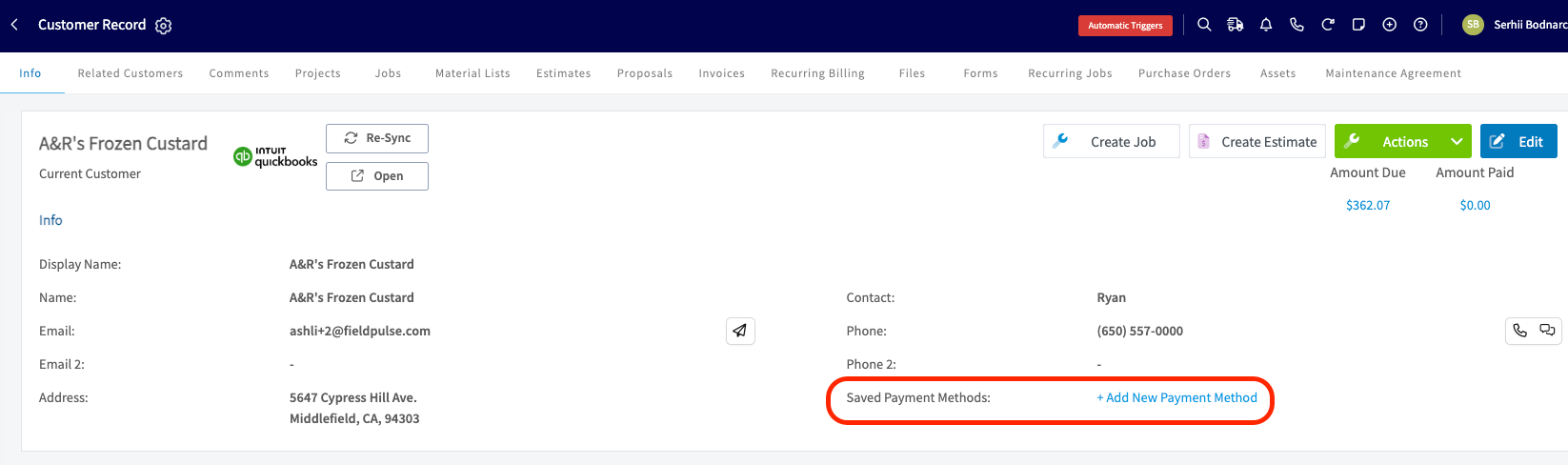 3. Choose card or bank account, enter the details, and check the consent box — *I confirm that I have obtained consent to store this payment information for future transactions.*
4. Select **Save Payment Method**. FieldPulse tokenizes the details and stores the method on the customer's record.
**If at least one payment method has already been saved to this customer record:**
1. Open the customer record.
2. In the **Saved Payment Methods** field, select the payment method numbers, or **View All** if more than one method is stored.
3. Choose card or bank account, enter the details, and check the consent box — *I confirm that I have obtained consent to store this payment information for future transactions.*
4. Select **Save Payment Method**. FieldPulse tokenizes the details and stores the method on the customer's record.
**If at least one payment method has already been saved to this customer record:**
1. Open the customer record.
2. In the **Saved Payment Methods** field, select the payment method numbers, or **View All** if more than one method is stored.
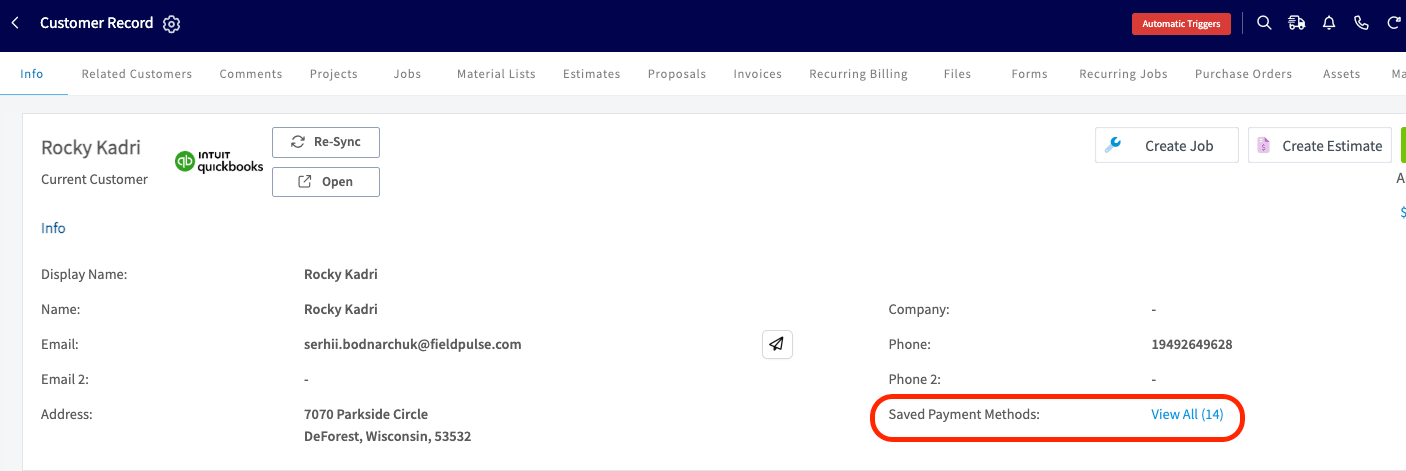 3. In the **Manage Payment Methods** drawer, select **+ Add New Payment Method**.
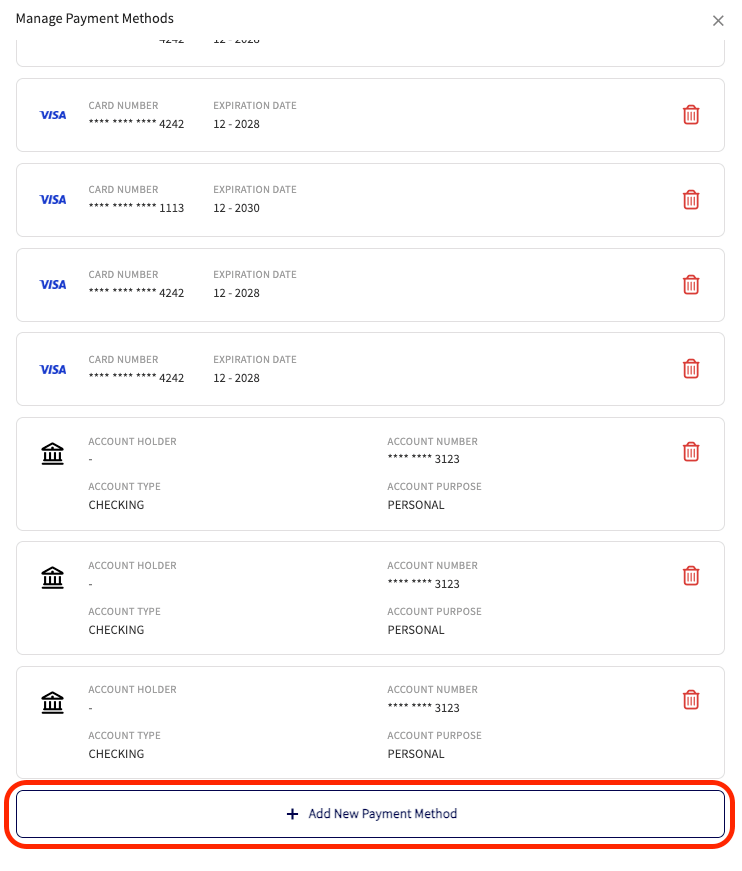 4. Choose card or bank account, enter the details, and check the consent box.
5. Select **Save Payment Method**.
### Add a payment method while collecting a payment
You can also save a method as part of a payment you are already taking, so the card or bank account is on file for next time.
1. On an invoice, select **Payment**, then the **Take Payment** tab.
2. Enter the card or bank details, then toggle on **Save Payment Method on File** and check the consent box.
3. Select **Charge Payment Method**. FieldPulse processes the transaction and saves the method to the customer's record.
### Charge a saved payment method
Charge a method already on file from the invoice you want to collect on.
1. On an invoice, select **Payment**, then the **Take Payment** tab.
2. Select **Use Saved Payment Method**, then choose the card or bank account from the list. Each one shows its brand or bank icon, the last 4 digits, and either expiry or account type.
3. Select **Charge Payment Method** to run the transaction.
### View and remove saved payment methods
Every method saved for a customer lives in the **Manage Payment Methods** drawer on that customer's record.
* Each saved method appears as its own card in the drawer. To remove one, select the trash icon and confirm in the pop-up.
* Saved payment methods cannot be edited. To change a card or bank account, delete it and add it again.
* Expired cards show a red expiry date with an error icon, so you can spot them at a glance.
* If you disable ACH later, saved ACH methods are hidden from view. Re-enable ACH with the support of the FieldPulse team and they reappear.
### Use a saved payment method for recurring billing
Saved payment methods power recurring billing too, including ACH. When you create or edit a recurring billing record:
1. In the **Payment Details** section, set **Payment Option** to **Automatically charge a saved payment method**.
2. Choose the method under **Payment Method**. If the customer has only one method on file, it auto-fills; if they have several, pick the one you want to charge.
3. To add a new method on the spot, select **Enter Payment Method** and enter a card or bank account. Whatever you save there also lands in the customer's **Saved Payment Methods** for future use.
4. Save the Recurring Billing record. FieldPulse runs the payment on your schedule against the method you selected, until the end date or until you remove it.
4. Choose card or bank account, enter the details, and check the consent box.
5. Select **Save Payment Method**.
### Add a payment method while collecting a payment
You can also save a method as part of a payment you are already taking, so the card or bank account is on file for next time.
1. On an invoice, select **Payment**, then the **Take Payment** tab.
2. Enter the card or bank details, then toggle on **Save Payment Method on File** and check the consent box.
3. Select **Charge Payment Method**. FieldPulse processes the transaction and saves the method to the customer's record.
### Charge a saved payment method
Charge a method already on file from the invoice you want to collect on.
1. On an invoice, select **Payment**, then the **Take Payment** tab.
2. Select **Use Saved Payment Method**, then choose the card or bank account from the list. Each one shows its brand or bank icon, the last 4 digits, and either expiry or account type.
3. Select **Charge Payment Method** to run the transaction.
### View and remove saved payment methods
Every method saved for a customer lives in the **Manage Payment Methods** drawer on that customer's record.
* Each saved method appears as its own card in the drawer. To remove one, select the trash icon and confirm in the pop-up.
* Saved payment methods cannot be edited. To change a card or bank account, delete it and add it again.
* Expired cards show a red expiry date with an error icon, so you can spot them at a glance.
* If you disable ACH later, saved ACH methods are hidden from view. Re-enable ACH with the support of the FieldPulse team and they reappear.
### Use a saved payment method for recurring billing
Saved payment methods power recurring billing too, including ACH. When you create or edit a recurring billing record:
1. In the **Payment Details** section, set **Payment Option** to **Automatically charge a saved payment method**.
2. Choose the method under **Payment Method**. If the customer has only one method on file, it auto-fills; if they have several, pick the one you want to charge.
3. To add a new method on the spot, select **Enter Payment Method** and enter a card or bank account. Whatever you save there also lands in the customer's **Saved Payment Methods** for future use.
4. Save the Recurring Billing record. FieldPulse runs the payment on your schedule against the method you selected, until the end date or until you remove it.
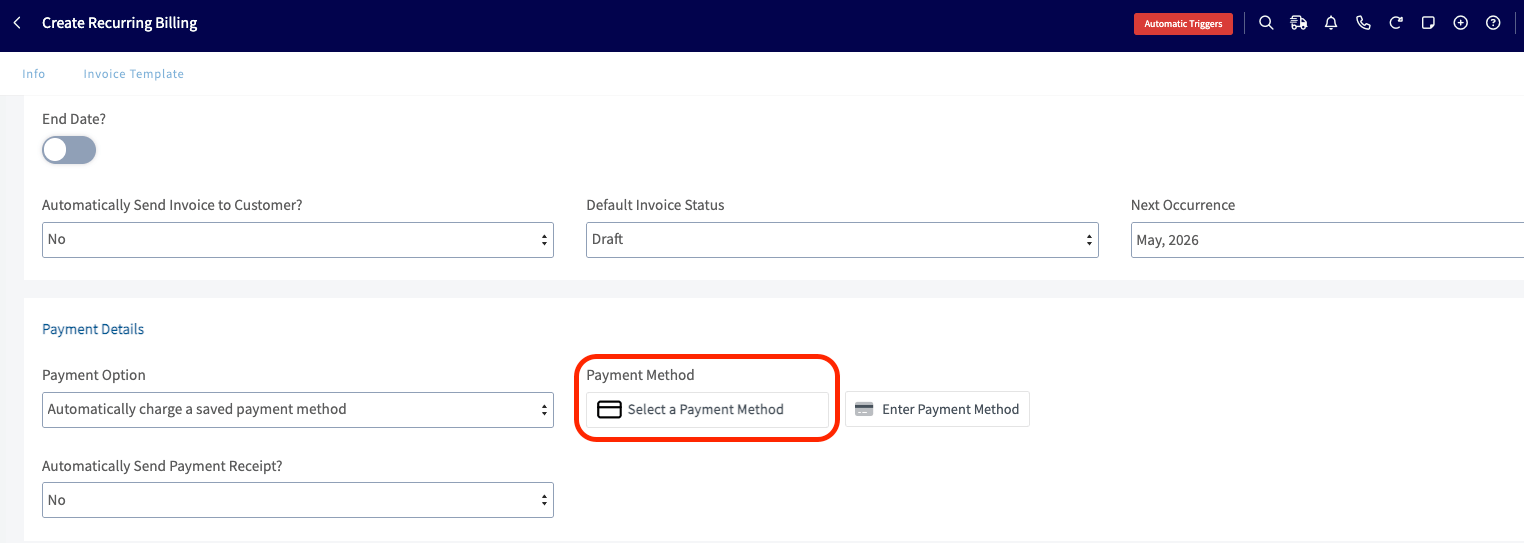 Recurring Billing setup is web app only.
To build the rest of the recurring billing record, see [Setting Up Recurring Billing](/estimates-invoices/recurring/recurring-billing).
## On mobile
### Charge a saved payment method in the field
Collect on an invoice with a card or bank account the customer already has on file.
1. Tap **Payment** on the invoice and choose **Use saved payment method**.
2. Pick the card or bank account you want to charge from the list. Each one shows its brand or bank icon, the last 4 digits, and either expiry or account type, so you can confirm with the customer at a glance.
3. Tap **Charge Payment Method** to run the transaction.
### Add a new payment method on the job
Take a new card or bank account in the field and keep it on file at the same time.
1. Tap **Add New Payment Method** and enter the card or bank details.
2. To save the method for next time, toggle on **Save Payment Method on File** and check the consent box — *I confirm that I have obtained consent to store this payment information for future transactions.*
3. Tap **Charge Payment Method** to complete the transaction. The method is now saved to the customer's record, ready for the next time you bill them.
## Common issues
| **Issue** | **Likely cause** | **Fix** |
| --------------------------------------------------------------------------------------- | -------------------------------------------------------------------------------------------- | -------------------------------------------------------------------------------------------------------------- |
| I don't see ACH when adding a payment method. | ACH is disabled, or your processor doesn't support it. | Reach out through chat support, or contact your Customer Success Manager directly if you have Premium Support. |
| A saved ACH method disappeared from the customer record. | ACH was disabled after the method was saved. | Ask the FieldPulse team to re-enable ACH. Saved bank accounts reappear. |
| A card on file shows a red expiry date. | The card has expired. | Delete the card from **Saved Payment Methods** and ask the customer for an updated one. |
| A recurring billing payment didn't run. | No payment method is selected on the record, or the saved method was deleted. | Open the recurring billing record, confirm or re-select a payment method, then save. |
| Recurring billing keeps charging after the method was deleted from the customer record. | Removing a method on the customer record doesn't remove it from existing recurring invoices. | Open the recurring billing record and either remove the payment method or end the recurring schedule. |
## FAQs
### Can saved payment methods be edited?
No, saved methods can't be edited. Delete the method and add it again with the updated details.
### How do I delete a saved payment method?
Open the customer record, go to **Saved Payment Methods**, select the trash icon on the method, and confirm.
### How do I stop automatic recurring payments?
Open the Recurring Billing record and either remove the saved payment method or end the recurring schedule. Removing the method on the customer record doesn't automatically remove it from existing recurring invoices.
## Still need help?
Reach the [FieldPulse support team](https://www.fieldpulse.com/company/contact-us) at [support@fieldpulse.com](mailto:support@fieldpulse.com) or through the chat feature in the bottom-right corner of your screen.
## Related articles
* [How to Collect Payments: 3 Methods](/payments/collecting/collecting-payments-3-methods)
* [FieldPulse Payments Overview](/payments/getting-started/fieldpulse-payments)
* [FieldPulse Deposit and Payment Status Details](/payments/getting-started/deposits-payment-statuses)
* [Setting Up Card Fee Recovery](/payments/getting-started/card-fee-recovery)
* [Setting Up Recurring Billing](/estimates-invoices/recurring/recurring-billing)
You have saved the payment method when it appears in the customer's **Saved Payment Methods** list with its brand or bank icon and last 4 digits, ready to charge on the next invoice or recurring bill.
## Related topics
- [Payment Provider Options Overview](/payments/getting-started/payment-provider-options.md)
- [How to Collect Payments: 3 Methods](/payments/collecting/collecting-payments-3-methods.md)
- [Setting Up Bill to Parent](/estimates-invoices/creating/bill-to-parent.md)
- [How to Collect Payments With Tap to Pay on iPhone](/payments/collecting/tap-to-pay-iphone.md)
Recurring Billing setup is web app only.
To build the rest of the recurring billing record, see [Setting Up Recurring Billing](/estimates-invoices/recurring/recurring-billing).
## On mobile
### Charge a saved payment method in the field
Collect on an invoice with a card or bank account the customer already has on file.
1. Tap **Payment** on the invoice and choose **Use saved payment method**.
2. Pick the card or bank account you want to charge from the list. Each one shows its brand or bank icon, the last 4 digits, and either expiry or account type, so you can confirm with the customer at a glance.
3. Tap **Charge Payment Method** to run the transaction.
### Add a new payment method on the job
Take a new card or bank account in the field and keep it on file at the same time.
1. Tap **Add New Payment Method** and enter the card or bank details.
2. To save the method for next time, toggle on **Save Payment Method on File** and check the consent box — *I confirm that I have obtained consent to store this payment information for future transactions.*
3. Tap **Charge Payment Method** to complete the transaction. The method is now saved to the customer's record, ready for the next time you bill them.
## Common issues
| **Issue** | **Likely cause** | **Fix** |
| --------------------------------------------------------------------------------------- | -------------------------------------------------------------------------------------------- | -------------------------------------------------------------------------------------------------------------- |
| I don't see ACH when adding a payment method. | ACH is disabled, or your processor doesn't support it. | Reach out through chat support, or contact your Customer Success Manager directly if you have Premium Support. |
| A saved ACH method disappeared from the customer record. | ACH was disabled after the method was saved. | Ask the FieldPulse team to re-enable ACH. Saved bank accounts reappear. |
| A card on file shows a red expiry date. | The card has expired. | Delete the card from **Saved Payment Methods** and ask the customer for an updated one. |
| A recurring billing payment didn't run. | No payment method is selected on the record, or the saved method was deleted. | Open the recurring billing record, confirm or re-select a payment method, then save. |
| Recurring billing keeps charging after the method was deleted from the customer record. | Removing a method on the customer record doesn't remove it from existing recurring invoices. | Open the recurring billing record and either remove the payment method or end the recurring schedule. |
## FAQs
### Can saved payment methods be edited?
No, saved methods can't be edited. Delete the method and add it again with the updated details.
### How do I delete a saved payment method?
Open the customer record, go to **Saved Payment Methods**, select the trash icon on the method, and confirm.
### How do I stop automatic recurring payments?
Open the Recurring Billing record and either remove the saved payment method or end the recurring schedule. Removing the method on the customer record doesn't automatically remove it from existing recurring invoices.
## Still need help?
Reach the [FieldPulse support team](https://www.fieldpulse.com/company/contact-us) at [support@fieldpulse.com](mailto:support@fieldpulse.com) or through the chat feature in the bottom-right corner of your screen.
## Related articles
* [How to Collect Payments: 3 Methods](/payments/collecting/collecting-payments-3-methods)
* [FieldPulse Payments Overview](/payments/getting-started/fieldpulse-payments)
* [FieldPulse Deposit and Payment Status Details](/payments/getting-started/deposits-payment-statuses)
* [Setting Up Card Fee Recovery](/payments/getting-started/card-fee-recovery)
* [Setting Up Recurring Billing](/estimates-invoices/recurring/recurring-billing)
You have saved the payment method when it appears in the customer's **Saved Payment Methods** list with its brand or bank icon and last 4 digits, ready to charge on the next invoice or recurring bill.
## Related topics
- [Payment Provider Options Overview](/payments/getting-started/payment-provider-options.md)
- [How to Collect Payments: 3 Methods](/payments/collecting/collecting-payments-3-methods.md)
- [Setting Up Bill to Parent](/estimates-invoices/creating/bill-to-parent.md)
- [How to Collect Payments With Tap to Pay on iPhone](/payments/collecting/tap-to-pay-iphone.md)