> ## Documentation Index
> Fetch the complete documentation index at: https://help.fieldpulse.com/llms.txt
> Use this file to discover all available pages before exploring further.
# How to Create and Use Commission Templates
> Save a repeat bonus or spiff as a commission template in FieldPulse, then import it onto any estimate or invoice so every payout reads the same way.
> **Who uses this:** An Admin creates commission templates in Company Settings; users with commission access import them onto estimates and invoices. **Availability:** All regions.
A commission template is a saved commission — a title, a calculation method, an amount, and optionally who it pays — that you import onto an [estimate or invoice](https://www.fieldpulse.com/features/estimates-and-invoices) instead of entering the details by hand. Build a template once for a commission you pay often, and every time you apply it the payout reads exactly the same, which keeps your team's earnings consistent and cuts down on entry errors.
## Overview
Commission templates cover the ad-hoc commissions you add on a record — the bonuses and spiffs that sit outside your company default and user-specific commission rules. You create the template in **Company Settings** > **Commission** > **Templates**, then import it from the **Cost Basis** tab of any estimate or invoice. Creating a template and applying it are two short tasks, so both live on this page.
A template can also name its own recipient. Assign the **Commission Recipient** by role instead of by name, and the same template keeps paying the right people as your team changes. For how ad-hoc commission compares to the other commission types, see [Commission Structures Overview](/payments/commissions/commission-structures).
## Before you begin
* Decide which repeat commission this template covers, for example a five-star-review bonus or an upsell spiff.
* Know the calculation method and amount you want to save — a flat dollar amount, a percentage of gross sales, or a percentage of gross margin.
* If you want the template to pay by role, confirm the jobs and customers you will apply it to have assignees set. Without an assignee, FieldPulse cannot calculate who gets paid.
* For how commission calculations are turned on and how the company default and per-user rates work, see [Setting Up Invoice-Level Commission](/payments/commissions/invoice-level-commission).
Not every role has commission access by default. To learn who can view or edit commission, see [User Roles and Permissions Details](/settings/users-teams/user-roles). To adjust a user's permissions, see [How to Add New Users](/settings/users-teams/adding-users).
## Create a commission template
1. Select **Company Settings** in the left-side menu.
2. Select the **Commission** tab, then the **Templates** subtab.
3. Select **Create New**.
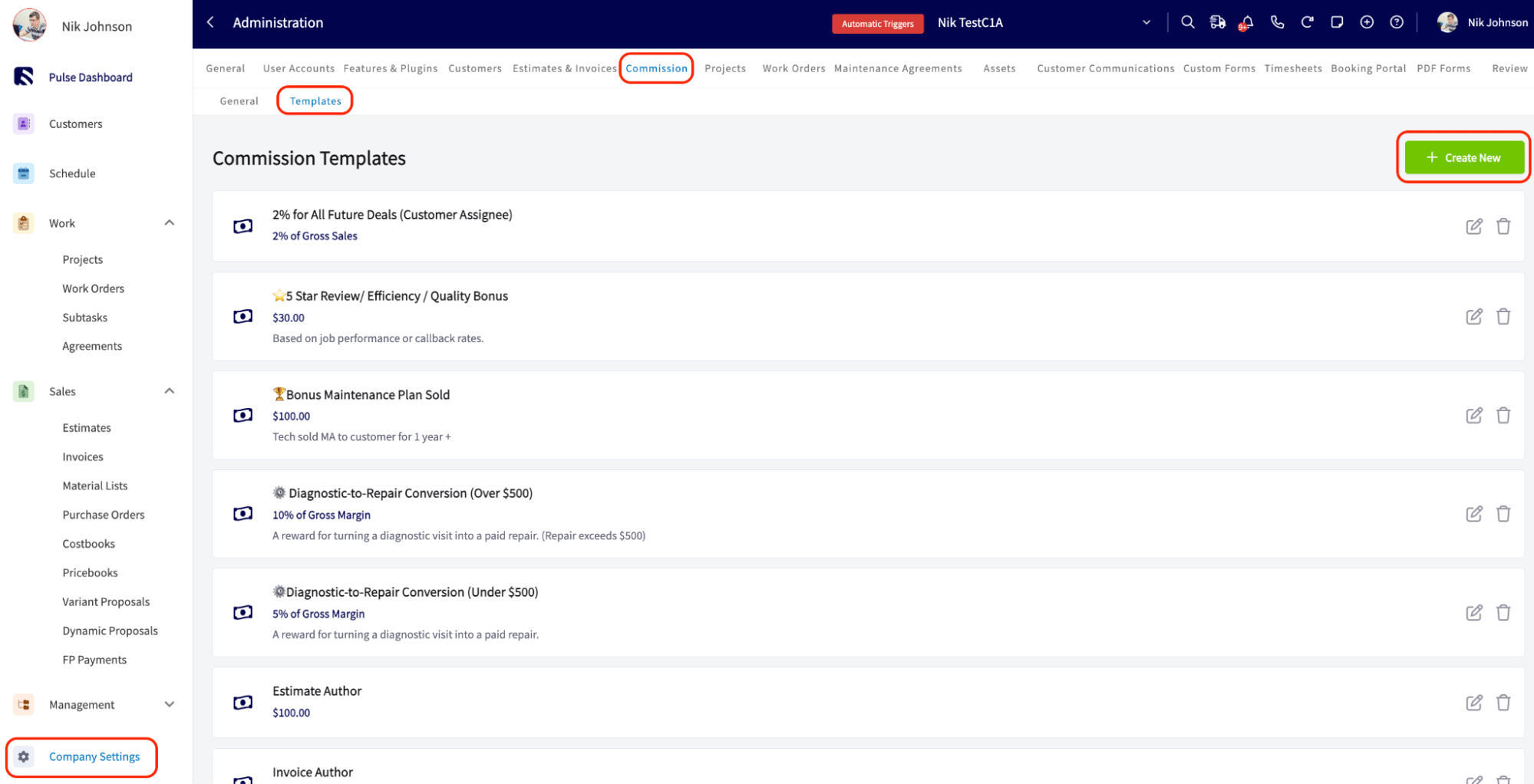 4. Fill in the template fields:
* **Commission Title** — a unique name for the template, so it is easy to find when you are building an estimate or invoice.
* **Commission Description** — optional context about the commission. Saved descriptions appear as selectable suggestions when you return to the field later, so no one retypes them.
* **Calculation Method** — choose **Flat Dollar Amount**, **Percentage of Gross Sales**, or **Percentage of Gross Margin**.
* **Commission Amount** — enter the percentage or dollar value. The field is pre-formatted and starts at \$0.00, which reduces entry errors.
* **Commission Recipient** — choose who this template pays out when it is applied. Leave it blank to keep entering recipients by hand, or choose a role — **Job Assignees**, **Job & Site Visit Assignees**, **Estimate Author**, **Invoice Author**, or **Customer Assignee** — so FieldPulse fills them in for you. You can also select a **Specific User** if you would rather name one person.
5. Save the template.
Role-based recipients keep working as your team changes. If more than one person matches a role, FieldPulse splits the commission evenly between them automatically, and you can adjust the split after applying the template.
If a role-based template gets applied somewhere that role does not exist — for example, a **Job Assignees** template applied to an invoice with no job linked — FieldPulse blocks you from saving and asks you to assign a recipient by hand before you continue.
## Apply a commission template to an estimate or invoice
1. Open the estimate or invoice record.
2. Select the **Cost Basis** tab, then the **Commission** subtab.
3. Select **Add Commission**. A slide-out window opens.
4. Fill in the template fields:
* **Commission Title** — a unique name for the template, so it is easy to find when you are building an estimate or invoice.
* **Commission Description** — optional context about the commission. Saved descriptions appear as selectable suggestions when you return to the field later, so no one retypes them.
* **Calculation Method** — choose **Flat Dollar Amount**, **Percentage of Gross Sales**, or **Percentage of Gross Margin**.
* **Commission Amount** — enter the percentage or dollar value. The field is pre-formatted and starts at \$0.00, which reduces entry errors.
* **Commission Recipient** — choose who this template pays out when it is applied. Leave it blank to keep entering recipients by hand, or choose a role — **Job Assignees**, **Job & Site Visit Assignees**, **Estimate Author**, **Invoice Author**, or **Customer Assignee** — so FieldPulse fills them in for you. You can also select a **Specific User** if you would rather name one person.
5. Save the template.
Role-based recipients keep working as your team changes. If more than one person matches a role, FieldPulse splits the commission evenly between them automatically, and you can adjust the split after applying the template.
If a role-based template gets applied somewhere that role does not exist — for example, a **Job Assignees** template applied to an invoice with no job linked — FieldPulse blocks you from saving and asks you to assign a recipient by hand before you continue.
## Apply a commission template to an estimate or invoice
1. Open the estimate or invoice record.
2. Select the **Cost Basis** tab, then the **Commission** subtab.
3. Select **Add Commission**. A slide-out window opens.
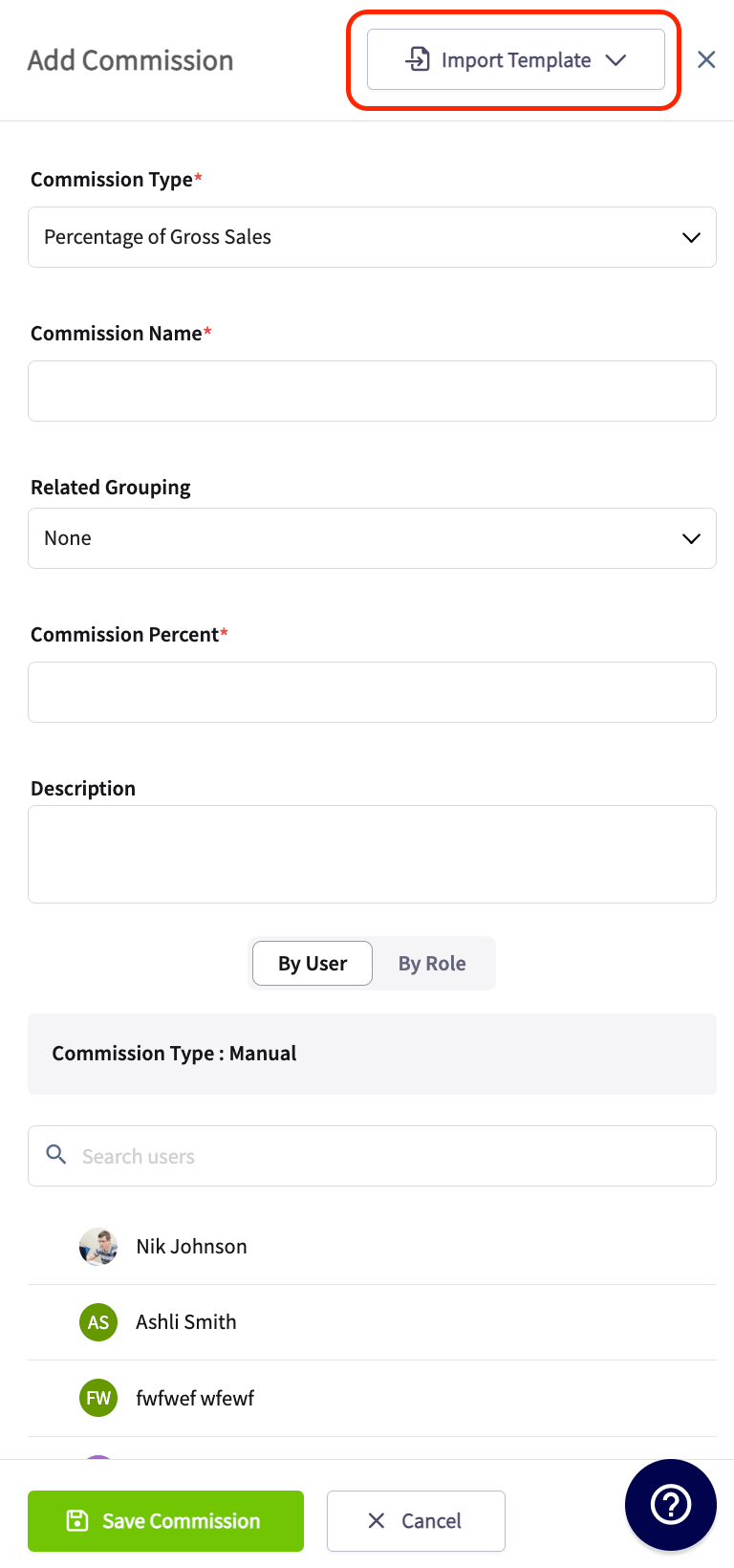
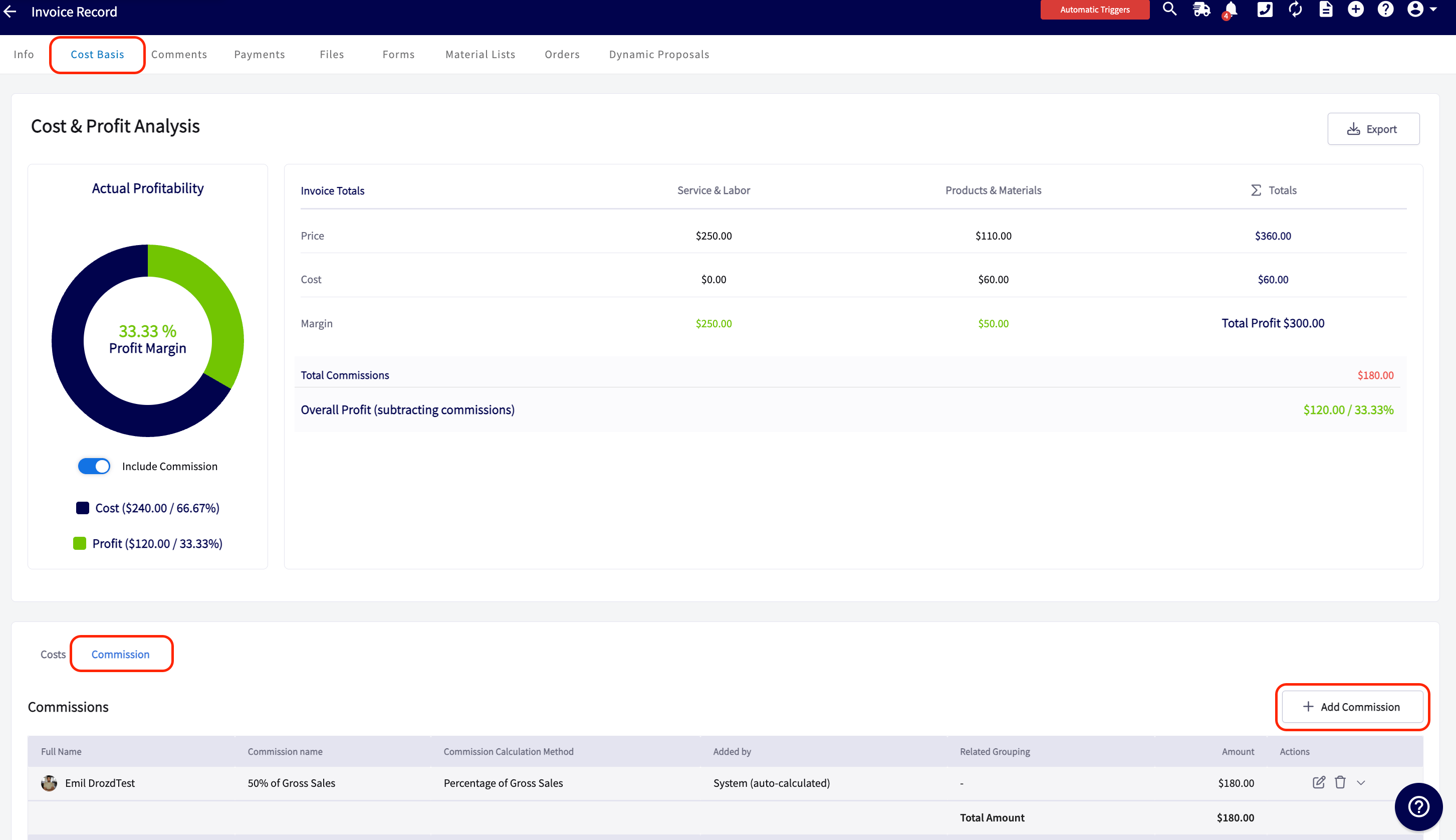 4. Select **Import Template**, then choose the template you saved.
5. Select **Save Commission**.
4. Select **Import Template**, then choose the template you saved.
5. Select **Save Commission**.
 You can also apply a template from the record itself. Select the gear icon next to **Commission Recipient(s)**, then select **Add New Commission** > **Add Template**.
Estimate and invoice templates can be built with a commission template attached. When you insert that invoice template into a record, it pre-populates the invoice and any commission that is part of the template right along with it. See [Setting Up Estimate & Invoice Templates](/estimates-invoices/templates/creating-templates).
## Tips
Commissions worth saving as templates:
* **Customer satisfaction bonuses** — reward a team member for securing a five-star review from a customer.
* **Upsell commissions** — pay a commission when a technician sells an additional service, such as a preventive maintenance plan during a service call.
* **Crew-based job splits** — if you always dispatch two or more technicians together, set **Commission Recipient** to **Job Assignees** so their commission splits evenly every time without anyone re-entering names.
* **On-time arrival bonuses** — recognize punctuality to improve reliability and customer satisfaction.
* **Safety performance bonuses** — recognize safe driving records or adherence to safety protocols.
## FAQs
### Can I add a one-off commission without saving it as a template?
Yes. In the **Add Commission** slide-out, enter the commission details by hand instead of selecting **Import Template**, then select **Save Commission**.
## Related articles
* [Commission Structures Overview](/payments/commissions/commission-structures)
* [Setting Up Invoice-Level Commission](/payments/commissions/invoice-level-commission)
* [Setting Up Cost Basis and Invoice Profitability](/payments/commissions/cost-basis-invoice-profitability)
* [Setting Up Flat Rate Job Commissions](/payments/commissions/flat-rate-job-commissions)
* [Setting Up Estimate & Invoice Templates](/estimates-invoices/templates/creating-templates)
* [How to Create Commission Reports](/reporting/raw-data/commission-reports)
Your commission templates are working when a saved template appears in the Import Template list on the Cost Basis tab and lands on the record with the same title, calculation method, amount, and recipient every time.
## Related topics
- [How to Create Commission Reports](/reporting/raw-data/commission-reports.md)
- [Commission Structures Overview](/payments/commissions/commission-structures.md)
- [Commissions & Profitability](/payments/commissions/index.md)
- [Setting Up Invoice-Level Commission](/payments/commissions/invoice-level-commission.md)
You can also apply a template from the record itself. Select the gear icon next to **Commission Recipient(s)**, then select **Add New Commission** > **Add Template**.
Estimate and invoice templates can be built with a commission template attached. When you insert that invoice template into a record, it pre-populates the invoice and any commission that is part of the template right along with it. See [Setting Up Estimate & Invoice Templates](/estimates-invoices/templates/creating-templates).
## Tips
Commissions worth saving as templates:
* **Customer satisfaction bonuses** — reward a team member for securing a five-star review from a customer.
* **Upsell commissions** — pay a commission when a technician sells an additional service, such as a preventive maintenance plan during a service call.
* **Crew-based job splits** — if you always dispatch two or more technicians together, set **Commission Recipient** to **Job Assignees** so their commission splits evenly every time without anyone re-entering names.
* **On-time arrival bonuses** — recognize punctuality to improve reliability and customer satisfaction.
* **Safety performance bonuses** — recognize safe driving records or adherence to safety protocols.
## FAQs
### Can I add a one-off commission without saving it as a template?
Yes. In the **Add Commission** slide-out, enter the commission details by hand instead of selecting **Import Template**, then select **Save Commission**.
## Related articles
* [Commission Structures Overview](/payments/commissions/commission-structures)
* [Setting Up Invoice-Level Commission](/payments/commissions/invoice-level-commission)
* [Setting Up Cost Basis and Invoice Profitability](/payments/commissions/cost-basis-invoice-profitability)
* [Setting Up Flat Rate Job Commissions](/payments/commissions/flat-rate-job-commissions)
* [Setting Up Estimate & Invoice Templates](/estimates-invoices/templates/creating-templates)
* [How to Create Commission Reports](/reporting/raw-data/commission-reports)
Your commission templates are working when a saved template appears in the Import Template list on the Cost Basis tab and lands on the record with the same title, calculation method, amount, and recipient every time.
## Related topics
- [How to Create Commission Reports](/reporting/raw-data/commission-reports.md)
- [Commission Structures Overview](/payments/commissions/commission-structures.md)
- [Commissions & Profitability](/payments/commissions/index.md)
- [Setting Up Invoice-Level Commission](/payments/commissions/invoice-level-commission.md)