> ## Documentation Index
> Fetch the complete documentation index at: https://help.fieldpulse.com/llms.txt
> Use this file to discover all available pages before exploring further.
# Setting Up Invoice-Level Commission
> Turn on commission calculations in FieldPulse, choose how each payout is figured on an estimate or invoice, and give team members their own rates.
> **Who uses this:** An Admin turns on commission calculations and sets the default and per-user rates in Company Settings; the commission recipient on a record earns the payout. **Availability:** All regions.
Invoice-level commission is FieldPulse calculating commission on each [estimate and invoice](https://www.fieldpulse.com/features/estimates-and-invoices) from a rate you set. You choose whether the commission is a percentage of gross sales, a percentage of gross margin, or a flat dollar amount, set it once as a company default, and then override it for individual team members whose rates differ.
## Overview
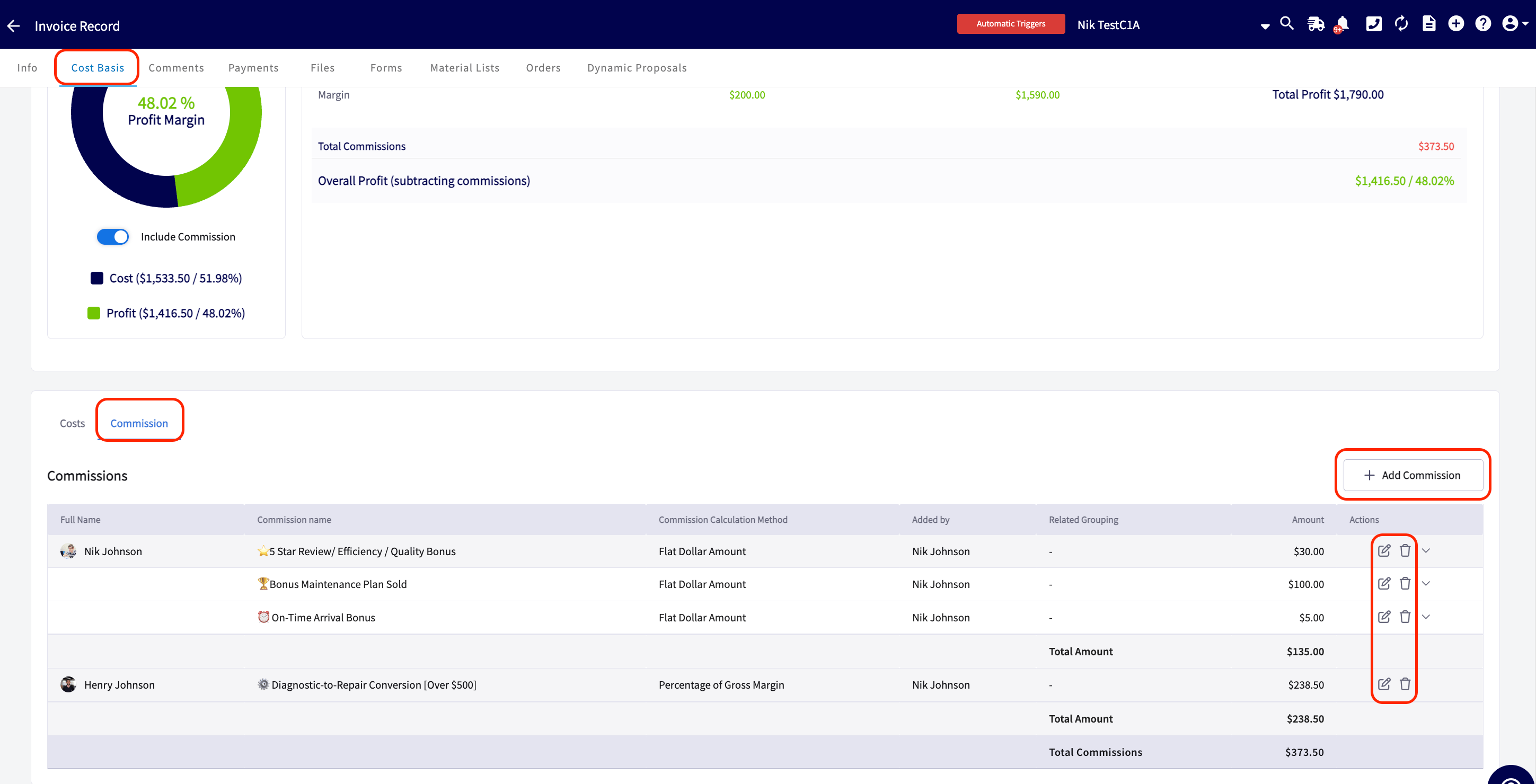
Commission is tracked and calculated on the estimate or invoice itself. Once commission calculations are on, **new** estimates and invoices calculate commission automatically from your default settings, and the amount appears on the record's **Cost Basis** tab, where you can edit it or add commission entries by hand.
Three settings decide what each payout looks like:
* **Default Commission Calculation Method per Invoice** — percentage of gross sales, percentage of gross margin, or a flat dollar amount.
* **Default Commission Rate** — the company-wide percentage or dollar amount.
* **Default Commission Recipient(s)** — who earns the commission by default on a new record.
Individual users can be given their own calculation method and rate that overrides the company default, and the recipient can be changed on any single estimate or invoice. For how invoice-level commission compares to flat-rate job and ad-hoc commission, see [Commission Structures Overview](/payments/commissions/commission-structures).
## Before you begin
* Decide your default calculation method and rate, and which team members need a rate of their own.
* To calculate commission as a percentage of gross margin, enter unit costs on your line items and turn on cost basis. See [Setting Up Cost Basis and Invoice Profitability](/payments/commissions/cost-basis-invoice-profitability).
Not every role has commission access by default. To learn who can view or edit commission, see [User Roles and Permissions Details](/settings/users-teams/user-roles). To adjust a user's permissions, see [How to Add New Users](/settings/users-teams/adding-users).
## Step-by-step setup
### 1. Turn on commission calculations and set the company default
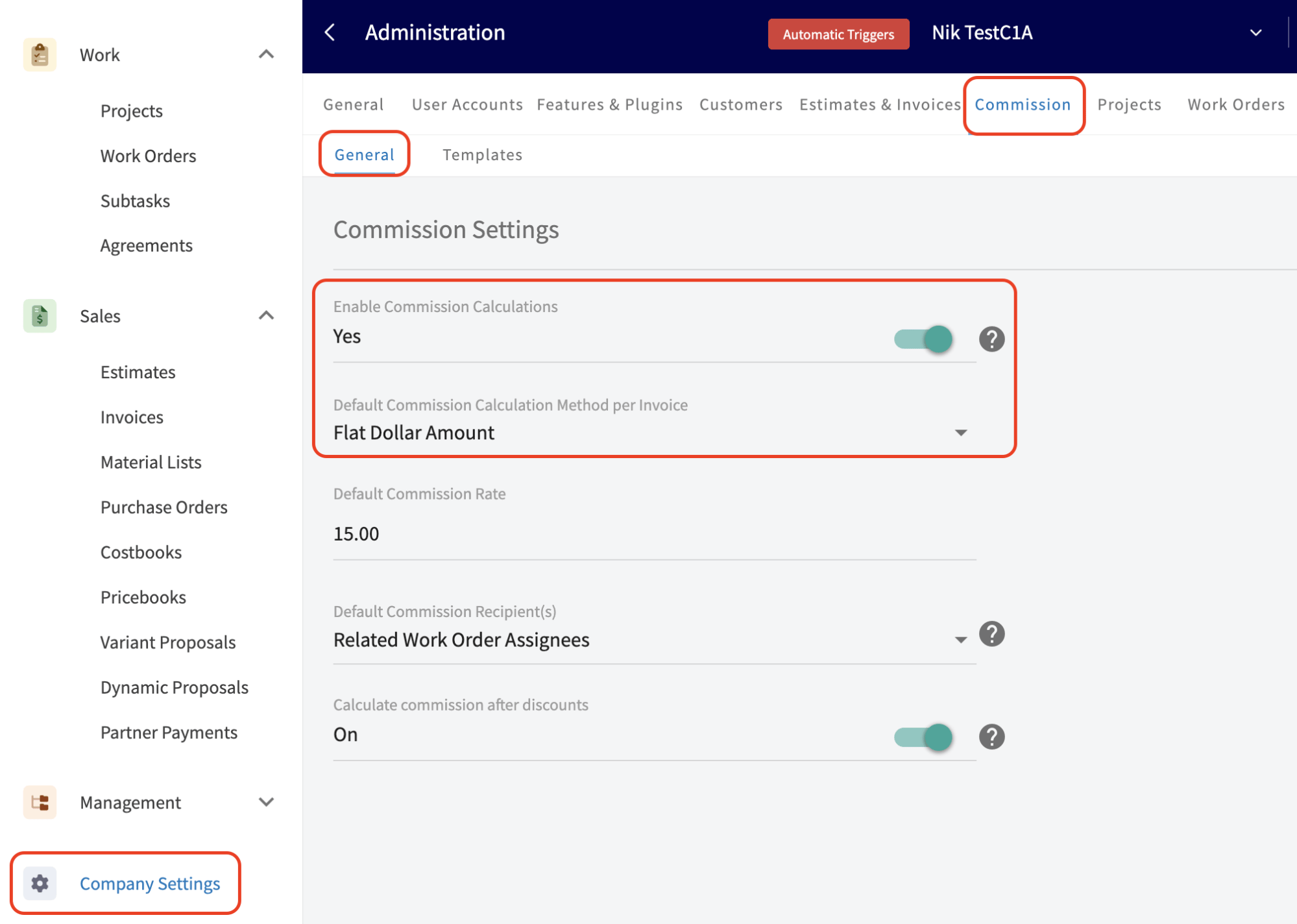
1. Select **Company Settings** in the left-side menu.
2. Select the **Commission** tab, then the **General** subtab.
3. Toggle **Enable Commission Calculations** on. New estimates and invoices now calculate commission automatically from the default settings below.
4. Set **Default Commission Calculation Method per Invoice** to **Percentage of Gross Sales**, **Percentage of Gross Margin**, or **Flat Dollar Amount**.
5. Enter the **Default Commission Rate**.
6. Select a **Default Commission Recipient(s)** option:
* **Record Author** — the person who created the estimate or invoice. This is the default, and it matches how commission has always worked in FieldPulse.
* **Related Work Order Assignees** — everyone assigned to the related job. If more than one person is assigned, FieldPulse splits the commission equally among them.
* **Related Customer Assignee** — whoever is assigned to the customer record, regardless of role: Admin, Team Manager, Service Agent, Limited Agent, or Assignment User.
7. Select **Save**.
 For the full picture on how splitting commission across multiple people works, including templates and manual overrides, see [Commission Structures Overview](/payments/commissions/commission-structures) and [How to Create and Use Commission Templates](/payments/commissions/commission-templates).
### 2. Decide how discounts affect commission
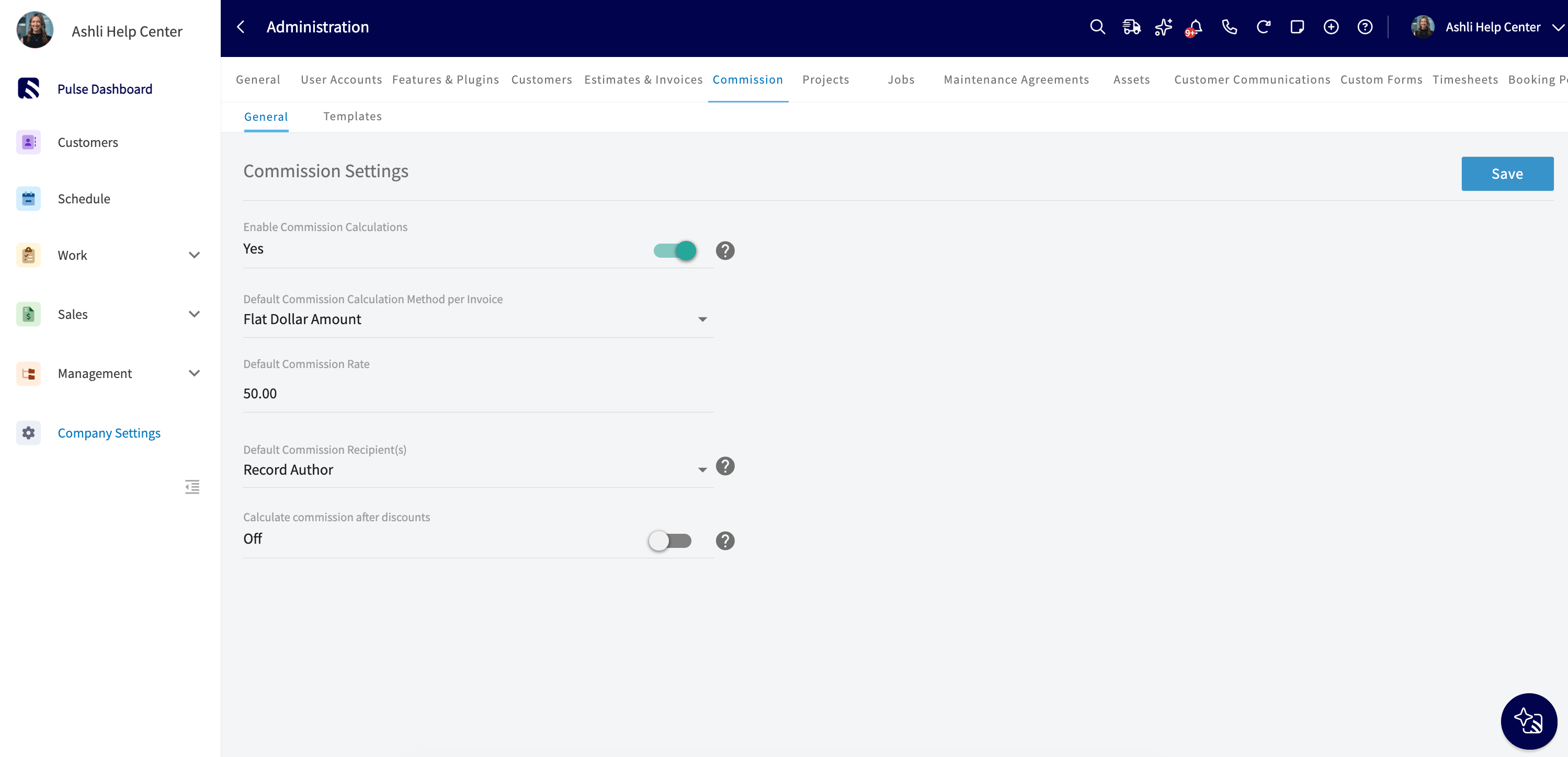
The **Calculate commission after discounts** toggle sits on the same **Company Settings** > **Commission** > **General** page and controls which invoice total the commission is figured from:
* **On** — commission is calculated on the final invoice total **after** discounts.
* **Off** — commission is calculated on the original total **before** discounts.
This setting applies to all commission types and reporting. It does not affect any existing invoice records you have already created.
For the full picture on how splitting commission across multiple people works, including templates and manual overrides, see [Commission Structures Overview](/payments/commissions/commission-structures) and [How to Create and Use Commission Templates](/payments/commissions/commission-templates).
### 2. Decide how discounts affect commission
The **Calculate commission after discounts** toggle sits on the same **Company Settings** > **Commission** > **General** page and controls which invoice total the commission is figured from:
* **On** — commission is calculated on the final invoice total **after** discounts.
* **Off** — commission is calculated on the original total **before** discounts.
This setting applies to all commission types and reporting. It does not affect any existing invoice records you have already created.
 ### 3. Set a commission rate for an individual user
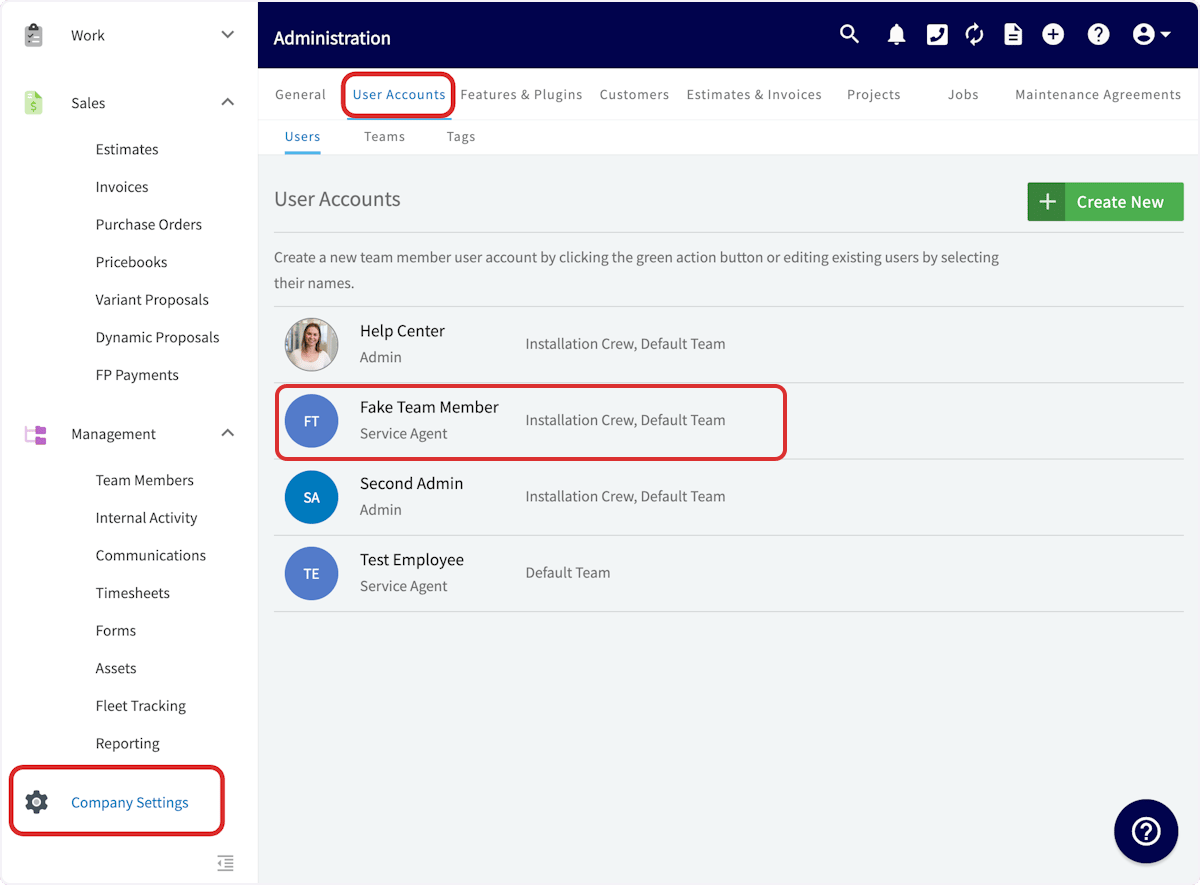
1. Select **Company Settings**, then the **User Accounts** tab.
2. Select the team member whose commission rate you want to set, then select **Edit**.
### 3. Set a commission rate for an individual user
1. Select **Company Settings**, then the **User Accounts** tab.
2. Select the team member whose commission rate you want to set, then select **Edit**.
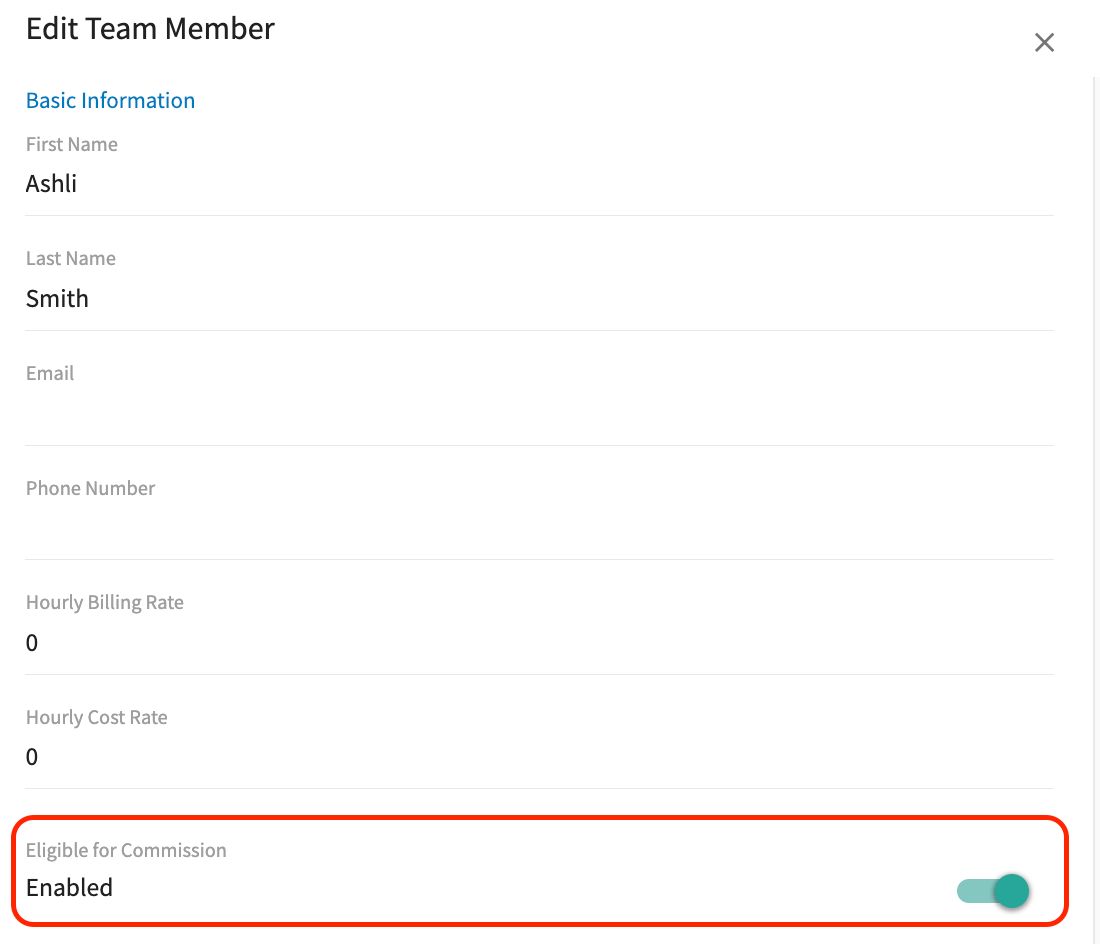
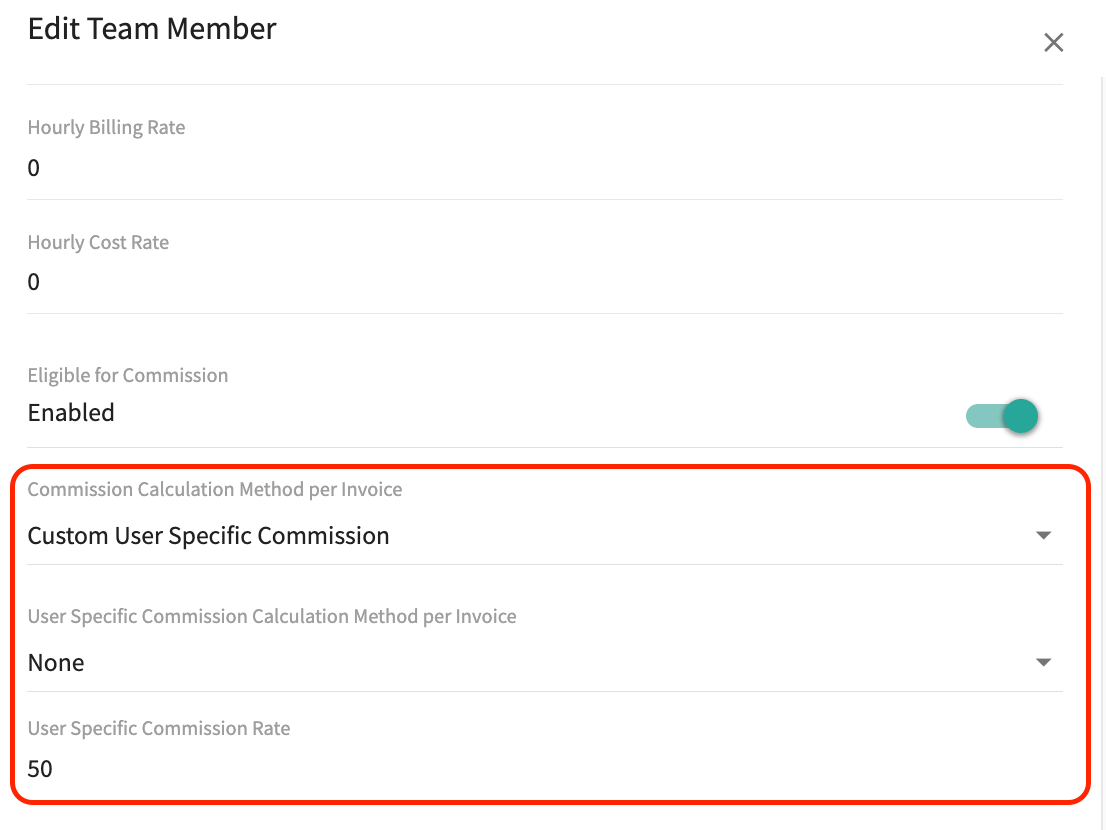
 3. In the **Edit Team Member** panel, scroll down and toggle **Eligible for Commission** on. While this toggle is off, the team member is not eligible for commission and does not appear on the commission cost basis page, the commission page, or the commission report. If the toggle was previously on, FieldPulse retains the commission information on the cost basis page and report for that team member.
 4. Set **Commission Calculation Method per Invoice** for this team member:
* **Company Default Commission** — the team member's commission follows the default method and rate set in Company Settings.
* **Custom User Specific Commission** — displays two additional fields, so commission can account for criteria or performance metrics that vary from one team member to another.
5. If you selected **Custom User Specific Commission**, fill in the two fields it reveals:
* **User Specific Commission Calculation Method per Invoice** — **Percentage of Gross Sales** calculates commission from total sales revenue, **Percentage of Gross Margin** calculates it from the profit margin after costs, and **Flat Dollar Amount** sets a fixed dollar amount per invoice.
* **User Specific Commission Rate** — the numeric value for this team member's rate.
4. Set **Commission Calculation Method per Invoice** for this team member:
* **Company Default Commission** — the team member's commission follows the default method and rate set in Company Settings.
* **Custom User Specific Commission** — displays two additional fields, so commission can account for criteria or performance metrics that vary from one team member to another.
5. If you selected **Custom User Specific Commission**, fill in the two fields it reveals:
* **User Specific Commission Calculation Method per Invoice** — **Percentage of Gross Sales** calculates commission from total sales revenue, **Percentage of Gross Margin** calculates it from the profit margin after costs, and **Flat Dollar Amount** sets a fixed dollar amount per invoice.
* **User Specific Commission Rate** — the numeric value for this team member's rate.
 6. Select **Save**.
If your **Default Commission Recipient(s)** setting is **Related Work Order Assignees**, individual user rates are ignored for that commission. FieldPulse uses the company default rate and splits it evenly among the assignees instead, so the math stays consistent no matter who is on the job.
### 4. Set the commission recipient on a record
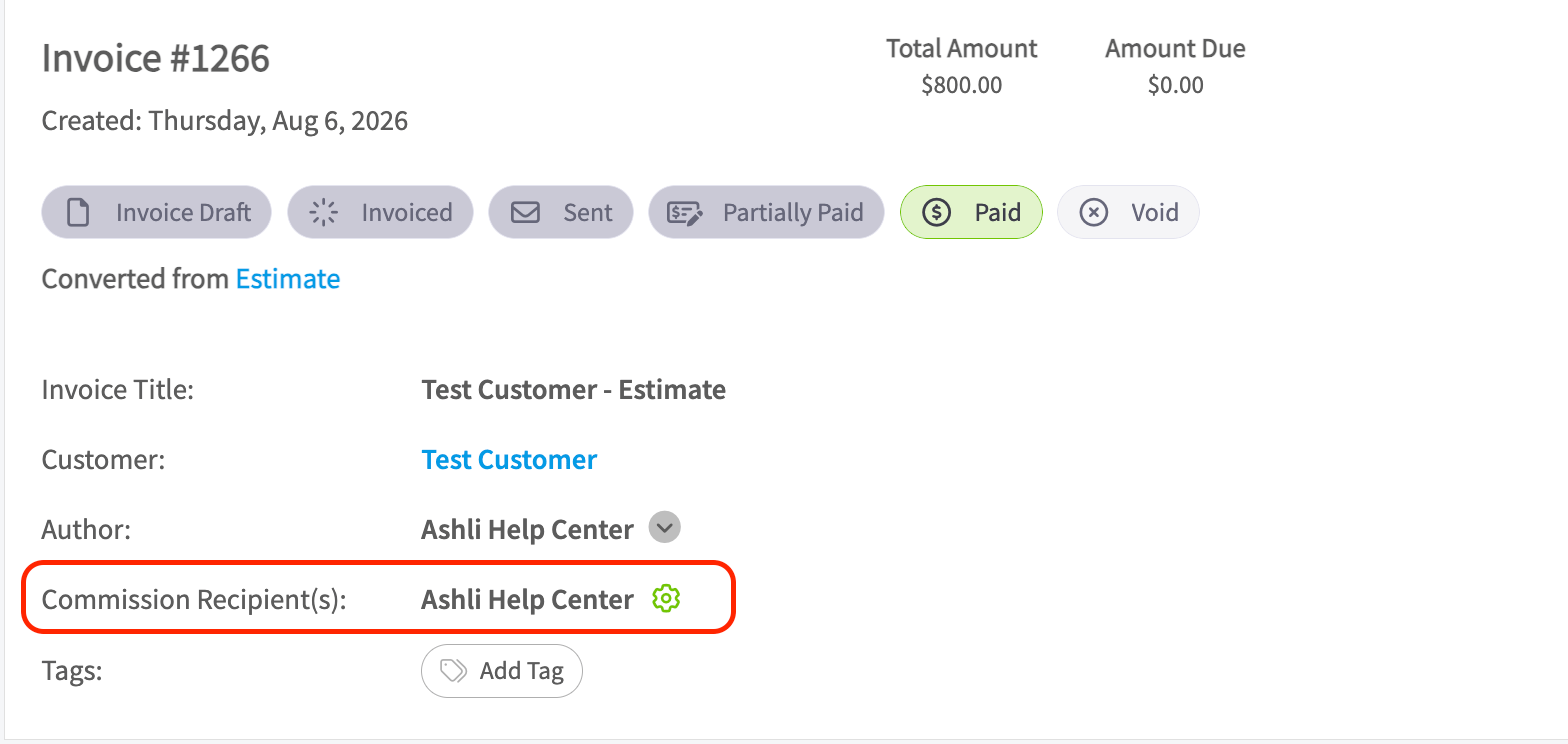
The **Commission Recipient(s)** field, located below the **Author** field on an estimate or invoice, tracks who earns the commission on that record. It defaults to your **Default Commission Recipient(s)** setting, and you can change it on an individual record.
When more than one person is receiving commission, their names are listed and separated by commas. Select the gear icon next to the field to open the **Commission Configuration** panel, where you can add, edit, or remove recipients.
6. Select **Save**.
If your **Default Commission Recipient(s)** setting is **Related Work Order Assignees**, individual user rates are ignored for that commission. FieldPulse uses the company default rate and splits it evenly among the assignees instead, so the math stays consistent no matter who is on the job.
### 4. Set the commission recipient on a record
The **Commission Recipient(s)** field, located below the **Author** field on an estimate or invoice, tracks who earns the commission on that record. It defaults to your **Default Commission Recipient(s)** setting, and you can change it on an individual record.
When more than one person is receiving commission, their names are listed and separated by commas. Select the gear icon next to the field to open the **Commission Configuration** panel, where you can add, edit, or remove recipients.
 ### 5. Review the calculated commission on a record
1. Open an estimate or invoice.
2. Select **Cost Basis** in the header.
3. Review the automatically calculated commission. You can edit the system-generated values at any time or add new commission fields as needed.
### 5. Review the calculated commission on a record
1. Open an estimate or invoice.
2. Select **Cost Basis** in the header.
3. Review the automatically calculated commission. You can edit the system-generated values at any time or add new commission fields as needed.
 Create commission templates to keep these entries consistent and save yourself time. To learn how, see [How to Create and Use Commission Templates](/payments/commissions/commission-templates).
## Settings reference
| **Setting** | **Where it lives** | **What it controls** |
| ------------------------------------------------------------------------------------------- | --------------------------------------------------- | --------------------------------------------------------------------------------------------------------------------------------- |
| **Enable Commission Calculations** | Company Settings > Commission > General | Turns on automatic commission on new estimates and invoices. |
| **Default Commission Calculation Method per Invoice** | Company Settings > Commission > General | How the default commission is figured — Percentage of Gross Sales, Percentage of Gross Margin, or Flat Dollar Amount. |
| **Default Commission Rate** | Company Settings > Commission > General | The company-wide percentage or dollar amount applied when no user-specific rate is set. |
| **Default Commission Recipient(s)** | Company Settings > Commission > General | Who earns commission by default — Record Author, Related Work Order Assignees, or Related Customer Assignee. |
| **Calculate commission after discounts** | Company Settings > Commission > General | Calculates commission on the after-discount total (on) or the before-discount total (off). |
| **Eligible for Commission** | Company Settings > User Accounts > Edit Team Member | Whether the team member can earn commission and appear on the commission cost basis page, commission page, and commission report. |
| **Commission Calculation Method per Invoice** | Company Settings > User Accounts > Edit Team Member | Whether the team member follows the company default or a custom user-specific method and rate. |
| **User Specific Commission Calculation Method per Invoice / User Specific Commission Rate** | Company Settings > User Accounts > Edit Team Member | The per-user method and rate that override the company default. |
| **Commission Recipient(s)** | Estimate or invoice record, below **Author** | Who earns the commission on that record; defaults to your Default Commission Recipient(s) setting. |
Commission amounts are adjusted at the time of payment when [card fee recovery](/payments/getting-started/card-fee-recovery) is enabled and the commission type is a percentage of gross sales or gross margin. It is best practice to report commissions **only on fully paid invoices**, so the commission you pay your team matches the commission FieldPulse calculated and you avoid over- or under-payment.
## Related articles
* [Commission Structures Overview](/payments/commissions/commission-structures)
* [How to Create and Use Commission Templates](/payments/commissions/commission-templates)
* [Setting Up Cost Basis and Invoice Profitability](/payments/commissions/cost-basis-invoice-profitability)
* [Setting Up Flat Rate Job Commissions](/payments/commissions/flat-rate-job-commissions)
* [How to Create Commission Reports](/reporting/raw-data/commission-reports)
Your setup is working when a new estimate or invoice shows a calculated commission on its Cost Basis tab, assigned to the right commission recipient at the rate you set.
## Related topics
- [Commission Structures Overview](/payments/commissions/commission-structures.md)
- [Setting Up Flat Rate Job Commissions](/payments/commissions/flat-rate-job-commissions.md)
- [Commissions & Profitability](/payments/commissions/index.md)
- [How to Create and Use Commission Templates](/payments/commissions/commission-templates.md)
Create commission templates to keep these entries consistent and save yourself time. To learn how, see [How to Create and Use Commission Templates](/payments/commissions/commission-templates).
## Settings reference
| **Setting** | **Where it lives** | **What it controls** |
| ------------------------------------------------------------------------------------------- | --------------------------------------------------- | --------------------------------------------------------------------------------------------------------------------------------- |
| **Enable Commission Calculations** | Company Settings > Commission > General | Turns on automatic commission on new estimates and invoices. |
| **Default Commission Calculation Method per Invoice** | Company Settings > Commission > General | How the default commission is figured — Percentage of Gross Sales, Percentage of Gross Margin, or Flat Dollar Amount. |
| **Default Commission Rate** | Company Settings > Commission > General | The company-wide percentage or dollar amount applied when no user-specific rate is set. |
| **Default Commission Recipient(s)** | Company Settings > Commission > General | Who earns commission by default — Record Author, Related Work Order Assignees, or Related Customer Assignee. |
| **Calculate commission after discounts** | Company Settings > Commission > General | Calculates commission on the after-discount total (on) or the before-discount total (off). |
| **Eligible for Commission** | Company Settings > User Accounts > Edit Team Member | Whether the team member can earn commission and appear on the commission cost basis page, commission page, and commission report. |
| **Commission Calculation Method per Invoice** | Company Settings > User Accounts > Edit Team Member | Whether the team member follows the company default or a custom user-specific method and rate. |
| **User Specific Commission Calculation Method per Invoice / User Specific Commission Rate** | Company Settings > User Accounts > Edit Team Member | The per-user method and rate that override the company default. |
| **Commission Recipient(s)** | Estimate or invoice record, below **Author** | Who earns the commission on that record; defaults to your Default Commission Recipient(s) setting. |
Commission amounts are adjusted at the time of payment when [card fee recovery](/payments/getting-started/card-fee-recovery) is enabled and the commission type is a percentage of gross sales or gross margin. It is best practice to report commissions **only on fully paid invoices**, so the commission you pay your team matches the commission FieldPulse calculated and you avoid over- or under-payment.
## Related articles
* [Commission Structures Overview](/payments/commissions/commission-structures)
* [How to Create and Use Commission Templates](/payments/commissions/commission-templates)
* [Setting Up Cost Basis and Invoice Profitability](/payments/commissions/cost-basis-invoice-profitability)
* [Setting Up Flat Rate Job Commissions](/payments/commissions/flat-rate-job-commissions)
* [How to Create Commission Reports](/reporting/raw-data/commission-reports)
Your setup is working when a new estimate or invoice shows a calculated commission on its Cost Basis tab, assigned to the right commission recipient at the rate you set.
## Related topics
- [Commission Structures Overview](/payments/commissions/commission-structures.md)
- [Setting Up Flat Rate Job Commissions](/payments/commissions/flat-rate-job-commissions.md)
- [Commissions & Profitability](/payments/commissions/index.md)
- [How to Create and Use Commission Templates](/payments/commissions/commission-templates.md)