> ## Documentation Index
> Fetch the complete documentation index at: https://help.fieldpulse.com/llms.txt
> Use this file to discover all available pages before exploring further.
# How to Use Markups & Margins
> Set a markup on item costs so FieldPulse prices the customer's line automatically, and apply a markup or target margin across a whole estimate or invoice.
> **Who uses this:** An Admin sets item markups and the company-wide default markup in Company Settings; the person building an estimate or invoice applies a markup or margin on that record. **Availability:** All regions.
A markup is a percentage FieldPulse adds to an item's unit cost to work out the unit price the customer sees. Enter the cost of a product or service along with a markup — or a target margin — and FieldPulse determines the price on the [estimate or invoice](https://www.fieldpulse.com/features/estimates-and-invoices) for you. That gives you a consistent margin on your jobs and tells you how profitable a project will be.
## Overview
FieldPulse prices a line item from its unit cost in three ways, and you can use them together:
* **Automatic markup on a single item** — set a markup percentage on one item in your Item List so its unit price is generated from its unit cost.
* **Company-wide default markup** — set one default markup percentage that is pre-filled whenever you put an item on automatic markup.
* **Markup or margin on a record** — apply a markup, or hit a target margin, across every line item on one estimate or invoice.
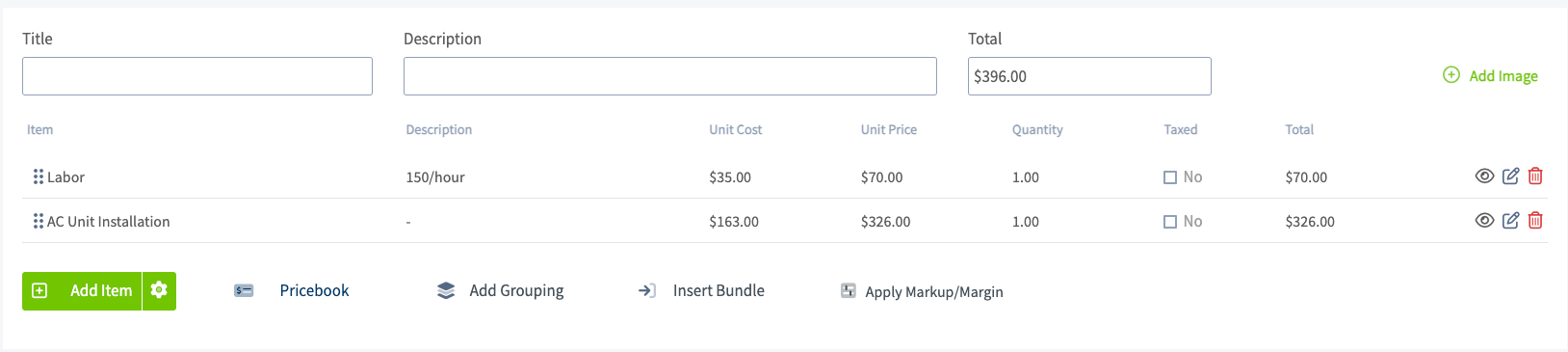
Markup and margin are related but not the same. A markup is a percentage added on top of cost, so a 50% markup applied to \$198 of cost produces a \$297 total. A margin is the percentage of the final price that is profit, so a 50% margin on that same \$198 of cost produces a \$396 total. FieldPulse accepts either number and prices each line to match.
If you have not entered unit costs on your line items, FieldPulse cannot generate a markup or a margin for them.
## Video walkthrough
This video walks through markups and margins in FieldPulse.
## Before you begin
* Enter a unit cost on every line item you want to mark up. Without a unit cost, FieldPulse cannot calculate a markup or a margin.
* Decide whether you want a markup on individual items, one company-wide default markup, or both.
## Set an automatic markup on a single item
An automatic markup generates that item's unit price from its unit cost, and keeps the price in step with the cost as the cost changes.
1. Go to **Company Settings** > **Estimates & Invoices** > **Item List**.
2. Select **Create Item** to add a new item, or select the edit icon on an existing item.
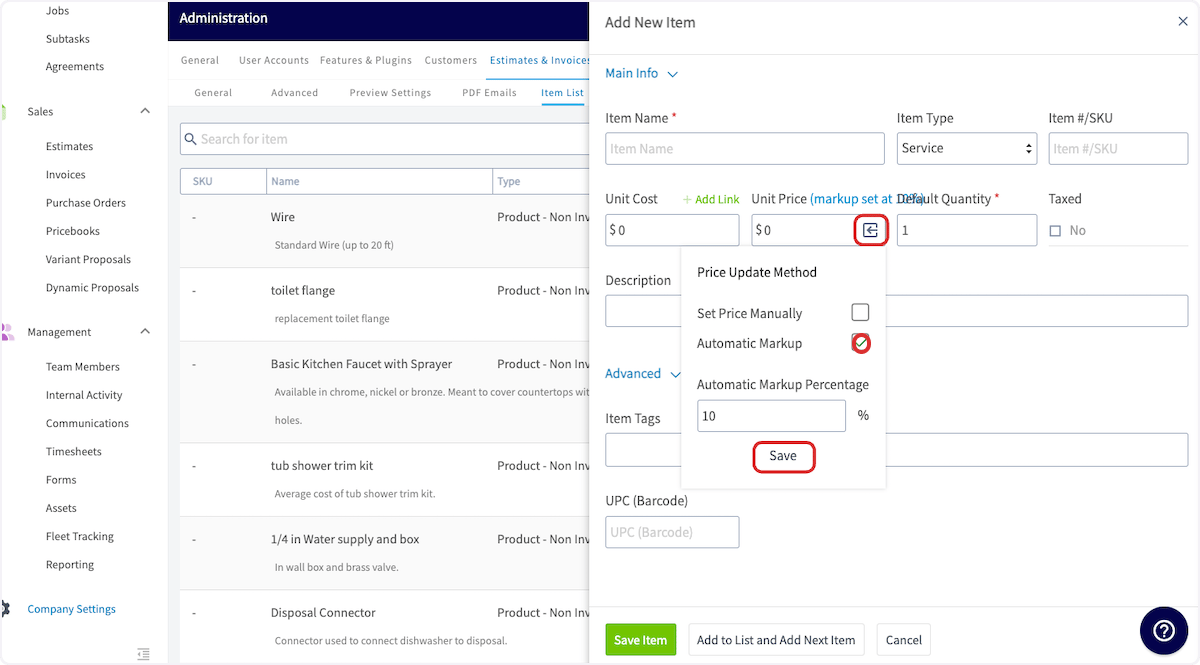
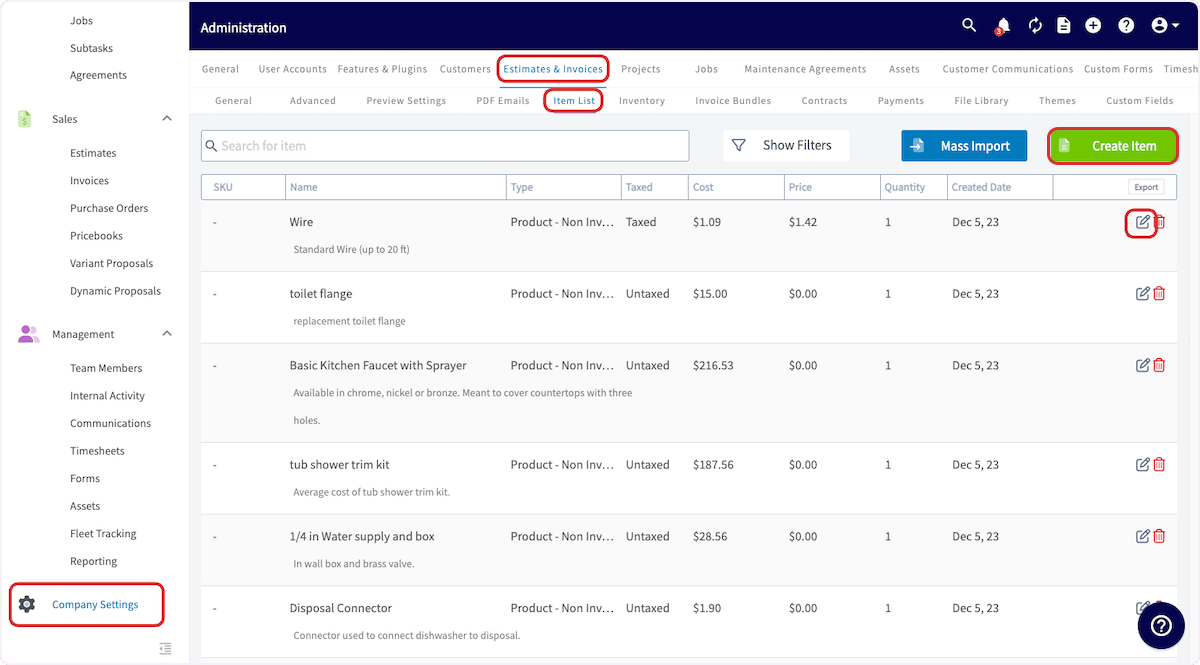 3. In the **Unit Price** field, select the square-with-an-arrow icon to open **Price Update Method**.
4. Select **Automatic Markup** and enter the **Automatic Markup Percentage**.
5. Select **Save** on the **Price Update Method** pop-up.
3. In the **Unit Price** field, select the square-with-an-arrow icon to open **Price Update Method**.
4. Select **Automatic Markup** and enter the **Automatic Markup Percentage**.
5. Select **Save** on the **Price Update Method** pop-up.
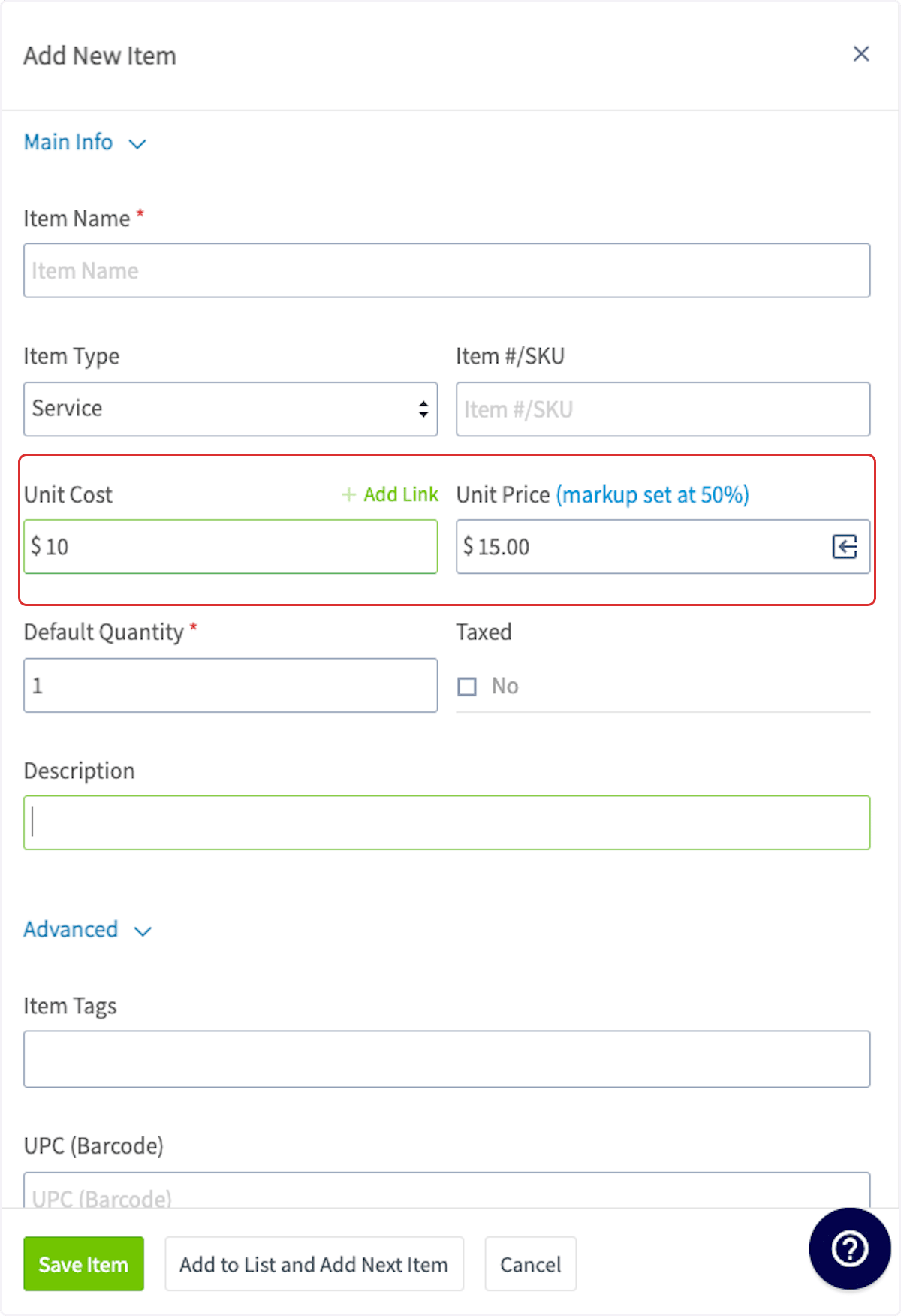
 6. Enter the rest of the item details and select **Save Item**.
The unit cost now generates the unit price, and the **Unit Price** field shows the markup that is set — a \$10 unit cost with a 50% markup gives a \$15.00 unit price. If the unit cost changes in the future, the unit price is updated as well. Repeat this for any other line items you want to mark up.
6. Enter the rest of the item details and select **Save Item**.
The unit cost now generates the unit price, and the **Unit Price** field shows the markup that is set — a \$10 unit cost with a 50% markup gives a \$15.00 unit price. If the unit cost changes in the future, the unit price is updated as well. Repeat this for any other line items you want to mark up.
 ## Set a company-wide default markup
A company-wide default markup is one markup percentage that is pre-filled every time you put a line item on automatic markup, so you don't retype the same number on each item.
1. Go to **Company Settings** > **Estimates & Invoices** > **Advanced**.
## Set a company-wide default markup
A company-wide default markup is one markup percentage that is pre-filled every time you put a line item on automatic markup, so you don't retype the same number on each item.
1. Go to **Company Settings** > **Estimates & Invoices** > **Advanced**.
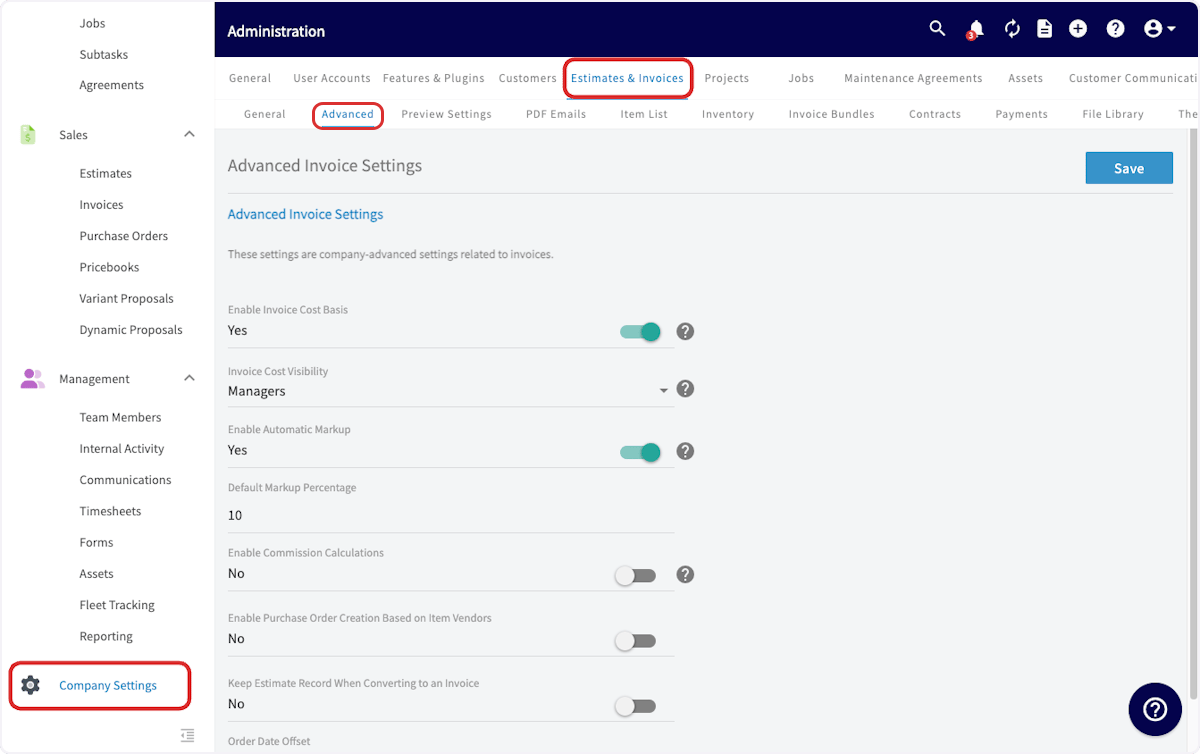 2. Turn **Enable Automatic Markup** on.
3. Enter the **Default Markup Percentage** you want applied automatically.
4. Select **Save**.
2. Turn **Enable Automatic Markup** on.
3. Enter the **Default Markup Percentage** you want applied automatically.
4. Select **Save**.
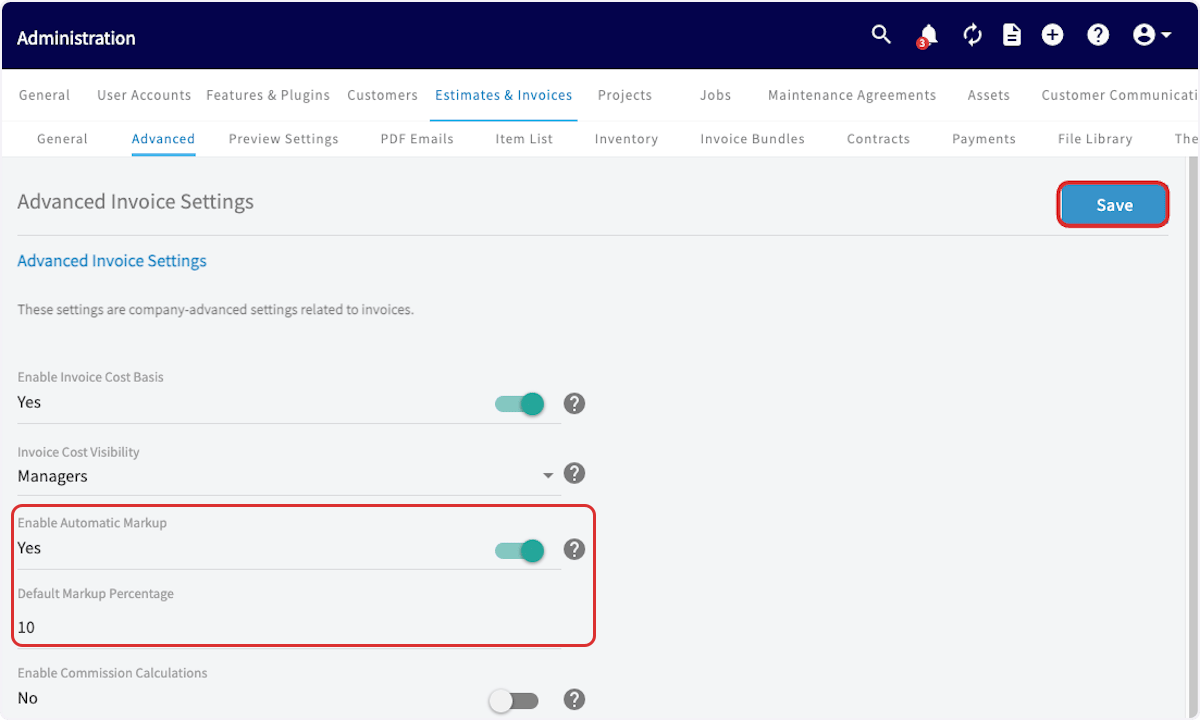 When you create a new line item or edit an existing one after this, select the square-with-an-arrow icon in the **Unit Price** field and choose **Automatic Markup** — your default markup percentage is already entered. Select **Save**.
## Apply a markup or margin to an estimate or invoice
Applying a markup or margin on an estimate or invoice reprices every line item on that record at once, instead of item by item.
1. Add your line items to the estimate or invoice.
2. Select **Apply Markup/Margin**.
When you create a new line item or edit an existing one after this, select the square-with-an-arrow icon in the **Unit Price** field and choose **Automatic Markup** — your default markup percentage is already entered. Select **Save**.
## Apply a markup or margin to an estimate or invoice
Applying a markup or margin on an estimate or invoice reprices every line item on that record at once, instead of item by item.
1. Add your line items to the estimate or invoice.
2. Select **Apply Markup/Margin**.
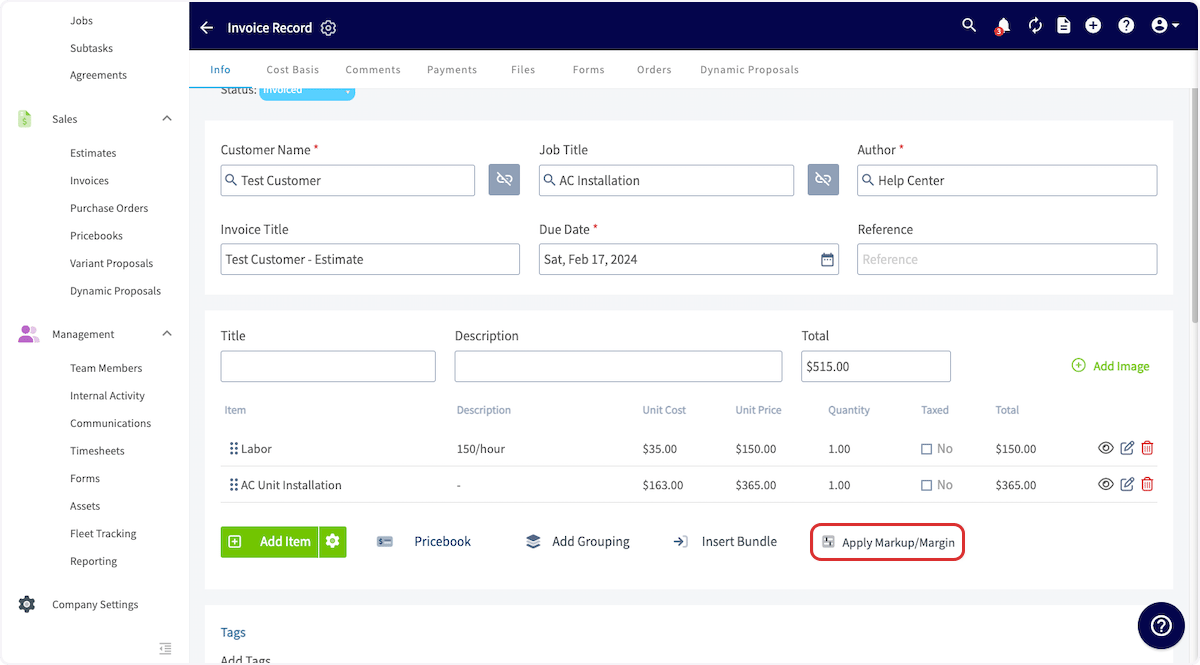 3. Select **Apply a markup of** and enter the markup percentage, or select **Achieve a margin of** and enter the margin percentage. The new estimate or invoice total appears in the bottom-left of the pop-up.
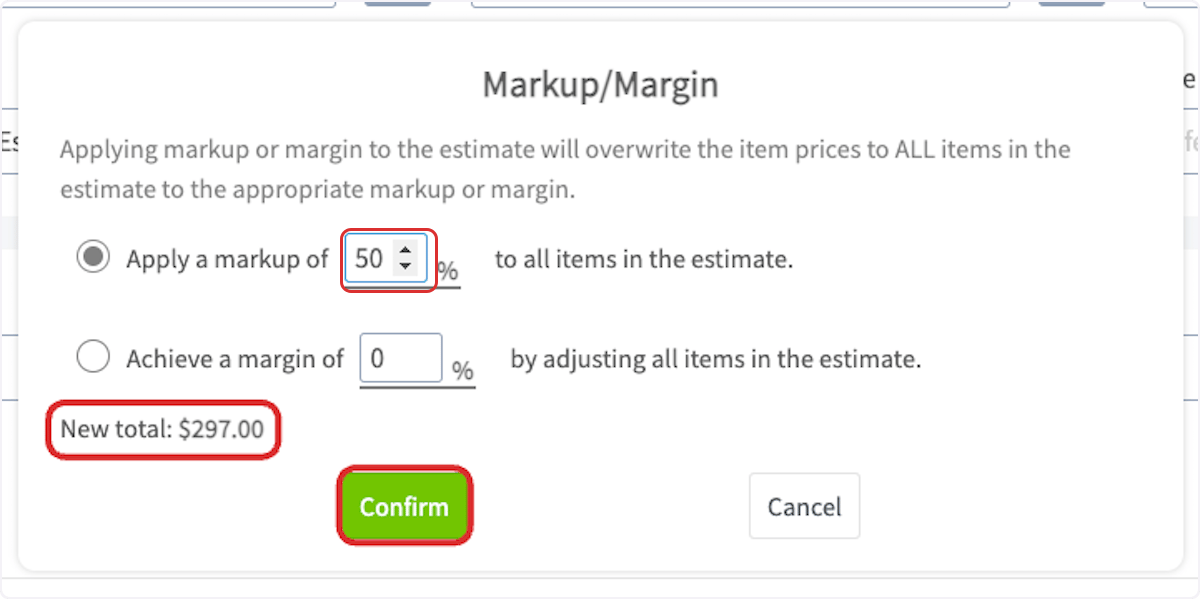
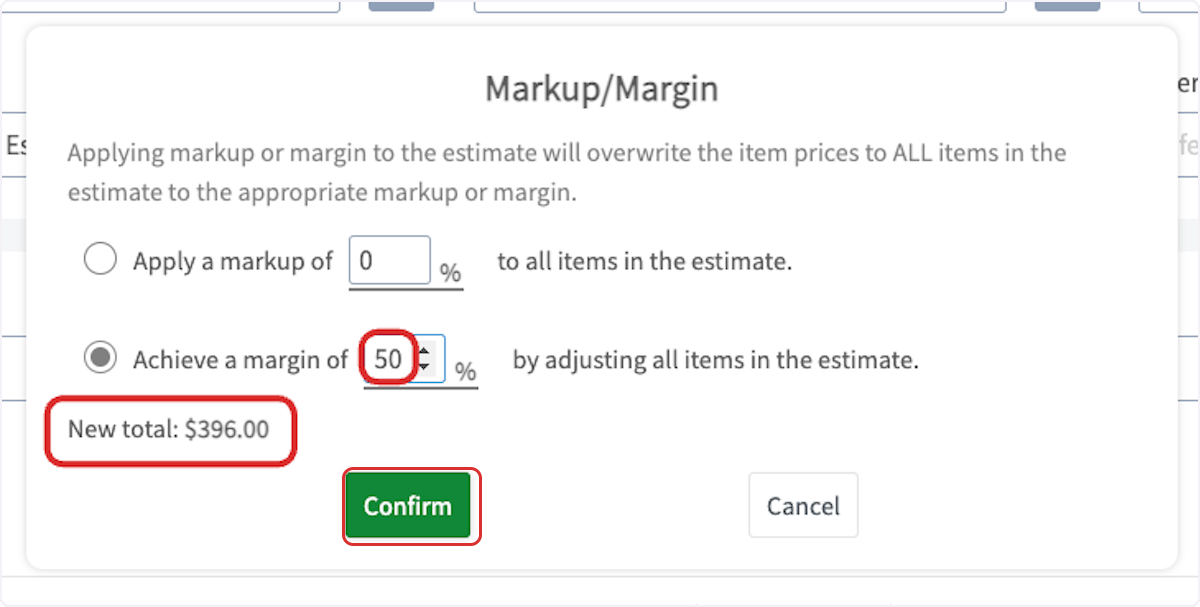 4. Select **Confirm**.
Any selection you make here overwrites the item prices on **all** items in the estimate or invoice.
After you select **Confirm**, FieldPulse recalculates each line's unit price from its unit cost, and the unit prices and total prices are adjusted to the markup or margin you applied.
4. Select **Confirm**.
Any selection you make here overwrites the item prices on **all** items in the estimate or invoice.
After you select **Confirm**, FieldPulse recalculates each line's unit price from its unit cost, and the unit prices and total prices are adjusted to the markup or margin you applied.
 ## FAQs
### If I update the Unit Cost on a line item directly on an estimate or invoice, will the Unit Price recalculate?
No. Changing the **Unit Cost** on a line item within an estimate or invoice does not update the **Unit Price** automatically. Select **Automatic Markup** on that line item again for the unit price to be recalculated from the updated unit cost.
## Related articles
* [Setting Up Cost Basis and Invoice Profitability](/payments/commissions/cost-basis-invoice-profitability)
* [Commission Structures Overview](/payments/commissions/commission-structures)
* [Setting Up Invoice-Level Commission](/payments/commissions/invoice-level-commission)
* [Setting Up Item List & Inventory](/inventory-materials/item-list/adding-items)
Your markups are working when you enter a unit cost and FieldPulse fills in the customer's unit price for you, and applying a markup or margin on a record reprices every line to the percentage you entered.
## Related topics
- [How to Create an Estimate](/estimates-invoices/creating/estimate.md)
- [Setting Up Cost Basis and Invoice Profitability](/payments/commissions/cost-basis-invoice-profitability.md)
- [Commissions & Profitability](/payments/commissions/index.md)
- [Commission Structures Overview](/payments/commissions/commission-structures.md)
## FAQs
### If I update the Unit Cost on a line item directly on an estimate or invoice, will the Unit Price recalculate?
No. Changing the **Unit Cost** on a line item within an estimate or invoice does not update the **Unit Price** automatically. Select **Automatic Markup** on that line item again for the unit price to be recalculated from the updated unit cost.
## Related articles
* [Setting Up Cost Basis and Invoice Profitability](/payments/commissions/cost-basis-invoice-profitability)
* [Commission Structures Overview](/payments/commissions/commission-structures)
* [Setting Up Invoice-Level Commission](/payments/commissions/invoice-level-commission)
* [Setting Up Item List & Inventory](/inventory-materials/item-list/adding-items)
Your markups are working when you enter a unit cost and FieldPulse fills in the customer's unit price for you, and applying a markup or margin on a record reprices every line to the percentage you entered.
## Related topics
- [How to Create an Estimate](/estimates-invoices/creating/estimate.md)
- [Setting Up Cost Basis and Invoice Profitability](/payments/commissions/cost-basis-invoice-profitability.md)
- [Commissions & Profitability](/payments/commissions/index.md)
- [Commission Structures Overview](/payments/commissions/commission-structures.md)