> ## Documentation Index
> Fetch the complete documentation index at: https://help.fieldpulse.com/llms.txt
> Use this file to discover all available pages before exploring further.
# Setting Up FieldPulse Payments
> Apply for a FieldPulse Payments merchant account from Company Settings, and see the credit check, the application statuses, and every field you enter.
> **Who uses this:** An Administrator submits the application — Administrator is the only role that can open Company Settings; once it is accepted, FieldPulse Payments is available to all admin users, and you choose which other user roles can process payments. **Availability:** Businesses located in the United States, on an approved FieldPulse Payments merchant account.
[FieldPulse Payments](https://www.fieldpulse.com/features/fieldpulse-payments) runs on a merchant account you apply for from inside FieldPulse. You open the application from the **FieldPulse Payments** tile in Company Settings, fill in your business, ownership, and banking details, and submit it. The application requires a credit check, and you receive a decision within 3 business days.
## Overview
The FieldPulse Payments application collects your business, ownership, and banking details so FieldPulse can set up your merchant account. You start it from the **FieldPulse Payments** tile in **Company Settings > Features & Plugins**, and the form opens in a new browser tab. After you submit the application, the tile reads **Application Pending** while the team reviews it, and within 3 business days a pop-up notification in the web app gives you one of three outcomes — Accepted, RFI, or Rejected.
For what FieldPulse Payments does once your merchant account is approved, see the [FieldPulse Payments Overview](/payments/getting-started/fieldpulse-payments).
## Before you begin
* Be ready for a **credit check**. The FieldPulse Payments application requires one.
* Have your **business details** on hand — legal business name matching your IRS documents, TIN, business type, MCC code, date established, and a legal business address that is not a PO box.
* Have your **ownership details** — contact type, title, percentage and date of ownership, and your answers on significant responsibility and politically exposed person status.
* Have your **banking details** — account type, the name on the account as it appears on your checks, and your routing number.
* Have any **documents** you need to upload ready, such as a business license or SS-4.
## Step-by-step setup
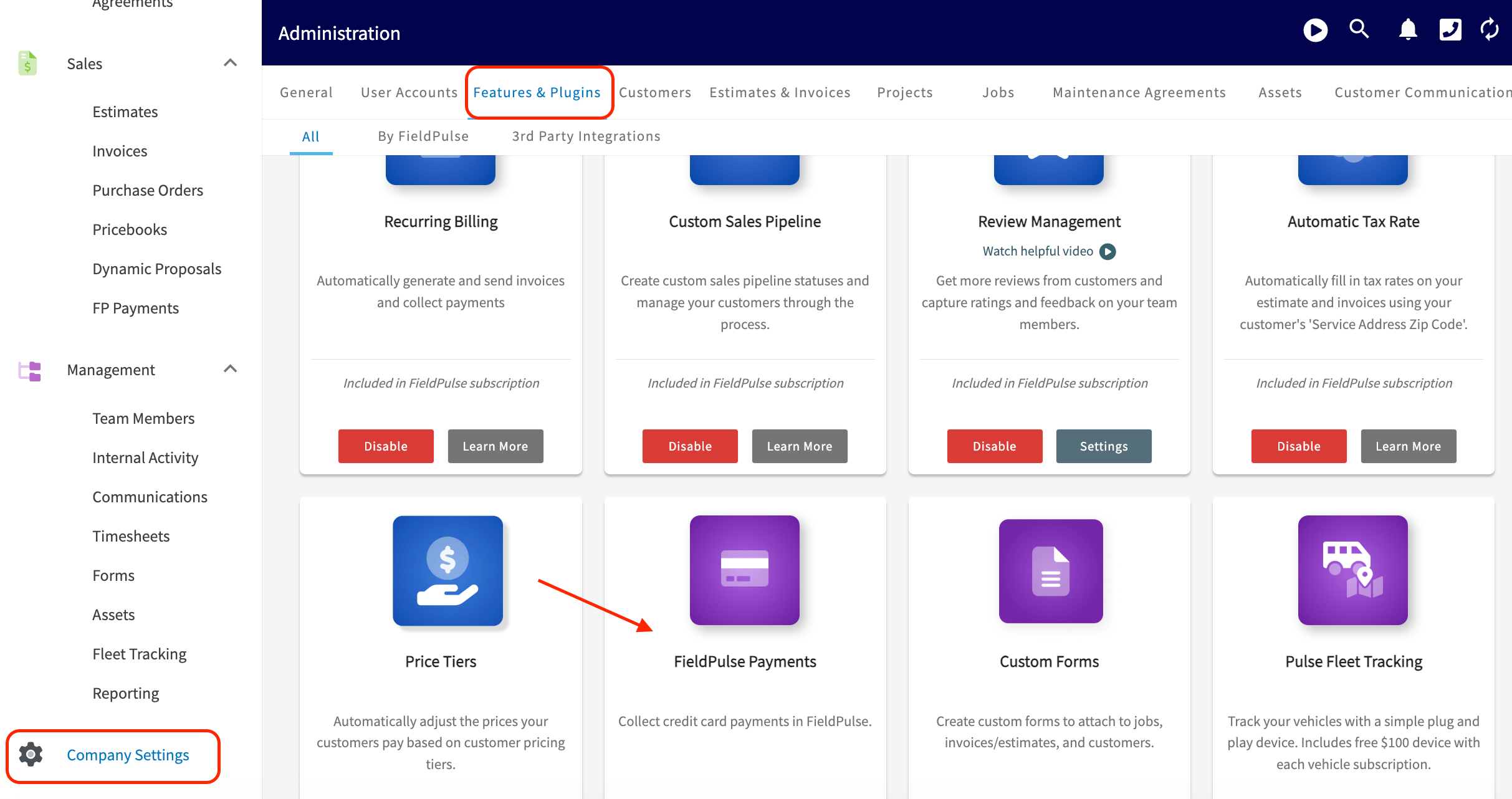
1. In the left-hand menu, select **Company Settings**.
2. At the top of the screen, select **Features & Plugins**.
3. Scroll down to the purple **FieldPulse Payments** tile.
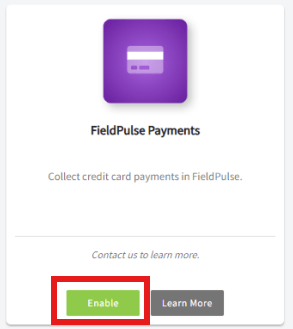
 4. Select the green **Enable** button to begin the application. FieldPulse generates your profile and opens the application form in a new browser tab, which can take a moment.
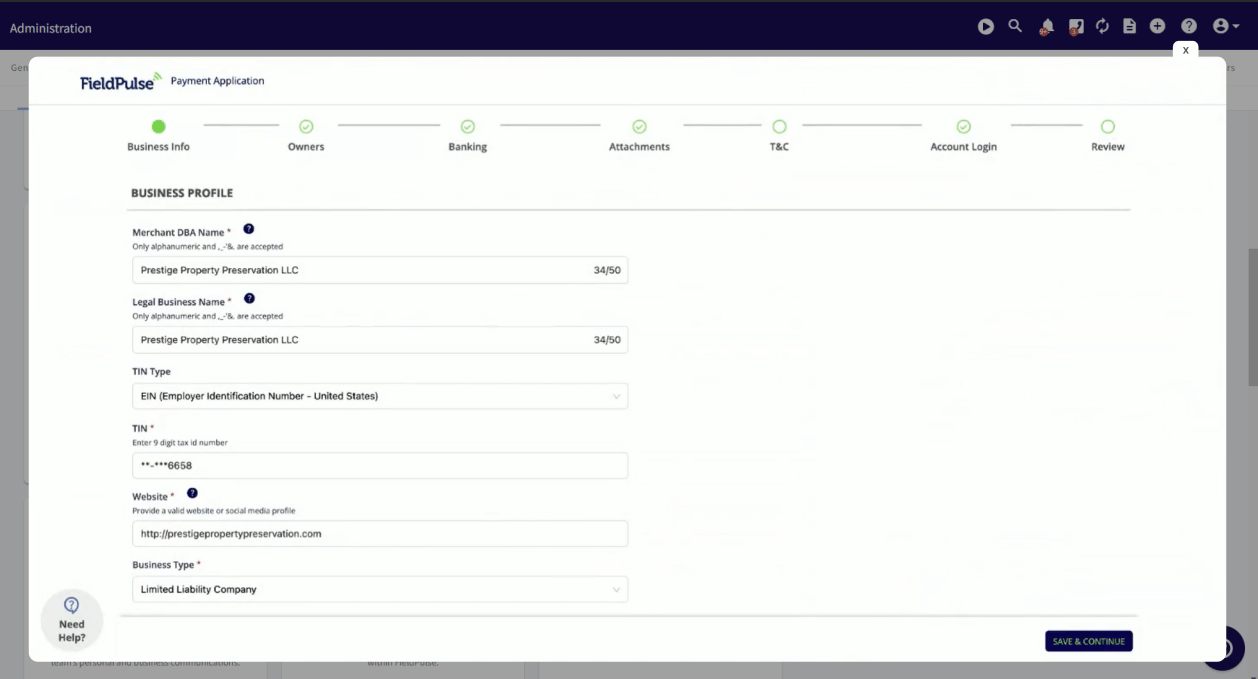
 5. Fill in the application form with your business details. The merchant detail fields below explain what to enter in each field.
 6. Select **Submit**. Your **FieldPulse Payments** tile updates to **Application Pending**, and you receive a decision within 3 business days.
## Application statuses
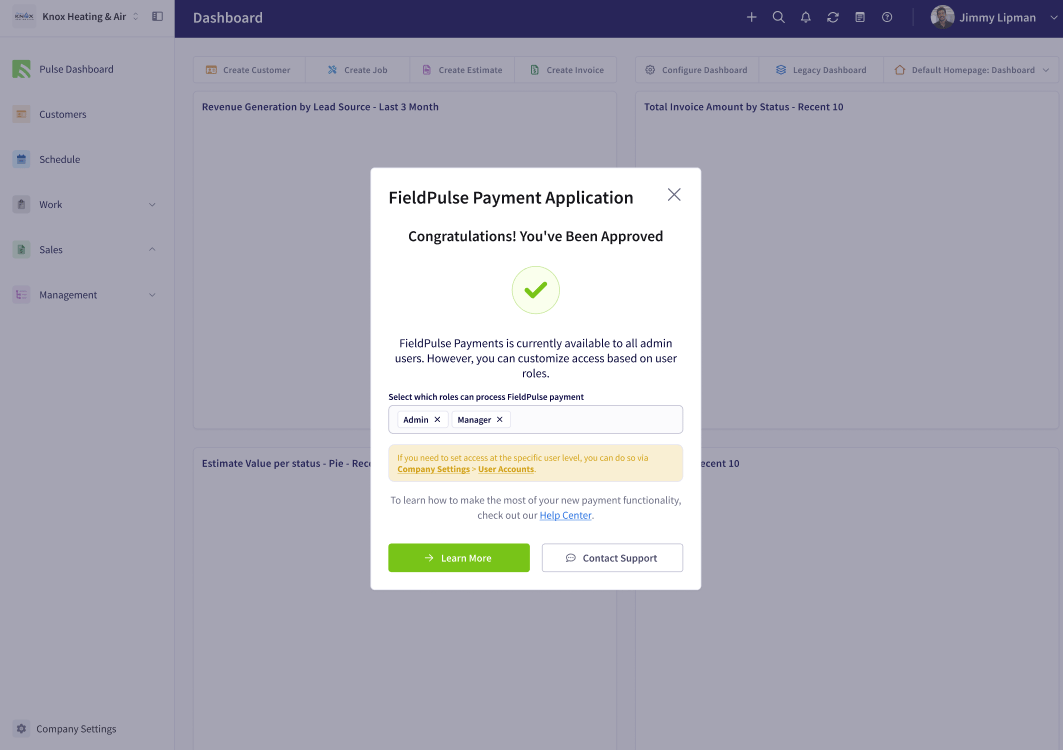
After the review, a pop-up notification in the web app tells you the outcome of your FieldPulse Payments application.
| **Status** | **What it means and what to do** |
| --------------------------------- | ------------------------------------------------------------------------------------------------------------------------------------------------------------------------------------------------------------------------------------------------------------------------------------------------------------------------------------------------------- |
| **Accepted** | Your application is approved. FieldPulse Payments becomes available to all admin users, and you select which user roles can process FieldPulse payments — both taking payments and issuing refunds — in the pop-up. To set access for one specific user, go to **Company Settings > User Accounts**. |
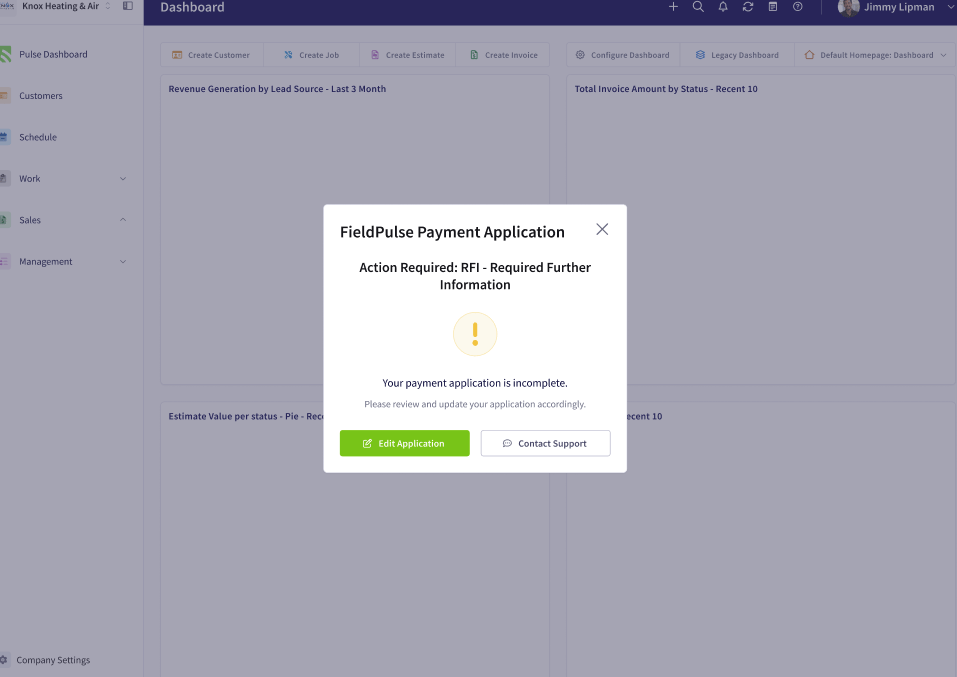
| **RFI (Request for Information)** | The team needs more information before deciding. Respond from the web app pop-up, or open the **FieldPulse Payments** tile in Company Settings — a red bubble in the top-right corner of your screen details what is needed before you resubmit. An RFI can arrive at any time, for example when a driver's license on file expires and needs updating. |
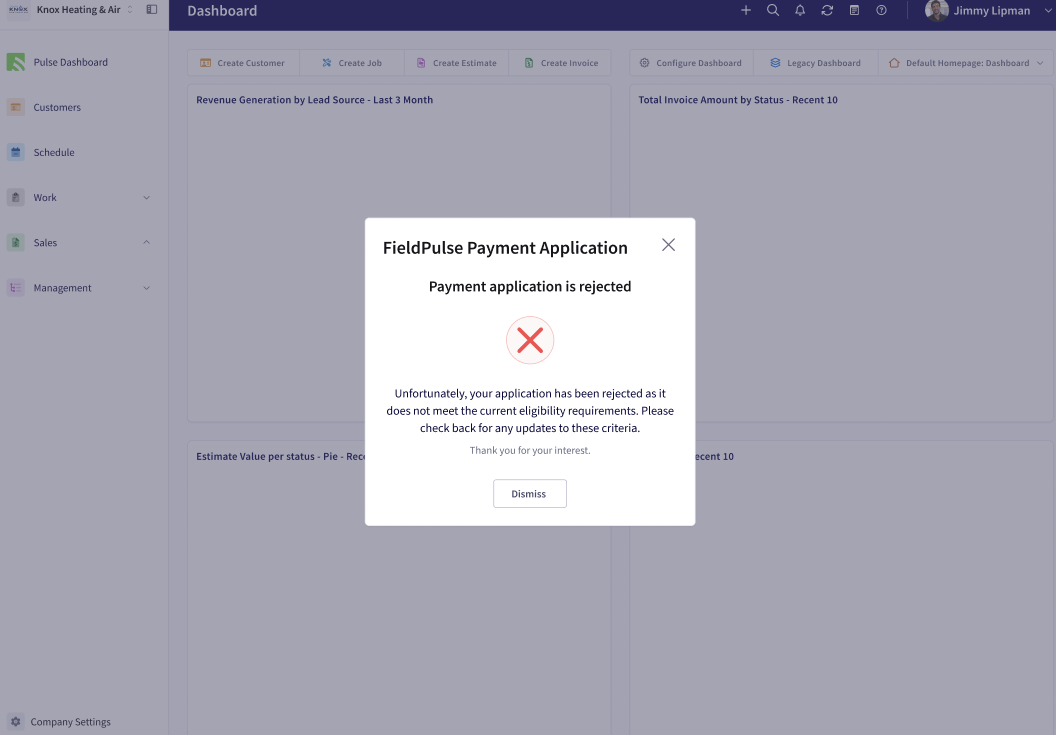
| **Rejected** | Your application was not approved because it does not meet the current eligibility requirements. Check your inbox for an email explaining why, and contact the FieldPulse team for context or next steps. |
Each status arrives as a pop-up on your FieldPulse dashboard.
6. Select **Submit**. Your **FieldPulse Payments** tile updates to **Application Pending**, and you receive a decision within 3 business days.
## Application statuses
After the review, a pop-up notification in the web app tells you the outcome of your FieldPulse Payments application.
| **Status** | **What it means and what to do** |
| --------------------------------- | ------------------------------------------------------------------------------------------------------------------------------------------------------------------------------------------------------------------------------------------------------------------------------------------------------------------------------------------------------- |
| **Accepted** | Your application is approved. FieldPulse Payments becomes available to all admin users, and you select which user roles can process FieldPulse payments — both taking payments and issuing refunds — in the pop-up. To set access for one specific user, go to **Company Settings > User Accounts**. |
| **RFI (Request for Information)** | The team needs more information before deciding. Respond from the web app pop-up, or open the **FieldPulse Payments** tile in Company Settings — a red bubble in the top-right corner of your screen details what is needed before you resubmit. An RFI can arrive at any time, for example when a driver's license on file expires and needs updating. |
| **Rejected** | Your application was not approved because it does not meet the current eligibility requirements. Check your inbox for an email explaining why, and contact the FieldPulse team for context or next steps. |
Each status arrives as a pop-up on your FieldPulse dashboard.
 Once your application is accepted, see the [FieldPulse Payments Overview](/payments/getting-started/fieldpulse-payments) for how FieldPulse Payments works in the web app, and [How to Collect Payments: 3 Methods](/payments/collecting/collecting-payments-3-methods) for taking payments on the mobile app.
## Upgrading FieldPulse Payments
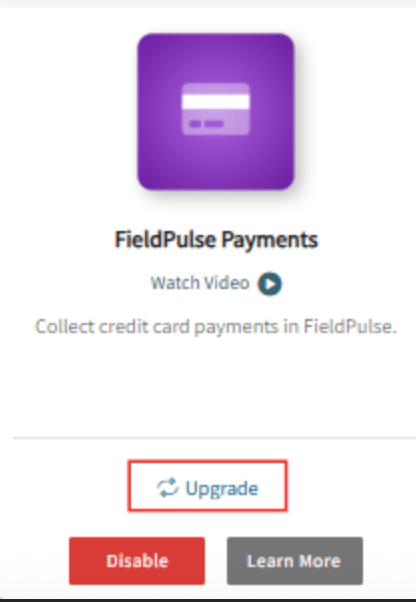
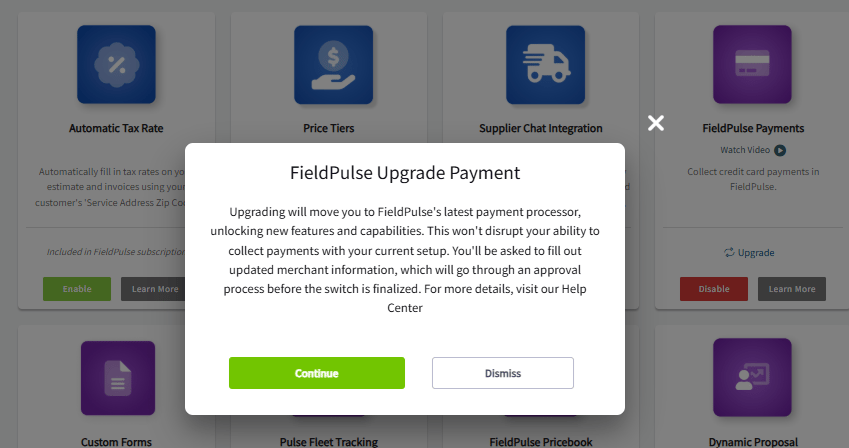
If your **FieldPulse Payments** tile shows an **Upgrade** option, you can move to the latest FieldPulse payment processor at any time. Select **Upgrade**, then select **Continue** in the pop-up. You fill out updated merchant information, which goes through an approval process before the switch is finalized. Upgrading does not disrupt your ability to collect payments with your current setup.
Once your application is accepted, see the [FieldPulse Payments Overview](/payments/getting-started/fieldpulse-payments) for how FieldPulse Payments works in the web app, and [How to Collect Payments: 3 Methods](/payments/collecting/collecting-payments-3-methods) for taking payments on the mobile app.
## Upgrading FieldPulse Payments
If your **FieldPulse Payments** tile shows an **Upgrade** option, you can move to the latest FieldPulse payment processor at any time. Select **Upgrade**, then select **Continue** in the pop-up. You fill out updated merchant information, which goes through an approval process before the switch is finalized. Upgrading does not disrupt your ability to collect payments with your current setup.
 ## Merchant detail fields
The application collects your merchant details in four groups. Use these tables for what to enter in each field.
### Business Information
| **Field** | **What to enter** |
| ------------------------------- | ------------------------------------------------------------------------------------------------------------------------------------------------------------------------- |
| **Merchant DBA Name** | The operating name of the account's company, if it differs from the legal name. This is the default name shown on customer credit card statements. |
| **Legal Business Name** | The legal business name, matching precisely how it appears on the IRS documents for the business. |
| **TIN Type** | SSN (Social Security Number, United States), EIN (Employer Identification Number, United States), BN (Business Number, Canada), or SIN (Social Insurance Number, Canada). |
| **TIN** | The number for the TIN type you selected. |
| **Website** | Your business website. If you do not have one, enter a social media page, LinkedIn, or another relevant link for your business. |
| **Business Type** | Sole Proprietor, Corporation, Limited Liability Company (LLC), Partnership, Non-Profit Organization, or Government Organization. The table below defines each one. |
| **MCC Code** | The Merchant Category Code, which identifies the type of business a merchant is engaged in. |
| **Date Established** | The date your business was started. |
| **Business Address** | Your legal business address. No PO box addresses are accepted. |
| **Product/Service Description** | The type of service or product your business offers. |
| **Average Ticket** | The dollar amount of your average transaction. |
| **High Ticket** | The dollar amount of your highest transaction. |
| **Annual Sale Volume** | The total dollar amount of sales for your business in a year. |
| **Days to Ship** | The average timeframe from transaction to delivery. |
| **Business Type option** | **What it means** |
| ----------------------------------- | --------------------------------------------------------------------------------------------------------------------------------------------------------------------------------------------------------------------------------- |
| **Sole Proprietor** | An individual who owns and operates their business independently, bearing full responsibility for its debts and liabilities. |
| **Corporation** | A legal entity separate from its owners, providing limited liability protection to its shareholders while the business operates under a distinct business name. |
| **Limited Liability Company (LLC)** | A flexible business structure that combines the liability protection of a corporation with the tax benefits of a partnership. |
| **Partnership** | A business structure in which two or more individuals operate a business together, sharing its profits, losses, and management responsibilities. Profits and losses are usually reported on the individual partners' tax returns. |
| **Non-Profit Organization** | An entity that operates for a charitable purpose. |
| **Government Organization** | An entity that operates at the local, state, or federal level. |
### Owners
| **Field** | **What to enter** |
| ------------------------------ | -------------------------------------------------------------------------------------------------------------------------------------------------------------------------------------------------------------------------------------------------------------------------------------------------------------------------------------------------------- |
| **Contact Type** | Owner, Director, or Executive. |
| **Title** | The person's title, for example Chief Executive Officer (CEO). |
| **Address** | The owner's street address. No PO box addresses are accepted. |
| **Percentage of Ownership** | The proportion of ownership this member holds. |
| **Date of Ownership** | The date this owner assumed legal ownership of the business, in part or whole. |
| **Significant Responsibility** | Yes or No — whether this owner has significant responsibility for managing the merchant account, such as an executive officer or senior manager (chief executive officer, chief financial officer, chief operating officer, managing member, general partner, president, vice president, treasurer, or anyone who regularly performs similar functions). |
| **Politically Exposed Person** | Yes or No — whether this person has been entrusted with a prominent public function, such as a head of state or government, a senior politician, a senior government, judicial, or military official, a senior executive of a state-owned corporation, or an important political party official. |
### Banking Information
| **Field** | **What to enter** |
| ------------------- | ------------------------------------------------------------------------------------------------------- |
| **Account Type** | Personal Checking, Personal Savings, Corporate Checking, or Corporate Savings. |
| **Name on Account** | The name of the person or corporation on the account. This must match what is displayed on your checks. |
| **Routing Number** | 9 digits for United States banks and 8 digits for Canadian banks. |
### Attachments
| **Field** | **What to enter** |
| ---------------------------------- | --------------------------------- |
| **Select Document Type to Upload** | Business License, SS-4, or Other. |
## Still need help?
Reach the [FieldPulse support team](https://www.fieldpulse.com/company/contact-us) at [support@fieldpulse.com](mailto:support@fieldpulse.com) or through the chat feature in the bottom-right corner of your screen.
## Related articles
* [FieldPulse Payments Overview](/payments/getting-started/fieldpulse-payments)
* [Payment Provider Options Overview](/payments/getting-started/payment-provider-options)
* [Setting Up Card Fee Recovery](/payments/getting-started/card-fee-recovery)
* [FieldPulse Deposit and Payment Status Details](/payments/getting-started/deposits-payment-statuses)
* [How to Collect Payments: 3 Methods](/payments/collecting/collecting-payments-3-methods)
* [User Roles and Permissions Details](/settings/users-teams/user-roles)
Your application is working when the FieldPulse Payments tile reads **Application Pending** right after you submit — and, once it is accepted, you assign the user roles that can take payments and issue refunds.
## Related topics
- [FieldPulse Payments Overview](/payments/getting-started/fieldpulse-payments.md)
- [Payment Provider Options Overview](/payments/getting-started/payment-provider-options.md)
- [FieldPulse Deposit and Payment Status Details](/payments/getting-started/deposits-payment-statuses.md)
- [Getting Started with Payments](/payments/getting-started/index.md)
## Merchant detail fields
The application collects your merchant details in four groups. Use these tables for what to enter in each field.
### Business Information
| **Field** | **What to enter** |
| ------------------------------- | ------------------------------------------------------------------------------------------------------------------------------------------------------------------------- |
| **Merchant DBA Name** | The operating name of the account's company, if it differs from the legal name. This is the default name shown on customer credit card statements. |
| **Legal Business Name** | The legal business name, matching precisely how it appears on the IRS documents for the business. |
| **TIN Type** | SSN (Social Security Number, United States), EIN (Employer Identification Number, United States), BN (Business Number, Canada), or SIN (Social Insurance Number, Canada). |
| **TIN** | The number for the TIN type you selected. |
| **Website** | Your business website. If you do not have one, enter a social media page, LinkedIn, or another relevant link for your business. |
| **Business Type** | Sole Proprietor, Corporation, Limited Liability Company (LLC), Partnership, Non-Profit Organization, or Government Organization. The table below defines each one. |
| **MCC Code** | The Merchant Category Code, which identifies the type of business a merchant is engaged in. |
| **Date Established** | The date your business was started. |
| **Business Address** | Your legal business address. No PO box addresses are accepted. |
| **Product/Service Description** | The type of service or product your business offers. |
| **Average Ticket** | The dollar amount of your average transaction. |
| **High Ticket** | The dollar amount of your highest transaction. |
| **Annual Sale Volume** | The total dollar amount of sales for your business in a year. |
| **Days to Ship** | The average timeframe from transaction to delivery. |
| **Business Type option** | **What it means** |
| ----------------------------------- | --------------------------------------------------------------------------------------------------------------------------------------------------------------------------------------------------------------------------------- |
| **Sole Proprietor** | An individual who owns and operates their business independently, bearing full responsibility for its debts and liabilities. |
| **Corporation** | A legal entity separate from its owners, providing limited liability protection to its shareholders while the business operates under a distinct business name. |
| **Limited Liability Company (LLC)** | A flexible business structure that combines the liability protection of a corporation with the tax benefits of a partnership. |
| **Partnership** | A business structure in which two or more individuals operate a business together, sharing its profits, losses, and management responsibilities. Profits and losses are usually reported on the individual partners' tax returns. |
| **Non-Profit Organization** | An entity that operates for a charitable purpose. |
| **Government Organization** | An entity that operates at the local, state, or federal level. |
### Owners
| **Field** | **What to enter** |
| ------------------------------ | -------------------------------------------------------------------------------------------------------------------------------------------------------------------------------------------------------------------------------------------------------------------------------------------------------------------------------------------------------- |
| **Contact Type** | Owner, Director, or Executive. |
| **Title** | The person's title, for example Chief Executive Officer (CEO). |
| **Address** | The owner's street address. No PO box addresses are accepted. |
| **Percentage of Ownership** | The proportion of ownership this member holds. |
| **Date of Ownership** | The date this owner assumed legal ownership of the business, in part or whole. |
| **Significant Responsibility** | Yes or No — whether this owner has significant responsibility for managing the merchant account, such as an executive officer or senior manager (chief executive officer, chief financial officer, chief operating officer, managing member, general partner, president, vice president, treasurer, or anyone who regularly performs similar functions). |
| **Politically Exposed Person** | Yes or No — whether this person has been entrusted with a prominent public function, such as a head of state or government, a senior politician, a senior government, judicial, or military official, a senior executive of a state-owned corporation, or an important political party official. |
### Banking Information
| **Field** | **What to enter** |
| ------------------- | ------------------------------------------------------------------------------------------------------- |
| **Account Type** | Personal Checking, Personal Savings, Corporate Checking, or Corporate Savings. |
| **Name on Account** | The name of the person or corporation on the account. This must match what is displayed on your checks. |
| **Routing Number** | 9 digits for United States banks and 8 digits for Canadian banks. |
### Attachments
| **Field** | **What to enter** |
| ---------------------------------- | --------------------------------- |
| **Select Document Type to Upload** | Business License, SS-4, or Other. |
## Still need help?
Reach the [FieldPulse support team](https://www.fieldpulse.com/company/contact-us) at [support@fieldpulse.com](mailto:support@fieldpulse.com) or through the chat feature in the bottom-right corner of your screen.
## Related articles
* [FieldPulse Payments Overview](/payments/getting-started/fieldpulse-payments)
* [Payment Provider Options Overview](/payments/getting-started/payment-provider-options)
* [Setting Up Card Fee Recovery](/payments/getting-started/card-fee-recovery)
* [FieldPulse Deposit and Payment Status Details](/payments/getting-started/deposits-payment-statuses)
* [How to Collect Payments: 3 Methods](/payments/collecting/collecting-payments-3-methods)
* [User Roles and Permissions Details](/settings/users-teams/user-roles)
Your application is working when the FieldPulse Payments tile reads **Application Pending** right after you submit — and, once it is accepted, you assign the user roles that can take payments and issue refunds.
## Related topics
- [FieldPulse Payments Overview](/payments/getting-started/fieldpulse-payments.md)
- [Payment Provider Options Overview](/payments/getting-started/payment-provider-options.md)
- [FieldPulse Deposit and Payment Status Details](/payments/getting-started/deposits-payment-statuses.md)
- [Getting Started with Payments](/payments/getting-started/index.md)