> ## Documentation Index
> Fetch the complete documentation index at: https://help.fieldpulse.com/llms.txt
> Use this file to discover all available pages before exploring further.
# FieldPulse Deposit and Payment Status Details
> Reference every FieldPulse Payments payin and deposit status, the details shown on each portal page, and how failed transactions surface.
> **Who uses this:** Users with FieldPulse Payments access — set per user under **Company Settings** > **User Accounts**. Admins and Team Managers can also turn on failed-payment email notifications. **Availability:** Requires FieldPulse Payments, which is available to businesses located in the United States.
[FieldPulse Payments](https://www.fieldpulse.com/features/fieldpulse-payments) tracks two statuses for every transaction: a **payment status** for the payin from your customer, and a **deposit status** for the payout to your bank. Both statuses live in the payment portal under the **FP Payments** tab, so you can tell whether the money is still processing, has completed, or has failed.
## Overview
A payment and a deposit are two stages of the same money, and each stage carries its own status. The payment (payin) status describes the charge itself, from the moment the payin is created through to the point where the funds are available to deposit. The deposit status describes the payout of those funds to the merchant. A transaction can be a **Succeeded** payment and a **Processing** deposit at the same time, while the funds are on their way to your bank account.
The **FP Payments** tab holds three pages: **FieldPulse Deposits**, **FieldPulse Payments**, and **FieldPulse Chargeback**. Payment statuses show on the FieldPulse Payments page, and deposit statuses show on the FieldPulse Deposits page. For chargebacks, see [FieldPulse Payments Chargebacks Overview](/payments/collecting/chargebacks).
> **Apply for FieldPulse Payments today.** [Setting Up FieldPulse Payments](/payments/getting-started/applying) walks through the application.
## Payment statuses
The payment (payin) status shows on the **FieldPulse Payments** page under the **FP Payments** tab, and it describes where the charge is in processing.
| **Status** | **What it means** |
| -------------- | -------------------------------------------------------------------------------------------------------------------------------------------------------- |
| **Created** | Payin was created and is waiting for approval. This is an interim status. |
| **Presenting** | Payin is presented on a terminal device and is waiting for the user to process the payin on the device. This is an interim status. |
| **Authorized** | Payin is authorized for processing. For card payins, your customer's issuing bank has placed a hold on the funds. |
| **Processing** | Payin was captured and is currently processing. The funds move from your customer's issuing bank to your business. This is an interim status. |
| **Succeeded** | Payin has completed processing and is available to be deposited. |
| **Failed** | Payin failed to process. |
| **Canceled** | Payin processing was canceled and no funds move. The payment was canceled or voided after processing, or canceled while presenting on a terminal device. |
| **In Review** | Payin has been flagged for fraud review. |
## Deposit statuses
The deposit status shows on the **FieldPulse Deposits** page under the **FP Payments** tab, and it describes the payout of settled funds to your bank.
| **Status** | **What it means** |
| -------------- | ------------------------------------------------------------------------------ |
| **Processing** | Deposit is processing and funds have been initiated. |
| **In Review** | Deposit has been flagged for risk review. |
| **Succeeded** | Deposit has completed processing and the funds were deposited to the merchant. |
| **Failed** | Deposit unsuccessfully attempted to process. |
You receive a deposit on each US banking day for the sum of all transactions that are available for deposit — card payments, ACH payments, refunds, chargebacks, and ACH returns. How quickly the funds arrive depends on the payment method and on whether Next-Day Funding is turned on. See [FieldPulse Payments Overview](/payments/getting-started/fieldpulse-payments) for the funding timelines and the daily cutoff times.
## Payment status on invoices, estimates, and the Payments page
FieldPulse tracks the settlement status of a FieldPulse Payments payment on your invoices, estimates, and payments pages, so you can see whether a payment is still processing, has fully settled, or has failed without opening the payment portal.
### Status icons on invoices and estimates
A status icon appears to the right of the existing invoice or estimate status while a payment has not fully settled, and the icon updates on its own as the payment moves through processing.
* **Payment Processing** — the payment has been submitted and is still in transit. The invoice already reads **Paid** or **Partially Paid**, but the funds have not settled yet.
* **Payment Failed** — the payment did not go through. This icon is red.
Once a payment has fully settled, the icon is removed. When one invoice carries several payments with mixed statuses, the most critical icon is shown: **Payment Failed** takes priority over everything else, and **Payment Processing** is shown when no payment has failed and one payment is still processing.
### The Payment Status column
A **Payment Status** column is available on both the main **Payments** page and the **Payments** section of an individual invoice.
| **Payment Status** | **What it means** |
| ------------------ | ---------------------------------------------------------------- |
| **Processing** | The payment has been submitted and is currently being processed. |
| **Succeeded** | The payment has fully settled. |
| **Failed** | The payment did not go through. |
| **Completed** | An ACH return has been processed. |
### Filtering by payment status
* On the **Invoices** list page, filter by **Payment Status** to narrow the view to **Payment Processing** (invoices where a payment is still in transit) or **Payment Failed** (invoices where a payment did not go through).
* On the main **Payments** page, the **Payment Status** filter covers every status value — Processing, Succeeded, Failed, and Completed — and you can select several values at once.
## What each portal page shows
### FieldPulse Payments page
To open the page, go to the **FP Payments** tab and select **FieldPulse Payments**. The page lists these details for each payment.
| **Detail** | **What it shows** |
| ------------------------- | ----------------------------------------------------------------- |
| **Invoice ID** | The unique identifier of the invoice linked to the payment. |
| **Customer** | The name of the customer associated with the payment. |
| **Amount** | The total sum of money that was paid. |
| **Payment Type** | Whether the record is a payin or a refund. |
| **Status of the Payment** | Whether the payment is pending, completed, or failed. |
| **Method** | The method used for the payment, such as online payment or check. |
| **Creation Date** | The date and time the payment was created. |
| **Expected Payment Date** | The date the payment is anticipated to be processed. |
| **Payment ID** | A unique identifier for the payment itself. |
> **Refunds:** A refund appears on the FieldPulse Payments page as its own record, with the payment type set to refund. To learn more about processing refunds in FieldPulse, see [How to Process a Refund](/payments/collecting/refunds).
### FieldPulse Deposits page
To open the page, go to the **FP Payments** tab and select **FieldPulse Deposits**. The page lists these details for each deposit.
| **Detail** | **What it shows** |
| ------------------------- | ---------------------------------------------------------------------- |
| **Amount** | The total sum of money that was deposited. |
| **Deposit Type** | Whether the record is a deposit or a payin. |
| **Status of the Deposit** | Whether the deposit is pending, completed, or failed. |
| **Method** | The method used for the deposit, such as bank transfer or credit card. |
| **Creation Date** | The date and time the deposit was created. |
| **Deposit ID** | A unique identifier for the deposit itself. |
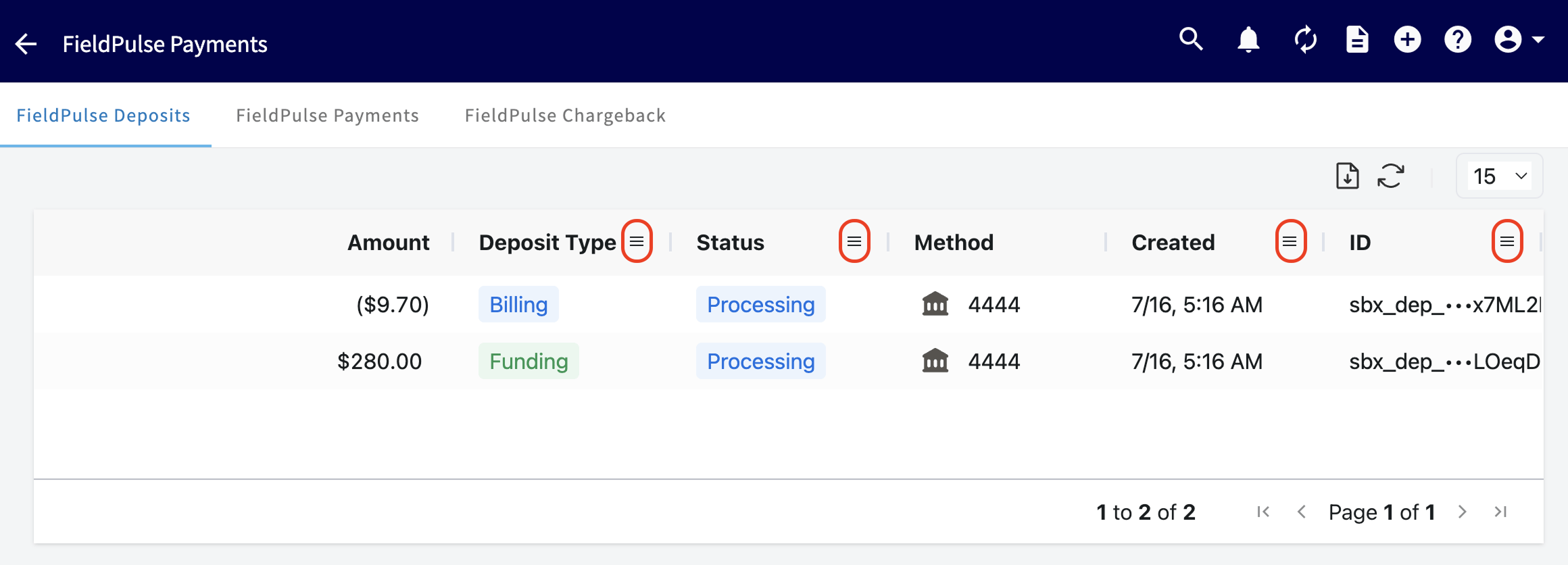 Three controls change what the deposit list shows:
* **Filter a column.** Select the three horizontal lines (the hamburger icon) at the top of a column to narrow the list by that column's values.
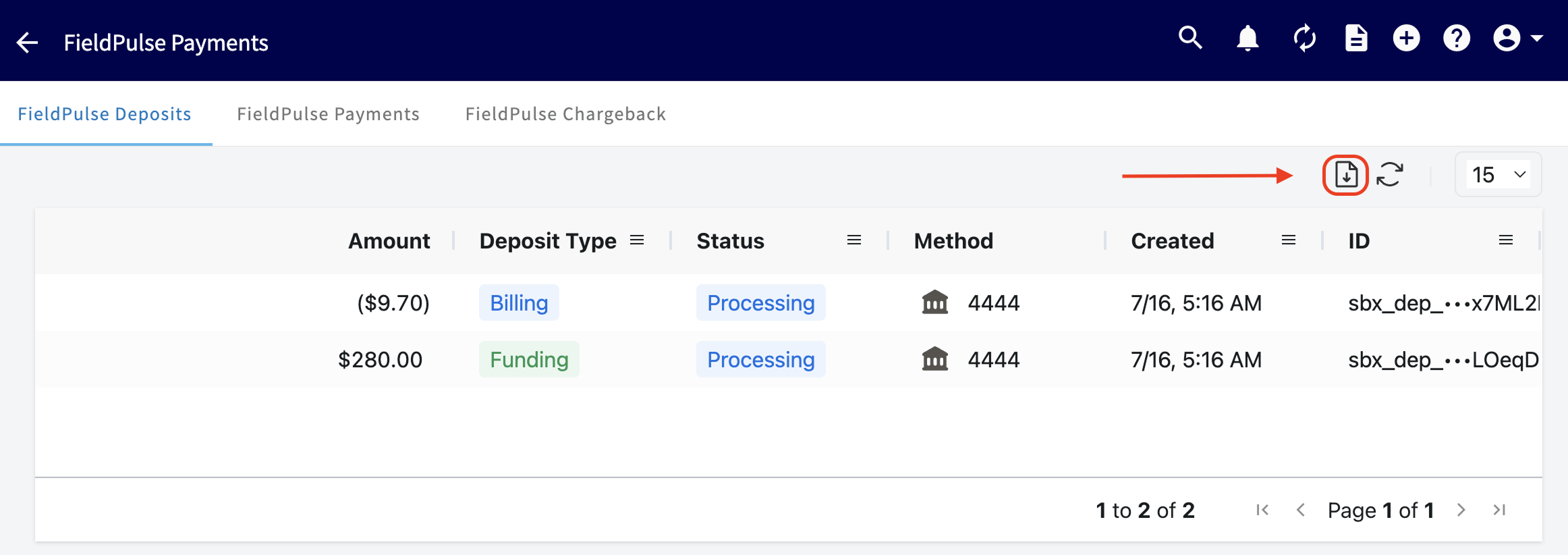
* **Export the list.** Select the export icon above the list to download the deposit data as a .csv file. You can download the deposits for the previous month, the current month, or a custom date range.
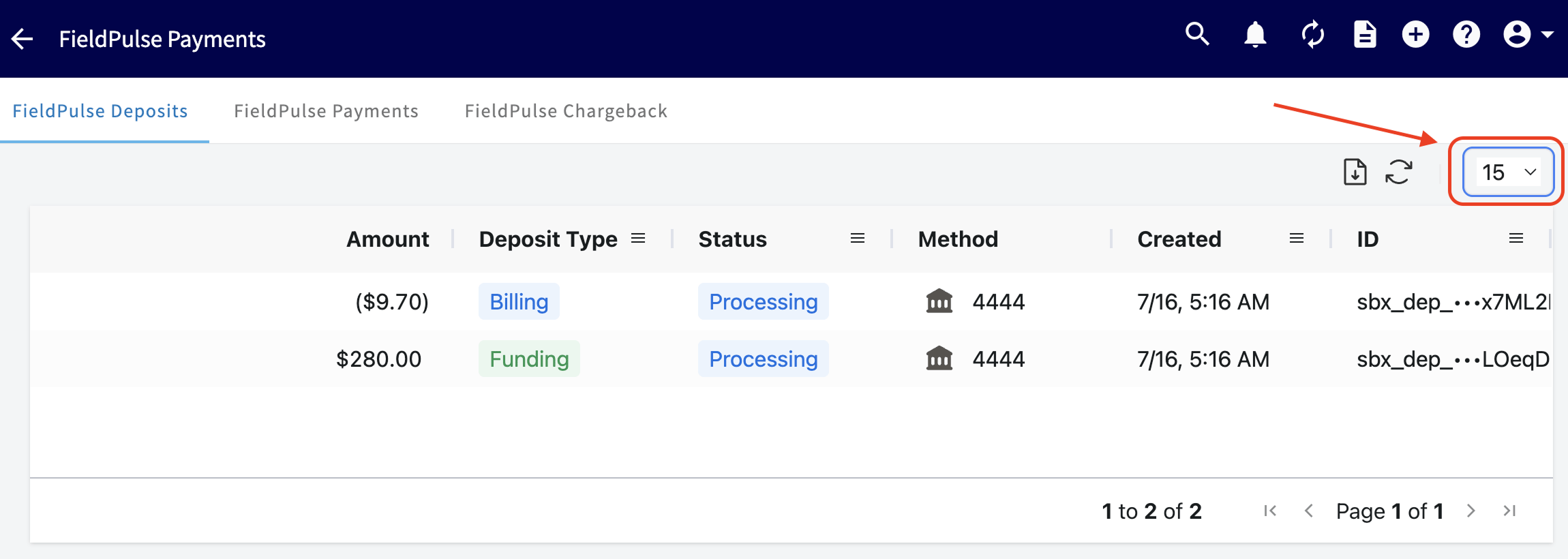
* **Set how many deposits display.** Use the dropdown in the top-right corner to show 15, 30, 60, or 100 deposits at a time.
Three controls change what the deposit list shows:
* **Filter a column.** Select the three horizontal lines (the hamburger icon) at the top of a column to narrow the list by that column's values.
* **Export the list.** Select the export icon above the list to download the deposit data as a .csv file. You can download the deposits for the previous month, the current month, or a custom date range.
* **Set how many deposits display.** Use the dropdown in the top-right corner to show 15, 30, 60, or 100 deposits at a time.
 ## Failed payments and notifications
A payment that does not process reads **Failed** on the FieldPulse Payments page, and a deposit that does not process reads **Failed** on the FieldPulse Deposits page. On an invoice or estimate, a failed payment also shows the red **Payment Failed** icon next to the record's status.
FieldPulse can email you when a payment fails. To set the notifications up, select your profile icon in the top-right corner, select **My Settings**, go to **Notifications**, and find the **Notification As Manager** section.
| **Notification** | **What it sends** | **Who can enable it** | **Default** |
| ------------------------------------- | ------------------------------------------------------------------------------------------------------------------------------------------ | ------------------------ | ----------- |
| **Failed Payments** | An email when a payment on an individual invoice fails. | Admins and Team Managers | Off |
| **Failed Recurring Billing Payments** | A daily digest email when one or more recurring billing payments fail. If several payments fail on the same day, one notification is sent. | Admins and Team Managers | On |
## Notes & limitations
* **A payment can reach Succeeded before its deposit does.** The payment status covers the charge from your customer; the deposit status covers the payout to your bank.
* **Created, Presenting, and Processing are interim payment statuses.** A transaction passes through them rather than resting in them.
* **In Review appears on both payment and deposit records, for different reasons.** On a payment it means fraud review; on a deposit it means risk review.
* **Payment status tracking applies to FieldPulse Payments only.** Only payments processed after the status feature was released display a status — historic payments do not show one.
* **There is no dedicated deposits report.** To find deposits in revenue reporting, tag the job, estimate, or invoice (for example Deposit) or add a payment note, then filter by it — see the deposits FAQ on the [payment reports](/reporting/raw-data/payment-reports) page.
## Still need help?
Reach the [FieldPulse support team](https://www.fieldpulse.com/company/contact-us) at [support@fieldpulse.com](mailto:support@fieldpulse.com) or through the chat feature in the bottom-right corner of your screen.
## Related articles
* [FieldPulse Payments Overview](/payments/getting-started/fieldpulse-payments)
* [Setting Up FieldPulse Payments](/payments/getting-started/applying)
* [How to Collect Payments: 3 Methods](/payments/collecting/collecting-payments-3-methods)
* [How to Process a Refund](/payments/collecting/refunds)
* [FieldPulse Payments Chargebacks Overview](/payments/collecting/chargebacks)
* [Setting Up Card Fee Recovery](/payments/getting-started/card-fee-recovery)
## Related topics
- [FieldPulse Payments Overview](/payments/getting-started/fieldpulse-payments.md)
- [FieldPulse Payments Chargebacks Overview](/payments/collecting/chargebacks.md)
- [Getting Started with Payments](/payments/getting-started/index.md)
- [How to Mark a Payment](/payments/collecting/marking-payments.md)
## Failed payments and notifications
A payment that does not process reads **Failed** on the FieldPulse Payments page, and a deposit that does not process reads **Failed** on the FieldPulse Deposits page. On an invoice or estimate, a failed payment also shows the red **Payment Failed** icon next to the record's status.
FieldPulse can email you when a payment fails. To set the notifications up, select your profile icon in the top-right corner, select **My Settings**, go to **Notifications**, and find the **Notification As Manager** section.
| **Notification** | **What it sends** | **Who can enable it** | **Default** |
| ------------------------------------- | ------------------------------------------------------------------------------------------------------------------------------------------ | ------------------------ | ----------- |
| **Failed Payments** | An email when a payment on an individual invoice fails. | Admins and Team Managers | Off |
| **Failed Recurring Billing Payments** | A daily digest email when one or more recurring billing payments fail. If several payments fail on the same day, one notification is sent. | Admins and Team Managers | On |
## Notes & limitations
* **A payment can reach Succeeded before its deposit does.** The payment status covers the charge from your customer; the deposit status covers the payout to your bank.
* **Created, Presenting, and Processing are interim payment statuses.** A transaction passes through them rather than resting in them.
* **In Review appears on both payment and deposit records, for different reasons.** On a payment it means fraud review; on a deposit it means risk review.
* **Payment status tracking applies to FieldPulse Payments only.** Only payments processed after the status feature was released display a status — historic payments do not show one.
* **There is no dedicated deposits report.** To find deposits in revenue reporting, tag the job, estimate, or invoice (for example Deposit) or add a payment note, then filter by it — see the deposits FAQ on the [payment reports](/reporting/raw-data/payment-reports) page.
## Still need help?
Reach the [FieldPulse support team](https://www.fieldpulse.com/company/contact-us) at [support@fieldpulse.com](mailto:support@fieldpulse.com) or through the chat feature in the bottom-right corner of your screen.
## Related articles
* [FieldPulse Payments Overview](/payments/getting-started/fieldpulse-payments)
* [Setting Up FieldPulse Payments](/payments/getting-started/applying)
* [How to Collect Payments: 3 Methods](/payments/collecting/collecting-payments-3-methods)
* [How to Process a Refund](/payments/collecting/refunds)
* [FieldPulse Payments Chargebacks Overview](/payments/collecting/chargebacks)
* [Setting Up Card Fee Recovery](/payments/getting-started/card-fee-recovery)
## Related topics
- [FieldPulse Payments Overview](/payments/getting-started/fieldpulse-payments.md)
- [FieldPulse Payments Chargebacks Overview](/payments/collecting/chargebacks.md)
- [Getting Started with Payments](/payments/getting-started/index.md)
- [How to Mark a Payment](/payments/collecting/marking-payments.md)