> ## Documentation Index
> Fetch the complete documentation index at: https://help.fieldpulse.com/llms.txt
> Use this file to discover all available pages before exploring further.
# FieldPulse Payments Overview
> See how FieldPulse Payments lets you accept card and ACH payments, track them in the payment portal, and turn on next-day funding and card fee recovery.
> **Who uses this:** Administrators; Team Managers and Service Agents when an Administrator turns on **Accept FieldPulse Payments** for them in User Feature Permissions (**Company Settings › User Accounts**); Limited Agents cannot take payments. **Availability:** Businesses located in the United States, on an approved FieldPulse Payments merchant account.
[FieldPulse Payments](https://www.fieldpulse.com/features/fieldpulse-payments) is the in-house FieldPulse payment processor for accepting credit card and ACH payments inside FieldPulse. Because the processor is part of the platform, there are no separate logins or individual payment accounts to set up for each team member, and every payment is linked to the [invoice](https://www.fieldpulse.com/features/estimates-and-invoices) it belongs to.
## Overview
The workflow breakdown FieldPulse Payments solves is the gap between the payment and the record. When a customer pays through a separate processor, someone has to match that deposit back to the right invoice later. With FieldPulse Payments, the payment and the invoice live in the same place — the invoice status updates and a payment record is created without extra data entry, and each payment carries its projected deposit date.
FieldPulse Payments includes two optional tools you can turn on:
* **Next-Day Funding** — next-business-day deposits on card and validated ACH payments.
* **Card fee recovery** — pass card processing costs on to customers as an upfront flat fee or percentage, shown on the invoice. See [Setting Up Card Fee Recovery](/payments/getting-started/card-fee-recovery).
To get started with FieldPulse Payments, or to turn on either tool, email [payments@fieldpulse.com](mailto:payments@fieldpulse.com).
## How it works
FieldPulse Payments works in four stages: you apply for a merchant account, accept payments against an invoice, receive your deposits, and track both in the payment portal.
### Apply for a merchant account
FieldPulse Payments runs on a merchant account you apply for from inside FieldPulse, in **Company Settings › Features & Plugins** on the **FieldPulse Payments** tile. The application requires a credit check, and within 3 business days you receive a notification telling you whether the application was accepted, rejected, or needs more information. Once the application is accepted, you choose which user roles have access to FieldPulse Payments, and you can customize access for each specific user in **Company Settings › User Accounts**. That access covers both taking payments and issuing refunds.
> **Apply for FieldPulse Payments today.** [Setting Up FieldPulse Payments](/payments/getting-started/applying) covers the application form, every application status, and what to do about a Request for Information.
### Accept payments three ways
Once FieldPulse Payments is active, you can collect a customer payment three ways:
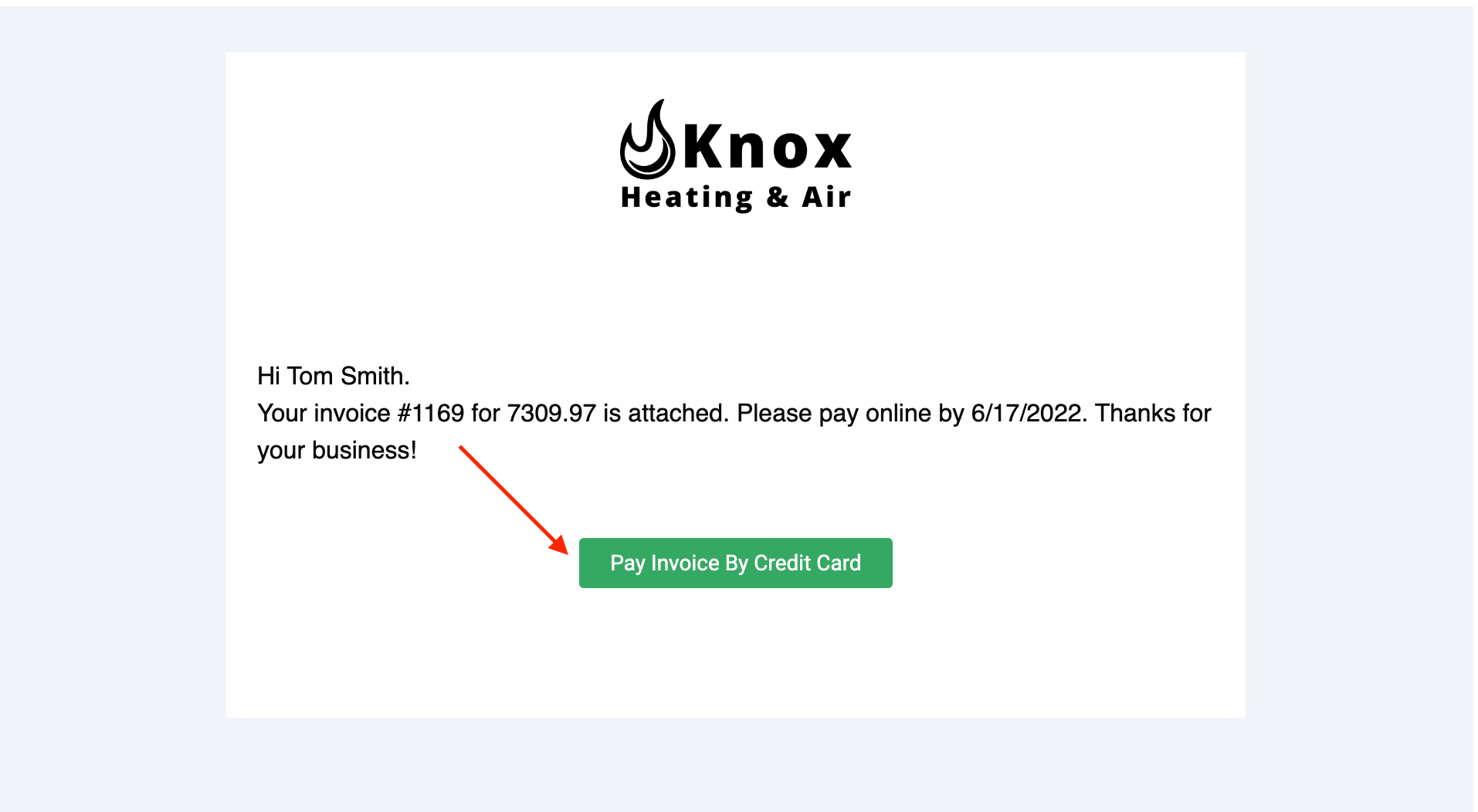
* Email an online payment request from the web app or the mobile app. The customer receives a **Pay Invoice By Credit Card** button in the email and pays by credit or debit card or by bank transfer (ACH).
* Process the payment on the FieldPulse mobile app for iOS and Android. The card details can be typed in, scanned with the device camera, or swiped.
* Process the payment on the web app, which is the usual choice for a payment taken over the phone.
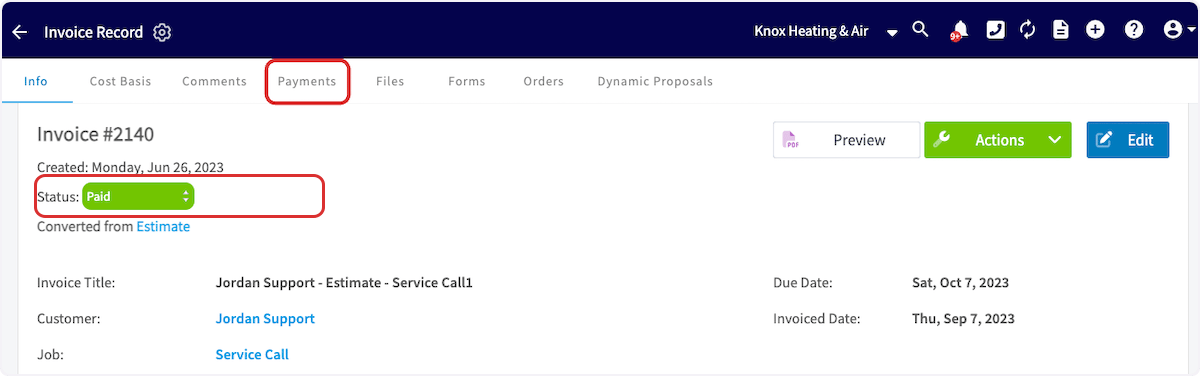
When the payment is processed, the invoice status changes to **Paid** — or **Partially Paid** if you collected part of the balance — and a payment record is added under **Payments** on the invoice record.
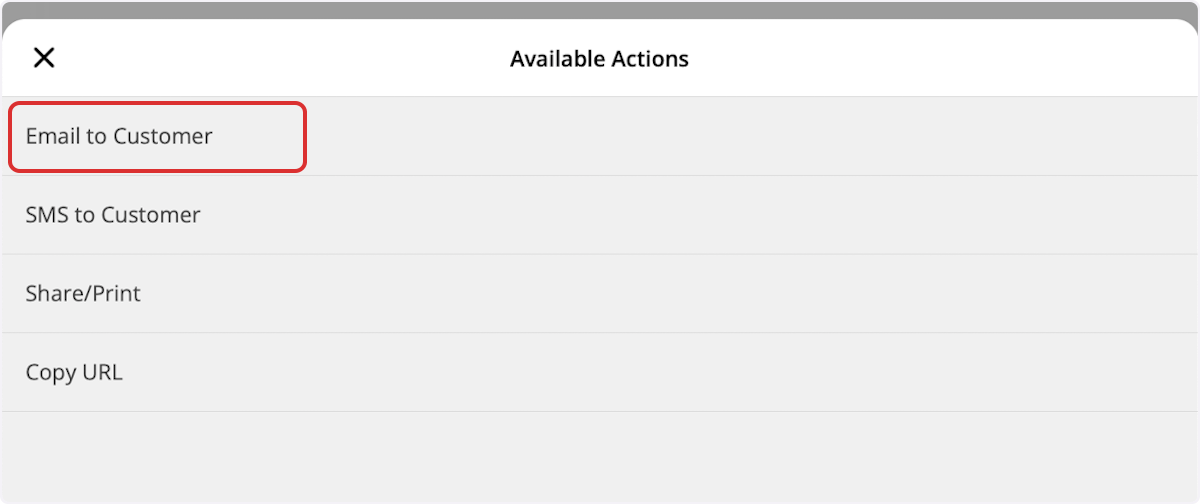
 On the mobile app you can also send the payment request from the invoice preview. Open the invoice from the **Sales** tab, select **Actions**, and then:
1. Select **Generate Preview**.
On the mobile app you can also send the payment request from the invoice preview. Open the invoice from the **Sales** tab, select **Actions**, and then:
1. Select **Generate Preview**.
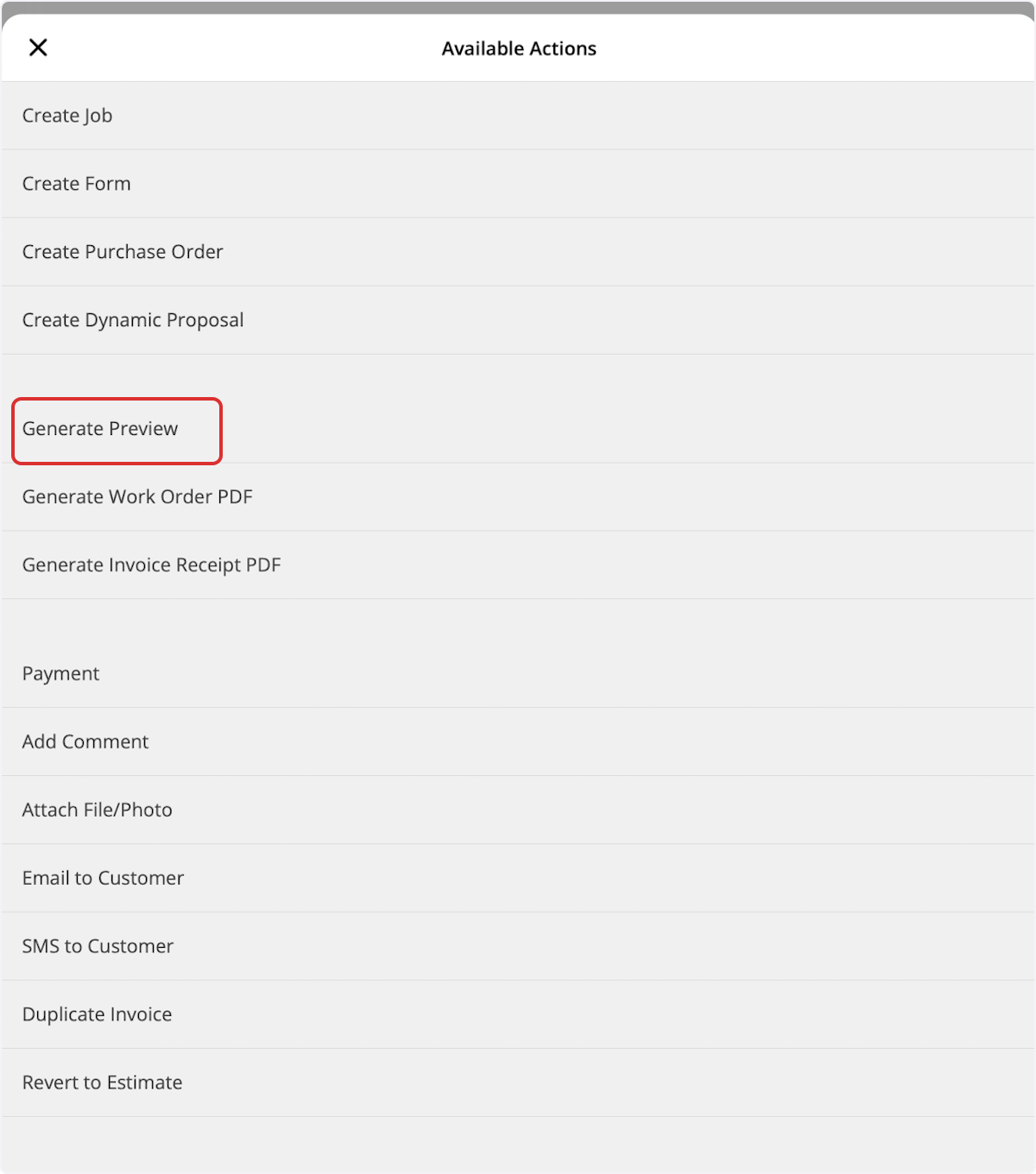 2. Review the invoice, then select **Send**.
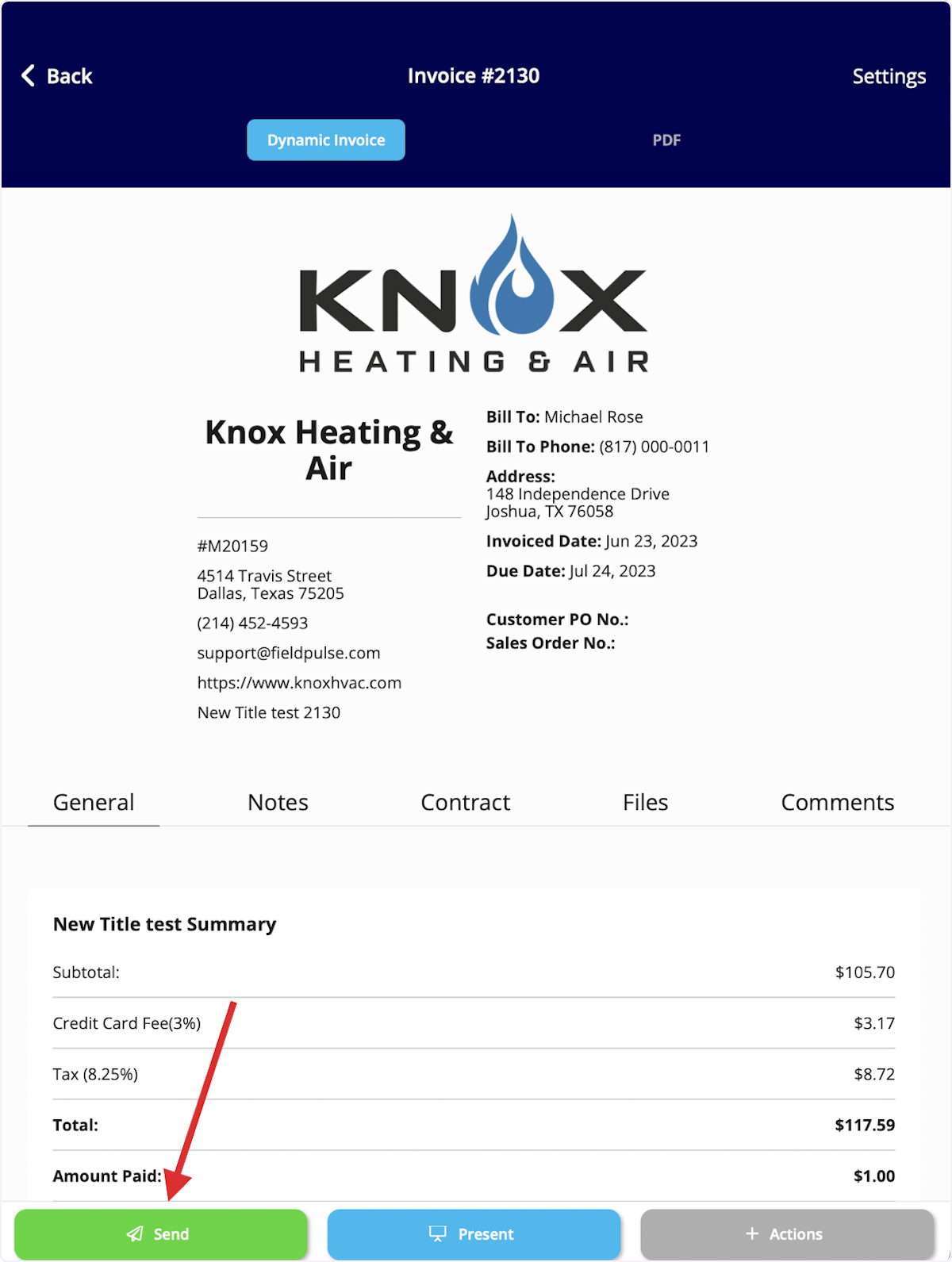 3. Select **Email to Customer**.
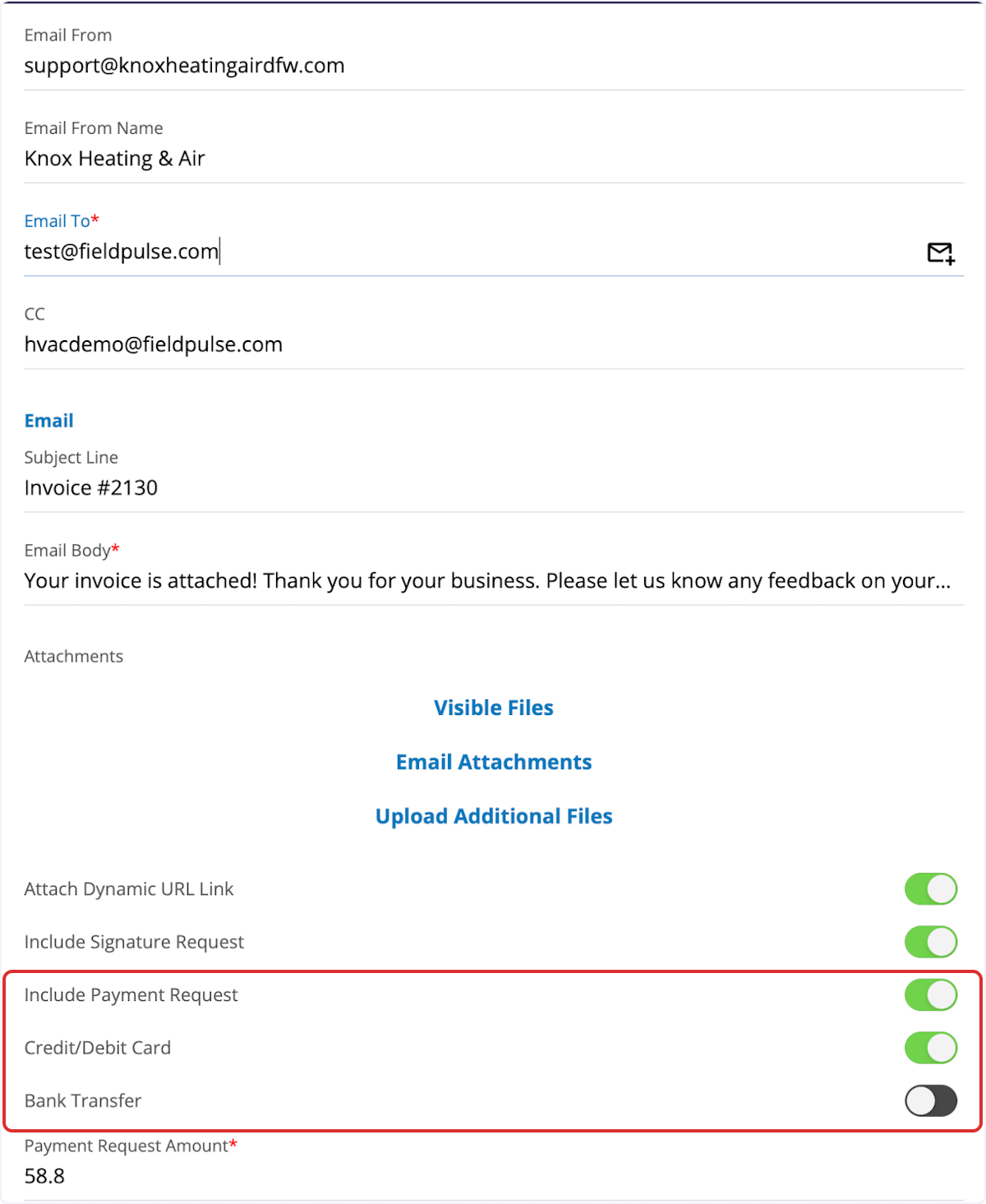
 4. Toggle on **Include Payment Request**, **Credit/Debit Card**, and **Bank Transfer** (if applicable), then select **Send**.
 For the step-by-step instructions for each method, see [How to Collect Payments: 3 Methods](/payments/collecting/collecting-payments-3-methods).
### Receive your deposits
You receive a deposit on each US banking day for the sum of all transactions available for deposit — card payments, ACH payments, refunds, chargebacks, and ACH returns. How quickly the funds arrive depends on the payment method and on whether Next-Day Funding is turned on.
| **Payment type** | **Standard funding** | **With Next-Day Funding** | **Daily cutoff** |
| ---------------- | -------------------- | -------------------------------- | ---------------- |
| Card | 2 business days | 1 business day | 11:00 PM ET |
| ACH | 4 business days | 1 business day for validated ACH | 9:00 PM ET |
To turn on Next-Day Funding, email [payments@fieldpulse.com](mailto:payments@fieldpulse.com).
### Track payments and deposits in the payment portal
FieldPulse Payments has its own portal under the **FP Payments** tab. The **FieldPulse Payments** page lists individual payments, each one either a payin or a refund, and the **FieldPulse Deposits** page lists the deposits that move funds to your bank. Every payment and every deposit carries a status, so you can tell whether the money is still processing, has completed, or has failed. Chargebacks are handled in the portal too — see [FieldPulse Payments Chargebacks Overview](/payments/collecting/chargebacks).
For the step-by-step instructions for each method, see [How to Collect Payments: 3 Methods](/payments/collecting/collecting-payments-3-methods).
### Receive your deposits
You receive a deposit on each US banking day for the sum of all transactions available for deposit — card payments, ACH payments, refunds, chargebacks, and ACH returns. How quickly the funds arrive depends on the payment method and on whether Next-Day Funding is turned on.
| **Payment type** | **Standard funding** | **With Next-Day Funding** | **Daily cutoff** |
| ---------------- | -------------------- | -------------------------------- | ---------------- |
| Card | 2 business days | 1 business day | 11:00 PM ET |
| ACH | 4 business days | 1 business day for validated ACH | 9:00 PM ET |
To turn on Next-Day Funding, email [payments@fieldpulse.com](mailto:payments@fieldpulse.com).
### Track payments and deposits in the payment portal
FieldPulse Payments has its own portal under the **FP Payments** tab. The **FieldPulse Payments** page lists individual payments, each one either a payin or a refund, and the **FieldPulse Deposits** page lists the deposits that move funds to your bank. Every payment and every deposit carries a status, so you can tell whether the money is still processing, has completed, or has failed. Chargebacks are handled in the portal too — see [FieldPulse Payments Chargebacks Overview](/payments/collecting/chargebacks).
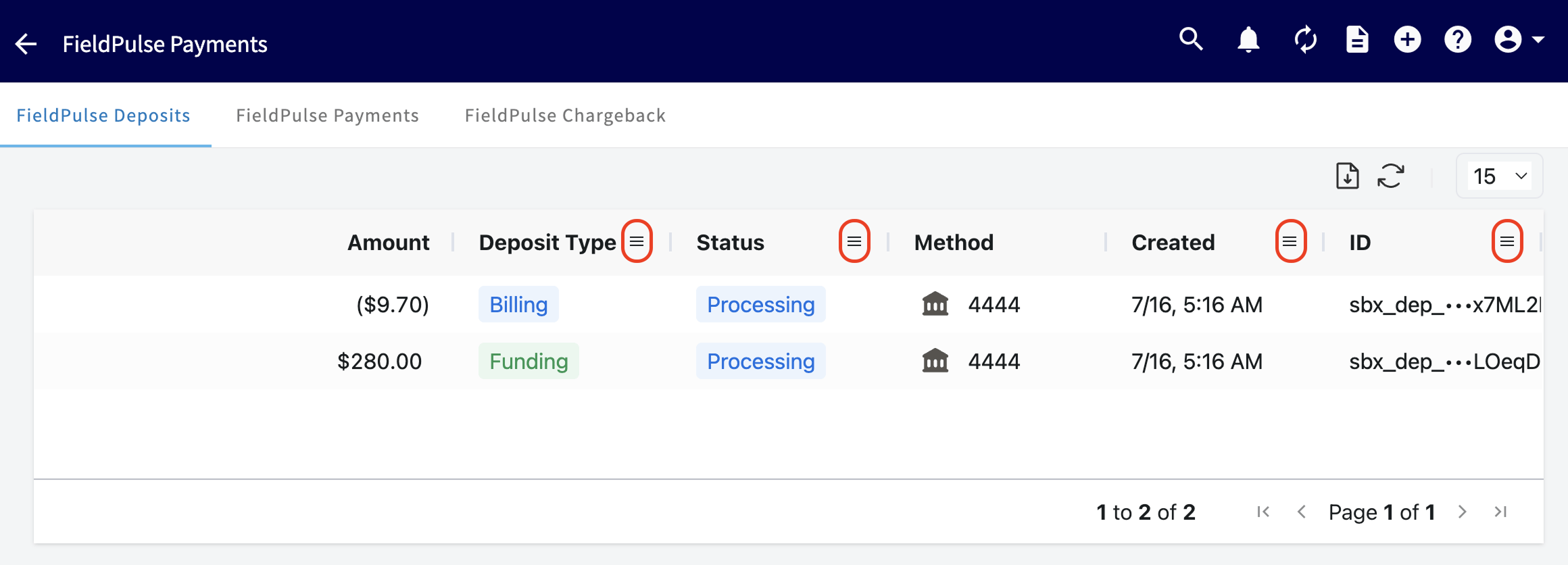 For every payment and deposit status, the full list of details shown on each page, and the deposit list's filter, export, and rows-per-page controls, see [FieldPulse Deposit and Payment Status Details](/payments/getting-started/deposits-payment-statuses).
> **Refunds:** A refund appears in the payment portal as its own record, with the payment type set to refund. To learn more about processing refunds in FieldPulse, see [How to Process a Refund](/payments/collecting/refunds).
## Availability
FieldPulse Payments is available to businesses located in the United States and requires an approved FieldPulse Payments merchant account. FieldPulse also offers **Partner Payments**, delivered through a partner processor (Card Connect or Fullstack). The two options support different feature sets, and new payment functionality is released on FieldPulse Payments — in some cases only on FieldPulse Payments. For the feature-by-feature comparison, see [Payment Provider Options Overview](/payments/getting-started/payment-provider-options).
## FAQs
### Who is eligible to use FieldPulse Payments?
Businesses located in the United States can use FieldPulse Payments.
### How do I get started?
Begin the application whenever you are ready. See [Setting Up FieldPulse Payments](/payments/getting-started/applying) for the full process.
### What does FieldPulse Payments cost?
There is a processing fee for debit and credit card payments and for ACH payments, as well as a monthly cost. Chat with the FieldPulse team to learn more.
### Is there a transaction limit?
Your transaction limit is set at \$500,000. To request a higher limit, contact the FieldPulse team to submit documentation.
### What are the funding timelines in the United States?
Standard funding deposits card payouts in 2 business days and ACH payments in 4 business days. With Next-Day Funding, card payouts and validated ACH payments both deposit in 1 business day.
### Does FieldPulse deduct processing fees from my deposit account or my subscription account?
FieldPulse Payments posts two separate daily transactions to your bank account. One is a total deposit reflecting the overall value of the payments you processed, and the other is a billing fee representing the total of all payment processing fees.
### Will I receive a W9 if I use FieldPulse Payments?
No, FieldPulse does not send a W9. If you meet the minimum IRS reporting threshold, FieldPulse Payments sends you a 1099-K each January.
## Still need help?
Reach the [FieldPulse support team](https://www.fieldpulse.com/company/contact-us) at [support@fieldpulse.com](mailto:support@fieldpulse.com) or through the chat feature in the bottom-right corner of your screen.
## Related articles
* [Setting Up FieldPulse Payments](/payments/getting-started/applying)
* [How to Collect Payments: 3 Methods](/payments/collecting/collecting-payments-3-methods)
* [FieldPulse Deposit and Payment Status Details](/payments/getting-started/deposits-payment-statuses)
* [Setting Up Card Fee Recovery](/payments/getting-started/card-fee-recovery)
* [Payment Provider Options Overview](/payments/getting-started/payment-provider-options)
* [How to Process a Refund](/payments/collecting/refunds)
* [FieldPulse Payments Chargebacks Overview](/payments/collecting/chargebacks)
## Related topics
- [Payment Provider Options Overview](/payments/getting-started/payment-provider-options.md)
- [Payment Receipts Overview](/payments/collecting/payment-receipts-customer-view.md)
- [FieldPulse Payments Chargebacks Overview](/payments/collecting/chargebacks.md)
- [Setting Up FieldPulse Payments](/payments/getting-started/applying.md)
For every payment and deposit status, the full list of details shown on each page, and the deposit list's filter, export, and rows-per-page controls, see [FieldPulse Deposit and Payment Status Details](/payments/getting-started/deposits-payment-statuses).
> **Refunds:** A refund appears in the payment portal as its own record, with the payment type set to refund. To learn more about processing refunds in FieldPulse, see [How to Process a Refund](/payments/collecting/refunds).
## Availability
FieldPulse Payments is available to businesses located in the United States and requires an approved FieldPulse Payments merchant account. FieldPulse also offers **Partner Payments**, delivered through a partner processor (Card Connect or Fullstack). The two options support different feature sets, and new payment functionality is released on FieldPulse Payments — in some cases only on FieldPulse Payments. For the feature-by-feature comparison, see [Payment Provider Options Overview](/payments/getting-started/payment-provider-options).
## FAQs
### Who is eligible to use FieldPulse Payments?
Businesses located in the United States can use FieldPulse Payments.
### How do I get started?
Begin the application whenever you are ready. See [Setting Up FieldPulse Payments](/payments/getting-started/applying) for the full process.
### What does FieldPulse Payments cost?
There is a processing fee for debit and credit card payments and for ACH payments, as well as a monthly cost. Chat with the FieldPulse team to learn more.
### Is there a transaction limit?
Your transaction limit is set at \$500,000. To request a higher limit, contact the FieldPulse team to submit documentation.
### What are the funding timelines in the United States?
Standard funding deposits card payouts in 2 business days and ACH payments in 4 business days. With Next-Day Funding, card payouts and validated ACH payments both deposit in 1 business day.
### Does FieldPulse deduct processing fees from my deposit account or my subscription account?
FieldPulse Payments posts two separate daily transactions to your bank account. One is a total deposit reflecting the overall value of the payments you processed, and the other is a billing fee representing the total of all payment processing fees.
### Will I receive a W9 if I use FieldPulse Payments?
No, FieldPulse does not send a W9. If you meet the minimum IRS reporting threshold, FieldPulse Payments sends you a 1099-K each January.
## Still need help?
Reach the [FieldPulse support team](https://www.fieldpulse.com/company/contact-us) at [support@fieldpulse.com](mailto:support@fieldpulse.com) or through the chat feature in the bottom-right corner of your screen.
## Related articles
* [Setting Up FieldPulse Payments](/payments/getting-started/applying)
* [How to Collect Payments: 3 Methods](/payments/collecting/collecting-payments-3-methods)
* [FieldPulse Deposit and Payment Status Details](/payments/getting-started/deposits-payment-statuses)
* [Setting Up Card Fee Recovery](/payments/getting-started/card-fee-recovery)
* [Payment Provider Options Overview](/payments/getting-started/payment-provider-options)
* [How to Process a Refund](/payments/collecting/refunds)
* [FieldPulse Payments Chargebacks Overview](/payments/collecting/chargebacks)
## Related topics
- [Payment Provider Options Overview](/payments/getting-started/payment-provider-options.md)
- [Payment Receipts Overview](/payments/collecting/payment-receipts-customer-view.md)
- [FieldPulse Payments Chargebacks Overview](/payments/collecting/chargebacks.md)
- [Setting Up FieldPulse Payments](/payments/getting-started/applying.md)