> ## Documentation Index
> Fetch the complete documentation index at: https://help.fieldpulse.com/llms.txt
> Use this file to discover all available pages before exploring further.
# How to Create Review Management Reports
> Build a review management report in FieldPulse to compare each team member's average feedback score before a monthly or quarterly check-in.
> **Who uses this:** Admins have Full Reporting access, and Team Managers can be given it. Service Agents and Limited Agents do not have Full Reporting access. **Availability:** All regions.
A review management report is built on the **Reports** sub-tab of the **Review Management** tab in reporting, and it shows each team member's review data for the time interval you select. That table is how you see who is earning your customer feedback.
## Overview
A review management report shows each team member's average feedback score over the period you choose. Feedback scores come from the internal feedback requests Review Management sends your customers, so the report ties those scores back to the people doing the work.
The review management report is configured differently from the other reports in [FieldPulse's dashboards and reporting](https://www.fieldpulse.com/features/dashboards-and-reporting). Instead of choosing columns, you set a date range and then three drop-downs — **Time Interval**, **Group By**, and **Report Type**. For how the rest of raw data reporting works, see [How to Use Raw Data Reporting](/reporting/raw-data/using-raw-data-reporting).
Review Management is the feature that collects these feedback scores. To learn how it works, see [Setting Up Review Management](/customers/reviews-referrals/management).
## Before you begin
* Check that your role has reporting access. An Admin has Full Reporting access; a Team Manager needs **Full Reporting access** turned on.
* Turn on Review Management and send internal feedback requests, so there are feedback scores to report on.
## Set the date range
1. Select **Reporting** under the **Management** tab in the left-side menu.
2. Select the **Review Management** tab, then select **Reports**.
3. Select the calendar icon next to **Date Range** and choose the dates for the reporting period.
4. Select **Apply**.
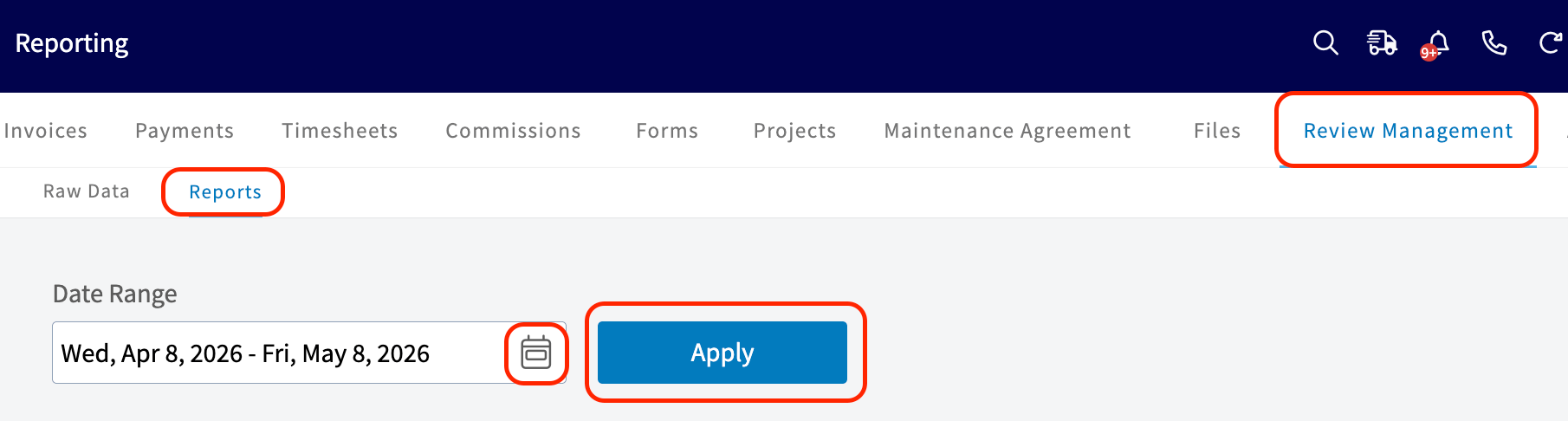 The calendar offers these presets:
| **Preset** | **Date range** |
| ---------------- | ------------------------------------------------- |
| **Today** | 12:00 AM to the current time |
| **Yesterday** | The previous day, 12:00 AM to 11:59 PM |
| **This Week** | Monday through Sunday of the current week |
| **Last Week** | The previous week |
| **Last 7 Days** | The previous seven days, including today |
| **This Month** | The first of the current month to the current day |
| **Last Month** | The entire month before the current month |
| **Last 30 Days** | The previous 30 days, including today |
| **Custom** | Start and end dates you select on the calendar |
## Configure the report criteria
Three drop-downs sit under the **Date Range** field, and together they define the report:
| **Setting** | **What it holds** |
| ----------------- | ---------------------------------------------------------------------------- |
| **Time Interval** | Daily, Weekly, Monthly, Quarterly, or Total |
| **Group By** | **By User** — one row per team member |
| **Report Type** | **Feedback Score Average** — the average feedback score for each team member |
The calendar offers these presets:
| **Preset** | **Date range** |
| ---------------- | ------------------------------------------------- |
| **Today** | 12:00 AM to the current time |
| **Yesterday** | The previous day, 12:00 AM to 11:59 PM |
| **This Week** | Monday through Sunday of the current week |
| **Last Week** | The previous week |
| **Last 7 Days** | The previous seven days, including today |
| **This Month** | The first of the current month to the current day |
| **Last Month** | The entire month before the current month |
| **Last 30 Days** | The previous 30 days, including today |
| **Custom** | Start and end dates you select on the calendar |
## Configure the report criteria
Three drop-downs sit under the **Date Range** field, and together they define the report:
| **Setting** | **What it holds** |
| ----------------- | ---------------------------------------------------------------------------- |
| **Time Interval** | Daily, Weekly, Monthly, Quarterly, or Total |
| **Group By** | **By User** — one row per team member |
| **Report Type** | **Feedback Score Average** — the average feedback score for each team member |
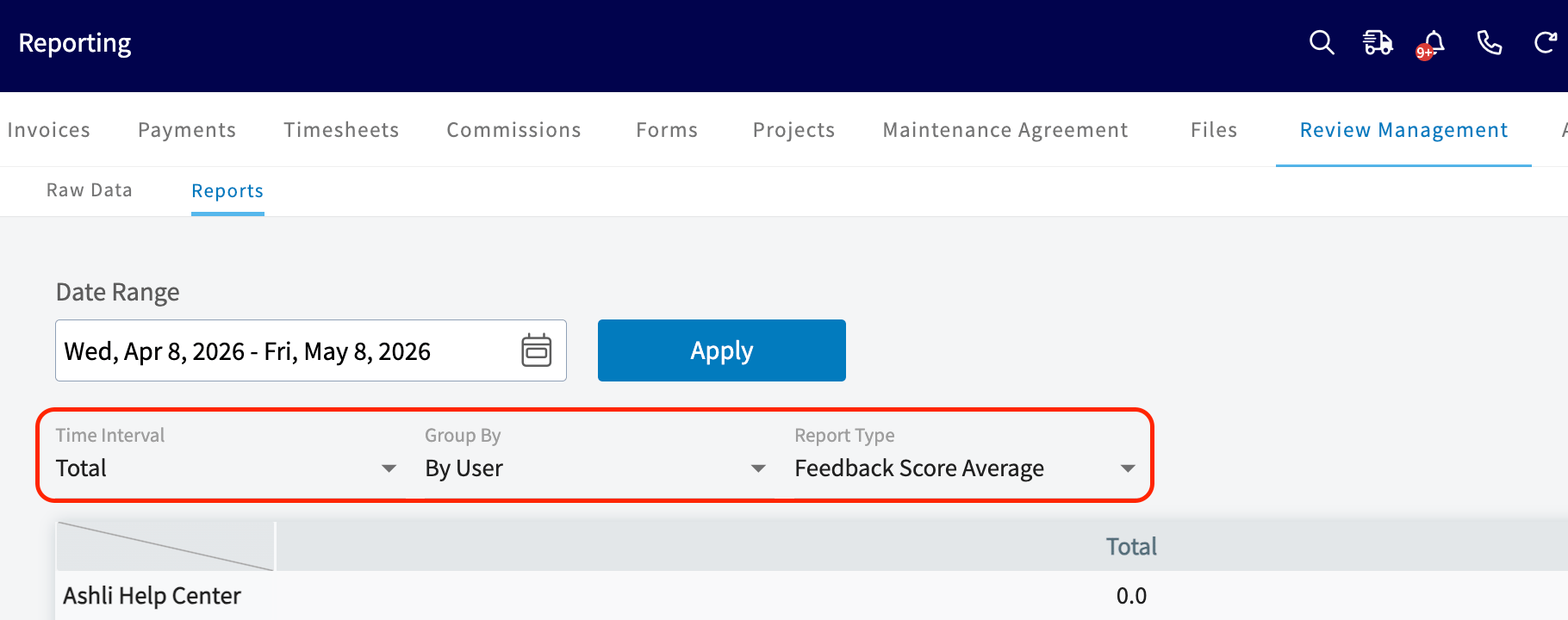 The results table sits below the drop-downs, with a row for each team member and that person's feedback score average for the interval you selected.
## Tips
* Set **Time Interval** to **Monthly** or **Quarterly** for team check-ins, or to **Total** for a single figure covering the whole date range.
* Because the report groups **By User**, it reads as a per-team-member scoreboard — use it to recognize the team members earning the strongest feedback and to coach the ones whose scores are lower.
## FAQs
### Does a feedback score count for the company or for the assigned team member?
That is your choice. Under **Company Settings > Review**, you designate whether a feedback score applies to the **Company** as a whole or to the **Assigned User** — the team member assigned to the related job.
## Related articles
* [How to Use Raw Data Reporting](/reporting/raw-data/using-raw-data-reporting)
* [Setting Up Review Management](/customers/reviews-referrals/management)
* [Review Management Emails Overview](/customers/reviews-referrals/customer-view)
* [How to Create Customer Reports](/reporting/raw-data/customer-reports)
Your review management report is working when the table returns a row for each team member with that person's feedback score average for the date range and time interval you selected.
## Related topics
- [Review Management Emails Overview](/customers/reviews-referrals/customer-view.md)
- [Setting Up Review Management](/customers/reviews-referrals/management.md)
- [How to Use Raw Data Reporting](/reporting/raw-data/using-raw-data-reporting.md)
- [Raw Data Reporting](/reporting/raw-data/index.md)
The results table sits below the drop-downs, with a row for each team member and that person's feedback score average for the interval you selected.
## Tips
* Set **Time Interval** to **Monthly** or **Quarterly** for team check-ins, or to **Total** for a single figure covering the whole date range.
* Because the report groups **By User**, it reads as a per-team-member scoreboard — use it to recognize the team members earning the strongest feedback and to coach the ones whose scores are lower.
## FAQs
### Does a feedback score count for the company or for the assigned team member?
That is your choice. Under **Company Settings > Review**, you designate whether a feedback score applies to the **Company** as a whole or to the **Assigned User** — the team member assigned to the related job.
## Related articles
* [How to Use Raw Data Reporting](/reporting/raw-data/using-raw-data-reporting)
* [Setting Up Review Management](/customers/reviews-referrals/management)
* [Review Management Emails Overview](/customers/reviews-referrals/customer-view)
* [How to Create Customer Reports](/reporting/raw-data/customer-reports)
Your review management report is working when the table returns a row for each team member with that person's feedback score average for the date range and time interval you selected.
## Related topics
- [Review Management Emails Overview](/customers/reviews-referrals/customer-view.md)
- [Setting Up Review Management](/customers/reviews-referrals/management.md)
- [How to Use Raw Data Reporting](/reporting/raw-data/using-raw-data-reporting.md)
- [Raw Data Reporting](/reporting/raw-data/index.md)