> ## Documentation Index
> Fetch the complete documentation index at: https://help.fieldpulse.com/llms.txt
> Use this file to discover all available pages before exploring further.
# Route Optimization Overview
> Plot a day of jobs on the FieldPulse schedule map, set the stop order, the first job's time, and the team members, then confirm the route.
> **Who uses this:** You schedule a route from the **Map** view of the Team Schedule page, and it reschedules the jobs plotted on that map. **Availability:** All regions · the steps below run in the FieldPulse web app.
Route optimization reschedules a set of jobs into one ordered route from the Team Schedule map. You choose which jobs to plot, click them on the map in the order you want them run, set the date and time of the first job and the team members who will run it, and FieldPulse writes the new start and end times for every job in the route. It is part of [scheduling and dispatching](https://www.fieldpulse.com/features/scheduling-and-dispatching) in FieldPulse.
## Overview
Route optimization is a guided flow that starts with the **Schedule Route** button on the Team Schedule map. Rather than placing each job on the calendar by hand, you give FieldPulse four inputs and it schedules the day from them:
* **The jobs** to include, filtered by date range, by whether they are already assigned to team members, and by whether unscheduled jobs are loaded.
* **The order** the jobs run in, set by clicking the job markers on the map.
* **The timing** — the date and time of the first job, a default job duration, and a default travel duration.
* **The team members** assigned to perform the jobs.
FieldPulse then reschedules the selected jobs in the order you chose, starting at the date and time you set and spacing them by the job and travel increments you provided.
## Video walkthrough
## How it works
### Open Schedule Route on the map
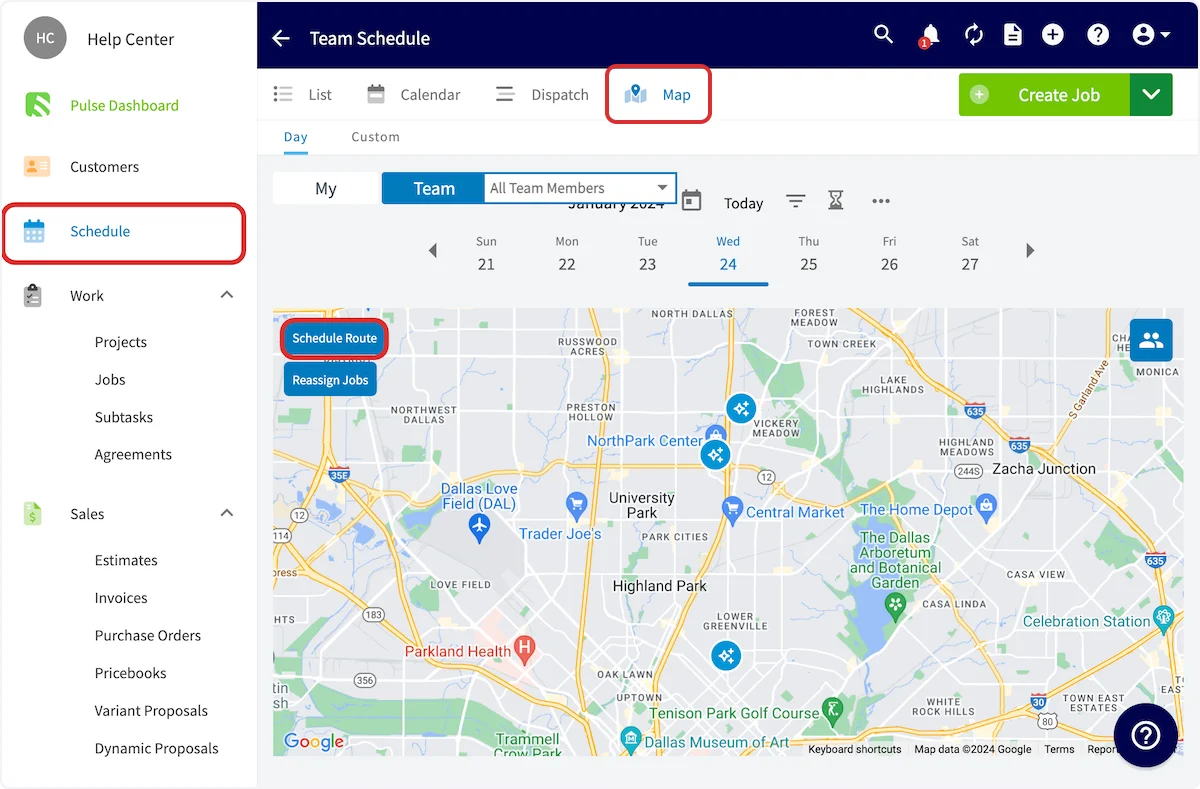
1. Select **Schedule** from the left-side menu.
2. Select **Map** on the Team Schedule page.
3. Select the date you want to schedule a route for, then select **Schedule Route**.
 ### Choose the jobs to plot on the map
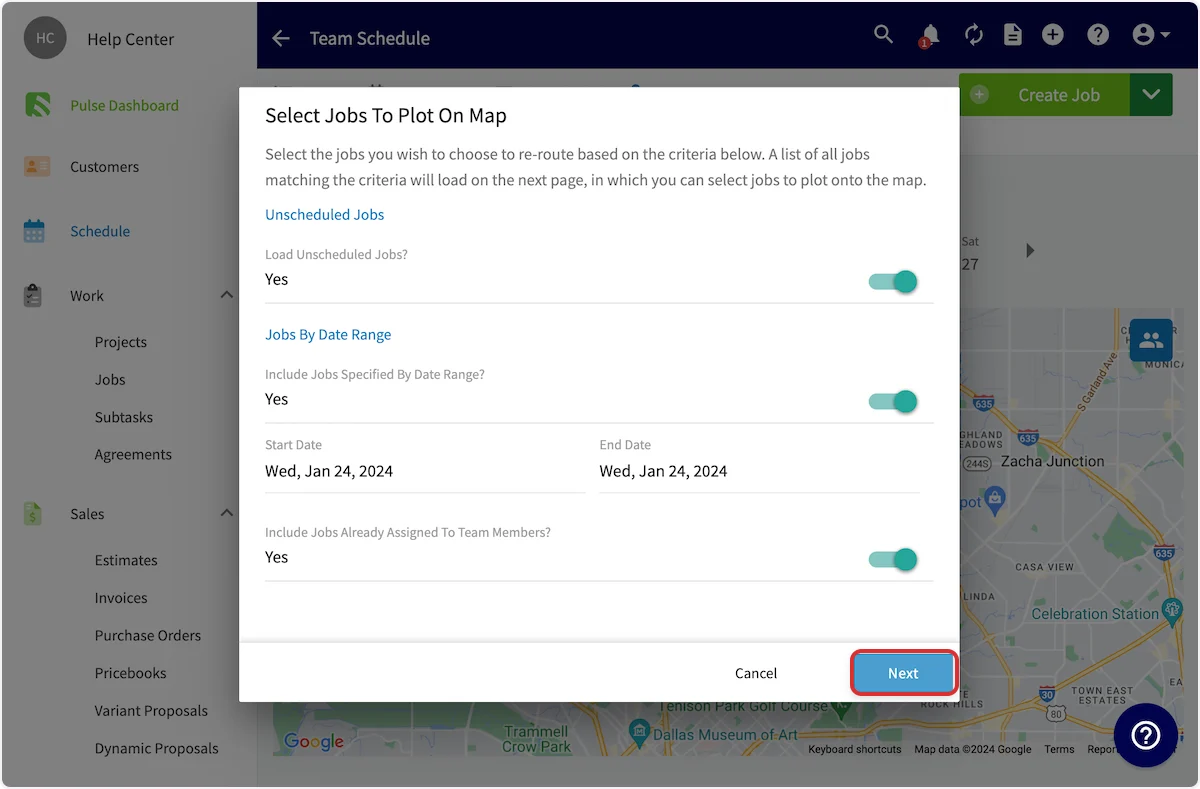
1. In the **Select Jobs To Plot On Map** window, set the criteria for which jobs FieldPulse pulls in — **Load Unscheduled Jobs?**, **Include Jobs Specified By Date Range?** with its **Start Date** and **End Date**, and **Include Jobs Already Assigned To Team Members?**.
2. Select **Next**.
### Choose the jobs to plot on the map
1. In the **Select Jobs To Plot On Map** window, set the criteria for which jobs FieldPulse pulls in — **Load Unscheduled Jobs?**, **Include Jobs Specified By Date Range?** with its **Start Date** and **End Date**, and **Include Jobs Already Assigned To Team Members?**.
2. Select **Next**.
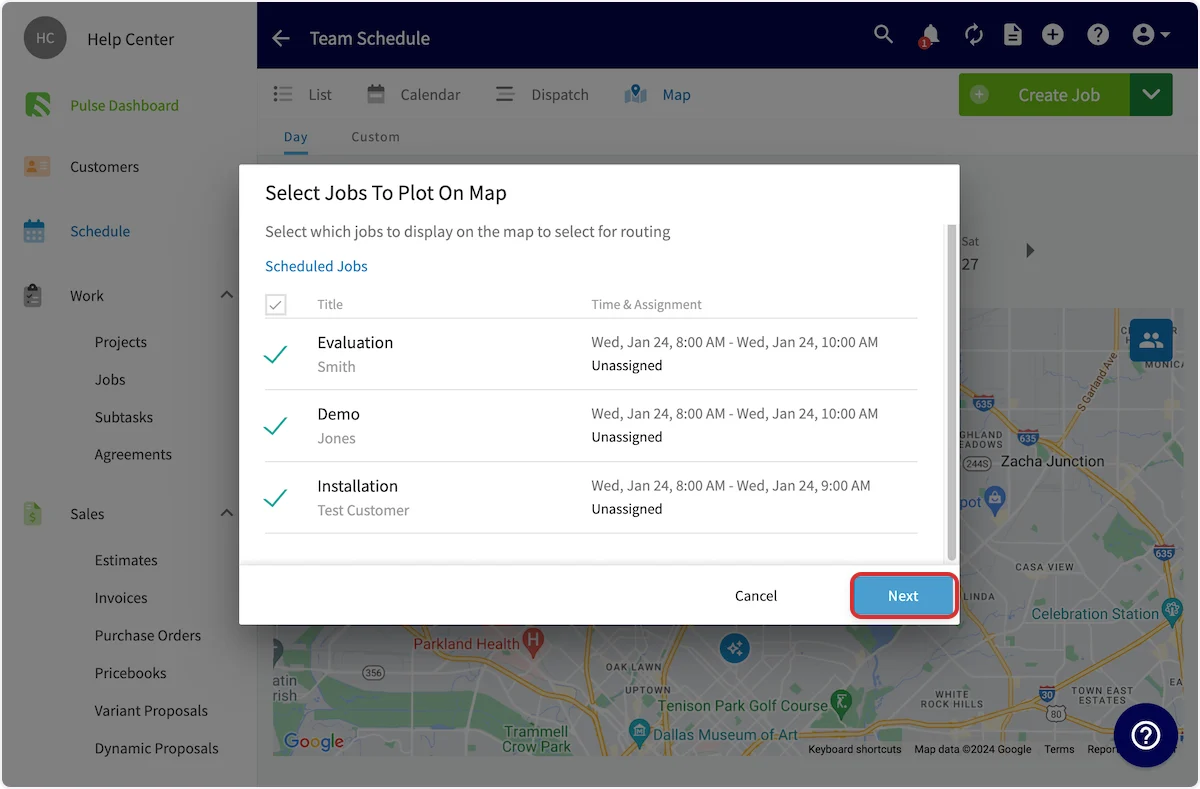
 3. Review the list of jobs that met your criteria. Each row shows the job title and customer alongside its current time and assignment.
4. Check the jobs you want to schedule on the same route, then select **Next**.
3. Review the list of jobs that met your criteria. Each row shows the job title and customer alongside its current time and assignment.
4. Check the jobs you want to schedule on the same route, then select **Next**.
 ### Set the order of the stops
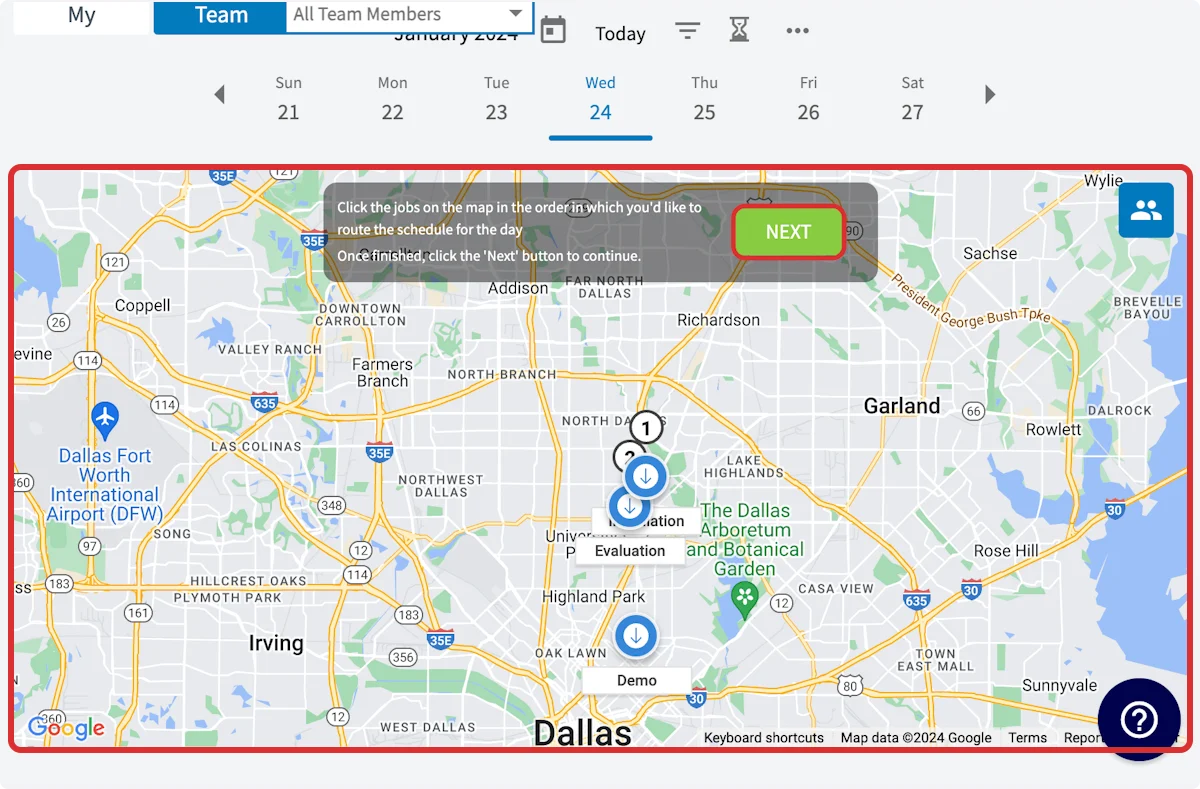
1. Click the jobs on the map in the order you want to route them for the day. A number appears above each job marker to show its place in the order.
2. Select **Next** once the order is set.
### Set the order of the stops
1. Click the jobs on the map in the order you want to route them for the day. A number appears above each job marker to show its place in the order.
2. Select **Next** once the order is set.
 ### Set the timing and the team
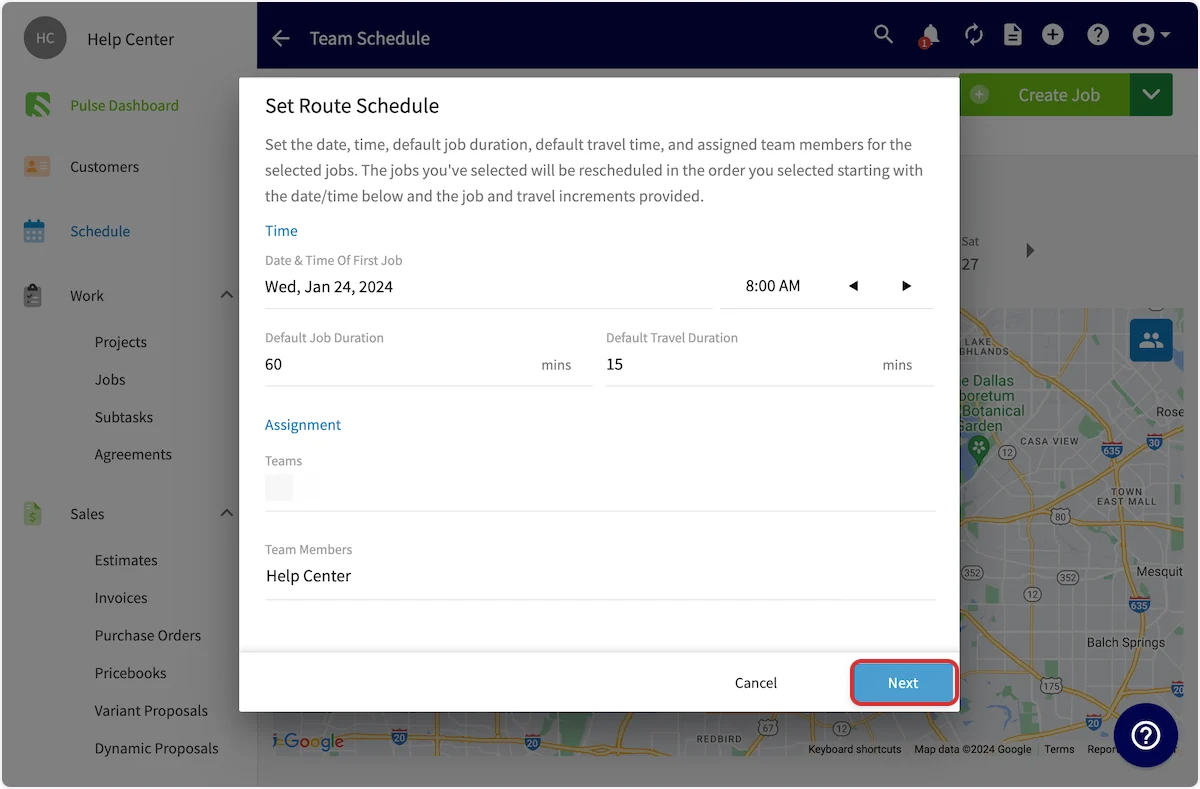
1. In the **Set Route Schedule** window, set the **Date & Time Of First Job**.
2. Set the **Default Job Duration** and the **Default Travel Duration**, both in minutes.
3. Under **Assignment**, select the **Teams** or **Team Members** you want to perform these jobs.
4. Select **Next**.
### Set the timing and the team
1. In the **Set Route Schedule** window, set the **Date & Time Of First Job**.
2. Set the **Default Job Duration** and the **Default Travel Duration**, both in minutes.
3. Under **Assignment**, select the **Teams** or **Team Members** you want to perform these jobs.
4. Select **Next**.
 ### Review and confirm the route
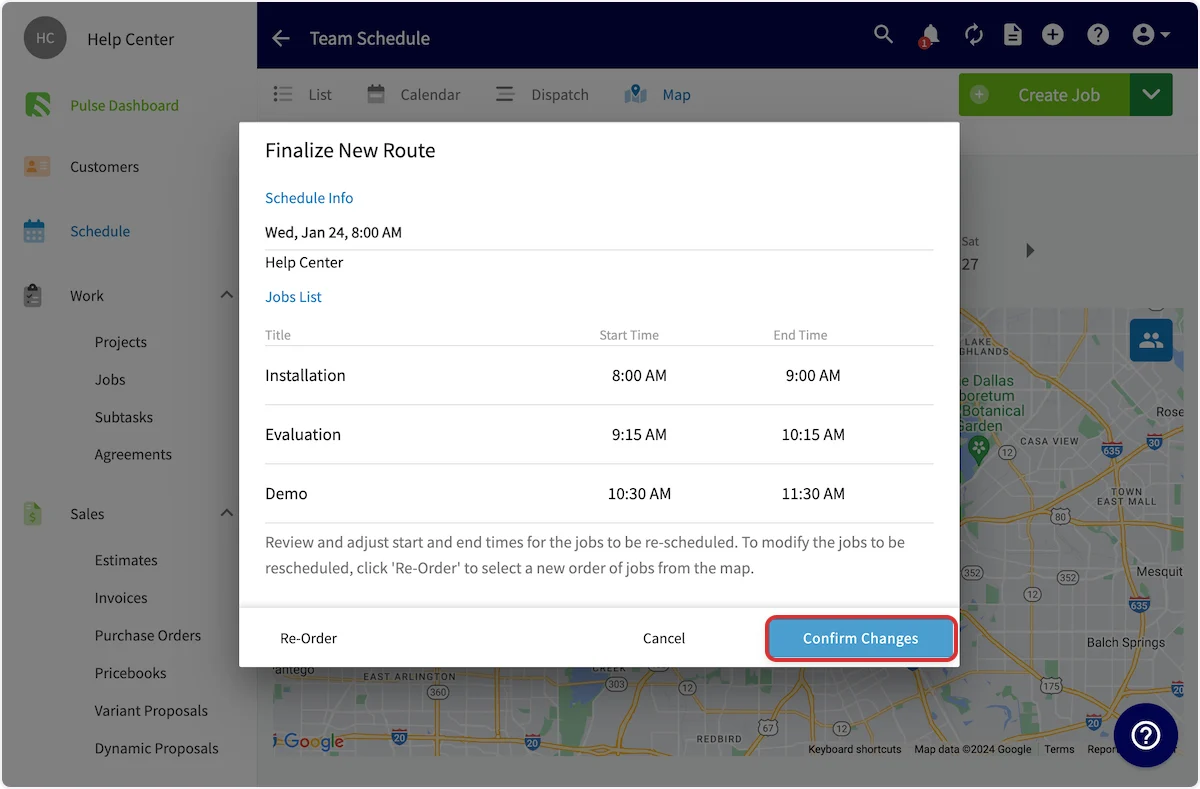
1. In the **Finalize New Route** window, check the **Schedule Info** and the **Jobs List** — each job's new start time and end time in the order you set.
2. Adjust any start or end time you want to change, or select **Re-Order** to go back to the map and pick a new order.
3. Select **Confirm Changes** to add the newly scheduled jobs to your schedule.
### Review and confirm the route
1. In the **Finalize New Route** window, check the **Schedule Info** and the **Jobs List** — each job's new start time and end time in the order you set.
2. Adjust any start or end time you want to change, or select **Re-Order** to go back to the map and pick a new order.
3. Select **Confirm Changes** to add the newly scheduled jobs to your schedule.
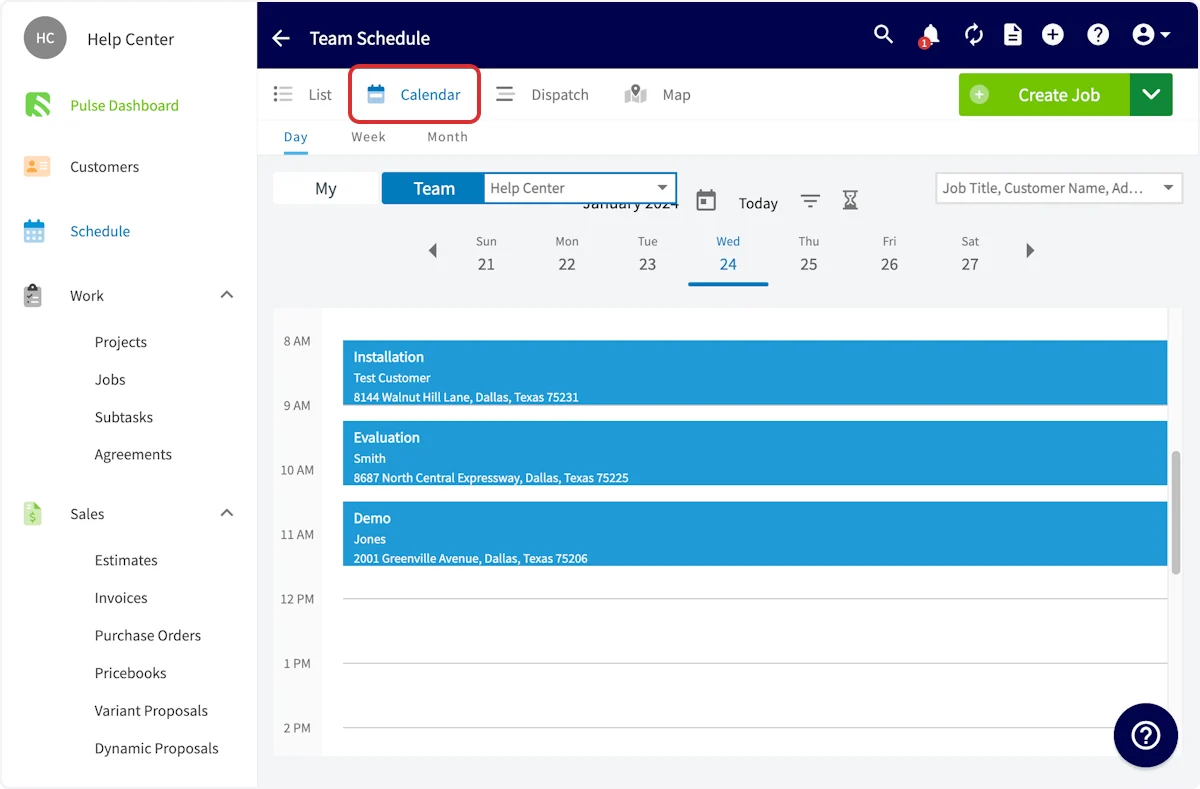
 The route is scheduled when the jobs carry their new times on the Team Schedule. Select a job on the map, or open another schedule view such as **Calendar**, to see the times FieldPulse applied.
 ## Availability
Route optimization runs on the **Map** view of the Team Schedule page in the FieldPulse web app, and it works from the jobs plotted on that map. Unscheduled jobs must have an assigned location to appear on the map — see [How to Use the Schedule Map View](/scheduling-dispatch/dispatch/using-schedule-map-view) for the map's display options and filters.
## Related articles
* [How to Use the Schedule Map View](/scheduling-dispatch/dispatch/using-schedule-map-view)
* [Availability & Scheduling Overview](/scheduling-dispatch/availability/overview)
* [How to Manage Unassigned & Unscheduled Jobs](/jobs/jobs-tasks/unassigned-unscheduled-jobs)
* [Trip Tracking Overview](/scheduling-dispatch/dispatch/trip-tracking-customer-view)
## Related topics
- [Dispatch & Map View](/scheduling-dispatch/dispatch/index.md)
- [How to Use the Schedule Map View](/scheduling-dispatch/dispatch/using-schedule-map-view.md)
- [Setting Up Operator AI](/add-ons/ai/operator-ai.md)
- [How to Manage Purchase Orders](/inventory-materials/purchase-orders/managing.md)
## Availability
Route optimization runs on the **Map** view of the Team Schedule page in the FieldPulse web app, and it works from the jobs plotted on that map. Unscheduled jobs must have an assigned location to appear on the map — see [How to Use the Schedule Map View](/scheduling-dispatch/dispatch/using-schedule-map-view) for the map's display options and filters.
## Related articles
* [How to Use the Schedule Map View](/scheduling-dispatch/dispatch/using-schedule-map-view)
* [Availability & Scheduling Overview](/scheduling-dispatch/availability/overview)
* [How to Manage Unassigned & Unscheduled Jobs](/jobs/jobs-tasks/unassigned-unscheduled-jobs)
* [Trip Tracking Overview](/scheduling-dispatch/dispatch/trip-tracking-customer-view)
## Related topics
- [Dispatch & Map View](/scheduling-dispatch/dispatch/index.md)
- [How to Use the Schedule Map View](/scheduling-dispatch/dispatch/using-schedule-map-view.md)
- [Setting Up Operator AI](/add-ons/ai/operator-ai.md)
- [How to Manage Purchase Orders](/inventory-materials/purchase-orders/managing.md)