> ## Documentation Index
> Fetch the complete documentation index at: https://help.fieldpulse.com/llms.txt
> Use this file to discover all available pages before exploring further.
# How to Use the Schedule Map View
> Open the schedule map view in FieldPulse to see jobs and team members for a day or a date range, filter by team or job status, and spot unassigned work.
> **Who uses this:** The schedule map view is a tab on the **Team Schedule** page, next to List, Calendar, and Dispatch. **Availability:** All regions.
The schedule map view plots your jobs and your team members on a map, so you can see where the day's work actually is — which team members are stacked up, which are open, and which jobs still have nobody on them. Instead of reading a list and picturing the geography in your head, you look at it while you [schedule and dispatch](https://www.fieldpulse.com/features/scheduling-and-dispatching).
## Overview
The schedule map view has two modes. **Day** shows the jobs and team members for a single day. **Custom** offers the same functionality across a date range you choose. Both modes plot jobs and team members on the same map, so you can see how workload is distributed, locate unscheduled jobs, assess team performance, and spot the gaps or overlaps in your scheduling.
## Before you begin
* An unscheduled job only appears on the map if it has an assigned location. Confirm your jobs have locations before you rely on the map to find open work.
* The **Team** dropdown in the day view and the **Users** dropdown in the custom view list the teams you have created in FieldPulse.
## On web
### Open the day view
1. Select **Schedule** in the left menu, then the **Map** tab, then **Day**.
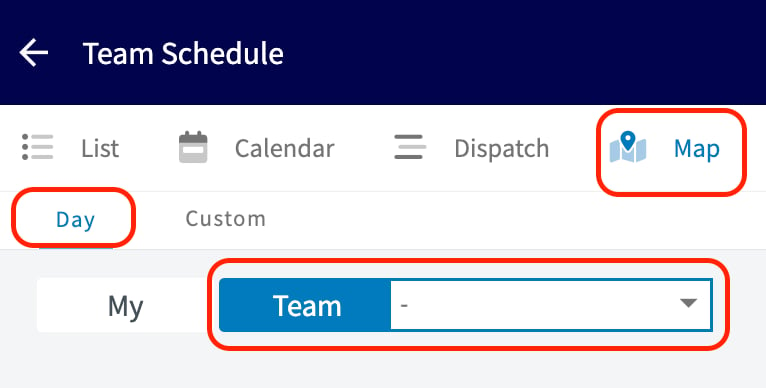 2. Select the dropdown next to **Team** to choose what the map displays. Options include:
* **Teams** you've created in FieldPulse.
* **Deactivated Users**.
* **Unassigned Jobs**.
* **Unscheduled Jobs** — these must have an assigned location to appear on the map.
2. Select the dropdown next to **Team** to choose what the map displays. Options include:
* **Teams** you've created in FieldPulse.
* **Deactivated Users**.
* **Unassigned Jobs**.
* **Unscheduled Jobs** — these must have an assigned location to appear on the map.
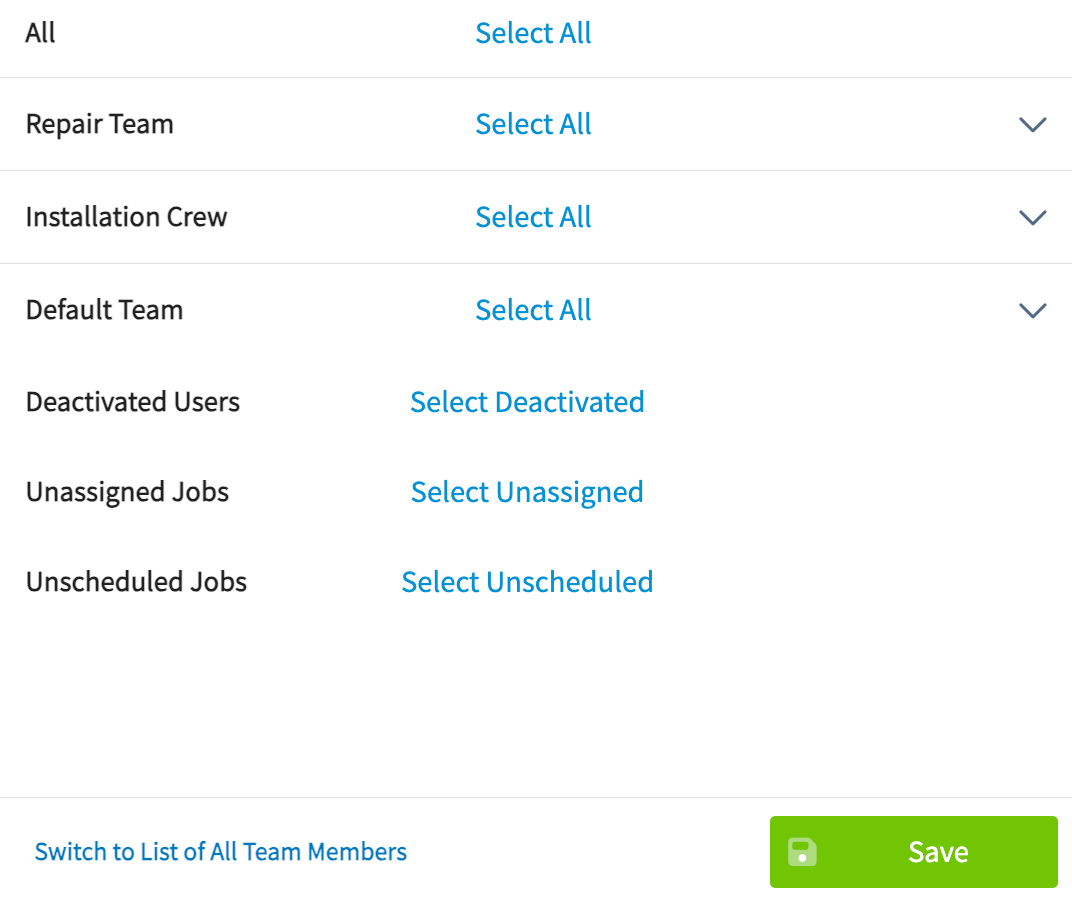 3. Select **Save**.
4. Select a job marker on the map to open its detail.
### Use the custom view
The custom view offers the same functionality as the day view, but across a date range you choose instead of a single day.
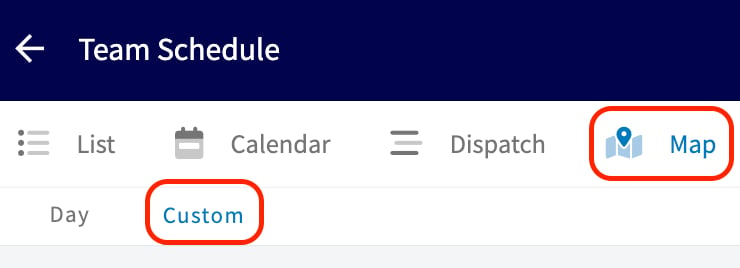
1. Select **Schedule** in the left menu, then the **Map** tab, then **Custom**.
3. Select **Save**.
4. Select a job marker on the map to open its detail.
### Use the custom view
The custom view offers the same functionality as the day view, but across a date range you choose instead of a single day.
1. Select **Schedule** in the left menu, then the **Map** tab, then **Custom**.
 2. Set the **From** and **To** dates for the range you want to see, then select **Apply**.
3. Use the **Users** dropdown to choose what the map displays — the same options as the day view: Teams, Deactivated Users, Unassigned Jobs, and Unscheduled Jobs (location required).
2. Set the **From** and **To** dates for the range you want to see, then select **Apply**.
3. Use the **Users** dropdown to choose what the map displays — the same options as the day view: Teams, Deactivated Users, Unassigned Jobs, and Unscheduled Jobs (location required).
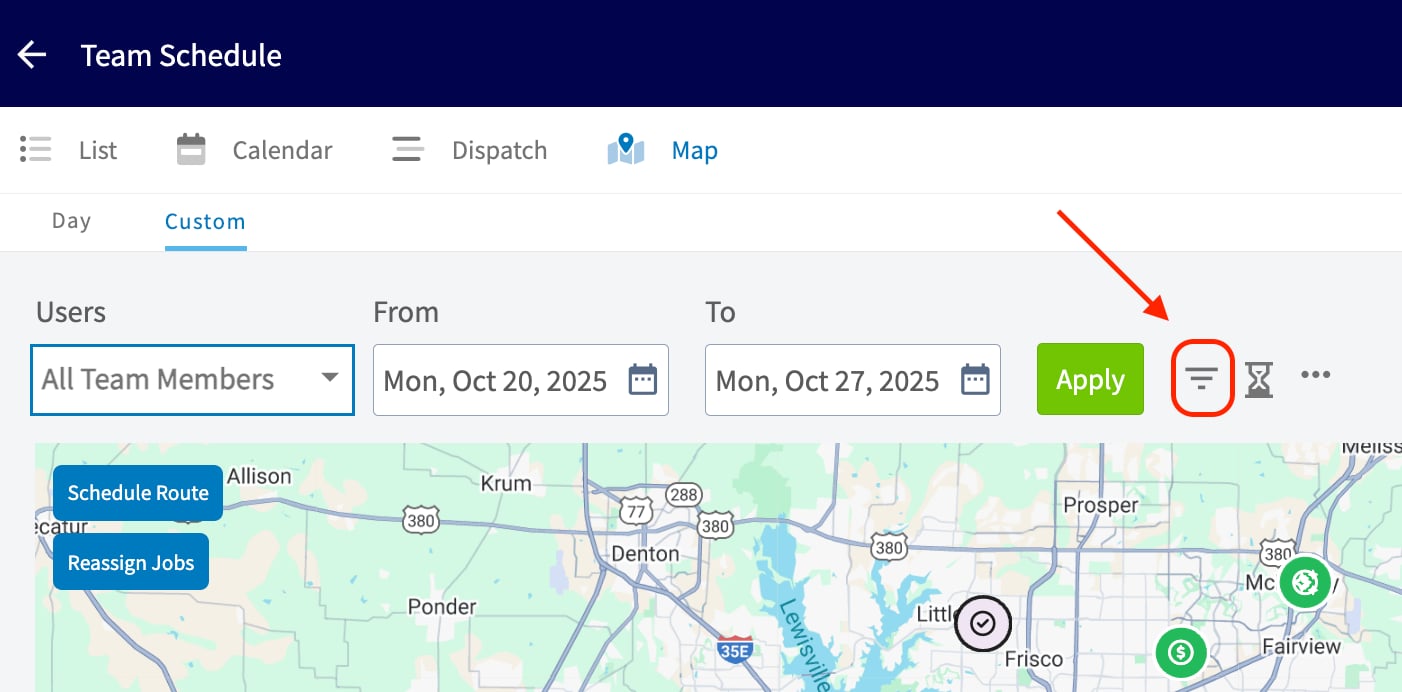
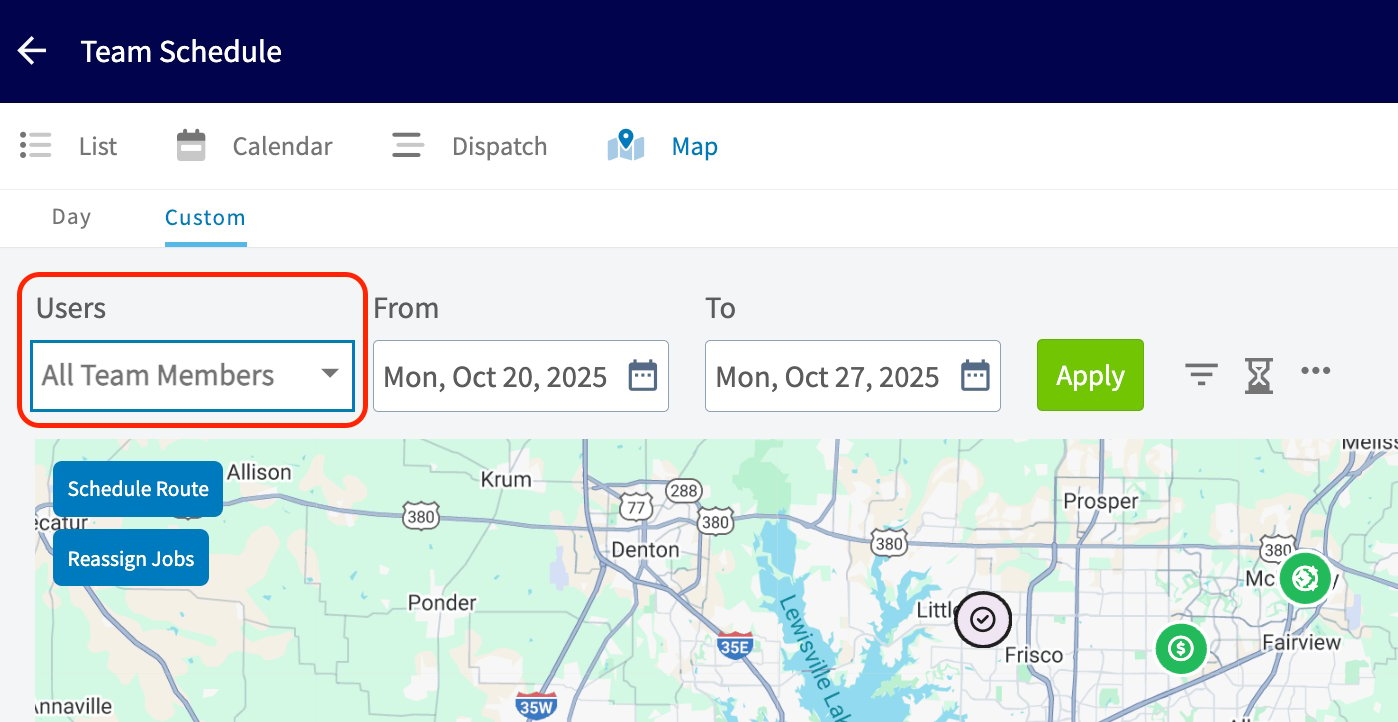 4. Select the funnel icon to the right of **Apply** to **Filter by Job Status** and narrow the map to the statuses you want to see.
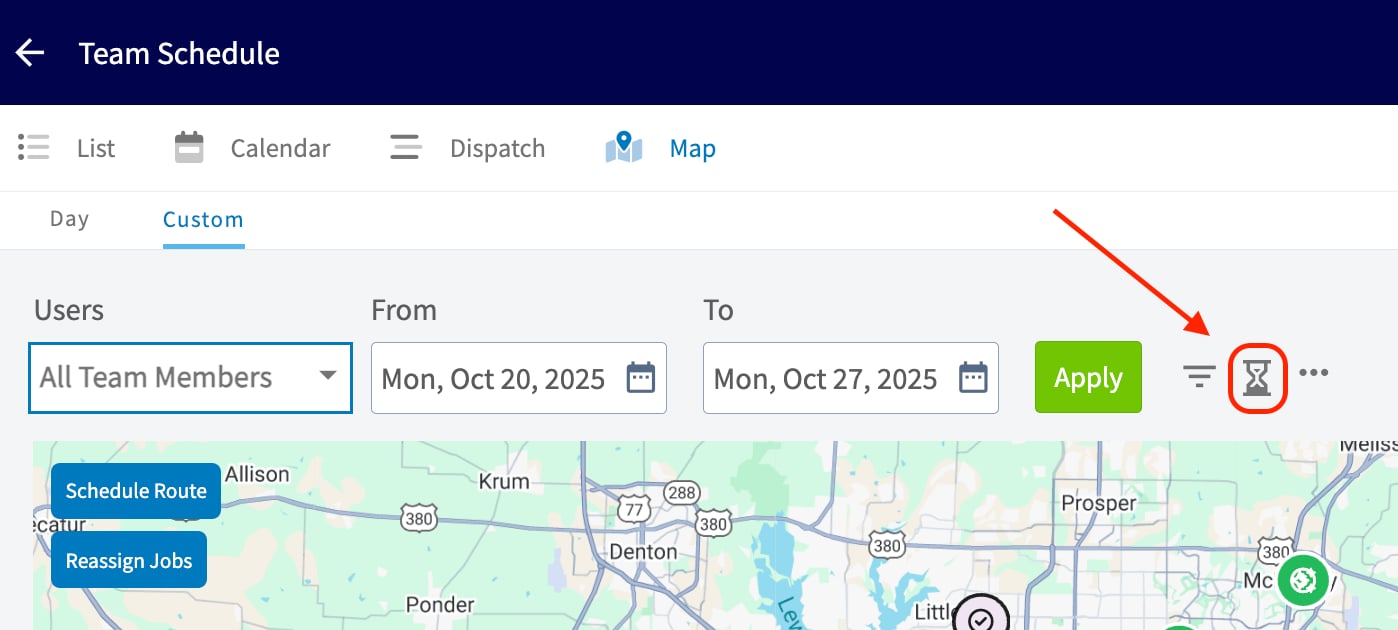
 5. Select the hourglass icon to open the **Job Queue Panel**.
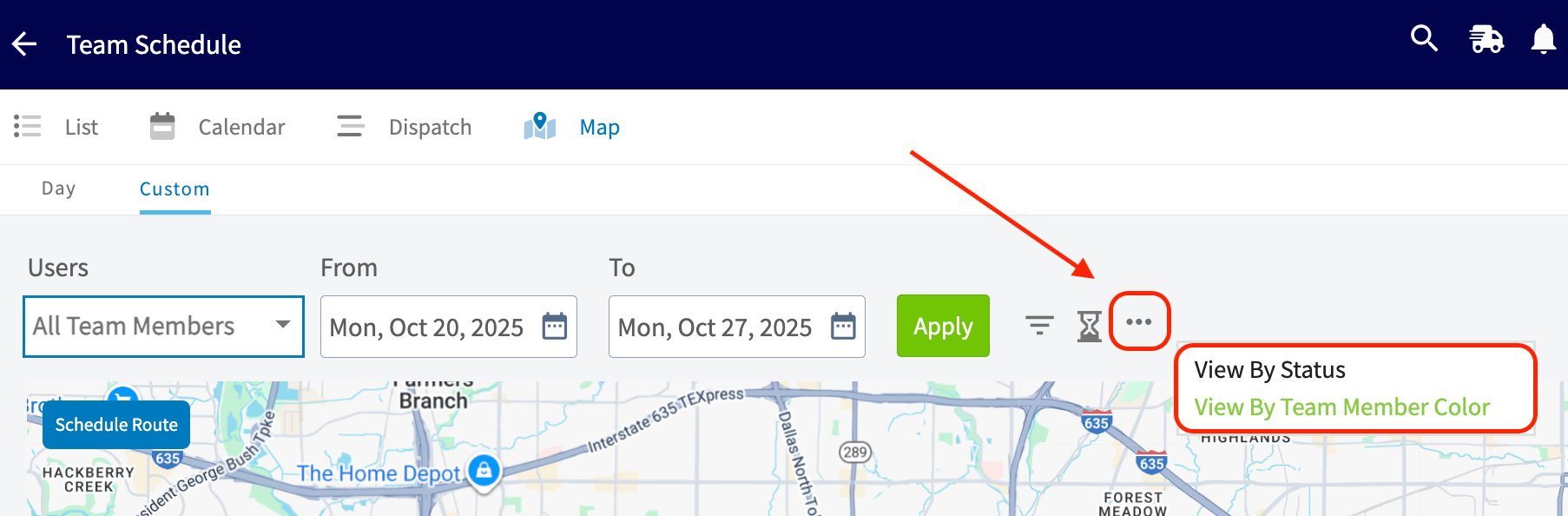
 6. Select the three-dot menu, then choose **View By Status** or **View By Team Member Color** to change how job markers are colored on the map.
 ## Still need help?
Reach the [FieldPulse support team](https://www.fieldpulse.com/company/contact-us) at [support@fieldpulse.com](mailto:support@fieldpulse.com) or through the chat feature in the bottom-right corner of your screen.
## Related articles
* [Route Optimization Overview](/scheduling-dispatch/dispatch/route-optimization)
* [Trip Tracking Overview](/scheduling-dispatch/dispatch/trip-tracking-customer-view)
* [Availability & Scheduling Overview](/scheduling-dispatch/availability/overview)
* [How to Find Availability](/scheduling-dispatch/availability/finding-availability)
Your map view is working when the day's jobs and team members show up as markers, you can filter down to unassigned or unscheduled work in a couple of clicks, and you can see where the gaps and the overlaps are before you commit the schedule.
## Related topics
- [Dispatch & Map View](/scheduling-dispatch/dispatch/index.md)
- [Setting Up Pulse Fleet Tracking](/add-ons/fleet/pulse-fleet-tracking.md)
- [Route Optimization Overview](/scheduling-dispatch/dispatch/route-optimization.md)
- [Setting Up Schedule Visibility](/scheduling-dispatch/availability/schedule-visibility-settings.md)
## Still need help?
Reach the [FieldPulse support team](https://www.fieldpulse.com/company/contact-us) at [support@fieldpulse.com](mailto:support@fieldpulse.com) or through the chat feature in the bottom-right corner of your screen.
## Related articles
* [Route Optimization Overview](/scheduling-dispatch/dispatch/route-optimization)
* [Trip Tracking Overview](/scheduling-dispatch/dispatch/trip-tracking-customer-view)
* [Availability & Scheduling Overview](/scheduling-dispatch/availability/overview)
* [How to Find Availability](/scheduling-dispatch/availability/finding-availability)
Your map view is working when the day's jobs and team members show up as markers, you can filter down to unassigned or unscheduled work in a couple of clicks, and you can see where the gaps and the overlaps are before you commit the schedule.
## Related topics
- [Dispatch & Map View](/scheduling-dispatch/dispatch/index.md)
- [Setting Up Pulse Fleet Tracking](/add-ons/fleet/pulse-fleet-tracking.md)
- [Route Optimization Overview](/scheduling-dispatch/dispatch/route-optimization.md)
- [Setting Up Schedule Visibility](/scheduling-dispatch/availability/schedule-visibility-settings.md)