> ## Documentation Index
> Fetch the complete documentation index at: https://help.fieldpulse.com/llms.txt
> Use this file to discover all available pages before exploring further.
# Setting Up the Default Calendar Start Date
> Set your FieldPulse calendar week to begin on Sunday, Monday, or the Classic view from the My Settings page, so the schedule opens the way you plan.
> **Who uses this:** Any user with access to **My Settings** on their own FieldPulse profile. **Availability:** All regions.
**Default Starting Calendar Date** sets which day the week starts on in your FieldPulse [calendar and schedule](https://www.fieldpulse.com/features/scheduling-and-dispatching). Choose **Sunday**, **Monday**, or **Classic** on the **My Settings** page so the week is laid out the way you and your team plan it.
## Overview
**Default Starting Calendar Date** is a setting on the **My Settings** page that controls the day your calendar and schedule week begins on. FieldPulse offers three options — **Sunday**, **Monday**, or **Classic**.
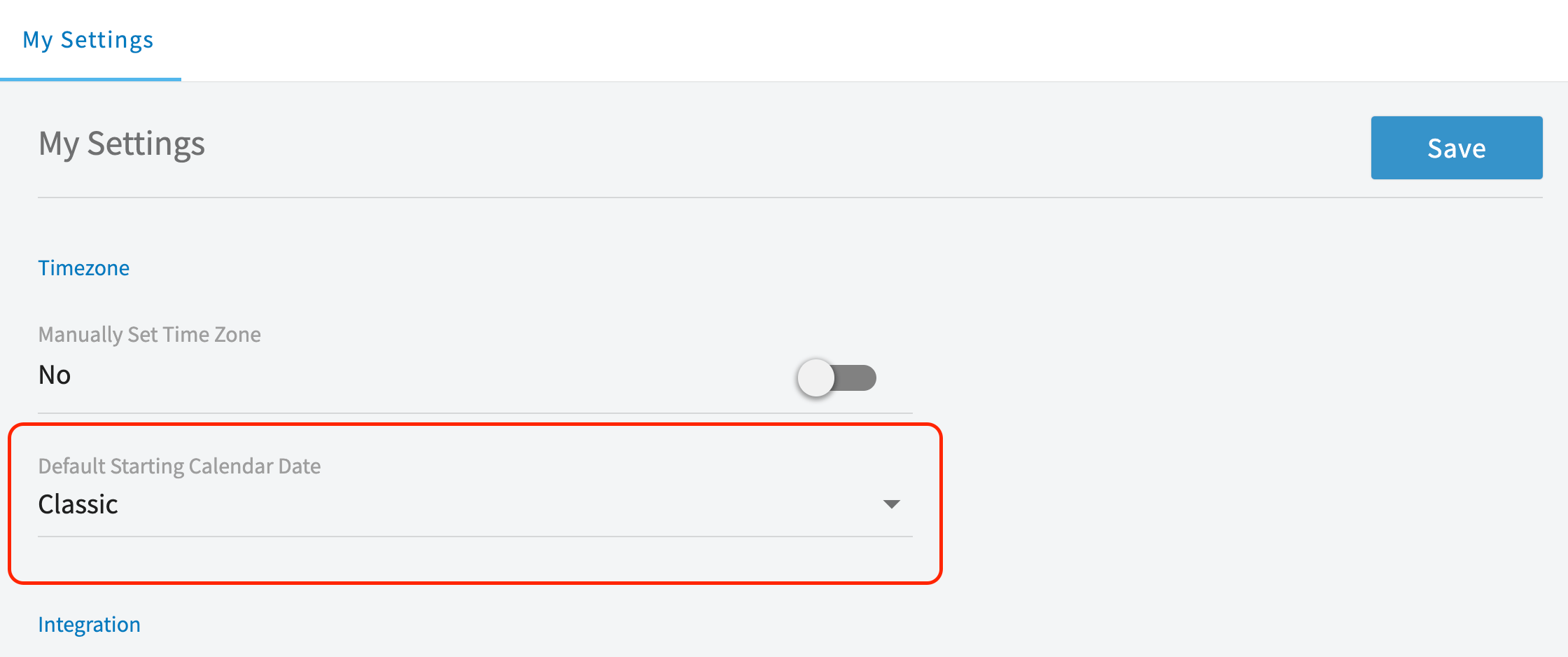
You open **My Settings** from the **Profile** icon at the top right of the screen. On that page, **Default Starting Calendar Date** sits in the **Timezone** area, directly below **Manually Set Time Zone**.
## Before you begin
* Decide which day you want your calendar week to start on — **Sunday**, **Monday**, or **Classic**.
* The steps below run in the FieldPulse web app and start from the **Profile** icon at the top right of the screen.
## Step-by-step setup
### Open My Settings
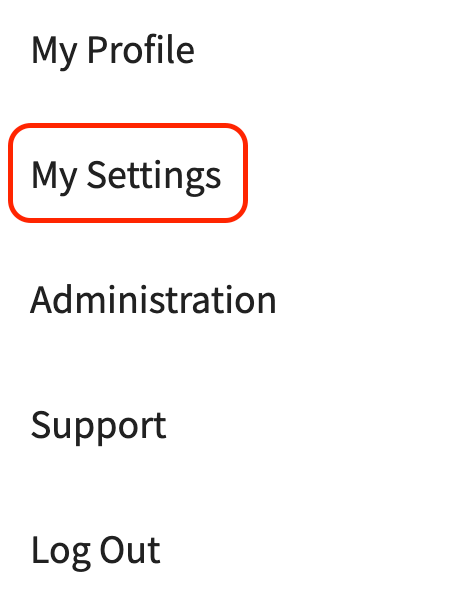
1. Select your **Profile** icon at the top right of the screen.
2. Select **My Settings** from the dropdown menu.

 ### Choose your calendar start date
1. On the **My Settings** page, find the **Default Starting Calendar Date** heading, below **Manually Set Time Zone**.
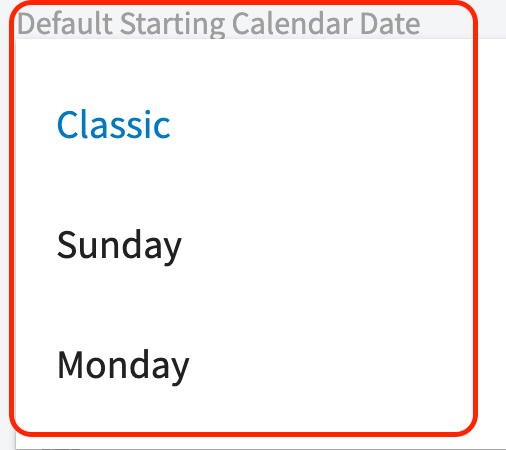
2. Open the **Default Starting Calendar Date** dropdown and select **Sunday**, **Monday**, or **Classic**.
3. Select **Save** at the top right of the **My Settings** page.
### Choose your calendar start date
1. On the **My Settings** page, find the **Default Starting Calendar Date** heading, below **Manually Set Time Zone**.
2. Open the **Default Starting Calendar Date** dropdown and select **Sunday**, **Monday**, or **Classic**.
3. Select **Save** at the top right of the **My Settings** page.
 Your calendar and schedule then begin on the day you selected.
## Settings reference
The **Default Starting Calendar Date** dropdown carries three options, listed here in the order they appear in the dropdown.
| **Option** | **What it does** |
| ----------- | ------------------------------------------ |
| **Classic** | Uses the FieldPulse Classic calendar view. |
| **Sunday** | Starts the calendar week on Sunday. |
| **Monday** | Starts the calendar week on Monday. |
## Still need help?
Reach the [FieldPulse support team](https://www.fieldpulse.com/company/contact-us) at [support@fieldpulse.com](mailto:support@fieldpulse.com) or through the chat feature in the bottom-right corner of your screen.
## Related articles
* [Setting Up Working Hours for Multi-Day Jobs](/scheduling-dispatch/working-hours/multi-day-jobs)
* [How to Track Lunch Breaks](/scheduling-dispatch/working-hours/tracking-lunch-breaks)
* [Availability & Scheduling Overview](/scheduling-dispatch/availability/overview)
* [Setting Up Schedule Visibility](/scheduling-dispatch/availability/schedule-visibility-settings)
Your setup is working when you open your calendar and the week starts on the option you chose — **Sunday**, **Monday**, or **Classic**.
## Related topics
- [Working Hours & Calendar](/scheduling-dispatch/working-hours/index.md)
- [Setting Up Working Hours for Multi-Day Jobs](/scheduling-dispatch/working-hours/multi-day-jobs.md)
- [How to Track Lunch Breaks](/scheduling-dispatch/working-hours/tracking-lunch-breaks.md)
- [How to Create an Estimate](/estimates-invoices/creating/estimate.md)
Your calendar and schedule then begin on the day you selected.
## Settings reference
The **Default Starting Calendar Date** dropdown carries three options, listed here in the order they appear in the dropdown.
| **Option** | **What it does** |
| ----------- | ------------------------------------------ |
| **Classic** | Uses the FieldPulse Classic calendar view. |
| **Sunday** | Starts the calendar week on Sunday. |
| **Monday** | Starts the calendar week on Monday. |
## Still need help?
Reach the [FieldPulse support team](https://www.fieldpulse.com/company/contact-us) at [support@fieldpulse.com](mailto:support@fieldpulse.com) or through the chat feature in the bottom-right corner of your screen.
## Related articles
* [Setting Up Working Hours for Multi-Day Jobs](/scheduling-dispatch/working-hours/multi-day-jobs)
* [How to Track Lunch Breaks](/scheduling-dispatch/working-hours/tracking-lunch-breaks)
* [Availability & Scheduling Overview](/scheduling-dispatch/availability/overview)
* [Setting Up Schedule Visibility](/scheduling-dispatch/availability/schedule-visibility-settings)
Your setup is working when you open your calendar and the week starts on the option you chose — **Sunday**, **Monday**, or **Classic**.
## Related topics
- [Working Hours & Calendar](/scheduling-dispatch/working-hours/index.md)
- [Setting Up Working Hours for Multi-Day Jobs](/scheduling-dispatch/working-hours/multi-day-jobs.md)
- [How to Track Lunch Breaks](/scheduling-dispatch/working-hours/tracking-lunch-breaks.md)
- [How to Create an Estimate](/estimates-invoices/creating/estimate.md)