> ## Documentation Index
> Fetch the complete documentation index at: https://help.fieldpulse.com/llms.txt
> Use this file to discover all available pages before exploring further.
# How to Use Franchise Roll-Up Reporting
> Run one roll-up report across every franchisee location in FieldPulse, save it for reuse or as a dashboard widget, and export the data as a CSV.
> **Who uses this:** The franchisor, from the franchisor account, across every franchisee location. **Availability:** FieldPulse accounts set up with the franchise structure.
Roll-up reporting gives the franchisor consolidated data from every franchisee location in one report. You pick the record type you want to report on, set a date range, and the report returns the matching records from across the franchise, with a **Company** column showing which franchisee each row came from. From there the report behaves like the rest of [FieldPulse reporting](https://www.fieldpulse.com/features/dashboards-and-reporting) — filter it, save it, or export it.
## Overview
Roll-up reporting answers franchise-wide questions without opening each franchisee account one at a time. With access to accurate and up-to-date data across every location, the franchisor can make informed, data-driven decisions — identifying trends, understanding market dynamics, and determining the effectiveness of marketing strategies or operational changes.
Roll-up reporting sits under the **Reporting** tab, and each record type has its own tab across the top of it — **Invoices**, **Estimates**, **Jobs**, **Assets**, **Maintenance Agreements**, **Tasks**, **Payments**, **Projects**, **Orders**, **Subtasks**, **Timesheets**, **Site Visits**, **Invoice Items**, and **Reminders** among them. Like other reporting done within FieldPulse, you can use filters and columns to customize any roll-up report further.
## Before you begin
* Roll-up reporting is run by the franchisor, from the franchisor account. [Franchise Overview](/settings/account-structures/franchise-overview) covers the franchisee list the report draws on.
* Decide which record type you want to report on — for example, all jobs created by each franchisee — and the date range you want the report to cover.
## Run a roll-up report
1. In the left-side menu, under **Management**, select **Reporting**.
2. Select **Roll-Up Reporting** in the top menu.
3. Select the tab for the record type you want to report on — **Jobs**, for example.
4. Set the **Date Type** and the **Date Range**.
5. Select the blue **Apply** button.
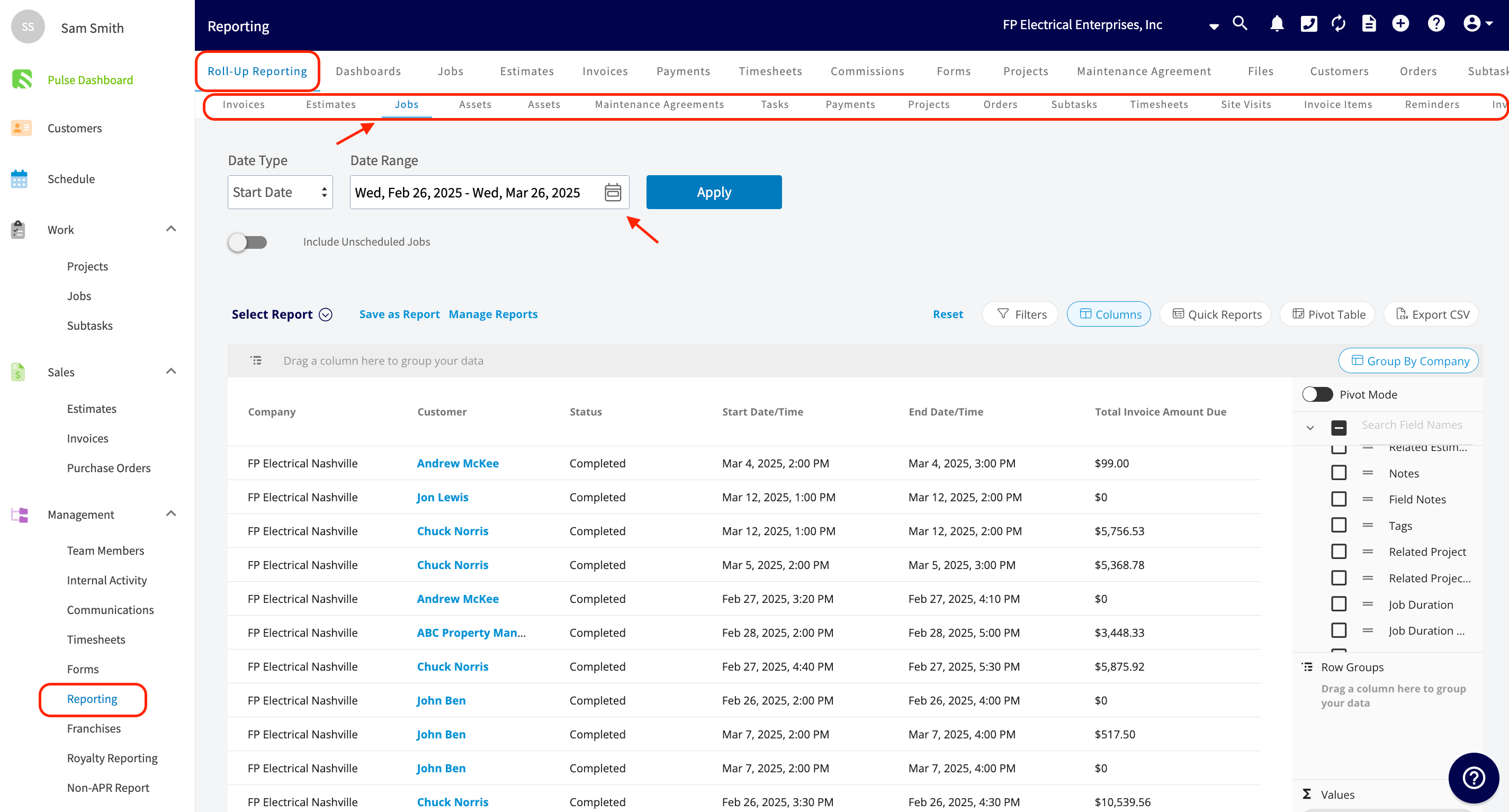 Use **Filters** to narrow the report and **Columns** to choose which fields appear, the same way you would on any other FieldPulse report. See [How to Use Raw Data Reporting](/reporting/raw-data/using-raw-data-reporting) for how those controls work.
## Save and export the report
Once the report is generated, save it for reuse or export the data.
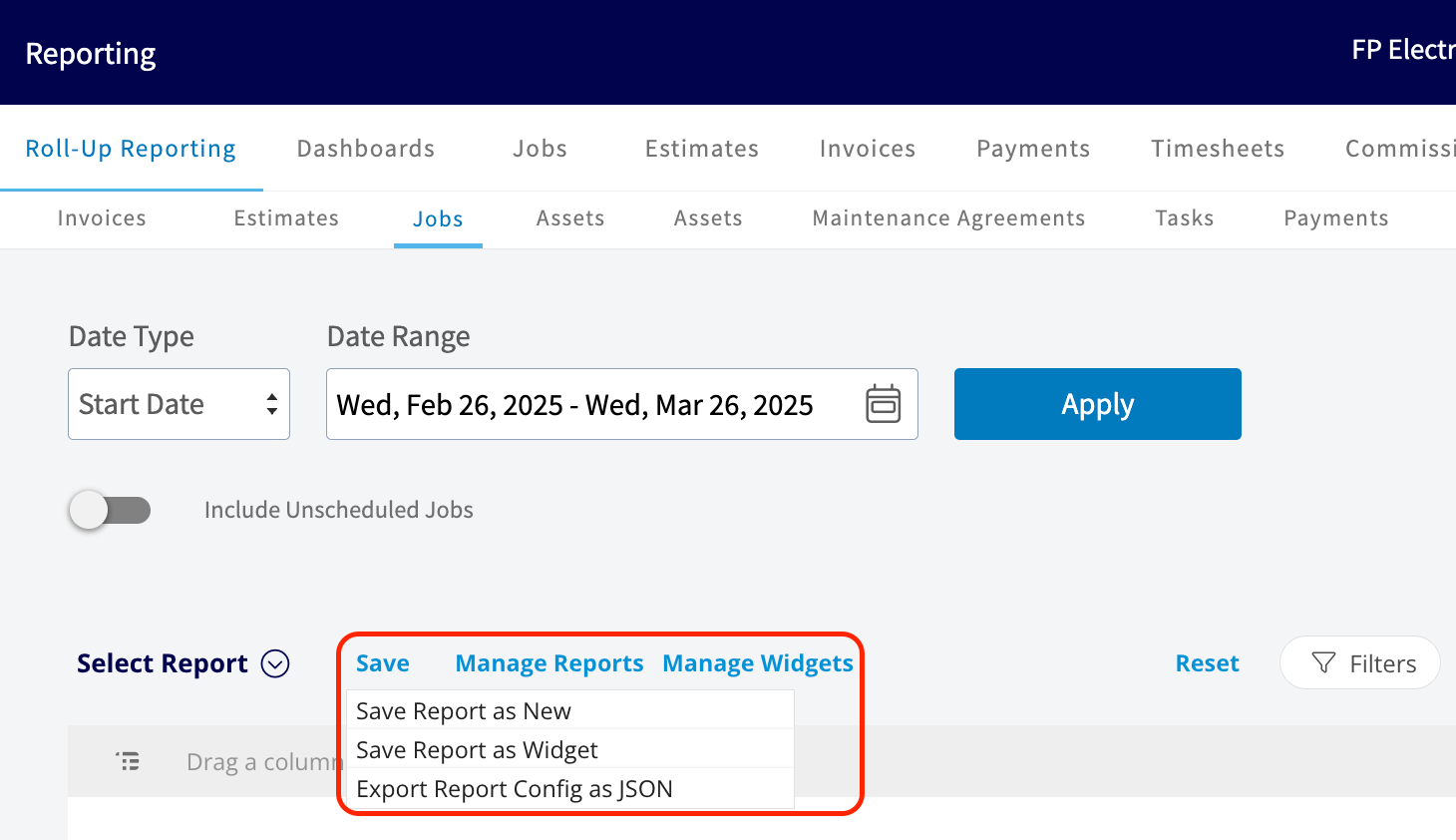
Select **Save** next to **Select Report**, then choose a saving option:
* **Save Report as New** — saves the report under **Select Report** for easy access in the future. Title the report and save it.
* **Save Report as Widget** — saves the report as a widget you can add to your customized [Pulse Dashboard Overview](/reporting/pulse/pulse-dashboard) in the future. Title the widget and save it.
Use **Filters** to narrow the report and **Columns** to choose which fields appear, the same way you would on any other FieldPulse report. See [How to Use Raw Data Reporting](/reporting/raw-data/using-raw-data-reporting) for how those controls work.
## Save and export the report
Once the report is generated, save it for reuse or export the data.
Select **Save** next to **Select Report**, then choose a saving option:
* **Save Report as New** — saves the report under **Select Report** for easy access in the future. Title the report and save it.
* **Save Report as Widget** — saves the report as a widget you can add to your customized [Pulse Dashboard Overview](/reporting/pulse/pulse-dashboard) in the future. Title the widget and save it.
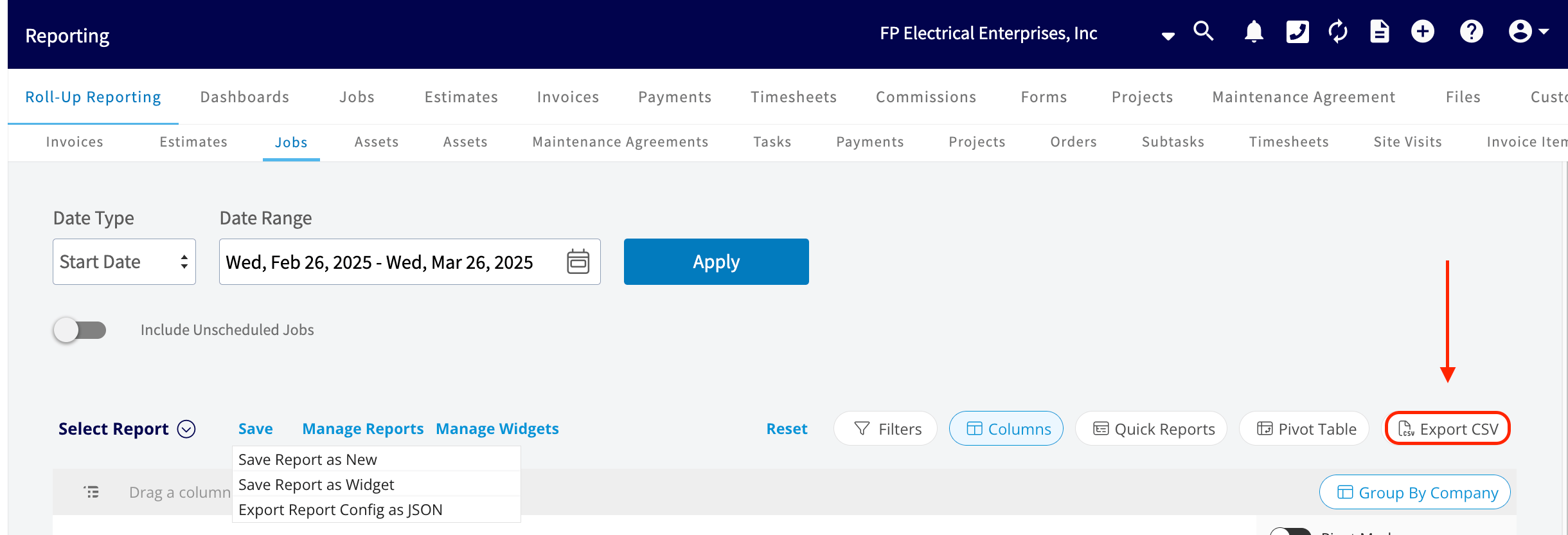
 To take the data out of FieldPulse, select **Export CSV**. The franchisor can export the generated report in a CSV format for further analysis or for sharing with stakeholders.
 ## Related articles
* [Franchise Overview](/settings/account-structures/franchise-overview)
* [Franchise Royalty Reporting Overview](/settings/account-structures/franchise-royalty-reporting)
* [Master Account Overview](/settings/account-structures/master-account)
* [How to Use Raw Data Reporting](/reporting/raw-data/using-raw-data-reporting)
* [Pulse Dashboard Overview](/reporting/pulse/pulse-dashboard)
Your roll-up report is working when you pick a record type and date range, select **Apply**, and get one table covering every franchisee location — ready to save under **Select Report**, keep as a Pulse dashboard widget, or export as a CSV.
## Related topics
- [Franchise Overview](/settings/account-structures/franchise-overview.md)
- [Account Structures & Franchises](/settings/account-structures/index.md)
- [Franchise Royalty Reporting Overview](/settings/account-structures/franchise-royalty-reporting.md)
- [Master Account Overview](/settings/account-structures/master-account.md)
## Related articles
* [Franchise Overview](/settings/account-structures/franchise-overview)
* [Franchise Royalty Reporting Overview](/settings/account-structures/franchise-royalty-reporting)
* [Master Account Overview](/settings/account-structures/master-account)
* [How to Use Raw Data Reporting](/reporting/raw-data/using-raw-data-reporting)
* [Pulse Dashboard Overview](/reporting/pulse/pulse-dashboard)
Your roll-up report is working when you pick a record type and date range, select **Apply**, and get one table covering every franchisee location — ready to save under **Select Report**, keep as a Pulse dashboard widget, or export as a CSV.
## Related topics
- [Franchise Overview](/settings/account-structures/franchise-overview.md)
- [Account Structures & Franchises](/settings/account-structures/index.md)
- [Franchise Royalty Reporting Overview](/settings/account-structures/franchise-royalty-reporting.md)
- [Master Account Overview](/settings/account-structures/master-account.md)