> ## Documentation Index
> Fetch the complete documentation index at: https://help.fieldpulse.com/llms.txt
> Use this file to discover all available pages before exploring further.
# How to Use Notes
> Add notes in FieldPulse scoped to yourself, managers, or the whole company, and notify specific teammates so an important note doesn't get missed.
> **Who uses this:** Any team member can add a note from the FieldPulse header; the section a note is saved under — **My Notes**, **All Managers**, or **Entire Company** — controls who sees it. **Availability:** All regions.
A note is a short internal message you keep inside FieldPulse for yourself, your managers, or the whole business. You add one from the notepad icon in the FieldPulse header, choose the section it belongs in, and then notify specific teammates so no one misses it.
## Overview
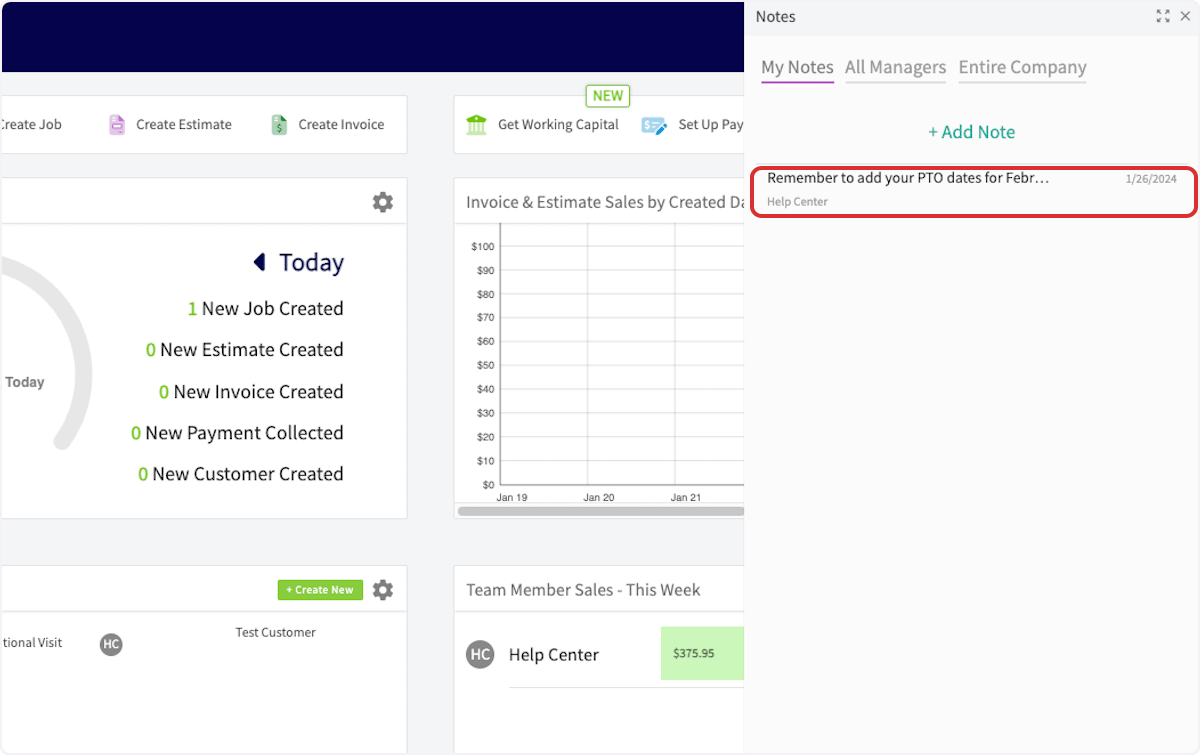
You save each note under one of three sections, and the section controls who can read it. **My Notes** keeps the note visible to you only, **All Managers** shows it to your managers, and **Entire Company** shows it to everyone in the business. A saved note appears under the section you chose and is visible to all team members in that section.
You notify teammates in a separate step after you save. A note stays in its section whether or not you notify anyone; selecting **Notify** sends a notification to the role types or individual users you pick.
## Video walkthrough
Watch a walkthrough of adding a note and notifying teammates about it, then follow the written steps below.
## Before you begin
* Decide who the note is for before you write it, because you pick the section before you type the note.
* Notifying teammates is a step you take after the note is saved. The **Notify** button appears on a note only once the note has been saved.
## Add a note
You add a note from the notepad icon in the FieldPulse header, and you pick its section before you type it.
1. Select the notepad icon in the top-right corner of the FieldPulse header.
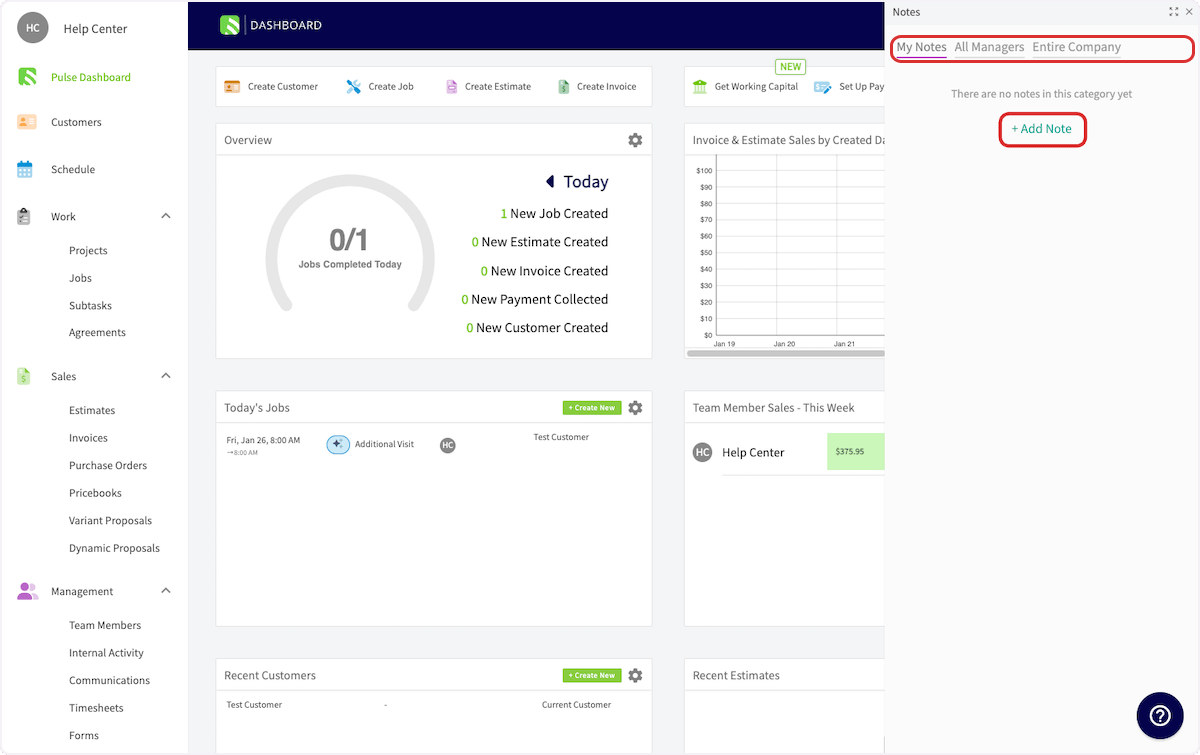
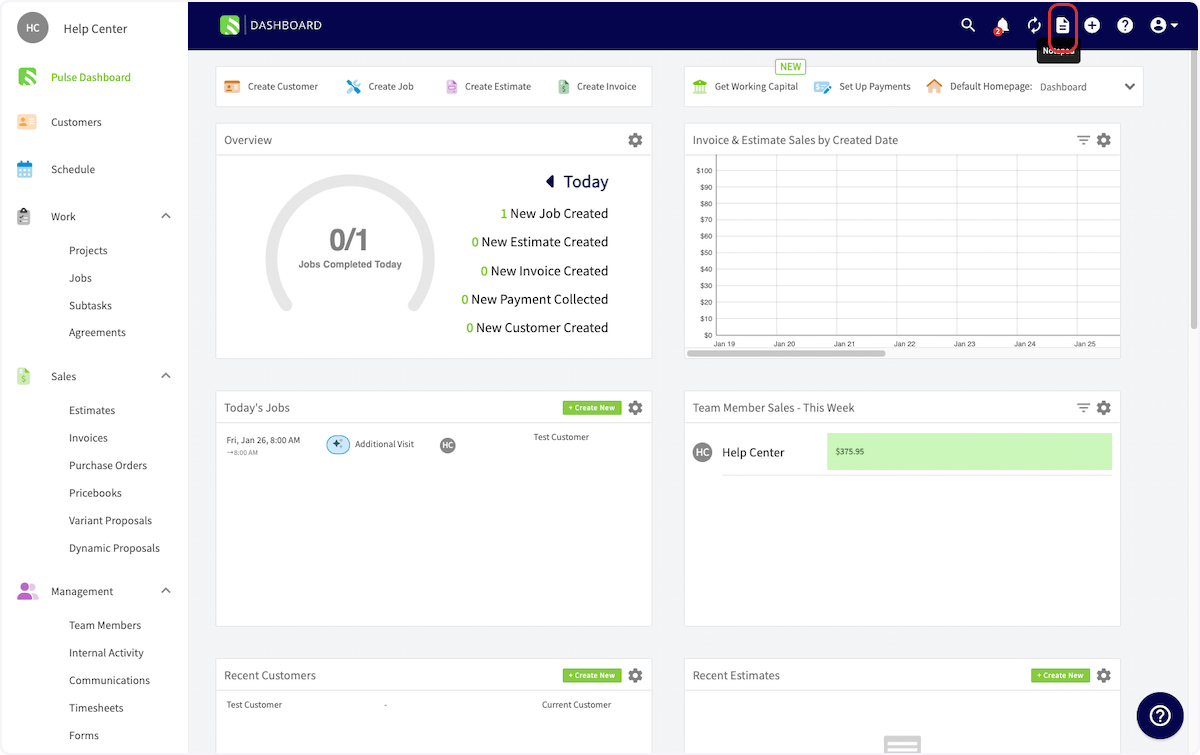 2. In the **Notes** panel that opens on the right, select the section the note belongs in — **My Notes**, **All Managers**, or **Entire Company**.
3. Select **+ Add Note**.
2. In the **Notes** panel that opens on the right, select the section the note belongs in — **My Notes**, **All Managers**, or **Entire Company**.
3. Select **+ Add Note**.
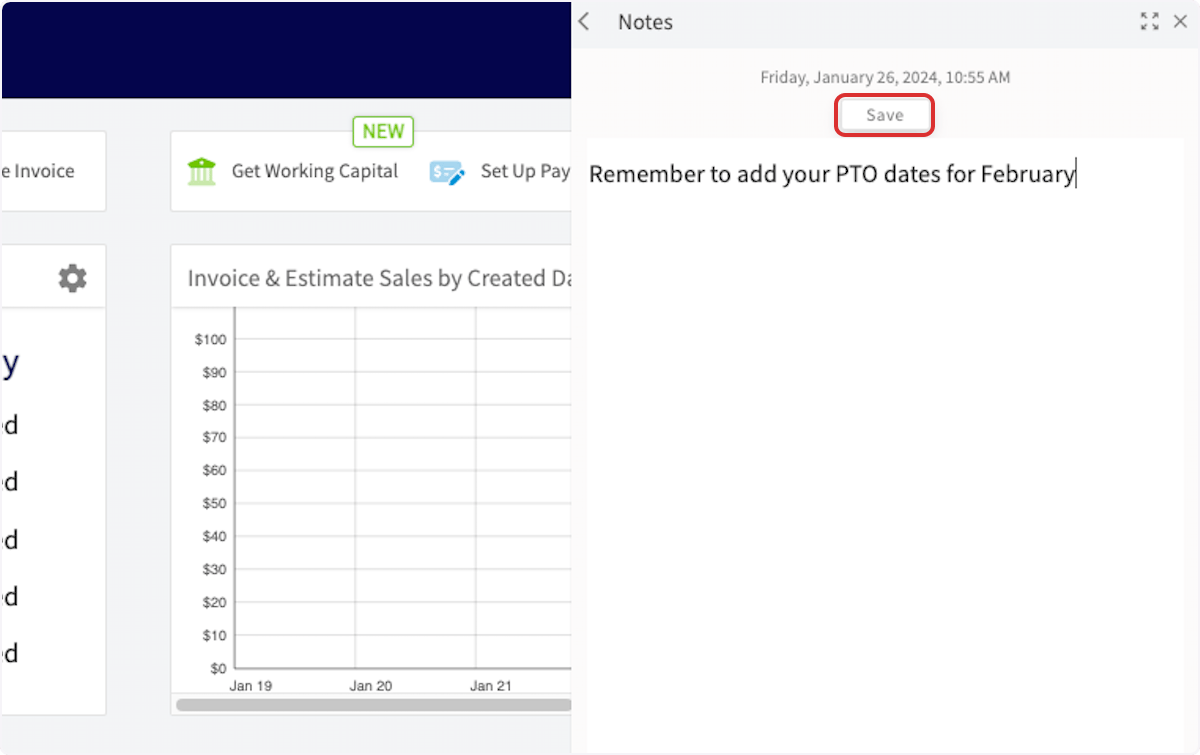
 4. Type your note.
5. Select **Save**.
4. Type your note.
5. Select **Save**.
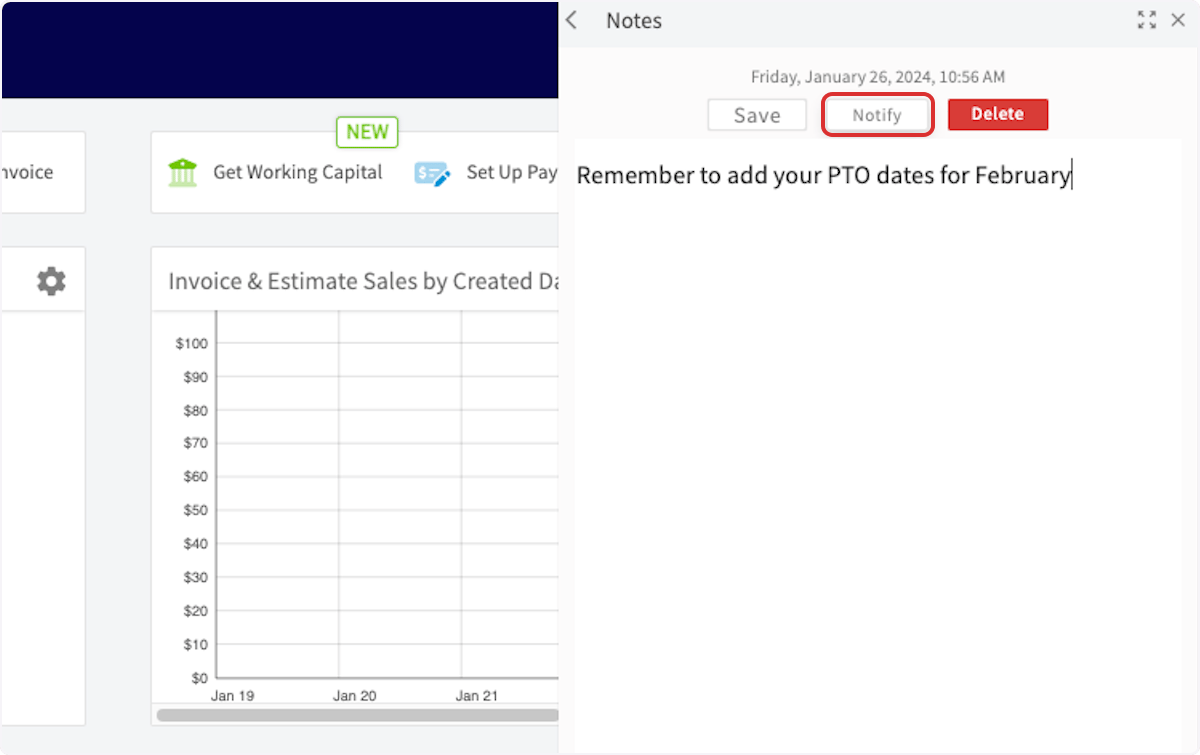
 Once the note is saved, the buttons above it change to **Save**, **Notify**, and **Delete**.
 ## Notify teammates about a note
Notifying sends a notification about the note to the teammates you select, either by role type or by individual user.
1. On the saved note, select **Notify**.
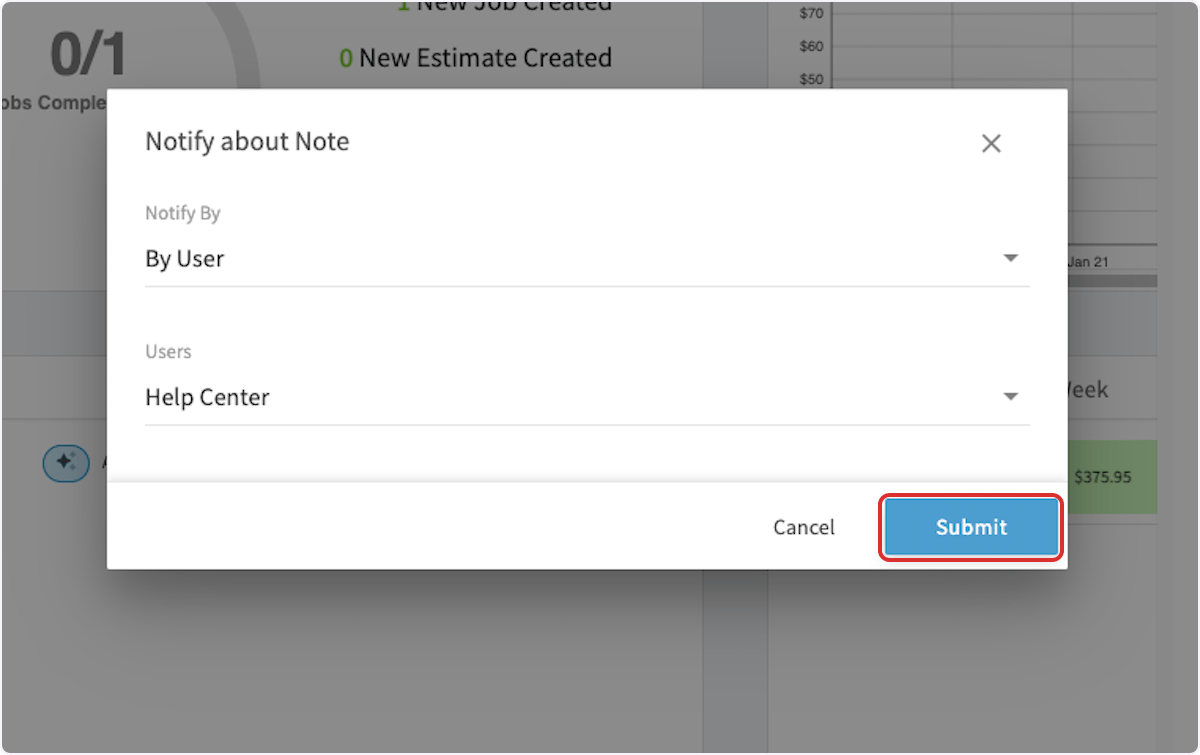
2. In the **Notify about Note** window, set **Notify By** to notify by role type or by individual user.
3. Choose the roles or the users to notify.
4. Select **Submit**.
## Notify teammates about a note
Notifying sends a notification about the note to the teammates you select, either by role type or by individual user.
1. On the saved note, select **Notify**.
2. In the **Notify about Note** window, set **Notify By** to notify by role type or by individual user.
3. Choose the roles or the users to notify.
4. Select **Submit**.
 FieldPulse sends a notification to everyone you selected. The note stays under the section you saved it in, visible to all team members in that section, and its row shows the note text, the date it was saved, and the name of the person who wrote it.
 ## Still need help?
Reach the [FieldPulse support team](https://www.fieldpulse.com/company/contact-us) at [support@fieldpulse.com](mailto:support@fieldpulse.com) or through the chat feature in the bottom-right corner of your screen.
## Related articles
* [Reminders Overview](/settings/app-preferences/reminders)
* [Notifications Overview](/settings/notifications/notifications-master-guide)
* [Internal Activity Overview](/settings/app-preferences/internal-activity)
Your note is working when it appears under the section you scoped it to and the teammates you selected receive their notification.
## Related topics
- [Reminders Overview](/settings/app-preferences/reminders.md)
- [Internal Activity Overview](/settings/app-preferences/internal-activity.md)
- [App Preferences](/settings/app-preferences/index.md)
- [Notifications Overview](/settings/notifications/notifications-master-guide.md)
## Still need help?
Reach the [FieldPulse support team](https://www.fieldpulse.com/company/contact-us) at [support@fieldpulse.com](mailto:support@fieldpulse.com) or through the chat feature in the bottom-right corner of your screen.
## Related articles
* [Reminders Overview](/settings/app-preferences/reminders)
* [Notifications Overview](/settings/notifications/notifications-master-guide)
* [Internal Activity Overview](/settings/app-preferences/internal-activity)
Your note is working when it appears under the section you scoped it to and the teammates you selected receive their notification.
## Related topics
- [Reminders Overview](/settings/app-preferences/reminders.md)
- [Internal Activity Overview](/settings/app-preferences/internal-activity.md)
- [App Preferences](/settings/app-preferences/index.md)
- [Notifications Overview](/settings/notifications/notifications-master-guide.md)