> ## Documentation Index
> Fetch the complete documentation index at: https://help.fieldpulse.com/llms.txt
> Use this file to discover all available pages before exploring further.
# Booking Portal: What Your Customer Sees
> See your customer-facing scheduling page as a client does, from picking a service to choosing a time slot and submitting the request.
# Overview
The Booking Portal is often the first impression a new customer has of your business. This article walks through the full booking experience from landing on your portal to submitting a request, exactly as your customer sees it.
***
# Booking Portal Experience
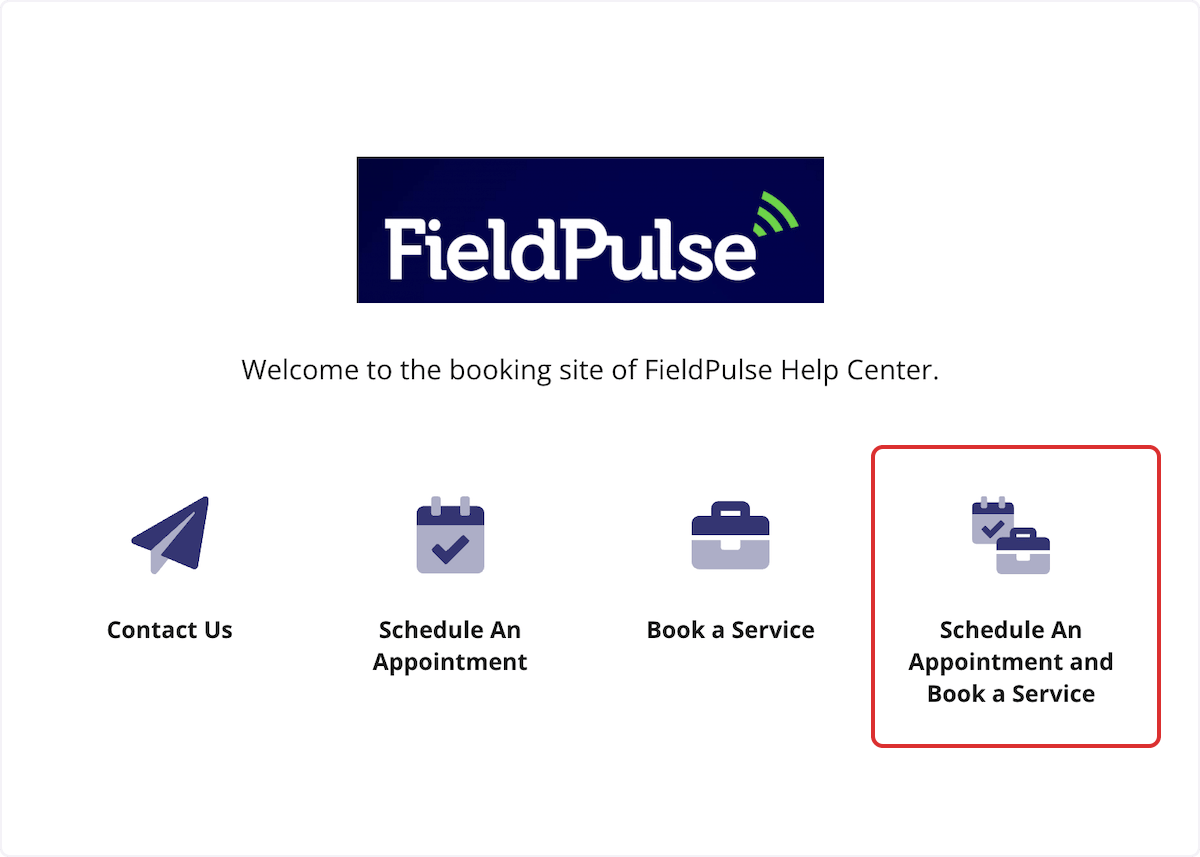
The Booking Portal is your customer-facing scheduling page. New and existing customers can visit it to contact you, request a service, or book a specific time slot.
Here's what they see when they land on your portal:
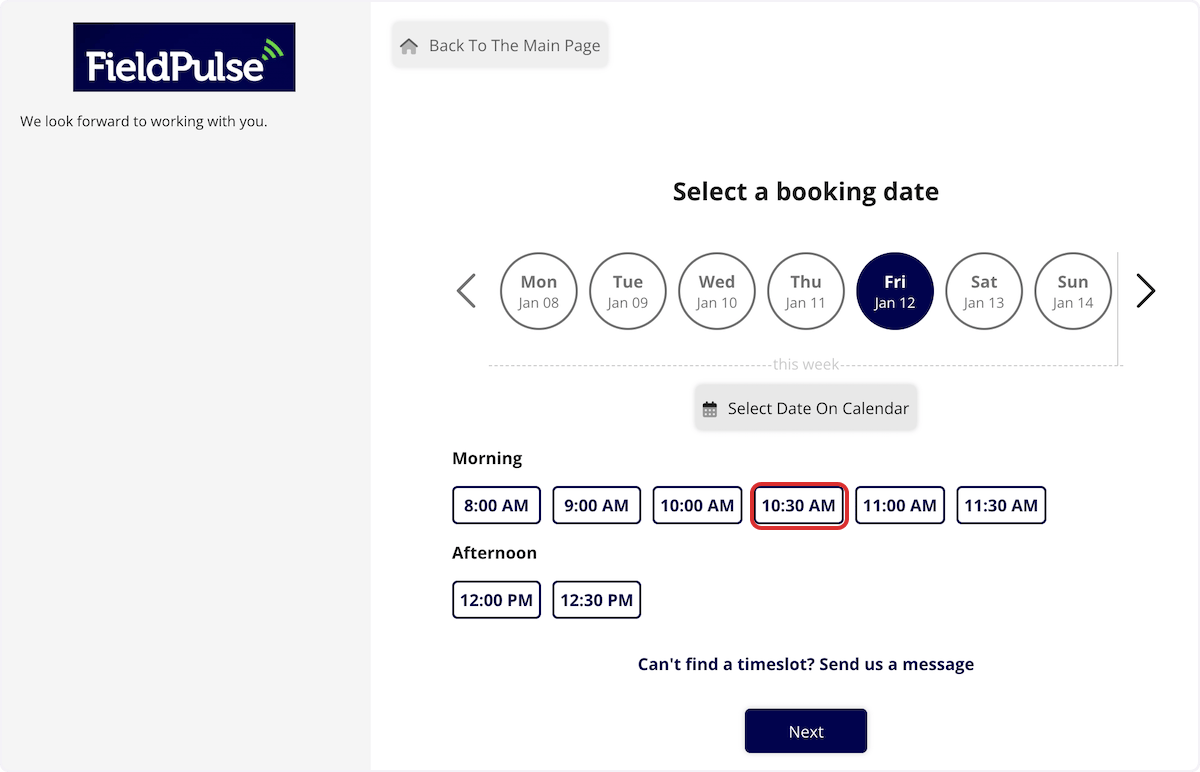
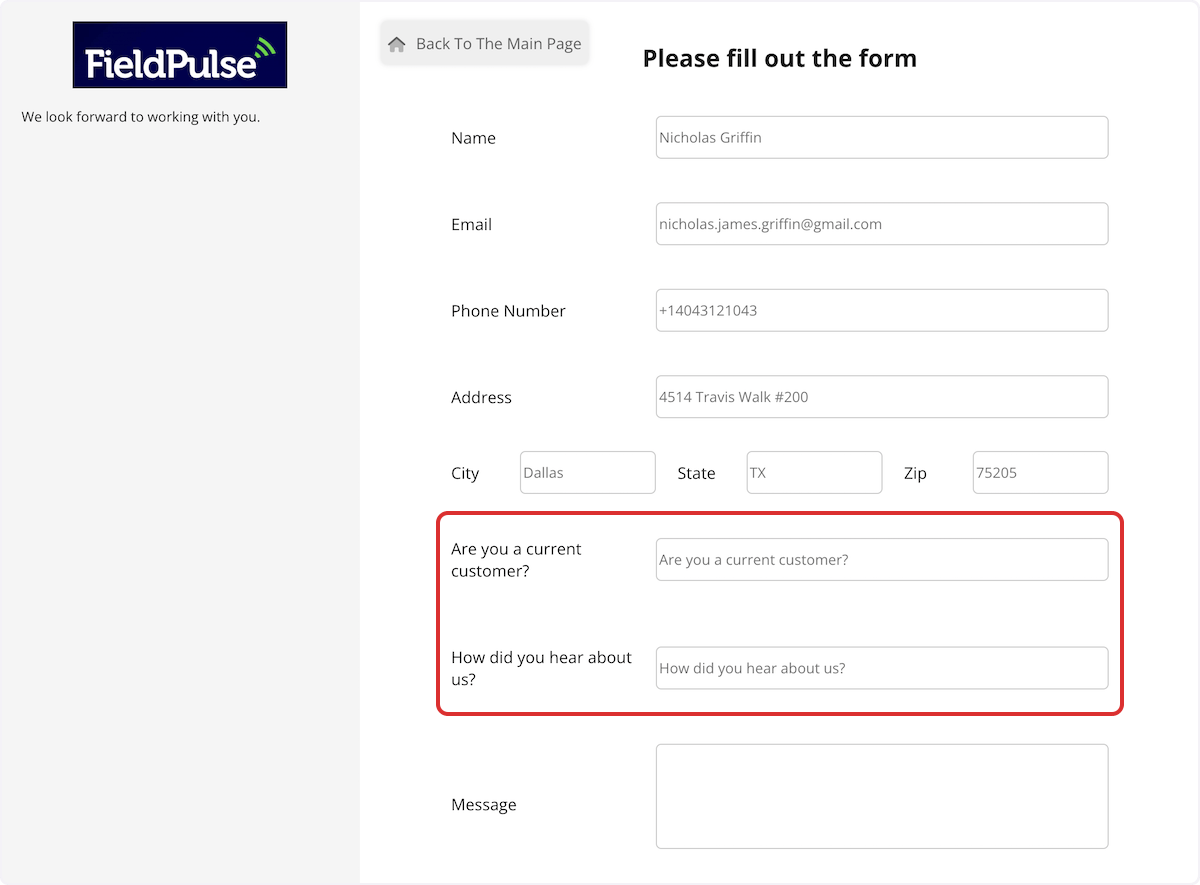
 After selecting a service, they choose a time slot (if you've enabled scheduling) and fill out their contact details. If you've added custom fields, those appear here too.
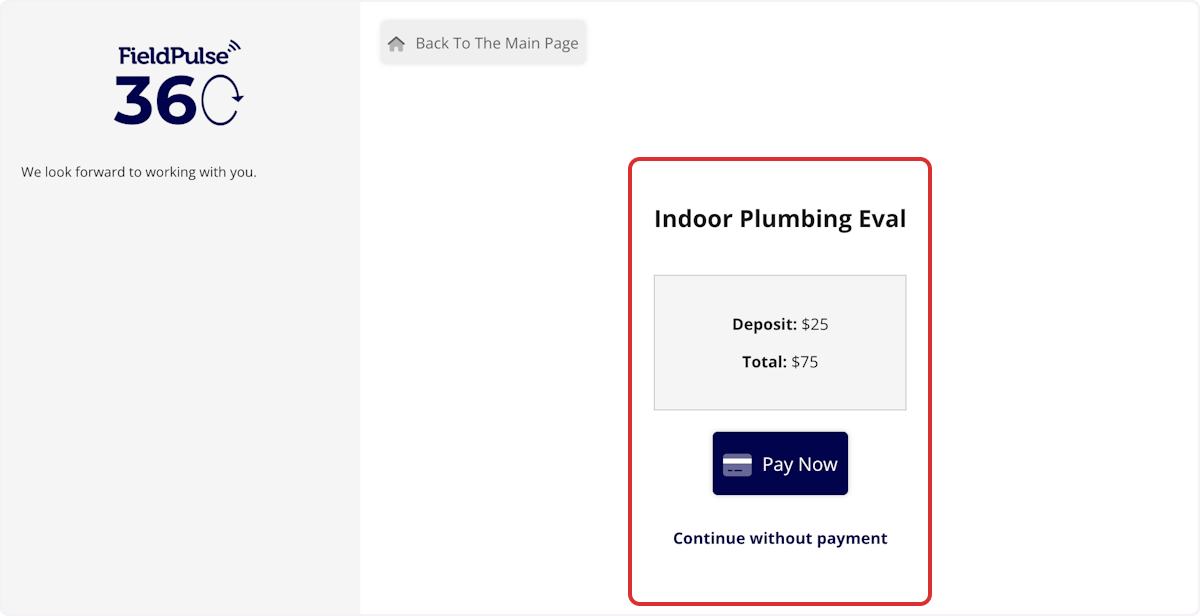
 If a deposit or full payment is required for the selected service, your customer sees a payment step before their booking is confirmed.
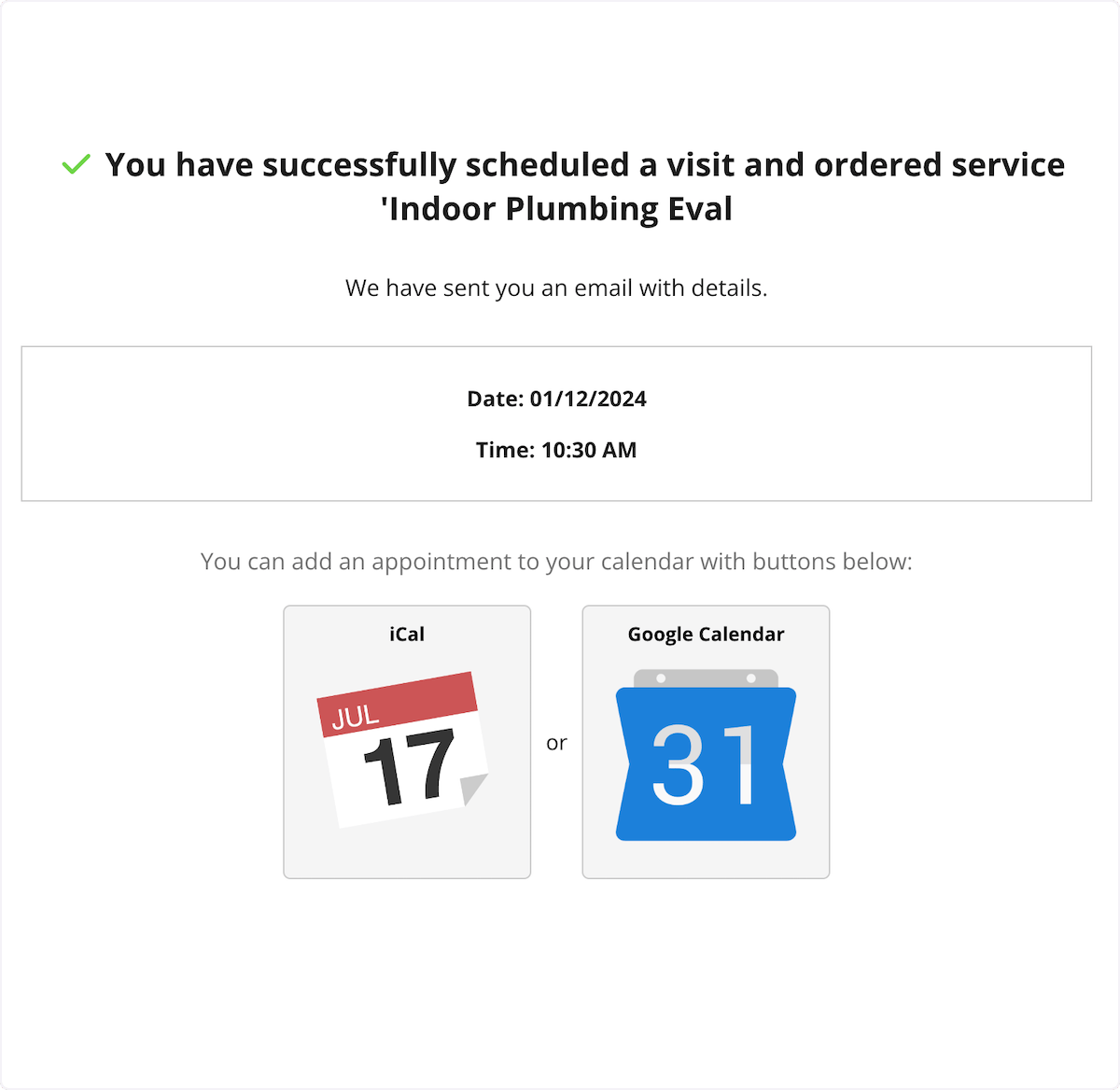
 Once submitted, if you've enabled the confirmation email option, the customer receives an email letting them know their request came through.
 **What's configurable:** Welcome text, service categories, individual services and their pricing display, Smart Scheduler availability rules, custom fields, and whether a confirmation email is sent.
To learn more about the Booking Portal, click [the Booking Portal guide](/using-fieldpulse/work/booking-portal)
***
**Have additional questions?**
*Contact us at [support@fieldpulse.com](mailto:support@fieldpulse.com) or use the chat feature in the bottom right corner of your screen.*
**What's configurable:** Welcome text, service categories, individual services and their pricing display, Smart Scheduler availability rules, custom fields, and whether a confirmation email is sent.
To learn more about the Booking Portal, click [the Booking Portal guide](/using-fieldpulse/work/booking-portal)
***
**Have additional questions?**
*Contact us at [support@fieldpulse.com](mailto:support@fieldpulse.com) or use the chat feature in the bottom right corner of your screen.*