> ## Documentation Index
> Fetch the complete documentation index at: https://help.fieldpulse.com/llms.txt
> Use this file to discover all available pages before exploring further.
# Job Confirmations: What Your Customers See
> See the email and SMS job confirmations clients receive, plus which parts you can customize and when they trigger.
# Overview
Keeping customers informed before you show up sets the tone for the whole job. This article covers what job confirmation messages look like when they land in your customer's inbox or messages, and what you can customize to make them your own.
***
# Job Confirmation Examples
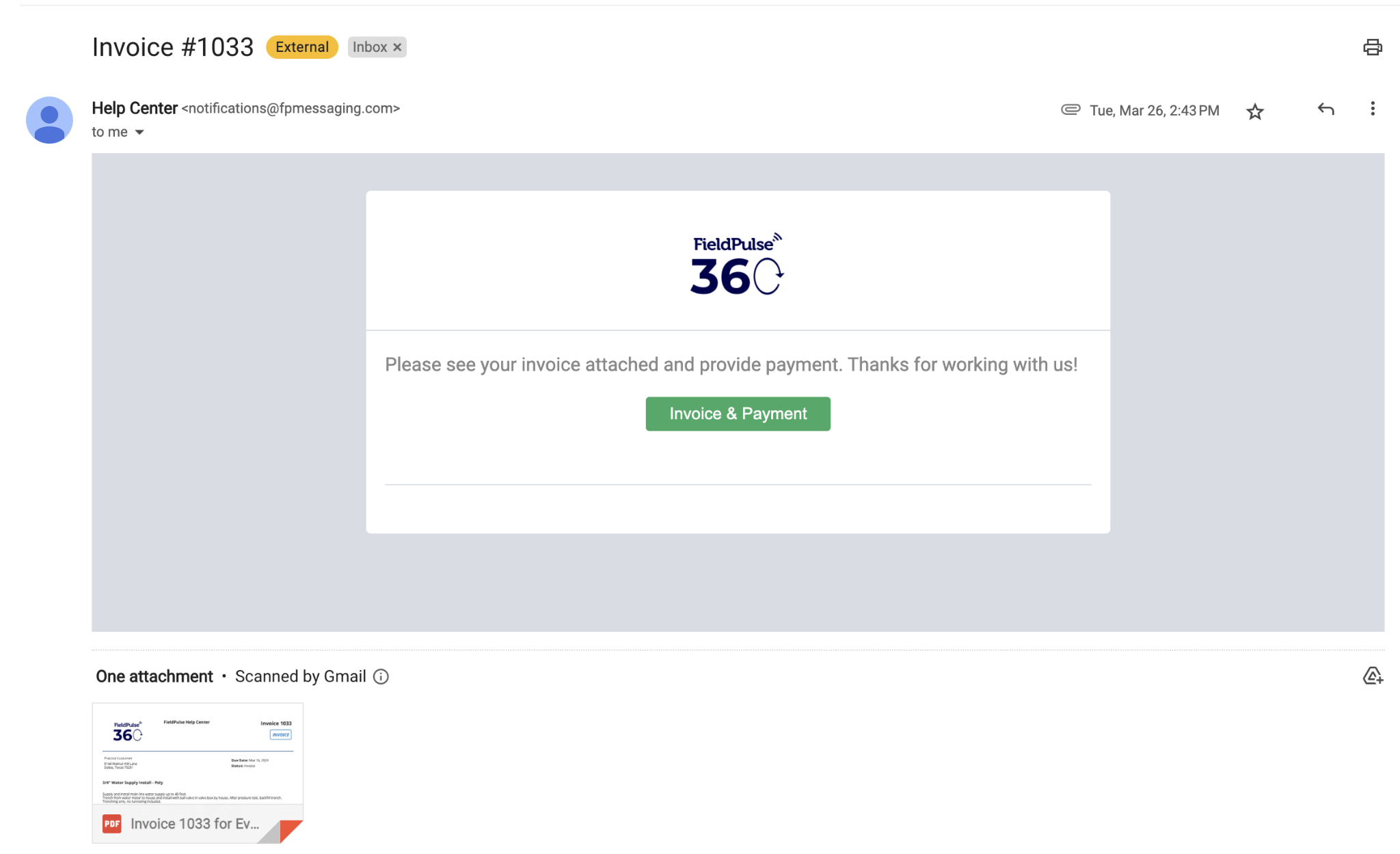
Job confirmations are sent via *Customer Communications* using email or SMS templates you build and trigger automatically. Your customers can receive these when a job is created, scheduled, or at any other custom status that you build.
## Email Example
 ## SMS Example
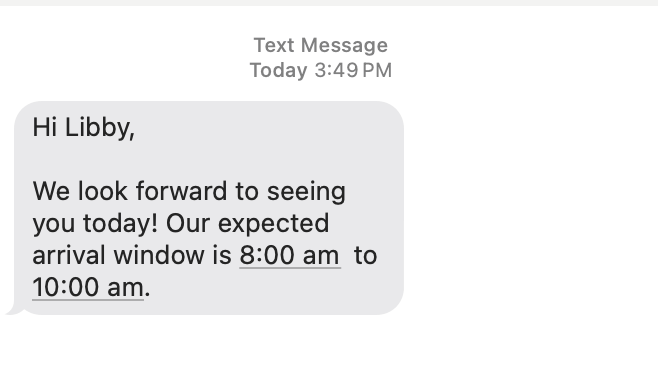 **What's configurable:** Email and SMS template content, field values included, and trigger timing (e.g., X hours before job start).
To learn more about setting up Customer Communications, click [the customer communications setup guide](/using-fieldpulse/communications-notifications/customer-communications)
***
**Have additional questions?**
*Contact us at [support@fieldpulse.com](mailto:support@fieldpulse.com) or use the chat feature in the bottom right corner of your screen.*
**What's configurable:** Email and SMS template content, field values included, and trigger timing (e.g., X hours before job start).
To learn more about setting up Customer Communications, click [the customer communications setup guide](/using-fieldpulse/communications-notifications/customer-communications)
***
**Have additional questions?**
*Contact us at [support@fieldpulse.com](mailto:support@fieldpulse.com) or use the chat feature in the bottom right corner of your screen.*