> ## Documentation Index
> Fetch the complete documentation index at: https://help.fieldpulse.com/llms.txt
> Use this file to discover all available pages before exploring further.
# Saving a Card on File
> Store a customer's card as a tokenized token on file so repeat charges and recurring work go through without re-entry.
You can now securely store your customer's credit card information in FieldPulse! When storing the card, the credit card number will be tokenized to protect your customer's information. *(**Note:** You must have [FieldPulse Payments](/using-fieldpulse/payments/start-here/fieldpulse-payments) enabled.)*
***
# Adding a Card When Accepting Payment
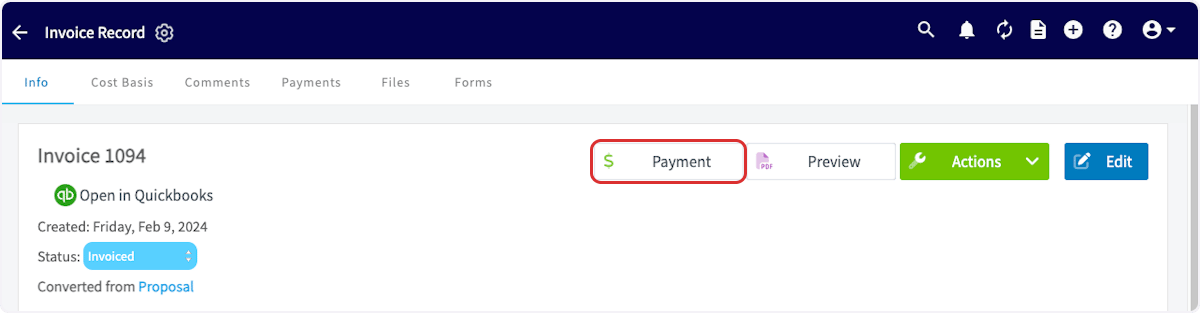
To add a card on file when accepting payment, begin by selecting the *Payment* button.
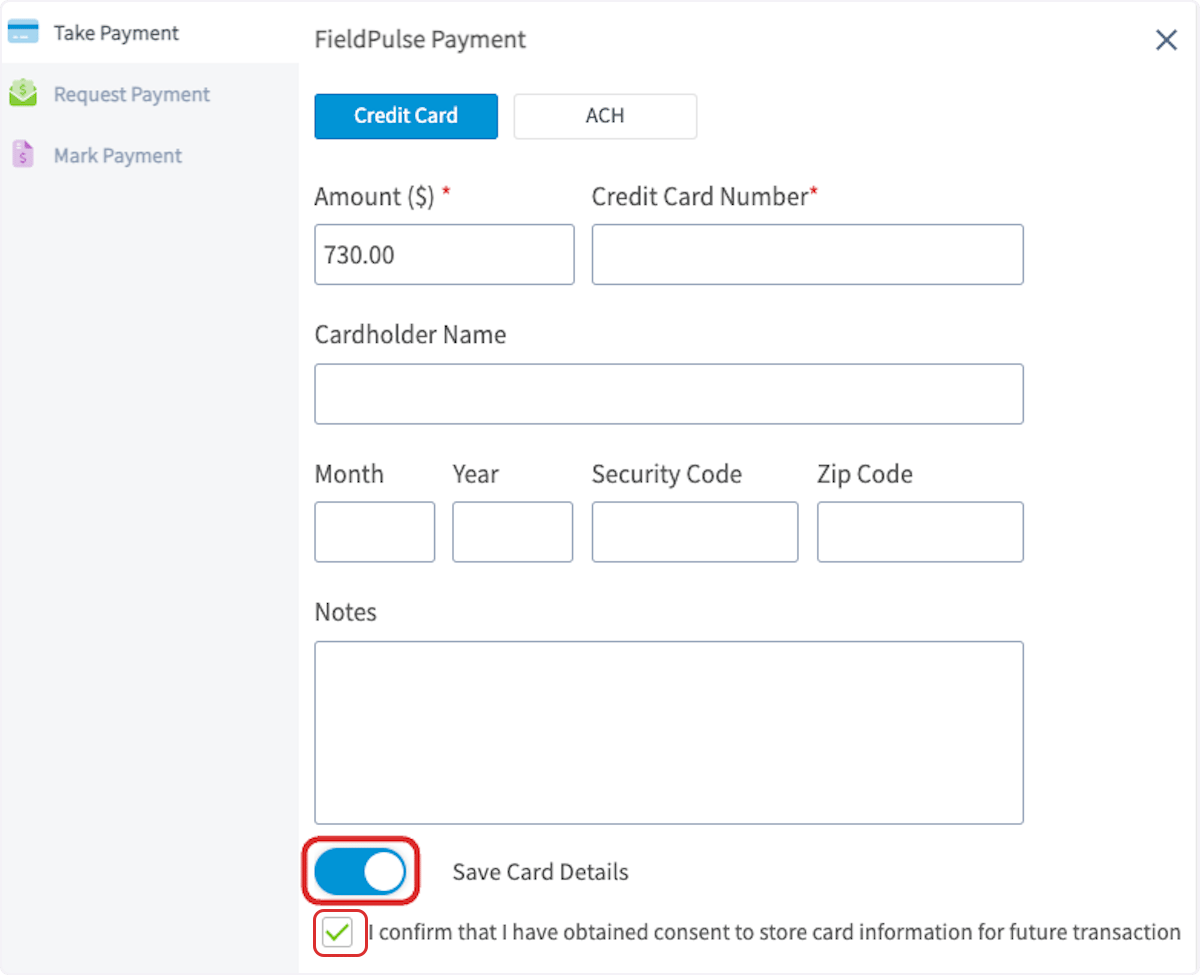
 Next, add the credit card details and toggle on *Save Card Details*. You will then be prompted to confirm that you have obtained consent from the customer to store their card information. After checking this box, you can charge the card.
Your transaction will now be processed, and the card details will be stored on the customer's record for future transactions.
Next, add the credit card details and toggle on *Save Card Details*. You will then be prompted to confirm that you have obtained consent from the customer to store their card information. After checking this box, you can charge the card.
Your transaction will now be processed, and the card details will be stored on the customer's record for future transactions.
 ***
# Charging a Card on File
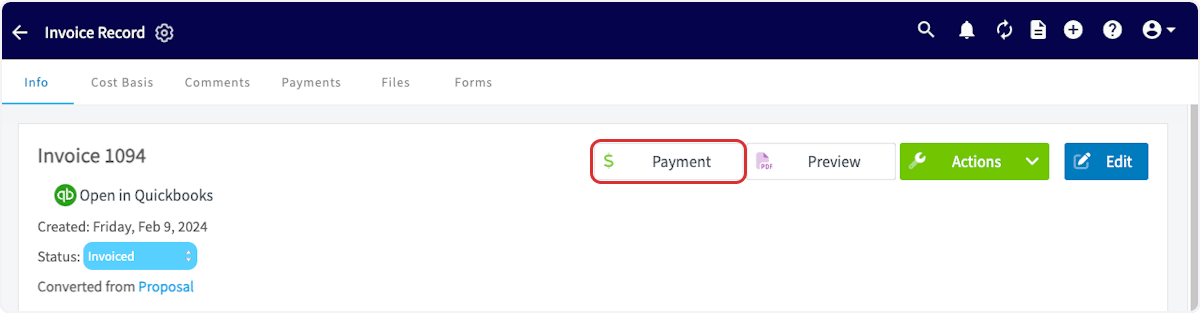
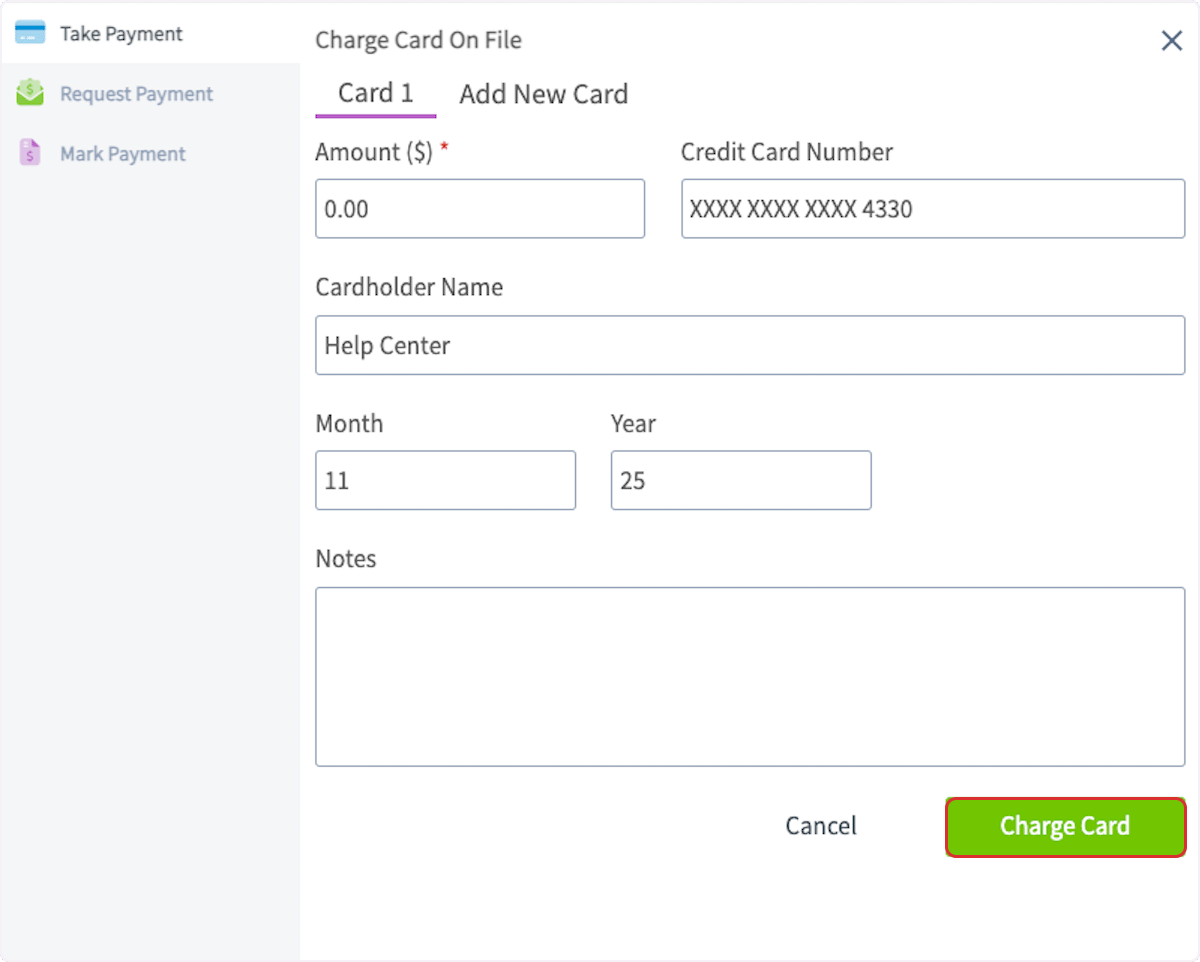
To charge a card on file, select *Payment*, then *Charge Card on File*.
***
# Charging a Card on File
To charge a card on file, select *Payment*, then *Charge Card on File*.
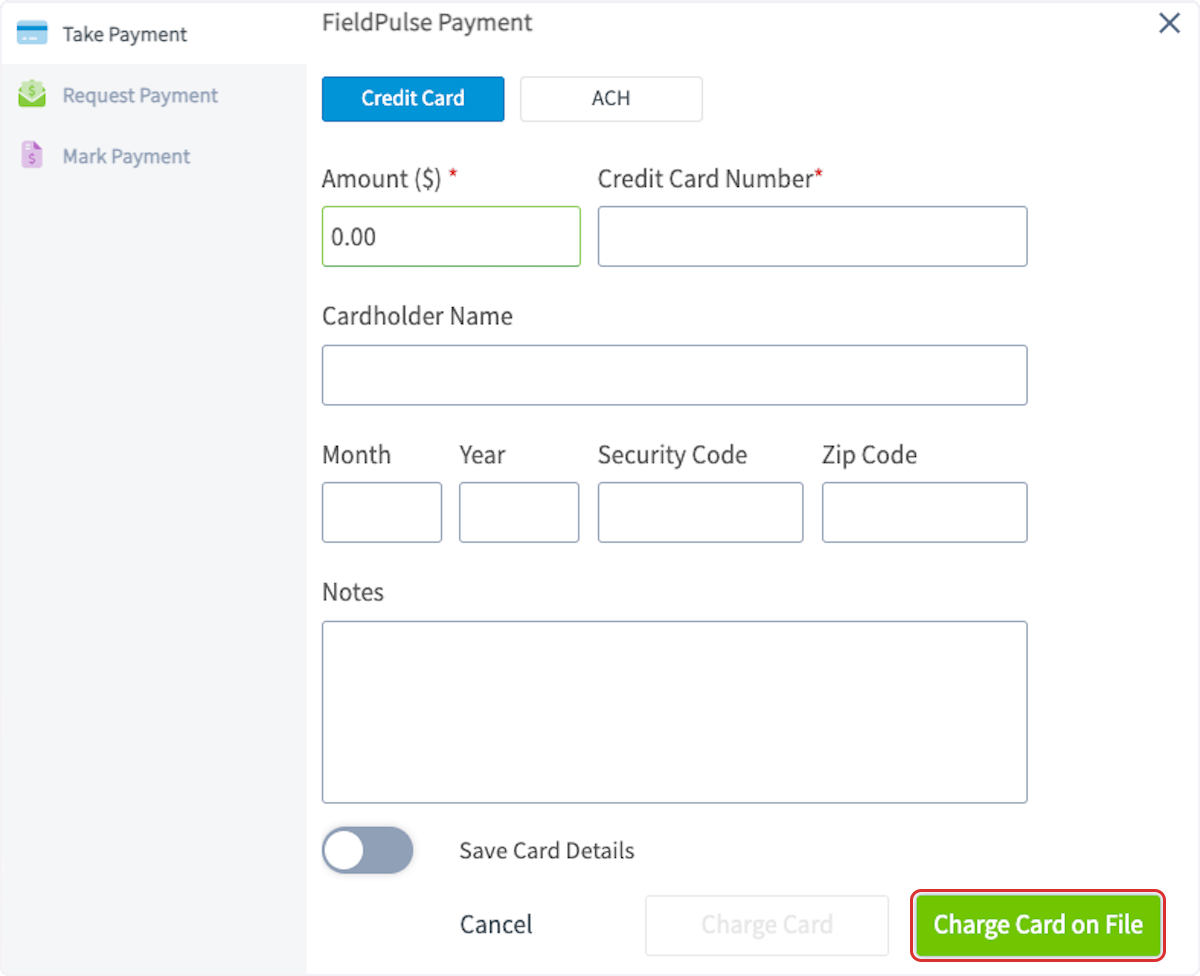 The card details will be auto-populated. Note that the credit card number is tokenized to protect your customer's information. You can now charge this card or select *Add New Card* to add another card on file for this customer.
 ***
# Adding a Card to a Customer Record
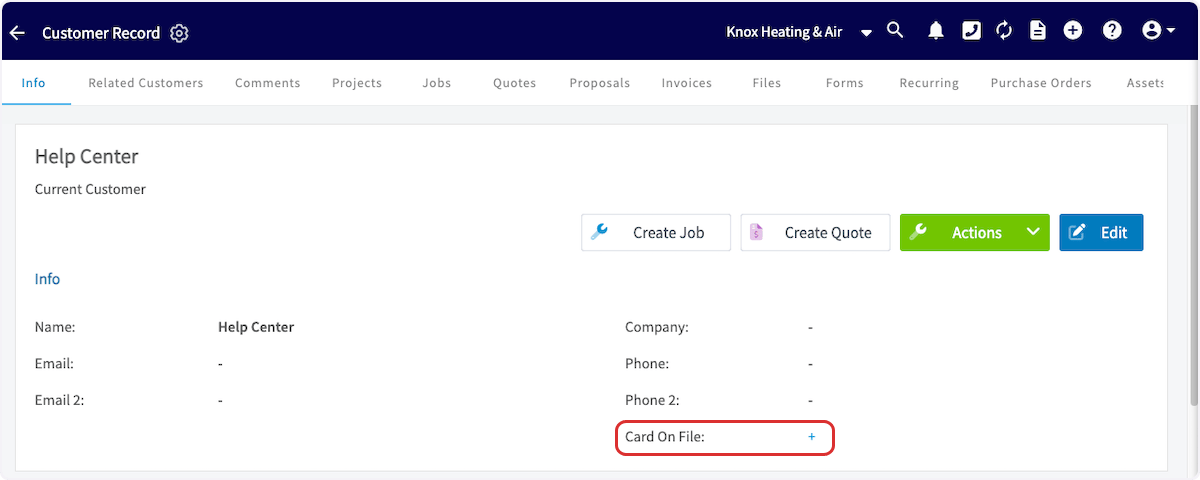
To add a credit card on file, navigate to the customer record and select the plus sign next to *Card on File*. You can then add a credit card to be securely stored for future use.
***
# Adding a Card to a Customer Record
To add a credit card on file, navigate to the customer record and select the plus sign next to *Card on File*. You can then add a credit card to be securely stored for future use.
 ***
# Recurring Jobs & Billing with a Card on File
When a card on file is deleted from a customer record, it is not automatically removed from existing recurring invoices.
To stop automatic payments, you must open each recurring invoice and manually remove the card on file associated with that invoice record.
***
# Mobile App
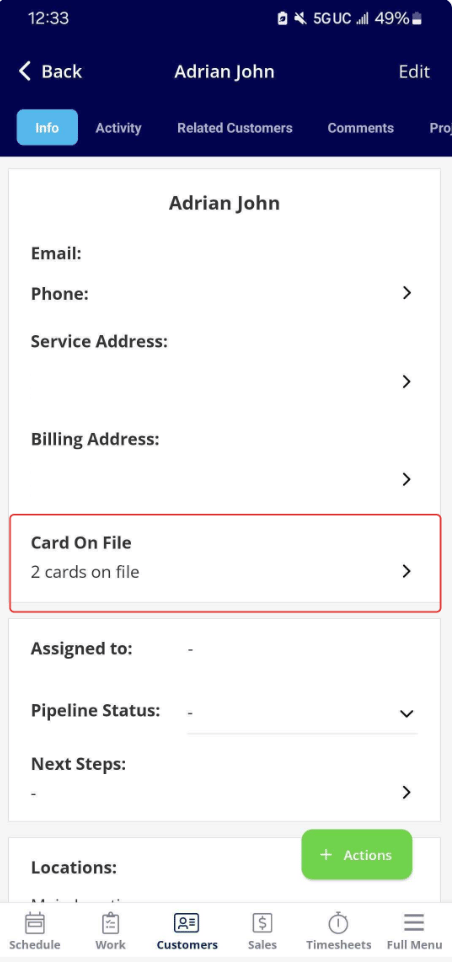
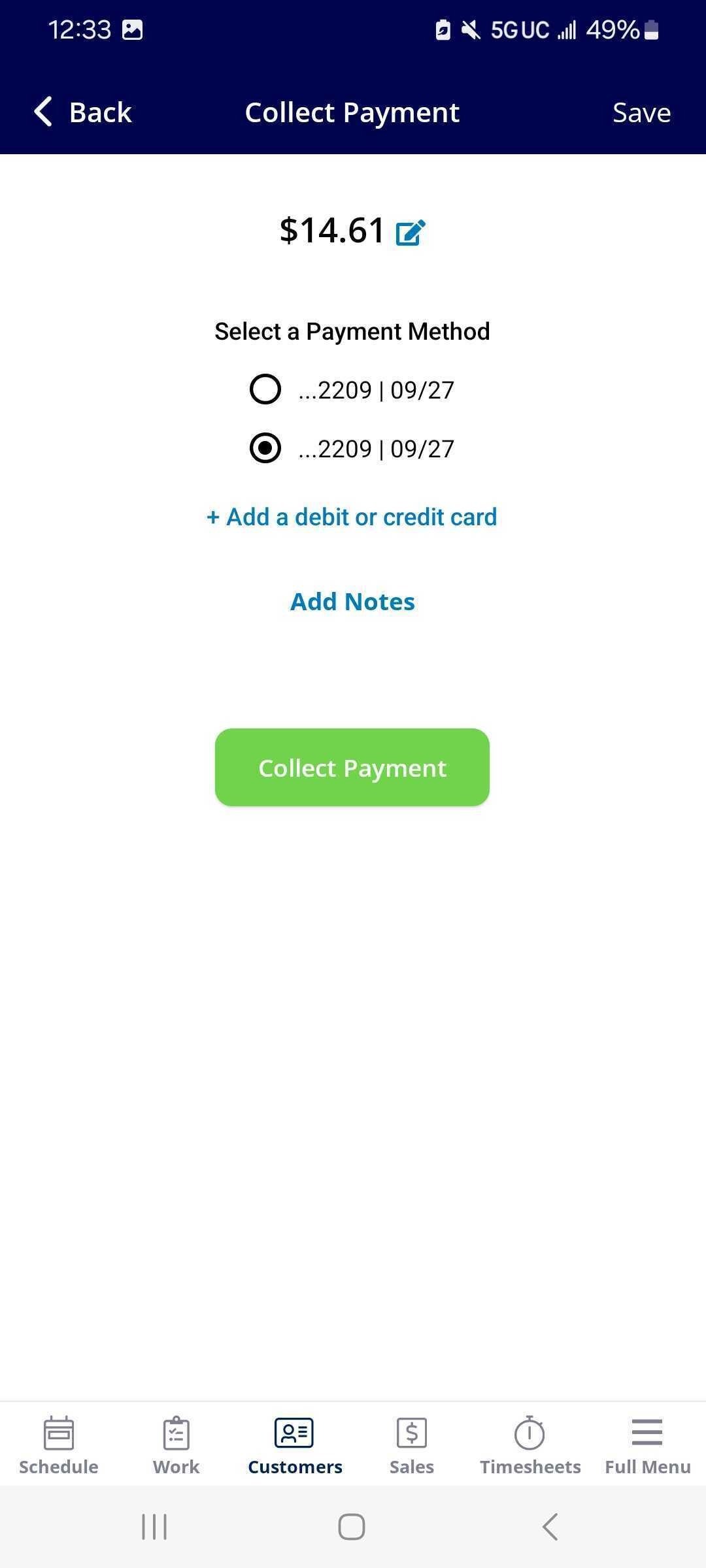
Users can now save cards on file in the mobile app, in addition to the web app. Save multiple cards on a customer profile by going directly to the customer's profile or at the time of collecting payment. If there are multiple cards on file, the FieldPulse user can select which one to charge.
***
# Recurring Jobs & Billing with a Card on File
When a card on file is deleted from a customer record, it is not automatically removed from existing recurring invoices.
To stop automatic payments, you must open each recurring invoice and manually remove the card on file associated with that invoice record.
***
# Mobile App
Users can now save cards on file in the mobile app, in addition to the web app. Save multiple cards on a customer profile by going directly to the customer's profile or at the time of collecting payment. If there are multiple cards on file, the FieldPulse user can select which one to charge.
 ***
# Video Tutorial
***
# FAQs
**Can cards on file be edited?**
No, at this time any card you have on file cannot be edited.
**How do I delete a card on file?**
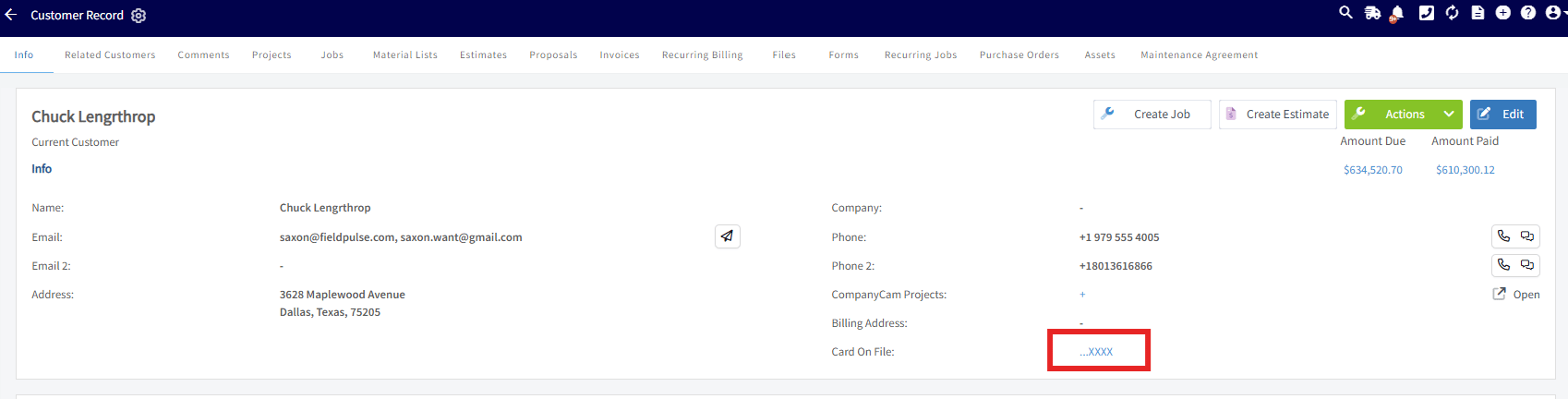
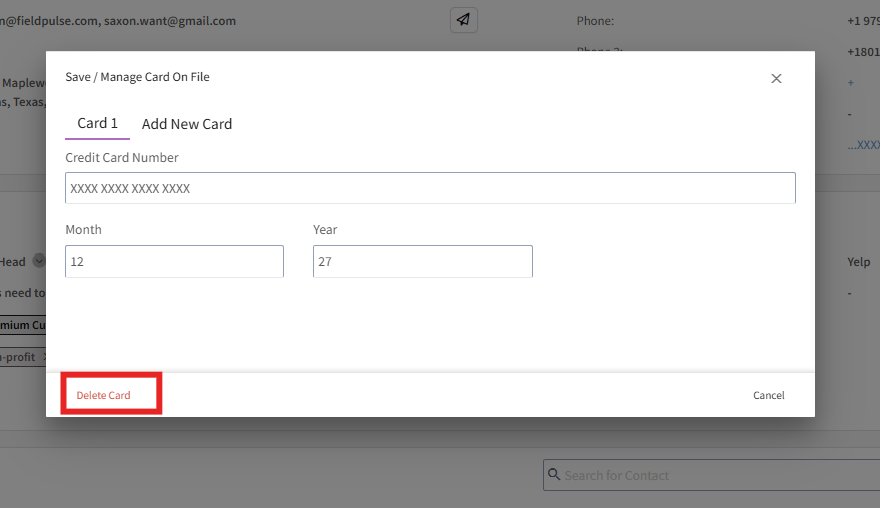
To delete a card on file, navigate to the Customer record. Click on the card you have on file and then click delete.
***
# Video Tutorial
***
# FAQs
**Can cards on file be edited?**
No, at this time any card you have on file cannot be edited.
**How do I delete a card on file?**
To delete a card on file, navigate to the Customer record. Click on the card you have on file and then click delete.
 ***
**Have additional questions?**
*Contact us at [support@fieldpulse.com](mailto:support@fieldpulse.com) or use the chat feature in the bottom right corner of your screen.*
***
**Have additional questions?**
*Contact us at [support@fieldpulse.com](mailto:support@fieldpulse.com) or use the chat feature in the bottom right corner of your screen.*