> ## Documentation Index
> Fetch the complete documentation index at: https://help.fieldpulse.com/llms.txt
> Use this file to discover all available pages before exploring further.

# Flat Rate Job Commissions

> Assign a fixed dollar spiff to a Pricebook job so techs earn a set bonus for selling a specific service or item.

This Flat Rate Job Commission feature simplifies how you manage sales incentives: *flat-rate commissions.* This model allows you to assign a specific dollar amount to a job, providing a clear and straightforward way to compensate your team. These are often used as *spiffs*—one-off bonuses for selling a particular service or item.

***

# How It Works

Currently, you can build these spiffs directly into your Pricebook as Flat Rate Jobs, which can contain a single item or multiple items. Once the commission is created in your Pricebook, the workflow for your team is simple.

## **Here’s the current workflow:**

**Step 1: Set Up the Job in Your Pricebook**

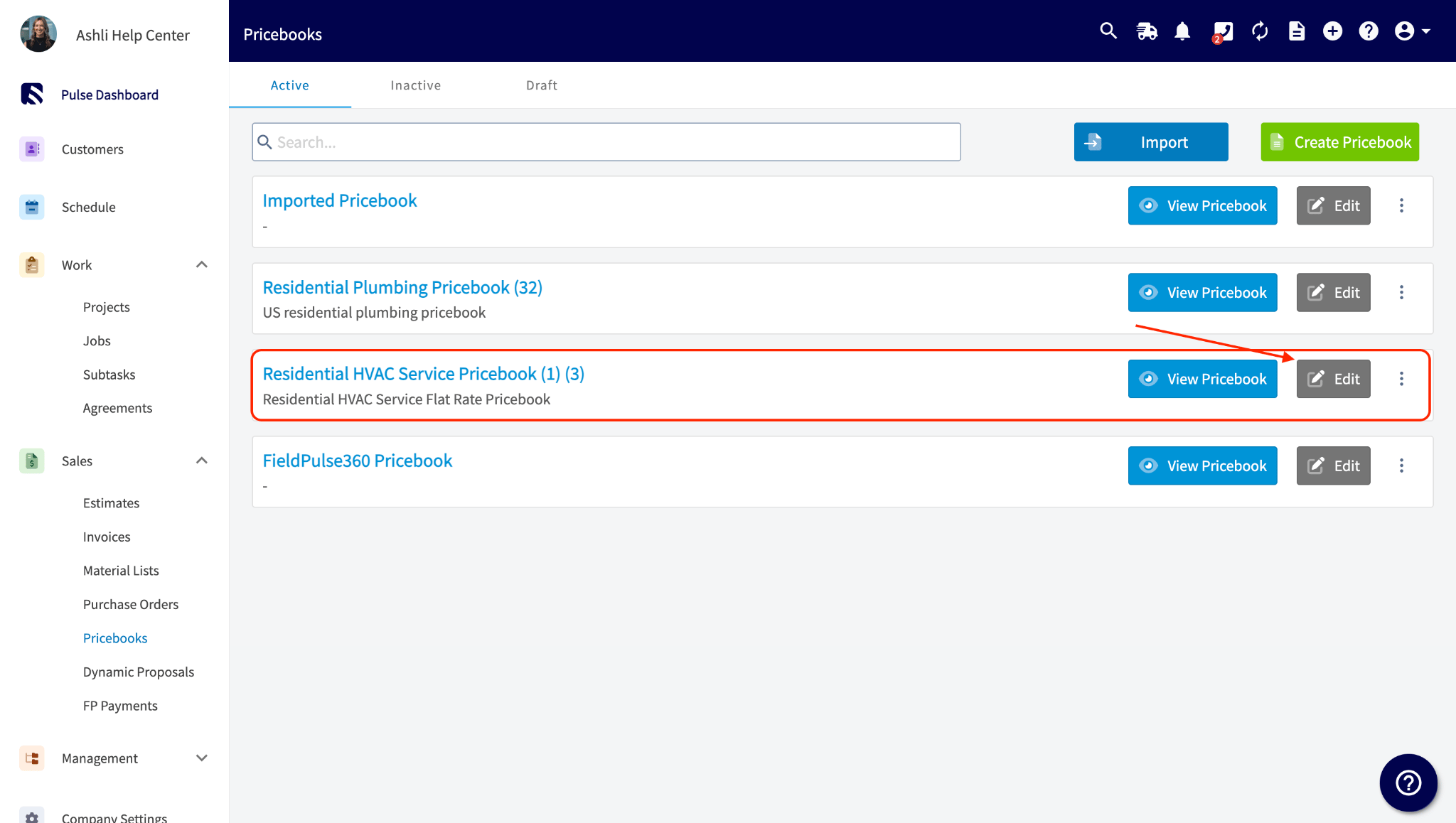
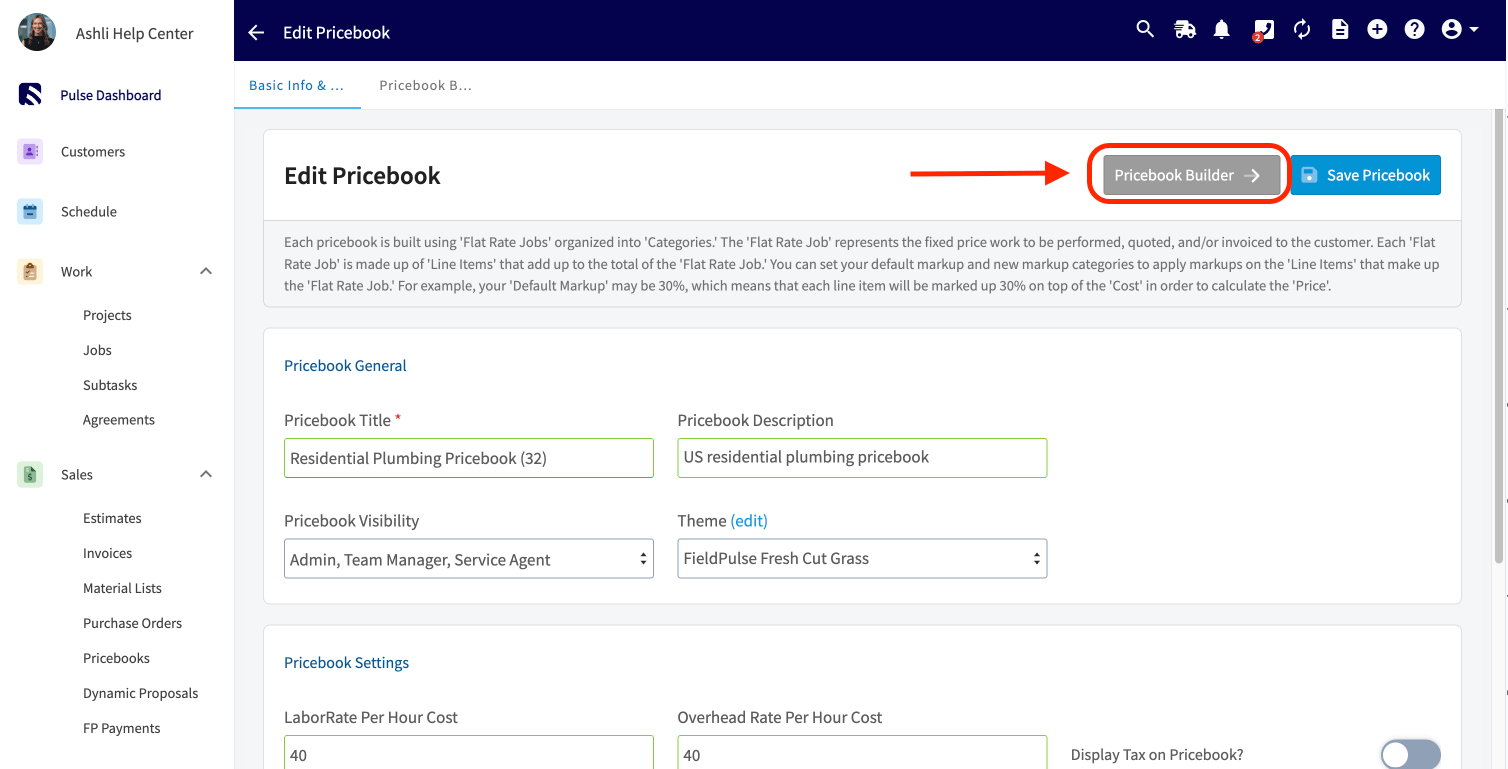
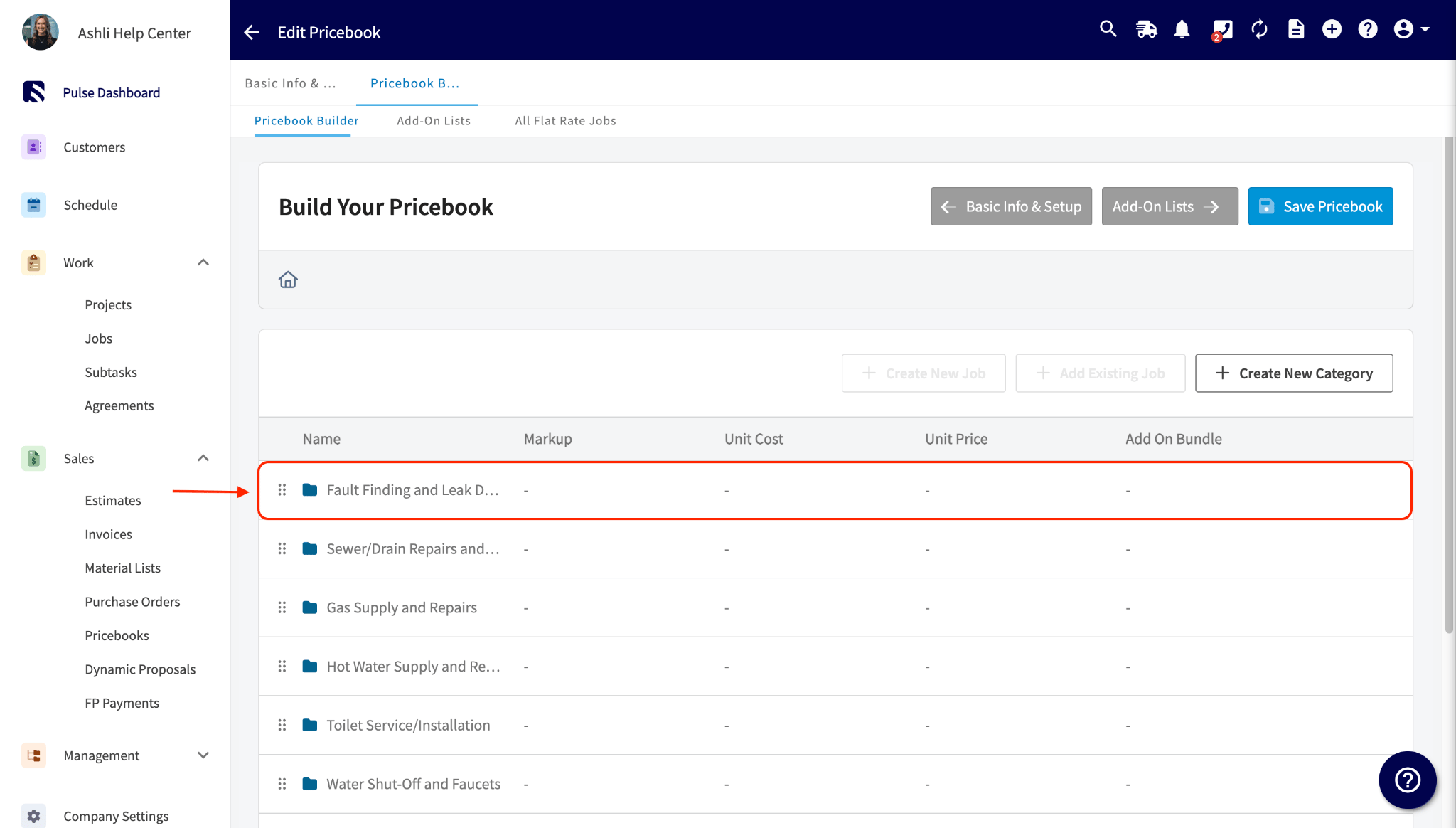
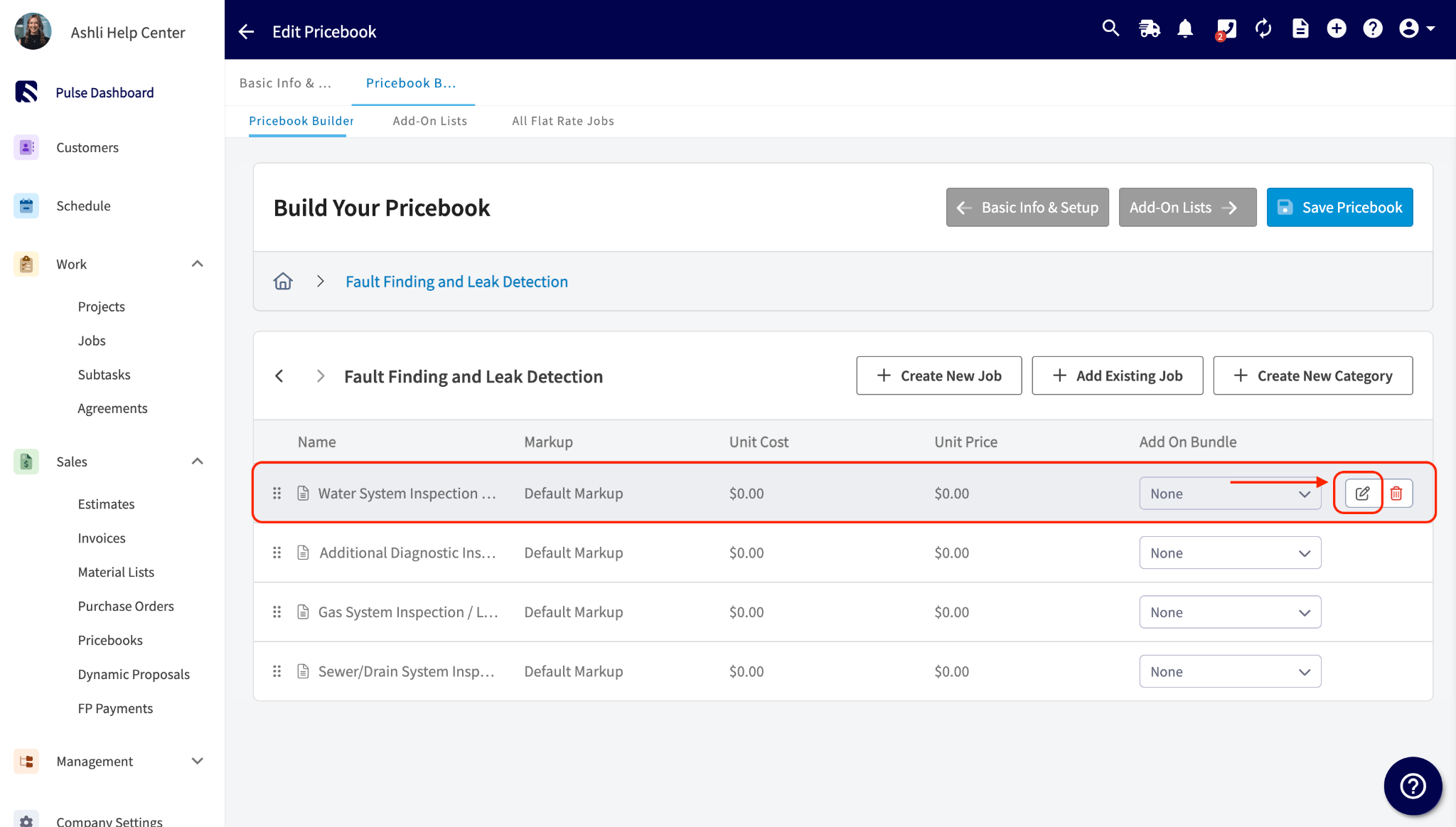
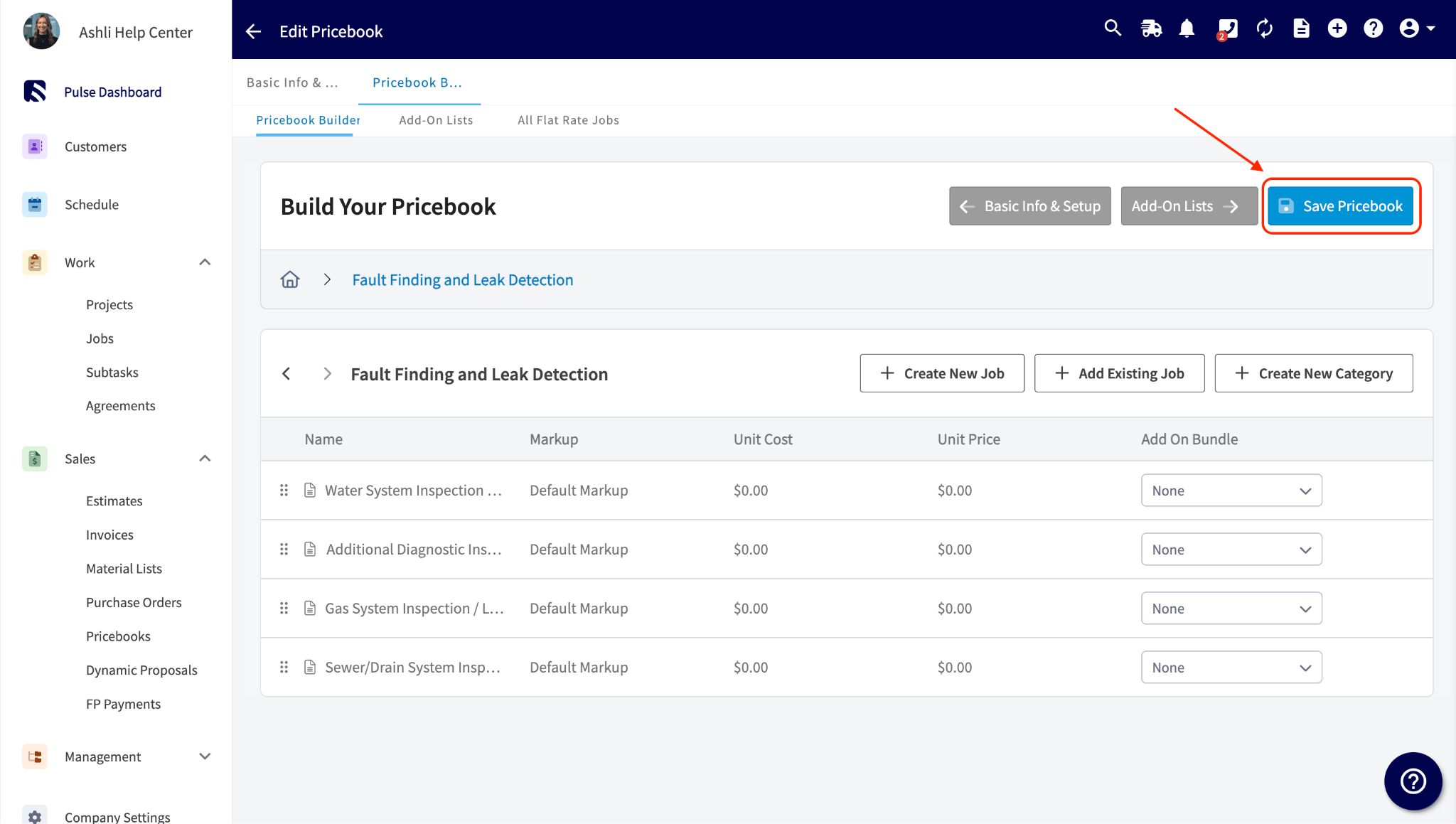
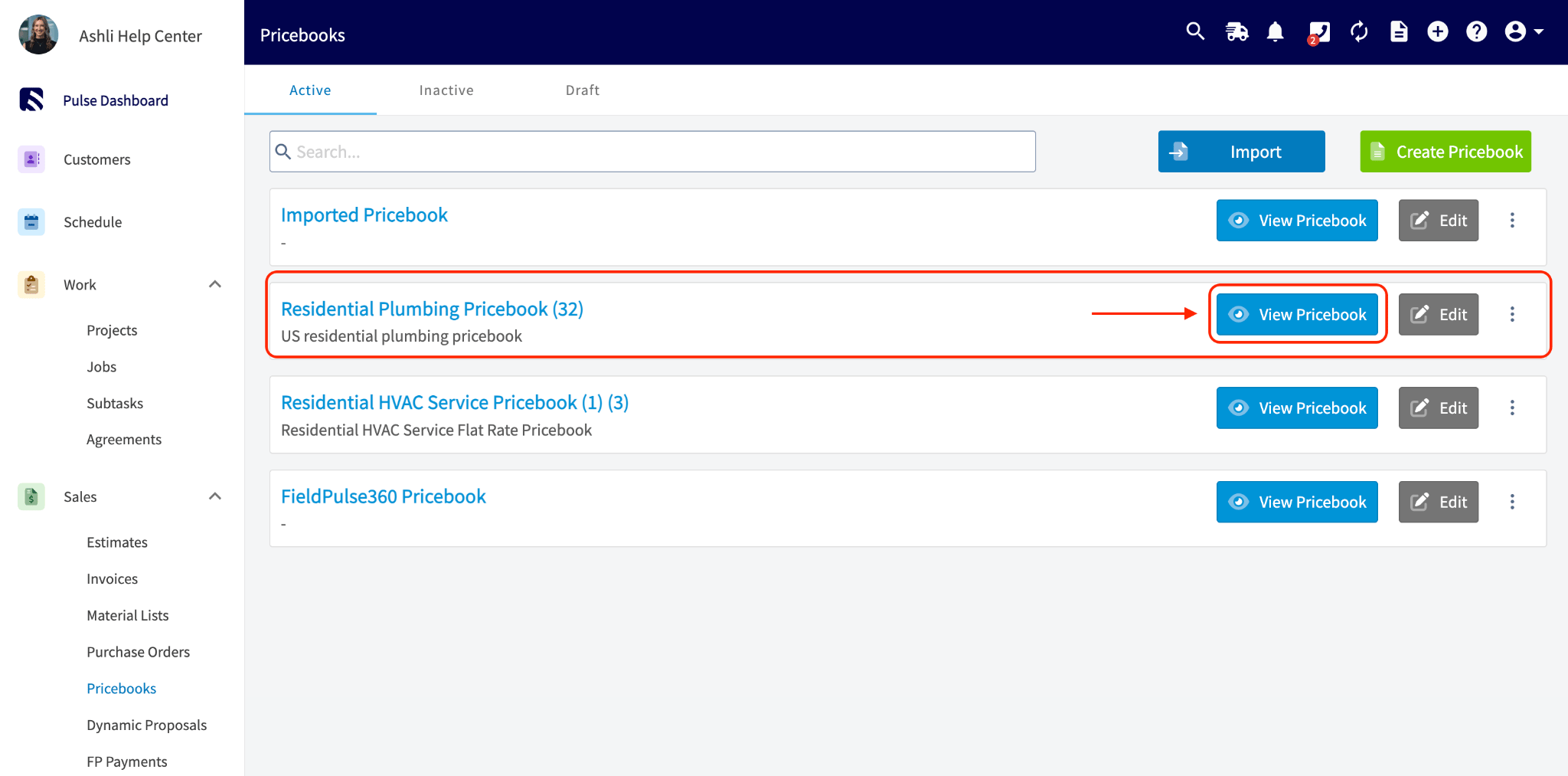
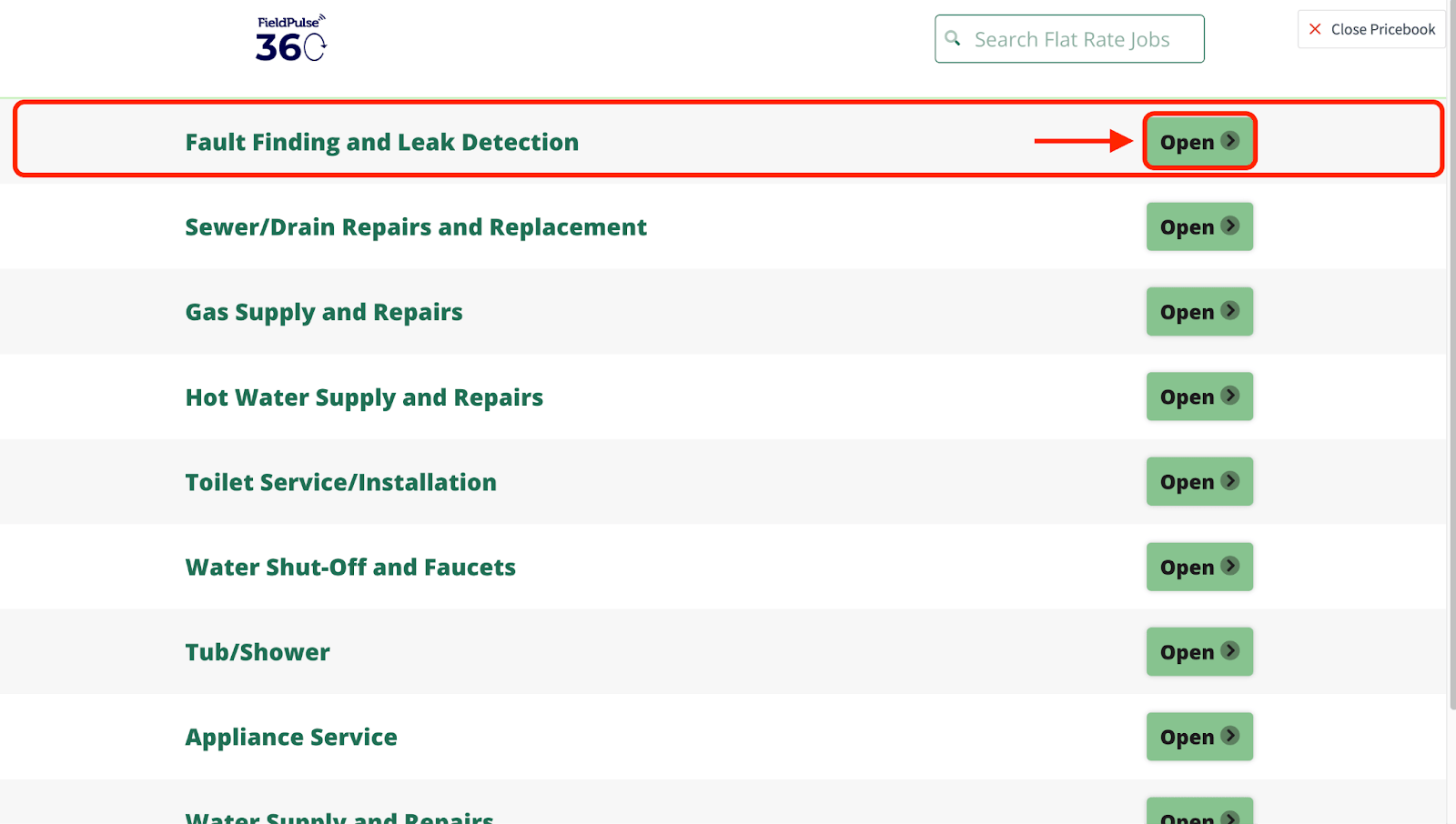
First, open your Pricebook and select the flat-rate job you want to edit.
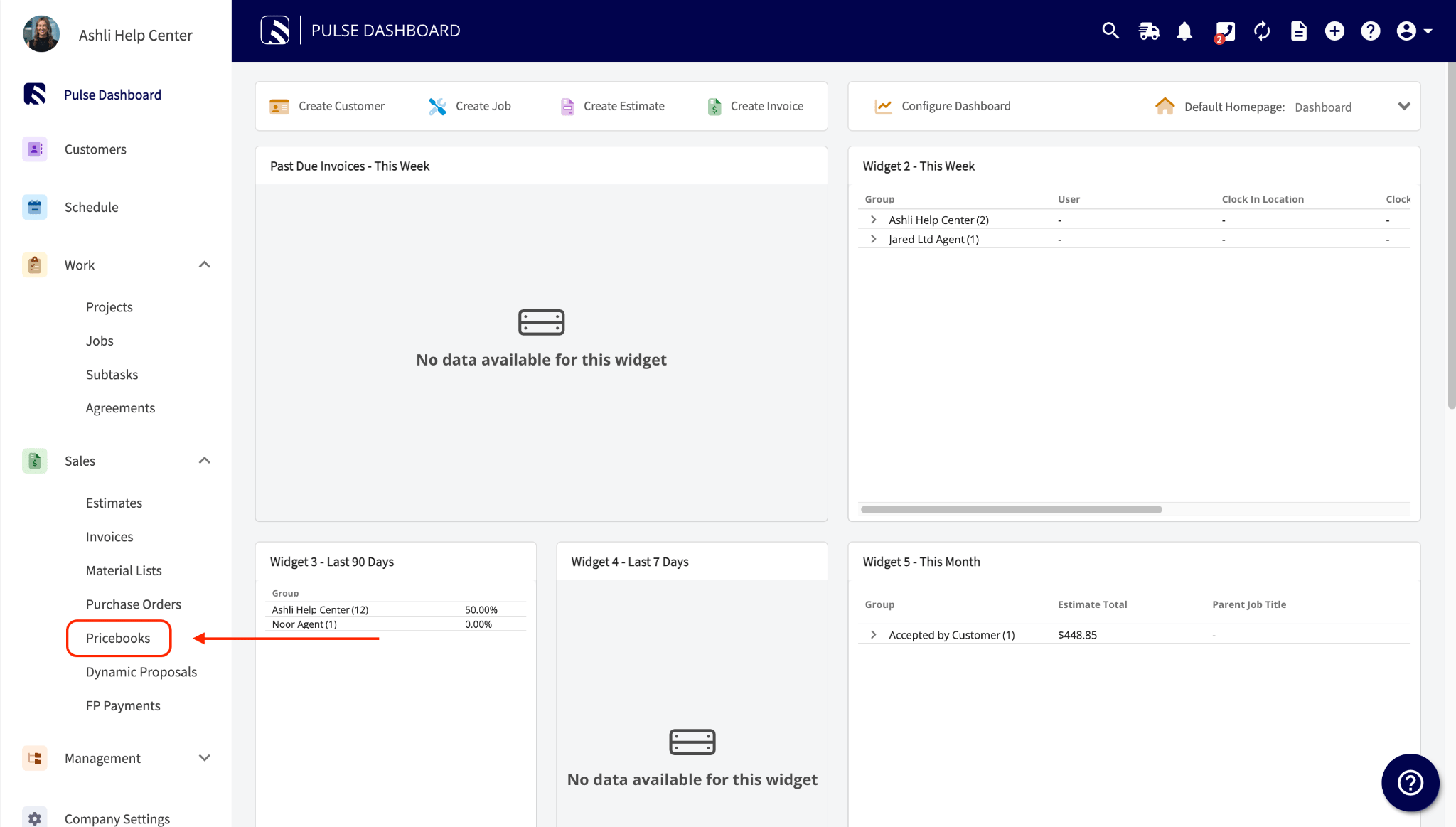
<img src="https://mintcdn.com/fieldpulse/5vBkBwKkjM33v_A9/static/images/_api/12525029-flat-rate-job-commissions/01.png?fit=max&auto=format&n=5vBkBwKkjM33v_A9&q=85&s=96ab3d21c56ca0c9023fb40aed8a88ce" alt="Pricebook open with a flat-rate job selected for editing" width="2048" height="1163" data-path="static/images/_api/12525029-flat-rate-job-commissions/01.png" />

<img src="https://mintcdn.com/fieldpulse/5vBkBwKkjM33v_A9/static/images/_api/12525029-flat-rate-job-commissions/02.png?fit=max&auto=format&n=5vBkBwKkjM33v_A9&q=85&s=a28bbe85162b641885572ed00ba5aaf7" alt="Selecting a flat-rate job to edit in the Pricebook" width="2048" height="1158" data-path="static/images/_api/12525029-flat-rate-job-commissions/02.png" />

<img src="https://mintcdn.com/fieldpulse/5vBkBwKkjM33v_A9/static/images/_api/12525029-flat-rate-job-commissions/03.png?fit=max&auto=format&n=5vBkBwKkjM33v_A9&q=85&s=e92d305f8c0c523520ca78e70234c591" alt="Flat-rate job details in the Pricebook editor" width="1508" height="769" data-path="static/images/_api/12525029-flat-rate-job-commissions/03.png" />

<img src="https://mintcdn.com/fieldpulse/5vBkBwKkjM33v_A9/static/images/_api/12525029-flat-rate-job-commissions/04.png?fit=max&auto=format&n=5vBkBwKkjM33v_A9&q=85&s=ab055ca9ad16c41c92f077cf1802c280" alt="Editing flat-rate job settings in the Pricebook" width="2048" height="1164" data-path="static/images/_api/12525029-flat-rate-job-commissions/04.png" />

<img src="https://mintcdn.com/fieldpulse/5vBkBwKkjM33v_A9/static/images/_api/12525029-flat-rate-job-commissions/05.png?fit=max&auto=format&n=5vBkBwKkjM33v_A9&q=85&s=cbf84dfccbae107a35ebb37beea23423" alt="Flat-rate job edit view before assigning a commission" width="2048" height="1163" data-path="static/images/_api/12525029-flat-rate-job-commissions/05.png" />

**Step 2: Assign the Commission to the Job**

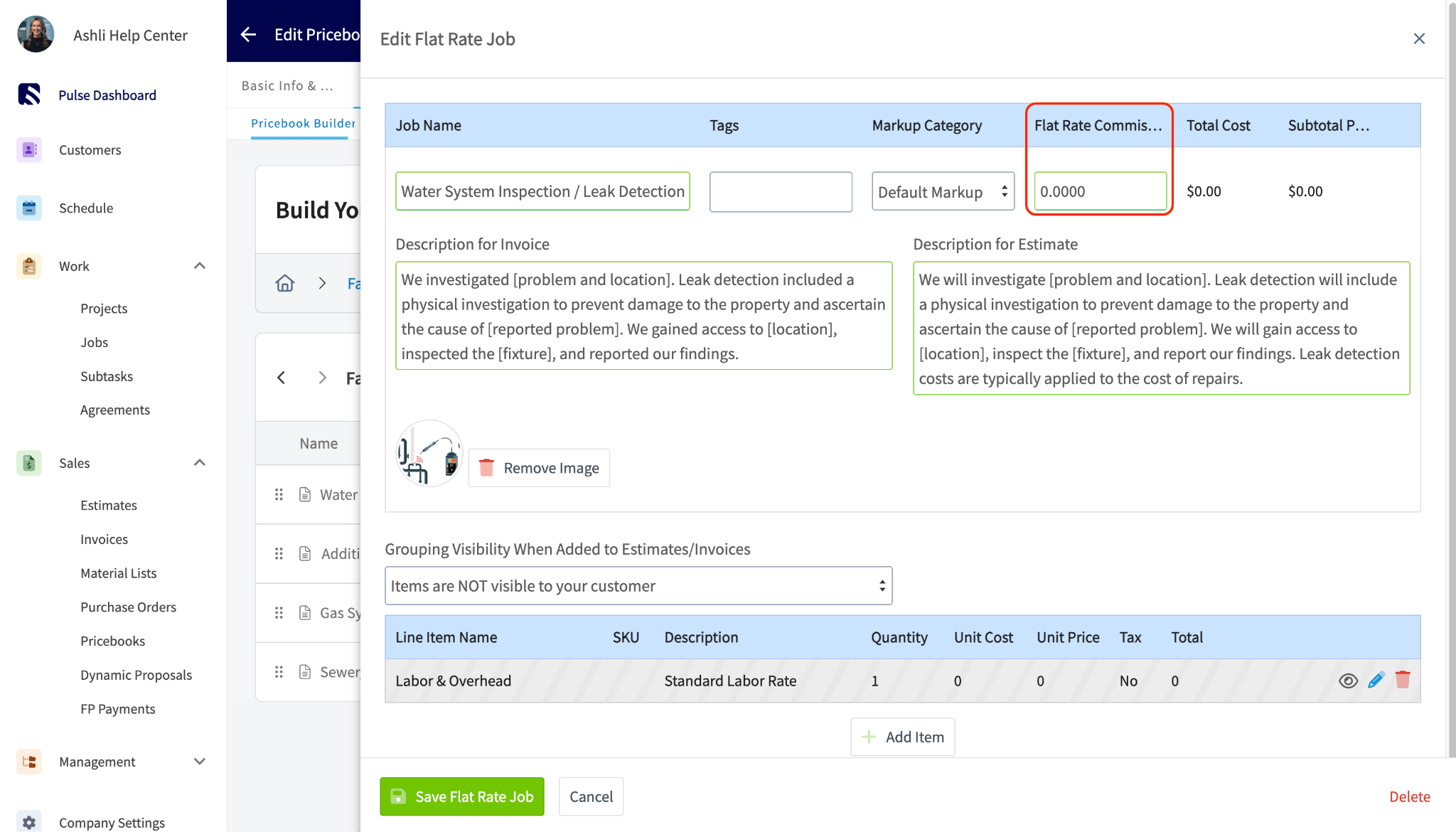
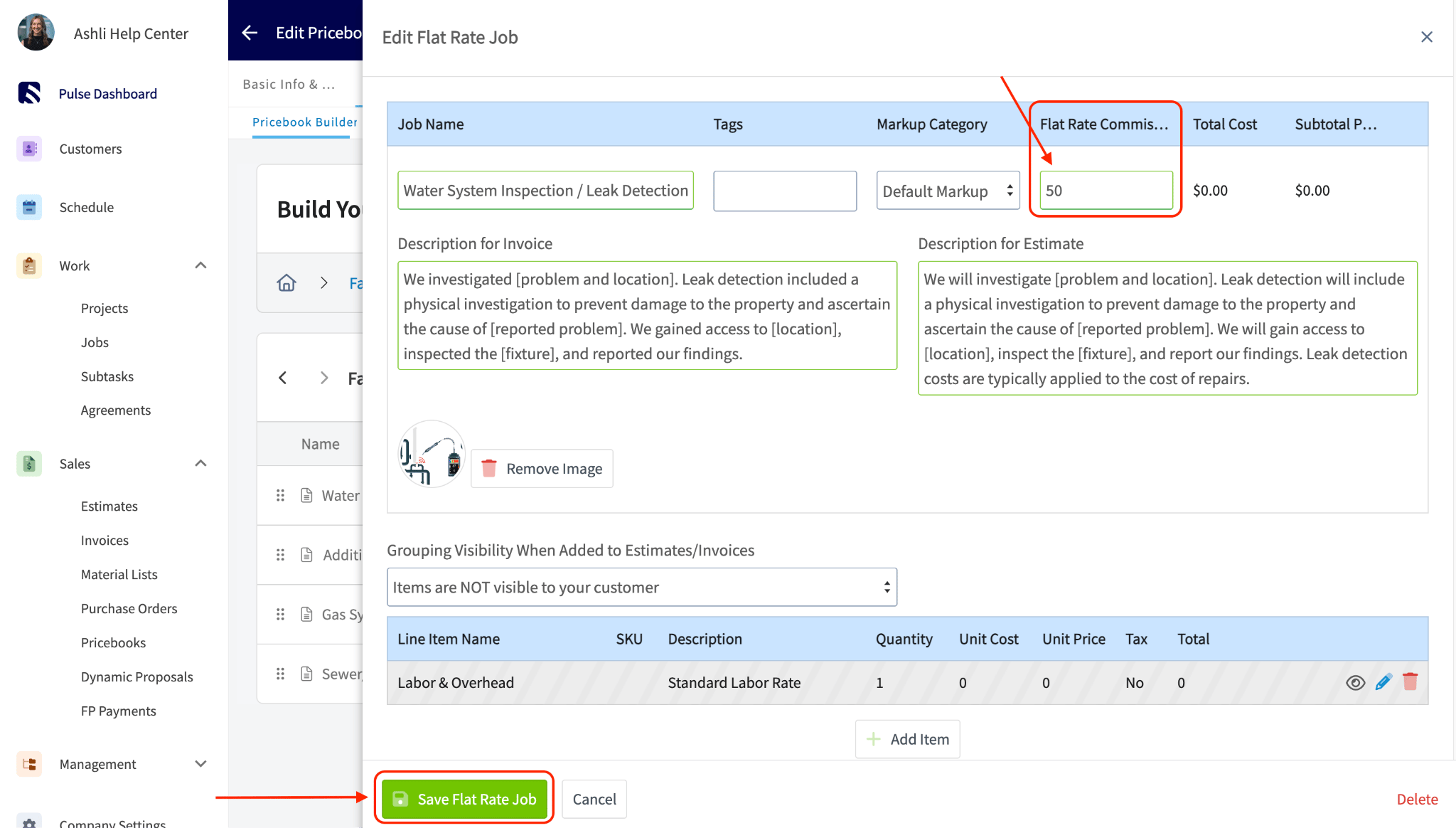
Secondly, in the job's edit section, you'll enter the commission amount directly in the *Flat Rate Commission* field. Once you've made your changes, save the Pricebook.
<img src="https://mintcdn.com/fieldpulse/5vBkBwKkjM33v_A9/static/images/_api/12525029-flat-rate-job-commissions/06.png?fit=max&auto=format&n=5vBkBwKkjM33v_A9&q=85&s=7fc33dcc13fc9375a2cbeff08b6009b3" alt="Flat Rate Commission field in the job's edit section" width="2048" height="1170" data-path="static/images/_api/12525029-flat-rate-job-commissions/06.png" />

<img src="https://mintcdn.com/fieldpulse/5vBkBwKkjM33v_A9/static/images/_api/12525029-flat-rate-job-commissions/07.png?fit=max&auto=format&n=5vBkBwKkjM33v_A9&q=85&s=3efb89d769ec2bf5b2f4a05ba1a1cf5b" alt="Entering a commission amount in the Flat Rate Commission field" width="2048" height="1164" data-path="static/images/_api/12525029-flat-rate-job-commissions/07.png" />

<img src="https://mintcdn.com/fieldpulse/5vBkBwKkjM33v_A9/static/images/_api/12525029-flat-rate-job-commissions/08.png?fit=max&auto=format&n=5vBkBwKkjM33v_A9&q=85&s=8a034ee000f28e6a132fec39ea7e180f" alt="Saving the Pricebook after setting the flat-rate commission" width="2048" height="1159" data-path="static/images/_api/12525029-flat-rate-job-commissions/08.png" />

**Step 3: Create the Estimate or Invoice**

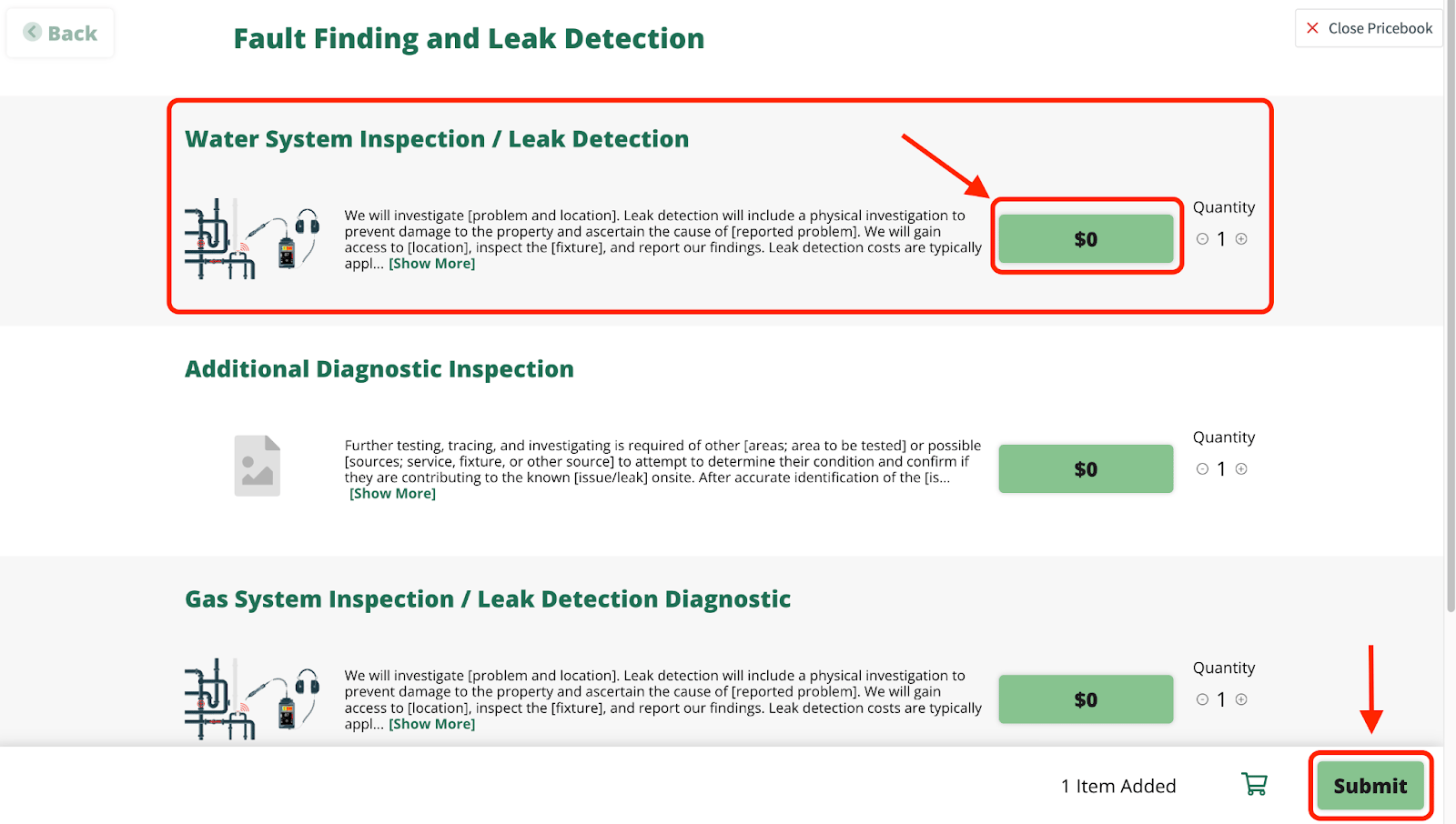
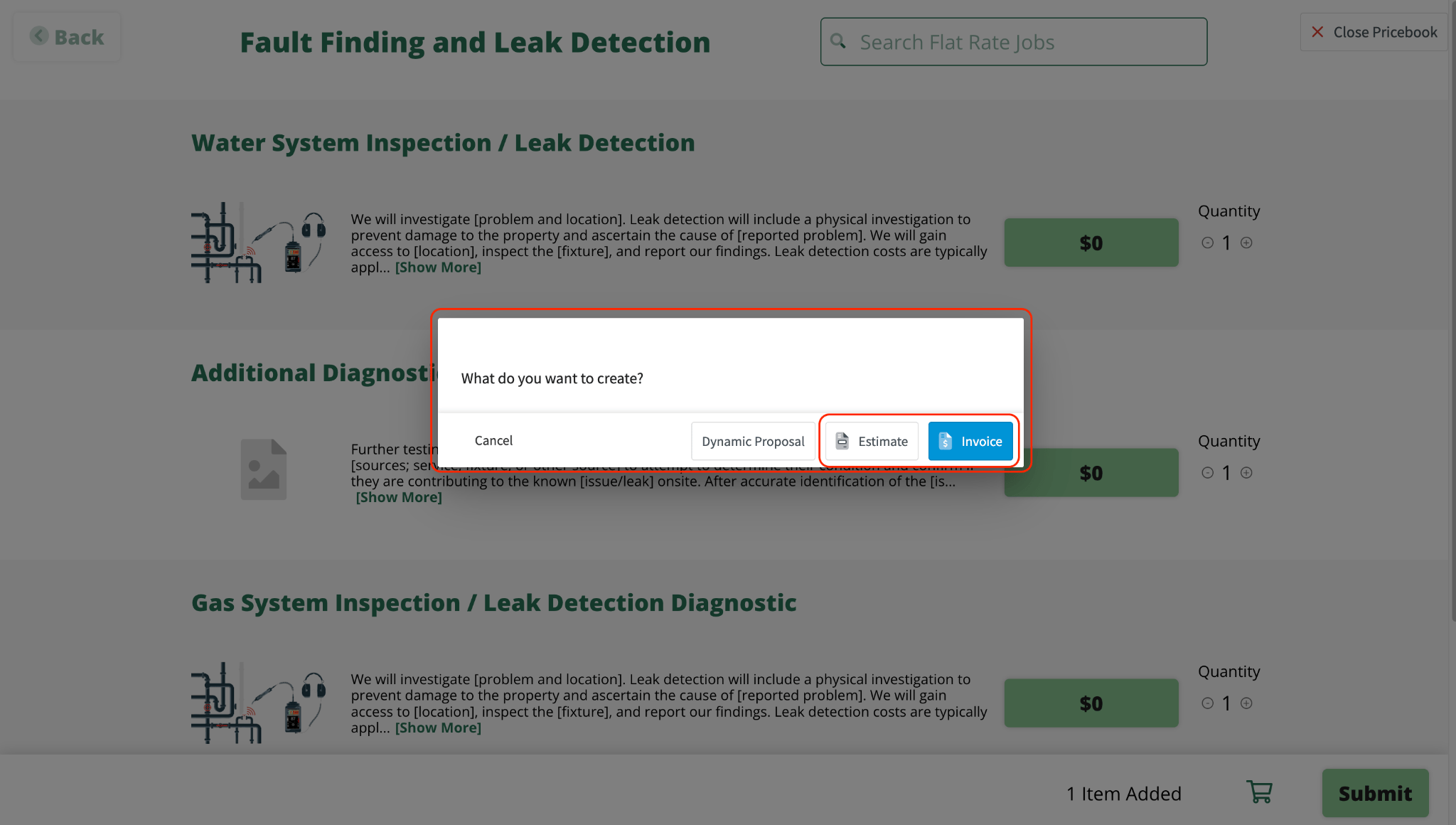
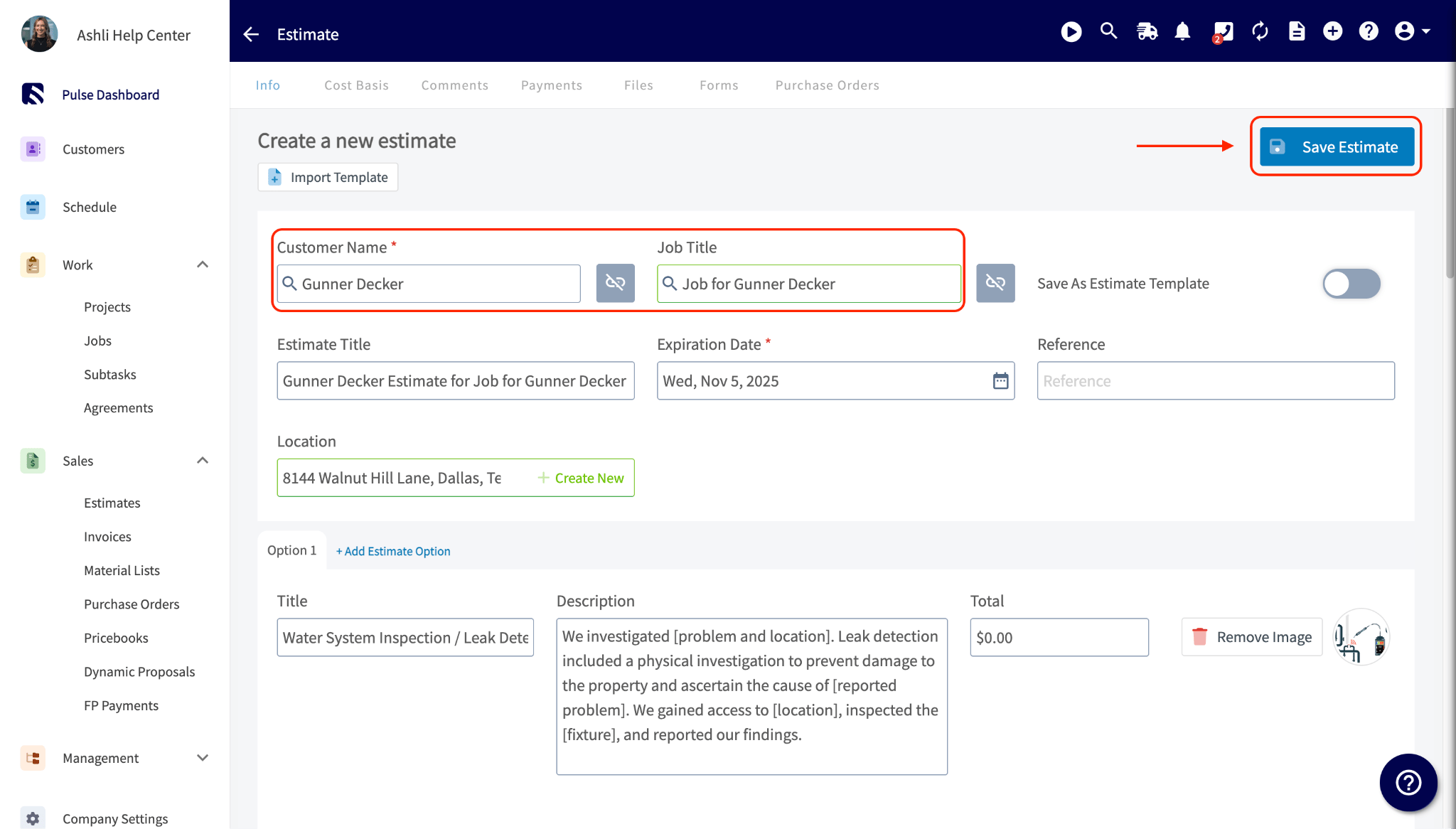
Next, your team will add the job with the assigned commission to a new estimate or invoice for a customer. Make sure to save the estimate or invoice.
<img src="https://mintcdn.com/fieldpulse/5vBkBwKkjM33v_A9/static/images/_api/12525029-flat-rate-job-commissions/09.png?fit=max&auto=format&n=5vBkBwKkjM33v_A9&q=85&s=be2adb9df784b5563e2dbbc2ec8328c7" alt="Adding the flat-rate job to a new estimate or invoice" width="2048" height="1013" data-path="static/images/_api/12525029-flat-rate-job-commissions/09.png" />

<img src="https://mintcdn.com/fieldpulse/5vBkBwKkjM33v_A9/static/images/_api/12525029-flat-rate-job-commissions/10.png?fit=max&auto=format&n=5vBkBwKkjM33v_A9&q=85&s=2c46ddef4c389225451f203afade5e22" alt="Flat-rate job line item added to an estimate or invoice" width="1600" height="906" data-path="static/images/_api/12525029-flat-rate-job-commissions/10.png" />

<img src="https://mintcdn.com/fieldpulse/5vBkBwKkjM33v_A9/static/images/_api/12525029-flat-rate-job-commissions/11.png?fit=max&auto=format&n=5vBkBwKkjM33v_A9&q=85&s=916d109c05c4df5133c3952d587887fb" alt="Estimate or invoice with the assigned-commission job added" width="1600" height="906" data-path="static/images/_api/12525029-flat-rate-job-commissions/11.png" />

<img src="https://mintcdn.com/fieldpulse/5vBkBwKkjM33v_A9/static/images/_api/12525029-flat-rate-job-commissions/12.png?fit=max&auto=format&n=5vBkBwKkjM33v_A9&q=85&s=ae2e41eb3913616f28467cae3e261f72" alt="Adding the customer to the estimate or invoice before saving" width="2048" height="1160" data-path="static/images/_api/12525029-flat-rate-job-commissions/12.png" />

**Note:** You must add the customer to the estimate or invoice. You can also optionally add a related job.
<img src="https://mintcdn.com/fieldpulse/5vBkBwKkjM33v_A9/static/images/_api/12525029-flat-rate-job-commissions/13.png?fit=max&auto=format&n=5vBkBwKkjM33v_A9&q=85&s=cbbcac1c0960dc4462770ef42493541c" alt="Saved estimate or invoice with the flat-rate job line item" width="2048" height="1166" data-path="static/images/_api/12525029-flat-rate-job-commissions/13.png" />

**Step 4: View Commission Details on the Record**

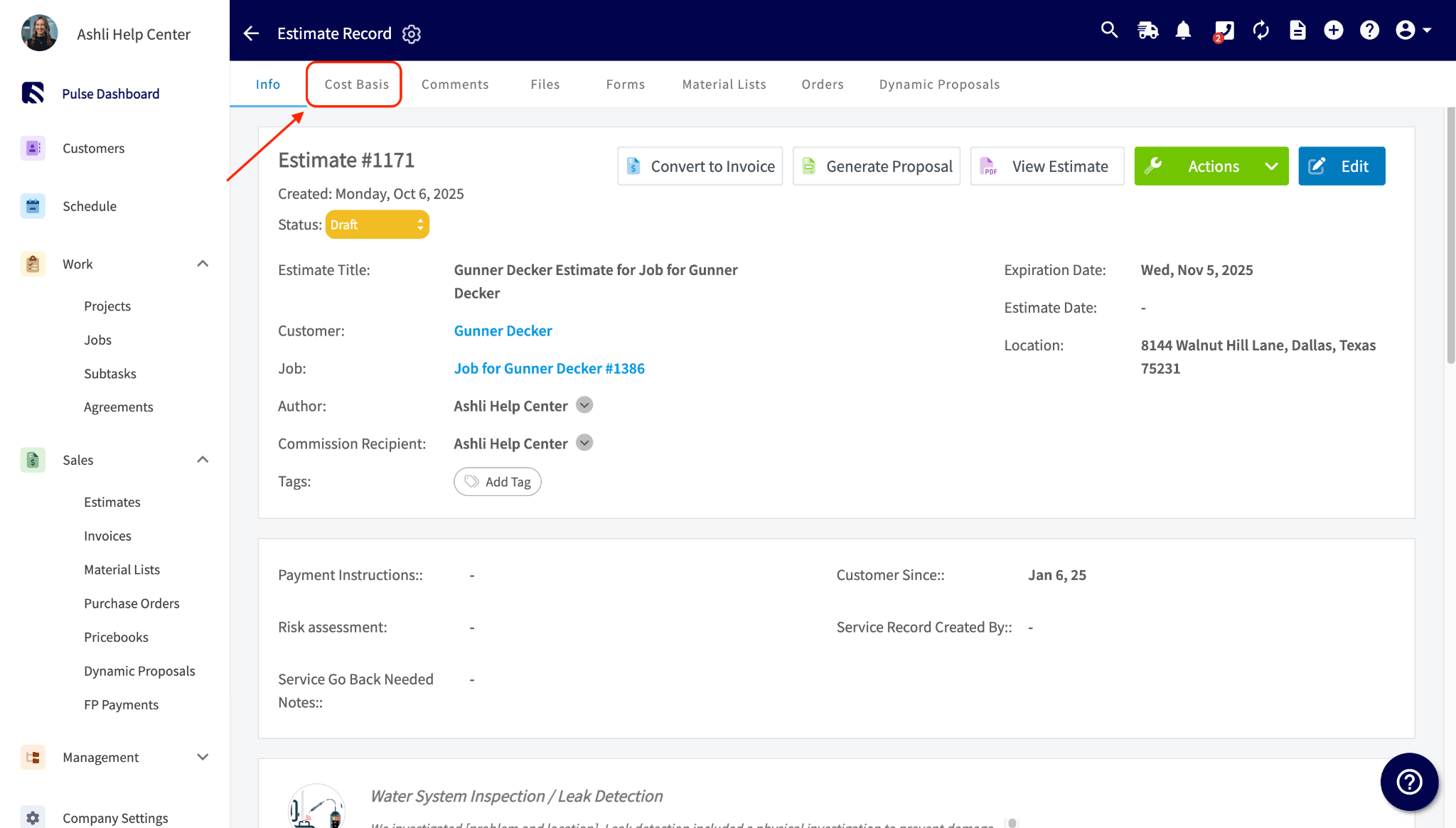
Lastly, once the estimate or invoice is saved, open the record and click on the *Cost Basis* tab. Here, you'll see the commission amounts listed, which are automatically assigned to the designated commission recipient.
<img src="https://mintcdn.com/fieldpulse/5vBkBwKkjM33v_A9/static/images/_api/12525029-flat-rate-job-commissions/14.png?fit=max&auto=format&n=5vBkBwKkjM33v_A9&q=85&s=1f5ef308c7fdf56c0c8e57322a7e4f7c" alt="Cost Basis tab showing the flat-rate commission amounts on the record" width="2048" height="1165" data-path="static/images/_api/12525029-flat-rate-job-commissions/14.png" />

***

**Have additional questions?**

*Contact us at [support@fieldpulse.com](mailto:support@fieldpulse.com) or use the chat feature in the bottom right corner of your screen.*