> ## Documentation Index
> Fetch the complete documentation index at: https://help.fieldpulse.com/llms.txt
> Use this file to discover all available pages before exploring further.
# Invoice-Level Commission
> Auto-calculate commissions on each estimate and invoice by percentage of gross sales, gross margin, or a flat rate.
Commissions can be tracked and automatically calculated on estimates and invoices. You can choose whether to calculate the commission using a percentage of gross sales, percentage of gross margin, or as a flat rate.
***
# Enabling Commission Calculations
To enable commission calculations, navigate to *Company Settings* in the left-side menu and click *Estimates & Invoices*. Then click *Advanced* in the sub header. On the *Advanced Invoice Settings* page, toggle *Enable Commission Calculations* on.
Once this is turned on, ***new*** estimates/invoices will automatically calculate commissions based on the default settings.
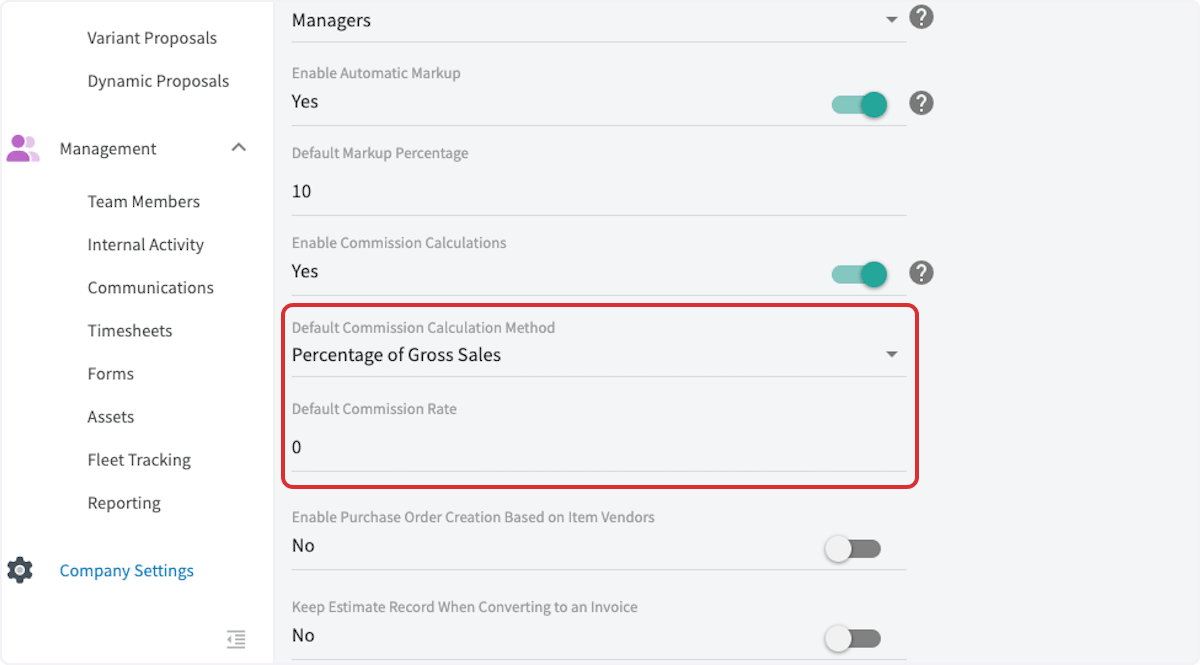
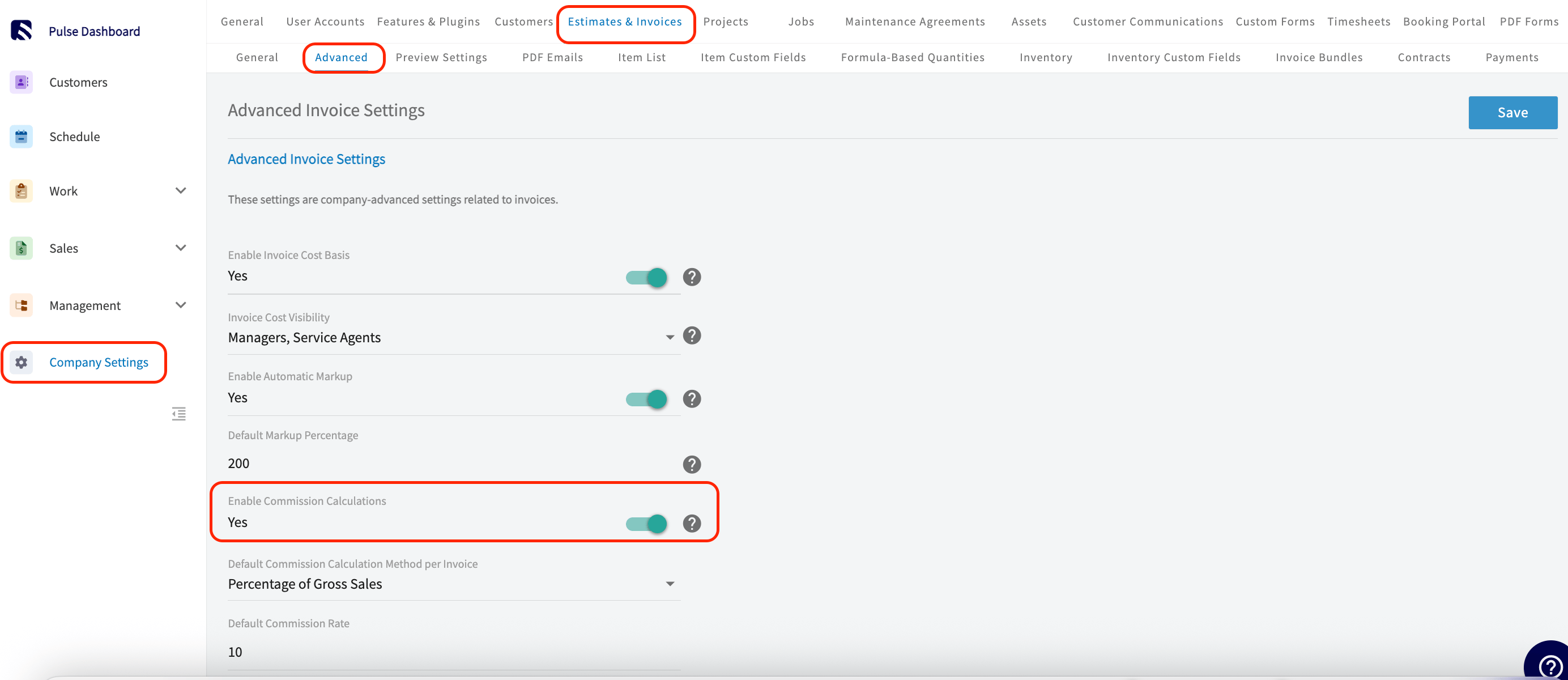 You will then set the default commission calculation method, either as a percentage of gross sales, a percentage of gross margin, or a flat dollar amount. You will then set the *Default Commission Rate*. When you've set up the commission structure, click *Save*.
 ***
# Decide How Commissions are Calculated When Discounts are Applied
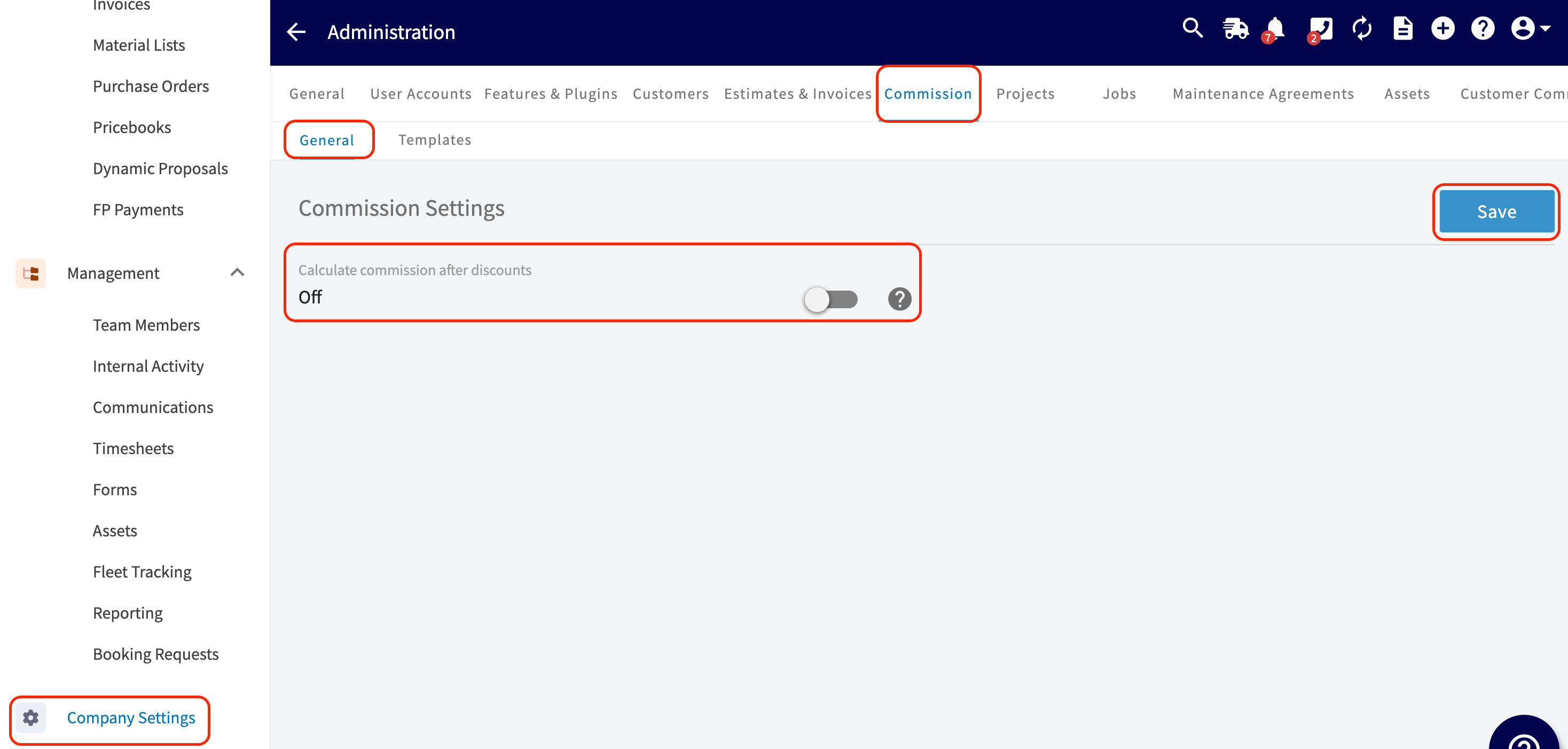
To adjust how your commissions are calculated with discounts, navigate to *Company Settings* > *Commissions* tab > *General* subtab. Here, you'll find a toggle to set your preferences.
**What This Toggle Does:**
• ON → Commission is calculated on the **final invoice total after discounts.**
• OFF → Commission is calculated on the **original total before discounts**.
This setting applies to all commission types and reporting. It will not affect any existing Invoice records you have created.
***
# Decide How Commissions are Calculated When Discounts are Applied
To adjust how your commissions are calculated with discounts, navigate to *Company Settings* > *Commissions* tab > *General* subtab. Here, you'll find a toggle to set your preferences.
**What This Toggle Does:**
• ON → Commission is calculated on the **final invoice total after discounts.**
• OFF → Commission is calculated on the **original total before discounts**.
This setting applies to all commission types and reporting. It will not affect any existing Invoice records you have created.
 ***
# Viewing Commission Calculations
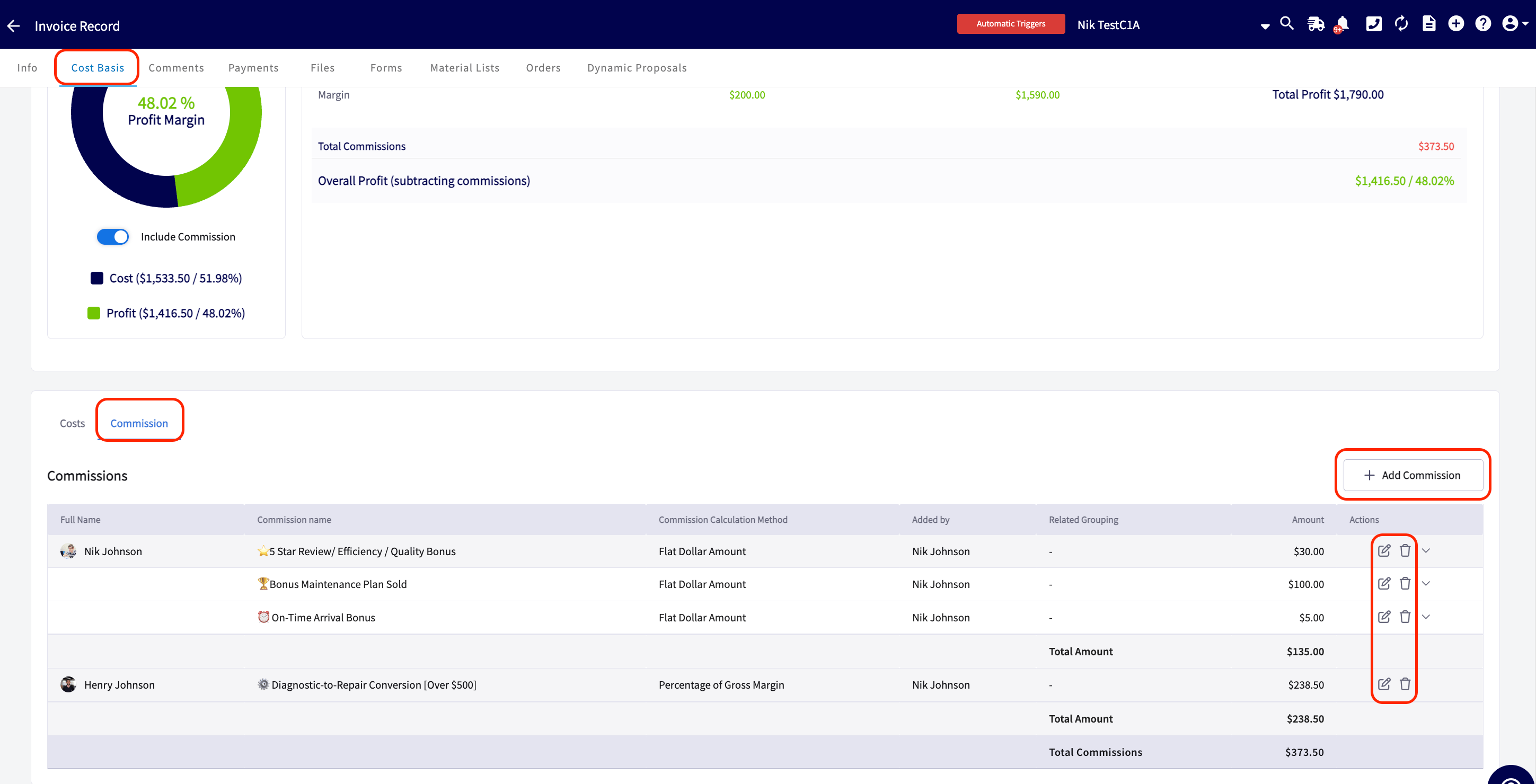
Now that you have a default commission setup, navigate to an estimate/invoice and click on *Cost Basis* in the header.
On this page, you will see the automatically calculated commission. You can edit the system-generated values at any time or add new commission fields as needed.
***
# Viewing Commission Calculations
Now that you have a default commission setup, navigate to an estimate/invoice and click on *Cost Basis* in the header.
On this page, you will see the automatically calculated commission. You can edit the system-generated values at any time or add new commission fields as needed.
 Create Commission Templates to ensure consistency and save yourself time! To learn how, [the commission templates guide](/using-fieldpulse/commission-markups-profitability/commission-templates).
***
# User Commission Rates
Not every role has commission access by default. To learn more about who can view or edit commission, see [User Roles](/using-fieldpulse/users-teams/user-roles). To learn more about adjusting a user's permissions, see [configuring user permission settings](/using-fieldpulse/users-teams/adding-new-users#h_f1b9d08054).
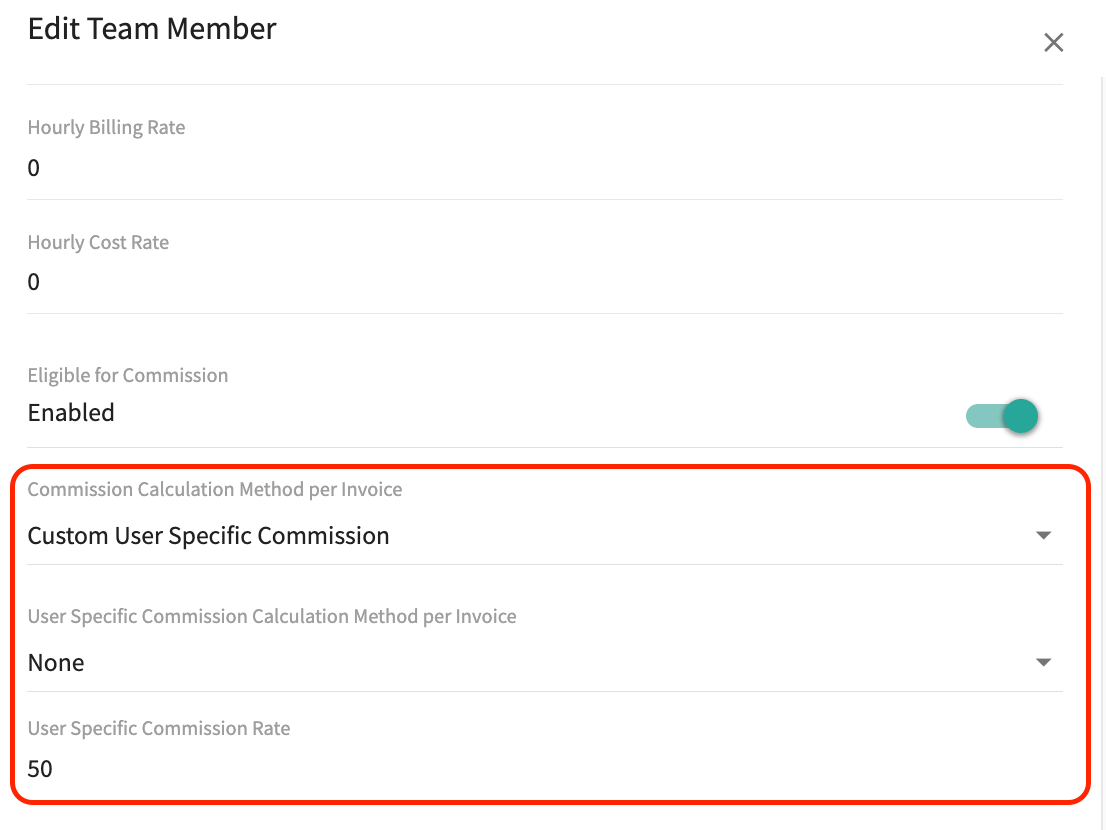
You can also set commission rates for each of your team members in FieldPulse. Begin by navigating to *Company Settings*, then select *User Accounts*. Select the user for whom you'd like to add/adjust a commission rate then press *Edit*.
Create Commission Templates to ensure consistency and save yourself time! To learn how, [the commission templates guide](/using-fieldpulse/commission-markups-profitability/commission-templates).
***
# User Commission Rates
Not every role has commission access by default. To learn more about who can view or edit commission, see [User Roles](/using-fieldpulse/users-teams/user-roles). To learn more about adjusting a user's permissions, see [configuring user permission settings](/using-fieldpulse/users-teams/adding-new-users#h_f1b9d08054).
You can also set commission rates for each of your team members in FieldPulse. Begin by navigating to *Company Settings*, then select *User Accounts*. Select the user for whom you'd like to add/adjust a commission rate then press *Edit*.
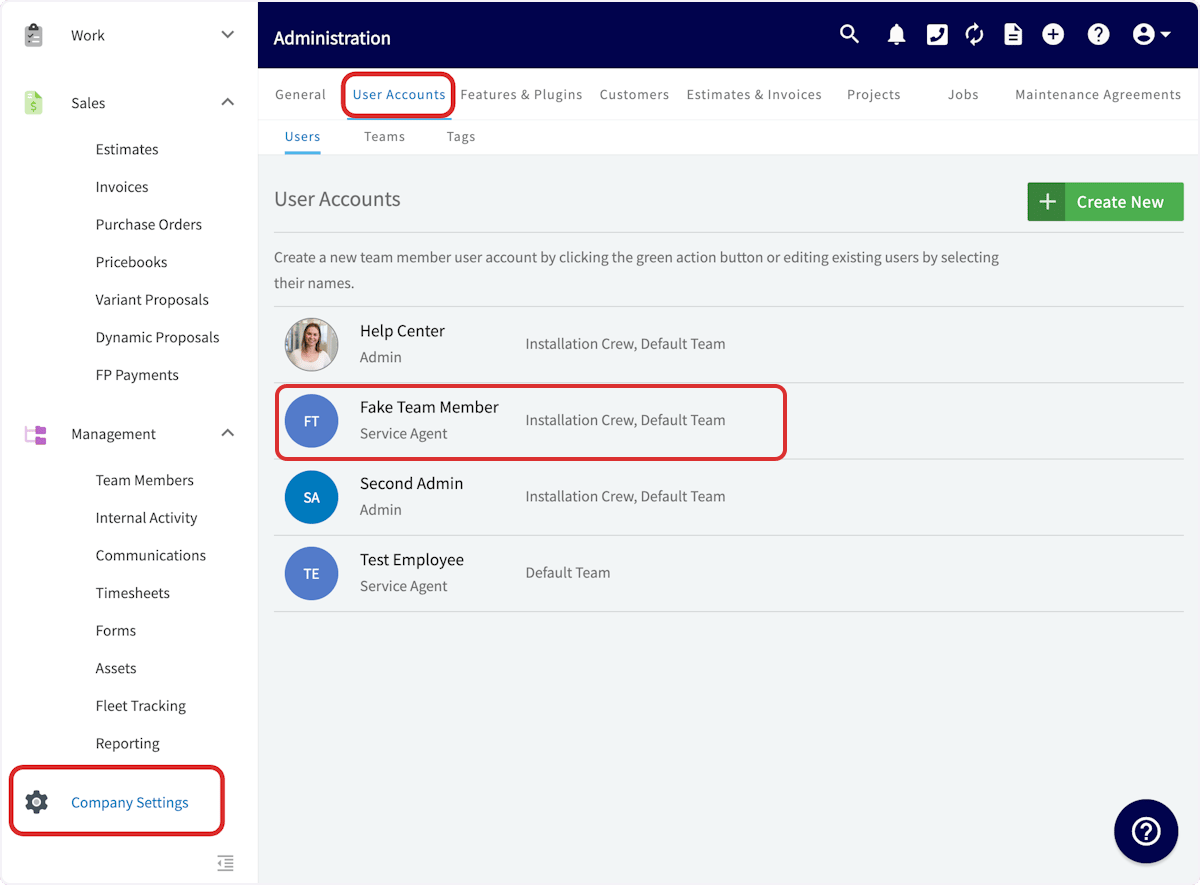 Scroll down to toggle on the option for this employee to be eligible to earn commission. When this toggle is off, your employee will not be eligible for commission and they will not appear on the commission cost basis page, commission page, or the the commission report. ***Note: If this toggle was previously on, FieldPulse will retain the commission information on the cost basis page and report for this employee.***
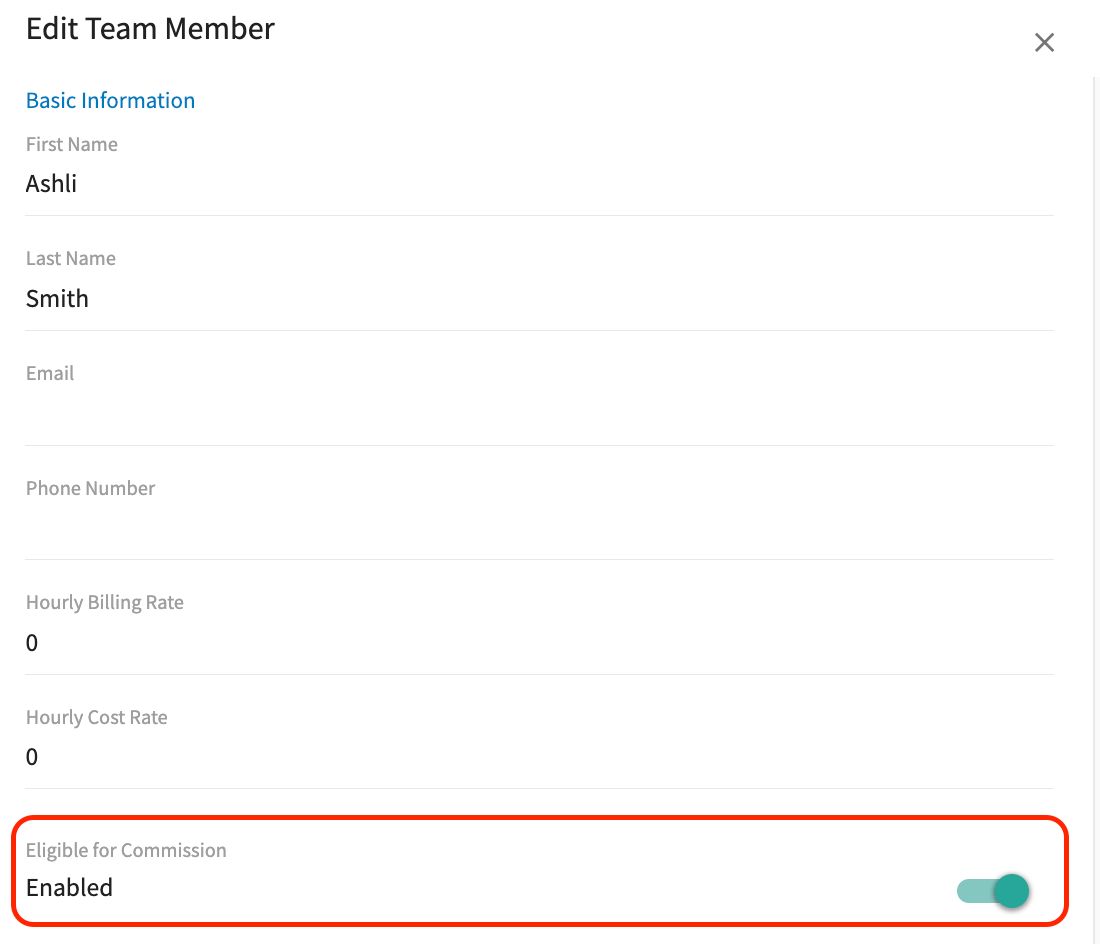 You will now decide what this employees commission rate will be. You can choose between the following options:
* **Company Default Commission Calculation Method:** The employee's commission calculation will follow the default method and rate that you set up within *Company Settings* shown above.
* **Custom User Specific Commission Calculation Method:** Selecting this will display **two additional fields**. This method allows for flexibility in how commissions are determined, taking into account specific criteria or performance metrics that may vary from one employee to another.
* **User Specific Commission Calculation Method per Invoice:** The dropdown menu here includes the following options for commission calculation:
* **Percentage of Gross Sales**: Calculate commission based on a percentage of total sales revenue.
* **Percentage of Gross Margin**: Determine commission as a percentage of the profit margin after costs.
* **Flat Dollar Amount**: Set a fixed dollar amount as the commission for each invoice.
* **User Specific Commission Rate:** Enter a numeric value to set the commission rate for this employee.
You will now decide what this employees commission rate will be. You can choose between the following options:
* **Company Default Commission Calculation Method:** The employee's commission calculation will follow the default method and rate that you set up within *Company Settings* shown above.
* **Custom User Specific Commission Calculation Method:** Selecting this will display **two additional fields**. This method allows for flexibility in how commissions are determined, taking into account specific criteria or performance metrics that may vary from one employee to another.
* **User Specific Commission Calculation Method per Invoice:** The dropdown menu here includes the following options for commission calculation:
* **Percentage of Gross Sales**: Calculate commission based on a percentage of total sales revenue.
* **Percentage of Gross Margin**: Determine commission as a percentage of the profit margin after costs.
* **Flat Dollar Amount**: Set a fixed dollar amount as the commission for each invoice.
* **User Specific Commission Rate:** Enter a numeric value to set the commission rate for this employee.
 ## Be sure to press *Save* after making changes
***
# Commission Recipient on Estimates & Invoices
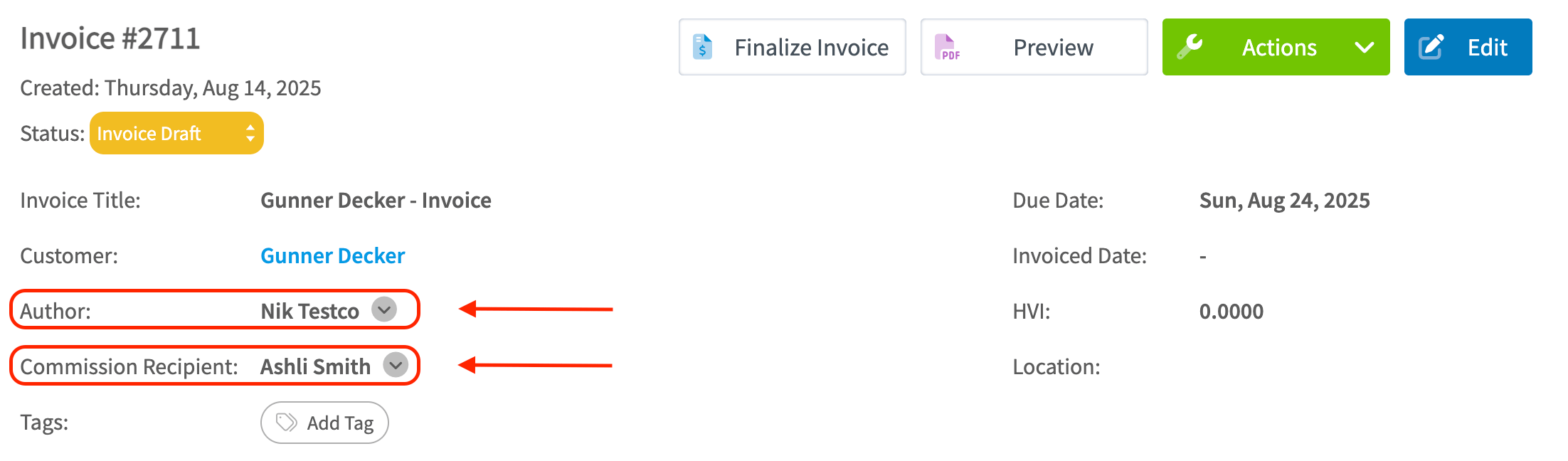
Easily keep track of who is earning commissions on each invoice with the *Commission Recipient* field, located below the *Author* field. This field will default to the author, but you can edit it using the dropdown menu to select one of the employees eligible to earn commission.
## Be sure to press *Save* after making changes
***
# Commission Recipient on Estimates & Invoices
Easily keep track of who is earning commissions on each invoice with the *Commission Recipient* field, located below the *Author* field. This field will default to the author, but you can edit it using the dropdown menu to select one of the employees eligible to earn commission.
 ***
# Important Note
Commission amounts will be adjusted at the time of payment if card-fee recovery is enabled and the commission type is based on either a percentage of gross sales or margin.
It’s best practice to report commissions **only on fully paid invoices**. This ensures the commission you pay your team matches the actual commission calculated in FieldPulse, preventing discrepancies and avoiding over- or under-payment.
***
# Video Tutorial
***
**Have additional questions?**
*Contact us at [support@fieldpulse.com](mailto:support@fieldpulse.com) or use the chat feature in the bottom right corner of your screen.*
***
# Important Note
Commission amounts will be adjusted at the time of payment if card-fee recovery is enabled and the commission type is based on either a percentage of gross sales or margin.
It’s best practice to report commissions **only on fully paid invoices**. This ensures the commission you pay your team matches the actual commission calculated in FieldPulse, preventing discrepancies and avoiding over- or under-payment.
***
# Video Tutorial
***
**Have additional questions?**
*Contact us at [support@fieldpulse.com](mailto:support@fieldpulse.com) or use the chat feature in the bottom right corner of your screen.*