> ## Documentation Index
> Fetch the complete documentation index at: https://help.fieldpulse.com/llms.txt
> Use this file to discover all available pages before exploring further.
# Notifications Master Guide
> Pick the right setting for customer alerts, personal alerts, or team alerts so the correct people hear about job and customer activity.
# Overview
FieldPulse has three different notification settings, and which one you need depends on who you want to notify. Use the table below to find your starting point, then jump to the section that matches what you're trying to do.
| | **Customer Communications** | **My Settings** | **Notification Settings** |
| --------------------- | -------------------------------------------------- | -------------------------------------------------- | ---------------------------------------------------------------------------- |
| **What it does** | Sends automated emails and texts to your customers | Controls each team member's personal notifications | Alerts your team, external emails, or customers when customers take action |
| **Who gets notified** | Your customers | You and each team member individually | The team members or external emails you choose |
| **Where it lives** | *Company Settings* > *Customer Communications* | Profile icon > *My Settings* | *Company Settings* > *Customer Communications* > *Notification Settings* tab |
***
# Customer Communications
This is where you set up the automated emails and text messages that go out to your customers such as appointment confirmations, “tech is on the way” texts, estimate links, overdue invoice reminders, and more.
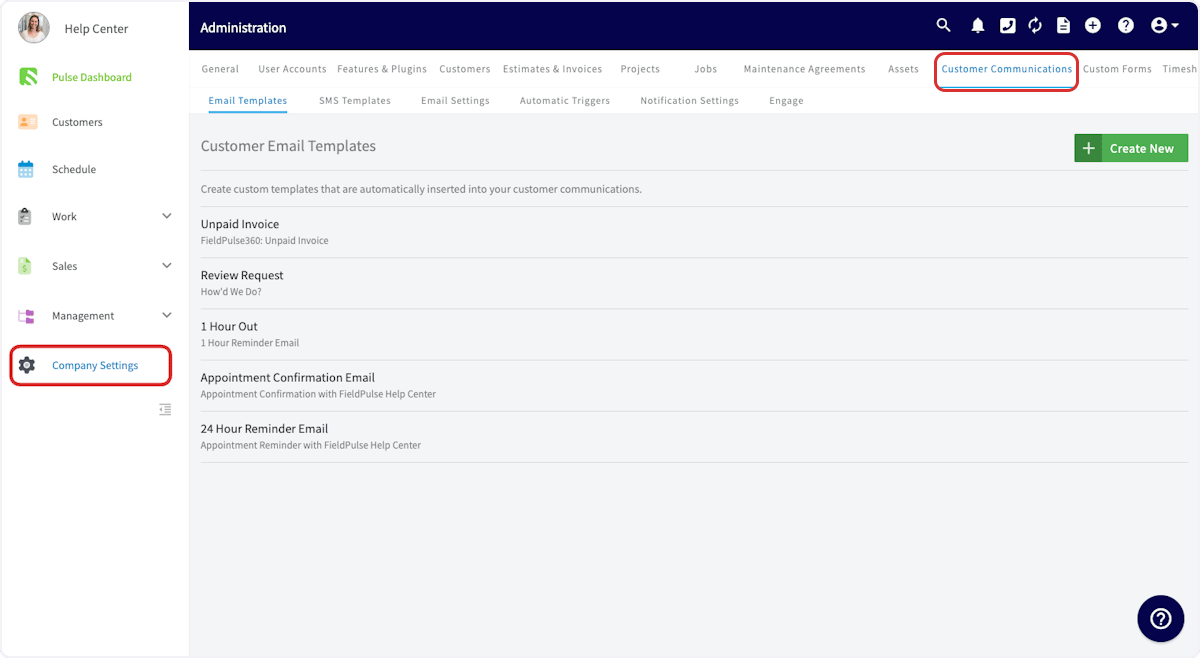
Find it under *Company Settings* > *Customer Communications*. If you don't see the menu item, you'll need to enable it first under *Company Settings* > *Features & Plugins*.
 ## Build your templates
* *Email Templates and SMS Templates*: Build reusable message bodies. Each template has an internal name (for your reference, never seen by customers) and a customer-facing body.
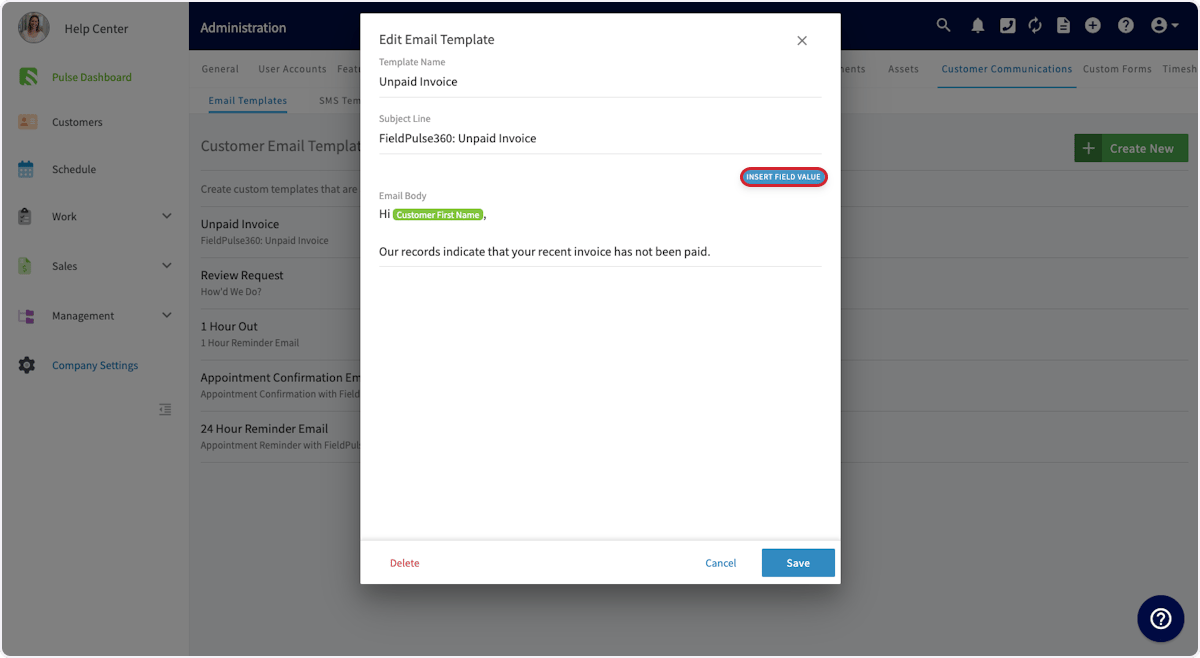
* *Insert Field Value*: Drop value filled fieleds into any template, like Customer First Name, Job Start Date, Customer Arrival Window Start Time, or links to the customer portal.
* *Email Settings*: Choose between a single Designated Email Address for all outbound or the User's Email Address of whoever sent it. Same options apply to Default 'CC' and Default 'From' Name. You can also toggle the logo on for branded email headers.
## Build your templates
* *Email Templates and SMS Templates*: Build reusable message bodies. Each template has an internal name (for your reference, never seen by customers) and a customer-facing body.
* *Insert Field Value*: Drop value filled fieleds into any template, like Customer First Name, Job Start Date, Customer Arrival Window Start Time, or links to the customer portal.
* *Email Settings*: Choose between a single Designated Email Address for all outbound or the User's Email Address of whoever sent it. Same options apply to Default 'CC' and Default 'From' Name. You can also toggle the logo on for branded email headers.
 ## Send them automatically with triggers
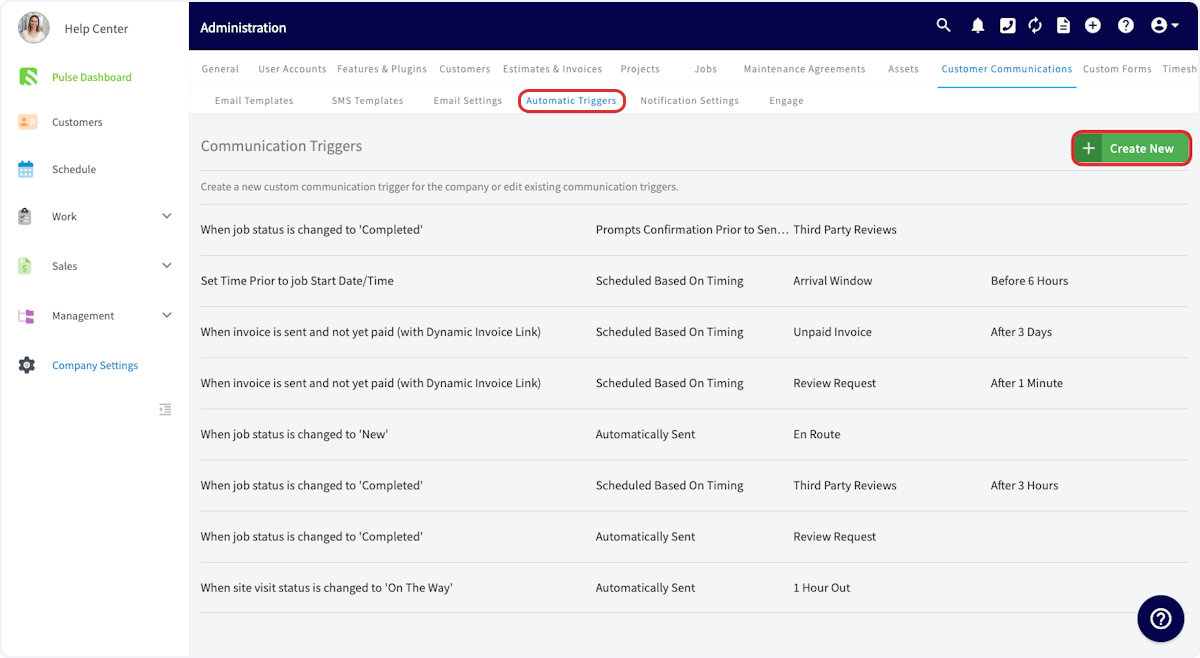
Automatic triggers are how you connect a template to an event in FieldPulse such as a status change, an invoice going overdue, a payment landing, and so on. Pair a trigger event with a template, choose how it sends, and you're done.
* *Most-used triggers:* When a job is newly created, Set Time Prior to job Start Date/Time (great for arrival reminders), When job status is changed to \[your status], When estimate is sent and not yet accepted, When invoice is overdue and not yet fully paid, and When a payment record is created.
* *Action modes:* Automatically Sent fires immediately, Prompts Confirmation Prior to Sending opens a preview pop-up first, and Scheduled Based On Timing sends on a delay you specify.
* *Send a one-off message* *anytime from a customer or job record*: Actions > Send Customer Communication, pick a template, then send.
## Send them automatically with triggers
Automatic triggers are how you connect a template to an event in FieldPulse such as a status change, an invoice going overdue, a payment landing, and so on. Pair a trigger event with a template, choose how it sends, and you're done.
* *Most-used triggers:* When a job is newly created, Set Time Prior to job Start Date/Time (great for arrival reminders), When job status is changed to \[your status], When estimate is sent and not yet accepted, When invoice is overdue and not yet fully paid, and When a payment record is created.
* *Action modes:* Automatically Sent fires immediately, Prompts Confirmation Prior to Sending opens a preview pop-up first, and Scheduled Based On Timing sends on a delay you specify.
* *Send a one-off message* *anytime from a customer or job record*: Actions > Send Customer Communication, pick a template, then send.
 To learn more about Customer Communications, click [the Customer Communications guide](/using-fieldpulse/communications-notifications/customer-communications).
***
# Internal Notifications (My Settings)
Each team member controls their own personal notifications under *My Settings*. These are the alerts that go to you and your team like new job assignments, status changes on your own jobs, comments and @mentions, and your daily schedule.
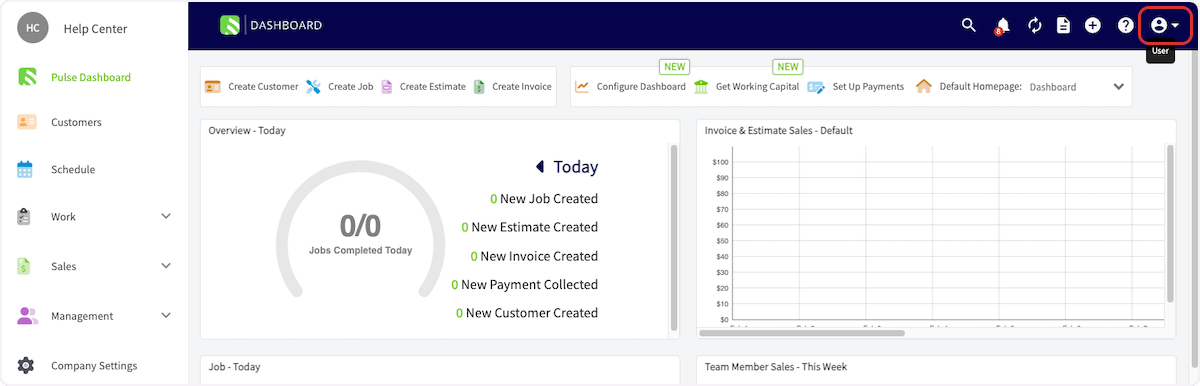
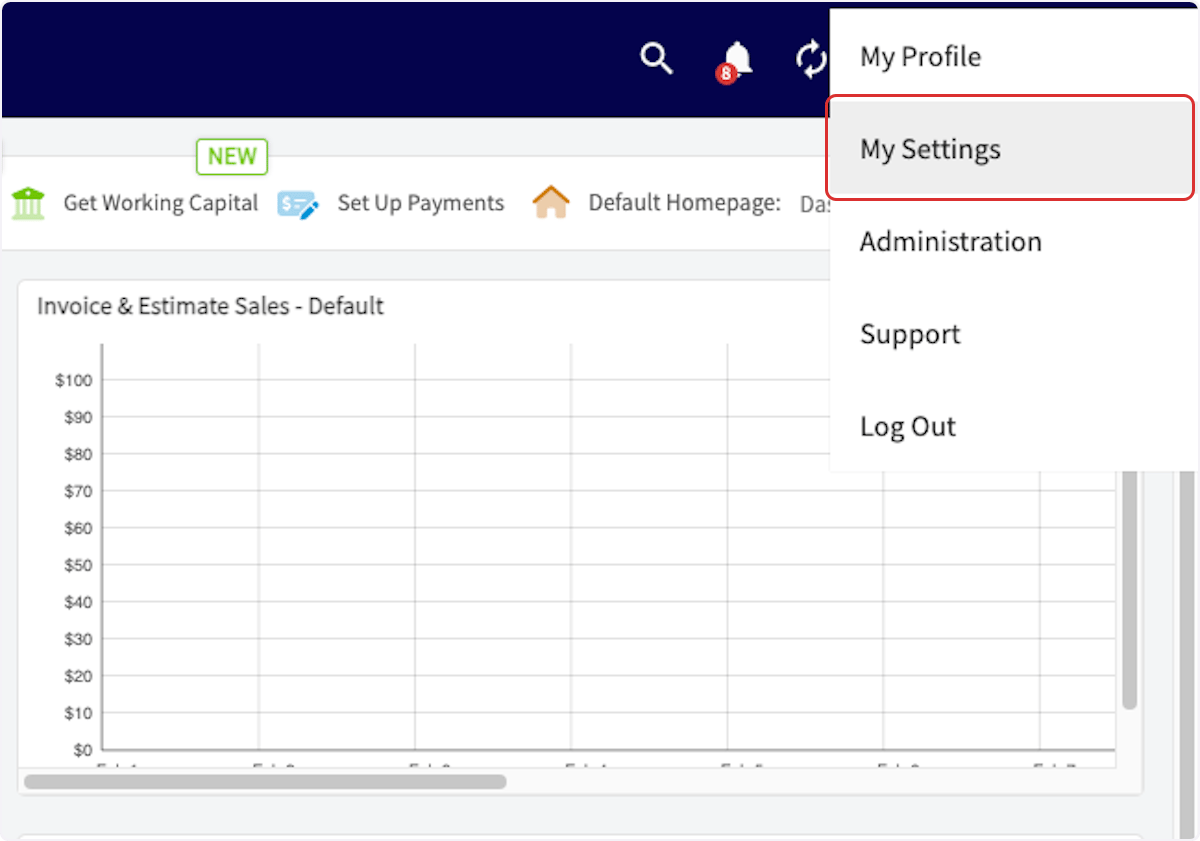
To find your notification preferences, click on the icon in the top right corner of the web app and select *My Settings*.
To learn more about Customer Communications, click [the Customer Communications guide](/using-fieldpulse/communications-notifications/customer-communications).
***
# Internal Notifications (My Settings)
Each team member controls their own personal notifications under *My Settings*. These are the alerts that go to you and your team like new job assignments, status changes on your own jobs, comments and @mentions, and your daily schedule.
To find your notification preferences, click on the icon in the top right corner of the web app and select *My Settings*.
 ## Choose your delivery channels
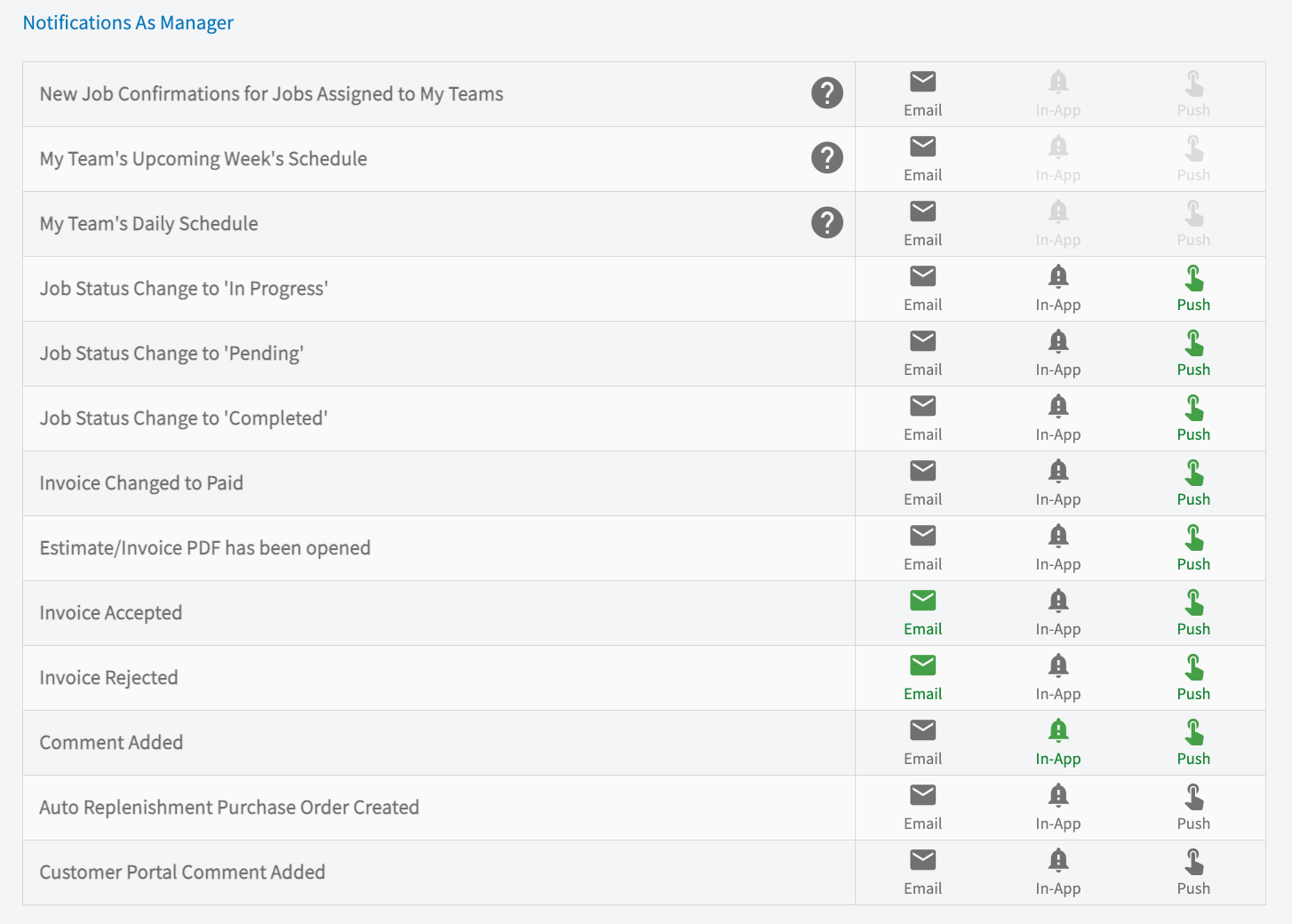
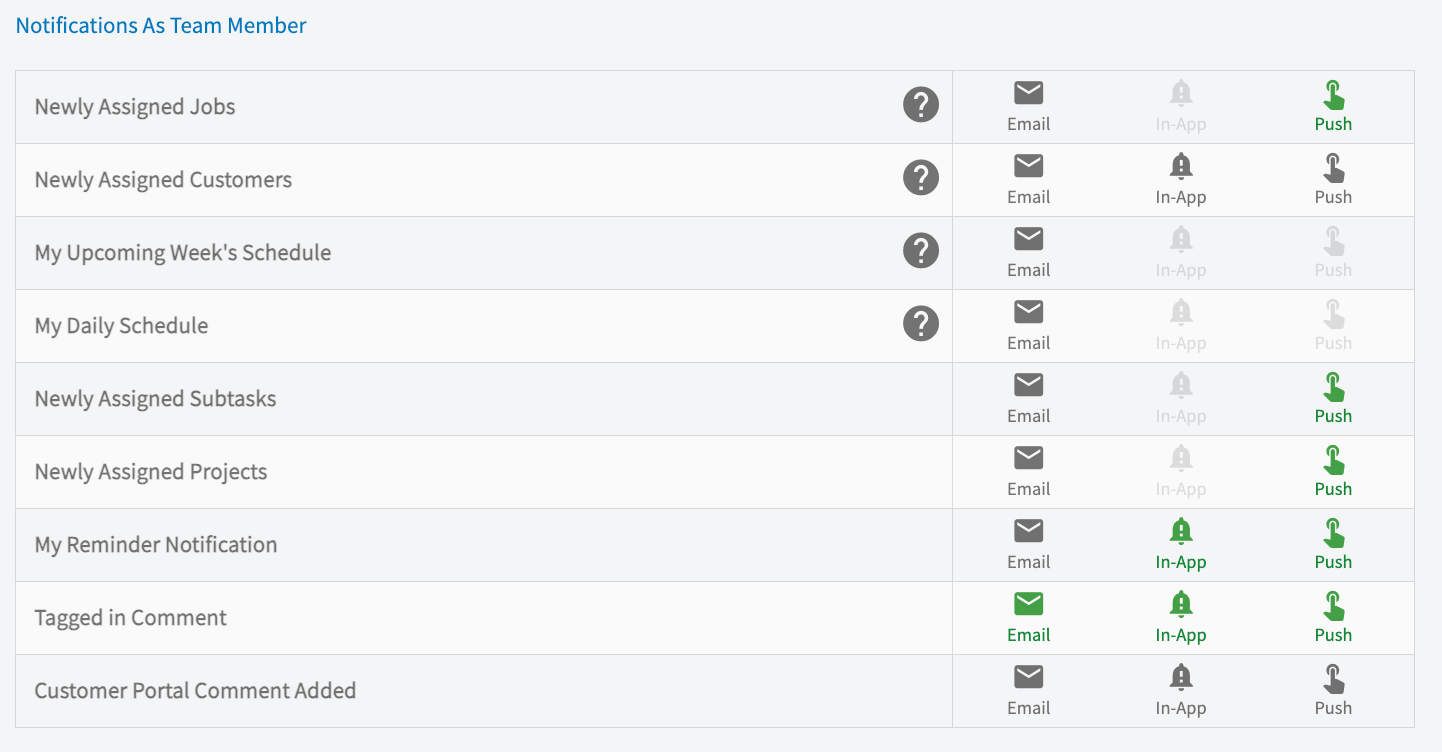
* *Three delivery channels:* Email, In-App, and Push. Most notifications support all three, and you can select more than one for the same alert.
* *~~In-App~~ notifications* appear at the top of your screen as you work in FieldPulse.
* *Grayed-out options:* FieldPulse doesn't support that channel for that notification..\
## Notifications if you are a manager of a team
## Choose your delivery channels
* *Three delivery channels:* Email, In-App, and Push. Most notifications support all three, and you can select more than one for the same alert.
* *~~In-App~~ notifications* appear at the top of your screen as you work in FieldPulse.
* *Grayed-out options:* FieldPulse doesn't support that channel for that notification..\
## Notifications if you are a manager of a team
 ## Notifications as a team member
 To learn more about Internal Notifications, click [the internal notifications setup guide](/getting-started/account-setup-access/setting-up-your-account#h_45b46a6537).
***
# Notification Settings
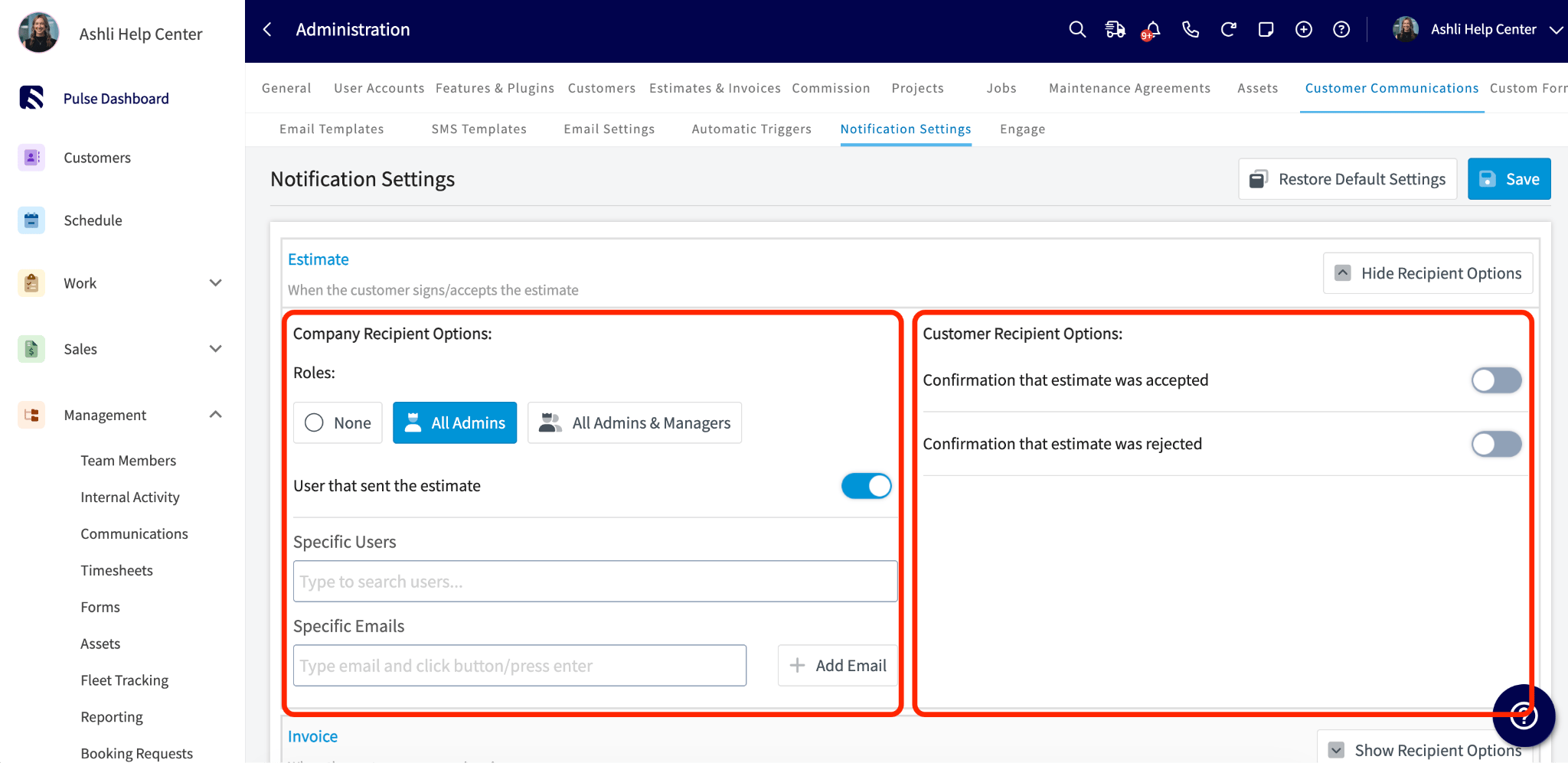
Want to know the moment a customer signs an estimate or pays an invoice? That's what Notification Settings are for.
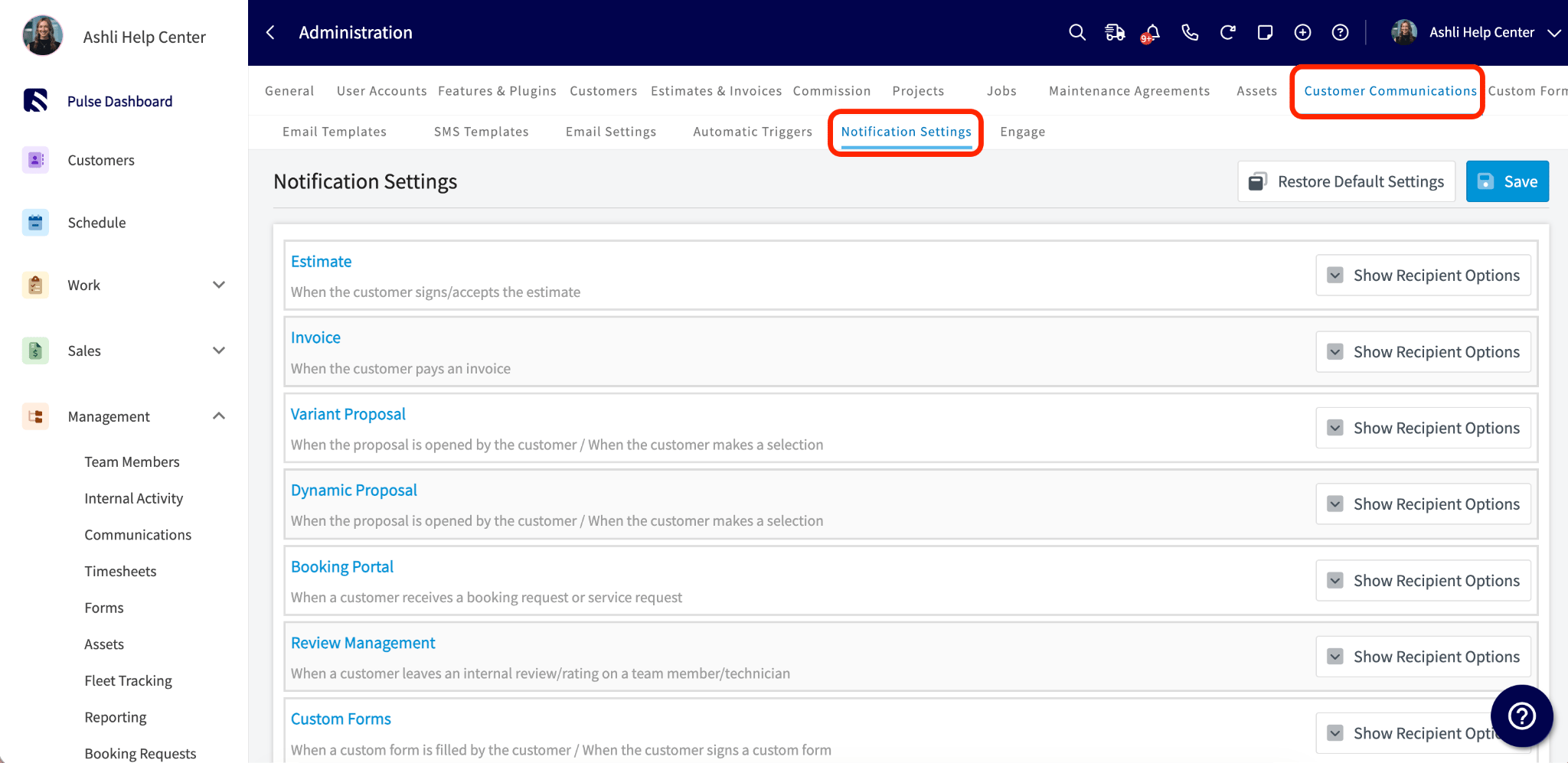
Find it under *Company Settings* > *Customer Communications* > *Notification Settings* tab.
To learn more about Internal Notifications, click [the internal notifications setup guide](/getting-started/account-setup-access/setting-up-your-account#h_45b46a6537).
***
# Notification Settings
Want to know the moment a customer signs an estimate or pays an invoice? That's what Notification Settings are for.
Find it under *Company Settings* > *Customer Communications* > *Notification Settings* tab.
 ## What you can configure alerts for
* **Estimates**: when a customer signs and accepts an estimate.
* **Invoices**: when a customer pays an invoice.
* **Variant Proposal**: when a customer makes a good/better/best selection.
* **Dynamic Proposal**: Sales Suite proposal interactions.
* **Booking Portal**: when a customer requests a booking or service through the portal.
* **Review Management**: when a customer leaves an internal review or rating on a team member.
* **Custom Forms**: when a custom form is filled out or signed.
## Who gets notified
* **Quick-pick groups**: for each event, save time with the built-in buttons that select all admins, or all admins plus all team managers, in one click.
* **Manual user picker**: add specific users individually.Selected users appear on the side, and the X button removes them.
* **External email addresses**: type any email to add it as a recipient. This is how most accounts route notifications to an outside accountant, bookkeeper, or payroll person who needs visibility into estimates and invoices but doesn't have a FieldPulse user account.
* **Customer recipient option: choose whether you also want the customer to get notified simultaneously.**
## What you can configure alerts for
* **Estimates**: when a customer signs and accepts an estimate.
* **Invoices**: when a customer pays an invoice.
* **Variant Proposal**: when a customer makes a good/better/best selection.
* **Dynamic Proposal**: Sales Suite proposal interactions.
* **Booking Portal**: when a customer requests a booking or service through the portal.
* **Review Management**: when a customer leaves an internal review or rating on a team member.
* **Custom Forms**: when a custom form is filled out or signed.
## Who gets notified
* **Quick-pick groups**: for each event, save time with the built-in buttons that select all admins, or all admins plus all team managers, in one click.
* **Manual user picker**: add specific users individually.Selected users appear on the side, and the X button removes them.
* **External email addresses**: type any email to add it as a recipient. This is how most accounts route notifications to an outside accountant, bookkeeper, or payroll person who needs visibility into estimates and invoices but doesn't have a FieldPulse user account.
* **Customer recipient option: choose whether you also want the customer to get notified simultaneously.**
 ***
**Have additional questions?**
*Contact us at [support@fieldpulse.com](mailto:support@fieldpulse.com) or use the chat feature in the bottom right corner of your screen.*
***
***
**Have additional questions?**
*Contact us at [support@fieldpulse.com](mailto:support@fieldpulse.com) or use the chat feature in the bottom right corner of your screen.*
***