> ## Documentation Index
> Fetch the complete documentation index at: https://help.fieldpulse.com/llms.txt
> Use this file to discover all available pages before exploring further.
# Customer Statuses
> Mark each customer as Lead, Opportunity, Current, Lost, or Inactive to track where they sit in their lifecycle.
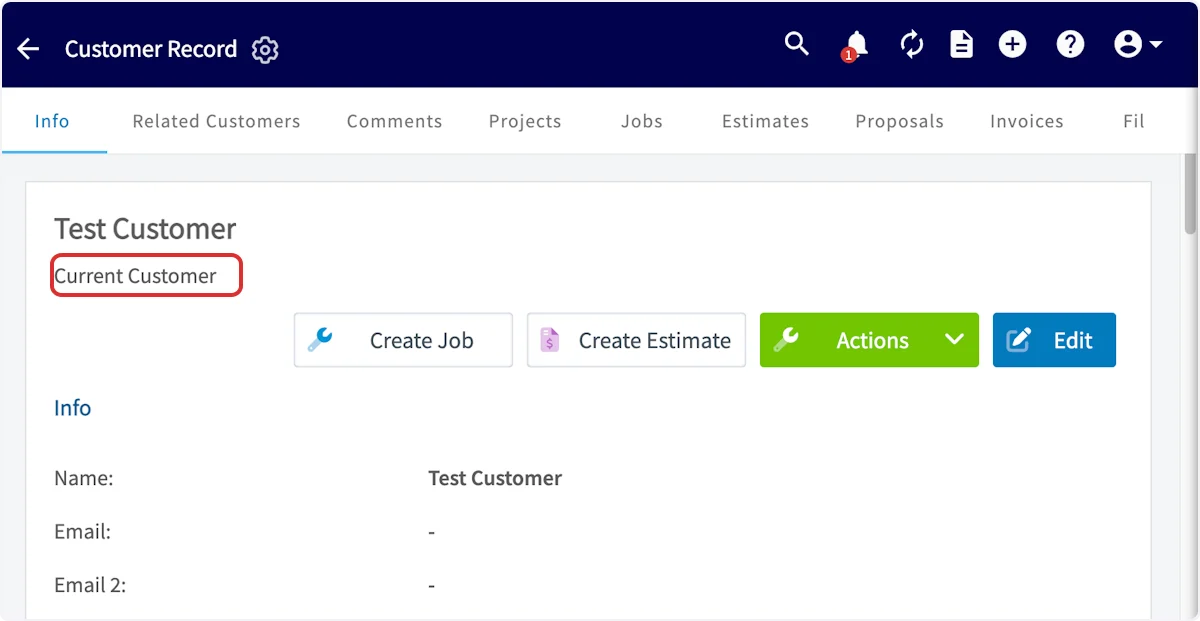
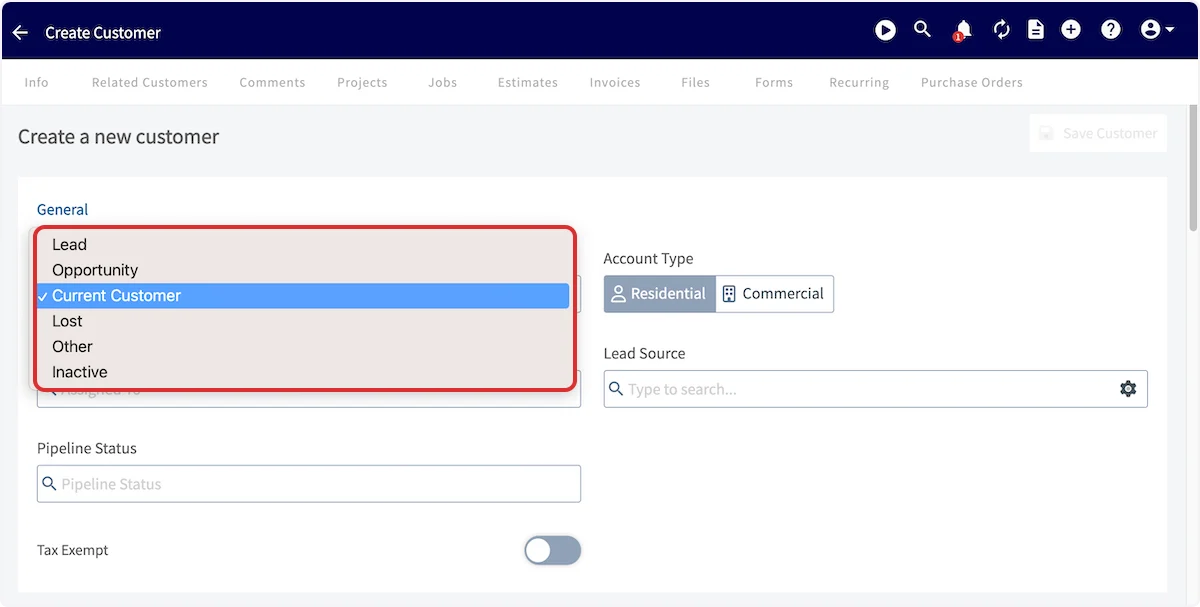
FieldPulse offers a simple method of tracking the lifecycle of a customer as they move through different stages. A single field on the customer profile called *Status* indicates the current state of the customer. The account statuses include:
* *Lead*
* *Opportunity*
* *Current Customer*
* *Lost*
* *Other*
* *Inactive*
 ***
# What Are Customer Statuses in FieldPulse?
**Lead:** indicates a potential customer that has shown interest in your services. If you've received an inquiry or call from a potential customer, they would fall into the category of a lead.
**Opportunity:** indicates a potential customer that you believe has a good chance of purchasing your service. This customer would be a step beyond a lead and may be close to a sale. This could be someone you've given an estimate.
**Current Customer:** indicates someone who has purchased your services. **When creating a new customer profile, all customers default to Current Customer.**
**Lost:** indicates someone who has gone through the sales process with you as a lead or opportunity but did not purchase your services. This could be someone who you've given an estimate who didn't purchase. Tracking and marketing to lost customers can help you build your business in the future.
**Other:** is an option for an account that doesn't fit into the categories and for you to denote as you wish. Some users choose to store partners and vendors in their FieldPulse CRM, which could fall under *Other*.
***
# **Setting Account Status on the Customer Profile**
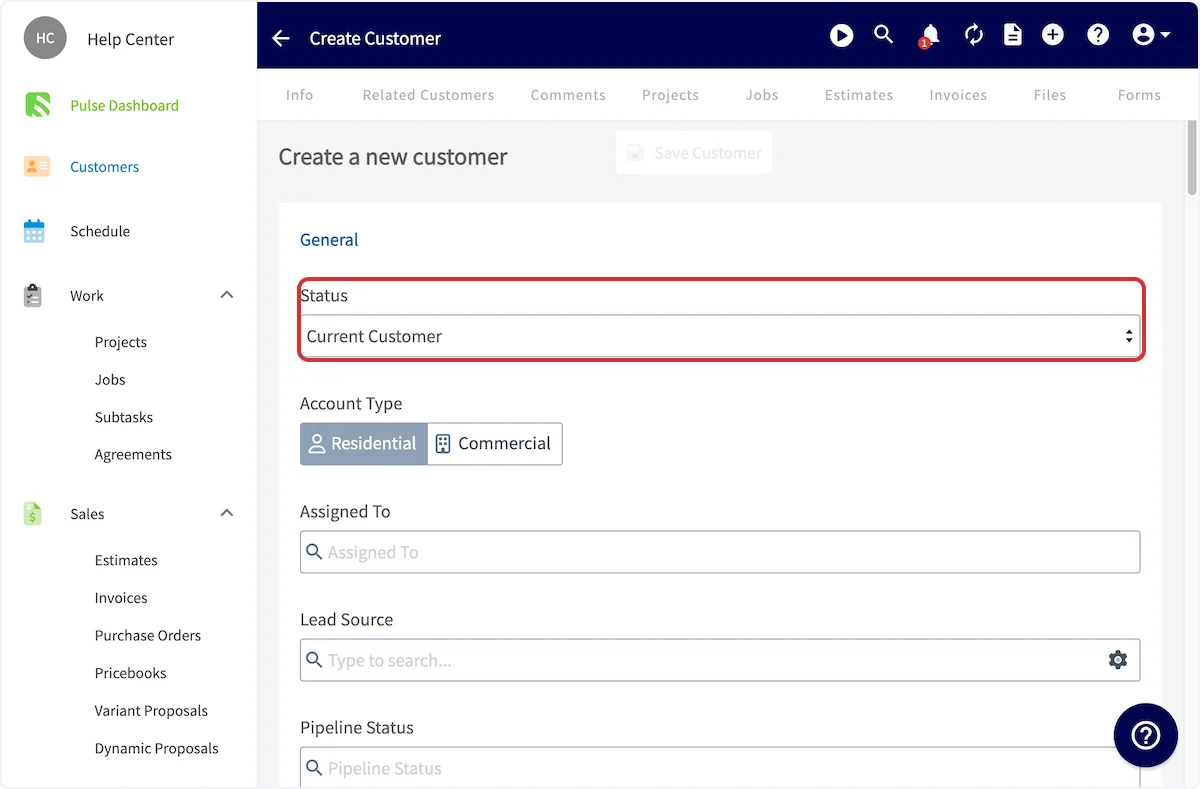
**For a new customer:** Navigate to *Customers* and click *Create Customer*. As you create a new customer record, you can adjust the status at the top of the form under the *Status* dropdown.
**For an existing customer:** If you want to edit the status of a customer that's already in your system, you can do that from the customer record. Navigate to the *Customers* page and click on the customer you want to edit. On the customer record page, click *Edit* and locate the *Status* section. From the dropdown menu, you can select a new customer status.
***
# What Are Customer Statuses in FieldPulse?
**Lead:** indicates a potential customer that has shown interest in your services. If you've received an inquiry or call from a potential customer, they would fall into the category of a lead.
**Opportunity:** indicates a potential customer that you believe has a good chance of purchasing your service. This customer would be a step beyond a lead and may be close to a sale. This could be someone you've given an estimate.
**Current Customer:** indicates someone who has purchased your services. **When creating a new customer profile, all customers default to Current Customer.**
**Lost:** indicates someone who has gone through the sales process with you as a lead or opportunity but did not purchase your services. This could be someone who you've given an estimate who didn't purchase. Tracking and marketing to lost customers can help you build your business in the future.
**Other:** is an option for an account that doesn't fit into the categories and for you to denote as you wish. Some users choose to store partners and vendors in their FieldPulse CRM, which could fall under *Other*.
***
# **Setting Account Status on the Customer Profile**
**For a new customer:** Navigate to *Customers* and click *Create Customer*. As you create a new customer record, you can adjust the status at the top of the form under the *Status* dropdown.
**For an existing customer:** If you want to edit the status of a customer that's already in your system, you can do that from the customer record. Navigate to the *Customers* page and click on the customer you want to edit. On the customer record page, click *Edit* and locate the *Status* section. From the dropdown menu, you can select a new customer status.
 ***
# Sorting Your Customers by Status
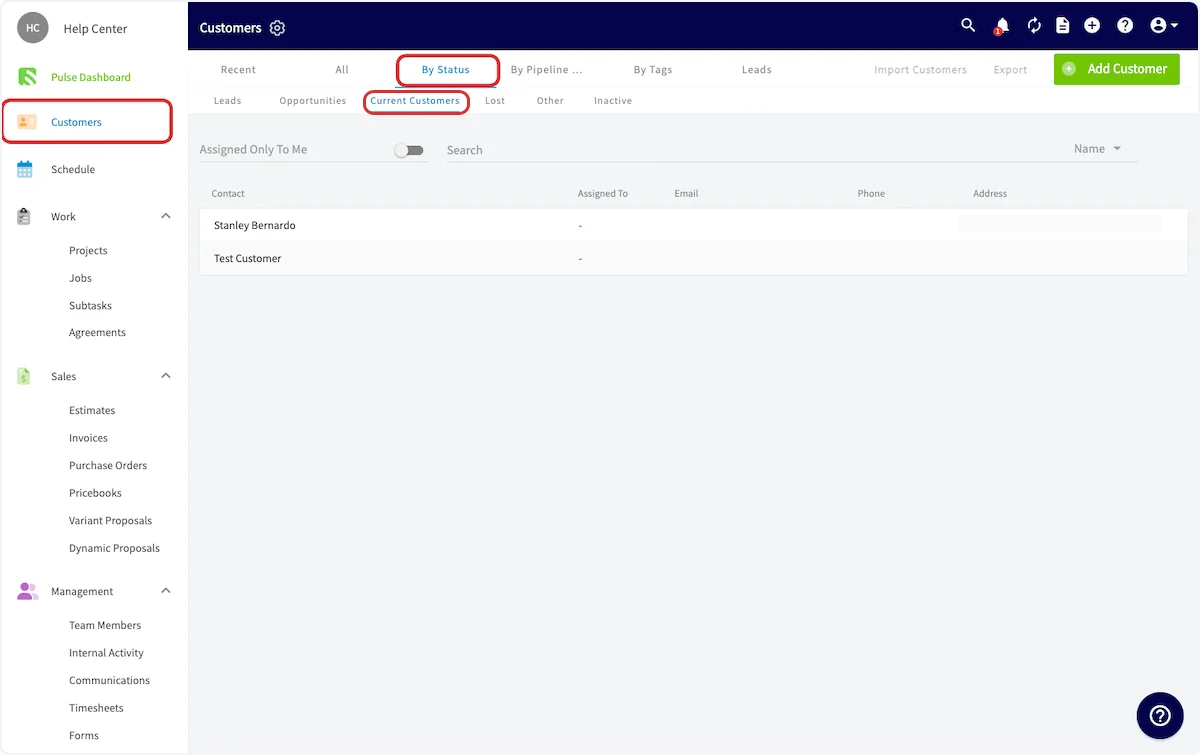
On the *Customers* page, you can segment your customer list by account status by selecting the *By Status* tab, and then selecting an account status (e.g. *Current Customers*). This will display all customers that are marked with the *Current Customers* account status.
***
# Sorting Your Customers by Status
On the *Customers* page, you can segment your customer list by account status by selecting the *By Status* tab, and then selecting an account status (e.g. *Current Customers*). This will display all customers that are marked with the *Current Customers* account status.
 ***
# Video Tutorial
***
**Have additional questions?**
*Contact us at [support@fieldpulse.com](mailto:support@fieldpulse.com) or use the chat feature in the bottom right corner of your screen.*
***
# Video Tutorial
***
**Have additional questions?**
*Contact us at [support@fieldpulse.com](mailto:support@fieldpulse.com) or use the chat feature in the bottom right corner of your screen.*