> ## Documentation Index
> Fetch the complete documentation index at: https://help.fieldpulse.com/llms.txt
> Use this file to discover all available pages before exploring further.
# Merging Duplicate Customer Records
> Merge duplicate customers without losing key details in FieldPulse! Begin by navigating to the customer record of a customer you'd like to merge and…
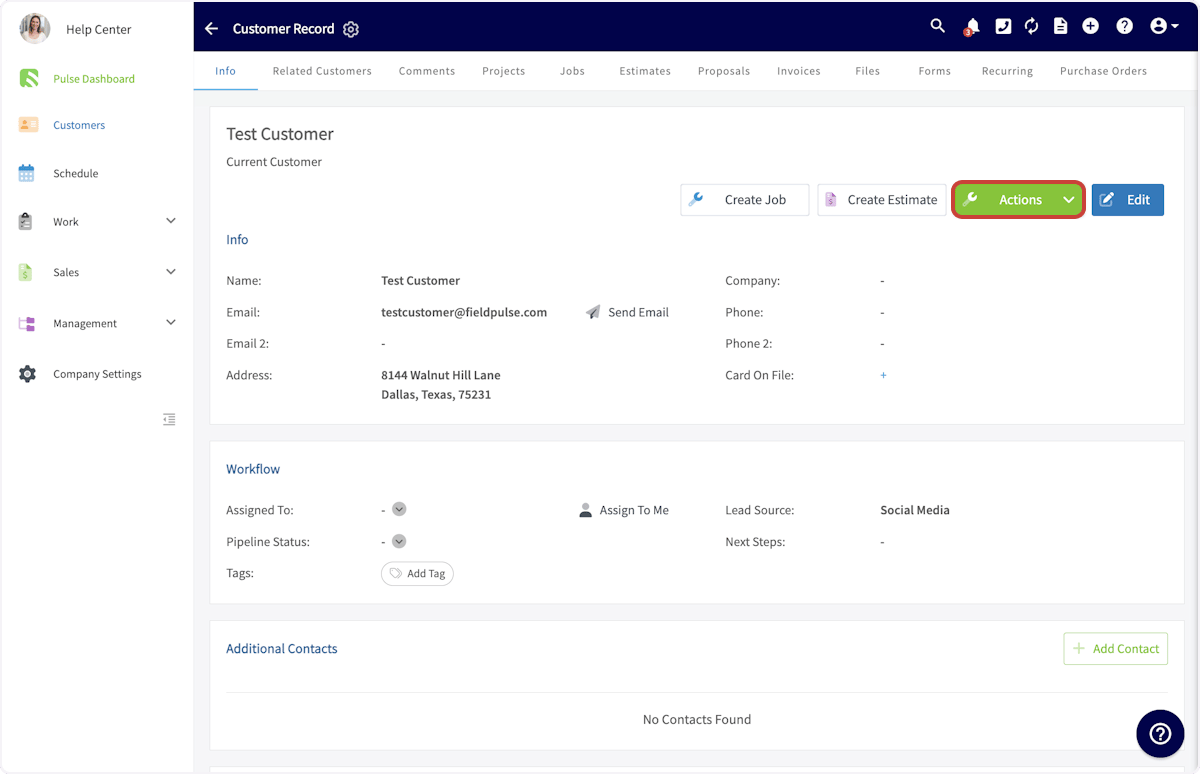
Merge duplicate customers without losing key details in FieldPulse! Begin by navigating to the customer record of a customer you'd like to merge and select *Actions*.
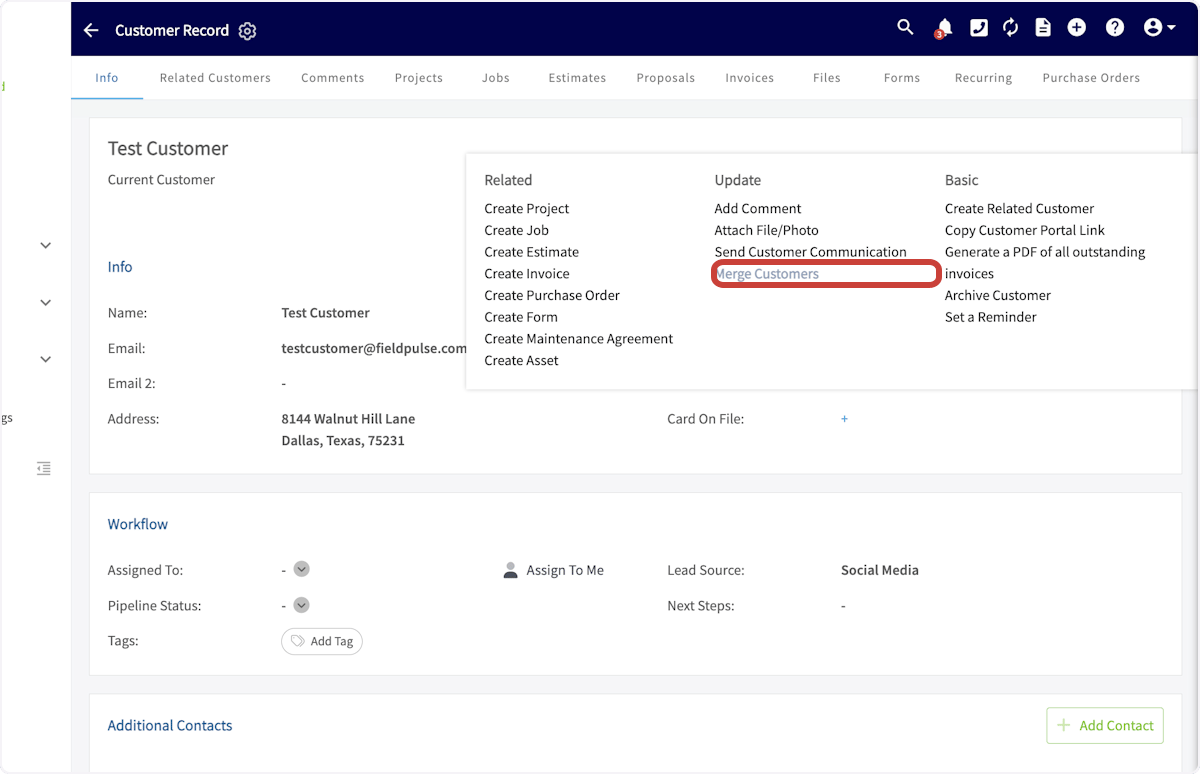
 Then, click *Merge Customers*.
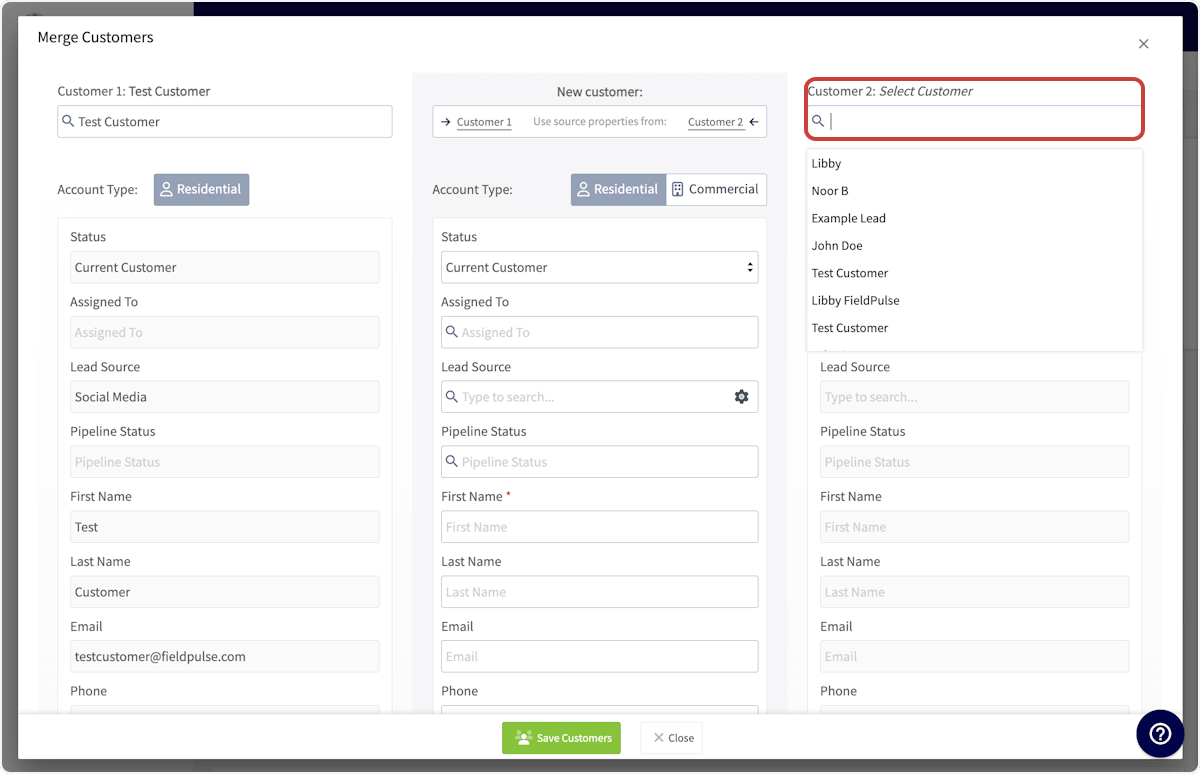
 You can now search for the second customer record you'd like to merge.
 If you'd like to use all the details of a single customer's record, use the *Customer 1* or *Customer 2* buttons at the top of the page.
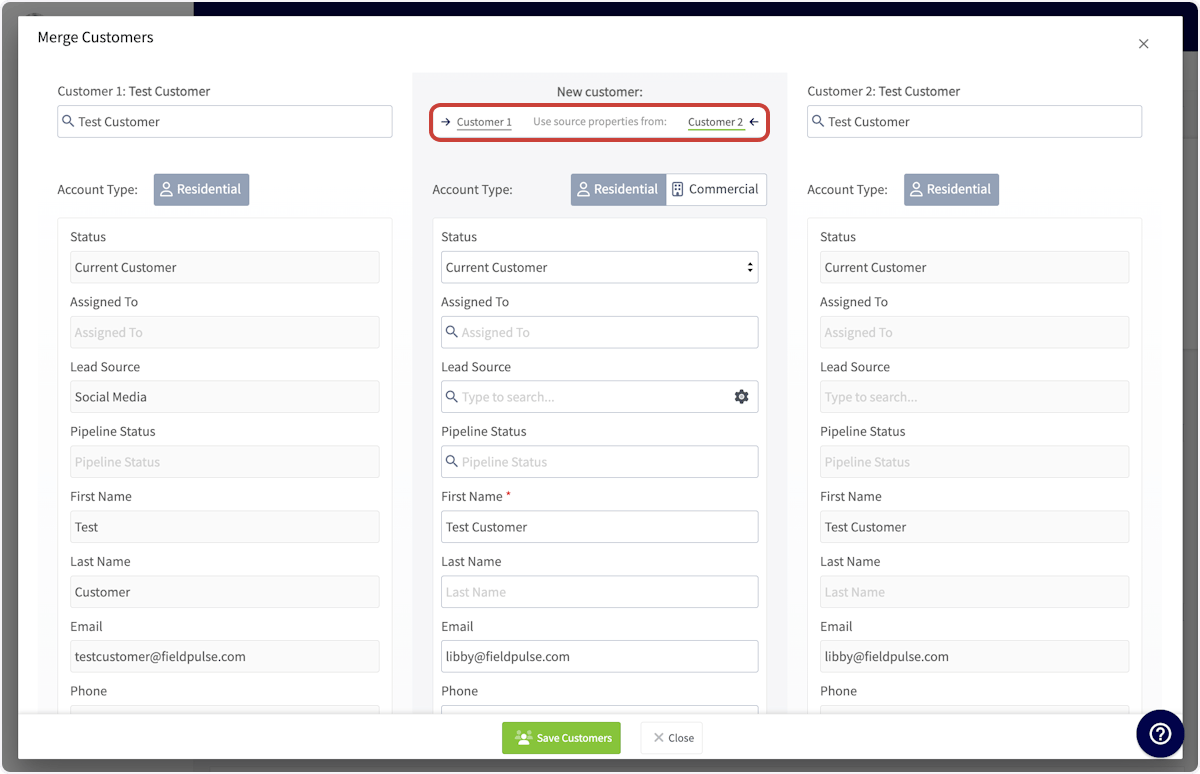 To pull individual details from each customer record, hover over a detail and select the arrow icon to include that detail in the merged customer record.
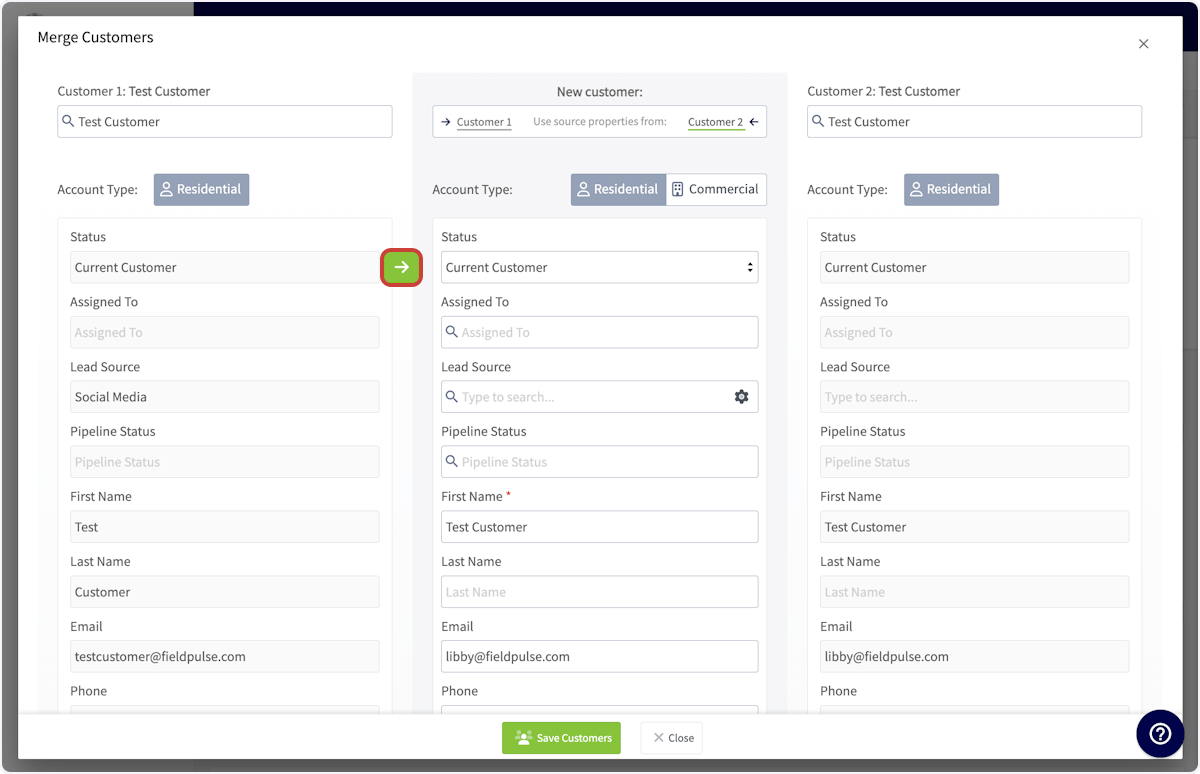 When you're satisfied with your merged customer record, displayed in the center column, press *Save Customers*. Your two customer records will now be merged into a single record, displaying the details you added to the center column.
***
# Video Tutorial
***
**Have additional questions?**
*Contact us at [support@fieldpulse.com](mailto:support@fieldpulse.com) or use the chat feature in the bottom right corner of your screen.*
When you're satisfied with your merged customer record, displayed in the center column, press *Save Customers*. Your two customer records will now be merged into a single record, displaying the details you added to the center column.
***
# Video Tutorial
***
**Have additional questions?**
*Contact us at [support@fieldpulse.com](mailto:support@fieldpulse.com) or use the chat feature in the bottom right corner of your screen.*