> ## Documentation Index
> Fetch the complete documentation index at: https://help.fieldpulse.com/llms.txt
> Use this file to discover all available pages before exploring further.
# Effortless Updates with Mass Import for Custom Fields
> Bulk-edit custom fields across customers, estimates, invoices, work orders, and assets from one spreadsheet import.
Efficiency is key. We understand that managing customer data can be a time consuming task, especially when dealing with multiple records. That’s why we’re excited to introduce a powerful new functionality in FieldPulse: the Mass Import for Custom Fields. This feature is designed to simplify your data management process, **allowing you to make bulk entries and adjustments quickly and easily.**
## Why Mass Importing for Custom Fields is a Game Changer
The Mass Import functionality allows existing FieldPulse users to edit custom fields for various records including: customers, estimates, invoices, work orders, maintenance agreements, assets, and purchase orders. Instead of manually updating each record, you can now make changes in an Excel sheet and upload it in one go. Go ahead and save yourself some valuable time!
## Who Can Benefit from This Functionality?
**Current FieldPulse Users**: For those already utilizing custom fields, the Mass Import feature provides a quick and efficient way to update multiple records at once. Whether you’re changing customer preferences, updating service details, or adjusting asset information, this functionality allows you to do it all in a fraction of the time.
### Custom Fields must already be created within FieldPulse to utilize this import functionality.
***
# Where to Locate the Mass Import Option
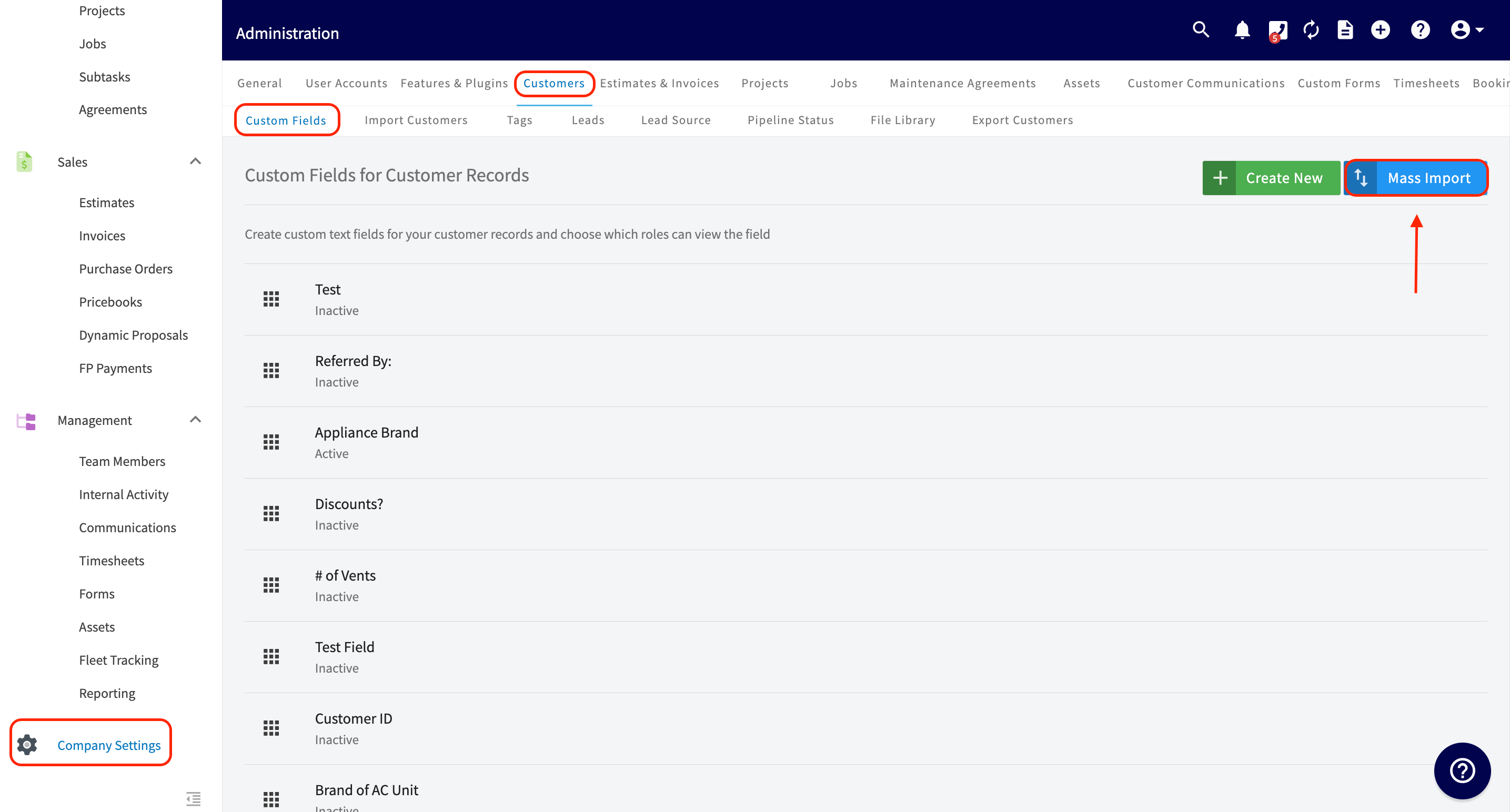
To begin, click on *Company Settings* from the menu on the left hand side of your screen. From here you can click on one of the tabs from the top menu: *Customers, Estimates & Invoices, Jobs, Maintenance Agreements, Assets, Orders*. These tabs mentioned are records that allow you to create and attach custom fields. In the example pictured below I have decided to select the *Customers* tab.
You will then select the blue button to begin the mass importing process.
 ***
# Begin Importing Custom Fields
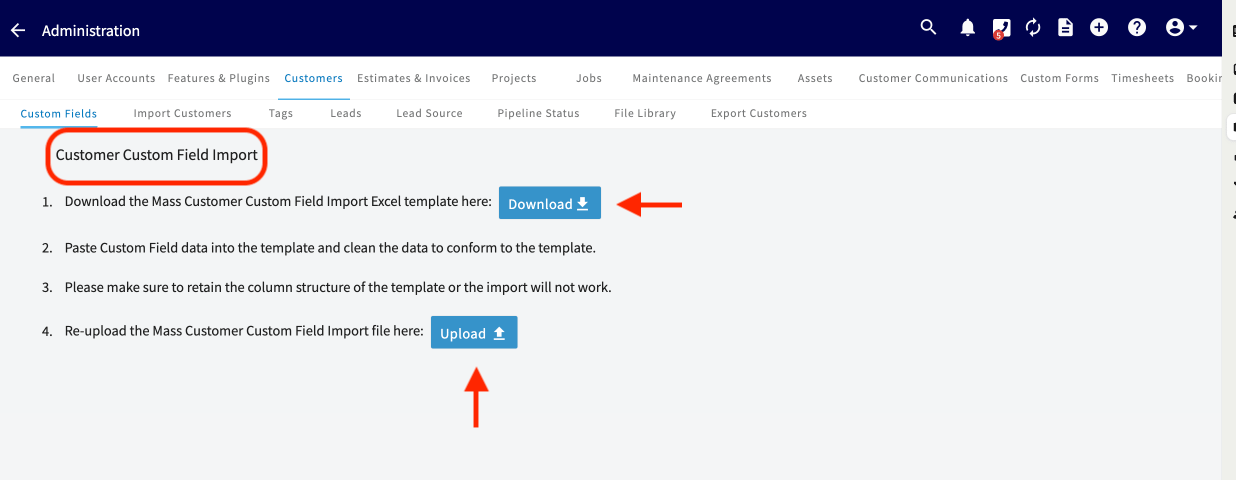
After clicking on the blue *Mass Import* button, similar to all other import functions within FieldPulse, you will begin by downloading the Excel file. If you do not have Excel, do not stress! You can also use Google Sheets to complete this task. [the Google Sheets import guide](/using-fieldpulse/data-imports-exports/self-importing-data-with-google-sheets) for a step-by-step guide on how to complete this on Google Sheets.
After downloading the Excel template you can then begin to add/edit all of your information on the sheet, save, and then we will upload that spreadsheet again to reflect the new data entered across the custom fields within FieldPulse.
***
# Begin Importing Custom Fields
After clicking on the blue *Mass Import* button, similar to all other import functions within FieldPulse, you will begin by downloading the Excel file. If you do not have Excel, do not stress! You can also use Google Sheets to complete this task. [the Google Sheets import guide](/using-fieldpulse/data-imports-exports/self-importing-data-with-google-sheets) for a step-by-step guide on how to complete this on Google Sheets.
After downloading the Excel template you can then begin to add/edit all of your information on the sheet, save, and then we will upload that spreadsheet again to reflect the new data entered across the custom fields within FieldPulse.
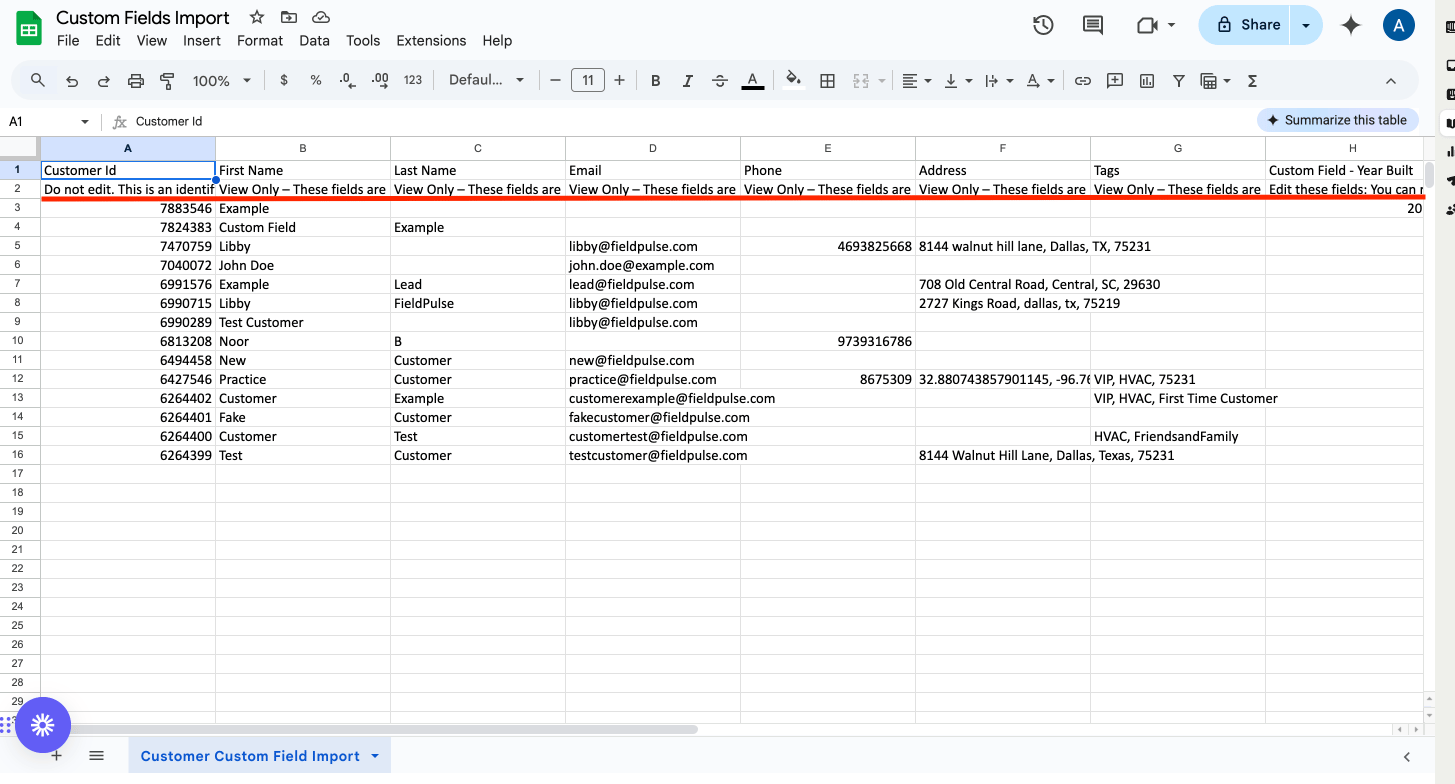
 ***When on the spreadsheet, note that the cells above the red line should not be edited.*** Please read the instructions carefully.
 ***
# Video Tutorial
***
**Have additional questions?**
*Contact us at [support@fieldpulse.com](mailto:support@fieldpulse.com) or use the chat feature in the bottom right corner of your screen.*
***
# Video Tutorial
***
**Have additional questions?**
*Contact us at [support@fieldpulse.com](mailto:support@fieldpulse.com) or use the chat feature in the bottom right corner of your screen.*