> ## Documentation Index
> Fetch the complete documentation index at: https://help.fieldpulse.com/llms.txt
> Use this file to discover all available pages before exploring further.
# Importing Customers
> Looking to import an existing customer base? Simply export your customers to Excel, Google Sheets, or CSV file and use our mass import tool to upload them…
Looking to import an existing customer base? Simply export your customers to Excel, Google Sheets, or CSV file and use our mass import tool to upload them into FieldPulse.
To begin, navigate to *Company Settings* then click on the *Customers* tab. From here, select *Import Customers* and then follow the on-screen prompts to download the *Mass Job Import Excel template*. ***(Note: If you do not have Excel, you can always utilize Google Sheets. Click [here](/using-fieldpulse/data-imports-exports/self-importing-data-with-google-sheets) to learn how)***.
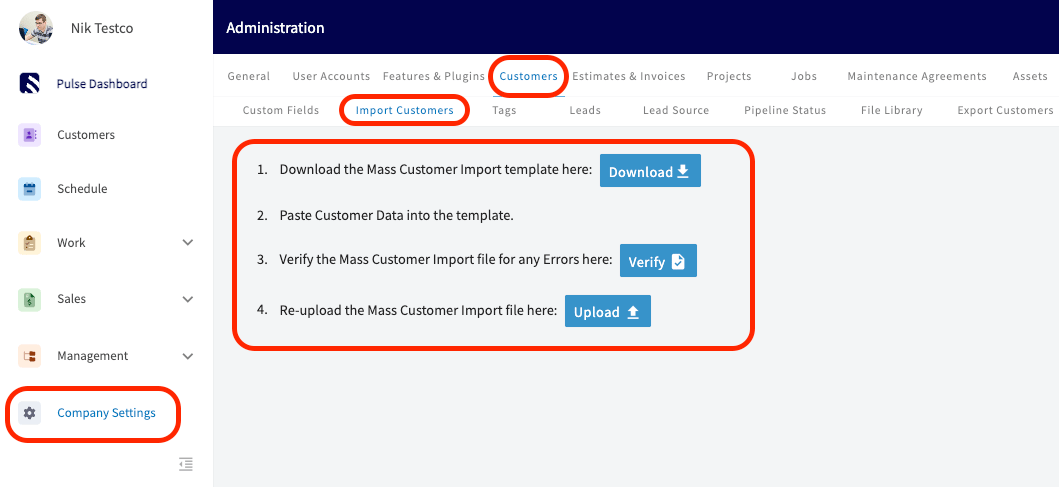 You will need to fill in the template, ensuring that you **do not** alter the structure of the form.
After completing the template, verify the data you are trying to import by clicking the *Verify* button. Our system will flag any errors or missing required information. This step will ensure that the data you enter is accurate from the start, so you don’t waste time trying to troubleshoot issues with multiple reimports.
Fields with errors or missing information will appear in red. In the image below, you can see in the top right corner that out of the five total records I am trying to import, two of the records have invalid or missing information.
You will need to fill in the template, ensuring that you **do not** alter the structure of the form.
After completing the template, verify the data you are trying to import by clicking the *Verify* button. Our system will flag any errors or missing required information. This step will ensure that the data you enter is accurate from the start, so you don’t waste time trying to troubleshoot issues with multiple reimports.
Fields with errors or missing information will appear in red. In the image below, you can see in the top right corner that out of the five total records I am trying to import, two of the records have invalid or missing information.
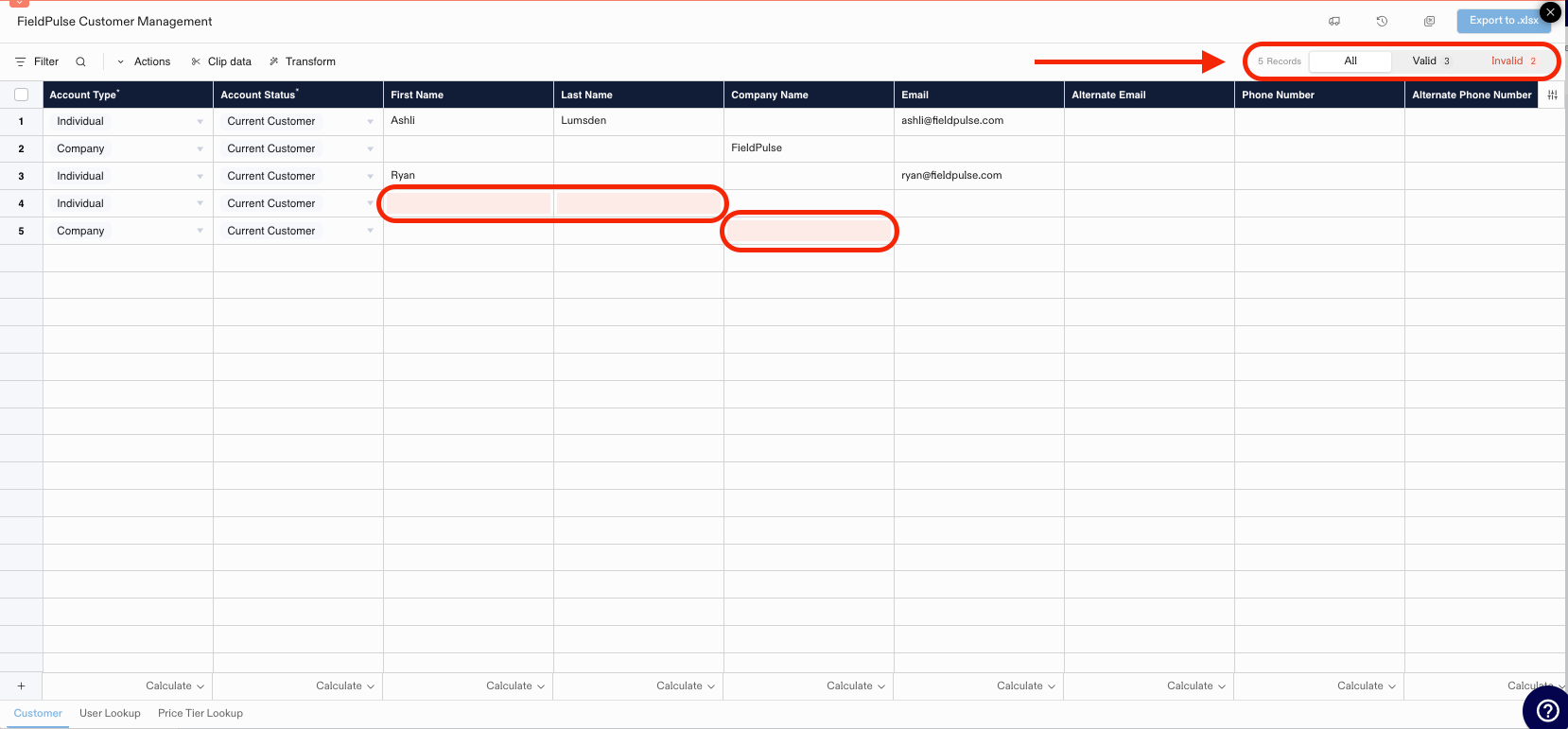 After editing the invalid fields, please ensure that all information is valid and that all records are marked as *Valid* in the top right corner of the screen, as shown in the image below. Once confirmed, you can export the data by clicking the *Export to .xlsx* button.
 After exporting your verified customer data, re-upload it into FieldPulse by using the *Upload* button, as shown in step 4 above.
***
# Interactive Demo
[Click here](https://app.storylane.io/share/1i8my1c09qbk) to explore our interactive demo of the customer import feature.
***
# Import Additional Contacts & Locations on the Customer Record
To save time, you can use the import feature to upload additional contacts and additional locations to a customer record.
## Additional Contacts:
1. On a customer record, scroll to find the *Additional Contacts* section then click the *Import Contacts* button.
After exporting your verified customer data, re-upload it into FieldPulse by using the *Upload* button, as shown in step 4 above.
***
# Interactive Demo
[Click here](https://app.storylane.io/share/1i8my1c09qbk) to explore our interactive demo of the customer import feature.
***
# Import Additional Contacts & Locations on the Customer Record
To save time, you can use the import feature to upload additional contacts and additional locations to a customer record.
## Additional Contacts:
1. On a customer record, scroll to find the *Additional Contacts* section then click the *Import Contacts* button.
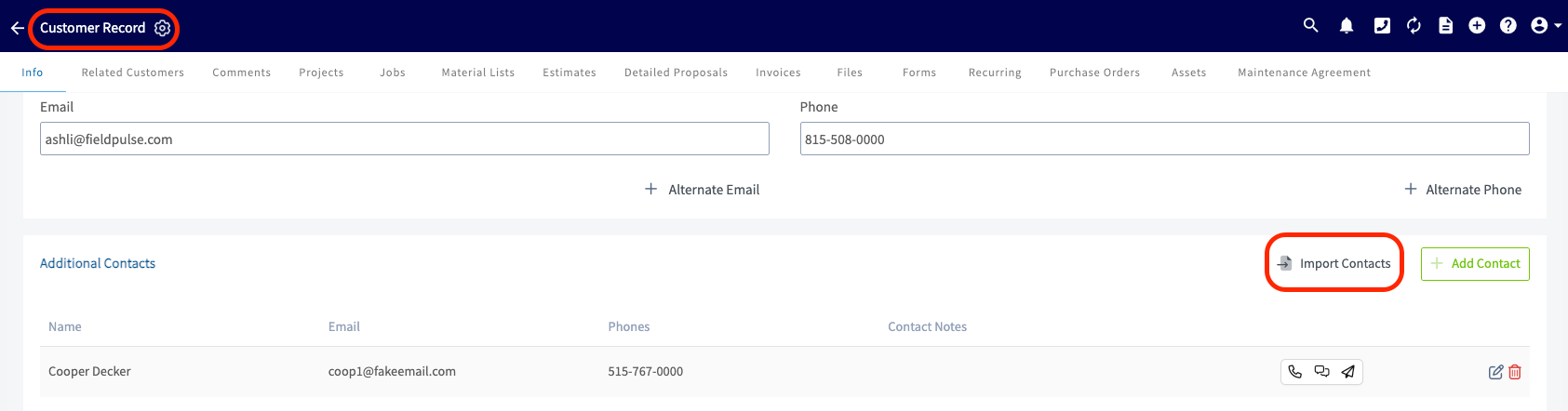 2. A pop-up message will appear in the app, allowing you to download the necessary template for this import.
 3. You will need to fill in the template, ensuring that you **do not** alter the structure of the form. ***(Note: If you do not have Excel to fill the template, you can always utilize Google Sheets. Click [here](/using-fieldpulse/data-imports-exports/self-importing-data-with-google-sheets) to learn how)***.
4. Once completed, re-upload the template into FieldPulse by clicking the blue Import button.
3. You will need to fill in the template, ensuring that you **do not** alter the structure of the form. ***(Note: If you do not have Excel to fill the template, you can always utilize Google Sheets. Click [here](/using-fieldpulse/data-imports-exports/self-importing-data-with-google-sheets) to learn how)***.
4. Once completed, re-upload the template into FieldPulse by clicking the blue Import button.
 ## Additional Locations:
1. On a customer record, scroll to find the *Additional Locations* section then click the *Import Locations* button.
## Additional Locations:
1. On a customer record, scroll to find the *Additional Locations* section then click the *Import Locations* button.
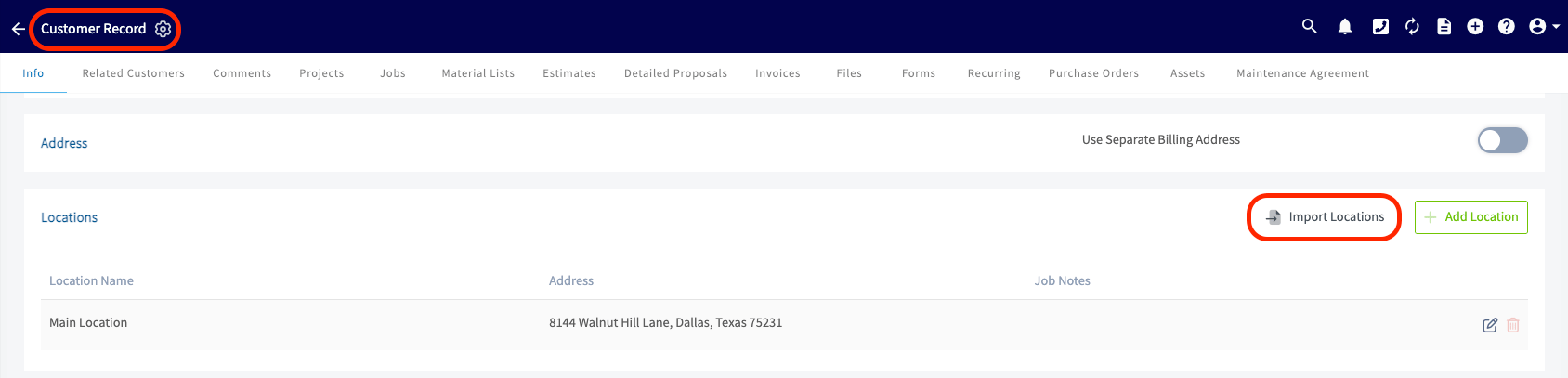 2. A pop-up message will appear in the app, allowing you to download the necessary template for this import.
 3. You will need to fill in the template, ensuring that you **do not** alter the structure of the form. ***(Note: If you do not have Excel to fill the template, you can always utilize Google Sheets. Click [here](/using-fieldpulse/data-imports-exports/self-importing-data-with-google-sheets) to learn how)***.
4. Once completed, re-upload the template into FieldPulse by clicking the blue Import button.
3. You will need to fill in the template, ensuring that you **do not** alter the structure of the form. ***(Note: If you do not have Excel to fill the template, you can always utilize Google Sheets. Click [here](/using-fieldpulse/data-imports-exports/self-importing-data-with-google-sheets) to learn how)***.
4. Once completed, re-upload the template into FieldPulse by clicking the blue Import button.
 ***
# Import from Phone Contacts (Mobile)
On the FieldPulse Mobile App, you can import customers directly from your phone's native contacts app.
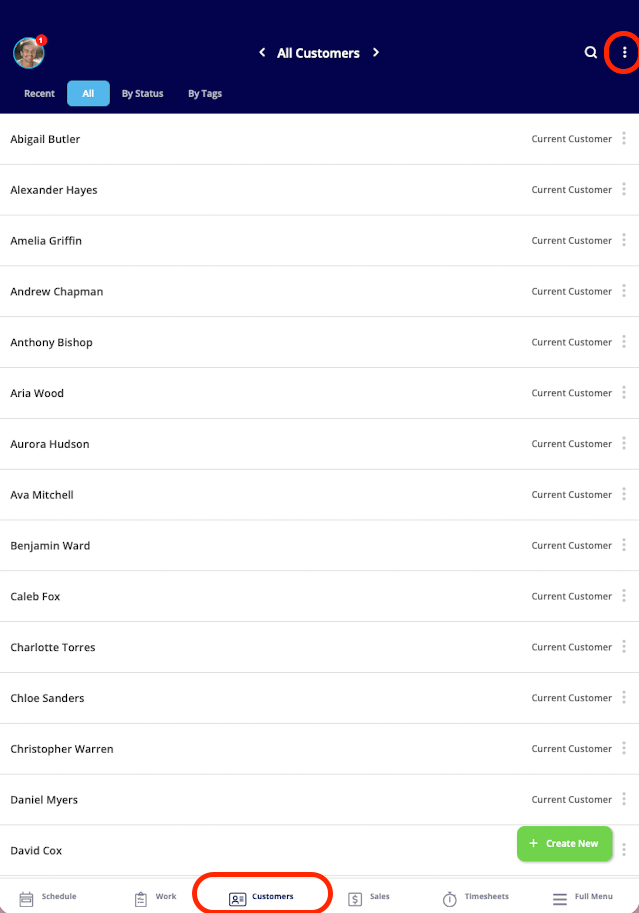
**Step 1:** Navigate to the *Customer List* and tap the three dots in the top right corner.
***
# Import from Phone Contacts (Mobile)
On the FieldPulse Mobile App, you can import customers directly from your phone's native contacts app.
**Step 1:** Navigate to the *Customer List* and tap the three dots in the top right corner.
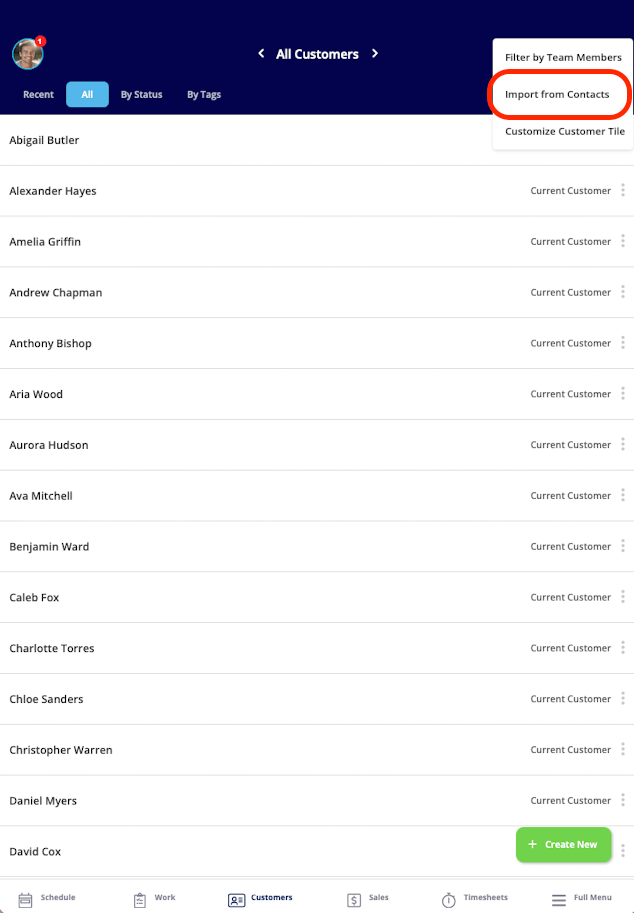
 **Step 2:** Select *Import from Contacts.*
 **Step 3:** Use the search bar to find specific contacts by name that you want to import into FieldPulse.
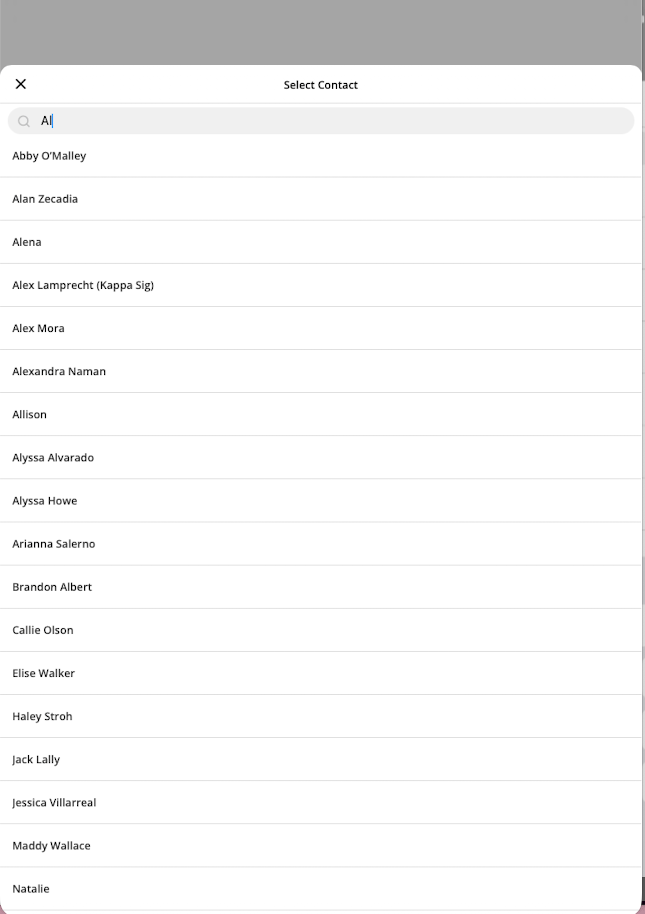 **Step 4:** Select the individual contacts you want to bring into FieldPulse, then you'll see them in your Customer List!
***
**Have additional questions?**
*Contact us at [support@fieldpulse.com](mailto:support@fieldpulse.com) or use the chat feature in the bottom right corner of your screen.*
**Step 4:** Select the individual contacts you want to bring into FieldPulse, then you'll see them in your Customer List!
***
**Have additional questions?**
*Contact us at [support@fieldpulse.com](mailto:support@fieldpulse.com) or use the chat feature in the bottom right corner of your screen.*