> ## Documentation Index
> Fetch the complete documentation index at: https://help.fieldpulse.com/llms.txt
> Use this file to discover all available pages before exploring further.
# Adding Labor to Estimates & Invoices
> Bill technician labor on estimates and invoices using each team member's hourly billing and cost rates.
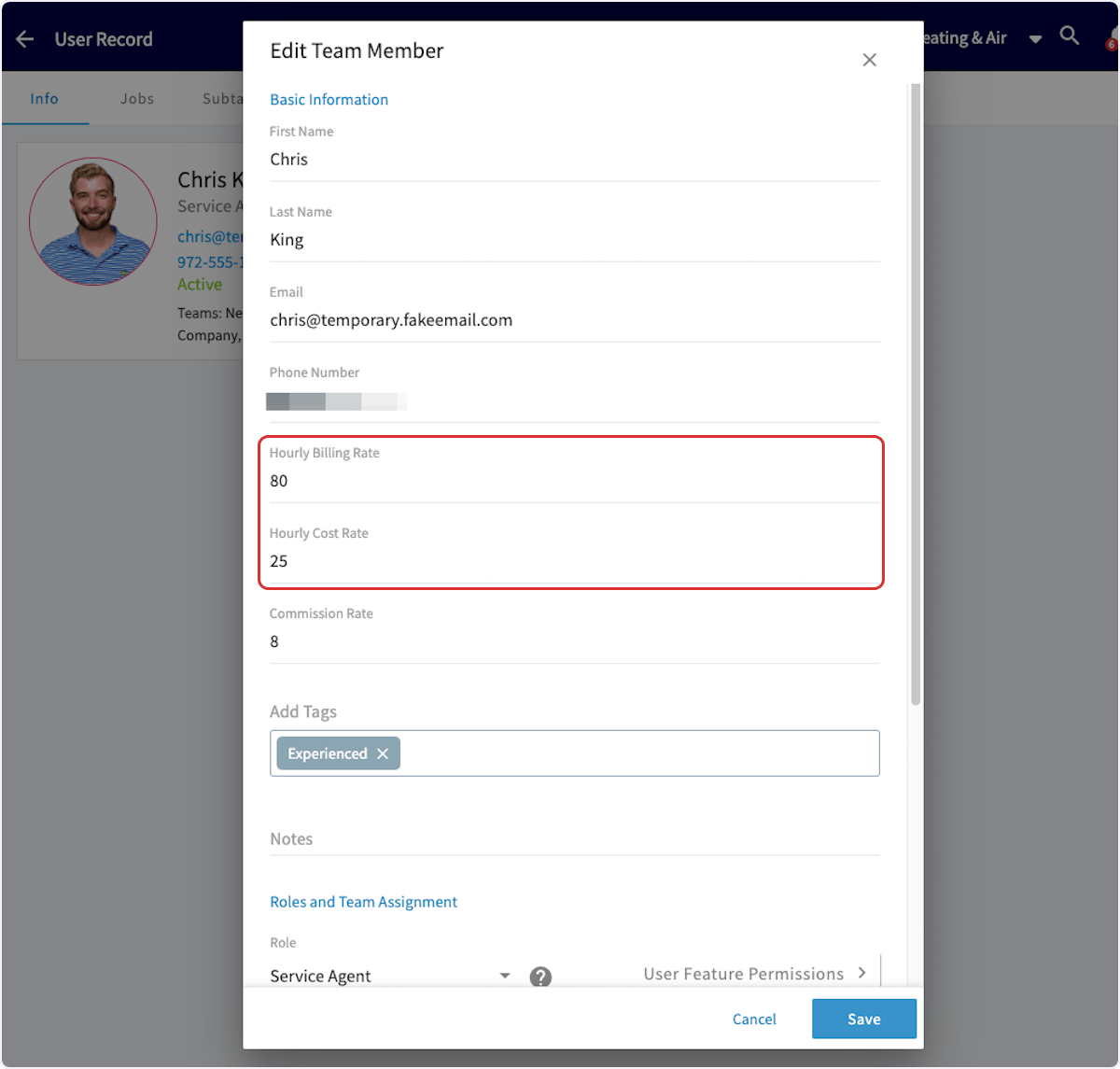
Before you get started, be sure that your team members have **Hourly Billing Rate** and **Hourly Cost Rate** set up in *Company Settings*. As a reminder, **Hourly Billing Rate** is the rate you charge your customers per hour for a technician, whereas **Hourly Cost Rate** is the rate per hour that this technician costs your business. To learn more, [the adding new users guide](/using-fieldpulse/users-teams/adding-new-users).
 ***
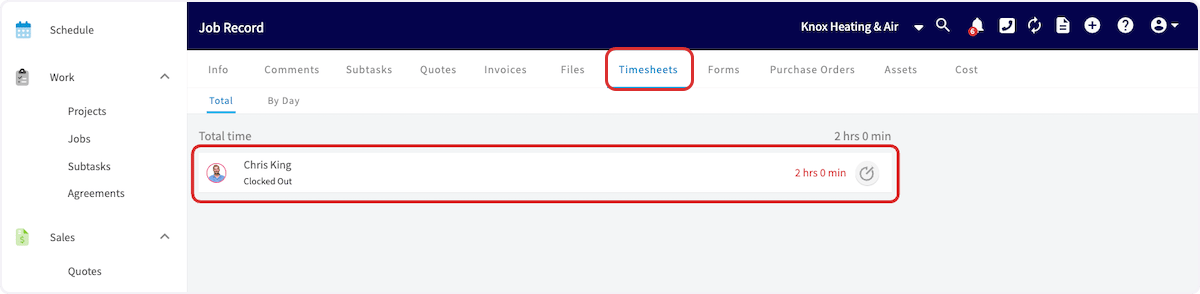
When utilizing *Job Timesheets*, your team member will record the time spent on the job by clocking in and out. After the job has been completed, you can now create your invoice and insert the associated timesheets.
***
When utilizing *Job Timesheets*, your team member will record the time spent on the job by clocking in and out. After the job has been completed, you can now create your invoice and insert the associated timesheets.
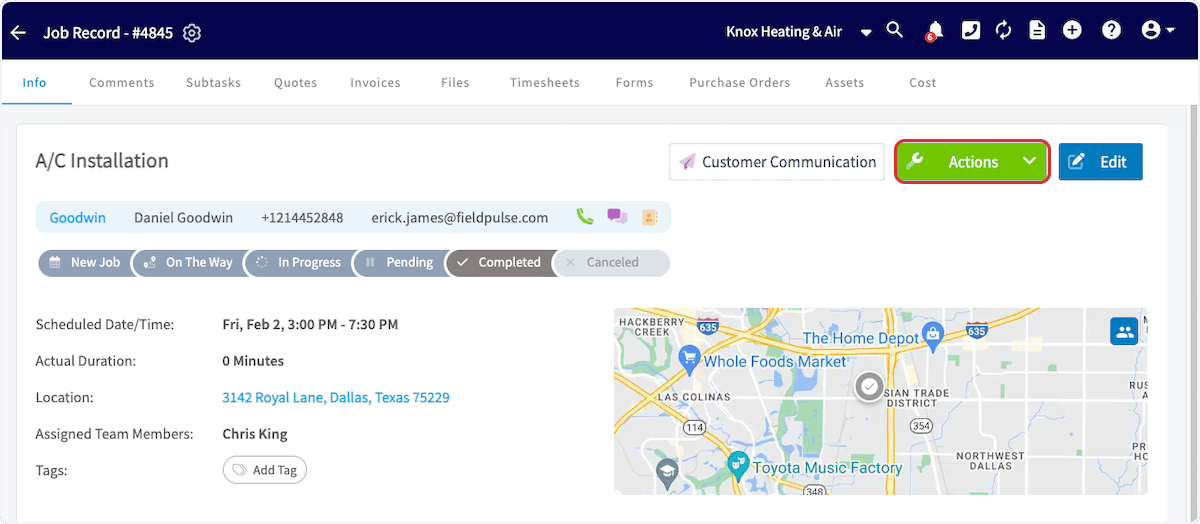
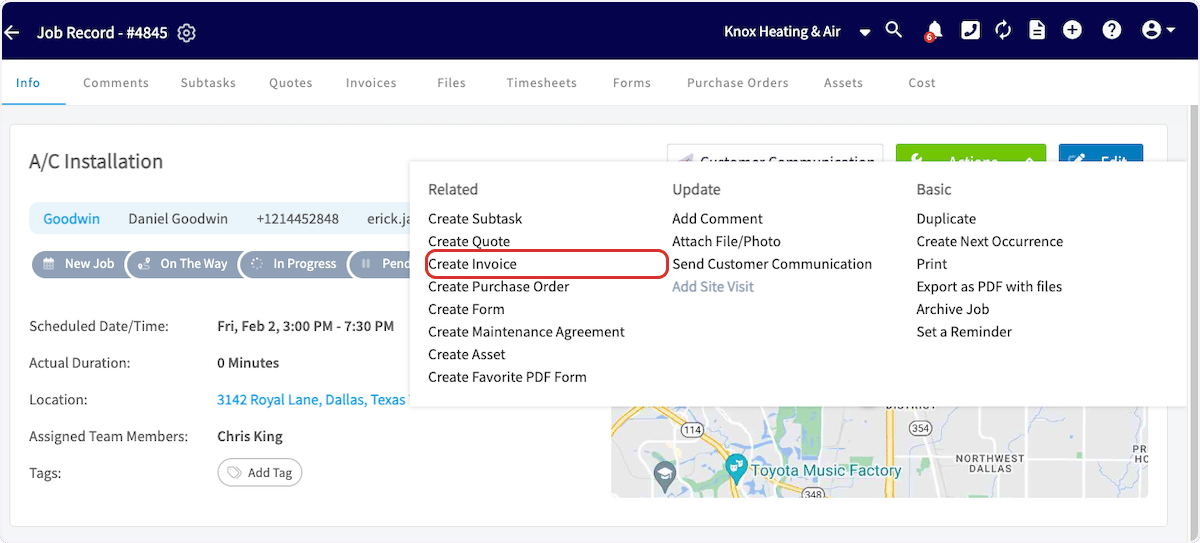
 Create an invoice and link the job, or select *Actions* on the Job Record then click *Create Invoice*.
 When you're ready to add your timesheets, select *Add Item* and add your Labor line item.
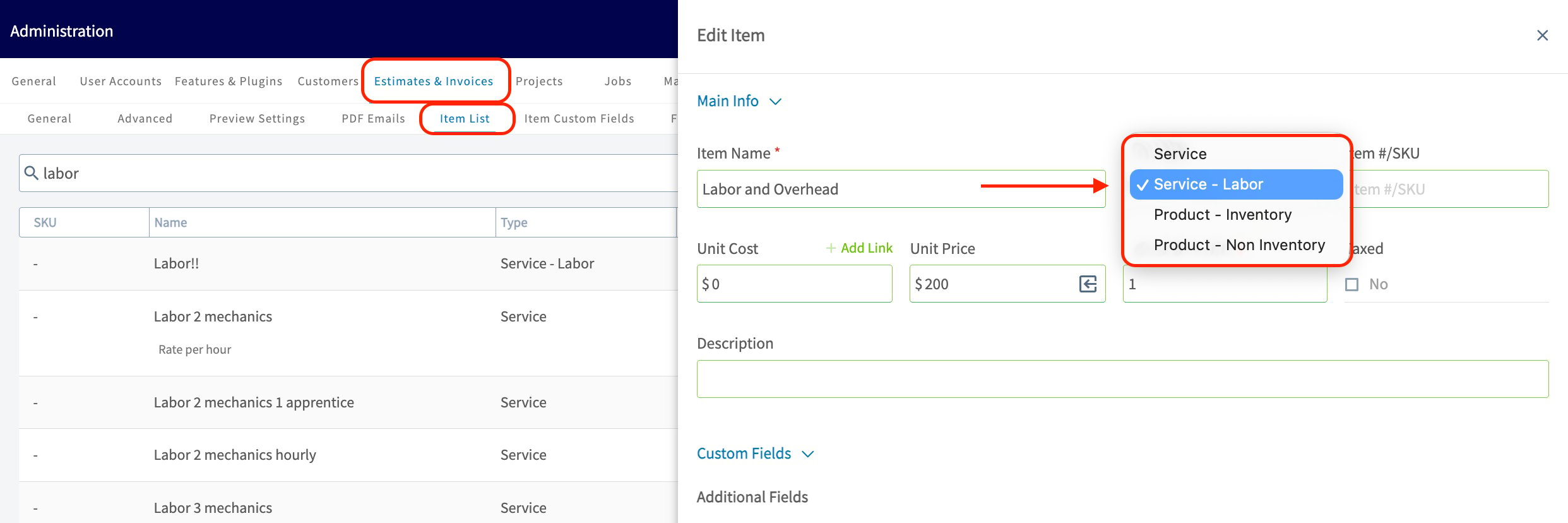
🚀 **FieldPulse Pro Tip:** Make sure this line item is marked as *"Service - Labor".* Selecting this automatically categorizes any costs associated with this item as Labor in your job costing calculations. For existing service items, you can manually update their item type.
When you're ready to add your timesheets, select *Add Item* and add your Labor line item.
🚀 **FieldPulse Pro Tip:** Make sure this line item is marked as *"Service - Labor".* Selecting this automatically categorizes any costs associated with this item as Labor in your job costing calculations. For existing service items, you can manually update their item type.
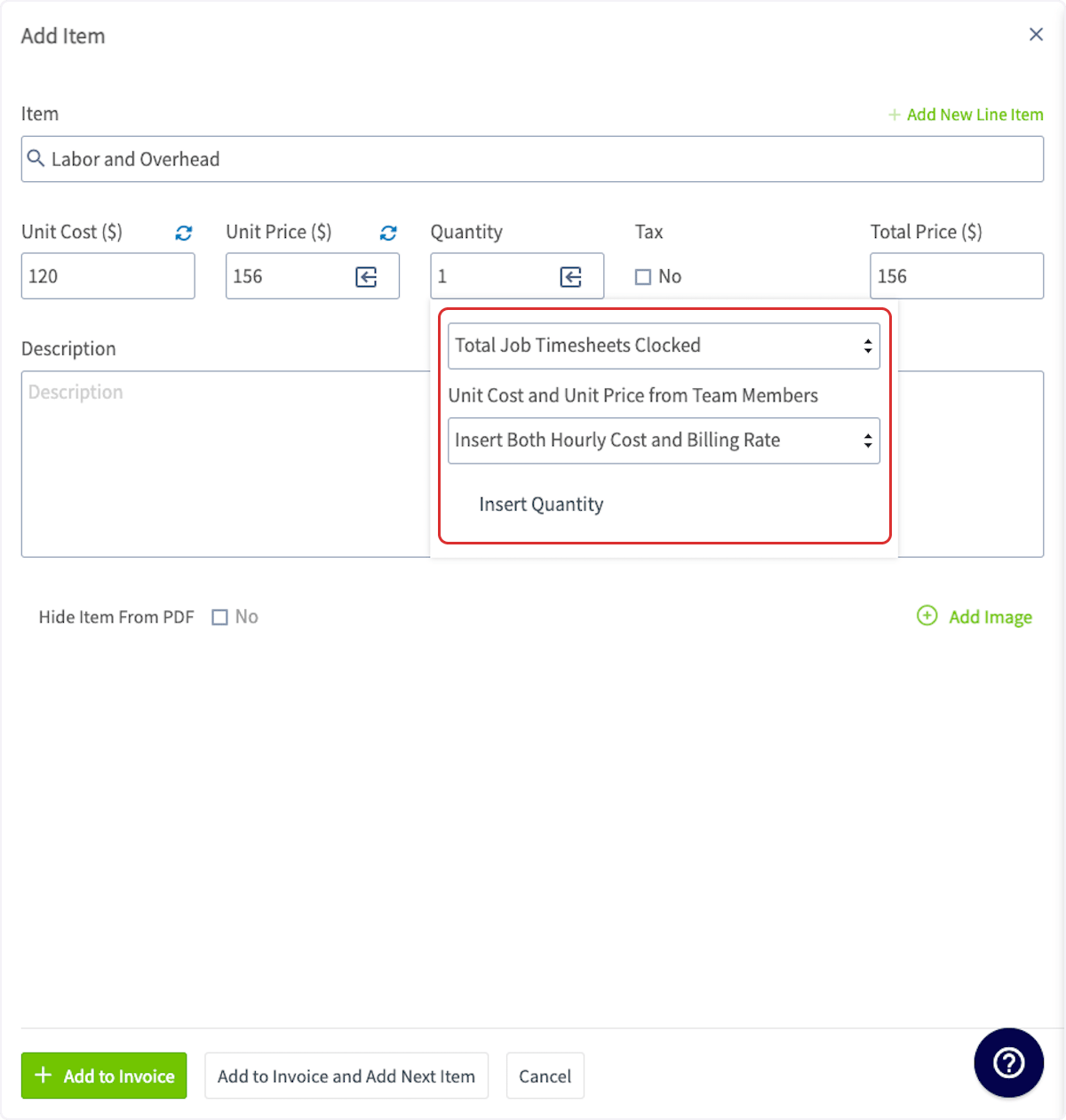
 Click the arrow/box icon in the quantity field. You can now select how the quantity of this line item is measured. To base the labor time on your timesheets, select *Total Job Timesheets Clocked*. You can then specify whether to include the *hourly cost rate* and/or the *hourly billing rate* on your invoice record. Remember that your customer won't see the *hourly cost rate*.
🚨 **Please Note:** If you try to edit a 'Labor' line item that has already been added to your Estimate or Invoice, the hourly billing and cost rates for your technicians cannot be retrieved. These rates can only be pulled in **before** the Line Item is officially added to an Estimate or Invoice.
Once you've made your selections, click *Insert Quantity*, then add the item to your invoice.
Click the arrow/box icon in the quantity field. You can now select how the quantity of this line item is measured. To base the labor time on your timesheets, select *Total Job Timesheets Clocked*. You can then specify whether to include the *hourly cost rate* and/or the *hourly billing rate* on your invoice record. Remember that your customer won't see the *hourly cost rate*.
🚨 **Please Note:** If you try to edit a 'Labor' line item that has already been added to your Estimate or Invoice, the hourly billing and cost rates for your technicians cannot be retrieved. These rates can only be pulled in **before** the Line Item is officially added to an Estimate or Invoice.
Once you've made your selections, click *Insert Quantity*, then add the item to your invoice.
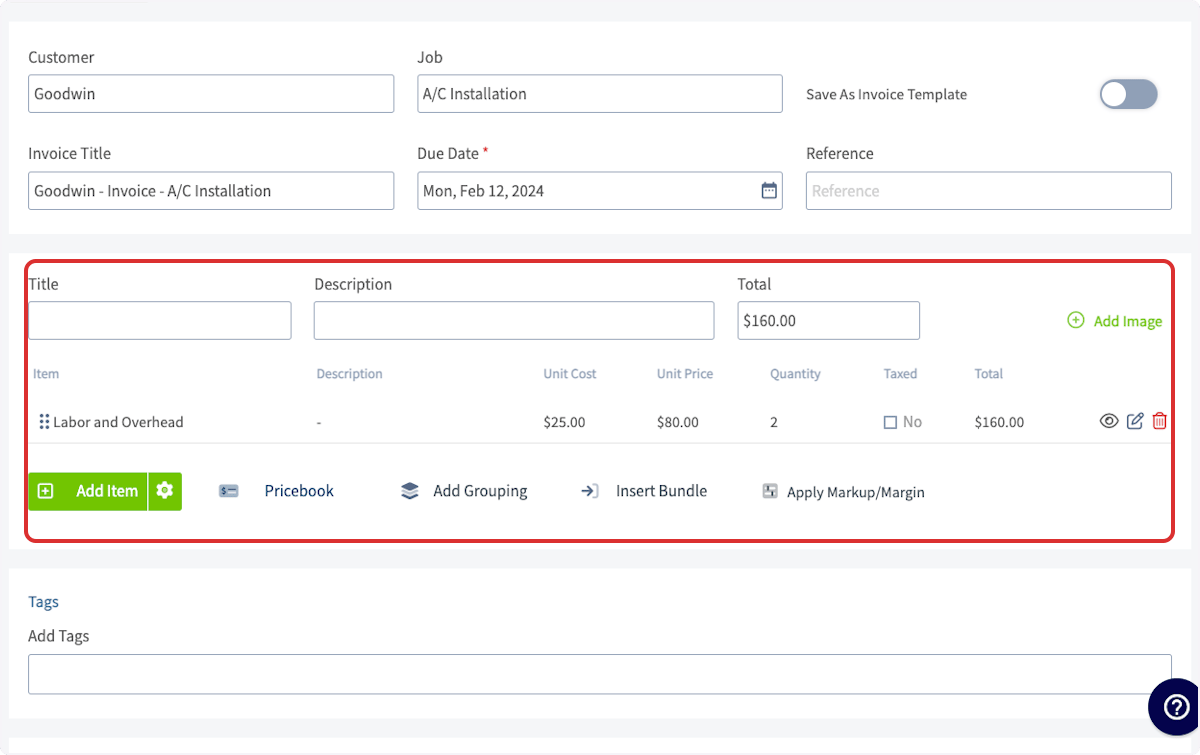
 You'll notice the *Unit Price* will reflect the *Hourly Billing Rate* (ex. \$80 per hour) of the technician that worked the job and the *Quantity* (ex. 2 hours) will pull directly from the total clocked in hours on the job in order to automatically apply the proper price (ex. \$160).
 ***
# Video Tutorial
***
**Have additional questions?**
*Contact us at [support@fieldpulse.com](mailto:support@fieldpulse.com) or use the chat feature in the bottom right corner of your screen.*
***
# Video Tutorial
***
**Have additional questions?**
*Contact us at [support@fieldpulse.com](mailto:support@fieldpulse.com) or use the chat feature in the bottom right corner of your screen.*